BlogScreenshots on your device
How to Take a Full-Page (Scrolling) Screenshot on Linux
Capture an entire scrolling webpage on Linux with Firefox, DevTools, the Web Console, headless commands, or ScreenshotNeo.

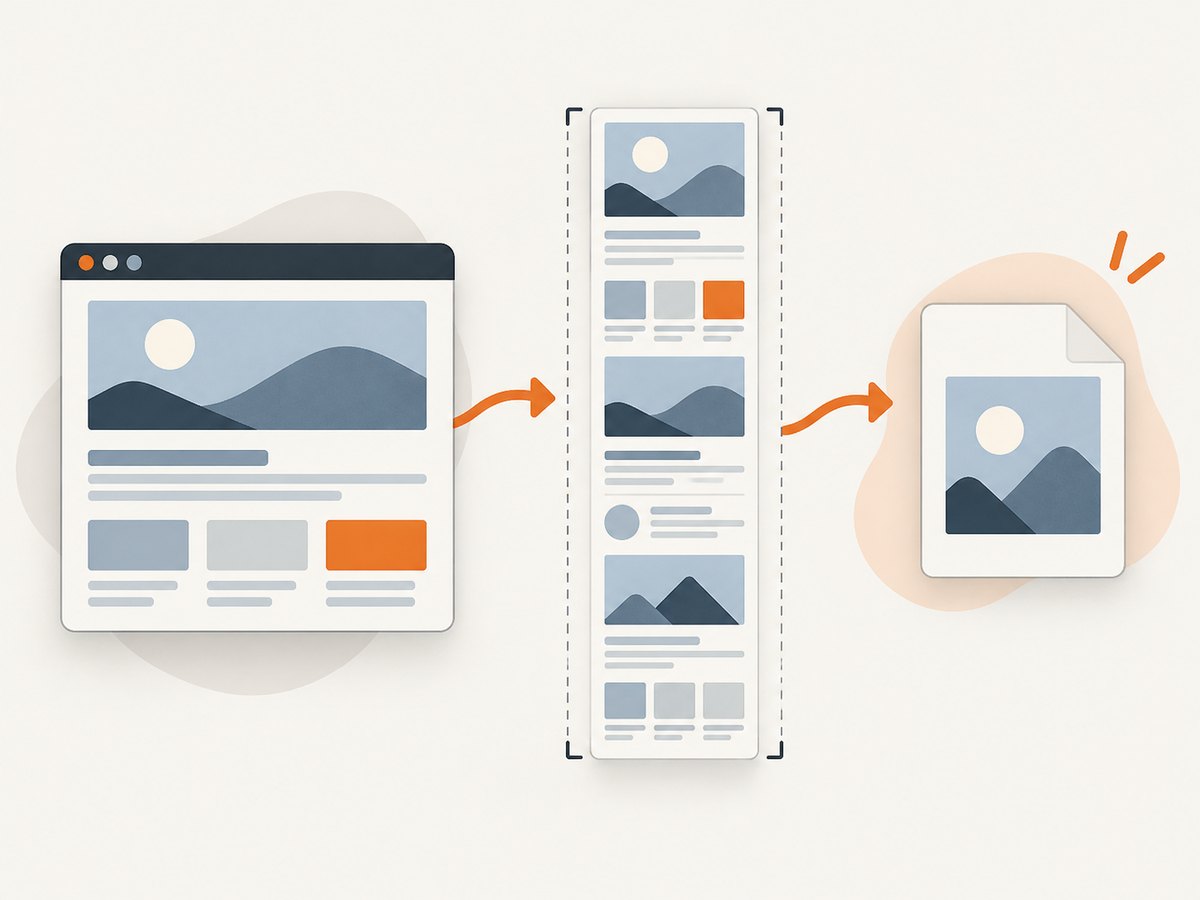
Direct answer: In Firefox on Linux, open the page, right-click an empty area, choose Take Screenshot, select Save full page, then download the PNG or copy it to the clipboard. You can also press Ctrl+Shift+S to open the screenshot interface. Do not choose Save visible; that captures only the current viewport.
A full-page browser capture is different from a desktop screenshot. Tools such as Print Screen and Flameshot capture the display or monitors. They do not automatically stitch a webpage’s scrollable document into one image. Firefox understands the document structure and can capture content below the fold.
1. Use Firefox’s built-in full-page screenshot
This is the quickest method for a one-off capture and requires no extension or terminal package.
- Open the webpage in Firefox on Linux and wait for the content you need to appear.
- Right-click an empty part of the page and choose Take Screenshot. If the context menu is inconvenient, press Ctrl+Shift+S.
- In the screenshot controls, select Save full page in the upper-right area.
- Choose Download to save a PNG in Firefox’s normal Downloads folder, or choose Copy to put the image on the clipboard.
Firefox also offers region selection and visible-area capture. The highlighted page sections are useful when you need one article card or a particular element, but they do not include the complete scrollable document. Confirm that the preview extends through the final section before sharing the file.
Wayland users
Mozilla documents a Wayland limitation: mouse movement of the screenshot crosshair does not work as it does on other systems. Use the keyboard controls described in Firefox’s screenshot interface to move and resize the selection. The full-page command itself remains the relevant choice when you want the entire document.
Primary reference: Mozilla’s Firefox screenshot help.
2. Capture a full page from Firefox Developer Tools
Developer Tools is useful when you already work in the browser inspector or want a repeatable workflow. Firefox documents a button named Take a screenshot of the entire page, but the button is disabled by default.
- Open Developer Tools with F12 or Ctrl+Shift+I.
- Open the Developer Tools settings menu.
- Find Available Toolbox Buttons.
- Enable Take a screenshot of the entire page.
- Click the new camera button in the toolbox. Firefox saves the capture in the browser’s Downloads directory.
This method is convenient when you need to inspect the page first, disable a troublesome style, or keep the screenshot controls alongside the DOM inspector. It still captures the webpage document rather than all monitors attached to your Linux desktop.
See the Firefox Developer Tools screenshot documentation for the current button workflow.
3. Use Firefox’s Web Console helper
Firefox includes a :screenshot helper in the Web Console. This is the most configurable built-in route when you need a delay, a device-pixel ratio, a selector, or a chosen filename.
- Open Developer Tools and select the Web Console tab.
- Type the command below and press Enter:
:screenshot --fullpage --filename page.pngThe --fullpage option tells Firefox to include content outside the current window bounds. The documented helper also accepts these useful options:
| Option | Purpose |
|---|---|
--filename |
Choose the output filename, such as page.png. |
--delay |
Wait before capture so animations, fonts, or late content can settle. |
--dpr |
Set the device-pixel ratio for a higher- or lower-resolution image. |
--selector |
Capture a specific element identified by a CSS selector. |
--clipboard |
Copy the result to the clipboard instead of only saving a file. |
--file |
Specify a file destination when using the helper’s file output. |
For example, this waits two seconds, captures the complete page at a device-pixel ratio of two, and writes a named file:
:screenshot --fullpage --delay 2000 --dpr 2 --filename article@2x.pngUse --selector when the page is long but you only need a component:
:screenshot --selector ".documentation" --filename docs-section.pngThe helper is a Web Console command, not a command you run in a normal Linux shell. Firefox’s documentation covers the syntax and the complete option set.
4. Headless Firefox from a Linux terminal
Mozilla documents a Linux GTK command-line mode with --headless and --screenshot. You can set the viewport with --window-size:
firefox --headless --screenshot page.png --window-size=1440,2000 https://example.com/long-pageThis is useful in scripts and CI jobs where no desktop session is available. The cited command-line documentation does not promise that --screenshot captures the entire scrollable document. Treat it as a viewport-sized screenshot unless you have verified the output for your Firefox build. For explicit full-page behavior, use the Developer Tools :screenshot --fullpage helper or an automation tool that documents full-page support.
Shell scripting considerations
Quote URLs that contain ampersands or shell metacharacters:
firefox --headless --screenshot "checkout.png" \
  --window-size=1365,1800 \
  "https://example.com/pricing?plan=pro&cycle=annual"
Run the command in a writable directory and check its exit status before uploading the result:
set -e
mkdir -p captures
firefox --headless --screenshot captures/home.png \
  --window-size=1440,1600 \
  "https://example.com/"
test -s captures/home.png
5. Why Print Screen and Flameshot do not make a scrolling webpage image
A desktop screenshot records pixels currently displayed by the compositor. A full-page browser screenshot records the document, including content below the viewport. Flameshot’s documented commands include flameshot gui, flameshot screen, and flameshot full; the full command captures all monitors, not the full scrollable height of a browser page.
Use Flameshot when you need an annotated region, a window, or a multi-monitor desktop capture. Use Firefox’s full-page feature when the requirement is one image of a long webpage. Installation details vary by distribution; the official Flameshot Linux installation guide lists distribution packages, AppImage, and Flatpak approaches.
6. Handle lazy loading, internal scroll areas, and dynamic pages
Full-page capture works best when the page exposes one document with a normal vertical flow. Modern sites can complicate that assumption.
Lazy-loaded images
Some images load only after they approach the viewport. Scroll through the page once before capturing, or use a delay in the Web Console helper. Inspect the saved image for blank image boxes, since an apparently successful download can still contain unloaded content.
Internal scrolling panels
A page may keep its article inside a fixed-height element with overflow: auto. Firefox’s full-page action may capture the outer document while the panel remains clipped. In that case, capture the panel with --selector if it can be selected, or temporarily inspect the element and adjust its height and overflow for a local capture.
Infinite scroll
An infinite-scroll feed has no final document height until more items are requested. Scroll until the desired range has loaded, wait for network activity to settle, and then capture. A screenshot cannot include items that the page has not rendered.
Animations, consent dialogs, and overlays
Pause or wait for animations before capturing. Close cookie dialogs, newsletter prompts, and chat bubbles if they cover content. If a dialog is part of the state you need to document, leave it open and record the state deliberately. Repeatable captures should use the same viewport, zoom level, login state, and timing.
7. Troubleshooting checklist
| Symptom | Likely cause | Fix |
|---|---|---|
| Only the visible screen is saved | The visible-area option was selected. | Open the screenshot UI again and choose Save full page, or run :screenshot --fullpage. |
| The Developer Tools camera button is missing | The toolbox button is disabled. | Open Developer Tools settings, enable Take a screenshot of the entire page, and reopen the toolbox if needed. |
| Images are blank | They are lazy-loaded or blocked until scrolling. | Scroll through the page first, add --delay, and verify the output. |
| A long panel is cut off | The content scrolls inside an element rather than the document. | Capture the element with --selector or adjust its CSS for a local capture. |
| The result contains a cookie banner or chat widget | The overlay was present at capture time. | Dismiss it before capture, or use a workflow that removes known overlays automatically. |
| Crosshair movement is unavailable on Wayland | Firefox documents a Wayland mouse limitation. | Use the screenshot UI’s keyboard movement and selection controls. |
| The headless output is not full length | The CLI documentation specifies a screenshot and window size, not full-page behavior. | Use the Web Console --fullpage helper or verify a dedicated automation workflow. |
| The page is blank or partially loaded | Navigation failed, content requires authentication, or scripts timed out. | Open the URL interactively, confirm login and network access, then add a delay and retry. |
| Text looks blurry | The viewport or device-pixel ratio is low. | Increase --dpr or use a larger viewport, while checking the resulting file size. |
8. Resolution, file size, and reliability choices
Higher device-pixel ratios produce sharper text but increase memory use and output size. A very wide viewport can make a long image difficult to view and may trigger responsive breakpoints that differ from a normal desktop layout. Pick the viewport that matches the audience or test case, then keep it fixed across captures.
For reliable batch work, record the URL, timestamp, viewport, zoom, browser version, login state, and delay. Save each result with a deterministic filename and check that the file exists and has nonzero size. Re-capture pages that change during loading, and compare images only after fonts, images, and animations have settled.
Firefox’s local methods have no per-shot service charge, but they consume the CPU, memory, disk, and time of the machine running the browser. Very long documents can create large PNGs. Consider converting a verified image to WebP for distribution, while retaining the original when pixel fidelity matters.
9. Or skip the browser setup with ScreenshotNeo
When you need repeatable captures from a server, CI job, script, or AI workflow, ScreenshotNeo provides a website screenshot API. A single GET request returns PNG, JPEG, WebP, or PDF. Its full-page mode loads lazy images, and you can control viewport, device preset, retina scale, waits, selectors, custom CSS and JavaScript, headers, cookies, user agent, timezone, geolocation, blocked resources, caching, and more. See the ScreenshotNeo API documentation for the complete option list.

Basic cURL request:
curl -G "https://api.screenshotneo.com/v1/shot" \
  -d access_key=YOUR_API_KEY \
  --data-urlencode url=https://stripe.com \
  -o shot.webp
Python:
import requests

r = requests.get(
    "https://api.screenshotneo.com/v1/shot",
    params={"access_key": "YOUR_API_KEY", "url": "https://stripe.com"},
    timeout=90,
)
r.raise_for_status()
open("shot.webp", "wb").write(r.content)
Node.js:
const q = new URLSearchParams({ access_key: 'YOUR_API_KEY', url: 'https://stripe.com' });
const res = await fetch(`https://api.screenshotneo.com/v1/shot?${q}`);
if (!res.ok) throw new Error(`Screenshot failed: ${res.status}`);
const buffer = Buffer.from(await res.arrayBuffer());
require('fs').writeFileSync('shot.webp', buffer);
ScreenshotNeo removes cookie and consent banners, newsletter popups, and chat widgets before the shot. Bot checks, blank pages, timeouts, failed loads, and cache hits are not billed; response headers identify the page verdict and whether it was billed. The service also offers an MCP server with take_screenshot, get_page_info, and capture_pdf tools for Claude, Cursor, and other MCP clients.
The Free plan includes 1,000 screenshots per month with no card. Paid plans start at $5 for 3,000 shots; every feature is available on every plan. Create a free ScreenshotNeo account and start with the monthly free allowance.
10. Firefox versus an API: choose by workflow
| Need | Best fit | Reason |
|---|---|---|
| One manual capture | Firefox screenshot UI | Fastest setup and immediate download or clipboard copy. |
| Selector, delay, DPR, or filename control | Firefox Web Console | Built-in options for configurable local captures. |
| Desktop or multi-monitor image | Flameshot | Designed for display capture rather than webpage length. |
| CI, scheduled jobs, or many URLs | ScreenshotNeo API | HTTP requests avoid maintaining a browser session on each worker. |
| AI agent screenshot workflow | ScreenshotNeo MCP server | Dedicated screenshot and page-information tools for MCP clients. |
FAQ
Can I take a full-page screenshot without installing anything?
Yes. Firefox’s built-in Take Screenshot → Save full page workflow needs no extension. Firefox is the browser component; the operating system does not provide a universal browser-document capture shortcut.
Does full-page mean every monitor?
No. Full-page means the complete webpage document. A multi-monitor desktop capture is a different operation, such as Flameshot’s full command.
Can Firefox save a full-page screenshot as PDF?
The procedures above describe image screenshots. Use the browser’s print workflow for a document PDF, or use ScreenshotNeo’s PDF endpoint options when you need an automated PDF capture.
Why is my screenshot extremely tall?
The page may contain a long feed, hidden spacing, or an element that expands beyond the visible content. Inspect the image and the page’s layout before treating the height as an error.
How do I automate captures for several URLs?
Use a shell or application script around a verified Firefox workflow, or send HTTP requests to ScreenshotNeo. For larger batches, ScreenshotNeo supports bulk capture of up to 100 URLs per call and async jobs with signed webhooks.


