BlogScreenshots on your device
How to Capture a Full-Page Screenshot in a Mac Browser
Capture an entire webpage on Mac with Safari, Chrome, or Firefox, fix lazy-loading issues, and automate screenshots with ScreenshotNeo.

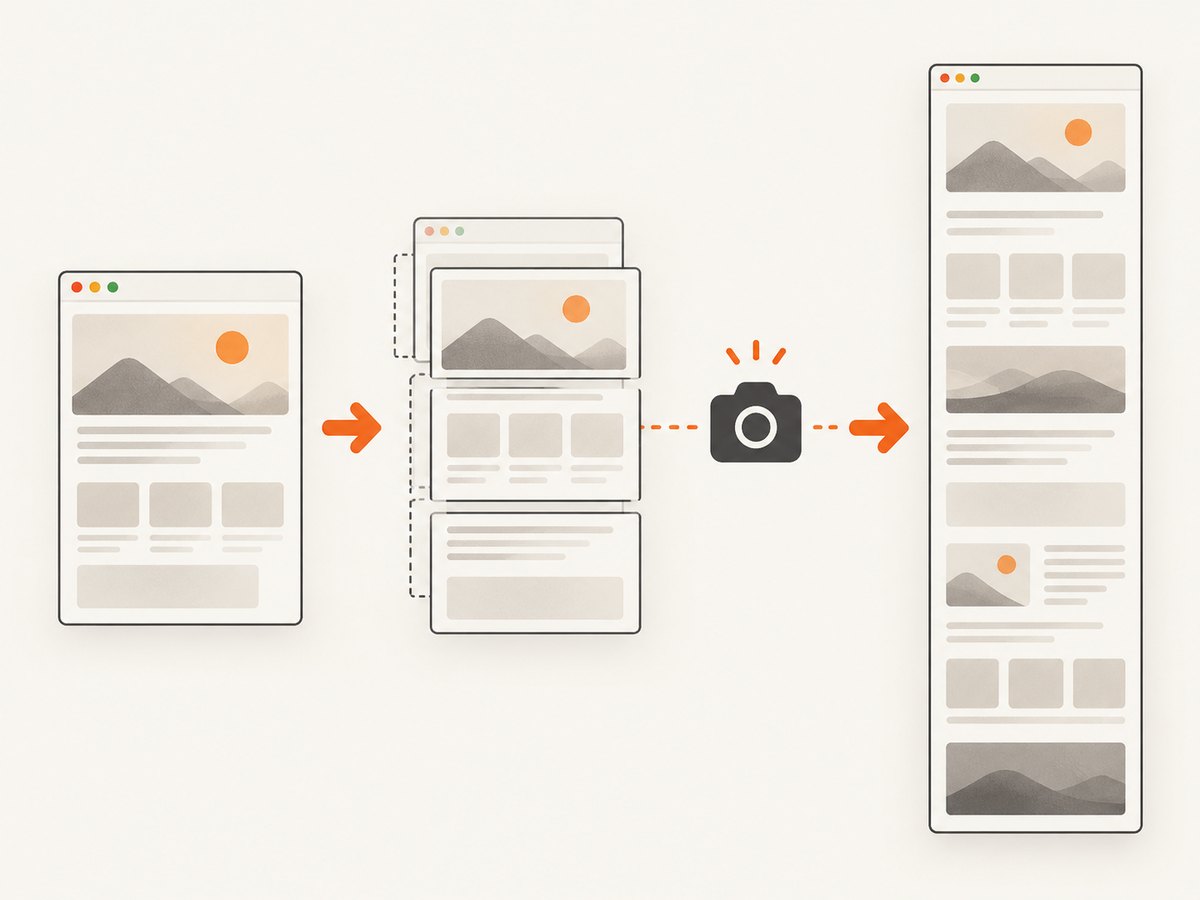
To capture an entire webpage on a Mac, use your browser’s full-page capture tool. macOS shortcuts such as Shift-Command-3 capture the screen, while Shift-Command-4 captures a selected area; neither automatically captures content below the browser viewport. Apple documents those standard screenshot controls in its Mac screenshot guide.
Use Firefox’s built-in Take Screenshot → Save full page for the shortest workflow. In Chrome, use DevTools’ Capture full size screenshot. In Safari, enable Web Inspector and use Capture Screenshot on the document’s html element. Browser menu names can vary by version.
Choose the right method
| Browser | Route | Output | Setup |
|---|---|---|---|
| Firefox | Right-click → Take Screenshot → Save full page | Download or clipboard copy | Lowest setup |
| Chrome | DevTools → Device Toolbar → Capture full size screenshot | Downloaded image | Requires DevTools |
| Safari | Web Inspector → right-click html → Capture Screenshot |
Saved image | Requires the Develop menu |
For a printable document, print to PDF may be more suitable than a very tall image. The steps below focus on image screenshots of webpages.
Before you capture: prepare the page
- Open the final URL and wait for the initial load to finish.
- Dismiss sign-in prompts, cookie dialogs, newsletter popups, and chat panels that should not appear in the image.
- Scroll from the top to the bottom once. Many sites use lazy loading and only request images when they approach the viewport.
- Wait for animations, charts, fonts, and embedded media to settle.
- Close browser overlays and keep the page at the zoom level you want represented.
A full-page image can be several times taller than your display. Open it in Preview or another image viewer at a reduced zoom when checking the result.
Firefox: save the full page
Firefox provides the most direct built-in workflow. Mozilla’s instructions call the command Save full page and also document a macOS shortcut that opens the screenshot interface.
- Open the webpage in Firefox.
- Right-click an empty part of the page. On a trackpad, Control-click if needed.
- Select Take Screenshot. You can also press Command-Shift-S.
- In the screenshot interface, select Save full page.
- Choose Download to save the image, or Copy to put it on the clipboard.
Mozilla’s help page describes the downloaded result as an image, normally a PNG: Take screenshots in Firefox.
Firefox Developer Tools method
For a repeatable developer workflow, open Developer Tools, enable the full-page screenshot button under Settings → Available Toolbox Buttons, and use it from the tools. Firefox also documents the Web Console command:
:screenshot --fullpageThis captures portions outside the current window bounds. The Firefox developer documentation covers the command and its options.
Chrome: capture the full-size page with DevTools
- Open the page in Chrome.
- Open More Tools → Developer Tools, or use Option-Command-I.
- Click Toggle Device Toolbar in DevTools, or press Command-Shift-M.
- Open the device-toolbar three-dot menu.
- Choose Capture full size screenshot.
- Chrome downloads the image, usually to your configured Downloads folder.
The labels and menu placement can change between Chrome versions. If the command is missing, make sure the device toolbar is active and DevTools has focus.
Safari: use Web Inspector
- Open Safari Settings. On older macOS versions this may be called Preferences.
- Open Advanced and enable Show features for web developers or Show Develop menu in menu bar.
- Open the page you want to capture.
- Choose Develop → Show Web Inspector.
- In the Elements pane, select the first
htmlline at the top of the document tree. - Right-click that line and choose Capture Screenshot.
- Choose a save location.
Safari’s labels differ across macOS releases. The sequence above follows the Safari procedure described by iDownloadBlog’s current guide; treat it as a version-sensitive secondary reference.
Make lazy-loaded pages complete
Lazy loading is the most common reason a full-page screenshot contains empty image areas. The page may not request below-the-fold assets until you scroll near them.
- Scroll steadily to the bottom before starting the capture.
- Pause at sections with galleries, charts, or video thumbnails.
- Return to the top and capture after the assets appear.
- If content still is missing, disable extensions that block scripts or images for that site and retry.
Some pages append content while you scroll. Capture only after the page stops growing; otherwise the browser may calculate an outdated document height.
Capture one element instead of the whole document
When you need a hero section, article body, or pricing table, element capture avoids an enormous image. In DevTools, select the element and use the available node screenshot command. In Firefox, use the screenshot interface’s selection mode when it is available. Element capture is also useful for avoiding sticky headers repeated over every section.
Common problems and fixes
| Symptom | Likely cause | Fix |
|---|---|---|
| Only the visible viewport is saved | Used a normal macOS shortcut or viewport command | Use Firefox Save full page, Chrome Capture full size screenshot, or Safari’s Web Inspector command. |
| Images below the fold are blank | Lazy loading had not triggered | Scroll through the page, wait for images, then capture again. |
| Safari has no Develop menu | Developer features are disabled | Enable the developer features option in Safari Advanced settings. |
| Chrome command is missing | Device Toolbar is not enabled | Toggle Device Toolbar in DevTools, then reopen its three-dot menu. |
| Firefox screenshot menu is absent | Context menu opened over browser chrome or an embedded frame | Right-click ordinary page content, or use Command-Shift-S. |
| Sticky navigation covers content | Fixed-position element remains visible during capture | Hide it with a temporary style or capture the article element instead. |
| Cookie dialog appears in the image | The consent state was not saved or the dialog loaded late | Accept or reject it before capture, then reload and wait for the page to settle. |
| Capture stops partway down | Page timed out, crashed, or kept changing height | Close heavy tabs, disable unnecessary extensions, wait for dynamic content, and retry in a fresh tab. |
| Text looks blurry | Image was downscaled or viewed at a non-native zoom | Open the original file at 100% and avoid repeatedly re-saving compressed images. |
| Very tall image is difficult to share | Image dimensions exceed common viewers or upload limits | Capture logical sections, use an element screenshot, or export a PDF for pagination. |
Quality, performance, and reliability notes
- Page state matters more than browser choice. Fonts, animations, consent dialogs, and network-loaded assets determine what appears.
- Long pages consume memory. Close unrelated tabs and applications when capturing documentation, dashboards, or infinite-scroll pages.
- Freeze dynamic content. Pause carousels and video where possible; otherwise two captures of the same URL may differ.
- Keep an original. Save the browser’s output before editing or recompressing it.
- Check privacy. Full-page captures can include account names, email addresses, tokens in URLs, and data revealed after scrolling.
- Use PDF for print workflows. A PDF supports page boundaries, paper size, margins, landscape mode, and page ranges better than one very tall bitmap.

Automate captures with ScreenshotNeo
If you need repeatable captures across URLs, schedules, CI jobs, or backend code, ScreenshotNeo provides a GET endpoint that returns PNG, JPEG, WebP, or PDF. It can capture full pages with lazy images loaded, wait for a selector, delay, or network idle, set a viewport or device preset, use retina scale, hide selectors, run custom CSS or JavaScript, and supply cookies, headers, user agents, authorization, timezone, and geolocation.
cURL
curl -G "https://api.screenshotneo.com/v1/shot" \
  -d access_key=YOUR_API_KEY \
  --data-urlencode url=https://stripe.com \
  -o shot.webp
Python
import requests

r = requests.get(
    "https://api.screenshotneo.com/v1/shot",
    params={"access_key": "YOUR_API_KEY", "url": "https://stripe.com"},
    timeout=90,
)
r.raise_for_status()
open("shot.webp", "wb").write(r.content)
Node.js
import { writeFile } from "node:fs/promises";

const q = new URLSearchParams({
  access_key: "YOUR_API_KEY",
  url: "https://stripe.com",
});
const res = await fetch(`https://api.screenshotneo.com/v1/shot?${q}`);
if (!res.ok) throw new Error(`ScreenshotNeo returned ${res.status}`);
await writeFile("shot.webp", Buffer.from(await res.arrayBuffer()));
See the ScreenshotNeo API documentation for option names and response details.
Or skip the browser setup
ScreenshotNeo accepts the cookie or consent banner like a visitor and removes more than 60 known consent platforms, newsletter popups, and chat widgets before the capture; each cleanup step can be turned off. Bot checks or CAPTCHAs, blank pages, timeouts, failed loads, and cache hits cost nothing, and response headers identify the page verdict and whether the shot was billed. An MCP server provides take_screenshot, get_page_info, and capture_pdf tools for Claude, Cursor, and other MCP clients. One thousand screenshots per month are free with no card; paid plans start at $5 for 3,000 shots. Create a free ScreenshotNeo account.
When to use a local browser versus an API
| Need | Best fit |
|---|---|
| One quick capture while reading | Firefox, Chrome, or Safari built-in tools |
| Capture a private page already open in your session | Local browser |
| Many URLs or scheduled jobs | ScreenshotNeo API |
| Consistent viewport, cookies, headers, or JavaScript | ScreenshotNeo API |
| AI agent needs screenshots or PDFs | ScreenshotNeo MCP server |
| Print-ready pages with margins and page ranges | Browser or ScreenshotNeo PDF capture |
FAQ
Does Command-Shift-3 capture a whole webpage?
No. It captures the entire display. Use the browser’s full-page command for content below the viewport.
Which Mac browser has the quickest built-in workflow?
Firefox exposes Take Screenshot and Save full page directly from the page context menu. Chrome and Safari use developer tools.
Why is my screenshot extremely tall?
That is expected: it contains the page’s full document height. Use an element capture or PDF when a single tall bitmap is impractical.
Can I capture a page that requires cookies or authorization?
A local browser can use its existing session. ScreenshotNeo can receive custom cookies, headers, user agents, and Authorization values through its API options.
How do I capture a page repeatedly without layout differences?
Wait for network idle or a known selector, disable animations where possible, set a fixed viewport, and capture after lazy-loaded content is present.


