BlogScreenshots on your device
How to Capture a Full-Page Screenshot on Mac with a Keyboard Shortcut
Learn the Mac shortcuts and browser workflows for capturing an entire webpage, including Chrome, Safari, Firefox, troubleshooting, and an API option.
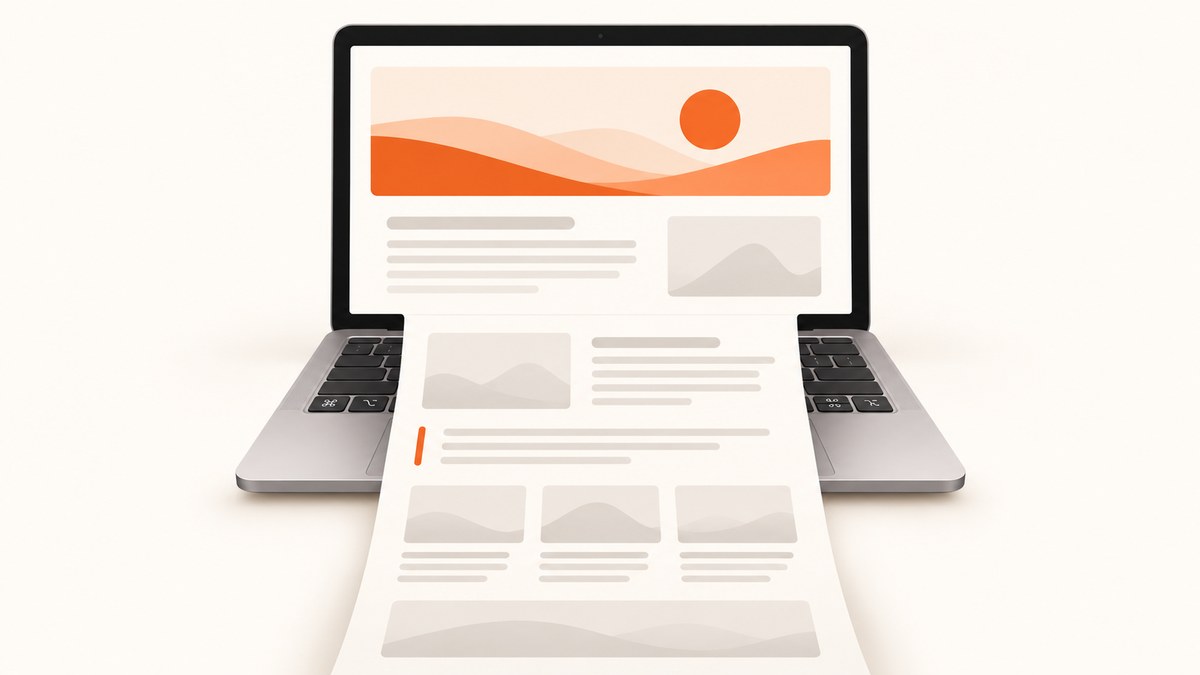
Short answer: macOS does not have a documented system-wide keyboard shortcut that automatically scrolls through an entire webpage. Shift-Command-3 captures the whole display, and Shift-Command-4 captures a selected area, but both record only what is currently on screen. For a full-page image, use your browser’s capture tool. In Chrome, the fastest keyboard-driven workflow is Command-Option-I, then Command-Shift-P, followed by capture full size screenshot.
This guide explains the exact steps for Chrome, Safari, and Firefox, how to avoid missing lazy-loaded content, what to do when a page is protected or dynamic, and when an automated screenshot API is a better fit.
What the regular Mac screenshot shortcuts actually capture
Apple’s screenshot controls cover the entire display, a window or menu, and a selected portion of the screen. They do not describe an automatic scrolling capture for a webpage. The standard shortcuts are:
| Shortcut | Result | Includes off-screen webpage content? |
|---|---|---|
| Shift-Command-3 | Captures the entire display | No |
| Shift-Command-4 | Captures a selected rectangle | No |
| Shift-Command-5 | Opens the Screenshot app controls | No built-in scrolling capture |
If the page is taller than the browser window, these shortcuts produce a viewport or desktop image. They cannot include content below the fold unless you capture several sections and stitch them together manually.
Chrome: capture a full webpage from the keyboard
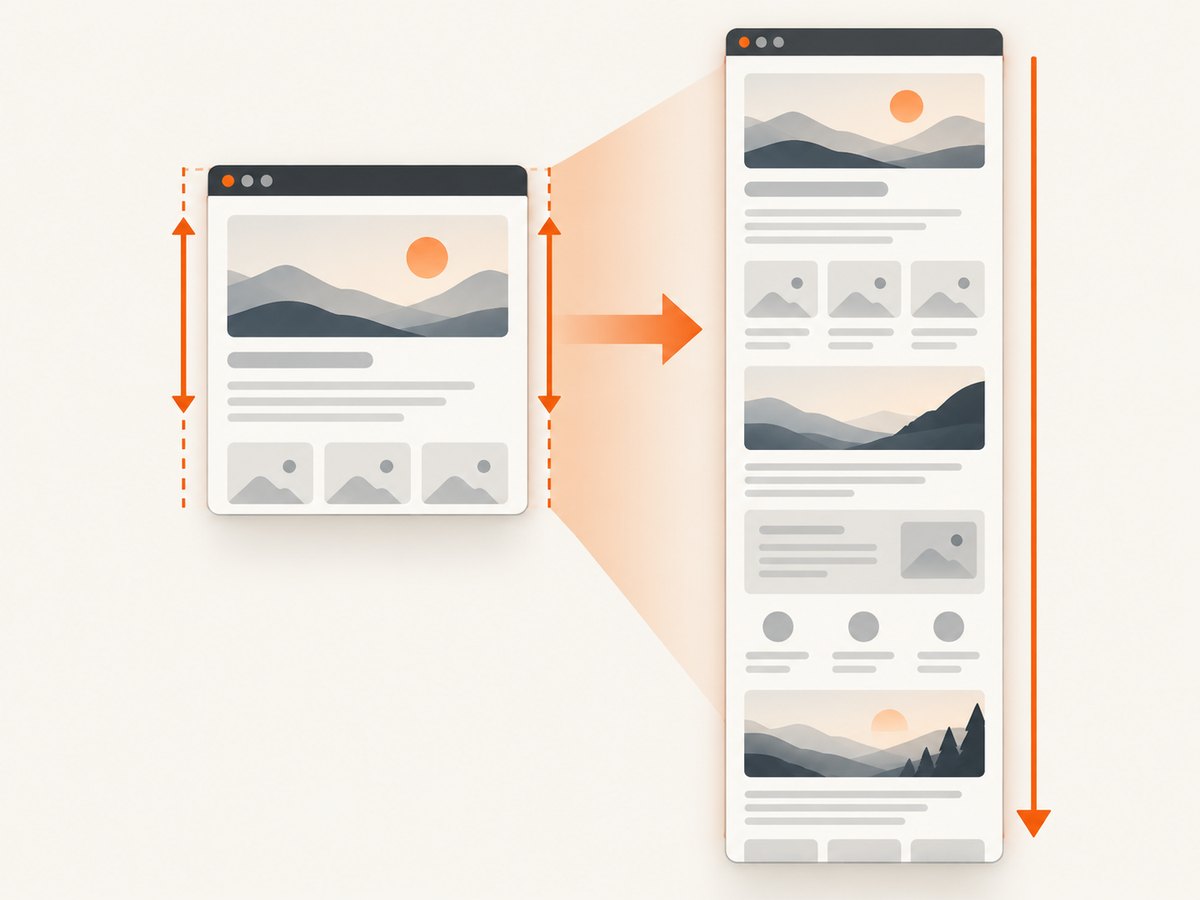
Chrome DevTools has a command named Capture full size screenshot. It renders the page beyond the visible viewport and downloads one tall image. The command is available from DevTools’ command menu; the exact keyboard sequence below is a Chrome workflow rather than a native macOS shortcut.
Keyboard steps
- Open the webpage in Google Chrome.
- Wait for the initial layout to finish. If the page uses lazy loading, scroll through it once before capturing.
- Press Command-Option-I to open DevTools.
- Press Command-Shift-P to open the DevTools command menu.
- Type
capture full size screenshot. - Select Capture full size screenshot.
- Open Chrome’s Downloads folder and inspect the image from top to bottom.
The image normally downloads as a PNG. DevTools may temporarily change the emulated viewport while it creates the capture, so close DevTools or reload the page if the layout looks different afterward.
When Chrome captures the wrong height
Some pages contain nested scrolling regions. A full-size capture generally follows the document’s main page height, not every independently scrollable panel. If the content you need is inside a chat panel, table, map, or modal with its own scrollbar, capture that element separately or use the element’s own export option.
Capture one element instead of the whole page
For a specific card, article, chart, or component, inspect the element in DevTools and use the node’s screenshot action when available. This avoids a very tall image with unrelated navigation and footer content. It is also useful when the page has a fixed header that would otherwise repeat or cover content.
Safari: use Web Inspector menus
Safari does not list a dedicated one-key full-page screenshot shortcut in its keyboard reference. Its built-in image workflow uses the Develop menu and Web Inspector.
- Open Safari > Settings (or Preferences on older macOS versions).
- Open Advanced.
- Enable Show features for web developers or Show Develop menu in menu bar, depending on your Safari version.
- Open the webpage you want to capture.
- Choose Develop > Show Web Inspector.
- Open the Elements panel.
- Find the first top-level line beginning with
<html>. - Right-click that line and choose Capture Screenshot.
- Choose where to save the generated image.
This is a browser developer-tools operation, not a system screenshot shortcut. If the command is missing, confirm that the Web Inspector is open and that you selected the document’s top-level html node rather than a child element.
Safari’s Web Archive is not a screenshot
Safari can also save a page with File > Save As. A Web Archive keeps graphics and links for later viewing while the destination pages remain available; Page Source saves the HTML source. Both are useful for preservation or inspection, but neither creates a single image of the rendered page.
Firefox: use the page context menu
Firefox includes a built-in screenshot command that can save the entire page.
- Open the target page in Firefox.
- Right-click an empty area of the page.
- Choose Take a Screenshot.
- Select Save full page.
- Download the image or copy it to the clipboard.
The Firefox method uses menus rather than a single keyboard chord. It is convenient when you need a one-off capture and do not want to open developer tools.
Prevent missing images and incomplete content
A full-page command can only capture content that the browser has rendered. Modern sites often load images, embeds, and sections only when they approach the viewport. Before taking the screenshot:
- Scroll from the top to the bottom once so lazy-loaded images have a chance to load.
- Wait for animated skeletons, charts, and fonts to finish.
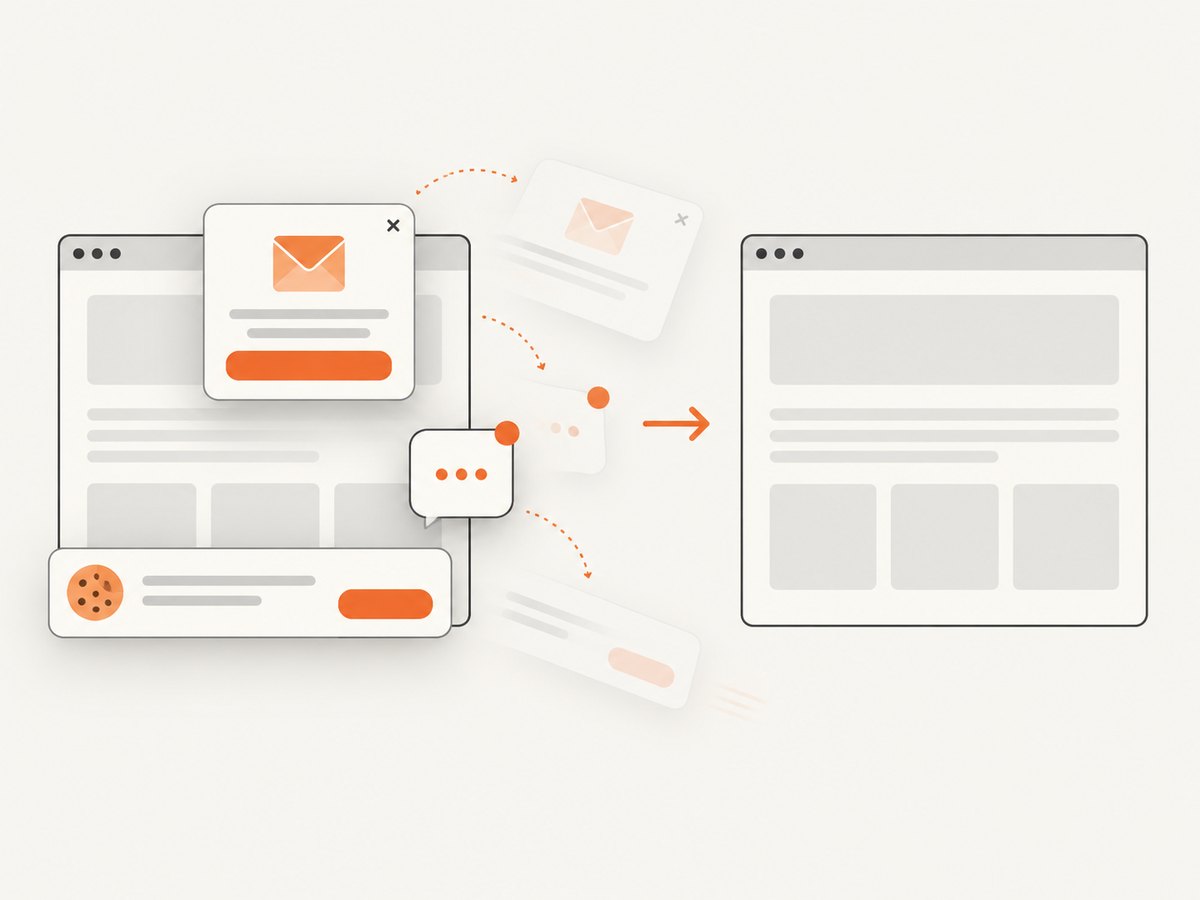
- Dismiss cookie notices, newsletter popups, chat bubbles, and login prompts if they obscure content.
- Expand accordions or “Read more” sections that must appear in the image.
- Pause video or animation when a stable frame matters.
- Check that the page is not inside an iframe or a nested scrolling container.
Scrolling first reduces missing images, but it is not a guarantee. A page can still defer resources, require authentication, or change its layout after the capture starts.
Common problems and fixes
| Problem | Likely cause | Fix |
|---|---|---|
| The image shows only the visible screen | A normal macOS shortcut was used | Use Chrome DevTools, Safari Web Inspector, or Firefox’s full-page command. |
| Chrome’s command is not found | DevTools command menu is closed, or the wording was entered incorrectly | Open DevTools first, press Command-Shift-P, and search for capture full size screenshot. |
| Images lower on the page are blank | Lazy loading or blocked requests | Scroll through the page, wait for images, disable restrictive extensions, then capture again. |
| The screenshot is much wider or narrower than expected | Responsive layout or emulation changed the viewport | Set the desired browser width before capture and verify the result at 100% zoom. |
| A fixed header covers content | The header remains sticky while the page is rendered | Temporarily hide the header with CSS in DevTools, or capture the article element instead. |
| A modal or chat widget blocks the page | An overlay opened during loading | Close it before capture, block the widget with an extension, or hide its selector in DevTools. |
| Safari has no Capture Screenshot option | Developer features are disabled or the wrong node is selected | Enable the Develop menu and right-click the top-level html element. |
| The page cannot be captured | The app or content restricts screenshots, or the page failed to load | Check permissions, sign in if appropriate, and confirm the page works normally in a fresh tab. |
| The capture stops at a login wall | Private content requires a session | Use the same authenticated browser profile, or export the content from the application if permitted. |
Choosing the right method
| Need | Best choice | Why |
|---|---|---|
| One quick image in Chrome | DevTools command menu | Keyboard-driven and requires no extension. |
| One quick image in Firefox | Take a Screenshot > Save full page | Built into the page context menu. |
| Safari workflow | Web Inspector Capture Screenshot | Uses Safari’s developer tools. |
| Repeatable captures for many URLs | Screenshot API | Can run from scripts or CI without a person operating a browser. |
| Authenticated, dynamic pages | Browser automation or an API with session options | Lets you set cookies, headers, waits, and viewport conditions. |
Performance, reliability, and file size
Full-page screenshots can be large because the image height grows with the document. PNG preserves sharp text but can consume more storage; JPEG is smaller for photographic pages but introduces compression; WebP often provides a useful balance when your downstream system supports it.
For a one-off capture, browser tools are usually sufficient. For scheduled reports, visual regression checks, or hundreds of URLs, manual DevTools steps become a reliability problem. Pages may change during rendering, lazy resources may race the capture, and a local browser session may have different fonts, cookies, extensions, or screen dimensions than another machine.
Make captures more repeatable by fixing the viewport, waiting for a known selector, waiting for network idle where appropriate, using a consistent timezone and locale, and recording the URL and capture time alongside the image. If a page is extremely long, capture a relevant element or split the output into sections for easier review.
Or skip the browser setup
ScreenshotNeo provides a website screenshot API and MCP server. One GET request returns a PNG, JPEG, WebP, or PDF. Its full-page option loads lazy images, and you can also select an element, set a viewport or device preset, use dark mode, apply custom CSS or JavaScript, click before capture, wait for a selector or delay, block resource types, provide cookies or headers, and choose timezone or geolocation.
Here is a minimal request. See the ScreenshotNeo documentation for the complete option list and parameter names.
cURL
curl -G "https://api.screenshotneo.com/v1/shot" -d access_key=YOUR_API_KEY --data-urlencode url=https://stripe.com -o shot.webpPython
import requests

r = requests.get(
    "https://api.screenshotneo.com/v1/shot",
    params={"access_key": "YOUR_API_KEY", "url": "https://stripe.com"},
    timeout=90,
)
r.raise_for_status()
open("shot.webp", "wb").write(r.content)
Node.js
const q = new URLSearchParams({ access_key: 'YOUR_API_KEY', url: 'https://stripe.com' });
const res = await fetch(`https://api.screenshotneo.com/v1/shot?${q}`);
if (!res.ok) throw new Error(`Screenshot failed: ${res.status}`);
const buffer = Buffer.from(await res.arrayBuffer());
require('fs').writeFileSync('shot.webp', buffer);
ScreenshotNeo removes cookie and consent banners, newsletter popups, and chat widgets before the shot. Bot checks, blank pages, timeouts, failed loads, and cache hits are not billed, and the response reports the result through X-Page-Verdict and X-Billed headers. Its MCP server includes take_screenshot, get_page_info, and capture_pdf tools for Claude, Cursor, and other MCP clients.
The Free plan includes 1,000 screenshots each month with no card. Paid plans start at $5 for 3,000 shots; yearly billing gives two months free. Create a free ScreenshotNeo account.
FAQ
Is there a native Mac shortcut for a scrolling webpage screenshot?
No documented macOS-wide shortcut performs a scrolling webpage capture. Use a browser’s full-page tool or an automated screenshot service.
Does Command-Shift-5 capture a whole webpage?
No. It opens macOS screenshot and recording controls for the display, window, or selected area. It does not add webpage scrolling.
Can I capture a page as a PDF instead?
Yes. Use the browser’s print dialog or a screenshot API that supports PDF output. A PDF preserves pagination and selectable text differently from a single tall image.
Why is my full-page screenshot blank near the bottom?
The page may lazy-load images, defer scripts, or contain a failed request. Scroll through the page, wait for content, disable blocking extensions, and capture again.
Can I automate the same result in CI?
Yes. Use browser automation with fixed waits and viewport settings, or call ScreenshotNeo from cURL, Python, Node.js, or an MCP client.


