BlogScreenshots on your device
How to Take a Full-Page (Scrolling) Screenshot on Mac
Capture an entire webpage on Mac with a browser extension, save a Safari archive, or use a Mac app for scrolling content in documents and other windows.
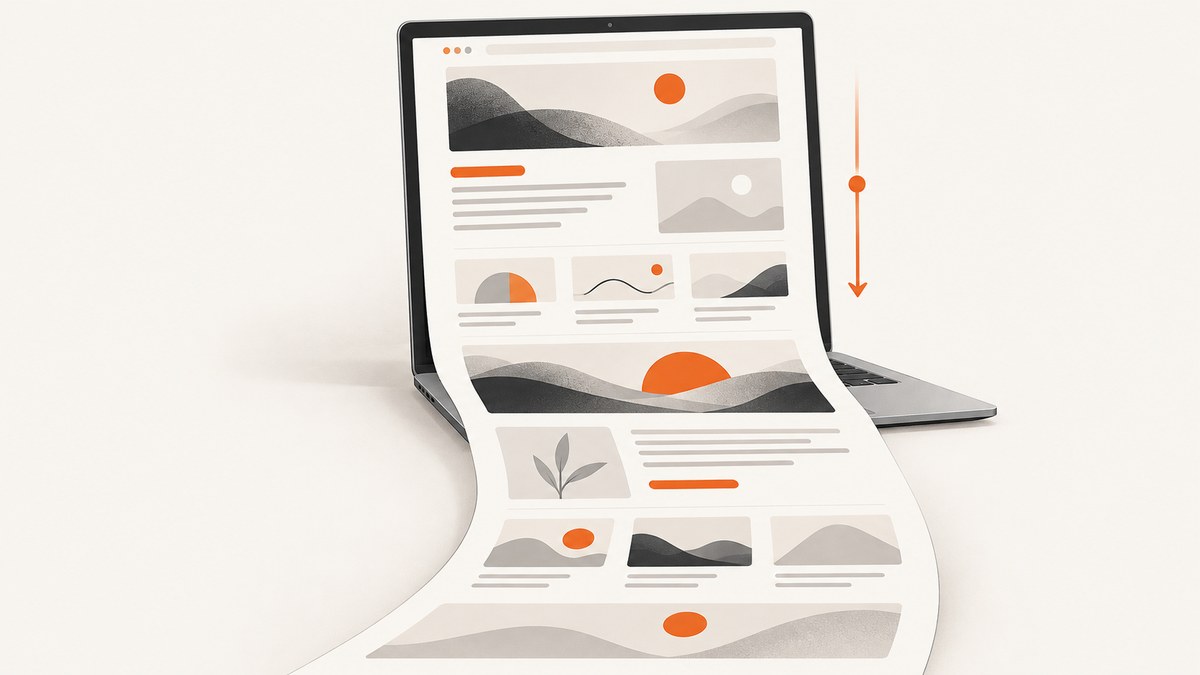
To capture a full webpage on a Mac as one tall image, use a browser capture extension such as GoFullPage in Chrome. macOS’s built-in screenshot controls capture the screen, a window, or a selected region; they do not provide a one-step scrolling webpage capture. For long content inside other apps, use a dedicated scrolling-capture app. If you only need to keep the page for later, Safari can save it as a Web Archive, but that is not a screenshot.
1. Choose the right kind of capture
Start with the content and the file you need. “Full-page screenshot” can mean several different things:
| Your goal | Method to consider | Result |
|---|---|---|
| Capture a webpage in one image or PDF | Browser extension | A tall image or PDF of the page |
| Capture a long document, chat, or app window | Dedicated Mac capture app | A scrolling capture, depending on app and content compatibility |
| Preserve a webpage for reference | Safari File > Save As > Web Archive | An archive file, not a single image |
| Capture only what is visible on screen | macOS Screenshot shortcuts | A screen, window, or selected region image |
Pick the output format before capturing. A tall PNG is convenient for sharing a visual page; a PDF can be easier to print or distribute as a document. A Safari Web Archive is better when you want to retain webpage content and links for later reference. These formats are not interchangeable.
2. Capture a full webpage with a Chrome extension
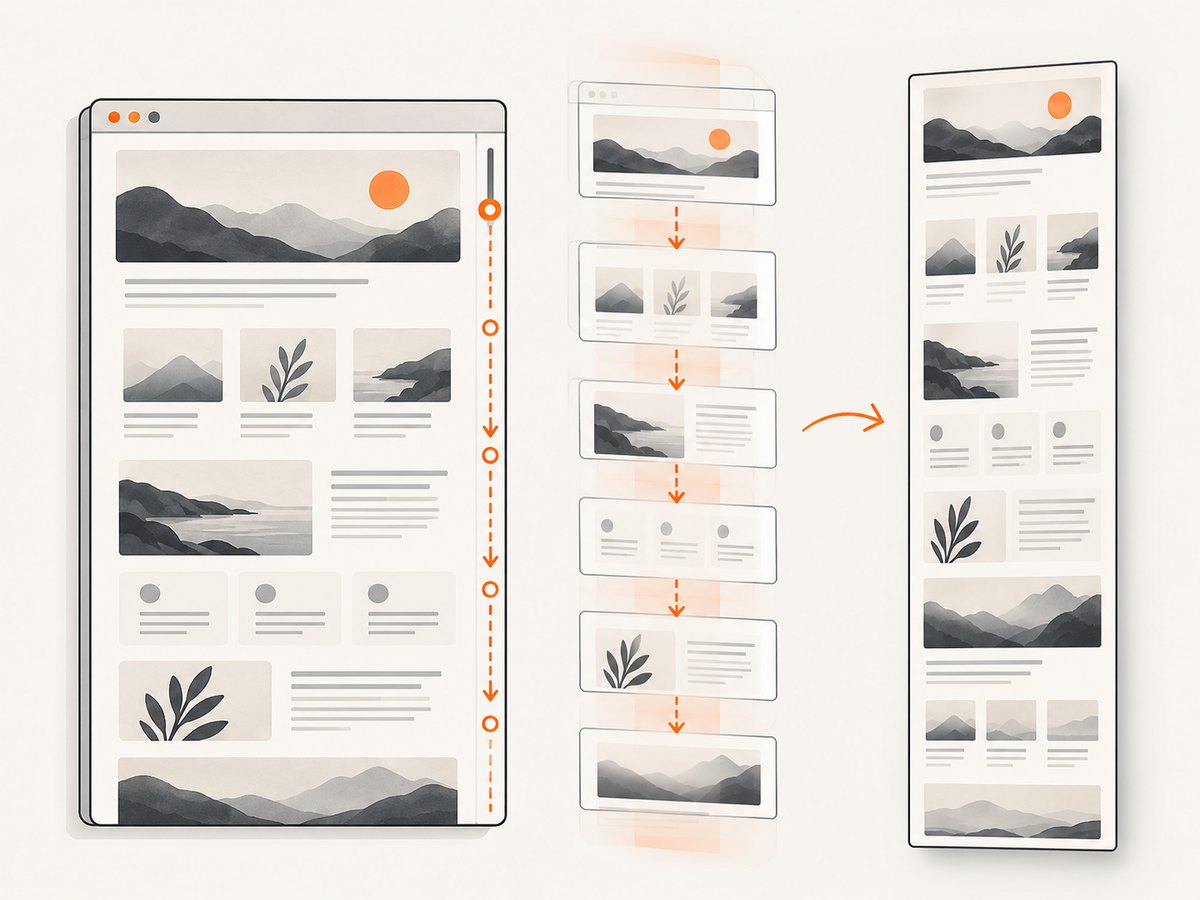
For a webpage, the direct Mac workflow is to use a browser extension that scrolls through the page and combines the result. GoFullPage’s Chrome Web Store listing describes capturing the current page and exporting it as an image or PDF. Its listing also advertises support for inner scrollable elements and embedded iframes; treat those as advertised capabilities, since compatibility depends on the page and extension version.
- Open the Chrome Web Store listing for GoFullPage – Full Page Screen Capture and check that it is available and supports your Chrome version.
- Install the extension and open the webpage you want to capture.
- Wait for the page to finish loading. If it has images or sections that appear only as you scroll, scroll through the page once first so that content has a chance to load.
- Activate the extension from Chrome’s toolbar, or use the shortcut described in its current listing or interface.
- Wait for the extension to scroll through and process the page. Avoid changing tabs or interacting with the page while capture is underway.
- Review the generated result from top to bottom. Export it as an image or PDF using the current extension interface.
The exact toolbar controls and shortcut can change between extension versions. Check the extension’s current listing for availability and follow the interface shown after installation. This is a browser-based method; it is not a built-in macOS or Safari scrolling feature.
Before you capture
- Close or dismiss menus and temporary overlays that should not appear in the image.
- Make sure you have access to the whole page. A sign-in wall, bot check, or other access restriction can prevent the browser from showing the content you expect.
- For very long pages, decide whether a tall image is actually usable. A PDF may be easier to navigate or print.
- If the page is interactive, inspect the capture afterward. Some content may only appear after a click or may not be present until the page loads it.
3. Capture scrolling content in another Mac app
A webpage extension may not help when the source is a native app window, a spreadsheet, a long chat, or a document. For those cases, consider a dedicated Mac capture app. CleanShot X advertises scrolling capture for full pages, long chats, documents, and code. TechSmith’s Snagit Help describes scrolling capture for webpages, documents, spreadsheets, and other window content.
Before choosing one, check its current macOS compatibility, supported apps, capture and editing features, export formats, and licensing or subscription terms. Neither product’s listed capture modes guarantee success in every app or for every document. Try the actual content you need to capture and inspect the output before relying on it.
- Open the content in the app where it can scroll vertically.
- Choose the app’s scrolling-capture mode and select the target window or region as its instructions describe.
- Follow any prompts to begin or continue scrolling capture. Avoid changing the content while the app is assembling the result.
- Review the complete capture, especially where the content crosses between scroll positions.
- Export in the format you need and confirm that text, images, and page boundaries remain readable.
4. Use macOS screenshots for the visible screen
macOS’s built-in screenshot shortcuts are useful for ordinary screen captures, but they do not capture the webpage below the fold in one step. Apple documents these modes: Shift-Command-3 captures the screen, Shift-Command-4 captures a selected portion, and Shift-Command-5 opens Screenshot controls. Those controls cover screen, window, and portion capture. Do not expect the Screenshot panel to stitch a long webpage into one image.
Use these shortcuts when the content fits on screen or when you want to capture a particular visible section. You can scroll and take multiple separate screenshots, but that produces separate images, not a single full-page capture. A browser extension or scrolling-capture app is a better fit when the deliverable must be one continuous result.
5. Save a Safari webpage as an archive
If your goal is to keep a copy of a page rather than share a screenshot, Safari offers a save option. Choose File > Save As, then select Web Archive to save the page and its graphics. Apple also documents saving Page Source, which saves HTML rather than a rendered screenshot. Some webpages may prevent items from being saved.
A Web Archive is useful for retaining a page for reference, but it is not a tall PNG or PDF. It preserves a webpage as an archive; it does not give you a single screenshot to paste into a message or document. If you need a visual record, use a capture method that exports an image or PDF.
6. Make the capture more reliable
Scrolling captures depend on what the browser or app can render as it moves through the content. Lazy-loaded images may not appear until they approach the viewport. Interactive sections may require a click, and content inside an independently scrolling region can behave differently from the main page. Access restrictions can leave the capture showing a challenge or sign-in page instead of the intended content.
- Load content first: scroll down the page manually once if images or sections appear only as you reach them, then return to the top and start capture.
- Keep the page stable: wait for animations, loading indicators, and expanding content to settle before capturing.
- Check nested scroll areas: if the page contains a scrollable panel, verify whether the capture includes its contents or only the visible portion.
- Inspect the joins: look for repeated, missing, or misaligned sections where the capture stitched scroll positions together.
- Check the full output: an image can be technically complete but too tall or small to read at normal zoom. Choose a PDF or a narrower capture if that makes the result more useful.
7. Troubleshooting
| Problem | Likely cause | What to do |
|---|---|---|
| The shortcut captures only the visible screen | The built-in macOS screenshot tool captures the display, window, or selection. | Use a browser extension for a webpage or a dedicated scrolling-capture app for other window content. |
| The result stops partway down | The extension or app could not continue through the page, or the page stopped loading. | Wait for the page to settle, retry, and check whether a sign-in or access challenge appeared. |
| Images are blank or missing | Images may load lazily as the page scrolls, or the page may not have finished loading. | Scroll through the page first, wait for images to appear, return to the top, then capture again. |
| A menu or popup covers the page | An overlay was open during capture. | Dismiss it before starting. If the content itself requires an interaction, open it and capture only if the resulting state is what you need to document. |
| An inner panel is cut off | The panel scrolls independently from the main document. | Try the capture tool’s documented handling for nested scroll areas, or capture the panel separately. Verify the resulting output; support varies by page. |
| The page looks repeated or has visible seams | Content moved or changed while the capture was being assembled. | Stop animations or live updates if possible, avoid interacting during capture, and retry after the page settles. |
| Safari saved a file, but it is not an image | Save As created a Web Archive or Page Source file. | Use an image or PDF export from a capture tool if you need a screenshot. |
8. Or skip the browser setup
If you need screenshots from a script or service instead of a Mac browser session, ScreenshotNeo is a website screenshot API and MCP server. One GET request takes a URL and returns an image or PDF. See the ScreenshotNeo API documentation for request options.
curl -G "https://api.screenshotneo.com/v1/shot" -d access_key=YOUR_API_KEY --data-urlencode url=https://stripe.com -o shot.webpimport requests
r = requests.get("https://api.screenshotneo.com/v1/shot", params={"access_key": "YOUR_API_KEY", "url": "https://stripe.com"}, timeout=90)
open("shot.webp", "wb").write(r.content)const q = new URLSearchParams({ access_key: 'YOUR_API_KEY', url: 'https://stripe.com' });
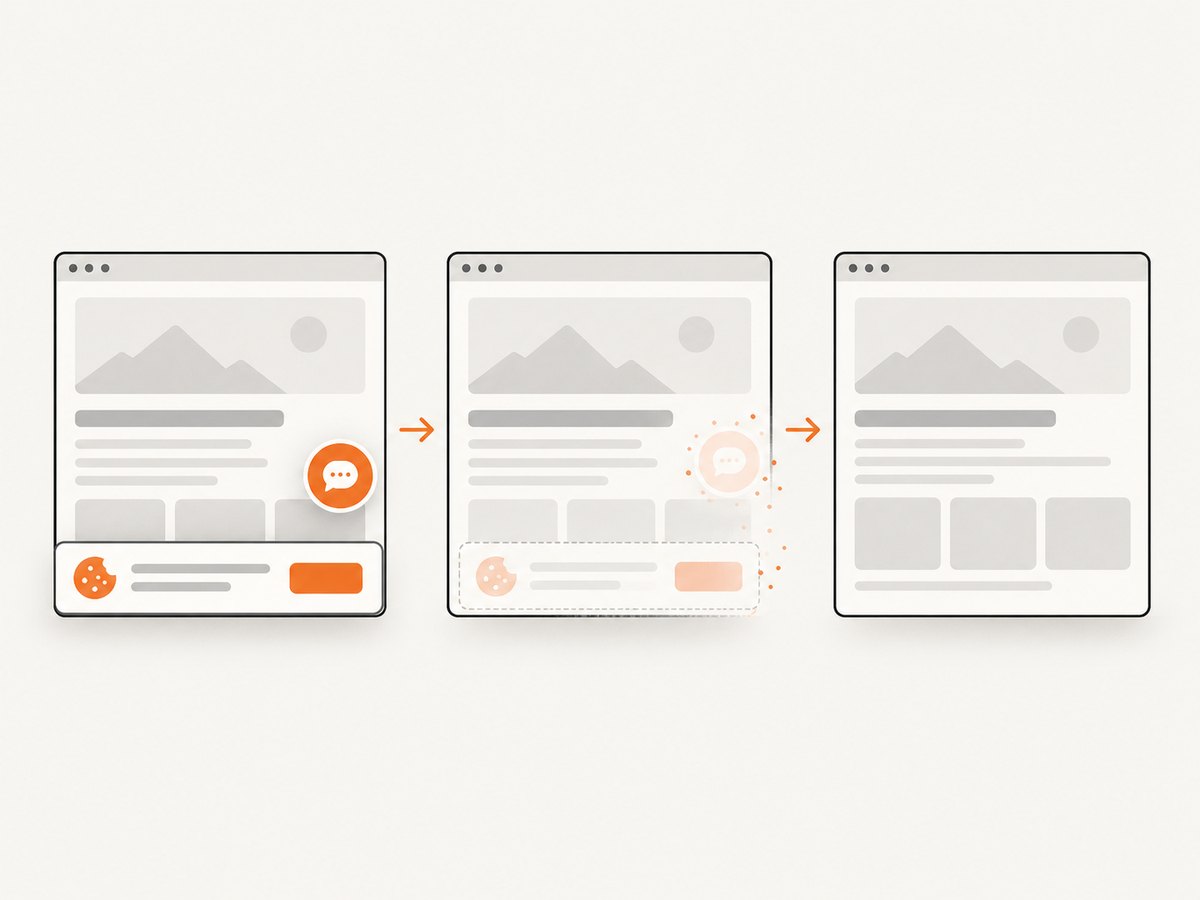
const res = await fetch(`https://api.screenshotneo.com/v1/shot?${q}`);ScreenshotNeo removes cookie banners, popups, and chat widgets before the shot. Bot checks, blank pages, and failed loads are never billed. Its MCP server lets AI agents take screenshots. The free plan includes 1,000 screenshots a month with no card; paid plans start at $5 for 3,000. Sign up for 1,000 free screenshots a month, with no card required.
9. Performance, reliability, and cost
A browser extension can be the simplest option when you are already viewing one webpage and need a local image or PDF. The page must remain available in the browser, and capture time depends on how much content the tool needs to scroll and assemble. Long pages can produce unwieldy images, while interactive pages and nested scroll areas can require extra review.
A separate Mac app may suit content outside the browser, but check current pricing and licensing before buying and confirm that it supports the target app. Safari’s Web Archive avoids making a screenshot, so use it when preserving a page matters more than getting a shareable visual. For repeated URL-based captures in a workflow, an API can avoid setting up a browser extension on each Mac. ScreenshotNeo’s listed plans are Free (1,000 shots/month), Starter ($5 for 3,000), Growth ($15 for 15,000), Pro ($39 for 60,000), Scale ($99 for 250,000), and Business ($249 for 1,000,000); yearly billing gives two months free. Its response identifies page verdict and billing status in headers, and its stated policy is to bill only clean shots. See the product documentation for the current request options and plan details.
For any method, inspect the finished file before sharing or using it as a record. A capture can miss content, include overlays, or be too large to read even when the export succeeds.
10. Frequently asked questions
Can I take a full-page screenshot in Safari on Mac?
Safari’s documented Save As options create a Web Archive or Page Source file, not a tall screenshot image. For an image or PDF, use a capture tool that supports full-page output.
Does Shift-Command-5 take a scrolling screenshot?
No. Apple documents it as opening Screenshot controls for capturing the screen, a window, or a portion.
Can I capture a whole webpage as a PDF?
GoFullPage’s Chrome Web Store listing describes exporting a full-page capture as an image or PDF. Review the generated PDF to confirm the page content and layout are suitable.
What if I need to screenshot a long chat or spreadsheet?
Consider a dedicated Mac app that advertises scrolling capture for that kind of window, then verify current compatibility with the app and content before relying on it.
Why is a full-page capture missing content I can see after scrolling?
Some pages load content only as it approaches the viewport, or require an interaction. Scroll through and wait for the content to load before capturing, then inspect the result.


