BlogScreenshots on your device
How to Capture a Full-Page Screenshot in Safari with an Extension
Capture an entire Safari webpage on Mac, iPhone, or iPad, choose the right extension, fix missing content, and automate screenshots when needed.
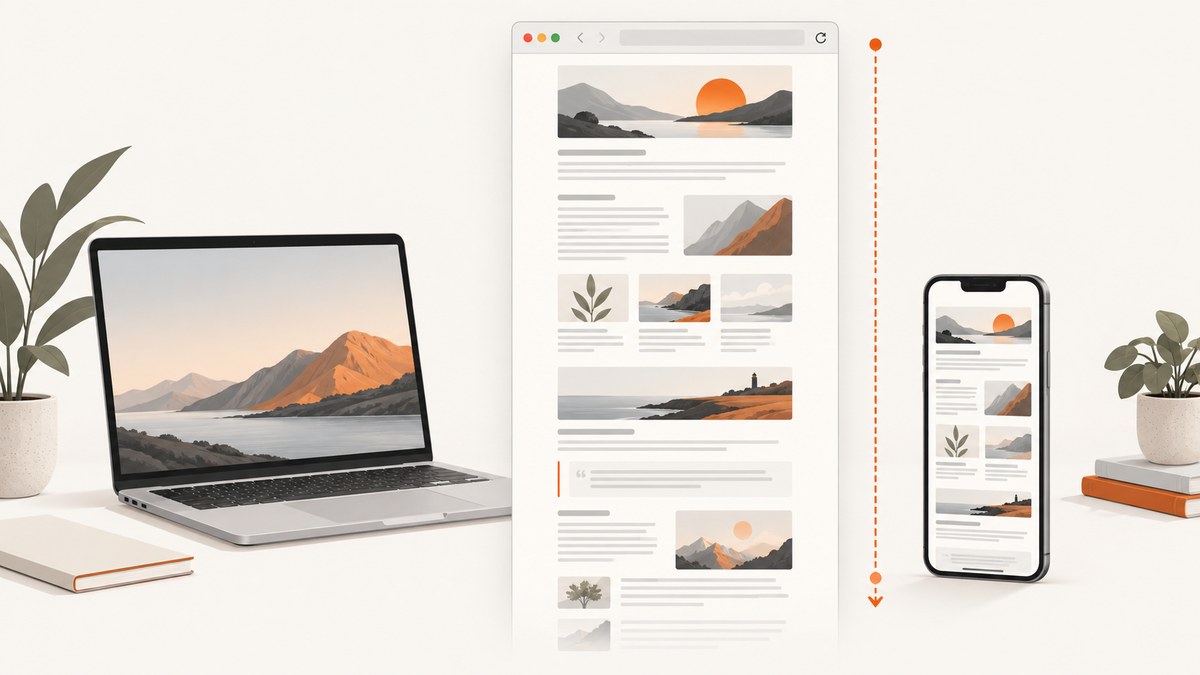
Direct answer: On a Mac, install a Safari extension from the App Store, enable it in Safari > Settings > Extensions, open the page, and choose the extension’s full-page capture command. On an iPhone, Safari’s built-in Full Page screenshot can save an entire webpage as a PDF; use an extension when you need image output or extension-specific controls.
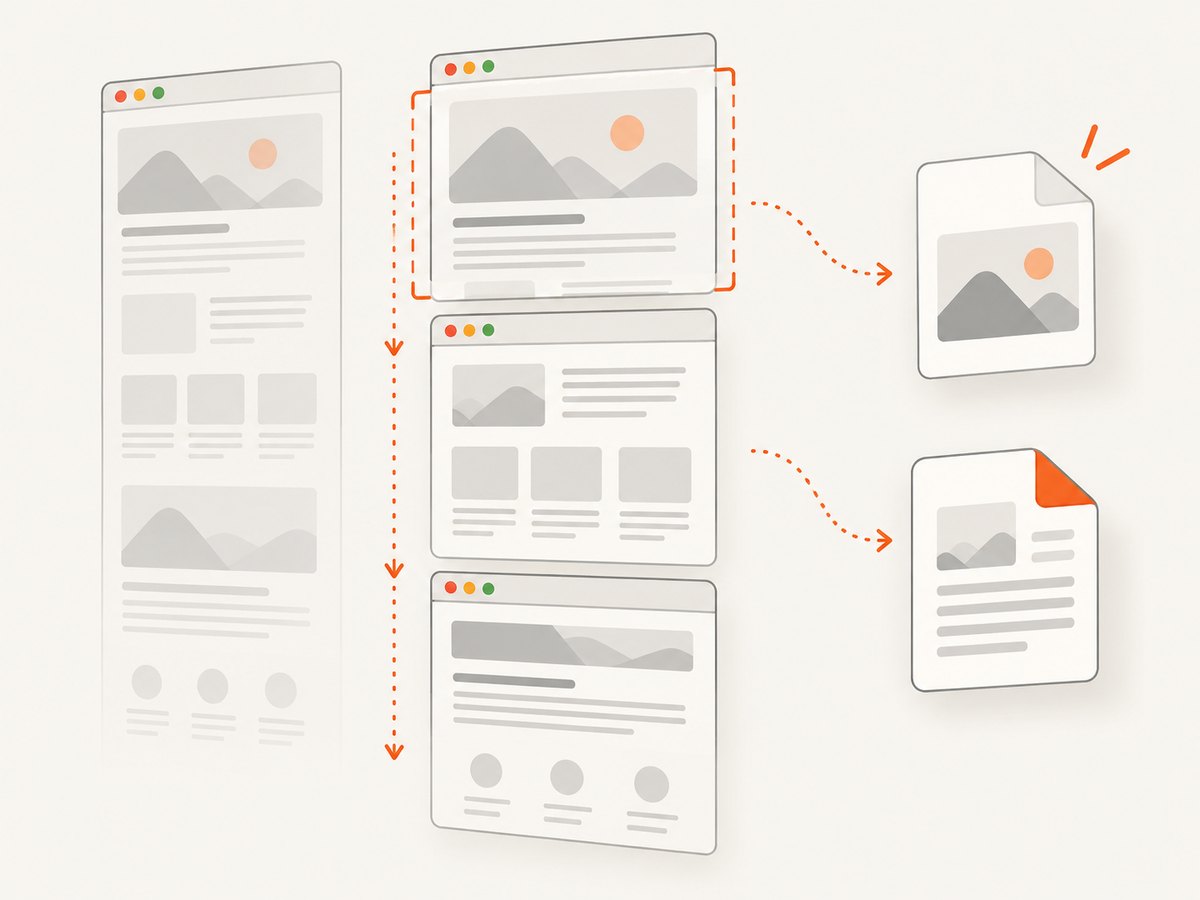
Full-page capture is different from a normal screenshot. A normal screenshot records only the visible viewport. A full-page tool must scroll or otherwise render the page’s content, combine the sections, and export one tall image or a PDF. Dynamic pages, lazy-loaded images, sticky headers, embedded charts, and access permissions can affect the result, so always inspect the saved file.
What you need before installing an extension
- Mac: Safari 12 or later is required for App Store Safari extensions. Update macOS and Safari where practical.
- iPhone: Safari can create a native full-page PDF, and extensions can add image formats or editing features.
- iPad: Extension management is available, but exact full-page controls vary by current iPadOS version. Follow the controls shown on your device and verify compatibility.
- A target page: Test the extension on the type of pages you actually capture, especially long documents and pages with charts or animations.
How to capture a full webpage on Mac Safari
1. Find and install a Safari extension
- In Safari, choose Safari > Safari Extensions to open the App Store’s Safari Extensions section.
- Review the listing’s supported devices, export formats, permissions, privacy details, and current price.
- Select Get or the displayed price, install the extension, and complete any setup requested by its app.
App Store descriptions are supplied by extension developers and can change. Treat user reports as individual experiences rather than a measured success rate. For example, listings for full-page tools include reports of omitted sections, blank graphs, or a final section appearing only after changing page zoom. These reports are useful reasons to test your own pages, not proof that every page or extension fails.
2. Enable the extension in Safari
- Choose Safari > Settings > Extensions.
- Select the extension and turn on its checkbox.
- If you use Safari profiles, enable the extension in each profile where you need it.
- Review website access. Some extensions need permission to read page content in order to assemble a full-page image.
- If you use Private Browsing, explicitly allow the extension there when Safari offers that control. Extensions requiring website access are off by default in Private Browsing unless allowed.
Apple explains that extensions may access webpage content to provide their features. Install extensions you recognize, read their stated privacy practices, and restrict access to only the sites that need it. Disable or remove an extension when you no longer use it.
3. Capture the page
- Open the webpage in Safari and wait for its initial content to finish loading.
- Use the extension’s toolbar button or popup.
- Choose Full Page, Entire Page, or the equivalent command. Do not choose visible-area capture.
- Select an available output format, such as PNG, JPEG, or PDF. Some extensions provide editing or a maximum-height setting.
- Save the file, then inspect its top, middle, and bottom sections.
Before capturing pages with lazy-loaded images, scroll through the page once so important sections have loaded. Refreshing after the page settles can also help. Sticky headers may appear repeatedly or cover content; if the extension offers a way to hide fixed elements, use it and compare the result.
How to capture an entire webpage on iPhone Safari
Use Safari’s built-in Full Page option
- Open the webpage in Safari.
- Take a screenshot using your iPhone’s normal hardware-button shortcut.
- Tap the screenshot preview, then select Full Page.
- Review the page thumbnail and choose Save PDF to Files.
- Choose a folder and save the PDF.
This native route is often enough when you need a document-like copy of an article or reference page. It does not produce a tall PNG or JPEG, and it does not provide the controls some extensions offer for editing, maximum height, or alternate exports.
Install and enable an iPhone extension
- In Safari, open the Page Menu, choose Manage Extensions, and tap Browse Extensions.
- Install an extension whose listing supports your device and required output format.
- Open Settings > Apps > Safari > Extensions.
- Select the extension and turn on Allow Extension.
- If you use Safari profiles, repeat the setup for each profile that needs it.
- Use Safari’s per-website extension controls to limit access where appropriate.
- Return to the target page, open the Page Menu or extension control, choose full-page capture, and export the result.
Check the saved file at several points in the page. Mobile layouts can change when the capture process scrolls, and content that loads only after interaction may not appear.
Choosing an extension: formats, controls, and permissions
| Decision | What to check | Why it matters |
|---|---|---|
| Device support | Mac, iPhone, iPad, or a separate version for each | An extension can be available on one Apple device and absent on another. |
| Output | PNG, JPEG, PDF, or more than one format | PNG preserves sharp text; JPEG can be smaller but may pixelate when enlarged; PDF suits document sharing. |
| Editing | Crop, annotate, or hand off to Preview | Useful when the capture needs markup before sharing. |
| Height controls | Maximum height or multiple-image output | Very long pages may exceed practical image dimensions. |
| Permissions | Website access, Private Browsing access, and privacy disclosure | Full-page capture generally requires reading page content. |
| Current compatibility | Recent release notes and reports for your Safari version | Store listings and browser behavior change over time. |
| Price | Current storefront price and whether it is a one-time purchase | Prices and availability differ by country and can change. |
For example, one listing describes full-page and visible-area modes with PNG export, while its Mac version advertises PDF export and editing. Another describes JPEG export, Mac PNG/JPEG/PDF output, Preview handoff, and a maximum-height setting. These are listing claims, so confirm the current details before buying.
Why a full-page capture can be incomplete
- Lazy loading: Images or sections load only after they enter the viewport.
- Dynamic graphs: Canvas charts and embedded dashboards may render blank or at a different time.
- Infinite scroll: The page has no final bottom, so an extension may stop early.
- Sticky elements: Fixed navigation, chat buttons, or banners can repeat over every stitched section.
- Very long documents: Browser or image-dimension limits can force a cutoff or multiple files.
- Zoom and responsive layout: A changed zoom level can alter which content appears at the bottom and how text is scaled.
- Authentication and blocked resources: A page may require a session, block scripts, or delay content until interaction.
Do not assume an extension works on every page. Capture a representative sample, compare the output with the live page, and record which pages need a different workflow.
Performance and reliability checklist
- Close unrelated tabs and pause heavy downloads.
- Load the page fully before invoking the extension.
- Scroll through important sections once to trigger lazy loading.
- Capture at the intended zoom and window width.
- Wait for animations, charts, and embedded media to settle.
- Inspect the beginning, middle, and end of the output.
- For repeatable work, save the extension version, Safari version, device, URL, and output format with the result.
For a page that must be archived accurately, save a PDF as well as an image when the extension supports both. Keep the original URL and capture time in your project notes because web content can change after the screenshot.
Troubleshooting common Safari extension errors
| Symptom | Likely cause | Fix |
|---|---|---|
| The extension button is missing | The extension is installed but disabled. | Open Safari Settings > Extensions and enable it; check the active Safari profile. |
| It works in a normal window but not Private Browsing | Website access is disabled for Private Browsing. | Allow the extension in its Safari settings, then reopen the page. |
| Only the visible viewport is saved | The visible-area command was selected. | Open the extension menu and choose Full Page or Entire Page. |
| The bottom of the page is missing | Lazy loading, a maximum-height limit, or an early stop. | Scroll the page first, check for a height setting, reduce page complexity, or capture sections separately. |
| Graphs are blank | A chart rendered after the extension stitched the page or uses canvas content. | Wait for the graph, refresh, disable aggressive content blocking for that site, and try again. |
| Content is covered by repeated headers | A sticky element was captured in every section. | Use the extension’s hide or edit controls, or temporarily hide the fixed element with page-specific CSS if the tool supports it. |
| The file is blurry | JPEG compression, low device scale, or enlargement during preview. | Choose PNG when available, capture at the required scale, and avoid enlarging a low-resolution JPEG. |
| The extension cannot access the page | Per-site permission, profile setting, or a restricted browser page. | Review website access and profile settings; test on a normal HTTPS webpage. |
| The capture never finishes | Infinite scroll, a stalled resource, or a page that keeps changing. | Stop loading dynamic content, capture a bounded section, or use a server-side capture workflow. |
Or skip the browser setup
If you need repeatable captures from code, ScreenshotNeo provides a website screenshot API and MCP server. One GET request returns a PNG, JPEG, WebP, or PDF. Its capture flow accepts cookie and consent banners like a visitor, then removes more than 60 known consent platforms, newsletter popups, and chat widgets before the shot. Each step can be turned off.
Only clean shots are billed. Bot checks and CAPTCHAs, blank pages, timeouts, failed loads, and cache hits cost nothing, and each response reports the result with X-Page-Verdict and X-Billed headers. An MCP server provides take_screenshot, get_page_info, and capture_pdf tools for Claude, Cursor, and other MCP clients.
See the complete option list and parameter reference in the ScreenshotNeo documentation.
cURL
curl -G "https://api.screenshotneo.com/v1/shot" \
  -d access_key=YOUR_API_KEY \
  --data-urlencode url=https://stripe.com \
  -o shot.webp
Python
import requests

r = requests.get(
    "https://api.screenshotneo.com/v1/shot",
    params={"access_key": "YOUR_API_KEY", "url": "https://stripe.com"},
    timeout=90,
)
r.raise_for_status()
open("shot.webp", "wb").write(r.content)
Node.js
const q = new URLSearchParams({
  access_key: 'YOUR_API_KEY',
  url: 'https://stripe.com'
});
const res = await fetch(`https://api.screenshotneo.com/v1/shot?${q}`);
if (!res.ok) throw new Error(`HTTP ${res.status}`);
const buffer = Buffer.from(await res.arrayBuffer());
require('fs').writeFileSync('shot.webp', buffer);
Useful ScreenshotNeo options
- Full-page capture with lazy images loaded, or one element selected by CSS selector.
- Dark mode, 12 device presets, custom viewport, and retina scale.
- PDF paper size, margins, landscape mode, and page ranges.
- Custom CSS and JavaScript, click-before-capture, hide selectors, and waits for a selector, delay, or network idle.
- Blocking for ads, trackers, requests, or resource types.
- Custom headers, cookies, user agent, Authorization, timezone, and geolocation.
- Transparent backgrounds, image resizing, selectable cache TTL, signed links for public image tags, asynchronous jobs with signed webhooks, bulk capture of up to 100 URLs per call, a usage API, and an OpenAPI specification.
ScreenshotNeo’s parameter names also match those used by other screenshot APIs, which can simplify switching. The Free plan includes 1,000 shots per month with no card. Paid plans start at $5 for 3,000 shots; Growth is $15 for 15,000, Pro $39 for 60,000, Scale $99 for 250,000, and Business $249 for 1,000,000. Yearly billing gives two months free, and every feature is available on every plan.
Create a free ScreenshotNeo account to get 1,000 screenshots a month with no card.
FAQ
Can Safari save a full webpage as an image without an extension?
On iPhone, Safari’s native Full Page control saves a PDF. For a PNG, JPEG, or WebP of the whole page, use an extension or a server-side screenshot service.

Why does my screenshot capture only what is visible?
You likely selected visible-area capture, or the extension lacks permission to read the page. Select its full-page mode and review website access.
Should I choose PNG or JPEG?
Choose PNG for sharp text and diagrams. Choose JPEG when a smaller file is more important and minor compression is acceptable. Check the extension’s actual export behavior before relying on it.
Can an extension capture a page behind a login?
Only if the extension can access the authenticated page in that Safari session and its permissions allow the site. Never grant broader access than you need.
When is an API better than a Safari extension?
An API is better for scheduled jobs, many URLs, consistent device settings, server-side workflows, and captures triggered by an application or AI agent. A Safari extension is convenient for an occasional page while you are browsing.


