BlogScreenshots on your device
How to Capture a Full-Page Screenshot in Windows 10 with a Keyboard Shortcut
Press Ctrl+Shift+S in Microsoft Edge, choose Capture full page, then copy or save the entire webpage—not just the visible screen.
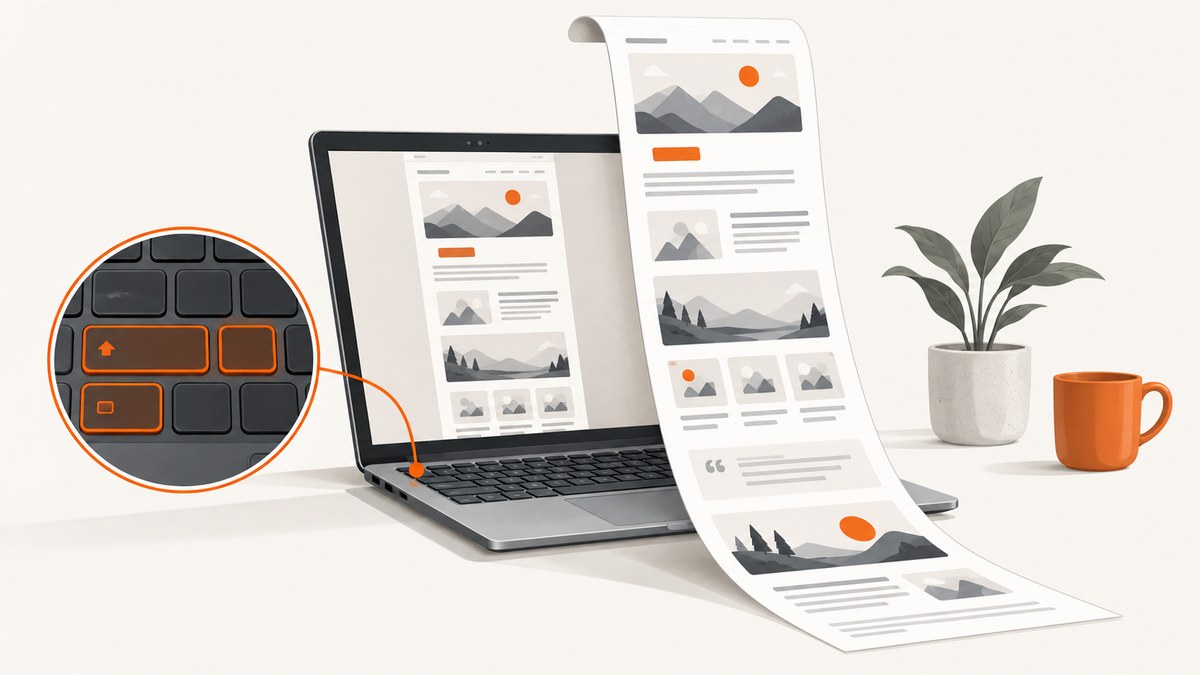
Use Microsoft Edge and press Ctrl+Shift+S. When the Screenshot tool opens, select Capture full page. Edge captures the webpage below the visible viewport, then lets you review, mark up, copy or save the result. The shortcut belongs to Edge’s Screenshot feature; it is not a Windows-wide full-page command.
For a webpage that extends beyond one screen, this is the built-in Windows 10 workflow:
- Open the page in Microsoft Edge.
- Press Ctrl+Shift+S.
- Choose Capture full page.
- Review the capture, add markup if needed, then copy or save it.
Microsoft describes Edge Screenshot as able to capture “a full webpage, even the parts you would have to scroll to see.” See the Microsoft Edge Screenshot feature page for the current interface and terminology.
What Ctrl+Shift+S does in Edge
In current Microsoft Edge releases, Ctrl+Shift+S opens Screenshot. The tool offers a full-page capture as well as a selected-area capture. Full page means Edge renders the page beyond the current viewport and combines the content into one image. It is page-aware, so it can include content you would normally reach only by scrolling.
After the capture finishes, an overlay displays the result. You can inspect it, use the markup tools, copy it to the clipboard or save it as a file. The exact buttons and file dialog wording can vary with Edge updates, but the sequence remains the same: open Screenshot, select Capture full page, and export the result.
If the shortcut is inconvenient, open Screenshot from the webpage’s right-click menu or from Edge’s Settings and more menu. These routes are useful when another application has intercepted a keyboard combination or when you are documenting instructions for someone who prefers menus.
Step-by-step: capture an entire webpage
1. Open the page in Edge
Navigate to the URL you want to document. Wait until the initial page has loaded. If the page uses lazy loading, scroll through it once before capturing so that images and sections have a chance to load. Edge’s full-page tool captures the webpage, but a site can still replace or load content while the capture is being assembled.
2. Open Screenshot with the shortcut
Press Ctrl+Shift+S together. Hold Ctrl and Shift, tap S, and release. Edge should display the Screenshot controls.
3. Select Capture full page
Choose Capture full page, not the option for selecting only a region. Edge will process the page below the fold and display one long capture. Very long or highly dynamic pages can take longer because the browser has more content to render.
4. Review and annotate
Check the top, middle and bottom of the result. Look for missing images, sections that changed during capture, sticky headers repeated at every viewport, or content hidden behind an overlay. Use Edge’s markup tools when you need arrows, highlighting or freehand notes.
5. Copy or save
Copy places the image on the clipboard for pasting into an issue, document or chat. Save writes the capture to a file so you can attach it, archive it or process it later. Use a descriptive filename containing the site and date when the screenshot is part of a support or QA record.
Ctrl+Shift+S versus other Windows screenshot shortcuts
| Need | Shortcut or route | Result |
|---|---|---|
| Entire webpage, including below the fold | Edge Ctrl+Shift+S, then Capture full page | One page-aware full webpage capture |
| Rectangular, window, full-screen or freeform screen snip | Win+Shift+S | Windows Snipping Tool overlay |
| Active window to the clipboard | Alt+PrtScn | Only the active window |
Win+Shift+S is the most common source of confusion. It opens Windows Snipping Tool, whose documented modes are rectangle, window, full screen and freeform. Those modes describe the visible screen; they do not provide Edge’s scrolling, webpage-aware capture. Microsoft’s Snipping Tool documentation explains that workflow.
A full-screen snip can include the browser window, taskbar and other desktop elements. An Edge full-page capture is better when you need the document itself without the surrounding desktop.
Options and practical variations
Capture only part of a page
Use Screenshot’s selected-area mode when you need one section rather than the complete document. This is useful for a chart, pricing table or error message. It avoids creating an unnecessarily tall image.
Capture a page that requires scrolling
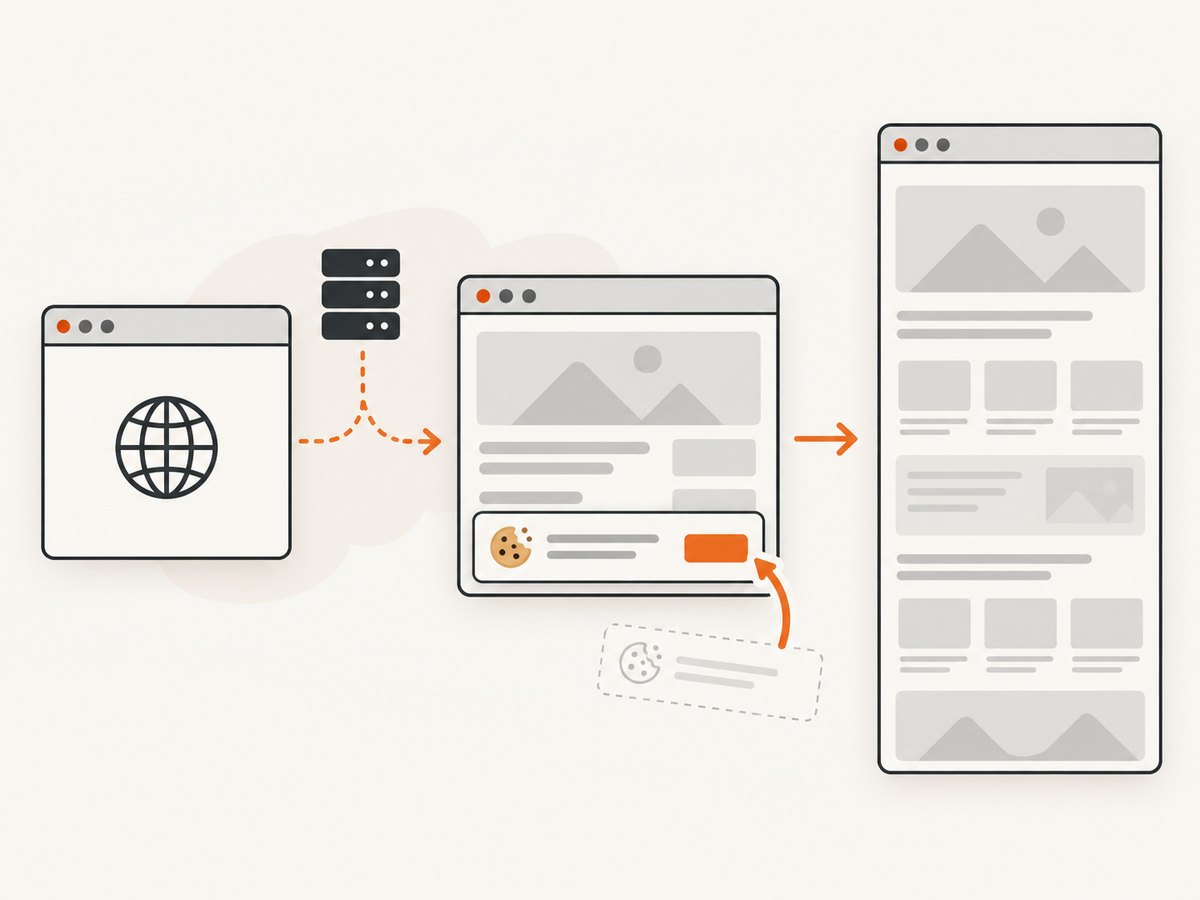
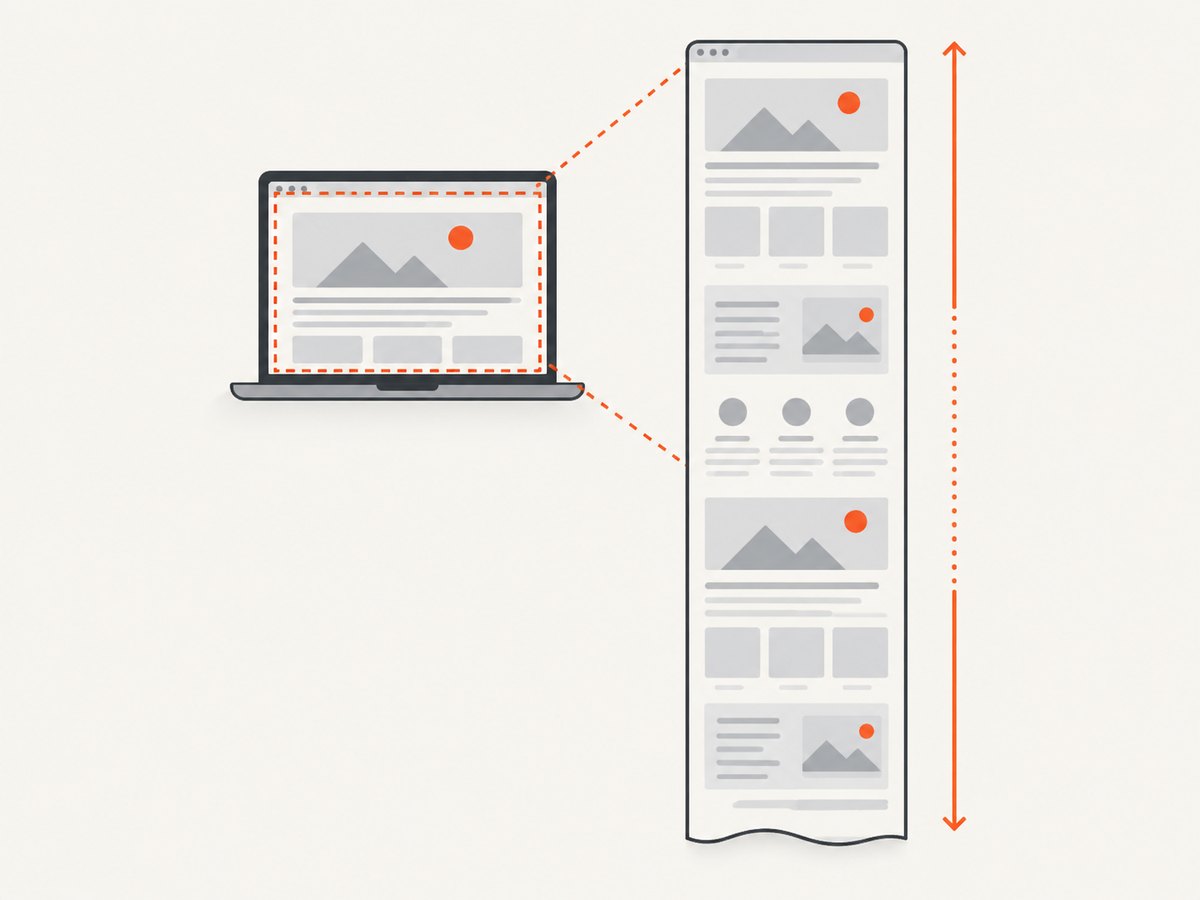
Full page is designed for below-the-fold content. Before starting, close cookie dialogs, newsletter prompts and chat bubbles that cover the page. If an overlay remains, Edge may faithfully include it or prevent some content from being visible.
Capture a page with lazy-loaded images
Scroll through the page once, wait for image placeholders to resolve, and then start the capture. If the site loads content only after a user action, perform that action first. A browser screenshot tool cannot capture content the page has not made available.
Capture a private or authenticated page
Edge captures what your current browser session can see. Sign in first, confirm the correct account and avoid sharing the resulting file if it contains personal or confidential information. The capture itself does not remove sensitive data from the page.
Troubleshooting Ctrl+Shift+S
| Symptom | Likely cause | Fix |
|---|---|---|
| Nothing happens | Screenshot is disabled by an Edge policy, the shortcut is intercepted, or Edge is outdated | Try the right-click menu and Settings and more menu. On a managed computer, ask the administrator whether WebCaptureEnabled is disabled. |
| Only the visible area is captured | Selected-area capture was chosen | Open Screenshot again and choose Capture full page. |
| The shortcut opens another application | A keyboard utility or extension has claimed Ctrl+Shift+S | Use Edge’s menu route, then review the conflicting utility or extension. |
| Images are blank or missing | Lazy loading, blocked requests or content that appears after interaction | Scroll the page first, wait for images, disable a blocking extension for the site and repeat. |
| A cookie banner covers the result | The consent dialog was still open | Accept, reject or close the banner before starting the capture. |
| The page changes while capturing | Live feeds, animations, ads or client-side rendering are still running | Pause the changing content where possible, wait for the stable state and capture again. |
| The output is extremely tall | The page contains a long feed or hidden expanded sections | Use selected-area capture for a relevant section, or collapse content before capturing. |
| Saving fails | Permission, disk-space or profile problems | Copy the capture to the clipboard, choose another folder, check free space and retry. |
Microsoft’s policy documentation retains the older name WebCaptureEnabled. It states that disabling this policy blocks access, while an enabled or unconfigured policy allows the menu and Ctrl+Shift+S routes. The documented Edge policy support starts with Windows version 87 and later; this is an Edge policy threshold, not a claim that every Windows 10 build behaves identically. See WebCaptureEnabled on Microsoft Learn.
Quality, performance and reliability checklist
- Stabilize the page: wait for fonts, images and client-rendered sections.
- Remove obstructions: close consent dialogs, chat widgets and newsletter popups.
- Check responsive layout: resize the Edge window if the desktop breakpoint hides important content.
- Review the entire output: inspect both the first viewport and the final section.
- Prefer repeatable conditions: use the same window size, zoom level and signed-in state for comparisons.
- Keep source context: record the URL and capture date beside the image.
Long pages require more rendering and can take longer than a viewport screenshot. Animated pages, ads and continuously updating feeds reduce repeatability. For visual regression work, capture after the application reaches a known state and avoid comparing screenshots made at different viewport widths.
Or skip the browser setup
If you need repeatable captures from scripts, CI, a backend job or an AI workflow, ScreenshotNeo provides a website screenshot API. One GET request returns a PNG, JPEG, WebP or PDF. Its full-page mode loads lazy images, and you can also target one element by CSS selector, set a viewport or device preset, use dark mode, choose retina scale, wait for a selector, delay or network idle, and add custom CSS or JavaScript.
ScreenshotNeo removes cookie and consent banners, newsletter popups and chat widgets before the capture. Bot checks, blank pages, timeouts, failed loads and cache hits are not billed, and response headers identify the page verdict and whether the request was billed. The same service includes an MCP server with take_screenshot, get_page_info and capture_pdf for Claude, Cursor and other MCP clients.
See the ScreenshotNeo API documentation for all options. This minimal call captures a full page:
curl -G "https://api.screenshotneo.com/v1/shot" -d access_key=YOUR_API_KEY --data-urlencode url=https://stripe.com -o shot.webpPython:
import requests

r = requests.get(
    "https://api.screenshotneo.com/v1/shot",
    params={"access_key": "YOUR_API_KEY", "url": "https://stripe.com"},
    timeout=90,
)
r.raise_for_status()
open("shot.webp", "wb").write(r.content)
Node.js:
const q = new URLSearchParams({ access_key: 'YOUR_API_KEY', url: 'https://stripe.com' });
const res = await fetch(`https://api.screenshotneo.com/v1/shot?${q}`);
if (!res.ok) throw new Error(`HTTP ${res.status}`);
const fs = await import('node:fs/promises');
await fs.writeFile('shot.webp', Buffer.from(await res.arrayBuffer()));
For production jobs, pass the relevant options for full-page capture, waiting, headers, cookies, user agent, timezone, geolocation, blocked resource types, caching TTL, signed links, asynchronous jobs and webhooks. Bulk capture accepts up to 100 URLs per call, and the usage API helps monitor consumption. Every feature is available on every plan: 1,000 shots per month are free with no card; paid plans start at $5 for 3,000 shots. Create a free ScreenshotNeo account.
FAQ
Is Ctrl+Shift+S a Windows 10 shortcut?
It opens Screenshot in Microsoft Edge. Treat it as an Edge shortcut, not a universal Windows full-page command.
Does Edge capture content below the fold?
Yes. Choose Capture full page and Edge captures webpage content that requires scrolling.
Why does Win+Shift+S not capture a whole webpage?
Win+Shift+S opens Snipping Tool for screen-based modes. It is not Edge’s page-aware scrolling capture.
Can I annotate before saving?
Yes. Edge presents markup tools in the Screenshot overlay before you copy or save the image.
What if my company manages Edge?
An administrator can disable the feature with the WebCaptureEnabled policy. Try the menu routes, then contact the administrator if Screenshot is unavailable.
Which method is best for automated captures?
Use a browser automation workflow when you need local control. Use ScreenshotNeo when you want an API call, cleanup of common consent and chat overlays, billing only for clean successful shots, or MCP tools for AI agents.


