BlogScreenshots on your device
How to Capture a Full-Page Screenshot in Windows 11
Capture an entire webpage in Windows 11 with Edge or Firefox, understand Snipping Tool limits, fix missing content, and automate shots with ScreenshotNeo.
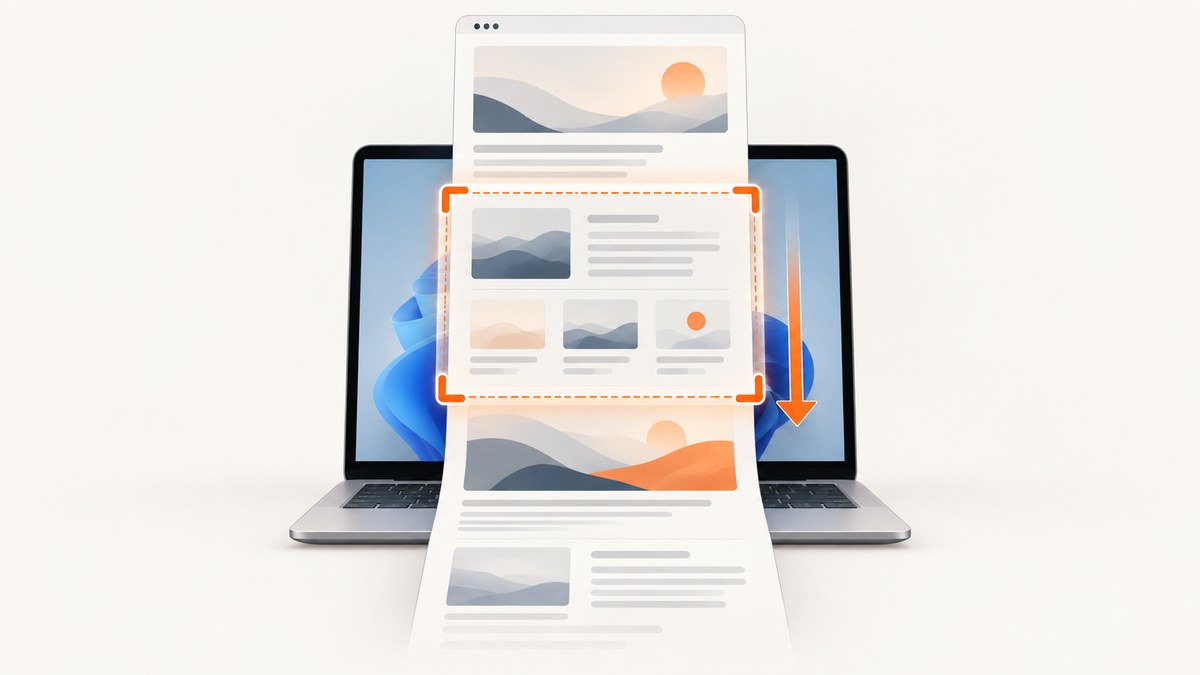
A full-page screenshot captures the entire webpage, including content below the visible viewport. In Windows 11, the quickest built-in method is Microsoft Edge: open the page, press Ctrl+Shift+S, choose Capture full page, then save or copy the result. This is different from a full-screen desktop snip, which records only what is currently visible.
For repeatable captures in a script, CI job, or AI workflow, ScreenshotNeo provides a single HTTP request that returns a PNG, JPEG, WebP, or PDF. The browser instructions below are useful for one-off work; the API section shows how to remove manual browser steps.
What “full page” means in Windows 11
There are two similar-sounding tasks:
- Full webpage: a scrolling capture containing content below the screen. Edge calls this Capture full page; Firefox calls it Save full page.
- Full screen: an image of the desktop or monitor at this moment. Windows Snipping Tool supports a full-screen snip, but its documentation does not describe it as a scrolling webpage capture.
If you need an entire article, dashboard, or landing page, use a browser’s webpage capture. If you need an application window, desktop, or selected rectangle, use Snipping Tool.
Method 1: Microsoft Edge (recommended built-in option)
- Open the webpage in Microsoft Edge.
- Wait for text, images, fonts, and interactive content that you need to appear.
- Press Ctrl+Shift+S. Microsoft documents this shortcut for the Screenshot tool.
- Select Capture full page.
- Review the generated image, then use the controls to save it or copy it.
Microsoft describes this feature as capturing the whole webpage without requiring you to scroll manually. See the Microsoft Edge Screenshot Tool documentation and the Edge learning-center instructions for the current interface.
If the shortcut does nothing
Open Edge’s menu and look for Screenshot. You can also right-click the page and check whether a screenshot command is available. Menu names and shortcuts can change between Edge releases, so update Edge and retry if the command is missing. A managed work device may also restrict browser features.
Method 2: Firefox
- Open the page in Firefox.
- Right-click an empty area of the page and choose Take Screenshot, or press Ctrl+Shift+S.
- Choose Save full page.
- Download the image or copy it to the clipboard.
Firefox documents both visible-area and full-page captures, along with download and clipboard actions, in Mozilla’s screenshot support article. This is a useful alternative if Firefox is already your primary browser.
Method 3: Windows Snipping Tool
Snipping Tool is built into Windows 11 and supports rectangular, window, and full-screen snips. Use Win+Shift+S to open the snip interface, select a mode, and capture what is displayed.
A full-screen snip records the current screen. It does not automatically scroll through a webpage and stitch off-screen content into one image. For a long webpage, switch to Edge’s Capture full page or Firefox’s Save full page. Microsoft’s mode descriptions are in Use Snipping Tool to capture screenshots.
Preparing a page for a complete capture
Browser tools capture the page as it is rendered. These checks prevent the most common omissions:
- Wait for the initial load to finish before starting.
- Scroll through the page once if images or sections load only when they approach the viewport.
- Expand accordions, tabs, “read more” sections, and menus you want included.
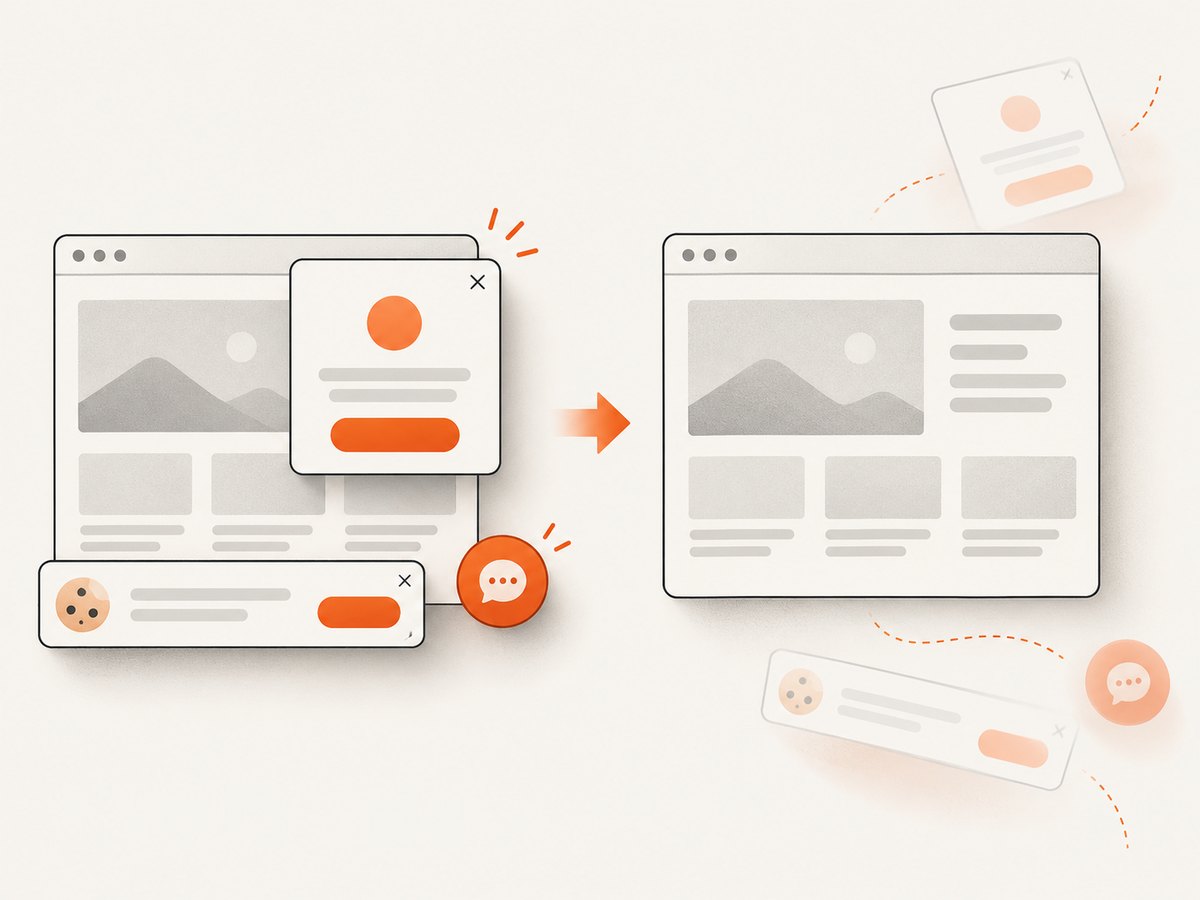
- Dismiss cookie dialogs, newsletter popups, and chat bubbles that cover content.
- Sign in when the target content requires an account, and confirm you are allowed to capture it.
- For a page inside a scrolling panel, identify whether the panel or the document is the actual scroll container.
- Close transient notifications and pause animations when a stable visual is important.
Save in a format suited to the next step: PNG preserves sharp text, JPEG is smaller for photographic pages, and WebP often provides a useful size/quality balance. Browser screenshot dialogs may expose only some of these choices; an API gives you explicit format control.
Why a full-page capture can be incomplete
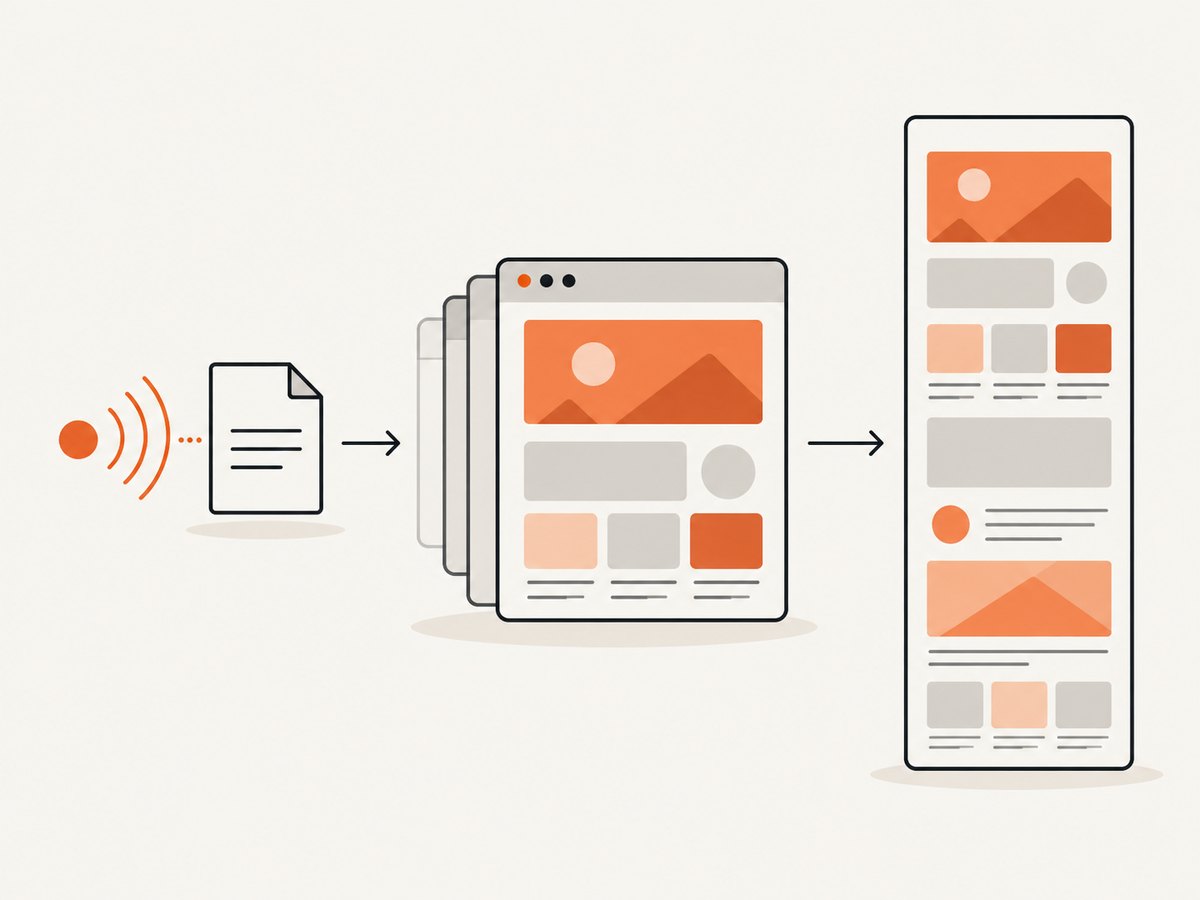
A browser must calculate a document’s layout, render content, and combine regions that are normally outside the viewport. Pages that continuously change height, use nested scrolling elements, or inject content during scrolling can produce seams or missing sections. An iframe may also have its own scroll context and security restrictions.
If a lower section is absent, reload the page, let it settle, and make sure lazy content has been triggered. Try capturing after manually scrolling to the missing section. If the content lives in a separately scrolling frame, capture that frame independently or use a capture system that can target an element.
Or skip the browser setup
ScreenshotNeo turns a URL into an image or PDF with one request. The API accepts the same common parameter names used by many screenshot services, which helps when switching an existing integration. Full documentation is at screenshotneo.com/docs.
cURL
curl -G "https://api.screenshotneo.com/v1/shot" -d access_key=YOUR_API_KEY --data-urlencode url=https://stripe.com -o shot.webpPython
import requests

r = requests.get(
    "https://api.screenshotneo.com/v1/shot",
    params={"access_key": "YOUR_API_KEY", "url": "https://stripe.com"},
    timeout=90,
)
r.raise_for_status()
open("shot.webp", "wb").write(r.content)
Node.js
const q = new URLSearchParams({ access_key: 'YOUR_API_KEY', url: 'https://stripe.com' });
const res = await fetch(`https://api.screenshotneo.com/v1/shot?${q}`);
if (!res.ok) throw new Error(`HTTP ${res.status}`);
const data = Buffer.from(await res.arrayBuffer());
await import('node:fs/promises').then(fs => fs.writeFile('shot.webp', data));
Replace the URL with the page you need and keep the access key server-side. The API base is https://api.screenshotneo.com/v1/shot. You can request PNG, JPEG, WebP, or PDF and configure full-page capture, lazy-image loading, a CSS selector for one element, dark mode, any viewport or one of 12 device presets, retina scale, custom CSS and JavaScript, clicks, selector waits, fixed delays, or network-idle waits.
Useful capture controls
| Need | ScreenshotNeo capability |
|---|---|
| Long pages | Full-page capture with lazy images loaded |
| One component | Capture an element by CSS selector |
| Consistent rendering | Viewport, device preset, retina scale, timezone, and geolocation |
| Authenticated pages | Custom headers, cookies, user agent, and Authorization |
| Clean marketing shots | Accepts cookie/consent banners and removes 60+ known consent platforms, newsletter popups, and chat widgets; each step can be disabled |
| Privacy or speed | Block ads, trackers, requests, or resource types |
| Dynamic applications | Wait for a selector, delay, or network idle; click an element before capture; hide selectors |
| Documents | PDF paper size, margins, landscape mode, and page ranges |
| Delivery at scale | Caching with a chosen TTL, signed links, asynchronous jobs with signed webhooks, bulk capture for up to 100 URLs per call, usage API, and OpenAPI specification |
ScreenshotNeo bills only clean shots. Bot checks or CAPTCHAs, blank pages, timeouts, failed loads, and cache hits cost nothing. Each response identifies the result with X-Page-Verdict and X-Billed headers, so your application can log what happened.
It also includes an MCP server with take_screenshot, get_page_info, and capture_pdf tools for Claude, Cursor, and other MCP clients. That lets an AI agent capture a page without you building browser automation around it.
Create a free ScreenshotNeo account: the Free plan includes 1,000 screenshots per month with no card. Paid plans start at $5 for 3,000 shots; every feature is available on every plan.
Performance, reliability, and cost considerations
Performance
Full-page images are larger and slower to transfer than viewport shots. Reduce transfer time by choosing WebP or JPEG when lossless text rendering is not required, resizing the output, blocking unnecessary third-party resources, and setting a cache TTL for unchanged URLs. For many pages, bulk capture and asynchronous jobs avoid holding a request open for every URL.
Reliability
Use a selector wait or network-idle wait for applications that render after JavaScript executes. A fixed delay is simpler but less predictable across pages. Record response status and the X-Page-Verdict and X-Billed headers. For background work, use signed webhooks and retry your own delivery handling safely. Browser captures should be repeated after the page settles when content changes during scrolling.
Cost
Edge, Firefox, and Snipping Tool have no per-capture API charge, but they require a person at the keyboard. ScreenshotNeo’s Free plan provides 1,000 shots each month; Starter is $5 for 3,000, Growth $15 for 15,000, Pro $39 for 60,000, Scale $99 for 250,000, and Business $249 for 1,000,000. Yearly billing gives two months free. Failed loads, blank pages, bot checks, timeouts, and cache hits are not billed.
Troubleshooting checklist
| Symptom | Likely cause | Fix |
|---|---|---|
| Ctrl+Shift+S opens nothing in Edge | Shortcut or browser version differs | Use the Edge menu’s Screenshot command, update Edge, or check device policy. |
| Only the visible screen is saved | Snipping Tool full-screen mode was used | Use Edge Capture full page or Firefox Save full page. |
| Images near the bottom are missing | Lazy loading did not trigger | Scroll through the page first, wait, then capture again; for automation enable lazy-image loading. |
| A panel is cut off | The panel has its own scrollbar | Capture the panel element separately or expose its content before capture. |
| Cookie dialog covers the result | Consent UI remained open | Accept or dismiss it manually, or use ScreenshotNeo’s consent and popup cleanup. |
| ScreenshotNeo returns an error | Invalid key, URL, or unreachable page | Check the access key, URL encoding, response status, timeout, and verdict headers; retry transient failures. |
| Output is unexpectedly tall | Full-page mode includes every document section | Capture a CSS-selected element, set a viewport capture, or resize the output. |
FAQ
Can Windows 11 capture a scrolling webpage without installing software?
Yes. Edge and Firefox include full-page webpage capture. Snipping Tool’s full-screen mode is for the current display.
Does a full-page screenshot include content below the fold?
Edge’s Capture full page and Firefox’s Save full page are designed to include off-screen webpage content. Results can vary when a site uses nested scrolling, delayed rendering, or continuously changing layout.
What shortcut opens Edge’s screenshot tool?
Microsoft documents Ctrl+Shift+S. If it is unavailable, use the browser menu.
Can I automate Windows 11 screenshots?
For automation, call ScreenshotNeo’s HTTP endpoint from cURL, Python, Node.js, or another client. It supports full pages, element shots, PDFs, waits, authentication headers, caching, bulk requests, and webhooks.
How do I capture a page that requires cookies or a login?
In a browser, sign in first and confirm the content is loaded. In ScreenshotNeo, provide the required cookies or headers and use a selector or network-idle wait so the authenticated view is ready.
Which format should I choose?
PNG is best for crisp text and diagrams, JPEG usually produces smaller photographic images, and WebP is a practical modern default. Choose PDF when the output is intended as a document.
Summary
Use Edge’s Capture full page for the fastest Windows 11 workflow, Firefox’s Save full page if that is your browser, and Snipping Tool for visible desktop or window captures. When you need repeatable, clean, automated results, ScreenshotNeo provides the API controls, billing verdicts, caching, bulk jobs, and MCP tools to make full-page capture a dependable part of your application.


