BlogScreenshots on your device
How to Take a Full-Page Screenshot in Zen Browser
Capture an entire webpage in Zen Browser, use the keyboard shortcut, improve resolution with DevTools, and fix common screenshot problems.
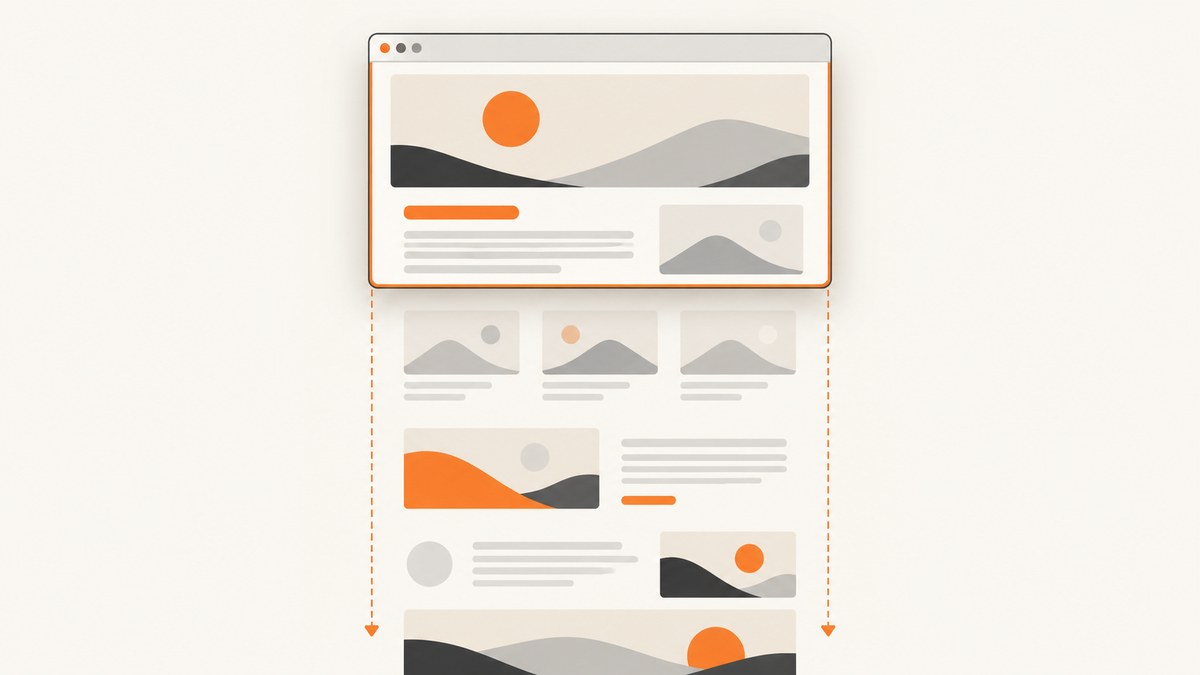
To capture an entire webpage in Zen Browser, open the page, right-click inside it, choose Take Screenshot, select Whole page, then save or copy the result. Zen also lists Shift+Ctrl+S as the Take Screenshot shortcut; on Windows and Linux this is commonly written Ctrl+Shift+S. If you need a higher-resolution image, Zen users have documented a DevTools fallback: :screenshot --fullpage --dpr 2.
The built-in whole-page option is the simplest choice for an occasional capture. The DevTools command gives you a resolution parameter, but it is a developer-tool workflow rather than a dedicated one-key full-page command. Interface labels and shortcut behavior can vary across Zen builds, so use the page context menu if the shortcut does not work.
1. Capture the whole page using Zen’s screenshot tool
- Open the webpage you want to capture in Zen Browser and wait until the content you need is visible.
- Right-click over the webpage itself. Choose Take Screenshot from the page context menu.
- In the screenshot interface, choose Whole page. Do not choose the visible-area option if you need content below the current viewport.
- Use the available save or copy action to keep the capture.
Zen’s screenshot interface distinguishes whole-page capture from visible-only capture. A Zen desktop issue documents the context-menu path and the two choices. The report concerns an older release and a visual bug, so treat it as evidence of the workflow rather than a guarantee that every build has identical controls: Zen screenshot tool issue.
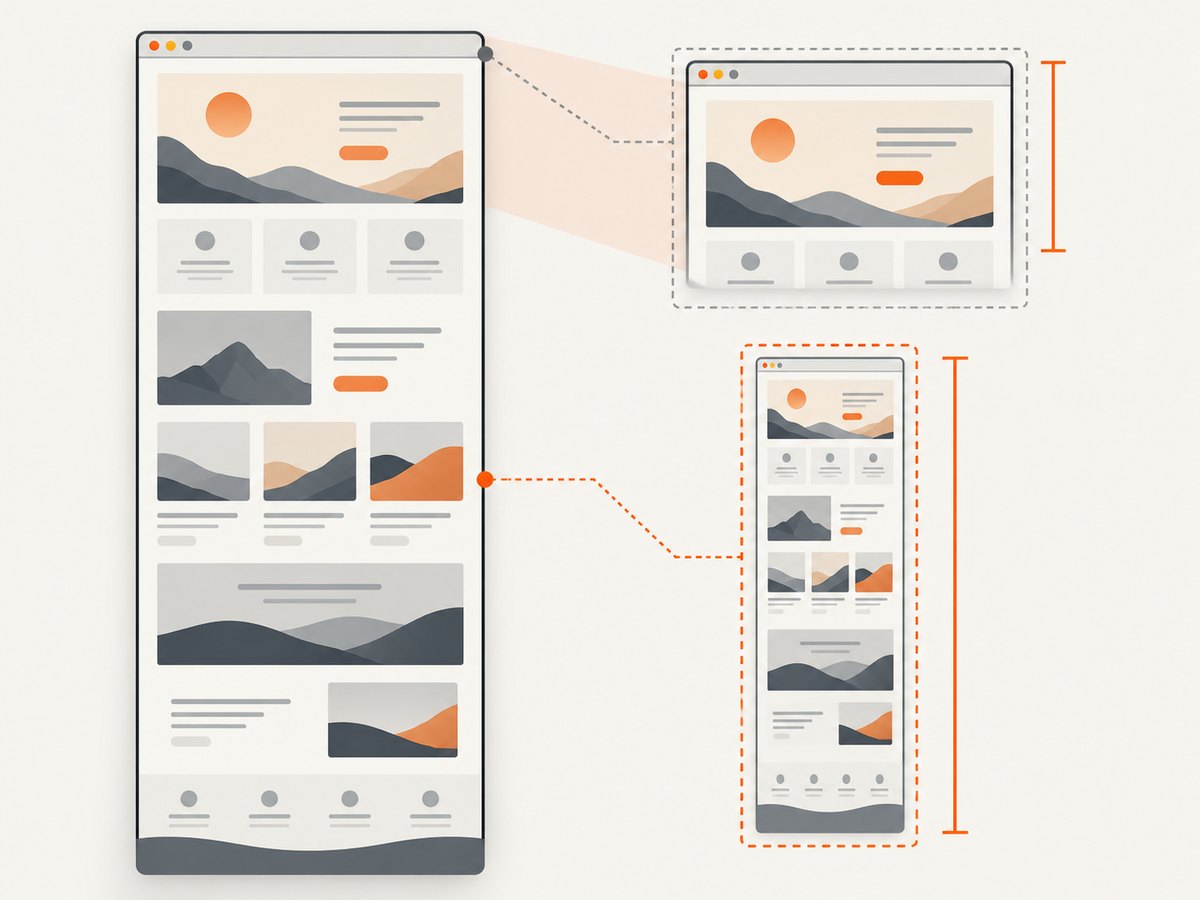
What “whole page” means
A whole-page screenshot is a single image that extends beyond the currently visible browser window to include the page’s scrollable content. The result may be much taller than a normal screen capture. It is useful for sharing a long article, saving a receipt, documenting a page state, or reviewing a long design without stitching several screenshots together.
It captures the page as rendered at that moment. If a page loads content only after scrolling, animates elements, or changes while being captured, the final image may not reflect the state you expected. For important captures, let the page settle first and inspect the output.
2. Use the Zen screenshot keyboard shortcut
Zen’s official keyboard shortcut page assigns Shift+Ctrl+S to Take Screenshot: Zen keyboard shortcuts. On Windows and Linux, shortcut notation is often displayed as Ctrl+Shift+S; on macOS, use the modifier shown by your installed build or the shortcut settings.
The shortcut opens the screenshot tool. It does not necessarily mean that Zen will immediately save a full-page image without further choices: select Whole page in the screenshot interface. If the shortcut does nothing, right-click the page and launch the tool from the context menu, then inspect Settings > Keyboard Shortcuts for the shortcut shown by your build.
Why a shortcut may not be editable
Zen notes that some Firefox-derived shortcuts are not available for editing and shortcut behavior can depend on the feature. If the screenshot binding is missing or cannot be changed in settings, the context-menu method remains the practical route. Keyboard shortcuts can also conflict with operating-system settings, extensions, or other applications.
3. Higher-resolution fallback with DevTools
For a sharper full-page capture, a Zen project discussion documents this Firefox DevTools console command:
:screenshot --fullpage --dpr 2Open Developer Tools, enter the command in the browser’s developer console, run it, and then close DevTools. The --fullpage option requests the full page; --dpr 2 requests a device-pixel-ratio multiplier of two. This is a documented workaround in a project discussion, not a separate native Zen screenshot shortcut. See the Zen full-resolution screenshot discussion.
Choosing a DPR
DPR controls the pixel dimensions relative to the page’s CSS dimensions. A larger value can make text and fine details clearer when the image is zoomed or printed, but it also increases the image dimensions and file size. Start with 2 if you need more detail than the built-in result provides. If the capture is too large or the command fails, retry with a lower value such as 1. The discussion specifically gives 2 as an example; it does not establish a universal maximum or promise identical output on every system.
Use the built-in screenshot interface when you want a straightforward save or copy flow. Use the DevTools route when image resolution matters and you are comfortable running a developer command. Avoid presenting the command as a permanent UI feature: it is a workaround documented in project discussion.
4. Choose the right capture method
| Method | Best for | Tradeoff |
|---|---|---|
| Context menu > Take Screenshot > Whole page | Fast manual captures and ordinary sharing | Requires the screenshot UI; resolution controls may be limited |
| Shift+Ctrl+S, then Whole page | Opening the screenshot tool without using the context menu | The shortcut opens the tool; it may not capture the full page automatically |
DevTools :screenshot --fullpage --dpr 2 |
Developer workflows where a higher-resolution capture is useful | Requires DevTools and is a workaround rather than a dedicated native flow |
Zen’s capture interface is suitable for a page you are already viewing. If you need to capture many URLs, automate screenshots in a repeatable pipeline, target a specific CSS element, or produce a chosen output format, a browser interface may not be the right workflow. That distinction matters for developers building documentation, QA checks, reporting, or content ingestion systems.
5. Or skip the browser setup
ScreenshotNeo is a website screenshot API and MCP server from Yorker Media. A single GET request can return a PNG, JPEG, WebP, or PDF. See the ScreenshotNeo API documentation for request options.

curl -G "https://api.screenshotneo.com/v1/shot" -d access_key=YOUR_API_KEY --data-urlencode url=https://stripe.com -o shot.webpimport requests
r = requests.get(
"https://api.screenshotneo.com/v1/shot",
params={"access_key": "YOUR_API_KEY", "url": "https://stripe.com"},
timeout=90,
)
open("shot.webp", "wb").write(r.content)const q = new URLSearchParams({ access_key: 'YOUR_API_KEY', url: 'https://stripe.com' });
const res = await fetch(`https://api.screenshotneo.com/v1/shot?${q}`);
if (!res.ok) throw new Error(`Screenshot request failed: ${res.status}`);
await Bun.write('shot.webp', res);For a Node.js environment without Bun, save the response bytes with Node’s file system module:
import { writeFile } from 'node:fs/promises';

const q = new URLSearchParams({ access_key: 'YOUR_API_KEY', url: 'https://stripe.com' });
const res = await fetch(`https://api.screenshotneo.com/v1/shot?${q}`);
if (!res.ok) throw new Error(`Screenshot request failed: ${res.status}`);
await writeFile('shot.webp', Buffer.from(await res.arrayBuffer()));
ScreenshotNeo accepts cookie or consent banners as a visitor and removes more than 60 known consent platforms, newsletter popups, and chat widgets before capture; each of those steps can be turned off. Bot checks, CAPTCHAs, blank pages, timeouts, failed loads, and cache hits are not billed, and response headers identify the page verdict and billing status. Its MCP server provides take_screenshot, get_page_info, and capture_pdf for Claude, Cursor, and other MCP clients.
The API also supports full-page capture with lazy images loaded, CSS-selector element capture, viewport and device presets, retina scale, PDF settings, custom CSS and JavaScript, wait conditions, request blocking, headers, cookies, authorization, caching, signed image links, asynchronous jobs, bulk capture, and a usage API. Free includes 1,000 screenshots per month with no card; paid plans start at $5 for 3,000 shots. Sign up for 1,000 free screenshots a month, no card required.
6. Troubleshooting Zen full-page captures
“Take Screenshot” is missing from the menu
Make sure the pointer is over the webpage and use the page’s right-click menu. A browser toolbar or sidebar can show a different menu. If it still is not present, check whether your Zen build has changed the command location or update the browser before relying on a workflow documented for another release.
Ctrl+Shift+S does nothing
Use the context-menu command to determine whether the screenshot tool itself works. Then check Settings > Keyboard Shortcuts for the binding in your build. Zen’s shortcut documentation says that some Firefox-derived shortcuts cannot be edited, so a missing or unresponsive binding may not have a rebind option. Check for a system or application shortcut conflict as well.
The screenshot only contains the visible part
Reopen the screenshot interface and explicitly select Whole page. The visible-area choice is a separate mode. Confirm the saved image dimensions or scroll through the output to make sure the page below the initial viewport is included.
The image looks blurry
Try the DevTools command with --dpr 2. The Zen project discussion describes the native tool downscaling large captures in the discussed build and gives the DevTools command as a full-resolution workaround. Higher DPR creates a larger image, so use it only when the extra detail is useful.
The screenshot omits content that appears after scrolling
Some pages load images, cards, or other content only when they approach the viewport. Wait for the page to load and scroll through it before capturing, then retry. Zen’s documented whole-page choice captures the page, but the available research does not establish that every build automatically scrolls through the page to trigger all lazy content.
The page appears incomplete or changes during capture
Wait for navigation and visible page updates to finish, close transient menus, and try again. Dynamic pages may update content while the capture is being made. If a page uses an unusually long feed or continues loading as you scroll, a single whole-page result may not match a deliberate sequence of scrolling captures.
DevTools does not recognize the command
Check that you entered the command in the browser’s developer console and preserved the colon at the start: :screenshot. The command is documented as a Firefox DevTools workaround in a Zen discussion, so behavior can depend on the browser engine and build. Fall back to Zen’s built-in screenshot interface if it is unavailable.
7. Reliability, page limits, and practical notes
A manual screenshot is a snapshot, not a guarantee that every component on a page has finished rendering. Before capturing, verify that the correct account, data, or page state is on screen. For long pages, check the final image at both its top and bottom. A failed or incomplete capture is often easier to spot before it is shared or added to a report.
Full-page images can become very tall. Raising DPR increases pixel count and can increase memory use and file size substantially. If a capture becomes slow, unwieldy, or difficult to share, use the built-in capture at ordinary resolution, reduce DPR, or capture a smaller region through a different workflow. The sources establish no universal Zen page-height limit, so do not assume one fixed maximum applies across machines and builds.
The project has a June 2026 discussion requesting a scrolling mode that would keep capturing as the user scrolls and combine sections. That request means automated scrolling capture should not be promised as a feature in every Zen build. If that workflow is essential, check the current release and its controls before depending on it: Zen project discussion.
8. Frequently asked questions
Does Zen Browser have a built-in full-page screenshot?
Yes. The documented screenshot interface has a Whole page choice as well as a visible-only choice. Open it from the page context menu using Take Screenshot.
What is Zen Browser’s screenshot shortcut?
Zen’s keyboard shortcut page lists Shift+Ctrl+S for Take Screenshot. On Windows and Linux, this is commonly written Ctrl+Shift+S. The shortcut opens the tool; choose whole page in the interface.
Can I take a 2x full-page screenshot?
A Zen project discussion documents the DevTools command :screenshot --fullpage --dpr 2. It is a workaround, and may depend on the Zen build.
Can I capture a full-page screenshot automatically while scrolling?
Do not assume this scrolling-and-stitching workflow exists in every build. A June 2026 Zen discussion describes it as a requested enhancement; check the current browser controls if you need it.
Can I automate captures across many sites?
The native Zen method is a manual browser workflow. Developers who need repeatable API requests, bulk captures, or integration into an application can use a screenshot API such as ScreenshotNeo instead.


