How to Take Full-Page Screenshots with Chrome DevTools Protocol
Use Page.captureScreenshot with captureBeyondViewport to create reliable full-page PNG, JPEG, or WebP images from Chrome.
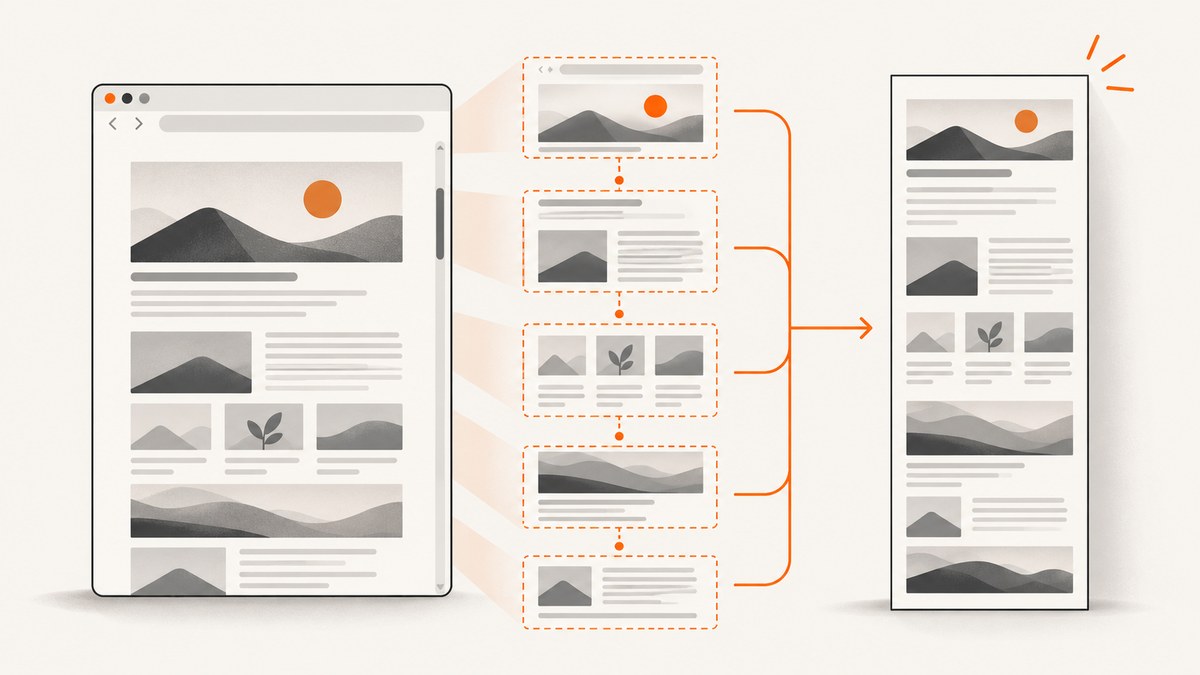
Use Chrome DevTools Protocol’s Page.captureScreenshot method with captureBeyondViewport: true and usually fromSurface: true. Leave out clip to request Chromium’s automatic full-page capture path. The response contains base64-encoded image bytes. Decode them and write the bytes to a file.
This approach captures the rendered page in one protocol operation. It is not a scroll-and-stitch loop. You still need to wait for the page’s own readiness condition so late data, fonts, lazy images, and layout changes are present before the command runs.
Minimal CDP request
{
  "id": 1,
  "method": "Page.captureScreenshot",
  "params": {
    "format": "png",
    "captureBeyondViewport": true,
    "fromSurface": true
  }
}
The successful response has this shape:
{"id":1,"result":{"data":"<base64 image bytes>"}}The Page.captureScreenshot protocol method accepts png, jpeg, and webp. JPEG supports a quality value from 0 to 100; quality is ignored for PNG and WebP.
How the full-page capture works
Chromium’s full-page branch is selected when the request uses a surface capture, enables beyond-viewport capture, and does not provide a clip rectangle. Chromium asks the renderer for the full content size, starts at x=0 and y=0 with scale 1, and captures beyond the visible viewport. See the Chromium PageHandler implementation for the implementation and error handling.
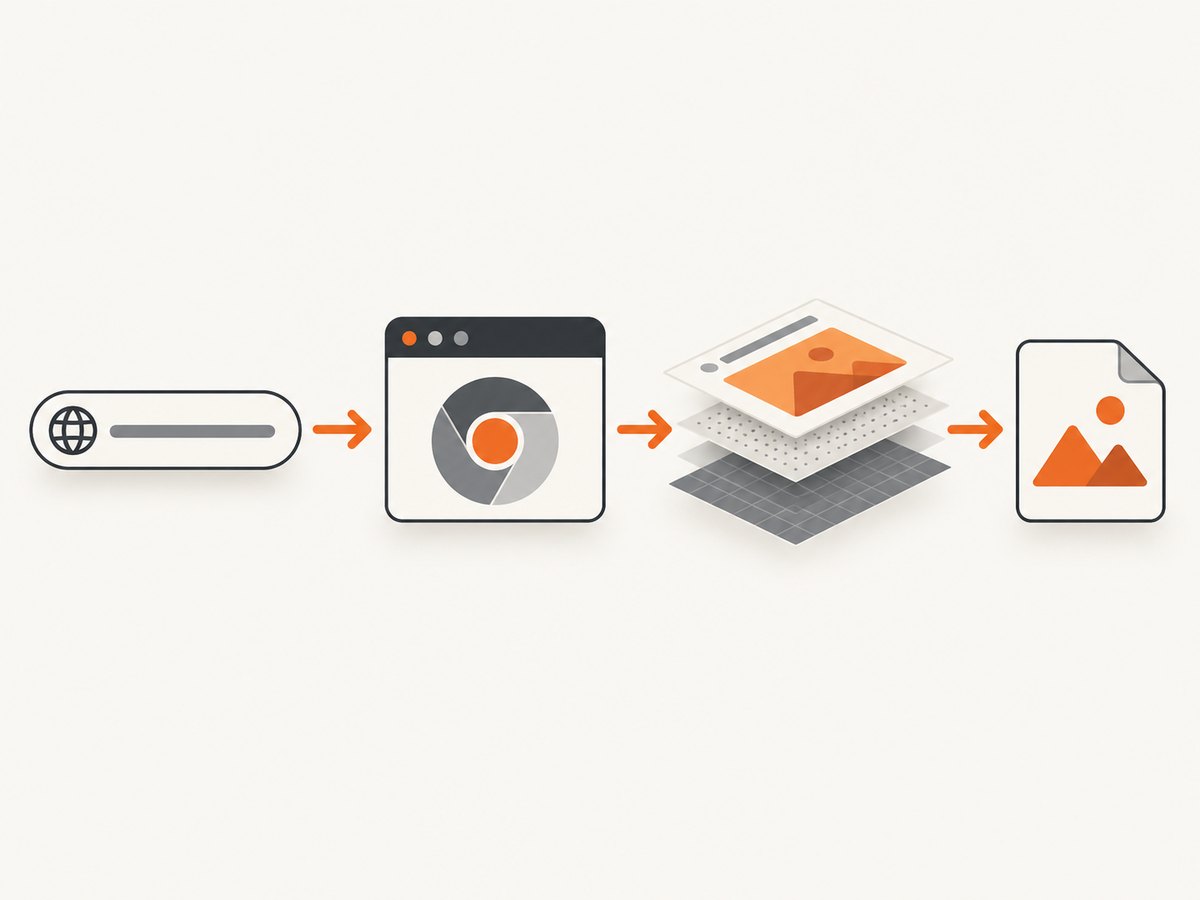
Because the screenshot represents one rendered state, issue it only after your application is ready. A generic load event does not guarantee that lazy images, web fonts, client-side data, or late layout work has completed.
End-to-end workflow
- Start Chrome or Chromium with a CDP endpoint. For local automation, launch a dedicated browser process with remote debugging enabled.
- Attach to a page target. Discover a target through the CDP HTTP endpoint or connect directly to its WebSocket URL.
- Enable the Page domain. Send
Page.enablewhen your client requires explicit domain activation. - Navigate and wait. Wait for a known DOM marker, an application-ready flag, a completed fetch, a fixed delay, or another condition defined by the site.
- Capture. Send
Page.captureScreenshotwithcaptureBeyondViewport: true,fromSurface: true, and noclip. - Decode and save. Base64-decode
result.dataand write it using the matching extension. - Record inputs. Keep the browser version, viewport, device scale factor, URL, and readiness condition with the output so captures can be reproduced.
Runnable Node.js example using raw CDP
This example uses the ws package and Chrome’s local debugging endpoint. Start Chrome first, for example with --remote-debugging-port=9222, then install the dependency with npm install ws.
const http = require('node:http');
const fs = require('node:fs');
const WebSocket = require('ws');

function getJson(path) {
  return new Promise((resolve, reject) => {
    http.get({ hostname: '127.0.0.1', port: 9222, path }, res => {
      let data = '';
      res.on('data', chunk => data += chunk);
      res.on('end', () => resolve(JSON.parse(data)));
    }).on('error', reject);
  });
}

function cdp(ws, method, params = {}) {
  return new Promise((resolve, reject) => {
    const id = Math.floor(Math.random() * 1e9);
    const onMessage = raw => {
      const msg = JSON.parse(raw.toString());
      if (msg.id !== id) return;
      ws.off('message', onMessage);
      if (msg.error) reject(new Error(JSON.stringify(msg.error)));
      else resolve(msg.result);
    };
    ws.on('message', onMessage);
    ws.send(JSON.stringify({ id, method, params }));
  });
}

(async () => {
  const targets = await getJson('/json');
  const target = targets.find(t => t.type === 'page');
  if (!target) throw new Error('No page target found');

  const ws = new WebSocket(target.webSocketDebuggerUrl);
  await new Promise((resolve, reject) => {
    ws.once('open', resolve);
    ws.once('error', reject);
  });

  await cdp(ws, 'Page.enable');
  await cdp(ws, 'Page.navigate', { url: 'https://example.com' });
  await new Promise(resolve => setTimeout(resolve, 1500));

  const result = await cdp(ws, 'Page.captureScreenshot', {
    format: 'png',
    captureBeyondViewport: true,
    fromSurface: true
  });
  fs.writeFileSync('page.png', Buffer.from(result.data, 'base64'));
  ws.close();
})().catch(err => { console.error(err); process.exit(1); });
Runnable Python example
Install websocket-client with pip install websocket-client. This script discovers a page, navigates, captures, and decodes the returned data.
import base64
import json
import time
import urllib.request
import websocket

TARGET_URL = "https://example.com"

targets = json.load(urllib.request.urlopen("http://127.0.0.1:9222/json"))
target = next(t for t in targets if t.get("type") == "page")
ws = websocket.create_connection(target["webSocketDebuggerUrl"])
next_id = 0

def call(method, params=None):
    global next_id
    next_id += 1
    ws.send(json.dumps({"id": next_id, "method": method, "params": params or {}}))
    while True:
        message = json.loads(ws.recv())
        if message.get("id") == next_id:
            if "error" in message:
                raise RuntimeError(message["error"])
            return message["result"]

call("Page.enable")
call("Page.navigate", {"url": TARGET_URL})
time.sleep(1.5)  # Replace with an application-specific readiness check.
result = call("Page.captureScreenshot", {
    "format": "png",
    "captureBeyondViewport": True,
    "fromSurface": True,
})
with open("page.png", "wb") as output:
    output.write(base64.b64decode(result["data"]))
ws.close()
Format, viewport, and capture options
| Option | Use | Notes |
|---|---|---|
format |
png, jpeg, or webp |
PNG is lossless and the protocol default. JPEG and WebP can reduce file size. |
quality |
JPEG quality from 0–100 | Ignored for PNG and WebP. |
captureBeyondViewport |
true for full-page capture |
Captures content outside the visible viewport. |
fromSurface |
Normally true |
Required by Chromium’s automatic full-page path. |
clip |
Explicit rectangle | Omit it for automatic full-page capture; use it for a deliberate section. |
Set viewport and emulation before navigation when you need reproducible dimensions. Device scale factor changes the output pixel dimensions, so record it with each capture. A responsive page may render a different layout when the viewport width changes.
Readiness: preventing incomplete screenshots
Choose a condition that belongs to the application:
- Wait for a selector such as
[data-render-complete]. - Wait until a loading element disappears.
- Wait for a known API response or an in-page “ready” flag.
- Use a short delay only when the page has no stronger signal.
- For lazy content, scroll or otherwise trigger the page’s loading behavior before capture, then wait for images to finish.
Capture can race with layout changes. If the document height is still changing, wait for two measurements to remain stable or retry after a short delay. Keep the exact readiness rule in logs; it is often the difference between a reproducible image and an intermittent one.
Very tall pages and the size limit
Chromium rejects a full-page capture when either image dimension is at least 128 × 1024 pixels (131,072). The returned server error is Page is too large. This is an implementation guard, so verify behavior against the Chrome version you deploy.
When a page approaches the limit:
- Reduce the emulated device scale factor or viewport size.
- Capture logical sections with explicit
cliprectangles. - Combine those sections in your own image-processing pipeline.
- Consider whether a PDF or a resized output is more appropriate for the use case.
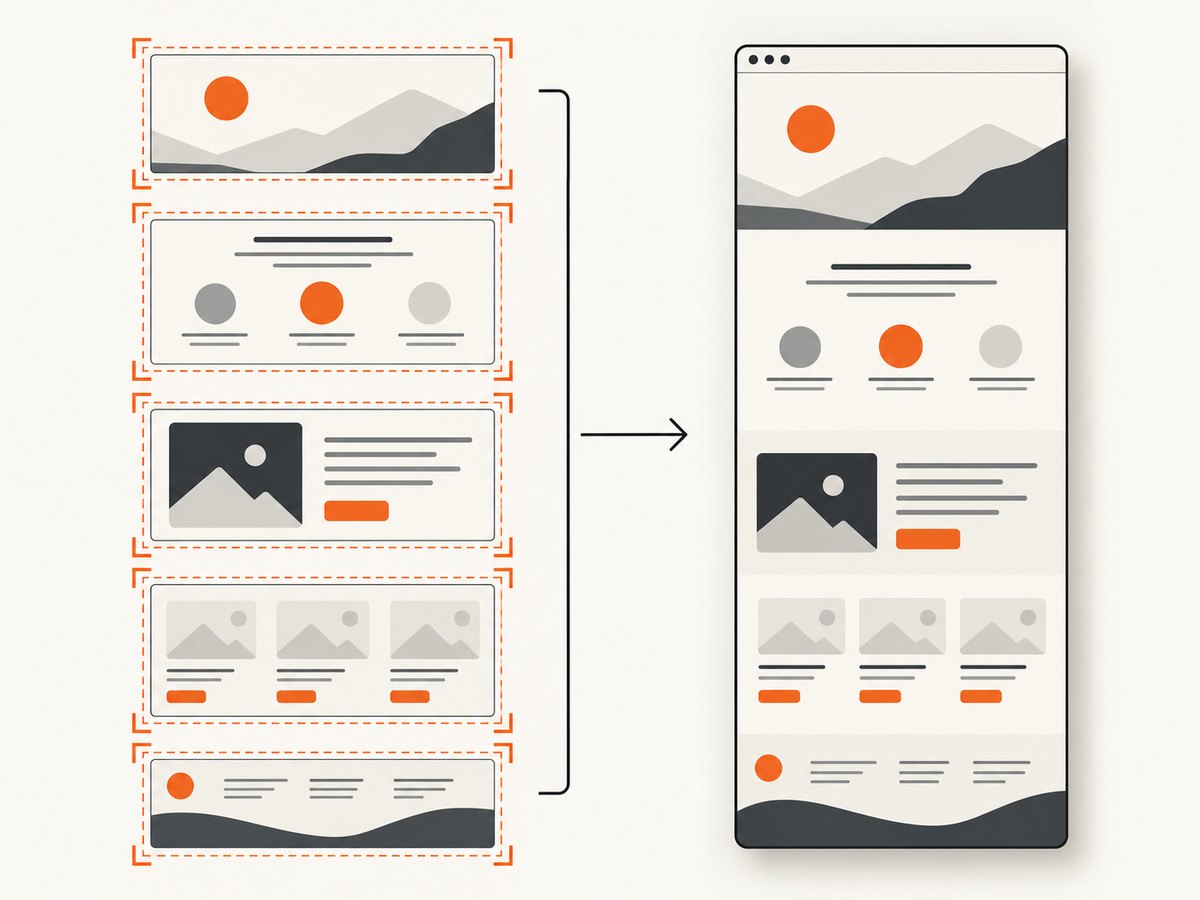
Section capture also helps when a page contains extremely large canvases, long-running animations, or content that cannot be made stable as one image.
Troubleshooting
| Symptom | Likely cause | Fix |
|---|---|---|
| Only the viewport is captured | captureBeyondViewport is missing or false. |
Set it to true, use fromSurface: true, and omit clip. |
Page is too large. |
Width or height reached Chromium’s 131,072-pixel guard. | Lower scale, reduce dimensions, or capture clipped sections. |
| Blank or partially rendered image | The command ran before application rendering completed. | Wait for a DOM marker, data completion, image loading, or stable layout. |
| Connection or target errors | The page target closed, the CDP endpoint is unavailable, or another process owns the port. | Check the browser process, rediscover the target, and reconnect with bounded retries. |
| Unexpected dimensions | Viewport, emulation, or device scale settings differ. | Set them explicitly and record the effective values. |
| Images change between runs | Animations, rotating content, ads, or time-dependent data. | Pause animations where possible, block unstable resources, and capture at a defined state. |
| Base64 decoding fails | The client treated the response as text or saved the base64 string itself. | Decode result.data before writing binary bytes. |
Performance, reliability, and cost considerations
A full-page CDP capture avoids the extra work and seams of a scroll-and-stitch algorithm, but the browser still has to render the entire document. Large DOM trees, high device scale factors, huge images, and expensive scripts increase memory use and capture time.
- Reuse a browser process when safe, but isolate pages or contexts so cookies and state do not leak between jobs.
- Use explicit timeouts for navigation, readiness, and capture. Retry target and transient transport failures with a limit.
- Log URL, Chrome version, viewport, scale, document dimensions, format, readiness result, and elapsed time.
- Prefer WebP or JPEG when lossless PNG is unnecessary; choose JPEG quality deliberately.
- Cache deterministic captures at the application layer when the source page and settings are unchanged.
CDP itself has no hosted-service per-screenshot price. Your operational costs come from browser CPU, memory, storage, bandwidth, and engineering time. If you operate many concurrent browsers, measure peak memory and queue work instead of starting unlimited processes.
Or skip the browser setup
ScreenshotNeo provides a website screenshot API and MCP server. One GET request returns PNG, JPEG, WebP, or PDF, while the service handles the browser layer.
cURL:
curl -G "https://api.screenshotneo.com/v1/shot" -d access_key=YOUR_API_KEY --data-urlencode url=https://stripe.com -o shot.webpPython:
import requests
r = requests.get("https://api.screenshotneo.com/v1/shot", params={"access_key": "YOUR_API_KEY", "url": "https://stripe.com"}, timeout=90)
open("shot.webp", "wb").write(r.content)
Node.js:
const q = new URLSearchParams({ access_key: 'YOUR_API_KEY', url: 'https://stripe.com' });
const res = await fetch(`https://api.screenshotneo.com/v1/shot?${q}`);
See the ScreenshotNeo API documentation for authentication and options. Before capture, cookie and consent banners, newsletter popups, and chat widgets are removed; each cleanup step can be turned off. Bot checks, blank pages, timeouts, failed loads, and cache hits are not billed, and response headers report the page verdict and billing result.
For automation, ScreenshotNeo supports full-page capture, CSS-element capture, custom CSS and JavaScript, waits, request blocking, headers, cookies, user agents, geolocation, time zones, caching, signed links, asynchronous jobs, webhooks, bulk capture, PDF output, and an MCP server with take_screenshot, get_page_info, and capture_pdf tools. One thousand screenshots per month are free with no card; paid plans start at $5 for 3,000 shots. Create a free ScreenshotNeo account.
FAQ
Does full-page capture scroll the page?
No. Chromium uses one capture operation with beyond-viewport rendering. Your page may still need preparation to trigger lazy content.
Can I use a clip and still capture a full page?
A clip intentionally limits the rectangle. Omit it for Chromium’s automatic full-page path.
Which format should I choose?
Use PNG for lossless output, JPEG when adjustable compression is useful, and WebP when you want a modern compact image format.
Why does a load event produce an incomplete image?
Load does not promise that client-side rendering, lazy images, fonts, or late API responses have settled. Wait for an application-specific condition.
How can I reproduce a capture later?
Record the URL, browser version, viewport, device scale factor, emulation settings, format, and readiness condition alongside the image.


