BlogScreenshots on your device
How to Take Full-Page Screenshots with Developer Tools
Capture an entire webpage in Chrome, Firefox, and Edge, troubleshoot dynamic pages, and automate reliable screenshots with practical commands.
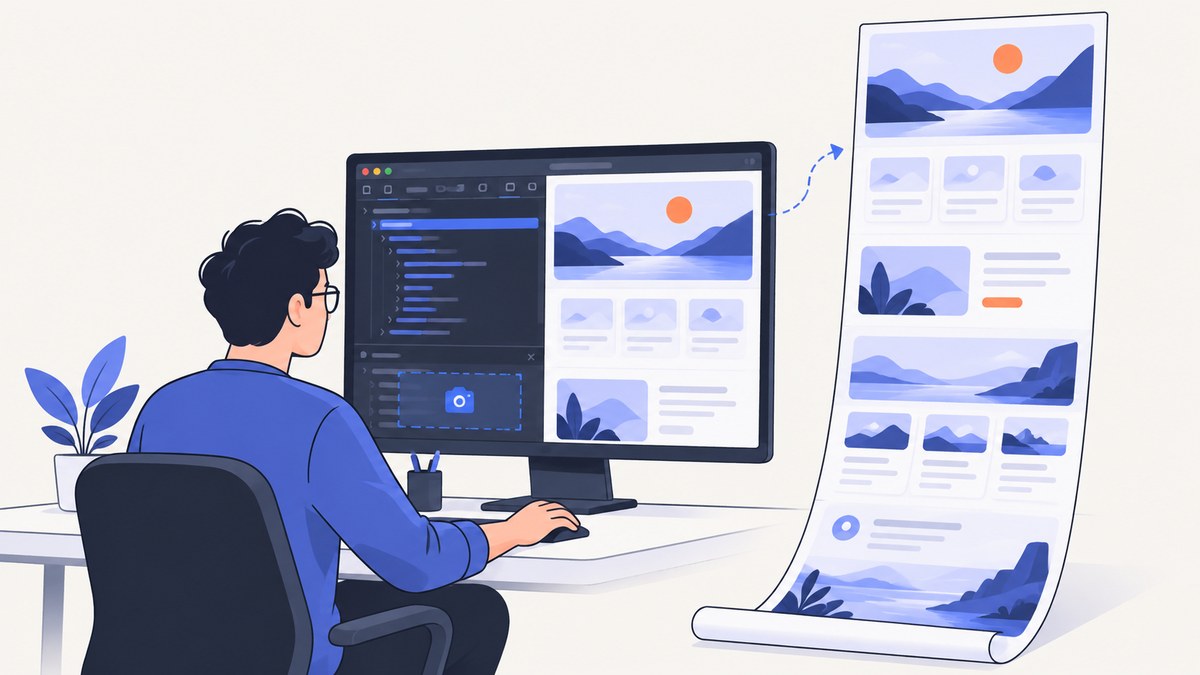
A full-page screenshot captures the document beyond the visible browser window, including content you would normally reach only by scrolling. Chrome DevTools has a dedicated Capture a full size screenshot command, Firefox Developer Tools offers a full-page button and the :screenshot --fullpage helper, and Microsoft Edge includes a Screenshot feature for full webpages.
The correct method depends on your browser and whether you need a one-off image, a selected element, a specific viewport, or repeatable automation. The steps below cover all three browsers, responsive dimensions, dynamic content, common failures, and a browser-free API option.
What “full page” means
A viewport screenshot records only the pixels currently visible inside the browser window. A full-page screenshot asks the browser to render the document’s complete scrollable content and combine it into one image. These are different operations:
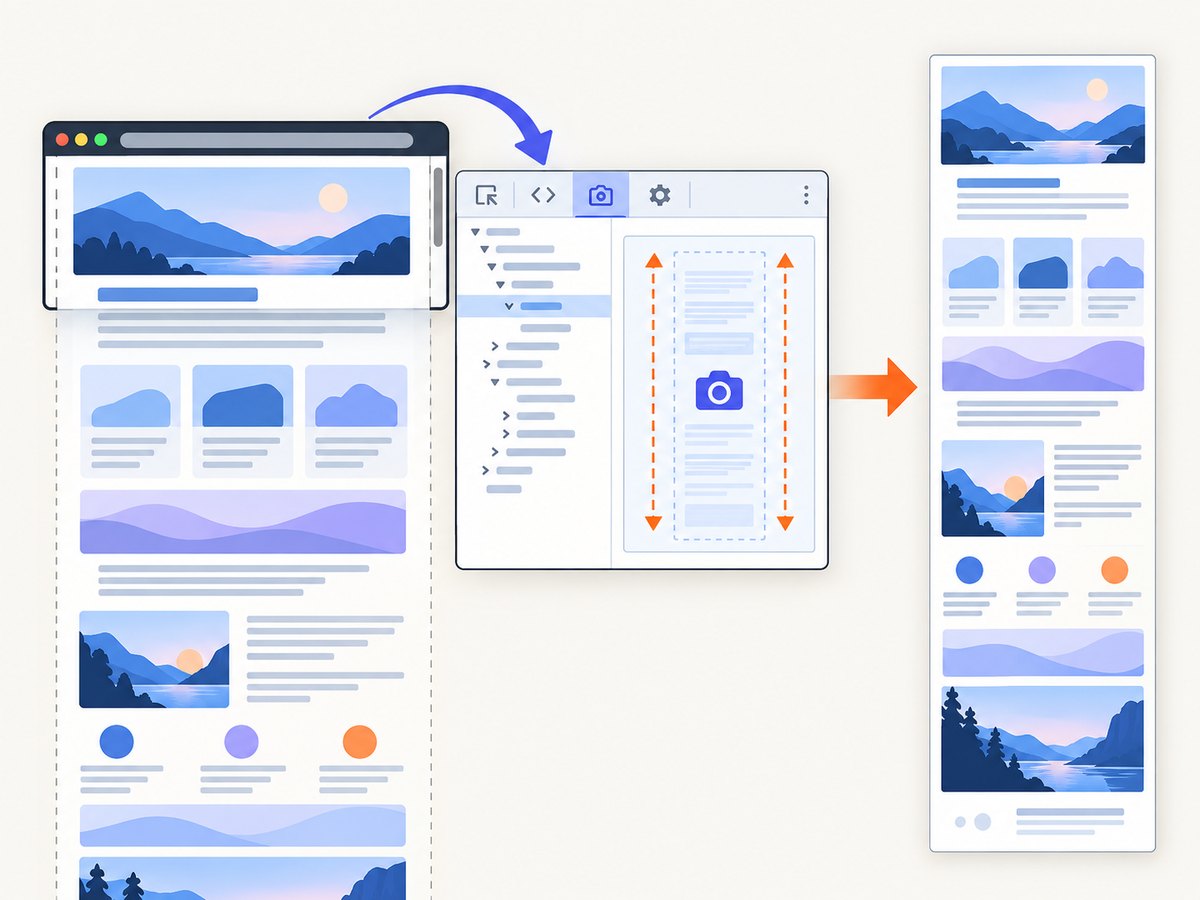
| Capture type | What it includes | Typical use |
|---|---|---|
| Viewport | Only the current visible area | Bug reports, above-the-fold designs |
| Full page | Content outside the current viewport | Documentation, audits, archiving |
| Element or region | One selected DOM node or area | Component reviews, receipts, charts |
A browser-rendered full-page image is not a guarantee that every dynamic state will be preserved. Lazy images, animated content, sticky headers, cross-origin frames, and canvases can behave differently while the browser scrolls or assembles the capture. Always inspect the resulting file when accuracy matters.
Chrome DevTools: capture the complete page
Chrome separates viewport capture from full-size capture in the DevTools command menu. The full-size command includes content that is not currently visible in the viewport. See the Chrome DevTools Device Mode documentation for the documented workflow and responsive controls.
Step-by-step
- Open the page you want to capture in Chrome.
- Open DevTools with
Ctrl+Shift+Ion Windows/Linux orCmd+Option+Ion macOS. - Open the device toolbar with
Ctrl+Shift+MorCmd+Shift+Mif you need a specific responsive width. - Choose a device preset or enter a custom width and height. Chrome documents responsive widths such as 320, 375, 425, 768, 1024, 1440, and 2560 pixels.
- Open the DevTools More options menu, usually shown as three vertical dots.
- Choose Capture full size screenshot. Use Capture screenshot only when you want the visible viewport.
Changing the dimensions in Device Mode changes the simulated viewport used for the capture. It does not turn your computer into a physical phone or tablet, so touch behavior, hardware sensors, and device-specific rendering still need testing on real hardware.
Chrome checklist
- Set the intended width before capturing.
- Wait for fonts, images, and client-side data to finish loading.
- Close DevTools overlays that obscure the page.
- Check very tall pages for clipping or missing sections.
- Repeat the capture at each responsive breakpoint you need to document.
Firefox Developer Tools: button, node, and command-line capture
Firefox offers a toolbar button for a complete page, a context-menu command for an individual element, and a Web Console helper with options for delay, device-pixel ratio, filenames, clipboard output, and selectors. Mozilla documents these controls in Taking screenshots in Firefox Developer Tools.
Enable the full-page screenshot button
- Open Firefox Developer Tools with
F12,Ctrl+Shift+I, orCmd+Option+I. - Open DevTools Settings.
- Find Available Toolbox Buttons.
- Enable Take a screenshot of the entire page.
- Click the new screenshot icon in the DevTools toolbar. Firefox saves the image to Downloads.
Firefox also has a Screenshot to clipboard setting. When enabled, the screenshot is copied as well as saved. This is useful when you need to paste the image directly into a document or issue tracker.
Capture one element with Screenshot Node
- Open the Inspector.
- Select the element in the HTML pane.
- Open its context menu.
- Choose Screenshot Node.
This captures the selected node and its descendants, which is often more useful than cropping a full-page image after the fact.
Use the Web Console helper
Open the Web Console and run:
:screenshot --fullpage --filename=full-page.pngThe documented options include:
| Option | Purpose | Example |
|---|---|---|
--fullpage |
Capture content beyond the window | :screenshot --fullpage |
--selector |
Capture one element and descendants | :screenshot --selector="main" |
--delay |
Wait before capture | :screenshot --delay=2 |
--dpr |
Set device-pixel ratio | :screenshot --dpr=2 |
--clipboard |
Copy the result to the clipboard | :screenshot --fullpage --clipboard |
--file |
Force file output | :screenshot --file |
--filename |
Choose the PNG filename | :screenshot --filename=pricing.png |
For example, to wait for a menu or hover state:
:screenshot --fullpage --delay=2 --dpr=2 --filename=delayed-page.pngReusing a filename overwrites the previous image, so use distinct names when creating a sequence.
Microsoft Edge: full webpage or selected area
Microsoft Edge’s Screenshot feature can capture a full webpage, including content that requires scrolling, or a selected area. It also supports markup with pen or touch before you copy or save the result. Microsoft documents access through the right-click menu, Edge Settings, and the Ctrl+Shift+S shortcut in its Screenshot feature documentation.
Capture a full page
- Open the webpage in Edge.
- Press
Ctrl+Shift+S, or open the browser menu and choose Screenshot. - Choose the full-page option rather than a selected area.
- Add markup if needed.
- Copy the image or save it to disk from the overlay.
Edge can copy the result for pasting into applications such as Word, Excel, PowerPoint, and OneNote. Feature availability and exact labels can vary by device type, market, and browser version.
Dynamic pages: make the capture more accurate
Full-page commands operate on the page as the browser renders it. A long image can therefore expose timing problems that are invisible in a normal viewport screenshot.
Lazy-loaded images
Some sites request images only after an element approaches the viewport. A full-page tool may scroll or render the document in a way that does not trigger every request. Scroll through the page once before capturing, wait for image placeholders to disappear, and check the output for blank regions.
Sticky headers and fixed widgets
A fixed header or chat widget can appear repeatedly in a stitched image. Hide the widget temporarily with the browser’s element tools, disable it through the site’s settings, or use an automation tool that can hide selectors before capture.
Animations and changing data
Animated banners, carousels, clocks, and live dashboards can change while the screenshot is assembled. Pause animations where possible and use a delay in Firefox when a page needs time to reach a stable state. A screenshot is a snapshot, so it cannot represent every state of an interactive component.
Cross-origin frames and canvases
Embedded content from another origin may be restricted or rendered separately. Application-specific canvases may also depend on timing, fonts, or GPU behavior. If a frame is missing, capture the embedded page separately when you have permission, or use the application’s export function.
Common errors and fixes
| Symptom | Likely cause | Fix |
|---|---|---|
| Only the visible area is saved | Viewport command was selected | Choose Chrome’s Capture full size screenshot, Firefox’s full-page button, or Edge’s full-page option. |
| Firefox has no screenshot icon | The toolbox button is disabled | Enable Take a screenshot of the entire page in DevTools Settings. |
| Images are blank | Lazy loading or requests still pending | Scroll through the page, wait for network activity to settle, then capture again. |
| Content is duplicated | Fixed or sticky elements repeat during capture | Temporarily hide the element or capture the relevant region instead. |
| Text or layout differs from production | Responsive simulation or missing fonts | Set the exact viewport width, wait for web fonts, and validate on the target device. |
| Firefox command overwrote an image | The same filename was reused | Pass a unique value to --filename for every capture. |
| Page is cut off at the bottom | Browser or page height limits | Capture a selected section, divide the page into regions, or use an API designed for long documents. |
| Cookie banner covers content | Consent state was not set | Accept or dismiss the banner before capture, or automate cookie handling. |
Performance, reliability, and file size
Full-page screenshots take longer and consume more memory than viewport captures because the browser must render more pixels. A very tall page at a high device-pixel ratio can produce a large PNG and may hit browser or operating-system limits.
- Choose the smallest useful width. A 1440-pixel desktop image contains much more data than a 768-pixel documentation image.
- Use DPR deliberately. A DPR of 2 improves text density but increases pixel count roughly fourfold compared with a DPR of 1 at the same CSS dimensions.
- Prefer JPEG or WebP for photographs. PNG is usually better for sharp UI text, transparency, and diagrams.
- Capture stable states. Wait for fonts, images, and application data before saving.
- Keep a reproducible record. Note the browser version, viewport width, DPR, URL, and capture time when screenshots are used as evidence.
Or skip the browser setup
If you need repeatable captures in a build, script, content pipeline, or AI workflow, ScreenshotNeo provides a website screenshot API and MCP server. One GET request returns a PNG, JPEG, WebP, or PDF. The API supports full-page capture with lazy images loaded, CSS-selector element capture, dark mode, device presets and custom viewports, retina scale, custom CSS and JavaScript, click actions, selector waits, delays, network-idle waits, blocked resource types, custom headers and cookies, user agents, Authorization, timezone, geolocation, transparent backgrounds, resizing, caching, signed links, asynchronous jobs, webhooks, bulk capture, usage reporting, and PDF controls.

See the ScreenshotNeo API documentation for the available parameters. A minimal request looks like this:
curl -G "https://api.screenshotneo.com/v1/shot" -d access_key=YOUR_API_KEY --data-urlencode url=https://stripe.com -o shot.webpPython
import requests

r = requests.get(
    "https://api.screenshotneo.com/v1/shot",
    params={"access_key": "YOUR_API_KEY", "url": "https://stripe.com"},
    timeout=90,
)
r.raise_for_status()
open("shot.webp", "wb").write(r.content)
Node.js
const q = new URLSearchParams({
  access_key: 'YOUR_API_KEY',
  url: 'https://stripe.com'
});
const res = await fetch(`https://api.screenshotneo.com/v1/shot?${q}`);
if (!res.ok) throw new Error(`Screenshot failed: ${res.status}`);
const fs = await import('node:fs/promises');
await fs.writeFile('shot.webp', Buffer.from(await res.arrayBuffer()));
ScreenshotNeo removes cookie and consent banners, newsletter popups, and chat widgets before capture. Bot checks, blank pages, timeouts, failed loads, and cache hits are not billed, and each response identifies the result with X-Page-Verdict and X-Billed headers. Its MCP server exposes take_screenshot, get_page_info, and capture_pdf for Claude, Cursor, and other MCP clients.
The Free plan includes 1,000 screenshots per month with no card. Paid plans start at $5 for 3,000 shots; yearly billing gives two months free, and every feature is available on every plan. Create a free ScreenshotNeo account to get started.
Choosing the right method
| Need | Best fit |
|---|---|
| One manual capture in Chrome | Chrome DevTools full-size screenshot |
| Firefox-specific delay, DPR, or selector | Firefox :screenshot |
| Markup before sharing | Edge Screenshot |
| Repeatable captures in code | ScreenshotNeo API |
| AI-agent screenshot workflow | ScreenshotNeo MCP server |
| One DOM component | Firefox Screenshot Node or an API selector capture |
FAQ
Can Chrome save a full page without an extension?
Yes. Open DevTools, use the More options menu, and select Capture full size screenshot.
Does full-page capture include content below the fold?
Yes, when you choose the full-page or full-size command. The browser captures the document beyond the current viewport.
Can I capture only one section?
Firefox can capture a selected node, and its Web Console supports --selector. ScreenshotNeo also supports capture by CSS selector.
Why is my screenshot different from what a phone displays?
Chrome Device Mode simulates a viewport. It does not reproduce every physical-device behavior, sensor, font, or rendering difference.
What should I do when the page is too tall?
Capture logical sections separately, reduce the viewport width or DPR, or use an automated screenshot service that can handle long documents and return a compressed format.


