BlogScreenshots on your device
How to Take a Full-Page (Scrolling) Screenshot on Windows
Capture an entire webpage on Windows with Edge, understand Snipping Tool limits, troubleshoot long pages, and automate screenshots with ScreenshotNeo.
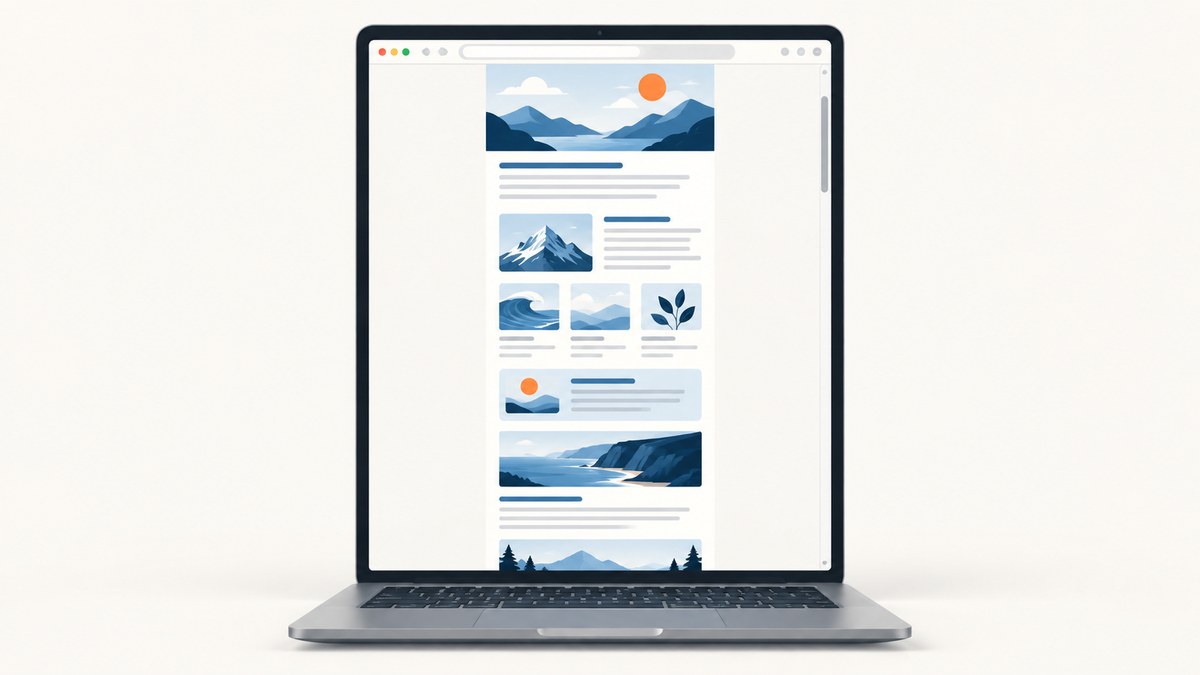
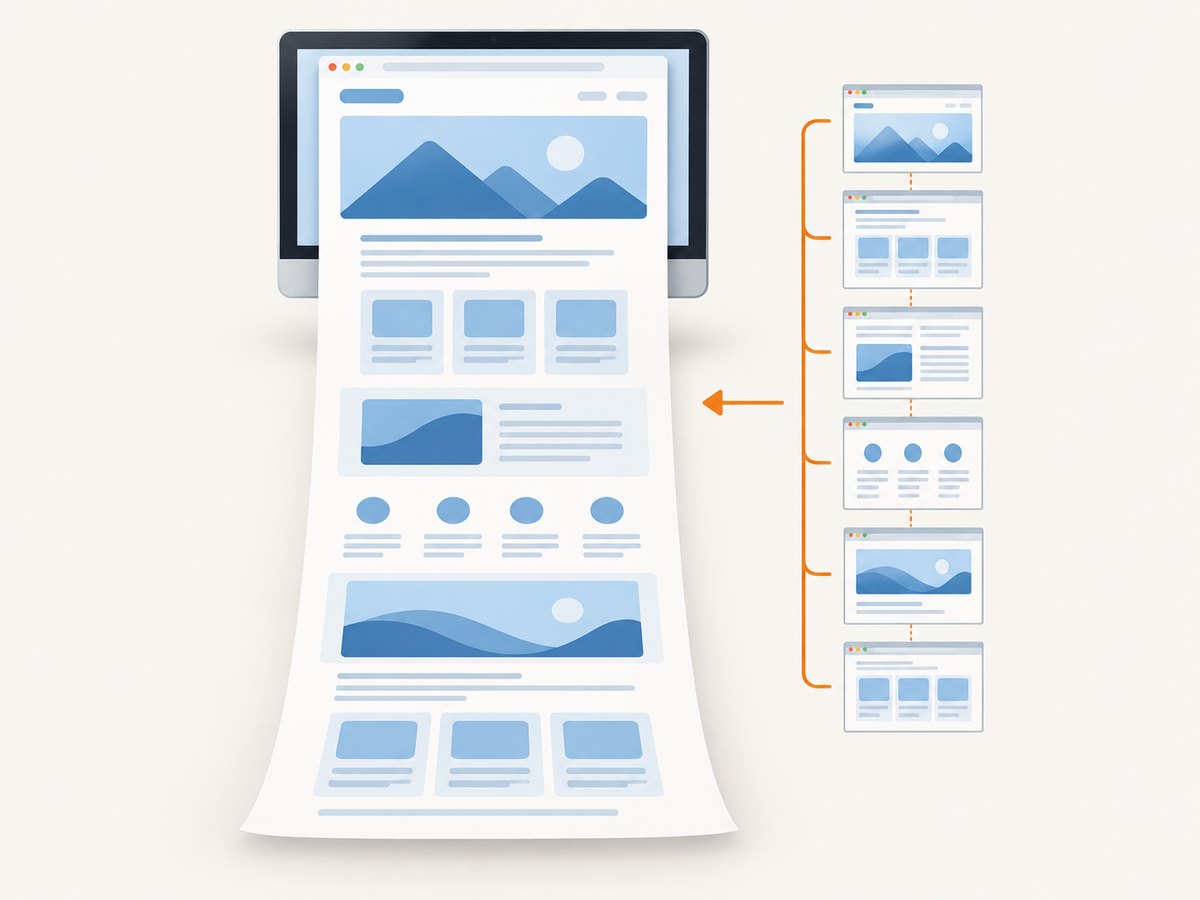
For a webpage in Microsoft Edge, press Ctrl+Shift+S, choose Capture full page, review the result, then save or copy it. Edge’s Screenshot feature captures content below the visible viewport, including sections you would otherwise reach only by scrolling. It also lets you mark up the capture before copying or saving it.
This is different from a normal Windows full-screen snip. A full-screen snip records what is visible on your monitor at that moment; a full-page capture collects the webpage from top to bottom. If you need a screenshot of a desktop application, PDF viewer, chat window, or another scrolling program, you may need specialist software instead.
1. Decide what you need to capture
Before choosing a tool, identify the capture target:
| Goal | Best starting point | Output |
|---|---|---|
| Entire webpage, including content below the fold | Microsoft Edge Screenshot → Capture full page | One tall image you can save or copy |
| Only the visible monitor or a selected rectangle | Windows Snipping Tool | Screen image of the current view |
| Scrolling content in a non-browser application | A scrolling-window utility that supports that application | Usually a stitched image |
| A document for reading or printing | Browser print-to-PDF | PDF, not an image screenshot |
The phrase “scrolling screenshot” often describes two different jobs: capturing a whole webpage and stitching a scrolling desktop window. The steps below focus first on webpages, then explain the alternatives.
2. Use Microsoft Edge’s full-page capture
Step 1: Open the page
Launch Microsoft Edge and open the webpage. Wait for the page to finish loading. If it has lazy-loaded images, scroll through it once first; some pages do not request images until their section approaches the viewport.
Step 2: Open Screenshot
Press Ctrl+Shift+S. Microsoft lists this shortcut for Edge’s Screenshot feature. If the shortcut does not work in your installation, open Edge’s menu and find the Screenshot command; browser labels and shortcuts can change between versions.
Step 3: Choose Capture full page
In the Screenshot toolbar, select Capture full page. Do not choose a rectangle or visible-area option when you need content below the fold. Edge will process the page and present a tall capture.
Step 4: Review, annotate, and save
Inspect the top, middle, and bottom of the result for missing sections, repeated fixed headers, or unloaded images. Use the markup controls if you need to draw, highlight, or crop. Then choose the save command to write an image file, or copy the capture to the clipboard for another application.
For very long pages, allow the capture to finish before switching tabs. A page that keeps changing, opens a modal, or loads more content while Edge is collecting it may produce an inconsistent result.
3. What Windows Snipping Tool can and cannot do
Windows Snipping Tool supports rectangular, free-form, window, and full-screen snips, plus video snips. A full-screen snip captures all monitors or the selected screen as it is displayed. Microsoft’s current support instructions do not document a scrolling full-webpage mode.
Therefore:
- Use Snipping Tool for a visible screen, a selected region, or a window.
- Use Edge’s Screenshot feature for a complete webpage.
- Use a scrolling-window utility when the target is a non-browser application and you need content beyond the visible area.
You can still combine the tools. For example, use Edge for the long page, then Snipping Tool to capture a small annotation or error dialog that is outside the webpage capture.
4. Browser alternatives and when to use them
Firefox
Firefox has offered a Save full page command in its page screenshot interface. The exact control can move as Firefox changes. Open the browser’s screenshot tool, look for a full-page or entire-page option, and verify the result before relying on it for production documentation.
Chrome
Chrome can capture a full page through developer tools, print-to-PDF, or extensions. Developer-tools workflows are useful on managed machines where extensions are blocked, but the command names and keyboard paths vary by Chrome release. Print-to-PDF creates a document with pagination; it is not equivalent to a single tall image.
Scrolling-window utilities
A specialist utility such as PicPick may provide a Scrolling Window mode for browser pages, PDFs, and supported applications. Compatibility depends on the target program. Check the vendor’s current documentation before assuming it can stitch a particular window, especially when the application uses custom rendering, hardware acceleration, or virtualized lists.
When an image is the wrong output
If the purpose is archiving, printing, accessibility review, or offline reading, export the page to PDF instead. PDFs preserve pagination and are easier to search. A tall PNG or WebP is better for visual review, regression comparisons, and embedding in an issue or report.
5. Common problems and fixes
| Symptom | Likely cause | Fix |
|---|---|---|
| The shortcut does nothing | Edge version, shortcut conflict, or focus inside another control | Click the page, try the Edge menu’s Screenshot command, and update Edge if needed. |
| Only the visible area is captured | A region or visible-screen mode was selected | Reopen Screenshot and choose Capture full page. |
| The bottom of the page is missing | Lazy loading, infinite scroll, or a capture timeout | Scroll through the page once, wait for images to load, stop infinite loading, and retry. |
| Images are blank or low quality | Images load after interaction, require cookies, or are blocked | Accept required site permissions, wait for the images, disable aggressive blocking for that site, and capture again. |
| A fixed header appears repeatedly | The site keeps the header pinned while the browser stitches sections | Use the site’s print view, crop the repeated area, or use an automated capture tool that can hide a selector. |
| A cookie banner covers content | The consent dialog remains open during capture | Dismiss it manually, use a clean browser profile, or automate consent handling before capture. |
| An infinite feed never finishes | The page continuously requests more items | Capture a defined state after loading the required section, or use a tool with a wait condition and a controlled viewport. |
| Text looks blurry | The image was downscaled or the display scale is low | Save the original capture, avoid repeated re-encoding, and use a higher device scale when an automated tool supports it. |
| A desktop app cannot be captured end to end | Edge’s feature only understands webpage content | Use that application’s export function or a scrolling-window utility that explicitly supports it. |
6. Quality checklist for a full-page screenshot
- Confirm the target: webpage, visible screen, or another scrolling window.
- Load dynamic content: scroll once, expand important accordions, and wait for images.
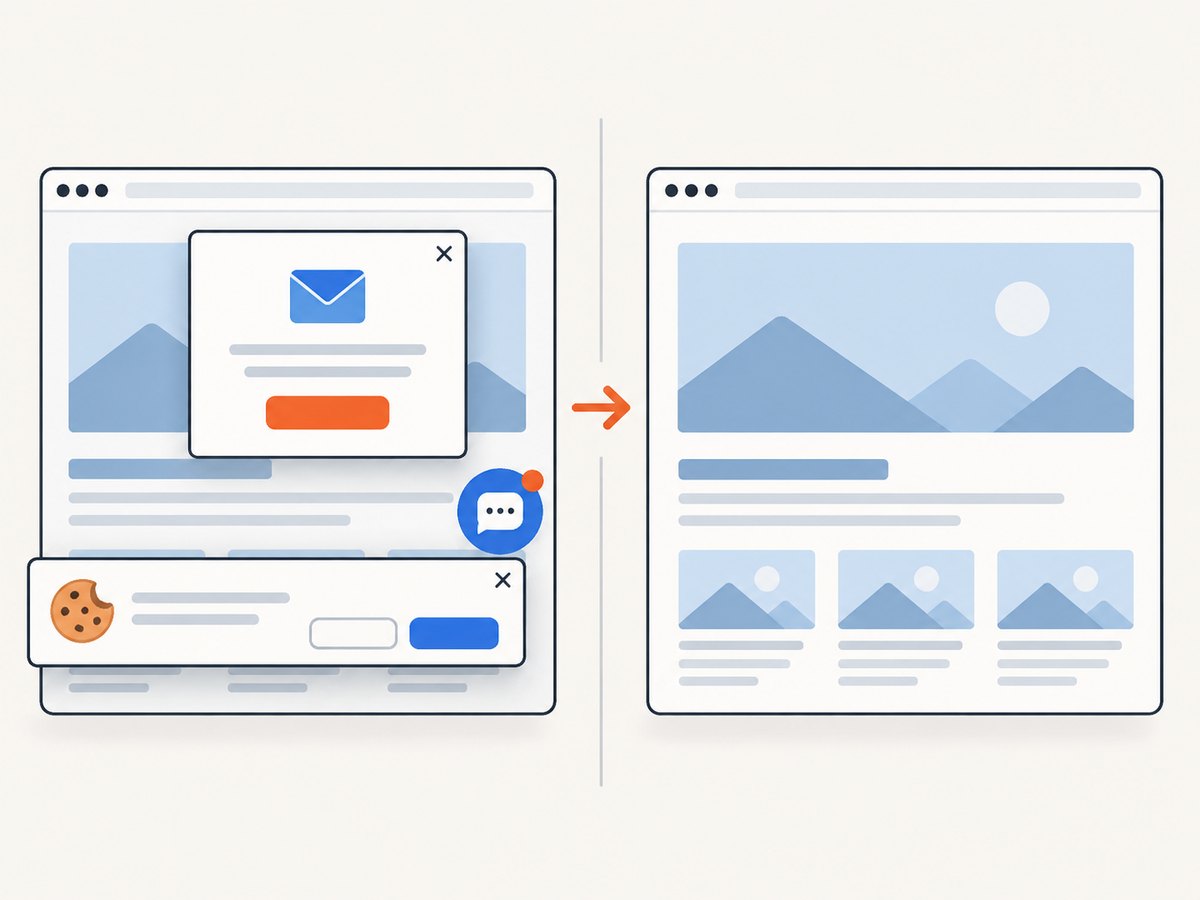
- Remove obstructions: close cookie dialogs, newsletter popups, chat bubbles, and sign-in prompts.
- Check the capture boundaries: verify the page starts at the intended top and ends after the final content.
- Inspect responsive behavior: a narrow window can trigger a mobile layout; resize Edge if you need desktop presentation.
- Choose a format: PNG for crisp text and lossless editing, JPEG for smaller photographic files, or WebP when your destination supports it.
- Name the file: include the site, page purpose, viewport, and date so later comparisons are unambiguous.
7. Performance, reliability, and privacy considerations
A full-page capture takes longer than a viewport snip because the browser must render more content. Pages with animations, ads, embedded videos, maps, and client-side navigation are more likely to change during capture. For repeatable results, pause animations where possible, use a stable viewport, and capture after the page reaches a known state.
Very tall images consume memory when opened or edited. If a page is thousands of pixels high, consider a PDF, several section captures, or an automated workflow that stores the original and a resized derivative. Keep the original if the screenshot may be used as evidence.
Review the page’s privacy requirements before saving or sharing. A screenshot can include account names, order numbers, personal messages, or tokens visible in the interface. Redact sensitive data before publishing it.
For recurring jobs, browser automation gives you explicit waits, selectors, cookies, headers, viewport sizes, and output formats. It also introduces maintenance: browser versions, site changes, consent dialogs, and bot checks can break a script. A managed screenshot API can remove that browser setup when you need predictable requests from CI, a backend, or an AI workflow.
8. Or skip the browser setup
ScreenshotNeo provides a website screenshot API and MCP server. One GET request returns a PNG, JPEG, WebP, or PDF. Its clean-shot flow accepts cookie and consent banners like a visitor, then removes more than 60 known consent platforms, newsletter popups, and chat widgets; each step can be turned off. Bot checks, blank pages, timeouts, failed loads, and cache hits cost nothing, and each response identifies the result with X-Page-Verdict and X-Billed headers.
For a full-page capture, start with this request. See the ScreenshotNeo documentation for the complete option list.
curl -G "https://api.screenshotneo.com/v1/shot" -d access_key=YOUR_API_KEY --data-urlencode url=https://stripe.com -o shot.webpPython:
import requests

r = requests.get(
    "https://api.screenshotneo.com/v1/shot",
    params={"access_key": "YOUR_API_KEY", "url": "https://stripe.com"},
    timeout=90,
)
r.raise_for_status()
open("shot.webp", "wb").write(r.content)
Node.js:
const q = new URLSearchParams({ access_key: 'YOUR_API_KEY', url: 'https://stripe.com' });
const res = await fetch(`https://api.screenshotneo.com/v1/shot?${q}`);
if (!res.ok) throw new Error(`Screenshot failed: ${res.status}`);
const fs = await import('node:fs/promises');
await fs.writeFile('shot.webp', Buffer.from(await res.arrayBuffer()));
ScreenshotNeo supports full-page capture with lazy images loaded, element capture by CSS selector, dark mode, 12 device presets or any viewport, retina scale, custom CSS and JavaScript, clicks before capture, selector waits, delay or network-idle waits, blocked ads and trackers, custom headers and cookies, user agents, Authorization, timezone and geolocation, transparent backgrounds, image resizing, configurable caching, signed links, asynchronous jobs with signed webhooks, bulk capture of 100 URLs per call, a usage API, and an OpenAPI specification. PDF options include paper size, margins, landscape mode, and page ranges.
An MCP server exposes take_screenshot, get_page_info, and capture_pdf to Claude, Cursor, and other MCP clients. Parameter names used by other screenshot APIs also work, which can simplify migration.
Plans include 1,000 shots per month free with no card, Starter at $5 for 3,000, Growth at $15 for 15,000, Pro at $39 for 60,000, Scale at $99 for 250,000, and Business at $249 for 1,000,000. Yearly billing gives two months free, and every feature is included on every plan. Create a free ScreenshotNeo account to get 1,000 screenshots a month with no card.
9. FAQ
Can Windows Snipping Tool take a scrolling webpage screenshot?
Microsoft’s documented Snipping Tool modes include screen, window, region, and video captures; they do not document a scrolling full-page webpage mode. Use Edge’s Capture full page command for a webpage.
What is the keyboard shortcut in Edge?
Microsoft lists Ctrl+Shift+S for Screenshot. If it differs in your installation, use the Screenshot command in Edge’s menu.
Does a full-page screenshot include content below the fold?
Yes. Capture full page is designed to include webpage content that is not visible until you scroll.
Should I save a screenshot as PNG or PDF?
Choose PNG for a single image and crisp text, WebP for supported web delivery, JPEG for smaller photographic files, and PDF for pagination, printing, or reading.
Why does my capture contain repeated headers?
A sticky header may be rendered at every stitched section. Hide it before capture, crop the result, or use an automated workflow that supports hiding selectors.
How do I capture a page that requires a login?
Use a trusted browser session for manual capture. For automation, use a service that supports cookies and custom headers, and keep credentials out of screenshots and source control.


