BlogScreenshots on your device
How to Capture a Full-Page Website Screenshot on Windows
Capture an entire webpage on Windows with Edge, Firefox, Snipping Tool, ShareX, PicPick, or ScreenshotNeo, plus fixes for common problems.
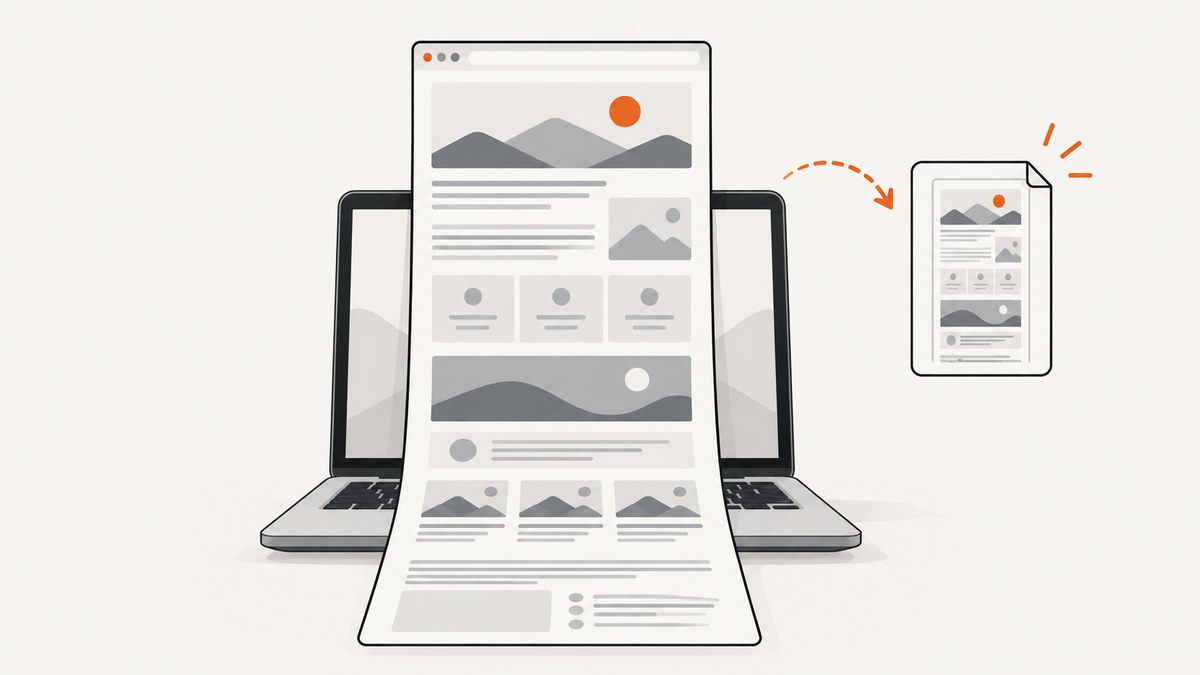
A normal screenshot records only the pixels currently visible on your monitor. A full-page website screenshot captures the page below the fold and saves it as one tall image (or, with some tools, a PDF). On Windows, the quickest built-in method is Microsoft Edge: open the page, press Ctrl+Shift+S, choose Capture full page, then copy or save the result.
This guide explains that workflow in detail, the equivalent Firefox command, when Windows Snipping Tool is the wrong choice, how scrolling utilities work, and how to automate captures with ScreenshotNeo.
1. Capture a full webpage in Microsoft Edge
Edge’s Screenshot tool is the simplest option when you need one webpage image and do not want to install software. Microsoft describes it as capturing beyond the visible screen without requiring manual scrolling.
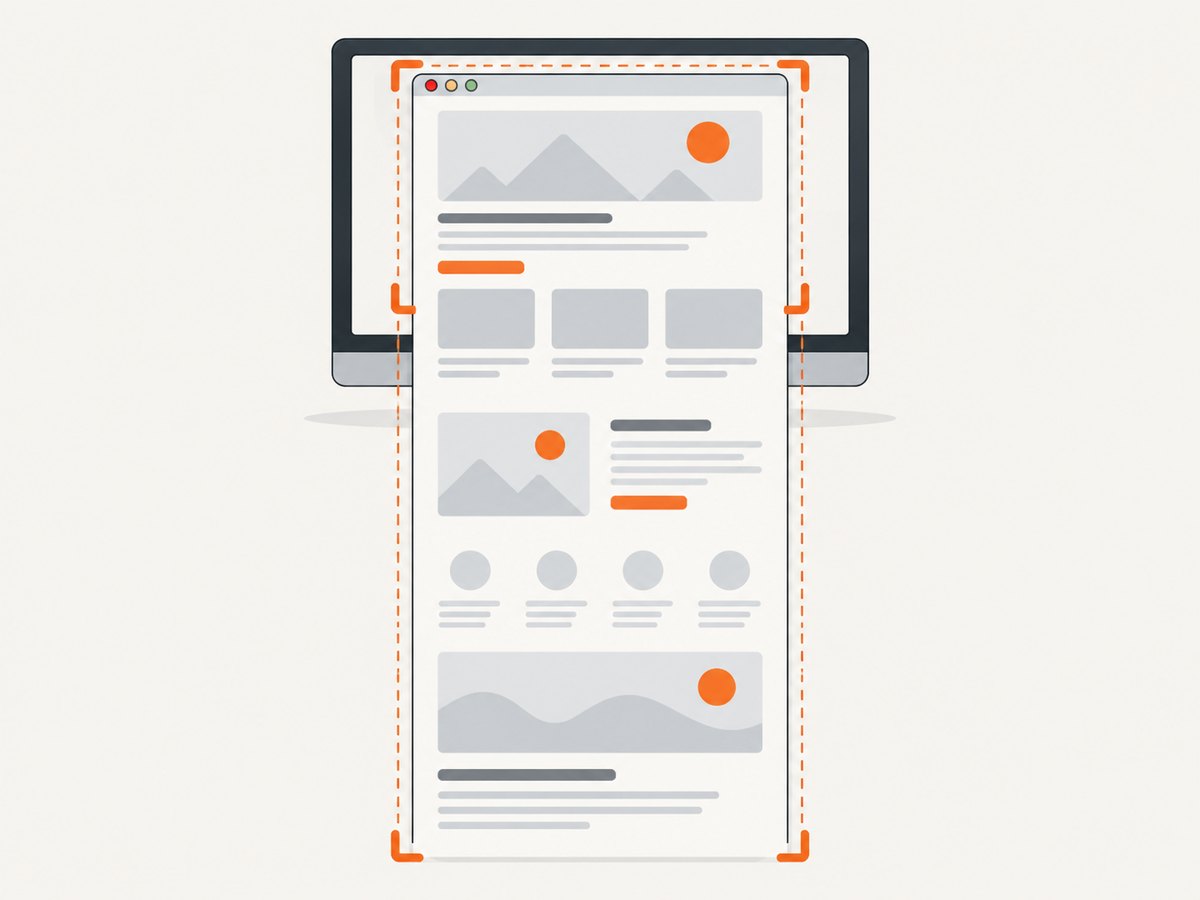
- Open the webpage in Microsoft Edge and wait for the page to finish loading.
- Press Ctrl+Shift+S. You can also open Edge’s menu and choose the Screenshot command.
- Choose Capture full page.
- Review the long capture. Use the available markup tools if you need to annotate it.
- Choose Copy to put the image on the clipboard, or Save to write an image file.
Microsoft’s documented shortcut is: “Press Ctrl+Shift+S and select Capture full page to grab everything at once, with no scrolling required.” See the official Edge Screenshot page for the current interface.
What Edge captures
Edge captures the rendered webpage, including content that is below the viewport. The output is useful for documentation, bug reports, design review, and archiving a page at a particular moment. It is still a browser capture: content that appears only after an interaction, login, or delayed request may require preparation first.
Prepare the page before pressing the shortcut
- Sign in if the page is private and you are authorized to view it.
- Dismiss consent dialogs, newsletter forms, chat bubbles, and other overlays that cover content.
- Expand accordions or tabs whose content must appear in the final image.
- Scroll through the page once if it uses lazy-loaded images. This gives the browser a chance to request content farther down.
- Wait for animations, ads, and live data to settle. A capture records a moment, so moving elements can appear in different positions.
2. Use Firefox’s built-in full-page screenshot
Firefox also provides a browser-native full-page action. Mozilla documents downloading the result as an image and copying it on Windows and Linux.
- Open the page in Firefox.
- Right-click an empty area of the page and select Take Screenshot, or open the page actions menu and choose the screenshot command.
- Select Save full page.
- Choose the download location. You can also use Copy to place the capture on the clipboard.
The control names can change slightly between Firefox releases. Mozilla’s Take screenshots in Firefox documentation describes the current Save full page workflow.
3. Know when Windows Snipping Tool is appropriate
Windows Snipping Tool is built into Windows 10 and Windows 11. Microsoft documents freeform, rectangle, window, full-screen, and video snips, with editing, saving, and sharing after capture.
Its Full screen mode means the screen as displayed. It does not, according to the cited support documentation, provide a scrolling full-webpage command. A full-screen snip therefore misses content below the viewport. Use it for a monitor, application window, selected region, or a quick visible-state bug report. Use Edge or Firefox when the requirement is the entire webpage.
4. Capture scrolling content with ShareX or PicPick
Desktop utilities are useful when the target is a scrollable document or application window rather than a standard webpage.
ShareX
ShareX documents a Scrolling screenshot feature. It scrolls through the target and combines the resulting frames into one image. Select the scrolling capture command, choose the window or page, and let the utility run to the end. This is helpful for long web pages, chat histories, and document viewers.
PicPick
PicPick lists Scrolling Window alongside region, window, and full-screen modes. Start the scrolling capture, select the scrollable window, and allow the tool to collect the full content before saving or editing the result.
Scrolling utilities depend on the target’s scrolling behavior. Fixed headers, nested scroll containers, animated content, and pages that change height while loading can produce seams or duplicated rows. The cited documentation establishes the feature, but does not provide a controlled reliability comparison between tools.
5. Full-page image versus visible-screen screenshot
| Need | Best starting point | Reason |
|---|---|---|
| One complete webpage with minimal setup | Edge Screenshot | Built-in Capture full page action |
| Full webpage while using Firefox | Firefox screenshot | Mozilla documents Save full page |
| Monitor, window, or selected rectangle | Windows Snipping Tool | Fast standard screen capture modes |
| Scrollable document or application window | ShareX or PicPick | Documented scrolling capture modes |
A full-page image can be extremely tall. Some image viewers display it scaled down, and some ticketing systems reject very large dimensions. If the recipient needs searchable text, selectable links, or print-ready pagination, create a PDF instead of (or in addition to) a single image.
6. Troubleshoot incomplete or distorted captures
The result contains only the visible screen
Cause: You used Snipping Tool’s Full screen mode or a regular Print Screen shortcut. Fix: In Edge choose Ctrl+Shift+S, then Capture full page. In Firefox choose Take Screenshot, then Save full page.
Images lower on the page are blank
Cause: Lazy loading, blocked requests, or a page that loads images only when they approach the viewport. Fix: Scroll through the page once before capture, wait for image placeholders to resolve, disable extensions that block required assets, and retry. For a repeatable workflow, use an automated capture option that can wait for a selector, delay, or network idle.
A cookie banner, newsletter, or chat widget covers the page
Cause: The overlay is part of the rendered page. Fix: Accept or reject the consent prompt as appropriate, close the popup, or hide the element with a capture tool that supports CSS selectors. Private pages may also require the correct cookies and authorization headers.
The capture has duplicated sections or visible seams
Cause: A scrolling utility stitched frames while a fixed header, animation, or changing layout moved. Fix: Pause animations where possible, wait for content to stop changing, collapse sticky elements, or use a browser-native full-page capture. If the page uses nested scrolling, select the correct scroll container.
The page stops before the footer
Cause: Infinite scrolling, a virtualized list, an iframe, or content that appears only after interaction. Fix: Trigger the required “load more” action, scroll until the content ends, capture the iframe separately if necessary, or use a tool that can click an element and wait for a selector before capturing.
The saved file is too large to upload
Cause: A long page at high device scale creates a very large PNG. Fix: Save JPEG or WebP when transparency is unnecessary, resize the output, or produce a PDF with suitable page settings. Keep the original if the capture is evidence that may need pixel-level review.
7. Automate full-page captures with ScreenshotNeo
Manual browser capture is fine for an occasional page. For scheduled monitoring, documentation builds, bulk URLs, or a server-side workflow, ScreenshotNeo provides a website screenshot API and MCP server. A GET request returns a PNG, JPEG, WebP, or PDF. Full-page capture loads lazy images, and you can also capture one element by CSS selector, set a device preset or custom viewport, use retina scale, apply custom CSS or JavaScript, click before capture, hide selectors, and wait for a selector, delay, or network idle.
See the ScreenshotNeo API documentation for request parameters and response details.
cURL
curl -G "https://api.screenshotneo.com/v1/shot" \
  -d access_key=YOUR_API_KEY \
  --data-urlencode url=https://stripe.com \
  -d full_page=true \
  -o shot.webp
Python
import requests

r = requests.get(
    "https://api.screenshotneo.com/v1/shot",
    params={
        "access_key": "YOUR_API_KEY",
        "url": "https://stripe.com",
        "full_page": "true",
    },
    timeout=90,
)
r.raise_for_status()
open("shot.webp", "wb").write(r.content)
Node.js
const q = new URLSearchParams({
  access_key: 'YOUR_API_KEY',
  url: 'https://stripe.com',
  full_page: 'true'
});
const res = await fetch(`https://api.screenshotneo.com/v1/shot?${q}`);
if (!res.ok) throw new Error(`HTTP ${res.status}`);
const image = Buffer.from(await res.arrayBuffer());
await require('node:fs').promises.writeFile('shot.webp', image);
Useful options for difficult pages
- Output: PNG, JPEG, WebP, or PDF. PDF supports paper size, margins, landscape, and page ranges.
- Viewport: choose one of 12 device presets or provide any viewport dimensions; add retina scale when you need denser pixels.
- Page state: click an element, run custom JavaScript, inject custom CSS, hide selectors, or wait for a selector, fixed delay, or network idle.
- Network and identity: send custom headers, cookies, user agent, and Authorization; set timezone and geolocation; block ads, trackers, requests, or resource types.
- Delivery: resize images, cache with a TTL you choose, create signed links for public image tags, run asynchronous jobs with signed webhooks, or capture up to 100 URLs in one bulk call.
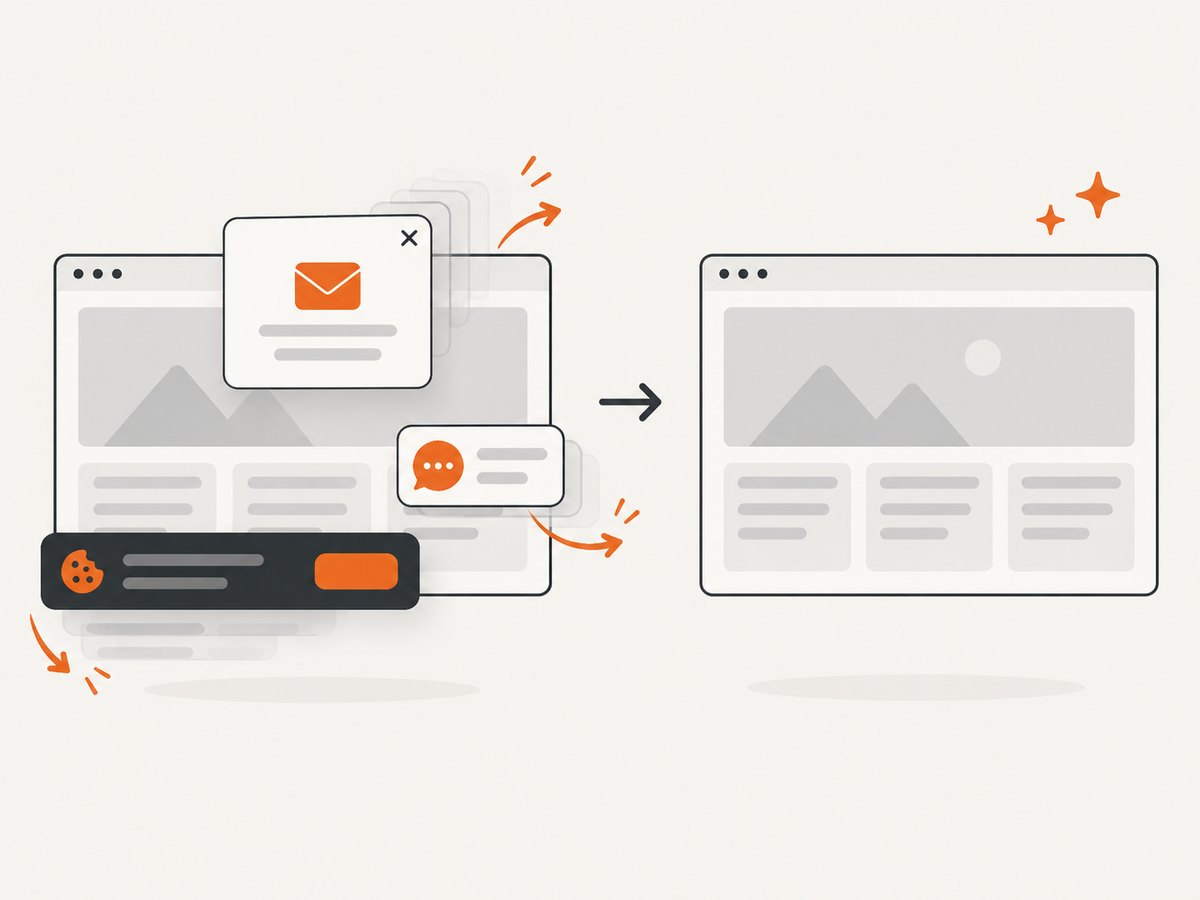
ScreenshotNeo removes cookie and consent banners, newsletter popups, and chat widgets before capture. Each cleanup step can be turned off. Bot checks or CAPTCHAs, blank pages, timeouts, failed loads, and cache hits cost nothing; response headers identify the page verdict and whether the request was billed. An MCP server exposes take_screenshot, get_page_info, and capture_pdf to Claude, Cursor, and other MCP clients.
8. Performance, reliability, and cost planning
For a one-off capture, browser-native tools avoid setup and usually finish as soon as the page is rendered. Long pages take longer and produce larger files, especially with high device scale. Waiting for network idle or a specific selector improves completeness but increases latency. Blocking trackers and unnecessary resource types can reduce work, while blocking required images can make the result incomplete.
For repeat jobs, make the page state deterministic: specify the viewport, timezone, geolocation, cookies, user agent, and wait condition. Use caching when the same URL does not need a fresh render. Use asynchronous jobs and signed webhooks when a capture may exceed an interactive request’s comfortable wait time. Check the verdict and billing headers instead of assuming every HTTP response represents a billable clean screenshot.
ScreenshotNeo has a free plan with 1,000 shots per month and no card. Paid plans are Starter ($5 for 3,000), Growth ($15 for 15,000), Pro ($39 for 60,000), Scale ($99 for 250,000), and Business ($249 for 1,000,000); yearly billing gives two months free, and every feature is on every plan.
9. Checklist before you save or publish a capture
- Confirm that you need the whole webpage rather than the visible screen.
- Close consent banners, popups, and chat controls, or configure them to be removed.
- Load lazy images and expand content that must appear.
- Choose PNG for sharp text or transparency, JPEG/WebP for smaller files, and PDF for pagination.
- Verify the footer and any embedded sections are present.
- Record the URL, capture time, viewport, and authentication context when the image is evidence.
- For automation, check response status, verdict, and billing headers and save failures for retry.
FAQ
Can I capture a full page with Print Screen?
Print Screen captures the visible desktop or window. It does not scroll through a webpage. Use Edge’s Capture full page or Firefox’s Save full page action.
Does a full-page capture include content behind a login?
Only if the browser session is authenticated. An API must receive the required cookies, headers, or authorization details and must be allowed to access that page.
Should I choose PNG or WebP?
PNG preserves crisp text and transparency. WebP is often smaller for web delivery. JPEG is useful when photographic content matters more than lossless text edges.
Can AI agents take these screenshots?
Yes. ScreenshotNeo’s MCP server provides take_screenshot, get_page_info, and capture_pdf for Claude, Cursor, and other MCP clients.
Or skip the browser setup
Use one ScreenshotNeo request when you need a repeatable full-page image:
curl -G "https://api.screenshotneo.com/v1/shot" -d access_key=YOUR_API_KEY --data-urlencode url=https://stripe.com -o shot.webpCookie banners, popups, and chat widgets are removed before the shot; bot checks, blank pages, and failed loads are never billed; an MCP server lets AI agents take screenshots; 1,000 screenshots a month are free with no card, and paid plans start at $5 for 3,000. Create a free ScreenshotNeo account.


