BlogScreenshots on your device
Full-Screen Screenshot Keyboard Shortcut
Find the full-screen screenshot shortcut for Windows, macOS and Linux, including clipboard, file-saving, laptop-key fixes and alternatives.
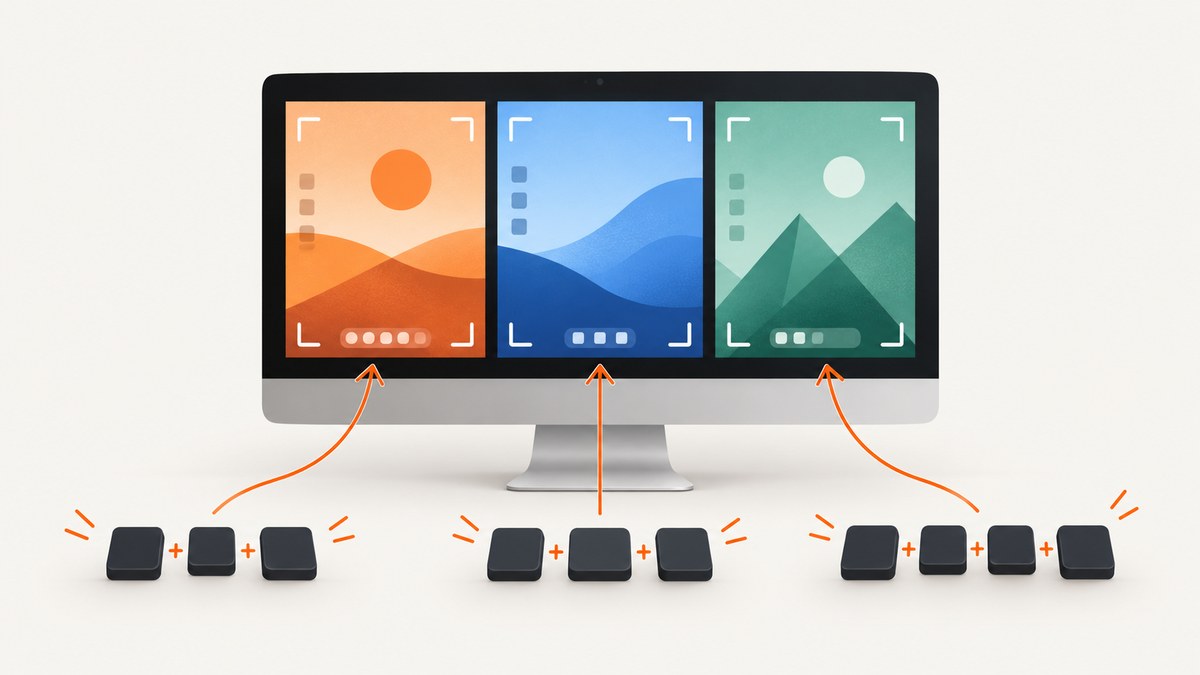
Quick answer: On Windows, press PrtScn to copy the whole screen to the clipboard, or Windows + PrtScn to save it as a file in Pictures\Screenshots. On macOS, press Shift + Command + 3. In GNOME Linux, press Prnt Scrn.
The right shortcut depends on whether you want the entire display, a window or a selected region, and whether the result should be copied or saved automatically.
Shortcut comparison
| System | Full screen | Window or region | Result | Default file location |
|---|---|---|---|---|
| Windows 10/11 | PrtScn | Windows + Shift + S opens Snipping Tool | Clipboard for PrtScn | None for clipboard capture |
| Windows 10/11 | Windows + PrtScn | Snipping Tool modes | Saved image file | Pictures\Screenshots |
| macOS | Shift + Command + 3 | Shift + Command + 4 for a selection | Saved screenshot with a temporary thumbnail | Desktop by default |
| GNOME Linux | Prnt Scrn | Alt + Prnt Scrn for a window; Shift + Prnt Scrn for an area | Desktop-environment screenshot action | Depends on the distribution and settings |
Windows: capture the entire screen
Copy the screen to the clipboard
- Press PrtScn (also labelled Print Screen or Prnt Scrn).
- Open Paint, an image editor, an email or another app that accepts images.
- Press Ctrl + V to paste the capture.
Microsoft describes this mapping as taking a screenshot of the whole screen and copying it to the clipboard. It does not automatically create a file.
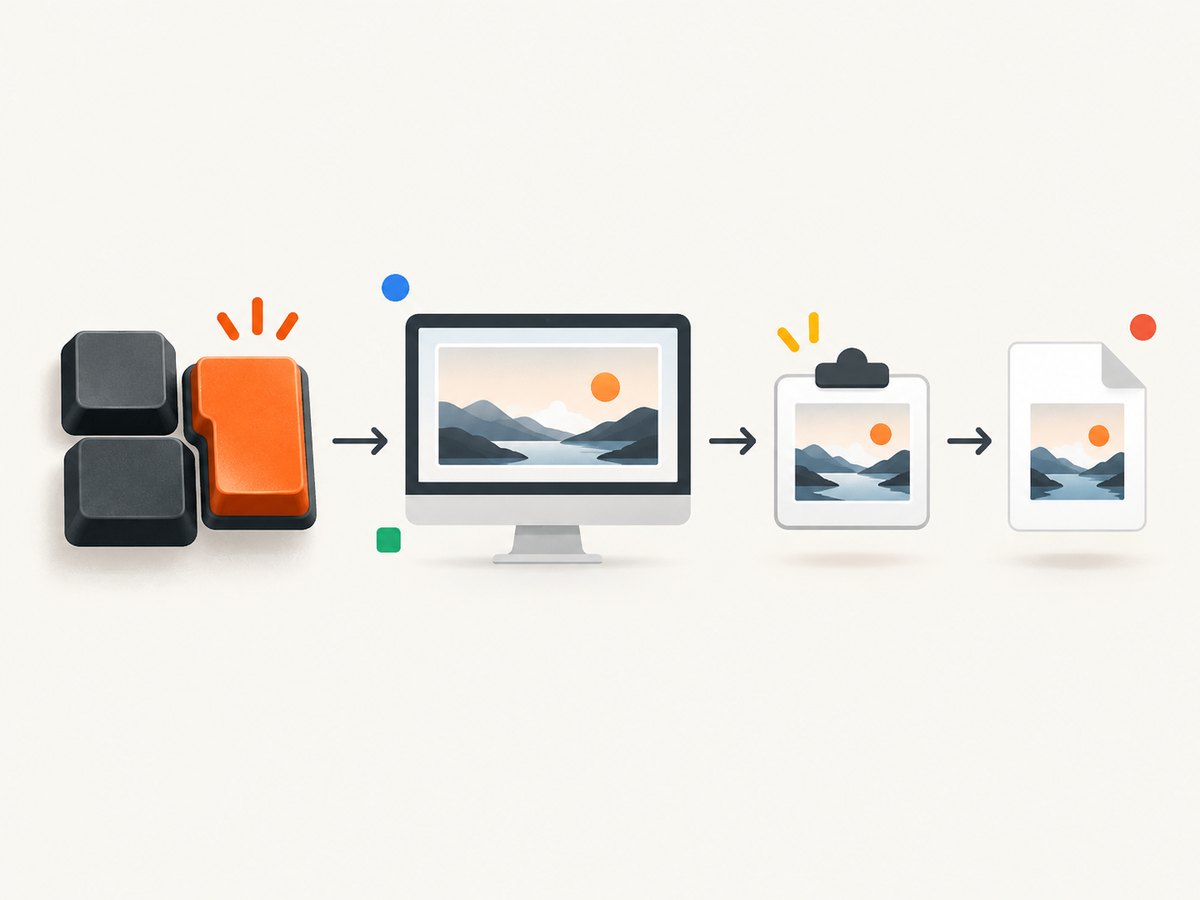
Save the screen directly to a file
- Press Windows + PrtScn.
- Open File Explorer and select
Pictures, thenScreenshots. - Open or rename the generated image as needed.
This is the one-step Windows shortcut for a full-screen image file. On systems where the Pictures folder is redirected or synchronized, the actual path can differ.
Select a region or window
Press Windows + Shift + S to open the Snipping Tool overlay. Choose rectangular, free-form, window or full-screen mode, then make the capture. This shortcut opens the tool; it is not the same as the automatic file-saving shortcut above.
When PrtScn opens Snipping Tool
Windows includes a keyboard setting that controls Print Screen behavior. If pressing PrtScn opens Snipping Tool instead of copying the display, open Windows Settings, search for the Print Screen keyboard option, and switch the behavior to match your workflow. Organization policies can also control this setting.
macOS: capture every display
- Press and release Shift + Command + 3 together.
- Wait for the screenshot thumbnail to appear briefly.
- Open the saved image from the desktop, or use the thumbnail controls to edit and share it.
Apple documents Shift + Command + 3 as the full-screen shortcut. macOS normally saves the image to the desktop. To copy instead of save, Control-click the thumbnail and choose the clipboard option before it disappears.
Capture a selection on macOS
Press Shift + Command + 4, drag over the area and release. This is useful when a full display includes private information or irrelevant windows.
GNOME and other Linux desktops
GNOME’s keyboard-shortcuts help lists these mappings:
- Prnt Scrn: capture the screen.
- Alt + Prnt Scrn: capture the active window.
- Shift + Prnt Scrn: select an area.
Linux behavior is desktop-specific. KDE Plasma, Cinnamon, XFCE and customized distributions may assign different actions, save locations or applications. Check the desktop’s Keyboard Shortcuts settings if these combinations do nothing or produce an unexpected result.
Clipboard versus file: choose the shortcut deliberately
| Need | Use | Why |
|---|---|---|
| Paste into a document immediately | Windows PrtScn | No file management; the image is ready in the clipboard. |
| Keep a reusable image file on Windows | Windows + PrtScn | Creates a file in the Screenshots folder. |
| Capture the complete Mac display | Shift + Command + 3 | Saves the entire screen to the desktop by default. |
| Capture only a window or area | Snipping Tool, macOS selection or Linux window/area shortcut | Reduces clutter and avoids exposing unrelated content. |
Laptop and compact-keyboard fixes
- Look for a key labelled PrtSc, PrtScn, Print Scr or Prnt Scrn.
- If it shares a key with another function, hold Fn while pressing it. The exact combination varies by keyboard.
- On some laptops, the key is on a function row or a secondary layer that requires Fn + Windows + PrtScn.
- If the keyboard has no Print Screen key, use the operating system’s Snipping Tool or screenshot utility.
- An external USB keyboard with a labelled Print Screen key is a practical option; the resulting action still follows the operating system’s mapping.
When the shortcut does not work
| Symptom | Likely cause | Fix |
|---|---|---|
| Nothing happens | The key is behind an Fn layer, remapped or intercepted by vendor software. | Try the Fn combination, inspect keyboard settings and test the built-in screenshot utility. |
| Windows capture is in the clipboard but no file exists | You pressed PrtScn, which is a clipboard action. | Use Windows + PrtScn for a file, or paste into an editor and save manually. |
| Windows opens Snipping Tool | The Print Screen setting is configured to launch the overlay. | Change the Print Screen keyboard setting in Windows Settings, or use the overlay intentionally. |
| Mac screenshot is hard to find | macOS saves to the desktop by default, or the save location was customized. | Check the desktop and Screenshot options, then use the thumbnail menu to copy or move it. |
| Linux shortcut behaves differently | The distribution or desktop environment remapped the keys. | Open Keyboard Shortcuts settings for GNOME, KDE, Cinnamon, XFCE or your window manager. |
| Only one monitor appears | The desktop utility treats displays separately or the capture mode is window-based. | Use the full-screen mode and check multi-monitor screenshot settings. |
| Protected video is black | Digital-rights-management software can block screen capture. | Use an approved export or sharing method supplied by the content owner. |
Privacy, quality and reliability checklist
- Close or hide password managers, private chats, customer data and notifications before capturing.
- For documentation, capture the smallest useful region so readers can focus on the relevant control.
- Verify the image was saved before closing the app or shutting down.
- Use descriptive filenames and a predictable folder when collecting many screenshots.
- On high-density displays, inspect text at 100% zoom; a screenshot can be complete while small UI text remains unreadable.
- For long web pages, a keyboard shortcut captures only the visible viewport. Use a full-page capture tool when the content extends below the fold.
Or skip the browser setup
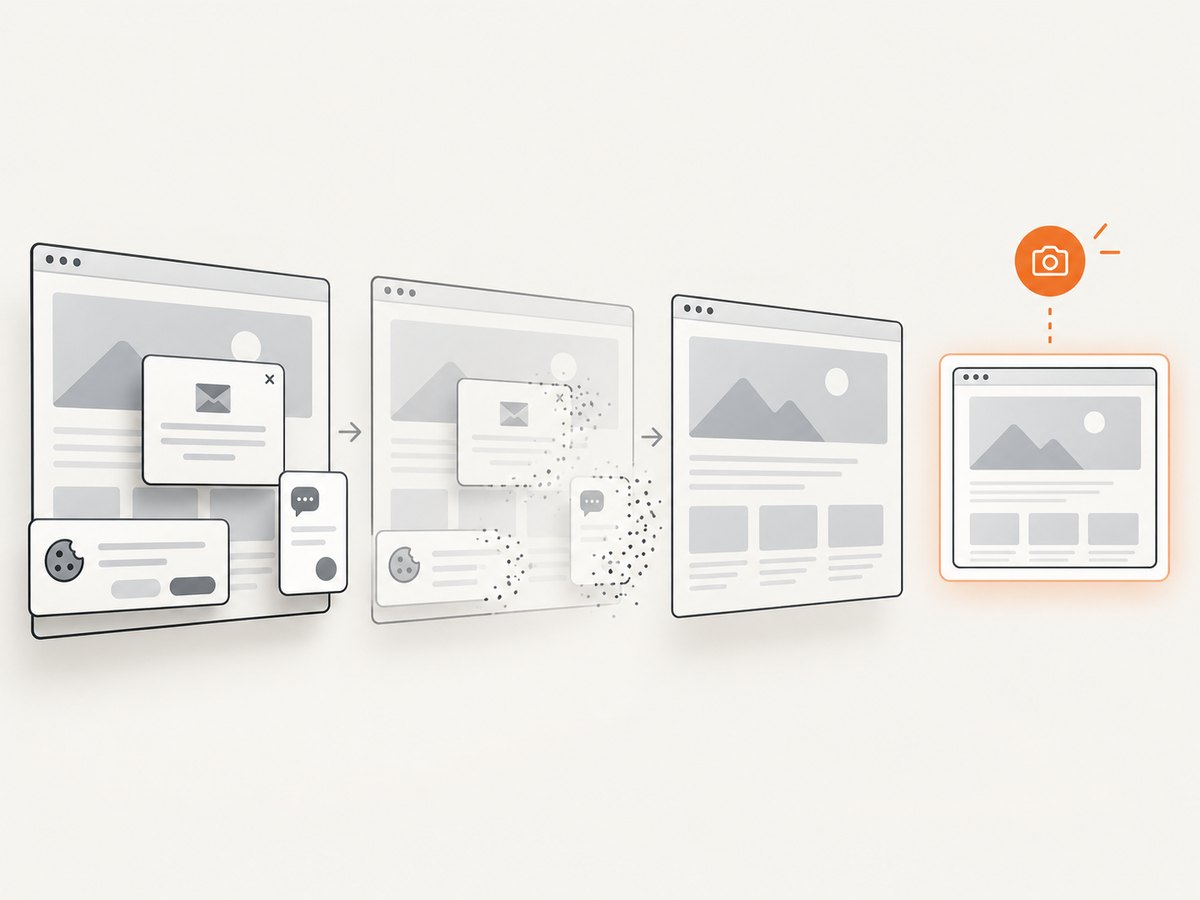
If you need repeatable website screenshots instead of a local desktop capture, ScreenshotNeo provides a GET request that returns PNG, JPEG, WebP or PDF. Before capture it accepts cookie and consent banners like a visitor and removes more than 60 known consent platforms, newsletter popups and chat widgets. Bot checks, blank pages, timeouts, failed loads and cache hits are not billed, and response headers identify the page verdict and billing status. Its MCP server includes take_screenshot, get_page_info and capture_pdf for Claude, Cursor and other MCP clients.
See the ScreenshotNeo API documentation for all options.
cURL
curl -G "https://api.screenshotneo.com/v1/shot" -d access_key=YOUR_API_KEY --data-urlencode url=https://stripe.com -o shot.webpPython
import requests

r = requests.get(
    "https://api.screenshotneo.com/v1/shot",
    params={"access_key": "YOUR_API_KEY", "url": "https://stripe.com"},
    timeout=90,
)
r.raise_for_status()
open("shot.webp", "wb").write(r.content)
Node.js
const q = new URLSearchParams({ access_key: 'YOUR_API_KEY', url: 'https://stripe.com' });
const res = await fetch(`https://api.screenshotneo.com/v1/shot?${q}`);
if (!res.ok) throw new Error(`Screenshot failed: ${res.status}`);
const buffer = Buffer.from(await res.arrayBuffer());
require('fs').writeFileSync('shot.webp', buffer);
ScreenshotNeo includes full-page capture with lazy images loaded, CSS-selector element capture, dark mode, device presets, custom viewport and retina scale. You can also set waits, custom CSS or JavaScript, hidden selectors, headers, cookies, user agents, authorization, timezone, geolocation, blocked resource types, caching TTL, image resizing, PDF options, signed links, asynchronous jobs with signed webhooks, bulk capture for up to 100 URLs per call and usage reporting. Clean shots are the only billable responses. The Free plan includes 1,000 shots each month with no card; paid plans start at $5 for 3,000 shots, and every feature is available on every plan. Create a free ScreenshotNeo account.
Performance, reliability and cost notes
- Keyboard shortcuts are immediate and local, but they capture only what is currently rendered on the display.
- Browser-based website capture can wait for fonts, scripts, lazy images and network activity. Set an appropriate selector wait, delay or network-idle condition when automating.
- Use caching with a chosen TTL for unchanged pages, and asynchronous jobs with signed webhooks for slow or high-volume captures.
- For large batches, bulk capture supports up to 100 URLs per call. Monitor usage through the usage API and inspect
X-Page-VerdictandX-Billedheaders. - Local shortcuts have no service cost. ScreenshotNeo’s Free plan provides 1,000 screenshots per month; paid plans are Starter $5 for 3,000, Growth $15 for 15,000, Pro $39 for 60,000, Scale $99 for 250,000 and Business $249 for 1,000,000. Yearly billing gives two months free.
FAQ
What is the fastest full-screen shortcut?
Use Windows + PrtScn on Windows when you want a file, PrtScn when you want the clipboard, and Shift + Command + 3 on macOS.
Does PrtScn capture every monitor?
It follows the operating system’s full-screen behavior, which can vary with multi-monitor settings. Check the resulting image before sharing it.
Where does macOS save screenshots?
The default destination is the desktop, unless Screenshot options have been changed.
Can a screenshot shortcut capture a full webpage?
No. Desktop shortcuts capture the visible screen. Use a browser capture tool or ScreenshotNeo for full-page output.
Why is my screenshot blurry?
Scaling, display resolution and the destination app can reduce apparent clarity. Keep the original file, avoid repeated re-saving and use a higher-scale capture when available.


