BlogScreenshots on your device
How to Take a Full-Screen Screenshot in Microsoft Edge
Capture an entire webpage in Edge or the whole monitor with Windows Snipping Tool. Learn which method fits, how to save the image, and what to try when capture options are missing.
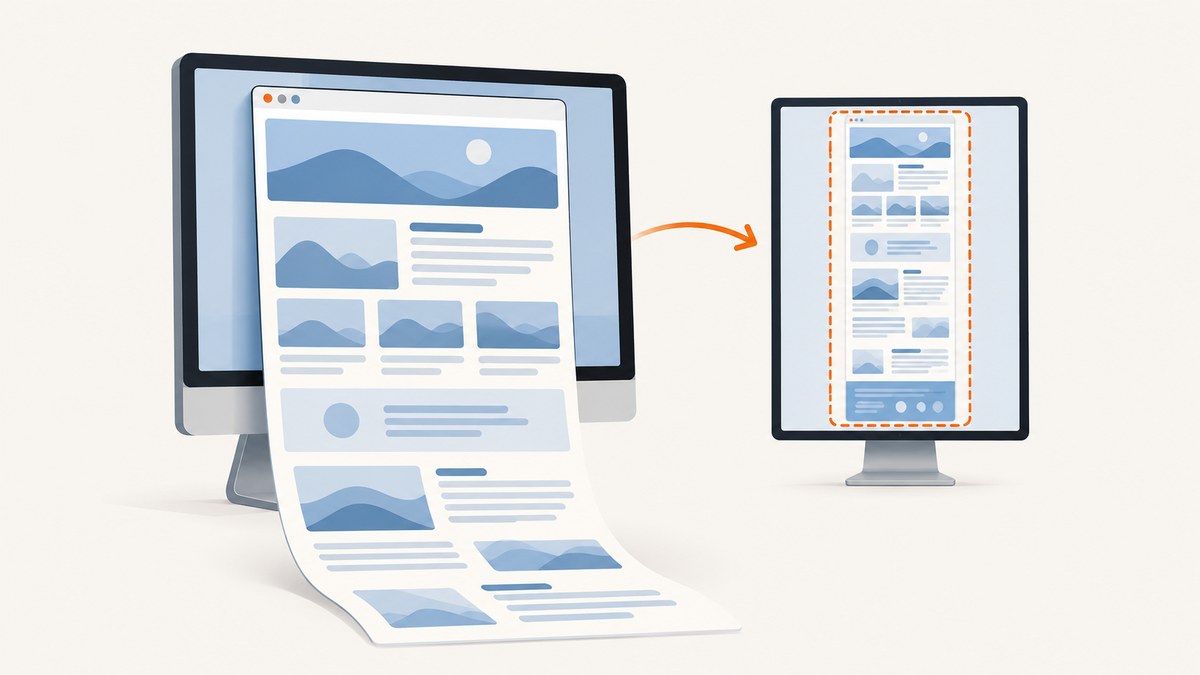
In Microsoft Edge, press Ctrl+Shift+S or right-click the webpage and choose Screenshot, then choose the full-page option to capture the entire webpage, including content below the fold. If by “full-screen” you mean everything visible on your monitor—the browser frame, taskbar, and desktop—press Windows+Shift+S and choose Full screen in Windows Snipping Tool.
Those are different captures: Edge captures webpage content; Snipping Tool captures the display. This guide explains both, how to save or copy the result, and what to check when the controls differ.
1. Choose what “full-screen” means
| What you need | Use | What appears |
|---|---|---|
| The complete webpage | Edge Screenshot → full-page | The page, including content below the visible viewport. Browser tabs and the taskbar are excluded. |
| The whole monitor | Snipping Tool → Full screen | Everything displayed on the selected screen, including Edge’s browser frame and desktop. |
| Just the Edge window | Snipping Tool → Window | The selected browser window, without unrelated desktop areas. |
| A quick full-display image on the clipboard | Print Screen | A static image of the entire screen, ready to paste. |
For an article, receipt, or long documentation page, use Edge’s full-page capture. For a screenshot showing an error together with the browser chrome or taskbar, use Snipping Tool. If someone asks for a “full-screen screenshot” without saying which, confirm whether they mean the whole webpage or the whole display.
2. Capture a complete webpage in Edge
- Open the webpage you want to capture in Microsoft Edge and wait for the content you need to appear.
- Open Screenshot by right-clicking the page and selecting Screenshot. You can also find it through Edge Settings, or press Ctrl+Shift+S.
- In the Screenshot controls, select the full-page capture option. The capture includes webpage content that would otherwise require scrolling.
- Review the result. Use the available pen or touch markup tools if you need to annotate it.
- Choose Copy to put the image on the clipboard, or choose the save option to store it as a file.
Microsoft describes Edge Screenshot as a tool for capturing a full page or selected area, including long or moving webpages, and for marking up, copying, or saving the capture. Exact control labels and availability can vary by browser version, device, and market.
Before you capture
- Scroll through interactive content first if the page only loads images or sections when they approach the viewport.
- Wait for animations, embedded content, or a loading indicator to settle if they affect what you want to show.
- Check that the page is at the right zoom level. A browser screenshot represents the rendered page, so zoom and responsive layout can change how it looks.
- For private pages, check that the capture does not expose account details, personal data, or one-time codes before sharing it.
3. Capture the entire monitor with Snipping Tool
- Press Windows+Shift+S to open the Snipping Tool capture overlay. Alternatively, open Snipping Tool from the Start menu.
- Select Full screen as the capture mode. This mode captures the entire screen.
- Make sure the monitor shows the content you want, then take the capture.
- Open the result in Snipping Tool to annotate, edit, save, or share it. Depending on your Windows version and settings, the capture may be saved automatically in the Screenshots folder; use Save as to choose a different location or filename.
Snipping Tool includes other modes. Use Window when the screenshot should include the Edge window but exclude other desktop areas. Use a region mode if only part of the display is relevant.
Use Print Screen for a quick clipboard capture
Press Print Screen (PrtSc) to copy a static image of the entire display to the clipboard. Paste it into the destination app with Ctrl+V. This is useful when you do not need to choose a capture region or annotate before pasting. If the key opens a different action on your device, use the Snipping Tool shortcut instead.
4. Save, copy, and share the result
| Workflow | Copy | Save | Markup |
|---|---|---|---|
| Edge Screenshot | Choose Copy in the screenshot overlay. | Choose the save control in the overlay. | Use the available pen or touch markup tools. |
| Snipping Tool | Use its copy control, or paste if the capture is already on the clipboard. | Use Save or Save as; automatic saving behavior depends on Windows version and settings. | Use the editing and annotation tools, such as pen, highlighter, shapes, crop, and text. |
| Print Screen | Copied to the clipboard for pasting. | Paste into an app that can save images. | Annotate after pasting into an editing app. |
Use a descriptive filename and a folder that matches the purpose—for example, a support ticket or project. Before sharing, inspect the whole image: full-page captures can include content far below the fold, and full-monitor captures can reveal notifications or other open windows.
5. When you need repeatable screenshots from code
Edge’s built-in capture is convenient for an occasional manual screenshot. For a repeatable developer workflow, you can automate a browser with Playwright. The example below opens a page in Chromium, waits for the page to load, and writes a full-page PNG. It captures webpage content rather than the entire operating-system desktop.
Playwright with Node.js
npm init -y
npm install playwright
npx playwright install chromium
Save this as screenshot.mjs and run it with node screenshot.mjs https://example.com:
import { chromium } from 'playwright';

const url = process.argv[2];
if (!url) {
  throw new Error('Usage: node screenshot.mjs https://example.com');
}

const browser = await chromium.launch({ headless: true });
try {
  const page = await browser.newPage({ viewport: { width: 1440, height: 900 } });
  await page.goto(url, { waitUntil: 'networkidle', timeout: 60_000 });
  await page.screenshot({ path: 'page.png', fullPage: true });
} finally {
  await browser.close();
}
For sites that keep analytics or live connections open, networkidle may never arrive. A less strict alternative is to wait for the document to load, then wait for the specific content your screenshot needs:
await page.goto(url, { waitUntil: 'domcontentloaded', timeout: 60_000 });
await page.locator('main').waitFor({ state: 'visible', timeout: 15_000 });
await page.screenshot({ path: 'page.png', fullPage: true });
Replace main with a selector that identifies the page content. If the page reveals content only while scrolling, scroll in increments before taking the screenshot so lazy-loaded sections have a chance to load. For a manual Windows desktop capture, use Snipping Tool; browser automation screenshots the rendered page, not other applications or the taskbar.
Other browser automation clients
Playwright also provides Java and Python clients, and browser automation tools expose similar full-page screenshot controls. Install the official package and browser binaries for the client you choose, open the target URL, wait for the content to be ready, and request a full-page screenshot. Keep the browser version and viewport fixed when you need consistent output across runs. Consult the tool’s official documentation for the syntax specific to its language and version.
6. Or skip the browser setup
For a screenshot API call, ScreenshotNeo accepts a URL and returns an image or PDF. Its clean-shot handling accepts consent banners and removes more than 60 known consent platforms, newsletter popups, and chat widgets before capture; those steps can be turned off. Bot checks, CAPTCHAs, blank pages, timeouts, failed loads, and cache hits are not billed, and the response identifies the page verdict and billing status in headers. An MCP server gives AI agents tools to take screenshots, get page information, and capture PDFs. The free plan includes 1,000 screenshots per month with no card; paid plans start at $5 for 3,000. Every feature is on every plan. See the ScreenshotNeo API documentation.
curl -G "https://api.screenshotneo.com/v1/shot" \
  -d access_key=YOUR_API_KEY \
  --data-urlencode url=https://example.com \
  -o shot.webp
import requests
r = requests.get(
"https://api.screenshotneo.com/v1/shot",
params={"access_key": "YOUR_API_KEY", "url": "https://example.com"},
timeout=90,
)
r.raise_for_status()
with open("shot.webp", "wb") as f:
f.write(r.content)const q = new URLSearchParams({
access_key: 'YOUR_API_KEY',
url: 'https://example.com'
});
const res = await fetch(`https://api.screenshotneo.com/v1/shot?${q}`);
if (!res.ok) throw new Error(`Screenshot request failed: ${res.status}`);
await Bun.write('shot.webp', res);Replace YOUR_API_KEY with your key and change the target URL. Keep the key out of public code and browser pages. See ScreenshotNeo for product details and the docs for available capture options. Sign up for 1,000 free screenshots a month, with no card required.
7. Troubleshooting
| Problem | Likely cause | What to try |
|---|---|---|
| Screenshot is missing from Edge’s right-click menu | Availability or menu layout varies by browser version, device, or market. | Try Ctrl+Shift+S or look in Edge Settings. For the display, open Snipping Tool from Start. |
| Ctrl+Shift+S does not open Screenshot | The shortcut may differ or the feature may not be available in that build. | Use the right-click or Settings entry point. If you need a monitor capture, press Windows+Shift+S. |
| The screenshot shows only the visible part of a long page | A selected-area capture was used instead of full-page capture. | Repeat the capture and choose the full-page option in Edge. |
| The browser tabs or taskbar are missing | Edge’s full-page mode captures webpage content, not the monitor. | Use Snipping Tool’s Full screen mode to include the whole display, or Window mode for only Edge. |
| A section or image is blank in the full-page result | It may load only after scrolling, depend on interaction, or still be loading. | Scroll through the page first, trigger the needed content, wait for it to finish loading, then capture again. |
| Snipping Tool capture is not in the expected folder | Automatic save behavior and settings vary across Windows versions. | Open the capture in Snipping Tool and use Save as to select a known folder and filename. |
| The capture includes private information | Full-screen captures include everything displayed; full-page captures may extend into unseen content. | Review the full image before sharing. Crop or redact sensitive details with an editing tool. |
| Automated browser capture times out at network idle | Persistent network requests can prevent the page from becoming idle. | Wait for domcontentloaded and a page-specific selector, then capture. Set an appropriate timeout for the site. |
8. Performance, reliability, and file size
For a one-off capture, the built-in Edge or Windows tool avoids installing automation dependencies. A tall page can take longer to render and produce a larger image than a viewport capture. Browser automation adds startup and page-load time; reuse a browser process for batches when suitable, while creating a fresh page context when isolation matters. Avoid treating a fixed delay as proof that a page is ready: wait for a meaningful selector or state when possible.
For consistent repeat captures, keep viewport dimensions, zoom, browser version, and page state consistent. Dynamic ads, timestamps, animations, and personalized content can change between captures. A full-page capture may also change the page’s responsive layout compared with the visible monitor. If a page has an extremely long or continuously loading feed, capture a relevant section or use a bounded viewport instead.
Image format and pixel dimensions affect file size. When sharing, use the saved image’s actual format and avoid renaming an image to a different extension without converting it. For API-based capture, cost depends on the service’s published plan and billing rules; check those before automating large batches. ScreenshotNeo says its Free plan includes 1,000 shots per month and that only clean shots are billed; consult its current documentation and plan page for configuration and account details.
9. FAQ
Does Ctrl+Shift+S capture the whole monitor?
No. It opens Edge Screenshot, which captures webpage content. Use Windows+Shift+S and choose Full screen to capture the monitor.
Can Edge capture a full webpage as a single image?
Yes. Open Screenshot and select its full-page option to capture content below the fold.
Will a full-page capture include the browser address bar?
No. It captures the webpage. Use Snipping Tool’s Window or Full screen mode if you need browser controls in the image.
Can I paste the screenshot directly into a message?
Yes. Choose Copy in Edge Screenshot, or use Print Screen for a full-display image on the clipboard, then paste into the destination app.
Why do instructions show different menu names?
Feature availability and labels can vary by device, market, and browser version. Try the shortcut or another documented entry point.


