BlogScreenshots on your device
How to Take a Full-Screen Screenshot in Python
Capture your primary display, every monitor, or a virtual desktop in Python with PyAutoGUI, Pillow, and MSS—including setup and fixes.
For a single primary display, the shortest solution is:
import pyautogui

pyautogui.screenshot('screen.png')
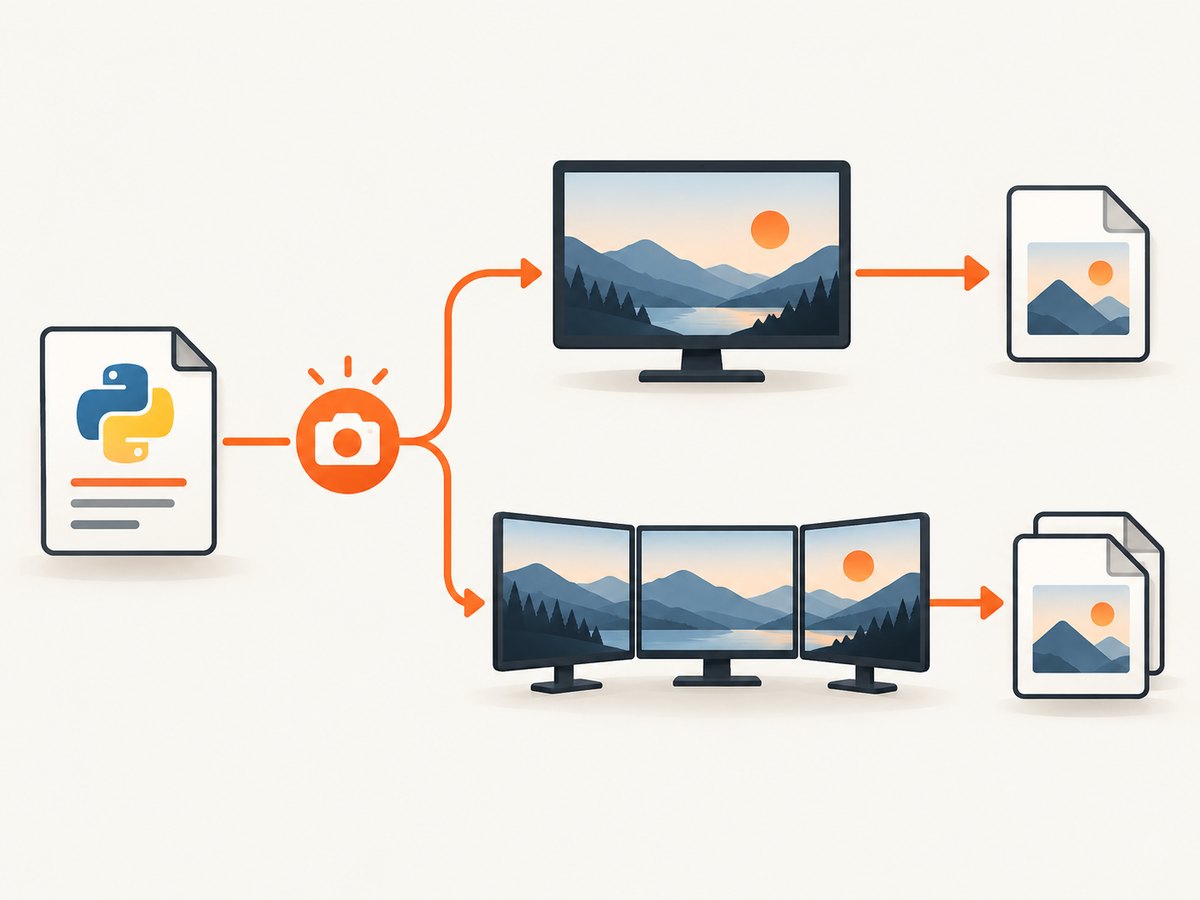
PyAutoGUI saves a PNG through Pillow and returns an image object. It captures the primary monitor. For every monitor or explicit monitor geometry, use MSS. If your application already uses Pillow, ImageGrab.grab() is convenient.
This guide covers installation, complete examples, multi-monitor behavior, platform prerequisites, cropping, image formats, troubleshooting, and an API alternative for website screenshots.
1. Install a screenshot library
PyAutoGUI
python -m pip install pyautoguiPyAutoGUI uses Pillow for screenshots. On Linux, its documentation also requires the scrot utility. Install it with your distribution’s package manager, for example:
sudo apt install scrotCheck the PyAutoGUI screenshot documentation for platform-specific details.
Pillow
python -m pip install PillowMSS
python -m pip install mssMSS is designed for fast, monitor-aware capture and exposes monitor coordinates directly.
2. Take a full-screen screenshot with PyAutoGUI
import pyautogui

image = pyautogui.screenshot('screen.png')
print(f'Saved {image.size[0]}x{image.size[1]} image')
The filename is optional. Without it, keep the returned Pillow image and save it later:
import pyautogui

image = pyautogui.screenshot()
image.save('screen.png', format='PNG')
This captures the primary monitor only. The returned object is a Pillow Image, so you can crop, resize, annotate, or convert it before saving.
Choose a different image format
import pyautogui

image = pyautogui.screenshot()
image.save('screen.jpg', quality=90, optimize=True)
image.save('screen.webp', quality=85, method=6)
PNG preserves exact pixels and is best for text or UI screenshots. JPEG is smaller but introduces artifacts. WebP can reduce size while retaining good quality when your Pillow build supports it.
Crop the captured screen
import pyautogui

screen = pyautogui.screenshot()
# left, top, right, bottom
region = screen.crop((100, 100, 1200, 800))
region.save('region.png')
3. Capture the full screen with Pillow
Pillow’s ImageGrab.grab() copies the entire screen when bbox is omitted.
from PIL import ImageGrab

image = ImageGrab.grab()
image.save('screen.png')
Use all_screens=True when you need the complete desktop across displays:
from PIL import ImageGrab

image = ImageGrab.grab(all_screens=True)
image.save('all-monitors.png')
Platform behavior differs. On macOS, account for Retina scaling. On Linux, Pillow may use utilities such as gnome-screenshot, grim, or spectacle, depending on the desktop and display server. See the Pillow ImageGrab reference for current platform notes.
4. Capture one monitor or all monitors with MSS
MSS exposes a monitors collection. Index 0 is the combined virtual desktop; indexes 1 and above are individual monitors.
Save the combined virtual desktop
import mss
import mss.tools

with mss.mss() as sct:
    virtual_desktop = sct.monitors[0]
    shot = sct.grab(virtual_desktop)
    mss.tools.to_png(shot.rgb, shot.size, output='all-monitors.png')
Save each monitor separately
import mss
import mss.tools

with mss.mss() as sct:
    for number, monitor in enumerate(sct.monitors[1:], start=1):
        shot = sct.grab(monitor)
        mss.tools.to_png(
            shot.rgb,
            shot.size,
            output=f'monitor-{number}.png'
        )
Convert an MSS capture to a Pillow image
import mss

with mss.mss() as sct:
    shot = sct.grab(sct.monitors[1])
    image = sct.to_pil(shot)
    image.save('monitor.png')
Inspect monitor geometry when positioning a crop or pointer:
import mss

with mss.mss() as sct:
    for index, monitor in enumerate(sct.monitors):
        print(index, monitor)
Choose PyAutoGUI for the smallest primary-monitor script, Pillow when the rest of your pipeline already uses PIL, and MSS when monitor enumeration or the virtual desktop matters.
5. A reusable command-line script
#!/usr/bin/env python3
import argparse
from pathlib import Path


def main():
    parser = argparse.ArgumentParser(description='Capture a screen in Python')
    parser.add_argument('--output', default='screen.png')
    parser.add_argument('--all-monitors', action='store_true')
    args = parser.parse_args()

    if args.all_monitors:
        import mss
        import mss.tools
        with mss.mss() as sct:
            shot = sct.grab(sct.monitors[0])
            mss.tools.to_png(shot.rgb, shot.size, output=args.output)
            size = shot.size
    else:
        import pyautogui
        image = pyautogui.screenshot()
        image.save(args.output)
        size = image.size

    print(f'Saved {Path(args.output).resolve()} ({size[0]}x{size[1]})')


if __name__ == '__main__':
    main()
Run it with:
python capture.py
python capture.py --output desktop.png --all-monitors
6. Permissions, display servers, and edge cases
- macOS: grant the terminal, IDE, or packaged application Screen Recording permission in System Settings. Retina displays can report logical and physical dimensions differently.
- Linux: X11 and Wayland have different capture capabilities. Install the utility required by your desktop environment when Pillow or PyAutoGUI reports that no backend is available.
- Headless machines: a normal desktop screenshot needs a graphical session. Use a virtual display such as Xvfb for an automated Linux job, or capture a website with a browser-based API.
- Locked or minimized sessions: desktop libraries capture what the operating system makes available; they are not a substitute for rendering a web page in a browser.
- Mixed DPI monitors: monitor coordinates and image pixels may use different scaling. Read the returned image size and MSS geometry instead of assuming a fixed coordinate system.
- Negative coordinates: a monitor positioned left of the primary display can have a negative
leftvalue. Use the geometry returned by MSS. - Transparency: desktop screenshots generally contain the composited desktop, not hidden windows or alpha channels.
7. Performance and reliability
- Keep one MSS context open when capturing repeatedly; opening and closing the backend for every frame adds overhead.
- Save PNG for fidelity, but consider WebP or JPEG when disk and network transfer dominate.
- Capture only the required monitor or region to reduce memory and encoding time.
- For unattended jobs, create the output directory first, use absolute paths, and check that the file exists after saving.
- Do not assume a screenshot succeeded because no exception was raised: validate dimensions and, where useful, open the saved file again with Pillow.
- Screen capture can include sensitive data visible on the desktop. Minimize the capture region and protect generated files.
8. Troubleshooting
| Error or symptom | Cause | Fix |
|---|---|---|
ModuleNotFoundError: pyautogui |
The package is not installed in the active interpreter. | Run python -m pip install pyautogui with the same Python executable that runs your script. |
Linux says scrot is missing |
PyAutoGUI’s documented Linux screenshot backend is unavailable. | Install scrot, or use Pillow/MSS with the capture utility supported by your desktop. |
| Permission denied or a black image on macOS | Screen Recording permission is missing. | Enable permission for the terminal or application, then restart it. |
| Only one monitor is saved | PyAutoGUI is limited to the primary monitor. | Use ImageGrab.grab(all_screens=True) or MSS index 0. |
| Coordinates are offset | DPI scaling, Retina scaling, or negative monitor coordinates. | Print image dimensions and MSS monitor geometry; calculate positions from those values. |
ImageGrab.grab() fails on Linux |
A supported desktop screenshot utility or display session is unavailable. | Install the utility for your environment, run inside a graphical session, or switch to MSS. |
| The script hangs in CI | The process has no accessible display. | Provide a virtual display such as Xvfb or use a browser screenshot service for web pages. |
| Saved file is huge | Large multi-monitor PNGs are lossless. | Crop the region or save JPEG/WebP with an appropriate quality setting. |
9. Or skip the browser setup
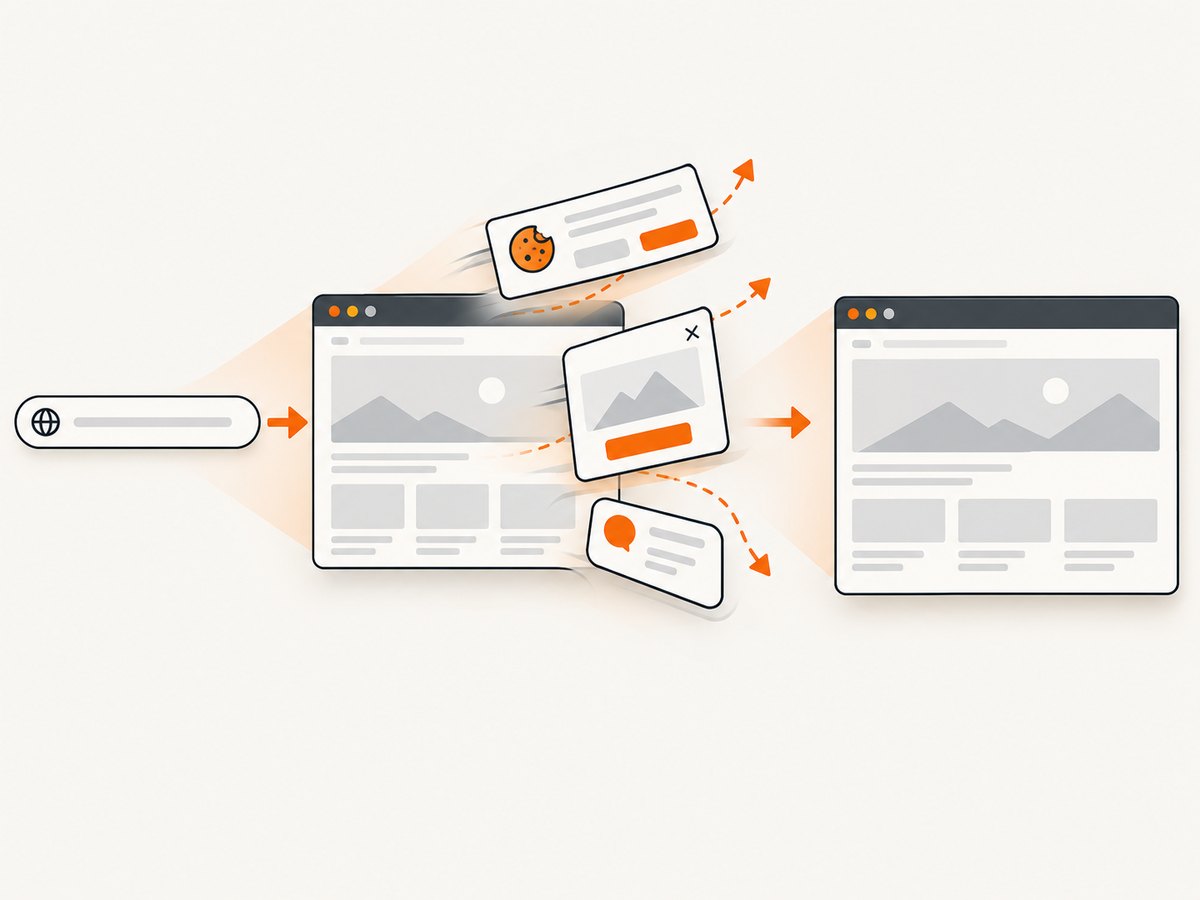
Desktop libraries capture your local display. If what you need is a screenshot of a website URL, ScreenshotNeo returns a PNG, JPEG, WebP, or PDF from one request. Its API accepts options for full-page captures, lazy images, CSS selectors, dark mode, device presets, custom headers and cookies, waits, blocking requests, resizing, caching, signed links, asynchronous jobs, and bulk capture.
See the ScreenshotNeo API documentation for the complete option list.
cURL
curl -G "https://api.screenshotneo.com/v1/shot" \
  -d access_key=YOUR_API_KEY \
  --data-urlencode url=https://stripe.com \
  -o shot.webp
Python
import requests

r = requests.get(
    "https://api.screenshotneo.com/v1/shot",
    params={"access_key": "YOUR_API_KEY", "url": "https://stripe.com"},
    timeout=90,
)
r.raise_for_status()
open("shot.webp", "wb").write(r.content)
Node.js
const q = new URLSearchParams({ access_key: 'YOUR_API_KEY', url: 'https://stripe.com' });
const res = await fetch(`https://api.screenshotneo.com/v1/shot?${q}`);
if (!res.ok) throw new Error(`Screenshot failed: ${res.status}`);
const fs = await import('node:fs/promises');
await fs.writeFile('shot.webp', Buffer.from(await res.arrayBuffer()));
Cookie banners, newsletter popups, and chat widgets are removed before the shot. Bot checks, blank pages, failed loads, timeouts, and cache hits are never billed; response headers identify the page verdict and whether it was billed. An MCP server provides take_screenshot, get_page_info, and capture_pdf tools for Claude, Cursor, and other MCP clients. The free plan includes 1,000 screenshots per month with no card, and paid plans start at $5 for 3,000 shots. Create a free ScreenshotNeo account.
10. FAQ
Does PyAutoGUI capture all monitors?
No. Its documented screenshot support handles the primary monitor. Use Pillow’s all_screens option or MSS for multiple displays.
Which library should I choose for a single screenshot?
Use PyAutoGUI for the shortest script, Pillow when you already process PIL images, and MSS when you need explicit monitor selection or repeated captures.
Can these libraries screenshot a website without opening a desktop?
No. They capture an operating-system display. For a URL rendered in a browser, use a headless browser or a screenshot API such as ScreenshotNeo.
What does MSS monitor index zero mean?
It represents the complete virtual desktop that combines all monitors. Indexes starting at one identify individual monitors.
Why is my screenshot size different from my monitor’s advertised resolution?
Display scaling, Retina pixels, and desktop-server behavior can change the pixel dimensions reported to applications. Use the actual image size and returned monitor geometry.


