BlogScreenshots on your device
How to Take a Full-Screen Screenshot in Windows 10
Use PrtScn, Windows+PrtScn, or Snipping Tool to capture and save your entire Windows 10 screen.
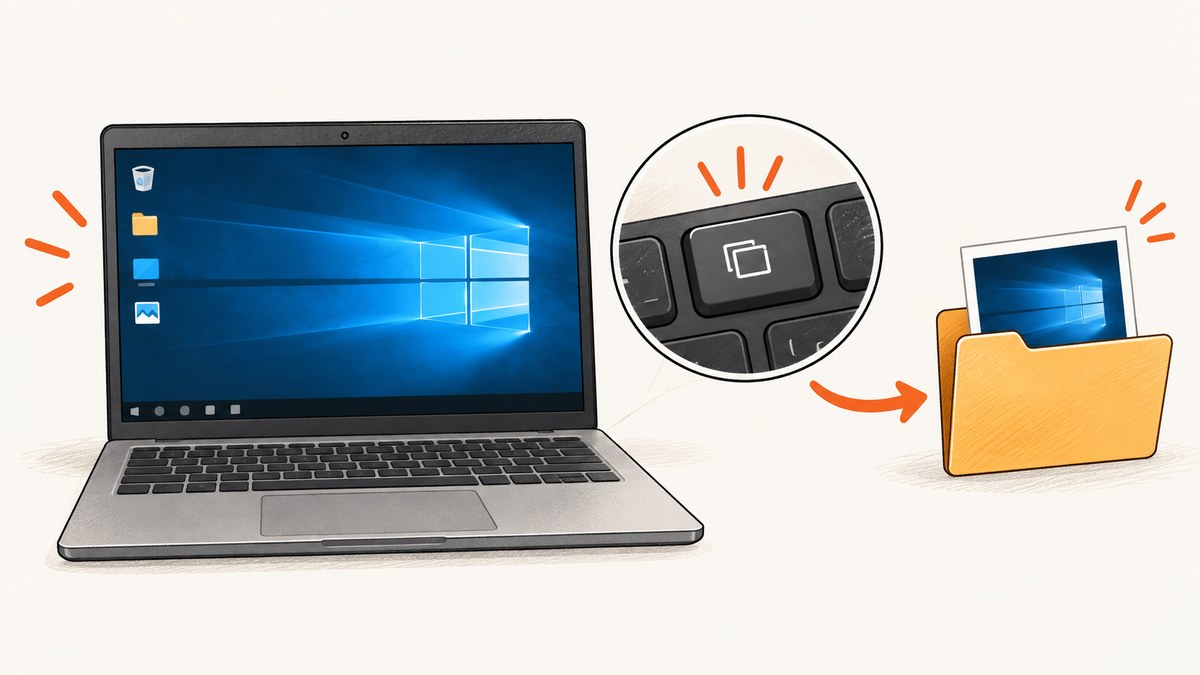
Quick answer: Press PrtScn to capture the entire Windows 10 screen to the clipboard, then press Ctrl+V in Paint, an email, or another image-capable app. To save the capture directly as a file, press Windows+PrtScn; Windows saves it in Pictures > Screenshots.
For a guided capture, open Snipping Tool and choose Full screen, or press Windows+Shift+S to open the snipping overlay. The exact key label may be PrtSc, PrtScn, or PrntScrn, and some laptops require Fn.
Choose the right Windows 10 method
| What you need | Shortcut or tool | Where the result goes |
|---|---|---|
| Fast full-screen copy | PrtScn | Clipboard; paste with Ctrl+V |
| Full-screen image file | Windows+PrtScn | Pictures\Screenshots |
| Choose a mode or edit | Snipping Tool → Full screen | Clipboard, then notification/editor lets you save |
| Open the capture overlay | Windows+Shift+S | Clipboard; use the notification to edit and save |
| No Print Screen key | Fn+Windows+Space (hardware-dependent) | Depends on the device and its Windows configuration |
Method 1: Copy the entire screen with PrtScn
- Show the screen you want to capture.
- Press PrtScn. Windows copies a static image of the whole display to the clipboard.
- Open Paint, Word, an email composer, or another app that accepts images.
- Press Ctrl+V.
- Use the app’s Save command if you need a file. Choose PNG for crisp UI text or JPEG for a smaller photographic image.
This shortcut does not itself create a file in a folder. If you copy something else before pasting, the clipboard image can be replaced.
Method 2: Save a full-screen file with Windows+PrtScn
- Press Windows+PrtScn together. The display may briefly dim.
- Open File Explorer and select Pictures, then Screenshots.
- Open, rename, move, or share the image like any other file.
Microsoft documents this as the direct-save shortcut. If your keyboard uses a function layer, try Fn+Windows+PrtScn. Hardware and keyboard settings can change which combination works.
Method 3: Use Snipping Tool in Full screen mode
- Open Start, type Snipping Tool, and launch it.
- Choose the capture mode that offers Full screen.
- Take the snip. Windows copies it and shows a notification.
- Select the notification to open the editor, annotate or crop if needed, then choose Save.
Use this route when you need editing, a delayed capture, or a visible confirmation that the image was saved.
Method 4: Open the Windows+Shift+S overlay
- Press Windows+Shift+S.
- Choose the full-screen capture option in the overlay.
- The image is copied to the clipboard. Select the notification to edit and save it.
The overlay is useful when you sometimes need a region, window, or full-screen capture. For a file with no extra steps, Windows+PrtScn is quicker.
Where Windows 10 puts screenshots
- Windows+PrtScn:
Pictures\Screenshotsin your user profile. - PrtScn or Windows+Shift+S: clipboard until you paste it; a Snipping Tool notification can open it for saving.
- Snipping Tool: the location is whatever you select in its Save dialog.
Search File Explorer for Screenshot if you moved or renamed the file.
Keyboard and display edge cases
- Compact laptop keyboard: hold Fn with the Print Screen shortcut, or check the key’s secondary label.
- No PrtScn key: Microsoft lists Fn+Windows+Space as a possible device-dependent shortcut.
- Protected or unusual apps: some apps, remote sessions, video playback paths, or security policies may block or blank captures. Use an allowed export or the app’s own capture feature where required.
- Clipboard overwritten: paste immediately after PrtScn, before copying another item.
Troubleshooting
| Symptom | Likely cause | Fix |
|---|---|---|
| Nothing appears after pressing PrtScn | The image is on the clipboard, not in a folder. | Open Paint or another image app and press Ctrl+V. |
| Windows+PrtScn does nothing | Function-layer keyboard, remapped key, or device limitation. | Try Fn+Windows+PrtScn, then use Snipping Tool. |
| No Screenshots folder | The direct-save shortcut has not successfully run, or the folder was moved. | Run the shortcut again and search File Explorer for Screenshot; verify the Pictures location. |
| Overlay does not open | Shortcut interception, disabled Windows features, or keyboard software. | Open Snipping Tool from Start, then review keyboard utilities and Windows updates. |
| Capture is black or blank | The application or content may restrict screen capture. | Use the app’s export, an approved capture path, or contact the administrator. |
| Image looks blurry | The display is scaled or the image was enlarged after capture. | Capture at the native display scale and avoid enlarging a compressed JPEG. |
Quality, privacy and workflow tips
- Hide private notifications, passwords, tokens, and personal tabs before capturing.
- For documentation, capture the full screen only when surrounding context matters; otherwise a window or region is easier to read.
- Use PNG for text and diagrams. Keep the original file before resizing or annotating.
- Name files with a date and subject so repeated captures sort predictably.
- Check the image at 100% zoom before publishing; display scaling can make small controls hard to read.
Or skip the browser setup
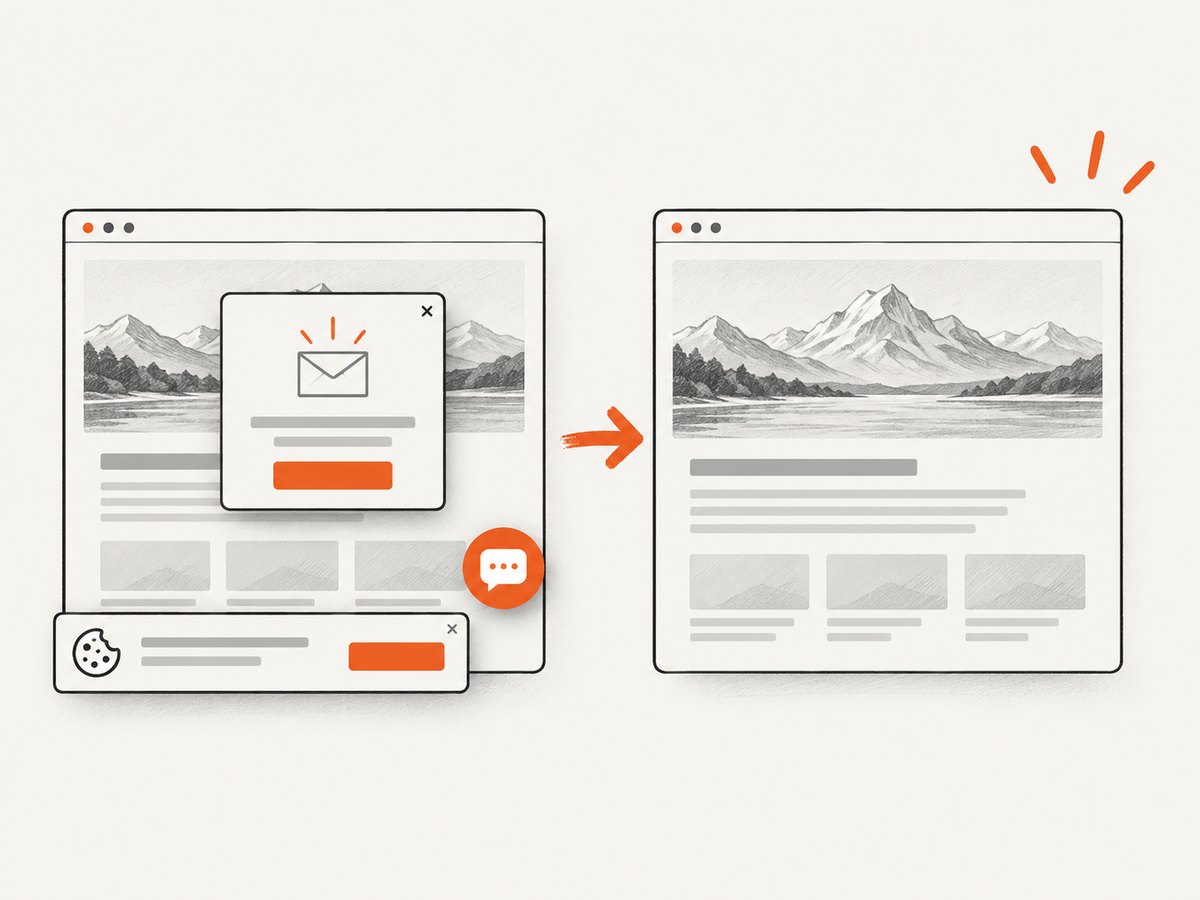
Windows shortcuts are ideal for the screen in front of you. For repeatable website captures from code, ScreenshotNeo provides a GET endpoint that returns PNG, JPEG, WebP, or PDF. Cookie and consent banners, newsletter popups, and chat widgets are removed before the shot. Bot checks, blank pages, failed loads, timeouts, and cache hits are not billed, and response headers identify the page verdict and billing result. Its MCP server lets Claude, Cursor, and other MCP clients call take_screenshot, get_page_info, and capture_pdf.
See the ScreenshotNeo API documentation for all options. The simplest call is:
cURL
curl -G "https://api.screenshotneo.com/v1/shot" -d access_key=YOUR_API_KEY --data-urlencode url=https://stripe.com -o shot.webpPython
import requests
r = requests.get("https://api.screenshotneo.com/v1/shot", params={"access_key": "YOUR_API_KEY", "url": "https://stripe.com"}, timeout=90)
open("shot.webp", "wb").write(r.content)
Node.js
const q = new URLSearchParams({ access_key: 'YOUR_API_KEY', url: 'https://stripe.com' });
const res = await fetch(`https://api.screenshotneo.com/v1/shot?${q}`);
Relevant controls include full-page capture with lazy images loaded, CSS-element capture, dark mode, 12 device presets or any viewport, retina scale, PDF paper size/margins/landscape/page ranges, custom CSS and JavaScript, click and hide selectors, waits for a selector/delay/network idle, blocking ads/trackers/requests/resource types, custom headers/cookies/user agent/Authorization, timezone and geolocation, transparent backgrounds, resizing, chosen-TTL caching, signed public image links, asynchronous jobs with signed webhooks, bulk capture for 100 URLs per call, and a usage API. Existing parameter names used by other screenshot APIs also work.
The Free plan includes 1,000 shots each month with no card. Paid plans start at $5 for 3,000 shots; yearly billing gives two months free, and every feature is on every plan. Create a free ScreenshotNeo account.
Performance, reliability and cost considerations
- Use a selector wait or network-idle wait for pages that render after the initial HTML; use a short fixed delay only when the page has a known animation.
- Full-page and lazy-image loading can take longer and use more bandwidth than a viewport shot. Capture only what you need.
- Choose a cache TTL for repeated URLs. Cache hits are identified and are not billed.
- For many URLs, use bulk capture (up to 100 URLs per call) or asynchronous jobs with signed webhooks instead of holding one request open.
- Inspect
X-Page-VerdictandX-Billedto distinguish a clean, billable result from a bot check, blank page, timeout, failed load, or cache hit. - Keep API keys server-side. For browser
<img>tags, use signed links rather than exposing a secret.
FAQ
Does PrtScn save a file automatically?
No. It copies the full screen to the clipboard; paste it into an app and save from there.
What is the fastest shortcut for a saved screenshot?
Windows+PrtScn, then open Pictures\Screenshots.
Can I capture only one monitor?
Use Snipping Tool or the overlay and select the appropriate window or region mode.
Why is my key labeled PrtSc instead?
PrtSc, PrtScn, and PrntScrn are common labels for the Print Screen function.
Is a screenshot API useful for a physical Windows desktop?
No; use the built-in shortcuts for the desktop. An API is useful when the target is a website you need to capture repeatedly or from automation.


