BlogScreenshots on your device
How to Capture a Full-Size Screenshot in Chrome on Mac
Capture an entire webpage in Chrome on Mac with DevTools, troubleshoot missing options, and automate full-page shots with ScreenshotNeo.
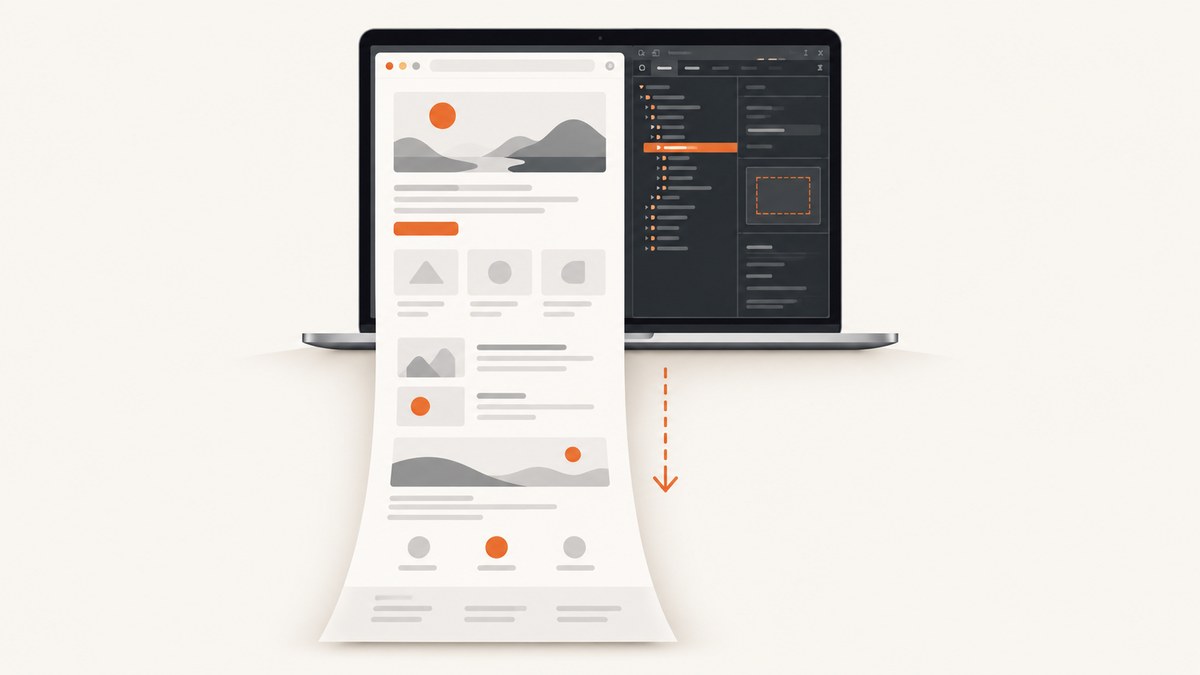
Chrome on Mac can capture an entire webpage, including content below the fold, without manually scrolling. Open DevTools, run the Screenshot command, and choose Capture a full size screenshot.
Capture a full-size webpage in Chrome
- Open the page you want to save in Chrome.
- Open DevTools with Command+Option+I. You can also open Chrome’s menu and choose More Tools > Developer Tools.
- If the screenshot commands are not visible, enable the device toolbar by clicking the phone-and-tablet icon in DevTools, or press Command+Shift+M.
- Open the DevTools three-dot menu, then choose Run command. You can also press Command+Shift+P to open the Command Menu.
- Type
screenshot. - Select Capture a full size screenshot.
Chrome renders the page beyond the current viewport and downloads an image, normally as a PNG. The command captures the complete page rather than only the pixels currently visible.
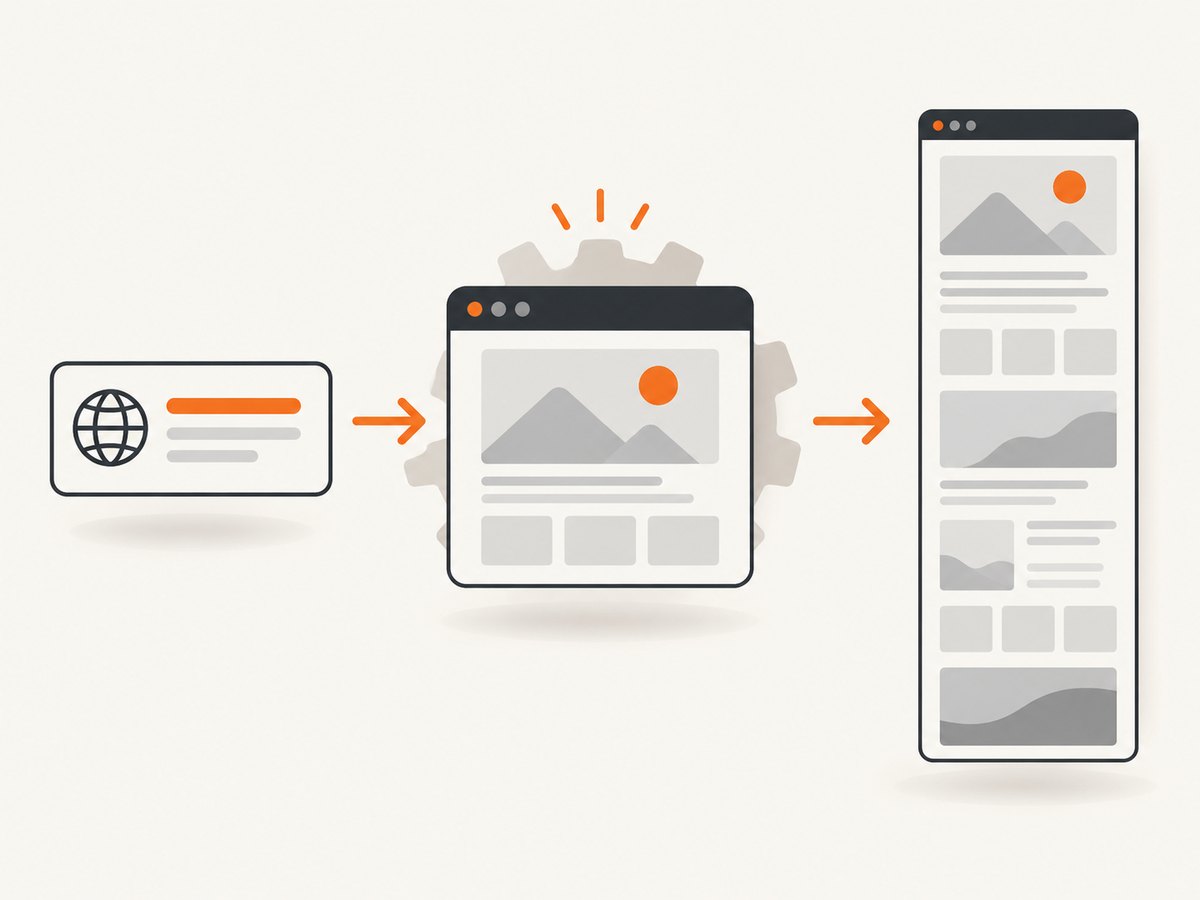
Chrome documents the same workflow in its DevTools screenshot guide.
Choose the right Chrome screenshot command
| Command | Use it for | What it captures |
|---|---|---|
| Capture screenshot | A normal viewport image | Only the visible browser viewport |
| Capture full size screenshot | An entire webpage | Content above and below the fold |
| Capture area screenshot | A custom rectangular region | The area you drag after starting the command |
| Capture node screenshot | One component or inspected element | The selected DOM node |
For a single card, chart, or component, inspect that element first and use Capture node screenshot. For a page-length archive, use Capture full size screenshot.
Make the capture reliable
- Wait for fonts, images, charts, and client-rendered content to finish loading.
- Scroll through the page once if it uses lazy loading. Some sites load images only after they approach the viewport.
- Close menus, cookie dialogs, chat panels, and hover states that should not appear in the result.
- Keep the target page active when opening the Command Menu. DevTools must be attached to that page.
- Review the downloaded image. Interactive pages can change while Chrome is stitching the full document.
Very long pages can produce large images. If an image editor or upload service rejects the file, resize it or export a cropped section.
Where Chrome saves the screenshot
Chrome downloads the result using its normal download location. Open Chrome > Settings > Downloads to see or change that folder. If Chrome asks where to save each file, choose a destination in the download prompt.
macOS screenshot shortcuts: useful, but different
macOS includes built-in screen capture commands documented in Apple’s Mac screenshot guide:
| Shortcut | Result |
|---|---|
| Shift+Command+3 | Captures the entire screen |
| Shift+Command+4 | Lets you select a region |
| Shift+Command+5 | Opens Screenshot controls for screen, window, region, and recording |
These shortcuts capture what is on screen. They do not replace Chrome’s webpage-aware full-size command, so they cannot automatically include content below the viewport. macOS saves screenshots to the Desktop by default; Screenshot options let you choose another location. Hold Control while using a shortcut to copy the capture to the Clipboard instead of saving it normally.
Common problems and fixes
| Problem | Cause | Fix |
|---|---|---|
| “Capture full size screenshot” is missing | DevTools is closed or the command list is hidden | Open DevTools, press Command+Shift+P, and search for screenshot. |
| The result contains only the visible area | You selected Capture screenshot | Run the command again and choose Capture full size screenshot. |
| The wrong tab or page is captured | DevTools is attached to another target | Click the intended page, then open its DevTools and run the command there. |
| A component is clipped | The page uses an overflow container or the wrong capture mode | Inspect the component and try Capture node screenshot; otherwise capture the containing page. |
| Images are blank or missing | Lazy loading, blocked requests, or capture started too soon | Wait for loading, scroll through the page once, disable blocking extensions for the site, and capture again. |
| Cookie banner, popup, or chat widget appears | The page displayed it during capture | Dismiss it before capture, or hide the relevant element in DevTools. |
| Text or layout changes between captures | Animations, ads, personalization, or live data | Pause animations where possible, wait for the page to settle, and capture at a consistent viewport size. |
| The downloaded file is too large | Long pages at high pixel density create large PNGs | Crop or resize the image, or use an automated capture service with image resizing. |
When to automate full-page screenshots
DevTools is ideal for an occasional manual capture. Automation is more practical when you need the same viewport, repeatable timing, many URLs, scheduled archives, or a server-side workflow.
A browser automation script generally needs to:
- Launch a browser with a defined viewport and device scale factor.
- Navigate to the URL and wait for the required content.
- Handle cookie consent and other overlays.
- Scroll or otherwise trigger lazy-loaded assets.
- Capture a full-page screenshot and store the bytes.
Plan for authentication, custom headers, geolocation, time zones, JavaScript timing, blocked resources, and pages that never reach network idle. A fixed selector wait or bounded delay is often more predictable than waiting forever for every request to finish.
Or skip the browser setup
ScreenshotNeo returns a full-page image or PDF from one request. Its capture options include lazy-image loading, custom CSS and JavaScript, selector waits, delays, network-idle waits, device presets, arbitrary viewports, retina scale, element capture, hidden selectors, dark mode, headers, cookies, user agents, authorization, time zones, geolocation, blocking rules, caching, signed links, asynchronous jobs, webhooks, bulk capture, and PDF settings. See the ScreenshotNeo API documentation for the complete parameter list.
cURL
curl -G "https://api.screenshotneo.com/v1/shot" \\
  -d access_key=YOUR_API_KEY \\
  --data-urlencode url=https://stripe.com \\
  -o shot.webp
Python
import requests

r = requests.get(
    "https://api.screenshotneo.com/v1/shot",
    params={"access_key": "YOUR_API_KEY", "url": "https://stripe.com"},
    timeout=90,
)
r.raise_for_status()
open("shot.webp", "wb").write(r.content)
Node.js
const q = new URLSearchParams({
  access_key: 'YOUR_API_KEY',
  url: 'https://stripe.com'
});
const res = await fetch(`https://api.screenshotneo.com/v1/shot?${q}`);
if (!res.ok) throw new Error(`HTTP ${res.status}`);
const bytes = Buffer.from(await res.arrayBuffer());
require('fs').writeFileSync('shot.webp', bytes);
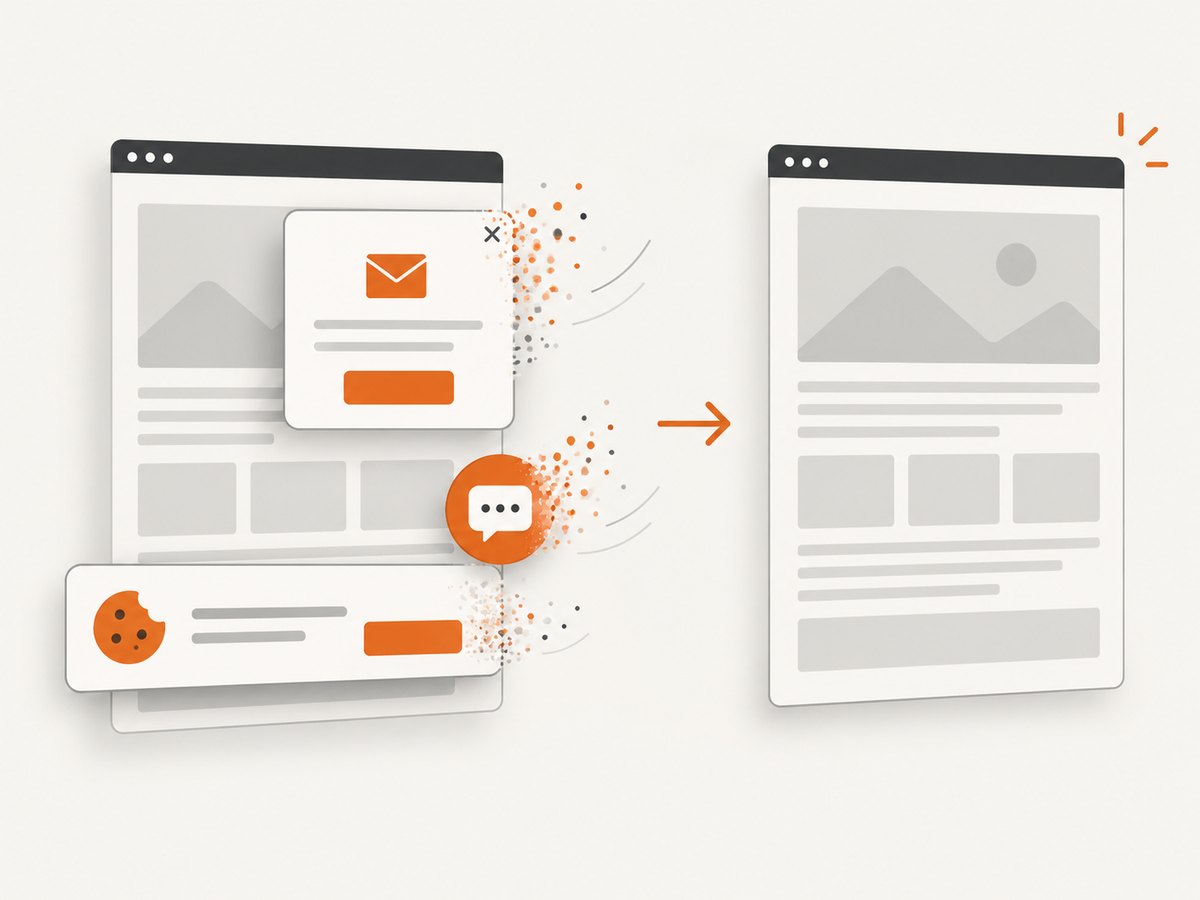
ScreenshotNeo accepts cookie and consent banners before capture and removes more than 60 known consent platforms, newsletter popups, and chat widgets; each cleanup step can be disabled. Bot checks and CAPTCHAs, blank pages, timeouts, failed loads, and cache hits are not billed. The response identifies the result with X-Page-Verdict and X-Billed headers. An MCP server provides take_screenshot, get_page_info, and capture_pdf tools for Claude, Cursor, and other MCP clients.
The Free plan includes 1,000 screenshots per month with no card. Paid plans start at $5 for 3,000 shots; yearly billing gives two months free, and every feature is available on every plan. Create a free ScreenshotNeo account.
Performance, reliability, and cost notes
- Manual capture: fastest for one page, but timing and cleanup depend on the current browser state.
- Browser automation: gives maximum control, but requires browser binaries, concurrency limits, retry handling, and maintenance as sites change.
- ScreenshotNeo: handles rendering and cleanup through an API, supports caching with a TTL you choose, and offers asynchronous jobs and signed webhooks for longer captures.
- Billing: only clean shots are billed; bot checks, blank pages, timeouts, failed loads, and cache hits cost nothing. Check the verdict and billing headers when building a pipeline.
FAQ
Can Chrome capture a page without scrolling?
Yes. Use Capture full size screenshot from DevTools’ Screenshot commands.
Does the Mac screenshot shortcut capture the whole webpage?
No. macOS shortcuts capture the screen, a window, or a selected region. Use Chrome DevTools for content below the viewport.
Can I capture only one element?
Yes. Inspect the element and use Capture node screenshot, or use an automated API’s element selector option.
Why does a full-page image differ from what I see while scrolling?
Lazy loading, animations, ads, personalization, and changing data can alter rendering during capture. Let content settle and review the output.
What is the simplest repeatable option for many URLs?
Use an API such as ScreenshotNeo, which accepts a URL and can return an image or PDF without maintaining a local browser setup.


