BlogScreenshots on your device
How to Take a Full Webpage Screenshot on a Laptop
Capture an entire webpage beyond the visible screen using Firefox, Edge, Chrome DevTools, or ScreenshotNeo’s API.

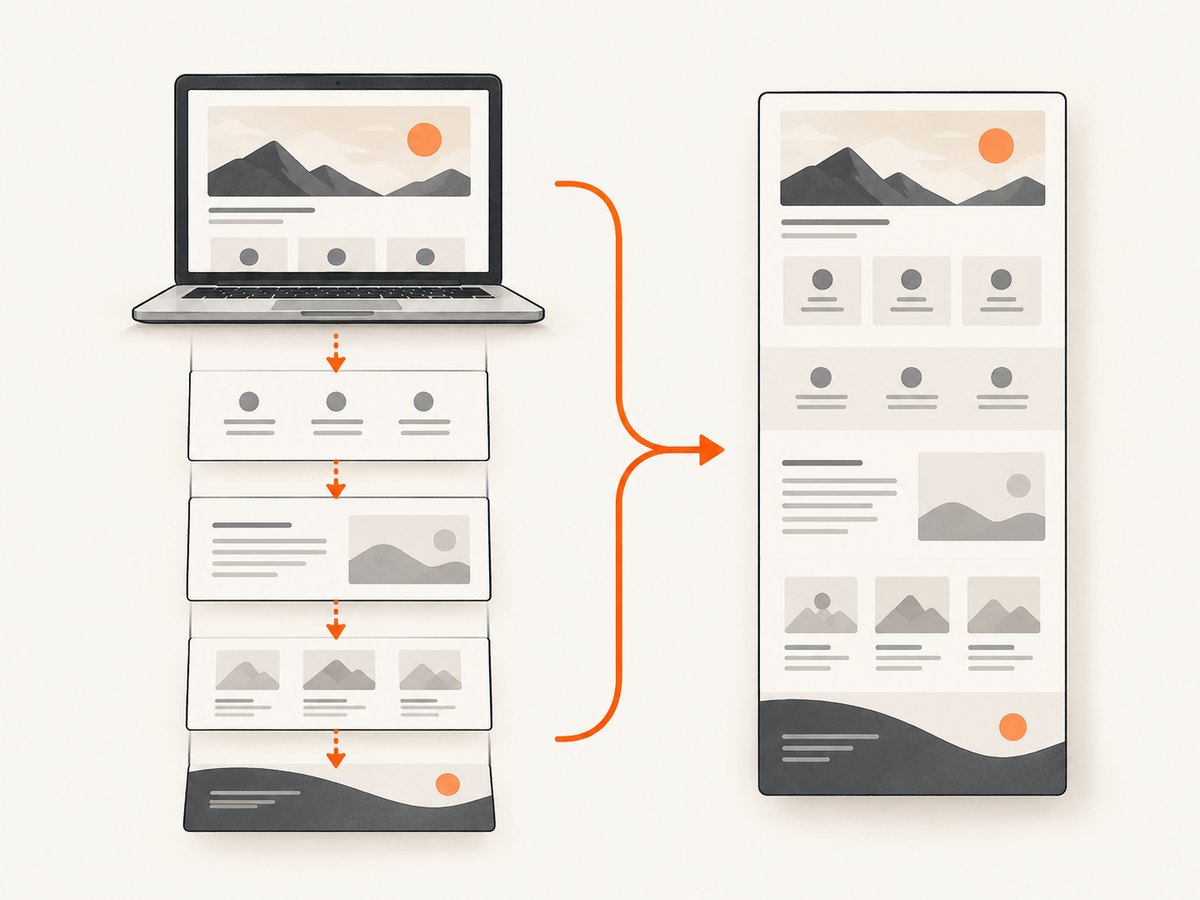
A full webpage screenshot captures the content below the visible browser window in one image. Use your browser’s built-in full-page tool: Firefox has Save full page, Microsoft Edge has Screenshot > Capture full page, and Chrome has Capture a full size screenshot in DevTools.
Choose the right capture method
| Browser | Command | Best for |
|---|---|---|
| Firefox | Right-click > Take Screenshot > Save full page | Quick captures with PNG download or clipboard copy |
| Microsoft Edge | Right-click > Screenshot, then choose full page | Captures with copy, save, and markup tools |
| Chrome | DevTools > More options > Capture a full size screenshot | Developers who need viewport controls |
| ScreenshotNeo | One API request | Repeatable, automated, server-side captures |
A normal operating-system screenshot records only the visible display area. Zooming out also does not create a true full-page image.
Firefox: save the entire page
- Open the webpage in Firefox.
- Right-click an empty area and select Take Screenshot. You can also press Ctrl+Shift+S on Windows or Linux, or Command+Shift+S on macOS.
- Choose Save full page in the upper-right of the capture overlay.
- Download the PNG to Firefox’s normal download folder, or copy it to the clipboard.
Choose Save full page, rather than Save visible, when you need content below the fold. Menu names can vary slightly by Firefox version.
Microsoft Edge: capture a full webpage
- Open the page in Edge.
- Right-click and choose Screenshot, or press Ctrl+Shift+S.
- Select the full-page capture option.
- Copy the result or save it to a file. Edge also lets you mark up the capture before copying or saving.
Edge’s Screenshot feature is designed to include parts of a webpage that would otherwise require scrolling. Availability and behavior can vary by device, market, and browser version. Moving content such as videos, GIFs, and carousels may remain active while the capture is made, so the image represents one moment.
Chrome: use DevTools full-size capture
- Open the webpage in Chrome.
- Open DevTools with F12, Ctrl+Shift+I on Windows/Linux, or Command+Option+I on macOS.
- Open the device toolbar if you want to simulate a particular viewport size.
- Open the DevTools More options menu and select Capture a full size screenshot.
Chrome’s command captures the whole page, including content outside the visible viewport. Device mode helps simulate viewport dimensions, but it is only an approximation and does not reproduce testing on physical mobile hardware. See Google’s Chrome device mode documentation.
Make the capture reliable
- Wait until the page finishes loading before starting the capture.
- Scroll through the page once if it loads images only when they approach the viewport.
- Close consent banners, chat widgets, and popups if they obscure content.
- Pause or stop animated content when you need a stable visual record.
- Inspect the saved image for missing sections, duplicated sticky headers, or blank areas.
Very long, interactive, or dynamically rendered pages can behave differently across websites and browser versions. Retry after loading completes if content is missing.
Or skip the browser setup
ScreenshotNeo provides a website screenshot API when you need a repeatable capture from code or automation. Its capture options include full-page screenshots with lazy images loaded, custom viewports and device presets, dark mode, retina scale, CSS and JavaScript, selector-based element capture, waits, request blocking, cookies, headers, geolocation, caching, PDFs, bulk capture, and signed links. Read the ScreenshotNeo API documentation for the complete option list.

curl -G "https://api.screenshotneo.com/v1/shot" -d access_key=YOUR_API_KEY --data-urlencode url=https://stripe.com -o shot.webpimport requests
r = requests.get("https://api.screenshotneo.com/v1/shot", params={"access_key": "YOUR_API_KEY", "url": "https://stripe.com"}, timeout=90)
open("shot.webp", "wb").write(r.content)const q = new URLSearchParams({ access_key: 'YOUR_API_KEY', url: 'https://stripe.com' });
const res = await fetch(`https://api.screenshotneo.com/v1/shot?${q}`);Cookie banners, newsletter popups, and chat widgets are removed before the shot. Bot checks, blank pages, failed loads, timeouts, and cache hits are not billed, and response headers identify the page verdict and billing status. An MCP server lets Claude, Cursor, and other MCP clients call take_screenshot, get_page_info, and capture_pdf. The Free plan includes 1,000 screenshots per month with no card; paid plans start at $5 for 3,000 shots. Create a free ScreenshotNeo account.
Options for automated captures
Full page versus one element
Use a full-page capture for documentation, audits, and archiving. Use a CSS selector when you need only a chart, invoice, article body, or other element. Element capture avoids unrelated navigation and can produce a smaller file.
Viewport and device settings
Desktop browser tools capture the current window or emulated viewport. For repeatable results, set a fixed viewport and device scale in an API or automation script. Remember that a simulated mobile viewport is not a physical-device test.
Dynamic content
Wait for a selector, a delay, or network idle before capture when content is rendered after the initial HTML. Lazy-loaded images may require scrolling or a capture service that loads them explicitly.
Privacy and access
For authenticated pages, use a controlled browser session or an API that supports cookies, custom headers, and authorization. Avoid placing secrets in publicly shared URLs or screenshots.
Troubleshooting
| Problem | Likely cause | Fix |
|---|---|---|
| Only the visible area was saved | The visible-area command was selected | Choose Firefox’s Save full page, Edge’s full-page option, or Chrome’s Capture a full size screenshot. |
| Images are missing | Lazy loading or the page was captured too early | Wait for loading, scroll through the page, then capture again. |
| Content is covered by a popup | Consent, newsletter, or chat overlay | Dismiss it manually, hide the element with browser tooling, or use ScreenshotNeo’s cleanup behavior. |
| Sticky navigation appears repeatedly | The browser stitched multiple viewport regions | Hide the sticky selector, use an element capture, or retry after the page settles. |
| Blank or partial output | Timeout, bot check, script error, or unstable page | Reload, wait for network activity to finish, disable blocking extensions, and inspect the page in a clean session. |
| Chrome controls are missing | DevTools is in a different panel or version | Open the DevTools three-dot menu and search for the full-size screenshot command. |
| Animated sections differ between captures | Animation or carousel state changed | Pause animation or capture at a controlled time; a screenshot records one moment. |
Performance, reliability, and cost
- Browser tools: They require a loaded page and manual action, but need no additional service or purchase.
- Long pages: Larger pages take longer to render and create larger image files. Review dimensions and compress copies used on the web.
- Repeatability: Keep browser version, viewport, zoom, logged-in state, and page state consistent when comparing captures.
- Automation: An API is easier to schedule and run from CI than a desktop browser. ScreenshotNeo bills only clean shots; failed loads, bot checks, blank pages, timeouts, and cache hits are free.
- Caching: For repeated URLs, choose a cache TTL to reduce duplicate work. Disable or shorten caching when you need the newest content.
- Plan costs: ScreenshotNeo offers Free (1,000/month), Starter ($5/3,000), Growth ($15/15,000), Pro ($39/60,000), Scale ($99/250,000), and Business ($249/1,000,000). Yearly billing gives two months free.
Checklist before you share a full-page screenshot
- Confirm the image includes content below the fold.
- Check that text is legible at the exported dimensions.
- Remove personal data, account details, and private URLs.
- Verify that consent dialogs and overlays are not hiding the page.
- Open the saved file outside the browser to confirm it is complete.
FAQ
Does a full-page screenshot include content I have not scrolled to?
Yes. Full-page tools capture content beyond the visible viewport, although lazy-loaded sections may need time or scrolling before they appear.
Is a full-page screenshot the same as printing to PDF?
No. A screenshot is a raster image of the rendered page. Printing to PDF uses print layout rules and may paginate or omit screen-only elements.
Can I capture a page that requires login?
Desktop tools can capture it while you are signed in. Automated captures need a controlled authenticated session or credentials supplied through supported headers and cookies.
Why does my screenshot show a different ad or carousel slide?
Dynamic content changes over time. Freeze the page state where possible, or use waits and controlled capture settings.
Is Safari covered here?
The documented research for this guide did not verify a current official Safari full-page image workflow, so use the browser’s own help for your installed version.


