BlogScreenshots on your device
Keyboard Shortcuts for Capturing a Full Webpage
Find the right full-page screenshot shortcut for Edge, Firefox, Chrome and iPhone Safari, plus reliable automation options.

Short answer: there is no universal full-webpage screenshot shortcut. In Microsoft Edge, press Ctrl+Shift+S and choose Capture full page. In Firefox, press Ctrl+Shift+S on Windows or Linux, or Command+Shift+S on macOS, then choose Save full page. Chrome does not use Ctrl+S for this: that saves the current page. Use Chrome DevTools and its screenshot actions instead. On iPhone Safari, take a normal screenshot, open the preview, and tap Full Page.
This guide explains each workflow, what the shortcut actually does, how to avoid capturing only the visible viewport, and how to automate full-page captures when manual browser tools are not enough.
Which shortcut should you use?
| Browser | Windows/Linux | macOS | Next action | Result |
|---|---|---|---|---|
| Microsoft Edge | Ctrl+Shift+S | Usually the same shortcut | Select Capture full page | Full webpage image |
| Firefox | Ctrl+Shift+S | Command+Shift+S | Select Save full page | Full webpage image |
| Chrome | Ctrl+Shift+P opens DevTools Command Menu | Command+Shift+P | Use DevTools screenshot actions | Full-page screenshot through DevTools |
| Safari on iPhone | No keyboard shortcut required | Screenshot, open preview, tap Full Page | Full-page capture saved through iOS options | |
Do not confuse three different commands: saving a webpage, capturing the visible screen, and capturing the complete scrollable webpage. They produce different files and often use different shortcuts.
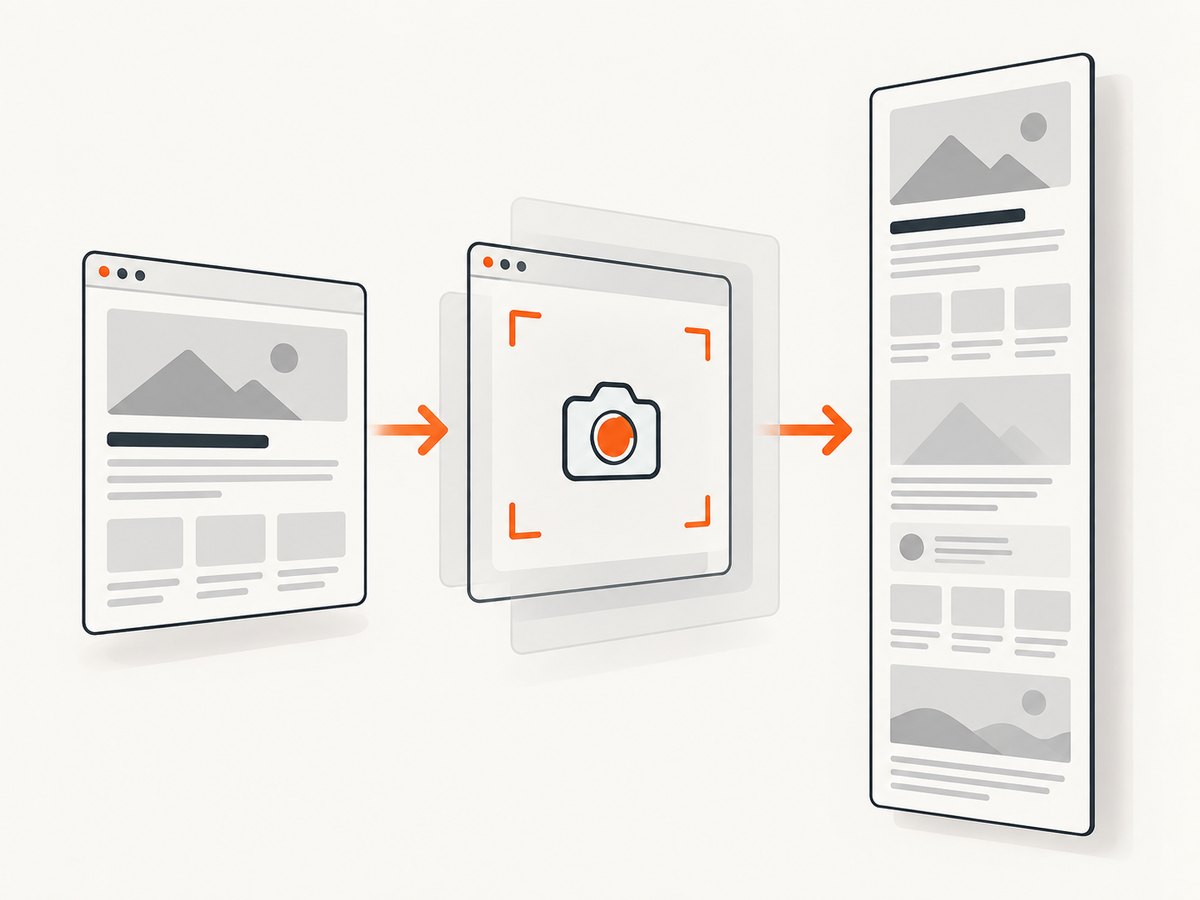
Microsoft Edge: Ctrl+Shift+S, then Capture full page
- Open the webpage you want to capture.
- Press Ctrl+Shift+S.
- Choose Capture full page.
- Copy or save the resulting image.
Edge documents this as a way to capture beyond the visible screen without manually scrolling. Microsoft describes the workflow as: “Press Ctrl+Shift+S and select Capture full page to grab everything at once, with no scrolling required.” See Microsoft Edge’s Screenshot feature documentation. The exact interface can vary by device, market, and browser version.
Edge options and limitations
- Visible versus full page: choose the full-page command; a normal screen capture stops at the viewport.
- Right-click access: Edge also exposes Screenshot from the page context menu and Settings.
- Long or dynamic pages: animations, lazy-loaded content, sticky headers, and infinite scrolling can change while Edge captures.
- Restricted pages: browser security rules, extensions, authentication screens, or enterprise policies may prevent capture.
Firefox: Ctrl+Shift+S or Command+Shift+S, then Save full page
- Open the page in Firefox.
- Press Ctrl+Shift+S on Windows or Linux. On macOS, press Command+Shift+S.
- In the screenshot interface, choose Save full page.
- Save the image, or use the available copy and save controls.
Mozilla’s support documentation says, “You can take screenshots to capture visible parts of web pages, or even full web pages, and copy or save these images.” Read Mozilla’s Firefox screenshot guide for the current interface.
Firefox capture choices
| Choice | What it captures |
|---|---|
| Save full page | The complete scrollable webpage. |
| Save visible | Only the current viewport. |
| Select a region | A rectangle you draw. |
| Select an element | A page element identified by Firefox’s picker. |
If the output stops at the fold, reopen the tool and verify that you selected Save full page, rather than Save visible.
Chrome: Ctrl+S is not a full-page screenshot
Chrome’s keyboard reference labels Ctrl+S on Windows/Linux and Command+S on macOS as opening options to save the current page. That command saves a webpage or resource; it does not create a full-page screenshot. See Chrome’s keyboard shortcuts reference.
For a full-page image, use DevTools:
- Open Chrome DevTools using your usual method.
- Open the Command Menu with Ctrl+Shift+P on Windows/Linux or Command+Shift+P on macOS.
- Use the DevTools screenshot actions to capture the full page.
- Save the generated image.
Chrome’s official documentation confirms full-page screenshot capture through DevTools and documents the Command Menu shortcut. The exact action names and placement can change with Chrome releases, so use the screenshot actions shown in your current DevTools interface. See Chrome for Developers’ Command Menu guide.
Why Chrome screenshots can look different
- DevTools may emulate a viewport that differs from your normal window.
- Responsive layouts can switch breakpoints when device emulation is enabled.
- Lazy images may not appear until the page has been scrolled or otherwise triggered.
- Fixed headers and animated content can be repeated or captured mid-animation.
iPhone Safari: use Full Page in the screenshot preview
- Open the webpage in Safari.
- Take a normal iPhone screenshot with the device buttons.
- Tap the screenshot thumbnail to open its preview.
- Tap Full Page.
- Review the capture and save it using the available options.
This is a touch and hardware-button workflow, not a keyboard shortcut. Apple documents the process in Take a screenshot on iPhone. The full-page option is available for supported webpage content in Safari; it is not a general capture mode for every app.
Mac screen shortcuts are different
macOS provides Shift+Command+3 for the whole screen and Shift+Command+4 for a selected region. Apple documents both in Take a screenshot on Mac. These shortcuts capture pixels currently displayed on the screen. They do not automatically follow a webpage below the viewport, so they are not substitutes for a browser’s full-page command.
Reliable manual capture checklist
- Wait for the page to finish loading before invoking the tool.
- Close cookie dialogs, newsletter popups, chat widgets, and other overlays if they obscure content.
- Confirm the page is at the intended URL and logged-in state.
- Use the browser’s explicit full-page option, not a visible-screen option.
- Check the output from top to bottom for missing images, duplicated sticky elements, clipped sections, or blank areas.
- For pages with infinite scrolling, load the content you need first; a browser may not capture items that never exist in the DOM.
- Save in a format suitable for the purpose: PNG for sharp UI text, JPEG for smaller photographic files, or PDF when a document workflow needs pagination.
When a browser shortcut is not enough
Manual shortcuts are useful for one-off captures. They are harder to standardize for monitoring, documentation builds, visual regression checks, or hundreds of URLs. A browser automation script can control viewport size, wait conditions, cookies, and resource blocking, but it also requires a browser runtime, maintenance, and care around authentication and dynamic content.
Or skip the browser setup
ScreenshotNeo provides a website screenshot API and MCP server. One GET request returns a PNG, JPEG, WebP, or PDF. It supports full-page capture with lazy images loaded, element capture by CSS selector, dark mode, device presets, custom viewports, retina scale, waits, custom CSS and JavaScript, click actions, hidden selectors, request blocking, headers, cookies, user agents, authorization, timezone, geolocation, transparent backgrounds, resizing, caching, signed links, asynchronous jobs, bulk capture, usage data, and PDF controls.
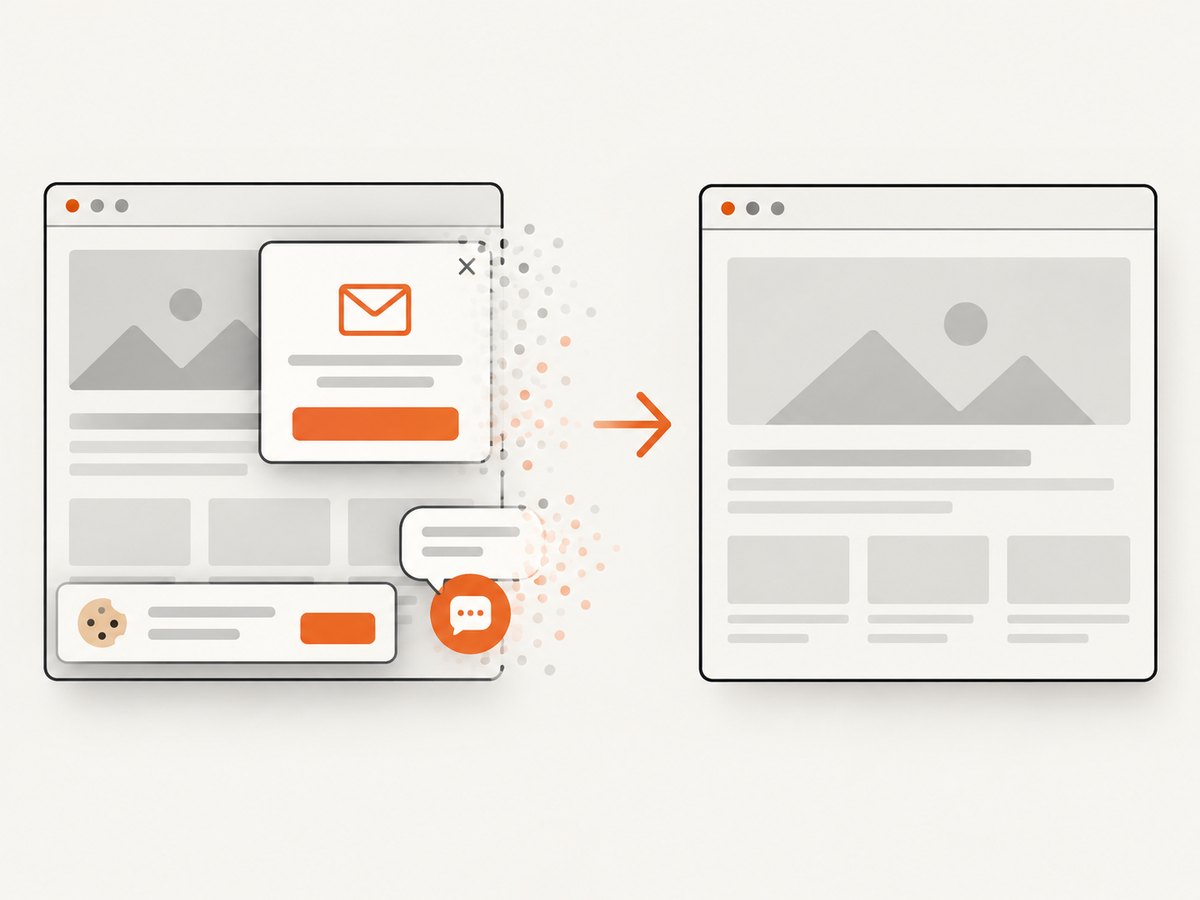
Cookie and consent banners, newsletter popups, and chat widgets are removed before capture. Bot checks, blank pages, timeouts, failed loads, and cache hits are not billed, and response headers identify the page verdict and billing status. The MCP server exposes take_screenshot, get_page_info, and capture_pdf for Claude, Cursor, and other MCP clients.
See the ScreenshotNeo documentation for parameters and response details.
cURL
curl -G "https://api.screenshotneo.com/v1/shot" -d access_key=YOUR_API_KEY --data-urlencode url=https://stripe.com -o shot.webpPython
import requests

r = requests.get(
    "https://api.screenshotneo.com/v1/shot",
    params={"access_key": "YOUR_API_KEY", "url": "https://stripe.com"},
    timeout=90,
)
r.raise_for_status()
open("shot.webp", "wb").write(r.content)
Node.js
const q = new URLSearchParams({ access_key: 'YOUR_API_KEY', url: 'https://stripe.com' });
const res = await fetch(`https://api.screenshotneo.com/v1/shot?${q}`);
if (!res.ok) throw new Error(`HTTP ${res.status}`);
const fs = await import('node:fs/promises');
await fs.writeFile('shot.webp', Buffer.from(await res.arrayBuffer()));
ScreenshotNeo has 1,000 screenshots per month free with no card. Paid plans start at $5 for 3,000 shots; yearly billing provides two months free. Every feature is available on every plan. Create a free ScreenshotNeo account.
Troubleshooting full-page screenshots
The shortcut does nothing
Another application or browser extension may be using the key combination, or your browser version may expose Screenshot from a menu instead. Try the browser’s menu command, update the browser, or disable the conflicting extension.
Only the visible viewport was saved
You selected a visible-screen action. In Edge choose Capture full page; in Firefox choose Save full page. In Chrome use the DevTools full-page screenshot action rather than Ctrl+S.
Images or sections are missing
The page may lazy-load content, require scrolling to trigger image requests, or block automated capture. Scroll through the page once before capturing, wait for images, and retry. For repeatable jobs, use an automation API with an explicit selector wait or delay.
Sticky headers appear repeatedly
Full-page tools stitch or render a long document while fixed elements remain fixed. Hide the sticky selector where the tool allows it, or use a capture method that renders the complete page layout in one pass.
The result contains a cookie banner or chat bubble
Dismiss overlays manually before a one-off capture. For automated captures, configure selectors to hide them or use a service that removes known consent platforms and widgets before rendering.
The page is blank, blocked, or timed out
Check the URL, network access, authentication, robots or bot checks, and JavaScript errors. Increase the wait time only after confirming the page can load normally. A screenshot service should expose whether the response was a clean capture, blocked page, blank page, timeout, failed load, or cache hit.
Performance, reliability, and cost considerations
- Speed: shorter pages and fewer third-party resources capture faster. Blocking ads, trackers, and unnecessary resource types can reduce work.
- Consistency: fix viewport, device scale, timezone, geolocation, user agent, cookies, and wait conditions when comparing captures.
- Dynamic content: wait for a selector, a delay, or network idle instead of relying on a fixed visual guess.
- Large pages: consider element capture, image resizing, or PDF page ranges when a complete page is unnecessarily large.
- Retries: retry transient network failures, but inspect verdict and billing headers so a failed or cached result is handled correctly.
- Cost: manual browser shortcuts have no API usage fee. ScreenshotNeo bills only clean shots; bot checks, blank pages, timeouts, failed loads, and cache hits cost nothing.
FAQ
What is the shortcut for a full-page screenshot?
It depends on the browser: Edge uses Ctrl+Shift+S then Capture full page; Firefox uses Ctrl+Shift+S or Command+Shift+S then Save full page; Chrome uses DevTools; iPhone Safari uses the screenshot preview’s Full Page option.
Does Ctrl+S save an entire webpage as an image?
No. In Chrome, Ctrl+S opens options to save the current page. It does not create a full-page screenshot.
Can Shift+Command+3 capture a whole webpage on Mac?
No. It captures the whole display. A webpage extending below the viewport needs the browser’s full-page tool or automation.
Can I capture just one element?
Firefox can select a page element in its screenshot interface. Automated tools such as ScreenshotNeo can target an element by CSS selector.
What should I use for recurring captures?
Use a controlled automation workflow or screenshot API so viewport, waits, authentication, output format, and retries are explicit. For a direct API workflow, start with ScreenshotNeo’s free plan.


