How to Generate an Image From the DOM in Node.js
Use Puppeteer or Playwright to render a real DOM in Node.js, capture pages or elements, and avoid jsdom rendering traps.
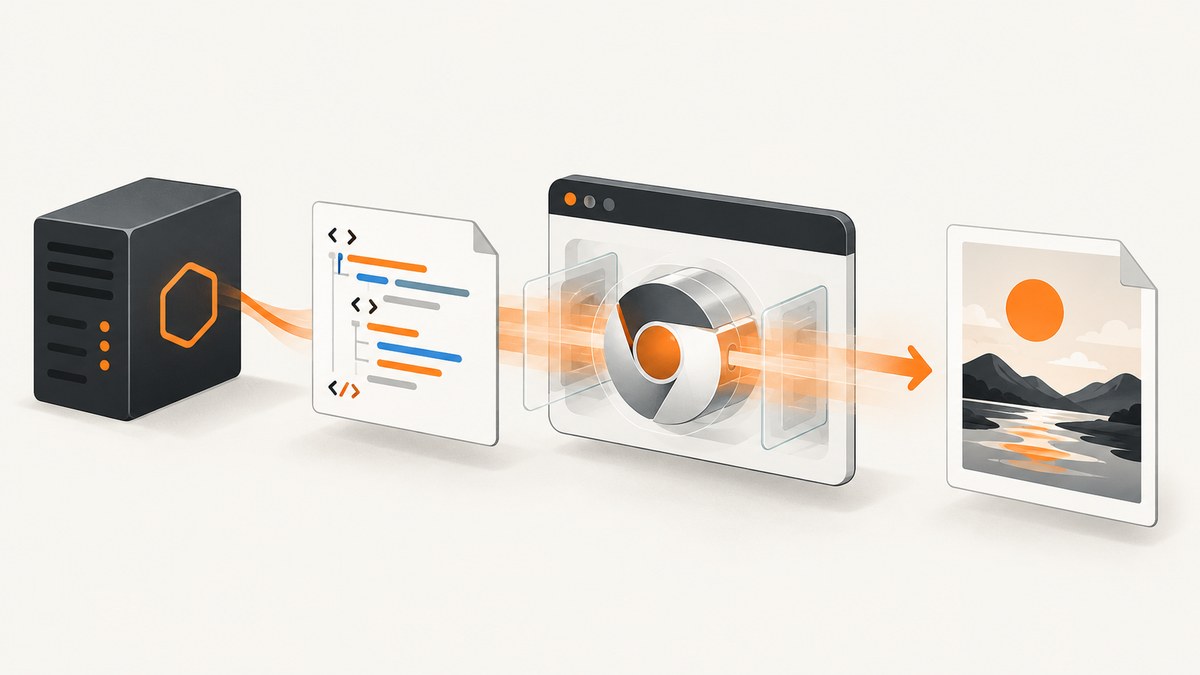
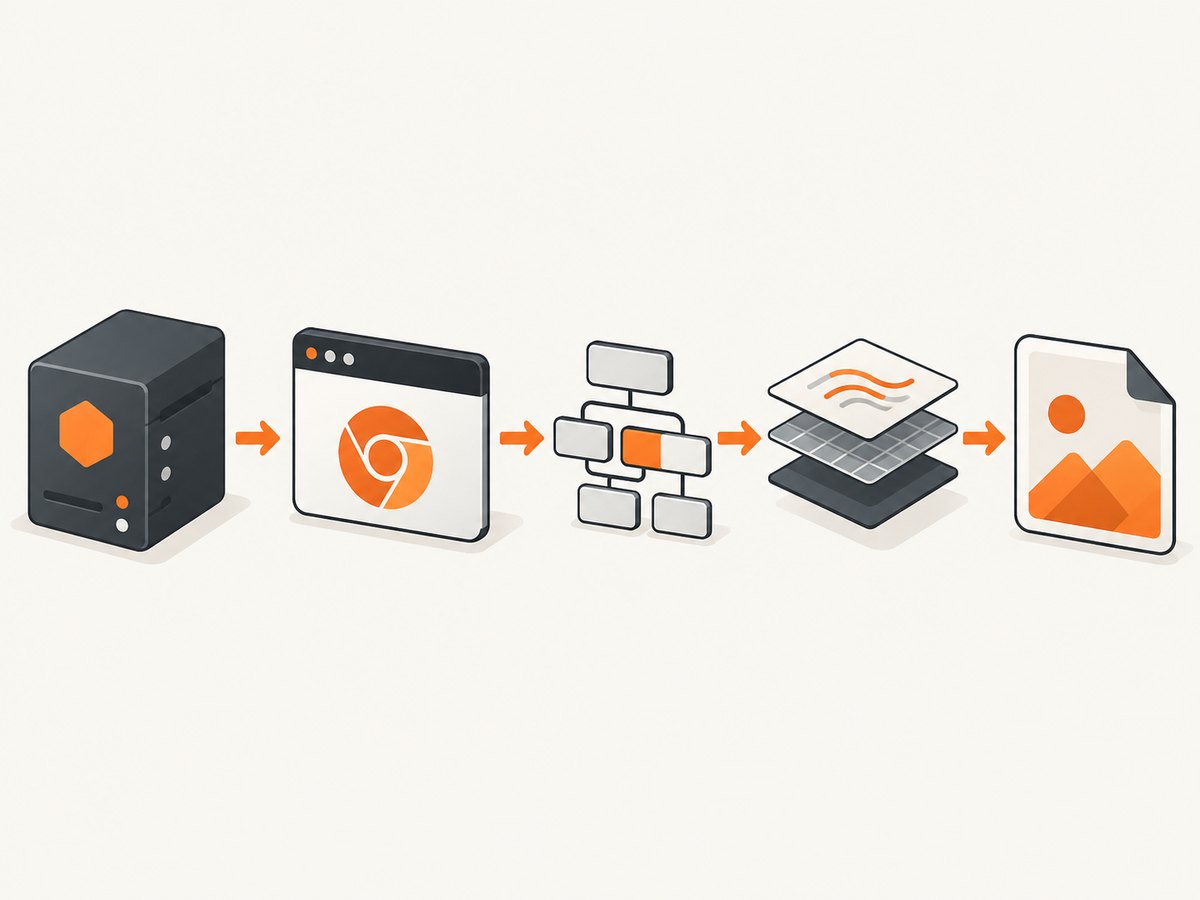
To generate an image from the DOM in Node.js, render the document in a real browser engine and call its screenshot API. Puppeteer and Playwright both support viewport screenshots, full-page screenshots, and screenshots of a single element. Puppeteer’s Page.screenshot() and Playwright’s screenshot APIs are the practical starting points.
jsdom alone cannot produce a faithful visual image. The jsdom documentation says it “does not have the capability to render visual content.” Use jsdom to build or modify markup, then serve that markup to Chromium and capture it with Puppeteer or Playwright.
1. Choose the rendering approach
| Need | Recommended approach |
|---|---|
| Capture an existing URL | Playwright or Puppeteer navigation, then page screenshot |
| Capture one component | Playwright locator screenshot or Puppeteer element handle screenshot |
| Render generated HTML | Write the HTML to a local server or data URL, then open it in Chromium |
| Build a DOM with jsdom | Use jsdom for state and serialization; use a real browser for layout and painting |
| Capture at scale without managing browsers | ScreenshotNeo website screenshot API |
A browser is required because layout depends on CSS, fonts, images, JavaScript, viewport dimensions, and browser behavior. A string of HTML or a jsdom document has no painted pixels until a rendering engine processes it.
2. Capture a page with Playwright
Install Playwright and its browser binaries:
npm install playwright
npx playwright install chromium
This complete script opens a URL, waits for a useful readiness condition, and writes a WebP image:
const { chromium } = require('playwright');

(async () => {
  const browser = await chromium.launch();
  try {
    const page = await browser.newPage({
      viewport: { width: 1440, height: 900 },
      deviceScaleFactor: 1,
    });

    await page.goto('https://example.com', { waitUntil: 'networkidle' });
    await page.screenshot({
      path: 'page.webp',
      type: 'webp',
      fullPage: true,
    });
  } finally {
    await browser.close();
  }
})();
waitUntil: 'networkidle' is useful for pages that finish loading after several requests, but it is not a guarantee that application data or web fonts are ready. Prefer a page-specific signal when one exists:
await page.goto('https://app.example.test/report');
await page.locator('[data-report-ready="true"]').waitFor();
await page.evaluate(() => document.fonts.ready);
await page.screenshot({ path: 'report.png', fullPage: true });
PNG, JPEG, and WebP
PNG is lossless and preserves sharp text. JPEG is smaller for photographic content but has no alpha channel. WebP often gives a smaller file while retaining good quality. Playwright selects the format from type or the file extension; JPEG accepts a quality value.
await page.screenshot({ path: 'card.jpg', type: 'jpeg', quality: 85 });
await page.screenshot({ path: 'transparent.png', type: 'png' });
await page.screenshot({ path: 'compact.webp', type: 'webp' });
Viewport, scale, and full-page options
The viewport controls CSS pixels. deviceScaleFactor: 2 produces a retina-style image with twice as many device pixels in each direction. fullPage: true captures the full scrollable document; omit it to capture only the current viewport.
const context = await browser.newContext({
  viewport: { width: 390, height: 844 },
  deviceScaleFactor: 2,
  colorScheme: 'dark',
});
const page = await context.newPage();
await page.goto('https://example.com');
await page.screenshot({ path: 'mobile-dark.png', fullPage: true });
3. Capture one DOM element
Element capture is better for cards, charts, invoices, and components because it excludes navigation and unrelated whitespace. Playwright’s locator API waits for the matching element and captures its bounding box.
const { chromium } = require('playwright');

(async () => {
  const browser = await chromium.launch();
  try {
    const page = await browser.newPage({ viewport: { width: 1280, height: 800 } });
    await page.goto('https://example.com/dashboard');
    const chart = page.locator('[data-testid="sales-chart"]');
    await chart.waitFor({ state: 'visible' });
    await chart.screenshot({ path: 'sales-chart.png', animations: 'disabled' });
  } finally {
    await browser.close();
  }
})();
Use a stable selector such as a data attribute rather than a generated CSS class. If the element is outside the viewport, Playwright scrolls it into view before the capture. For custom cropping, read the bounding box and pass a clip rectangle to page.screenshot().
4. The equivalent Puppeteer workflow
Install Puppeteer, which downloads a compatible browser by default:
npm install puppeteerconst puppeteer = require('puppeteer');
(async () => {
const browser = await puppeteer.launch({ headless: true });
try {
const page = await browser.newPage();
await page.setViewport({ width: 1440, height: 900, deviceScaleFactor: 1 });
await page.goto('https://example.com', { waitUntil: 'networkidle2' });
await page.screenshot({ path: 'page.png', fullPage: true });
} finally {
await browser.close();
}
})();Puppeteer’s ElementHandle.screenshot() captures a component:
const element = await page.waitForSelector('#invoice');
await element.screenshot({ path: 'invoice.png' });
Playwright supports Chromium, Firefox, and WebKit projects. Puppeteer is centered on Chrome and Chromium. Select the library that matches the browsers and CI environment you need, then pin versions so browser updates do not silently change your pixels.
5. Generate an image from HTML you build in Node.js
For generated markup, serve it over HTTP so relative assets, fonts, and module scripts resolve normally. A tiny local server is more predictable than a large data: URL.
const http = require('node:http');
const { chromium } = require('playwright');

const html = `<!doctype html>
<html><head>
  <style>
    body { margin: 0; background: #f4f6f8; font-family: Arial, sans-serif; }
    .card { width: 640px; padding: 32px; margin: 40px auto; background: white; border-radius: 16px; }
  </style>
</head><body>
  <article class="card" id="card">
    <h1>Monthly revenue</h1>
    <p>$42,180</p>
  </article>
</body></html>`;

const server = http.createServer((req, res) => {
  res.writeHead(200, { 'content-type': 'text/html; charset=utf-8' });
  res.end(html);
});

server.listen(0, async () => {
  const port = server.address().port;
  const browser = await chromium.launch();
  try {
    const page = await browser.newPage({ viewport: { width: 760, height: 600 } });
    await page.goto(`http://127.0.0.1:${port}/`, { waitUntil: 'load' });
    await page.locator('#card').screenshot({ path: 'card.png' });
  } finally {
    await browser.close();
    server.close();
  }
});
Where jsdom fits
jsdom is useful when your code needs a DOM implementation to insert nodes, run transformations, or serialize document.documentElement.outerHTML. It does not calculate visual layout or paint CSS. The documented jsdom-screenshot pattern serializes the DOM, serves it, launches Puppeteer, waits for resources, and captures the result. Treat this as an experimental bridge and expect differences caused by operating systems, fonts, animations, and GPUs.
6. Make captures deterministic
- Wait for application state. Wait for a known selector, API result, or route-specific readiness flag.
- Wait for fonts. Run
await page.evaluate(() => document.fonts.ready)before capture. - Wait for images. Check that images have completed:
await page.evaluate(async () => {
  const images = [...document.images];
  await Promise.all(images.map(img => img.complete
    ? Promise.resolve()
    : new Promise(resolve => { img.addEventListener('load', resolve); img.addEventListener('error', resolve); })
  ));
});- Disable motion. Inject a stylesheet that turns transitions and animations off.
- Fix the environment. Use the same browser version, OS image, fonts, timezone, locale, viewport, and device scale in CI.
- Control data. Mock changing API responses or capture a fixture route when pixel comparisons must be stable.
await page.addStyleTag({ content: `*, *::before, *::after {
  animation: none !important;
  transition: none !important;
  caret-color: transparent !important;
}` });
7. Authentication, headers, and browser context
Use a browser context for cookies, locale, color scheme, and permissions. Do not put secrets in page source or screenshots.
const context = await browser.newContext({
  storageState: 'auth.json',
  locale: 'en-US',
  timezoneId: 'America/New_York',
  colorScheme: 'light',
  extraHTTPHeaders: { 'X-Preview': 'true' },
});
For a one-off login, fill the form and wait for the post-login selector. For repeat captures, save authenticated storage state outside source control. If a page blocks automation, investigate its access policy and use an authorized test environment.
8. Troubleshooting
| Symptom | Cause | Fix |
|---|---|---|
| Blank or partially styled image | Capture ran before CSS, fonts, or data loaded | Wait for a readiness selector, document.fonts.ready, and image completion |
| Element not found | Wrong selector or delayed rendering | Use a stable data attribute and locator.waitFor(); verify the frame |
| Full page is cut off | Nested scrolling container or late layout shift | Use fullPage, wait for content, and inspect the container’s scroll height |
| Fonts differ in CI | Font missing or different renderer | Install and pin fonts, browser, and OS; use a consistent container |
| Animations produce different pixels | Capture occurs at a different animation frame | Inject the motion-disabling stylesheet or wait for an animation end state |
| Browser fails to launch | Missing binaries or Linux sandbox restrictions | Run the install command, use a supported container image, and check launch logs |
| Images fail from another origin | CORS, authentication, or blocked requests | Authenticate the context, serve assets with correct headers, or use authorized request interception |
| Huge files or slow jobs | Large full-page image, high device scale, or unoptimized resources | Capture an element, lower scale, choose WebP/JPEG, and block unnecessary resources |
9. Performance, reliability, and cost
Launching a browser for every image is expensive. Keep one browser process alive, create isolated contexts per job, and close pages and contexts in a finally block. Limit concurrency to the CPU and memory available; too many simultaneous full-page captures cause contention and timeouts.
Reuse a context only when cookies and storage may safely be shared. Use separate contexts for tenants or credentials. Set navigation and capture timeouts, retry transient navigation failures with backoff, and record the URL, viewport, browser version, and readiness signal with each artifact.
Full-page screenshots can consume substantial memory. Prefer element screenshots for cards and reports, reduce device scale when retina output is unnecessary, and select WebP when downstream systems accept it. Cache stable pages, but invalidate the cache when content, fonts, or CSS changes.
Self-hosting means paying for compute, browser storage, bandwidth, and maintenance. A hosted API moves browser operations out of your service and gives you a usage-based bill. Evaluate total cost using capture volume, average page size, required concurrency, and engineering time.
10. Or skip the browser setup
ScreenshotNeo provides a GET endpoint that returns PNG, JPEG, WebP, or PDF. It handles the browser setup and offers full-page capture, element selectors, custom CSS and JavaScript, waits, device presets, headers, cookies, user agents, blocking controls, caching, async jobs, bulk capture, and an MCP server for AI agents. Before capture, it accepts cookie or consent banners and removes more than 60 known consent platforms, newsletter popups, and chat widgets. Bot checks, blank pages, timeouts, failed loads, and cache hits are not billed; response headers identify the page verdict and whether the request was billed.

See the ScreenshotNeo API documentation for all options. A one-call Node.js example:
const q = new URLSearchParams({ access_key: 'YOUR_API_KEY', url: 'https://stripe.com' });
const res = await fetch(`https://api.screenshotneo.com/v1/shot?${q}`);
const image = Buffer.from(await res.arrayBuffer());
require('node:fs').writeFileSync('shot.webp', image);
Equivalent cURL:
curl -G "https://api.screenshotneo.com/v1/shot" -d access_key=YOUR_API_KEY --data-urlencode url=https://stripe.com -o shot.webpEquivalent Python:
import requests
r = requests.get("https://api.screenshotneo.com/v1/shot", params={"access_key": "YOUR_API_KEY", "url": "https://stripe.com"}, timeout=90)
open("shot.webp", "wb").write(r.content)
There is an MCP server with take_screenshot, get_page_info, and capture_pdf tools for Claude, Cursor, and other MCP clients. The Free plan includes 1,000 screenshots each month with no card; paid plans start at $5 for 3,000. Create a free ScreenshotNeo account.
11. FAQ
Can jsdom render a screenshot by itself?
No. It can construct and serialize a DOM, but a browser engine must perform layout and paint pixels.
Should I use a page screenshot or an element screenshot?
Use a page screenshot for a viewport or document. Use an element screenshot for a component whose boundaries should define the output.
Is a fixed timeout enough?
Usually not. A selector, network condition, or application readiness flag expresses what must be complete more reliably than an arbitrary delay.
Why do screenshots change after dependency updates?
Browser versions, fonts, operating systems, GPUs, and animation timing can all affect rasterization. Pin the rendering environment for visual tests.
How can I capture many URLs?
Queue jobs with bounded concurrency, reuse the browser process, isolate credentials in contexts, and use a hosted API with bulk capture when operating browsers is not part of your application.


