How to Get and Secure a Screenshot API Key
Learn where to get a screenshot API key, how to store it safely, proxy requests, sign public links, rotate leaks, and use ScreenshotNeo securely.
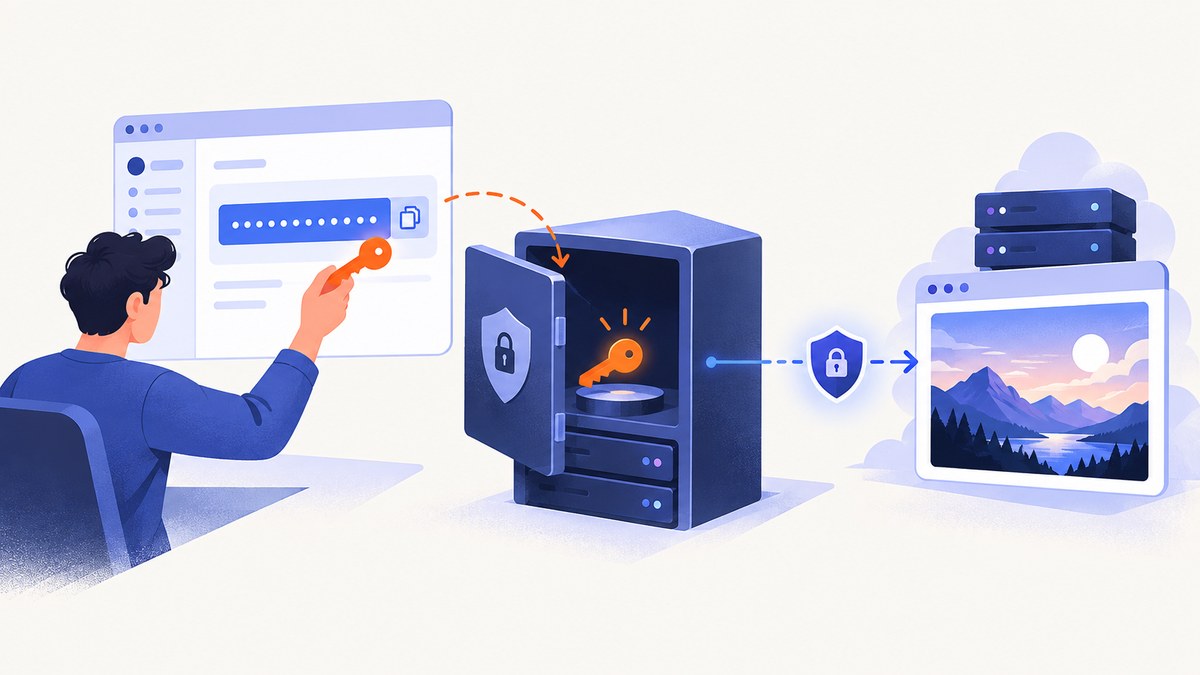
Direct answer: Create an account with a screenshot provider, open its dashboard or access page, and create or copy the API key. Store it in an environment variable or secrets manager, call the API over HTTPS, and keep the key on your server. If a screenshot URL must be public, use a signed link instead of exposing the provider secret. If a key leaks, revoke or replace it immediately, update deployed secrets, and search logs and repositories for copies.
This guide explains the complete process, including browser applications, backend proxies, public links, rotation, provider differences, and practical troubleshooting. The examples use a generic screenshot API and then show the equivalent ScreenshotNeo request.
1. What a screenshot API key is
A screenshot API key is a credential that authorizes your application to request rendered images or PDFs from a screenshot service. The service uses it to identify your account or organization, apply plan limits, record usage, and decide whether a request is allowed.
Providers use different names and credential locations. ScreenshotOne calls its credential an access_key and scopes it to an organization. Other services may call it a token, project key, secret key, or API key. Authentication can be supplied in a query string, a JSON body, a custom header, or a bearer token. Read the provider’s current documentation before changing the parameter name.
| Provider pattern | Typical location | Security consideration |
|---|---|---|
| Query parameter | ?access_key=... |
Easy to test, but URLs can appear in logs and analytics. |
| Custom header | X-Access-Key: ... |
Usually less visible in application URLs. |
| Bearer token | Authorization: Bearer ... |
Common for APIs and suitable for server-side clients. |
| POST JSON | {"access_key":"..."} |
Keep request bodies and debug logs private. |
2. Create or find your key in the dashboard
- Choose a provider and create an account or sign in.
- Open the dashboard’s access, API, developer, or project settings page.
- Confirm the organization, workspace, or project shown in the dashboard. A key copied from the wrong organization can appear valid but charge or quota the wrong account.
- Create a new key if none exists, or copy an existing key once the dashboard reveals it.
- Give the key a useful name such as
production-rendererorstaging-previews. Names make later rotation easier. - Save it directly in your deployment’s secret store. Avoid pasting it into a ticket, chat message, screenshot, or documentation page.
For ScreenshotOne, the key is the access_key value created in the account’s access page. Its documentation describes query-string, POST JSON, and X-Access-Key forms. Follow the provider’s API-key guidance and treat the value like a password.
3. Store the key safely
The safest default is a server-side environment variable. Your source code reads the variable at runtime, while the deployment platform stores the actual value outside the repository.
# .env (keep this file out of version control)
SCREENSHOT_API_KEY=replace-with-your-real-key
Add the environment file to .gitignore, and configure the same variable in your hosting provider’s secret settings. For larger systems, use a secrets manager and grant access only to the service that creates screenshots.
- Never commit a key to Git, even in a private repository.
- Do not place it in HTML, browser JavaScript, mobile app bundles, or public configuration files.
- Redact query strings, authorization headers, and environment values in application logs.
- Use separate keys for development, staging, and production when the provider supports it.
- Restrict dashboard permissions so only the people or workloads that need the key can view or rotate it.
4. Make a minimal server-side request
ScreenshotOne documents a minimal request in this form:
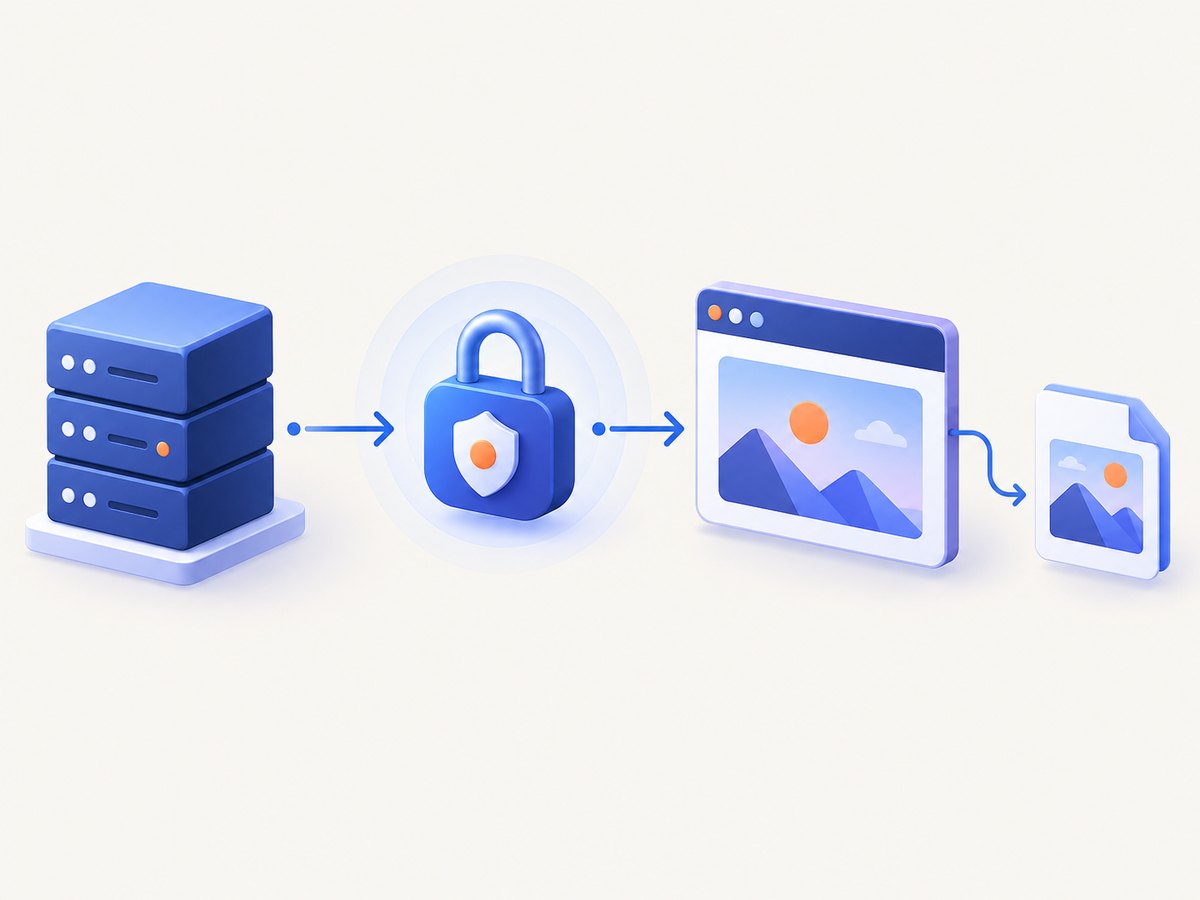
GET https://api.screenshotone.com/take?url=https://example.com&access_key=<your access key>Use HTTPS for every request. HTTP does not encrypt the request and can expose API keys, authorization headers, cookies, and other sensitive data in transit. The same rule applies to internal services unless you are using a protected local connection.
Node.js backend proxy
import express from "express";

const app = express();
const port = process.env.PORT || 3000;
const apiKey = process.env.SCREENSHOT_API_KEY;

if (!apiKey) throw new Error("SCREENSHOT_API_KEY is not configured");

app.get("/screenshot", async (req, res) => {
  const target = String(req.query.url || "https://example.com");
  const endpoint = new URL("https://api.screenshotone.com/take");
  endpoint.searchParams.set("url", target);
  endpoint.searchParams.set("access_key", apiKey);

  const upstream = await fetch(endpoint);
  if (!upstream.ok) {
    res.status(upstream.status).send(await upstream.text());
    return;
  }

  res.set("Content-Type", upstream.headers.get("content-type") || "image/png");
  res.send(Buffer.from(await upstream.arrayBuffer()));
});

app.listen(port, () => console.log(`Listening on ${port}`));
In production, validate allowed target domains, limit request rates, and require your own user authentication. A proxy should not become an unrestricted fetch service.
Python backend request
import os
import requests

api_key = os.environ["SCREENSHOT_API_KEY"]
target = "https://example.com"

response = requests.get(
    "https://api.screenshotone.com/take",
    params={"url": target, "access_key": api_key},
    timeout=90,
)
response.raise_for_status()
with open("shot.png", "wb") as output:
    output.write(response.content)
5. Can you put a screenshot API key in frontend JavaScript?
You can technically make a browser request, but you should not ship a long-lived provider key to users. Anyone can open developer tools, inspect JavaScript bundles, read network requests, copy the key, and spend your quota. A browser extension, mobile application, or desktop package has the same exposure problem because its distributed code can be inspected.
Use this architecture instead:
- The browser sends your backend a request containing the target URL and any permitted options.
- Your backend validates the request and adds the provider key from its environment.
- Your backend calls the screenshot provider over HTTPS.
- Your backend streams the image or a short-lived result back to the browser.
For multi-tenant systems, associate each request with your own user or project, enforce quotas before calling the provider, and avoid returning provider error details that reveal credentials or internal configuration.
6. Securing public screenshot links
Sometimes an image must be loaded by a public <img> tag, shared in an email, or fetched by a third-party renderer. A URL containing a reusable API key can be copied and abused. Use the provider’s signed-link mechanism when available.
ScreenshotOne’s signed links use a signature derived from a secret signing key. The public URL contains the signature, while the signing secret stays on your server. A recipient can use the URL, but cannot generate arbitrary new requests without the signing secret. ScreenshotOne says signing is generally unnecessary when links are private and the API is used only server-side.
For a signed-link design:
- Keep the signing secret in the same protected store as the API key.
- Build the exact URL and parameter set on your server.
- Generate the provider’s required signature using its documented algorithm and encoding.
- Include an expiration or restrictive parameters when supported.
- Return only the signed URL to the client.
7. Or skip the browser setup: ScreenshotNeo
ScreenshotNeo is a website screenshot API and MCP server. One GET request returns a PNG, JPEG, WebP, or PDF. Its capture pipeline accepts cookie and consent banners like a visitor, then removes more than 60 known consent platforms, newsletter popups, and chat widgets; each step can be turned off. Only clean shots are billed: bot checks, CAPTCHAs, blank pages, timeouts, failed loads, and cache hits cost nothing, and response headers report the page verdict and billing status.

See the ScreenshotNeo API documentation for all options. The minimal cURL request is:
curl -G "https://api.screenshotneo.com/v1/shot" -d access_key=YOUR_API_KEY --data-urlencode url=https://stripe.com -o shot.webpPython
import requests
r = requests.get("https://api.screenshotneo.com/v1/shot", params={"access_key": "YOUR_API_KEY", "url": "https://stripe.com"}, timeout=90)
open("shot.webp", "wb").write(r.content)
Node.js
const q = new URLSearchParams({ access_key: 'YOUR_API_KEY', url: 'https://stripe.com' }); const res = await fetch(`https://api.screenshotneo.com/v1/shot?${q}`);
ScreenshotNeo supports full-page capture with lazy images loaded, CSS-element capture, dark mode, 12 device presets or custom viewports, retina scale, PDF paper sizes and margins, page ranges, HTML/CSS rendering, custom JavaScript and CSS, clicks, selector or network-idle waits, request blocking, headers, cookies, user agents, authorization, timezone, geolocation, transparent backgrounds, resizing, configurable caching, signed links, asynchronous jobs with signed webhooks, bulk capture of up to 100 URLs per call, a usage API, and an OpenAPI specification. Parameter names used by other screenshot APIs also work to simplify migration.
It also includes an MCP server with take_screenshot, get_page_info, and capture_pdf tools for Claude, Cursor, and other MCP clients. The Free plan includes 1,000 shots per month with no card; paid plans start at $5 for 3,000 shots. Create a free ScreenshotNeo account.
8. Rotate a leaked or suspected key
- Open the provider dashboard and revoke, delete, or replace the exposed key.
- Create the replacement key and update every deployment secret, worker, cron job, and local environment that uses it.
- Restart or redeploy services so they stop using the old value.
- Search Git history, CI logs, issue trackers, chat exports, build artifacts, and observability systems for the leaked string.
- Review usage and billing records for unexpected requests during the exposure window.
- If the provider supports it, restrict the replacement key by project, IP range, endpoint, or permission.
Do not wait to investigate before revoking a live credential. You can perform the investigation after the old key is unusable.
9. Troubleshooting common authentication errors
| Symptom | Likely cause | Fix |
|---|---|---|
| 401 or “invalid key” | Typo, revoked key, wrong parameter, or wrong organization. | Copy the key again, confirm the exact authentication field, and verify the dashboard context. |
| 403 or “forbidden” | The key lacks permission or the project is restricted. | Check project access, endpoint permissions, domain restrictions, and account status. |
| Works locally but fails in production | The production secret was never configured or the process was not restarted. | Inspect the deployment’s secret settings and redeploy without printing the value. |
| Key appears in logs | Query-string logging, verbose HTTP logging, or exception output. | Redact credentials, prefer headers where supported, and remove historical log access. |
| Browser request exposes the key | The provider was called directly from frontend code. | Move the call behind your server proxy and rotate the exposed key. |
| Public URL is abused | A reusable key was embedded in a shared URL. | Revoke it and use signed links or server-side retrieval. |
| Timeout or blank image | The target site is slow, blocked, requires interaction, or failed to load. | Use provider wait, selector, device, cookie, or JavaScript options; inspect the response status and retry policy. |
10. Reliability, performance, and cost considerations
Reliability
Make screenshot jobs idempotent. Use a stable request identifier in your own system, retry transient network failures with bounded exponential backoff, and avoid retrying authentication errors until the credential is fixed. For asynchronous providers, verify webhook signatures and make webhook processing repeat-safe.
Performance
Reduce capture time by using an appropriate viewport, avoiding unnecessary waits, caching identical URLs, and blocking ads, trackers, or resource types that do not affect the image. Full-page captures and lazy-loaded pages require more rendering work than a fixed viewport. Queue large batches instead of starting hundreds of browser requests simultaneously.
Cost
Count successful, billable captures according to the provider’s current plan rules. Cache deterministic screenshots, choose a suitable image format, and enforce application-level quotas. ScreenshotNeo explicitly reports billing and page verdict headers and does not bill bot checks, CAPTCHAs, blank pages, timeouts, failed loads, or cache hits. Its plans are Free: 1,000 shots/month; Starter: $5 for 3,000; Growth: $15 for 15,000; Pro: $39 for 60,000; Scale: $99 for 250,000; and Business: $249 for 1,000,000. Yearly billing gives two months free, and every feature is included on every plan.
11. Security checklist
- Use HTTPS everywhere.
- Store keys in environment variables or a secrets manager.
- Keep provider calls on the server.
- Do not commit secrets or print them in logs.
- Separate development and production credentials.
- Validate and rate-limit requests to your proxy.
- Use signed links for public images.
- Rotate credentials after suspected exposure.
- Monitor usage for unexpected activity.
- Document who owns rotation and where the secret is configured.
12. FAQ
Where is my screenshot API key?
Sign in to the provider dashboard and open its API, access, developer, or project settings page. Confirm the organization before copying it.
Should I use a query parameter or header?
Use the form the provider documents. Headers reduce accidental URL logging, but correct server-side storage and HTTPS matter more than the choice alone.
Can I use one key for every environment?
You can, but separate keys make rotation, auditing, quota management, and incident response safer.
Do I need signed links for private server responses?
Usually not. Signed links are useful when a URL must be public or delivered to a client that cannot safely hold your provider secret.
What should I do if a key is in Git history?
Revoke it first, replace deployment secrets, then clean or restrict repository history and audit logs. Removing the text from the latest commit does not make the old credential safe.