Google Image Search MCP Server
Set up the community Python Google Image Search MCP server with SerpAPI, search and download images, troubleshoot failures, and handle licensing.
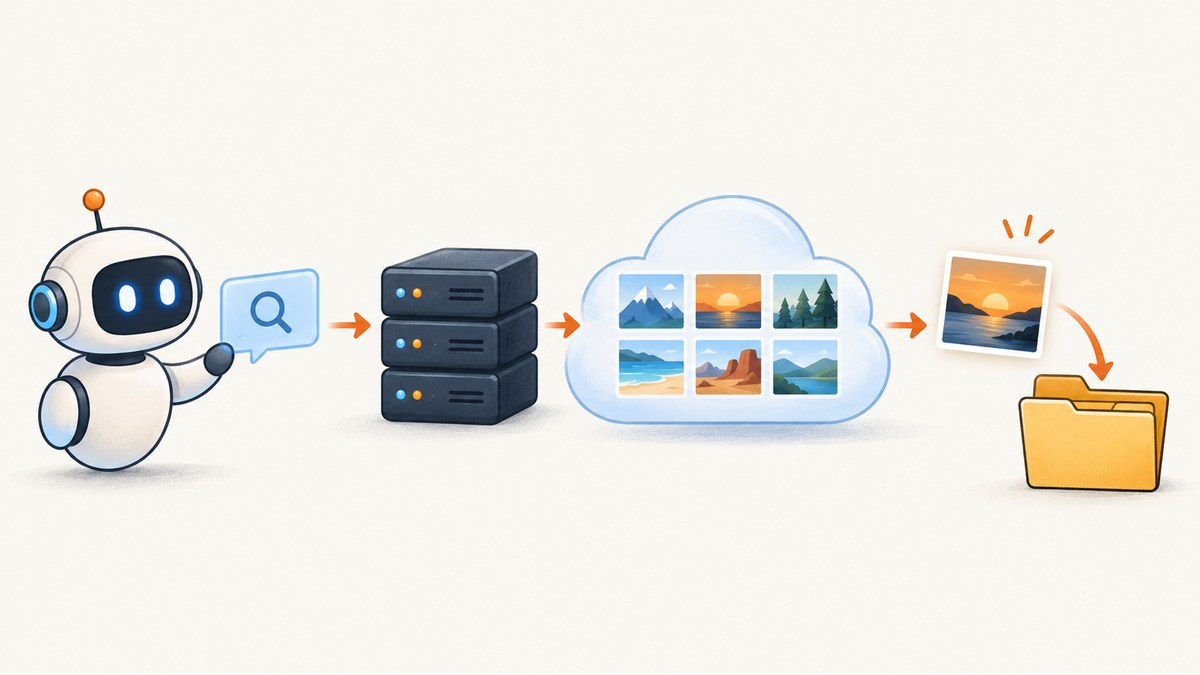
Short answer: the commonly referenced Google Image Search MCP server is a community Python project, not an official Google server. It connects an MCP client to SerpAPI, exposes tools to search image results and download a selected image, and runs locally with uv run main.py after you set SERP_API_KEY. The project documentation is on GitHub.
What this MCP server does
Model Context Protocol (MCP) lets an MCP client discover and call tools exposed by a server. In this project, the server is a small Python integration around SerpAPI:

search_images_toolaccepts a search query and a result limit. The documented default limit is 10.download_image_toolaccepts an image URL, an output directory, and a filename, then downloads the selected image to local storage.
That means the workflow is:
- Your MCP client asks the server to search for images.
- The server sends the query to SerpAPI.
- The client chooses an image URL from the returned results.
- The client calls the download tool with a destination path.
The repository documentation does not establish search quality, uptime, compatibility with every MCP client, or current SerpAPI pricing and quotas. Treat those as provider and project details to verify before production use.
Prerequisites
- Python and a working
uvinstallation. - An MCP client that can launch a local stdio server.
- A SerpAPI account and API key. The repository requires the
SERP_API_KEYenvironment variable. - A writable directory where downloaded files can be stored.
Keep the key in an environment variable or secret manager. Do not commit it to a repository or put it in an MCP configuration file that is shared publicly.
Install and run the Python server
1. Clone the repository
git clone https://github.com/juananpe/google-image-search-mcp-python.git
cd google-image-search-mcp-python
2. Install the documented dependencies
The README lists the dependencies for the project. Install them using the repository’s dependency file:
uv syncIf the checkout provides a different dependency file, follow that file and the current README rather than guessing package versions.
3. Set the SerpAPI key
# macOS or Linux
export SERP_API_KEY="your_serpapi_key"

# Windows PowerShell
$env:SERP_API_KEY = "your_serpapi_key"
4. Launch the server
uv run main.pyThe server must remain running while your MCP client connects to it. The README also documents using MCP Inspector to exercise the server manually; use the inspector’s current launch instructions for your platform.
Connect it to an MCP client
Most desktop MCP clients need a command, arguments, and environment variables for a local server. A typical stdio entry looks like this; adapt the surrounding configuration to your client:
{
  "mcpServers": {
    "google-image-search": {
      "command": "uv",
      "args": ["run", "main.py"],
      "cwd": "/absolute/path/to/google-image-search-mcp-python",
      "env": {
        "SERP_API_KEY": "your_serpapi_key"
      }
    }
  }
}
Use an absolute path for cwd. If your client does not support cwd, start the process from the repository directory or use an absolute path to main.py. Never paste a real key into documentation that will be committed.
Use the tools from an MCP conversation
After the client connects, ask it to call the search tool with a query and a limit:
Call search_images_tool with:
query: "red panda portrait"
limit: 10
Review the returned image URLs and metadata, then request a download:
Call download_image_tool with:
image_url: "https://example.com/selected-image.jpg"
output_directory: "./downloads"
filename: "red-panda.jpg"
The exact result fields and validation behavior depend on the repository version and the upstream provider response. Ask the client to display the returned values before downloading so you can verify which URL it selected.
Python example: a safe local workflow
The MCP server is the component that talks to SerpAPI. A normal Python script should therefore orchestrate the MCP tools through your chosen MCP client library rather than call undocumented internal functions. The following shell workflow is fully runnable and keeps the server process separate:
#!/usr/bin/env bash
set -euo pipefail

: "${SERP_API_KEY:?Set SERP_API_KEY first}"
mkdir -p downloads
uv run main.py
Run that from the repository directory, then connect your MCP client to the running process. The repository README is the authoritative source for the project’s current Python dependencies and tool signatures.
Search limits, downloads, and file handling
| Concern | Practical guidance |
|---|---|
| Result count | Pass a small limit while iterating. The documented default is 10; larger requests can increase response size and provider usage. |
| Output directory | Create it before the call and use a path the server process can write. |
| Filename | Use a controlled filename with an appropriate extension. Avoid using untrusted URL text directly as a path. |
| URL availability | An image result can disappear, reject automated downloads, redirect, or require headers. A search result is not a guarantee that the subsequent download succeeds. |
| Rights | Finding an image does not grant permission to reuse it. Check the original publisher’s license and terms before publishing, modifying, or redistributing a file. |
Alternative implementation and provider choice
Sahil-Chandel/mcp-google-image-search is a separate community implementation. Its documentation describes Google Custom Search API credentials plus a search engine ID, and also mentions SerpAPI. Do not assume those provider options are supported by the Python repository featured here. Compare implementations on four points:
- Provider and credentials: SerpAPI for the featured repository; Custom Search credentials are documented by the alternative project.
- Transport and client support: confirm whether the project expects local stdio, another transport, or a particular client.
- Tool contract: verify search parameters, download arguments, and validation behavior from the current README.
- Quotas and price: check the provider’s current official terms. The repository evidence does not establish current pricing or quota values.
Common errors and fixes
“SERP_API_KEY is missing”
Cause: the variable is unset in the environment inherited by the server process.

Fix: export it in the same shell, add it to the MCP client’s env block, and restart the server. Check spelling and capitalization exactly.
The MCP client shows no tools
Cause: the process failed during startup, the working directory is wrong, or the client launched a different Python environment.
Fix: run uv run main.py manually from the repository directory, read the startup error, then correct cwd, the command, or dependency installation. Reconnect after every configuration change.
Search returns no images
Cause: the query may be too narrow, the provider may return an empty response, or the request may have exhausted an account quota.
Fix: try a broader query and a small limit, inspect the server output, and verify the current SerpAPI account status and limits.
Download fails after a successful search
Cause: the result URL may have expired, redirect, block automated requests, or point to a non-image response.
Fix: try another result, verify the URL in a browser, use a writable output directory, and preserve the original source URL for attribution and license review.
Files are saved somewhere unexpected
Cause: relative paths are resolved from the server process’s working directory, not necessarily the MCP client’s project directory.
Fix: pass an absolute output directory while diagnosing the setup, then choose a controlled relative path once the launch directory is known.
Reliability, performance, and cost considerations
- Reliability: this workflow depends on three moving parts: the MCP client, the local Python process, and the image provider. Log the query, selected URL, and download error so failures can be retried.
- Performance: keep result limits modest and download only the selected image. Large result sets increase response handling without improving a single-image workflow.
- Retries: retry transient provider or network failures with a limit and backoff. Do not blindly retry permanent HTTP errors or a rejected image host.
- Cost: provider pricing, quotas, and availability can change. Check SerpAPI’s current documentation and account dashboard before estimating spend.
- Storage: deduplicate by source URL or content hash if repeated searches are expected, and enforce a maximum file size before retaining downloads.
Or skip the browser setup
If your goal is to capture a web page image for an agent workflow rather than search for third-party images, ScreenshotNeo provides a single HTTP request. Its API can return PNG, JPEG, WebP, or PDF, and its MCP server exposes take_screenshot, get_page_info, and capture_pdf for Claude, Cursor, and other MCP clients.
Cookie banners, newsletter popups, and chat widgets are removed before the shot. Bot checks, blank pages, failed loads, timeouts, and cache hits are not billed, and the response identifies the page verdict and billing result in headers.
curl -G "https://api.screenshotneo.com/v1/shot" -d access_key=YOUR_API_KEY --data-urlencode url=https://stripe.com -o shot.webpSee the ScreenshotNeo API documentation for options such as full-page capture, CSS selectors, custom JavaScript, waits, device presets, PDF settings, blocking rules, signed links, async jobs, and bulk capture. The free plan includes 1,000 screenshots per month with no card; paid plans start at $5 for 3,000. Create a free ScreenshotNeo account.
FAQ
Is this an official Google MCP server?
No. The featured repository is a community implementation that uses SerpAPI.
Can it download any image found in Google Images?
It attempts to download a supplied image URL. Host restrictions, expired links, redirects, and licensing terms can still prevent successful or lawful reuse.
Does the repository support Google Custom Search API?
That option is documented by a separate community project. The featured repository’s documented prerequisite is a SerpAPI key.
Where should I verify current quotas and pricing?
Check the current official documentation and account dashboard for the provider you select. The repository README does not establish current commercial terms.


