GPU-Accelerated Website Screenshots
Learn when headless Chrome can use a GPU, how to capture with Chrome and Playwright, and how to make screenshots repeatable.
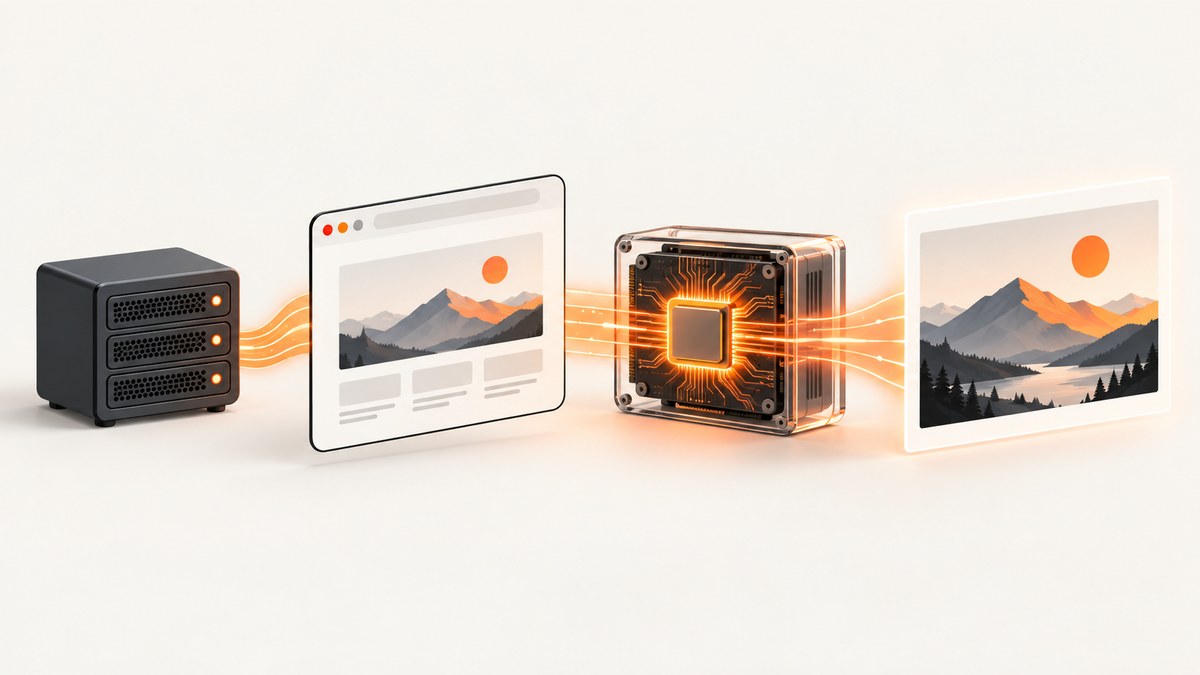
Direct answer: headless Chrome can use the host machine’s GPU in some environments, but a GPU flag does not prove that rendering is accelerated. Confirm the browser, driver, display or graphics backend, and actual GPU diagnostics on the machine that captures the screenshots. For repeatable output, keep the operating system, browser version, settings, hardware, power source, headless mode, viewport, scale, and timing controls consistent.
This guide shows a practical workflow with Chrome’s command line, Playwright, and an API option when maintaining browser infrastructure is unnecessary. Chromium describes GPU support as conditional: “Headless Chrome can utilize the local machine’s GPU, at least in some circumstances.” Read the Chromium GPU documentation for the current environment notes.
1. Decide whether GPU rendering is appropriate
A GPU can help a browser draw composited layers, CSS effects, canvas content, WebGL scenes, and other graphics-heavy pages. It does not automatically make every screenshot faster. Network latency, server response time, JavaScript execution, image decoding, layout, font loading, and waiting strategy can dominate the capture time.
Start by identifying the workload:
- Static documentation or marketing pages: CPU rendering and good wait conditions may be sufficient.
- Canvas, WebGL, maps, charts, video frames, or heavy animation: verify whether the page needs a working graphics backend.
- Large batches: measure end-to-end throughput, memory use, and failure rate on the exact host.
- Visual regression tests: consistency is usually more valuable than a theoretical speedup.
Do not purchase a graphics card solely because Chrome accepts --enable-gpu. Chromium does not provide a universal hardware requirement or a guaranteed performance improvement. First establish what the current host is doing.
2. Check the host and browser configuration
Record the environment
For every capture worker, record:
- Operating system and kernel version
- Chrome or Chromium version
- GPU model, driver version, and whether the process is inside a container or virtual machine
- Display configuration, including
DISPLAYon Linux - Graphics backend and relevant command-line flags
- Power source and any host-level throttling policy
- Viewport, device scale factor, fonts, locale, timezone, and color settings
Chromium says --enable-gpu disables forced software rendering and lets Chrome use its normal OpenGL driver detection. On Linux, that default detection requires an X11 display and a set DISPLAY variable. The documentation also notes that forcing Vulkan with --use-angle=vulkan has worked on some Linux configurations. These are conditional options, not a compatibility guarantee.
Inspect actual GPU status
Open chrome://gpu in the same browser build and execution environment used for screenshots. Check whether features are hardware accelerated, which driver and backend are selected, and whether Chrome reports blocked or fallback features. A launch flag alone is not evidence of acceleration.
When running in a container, compare a normal host run with the container run. Missing device access, an absent X server, an incorrect DISPLAY, sandbox restrictions, and incompatible drivers can all produce software fallback. Fix the environment first; adding more flags can hide the real cause.
3. Capture a screenshot with Chrome’s CLI
Chrome’s headless command line is useful for one-off captures and simple automation. The basic command writes screenshot.png to the current directory:
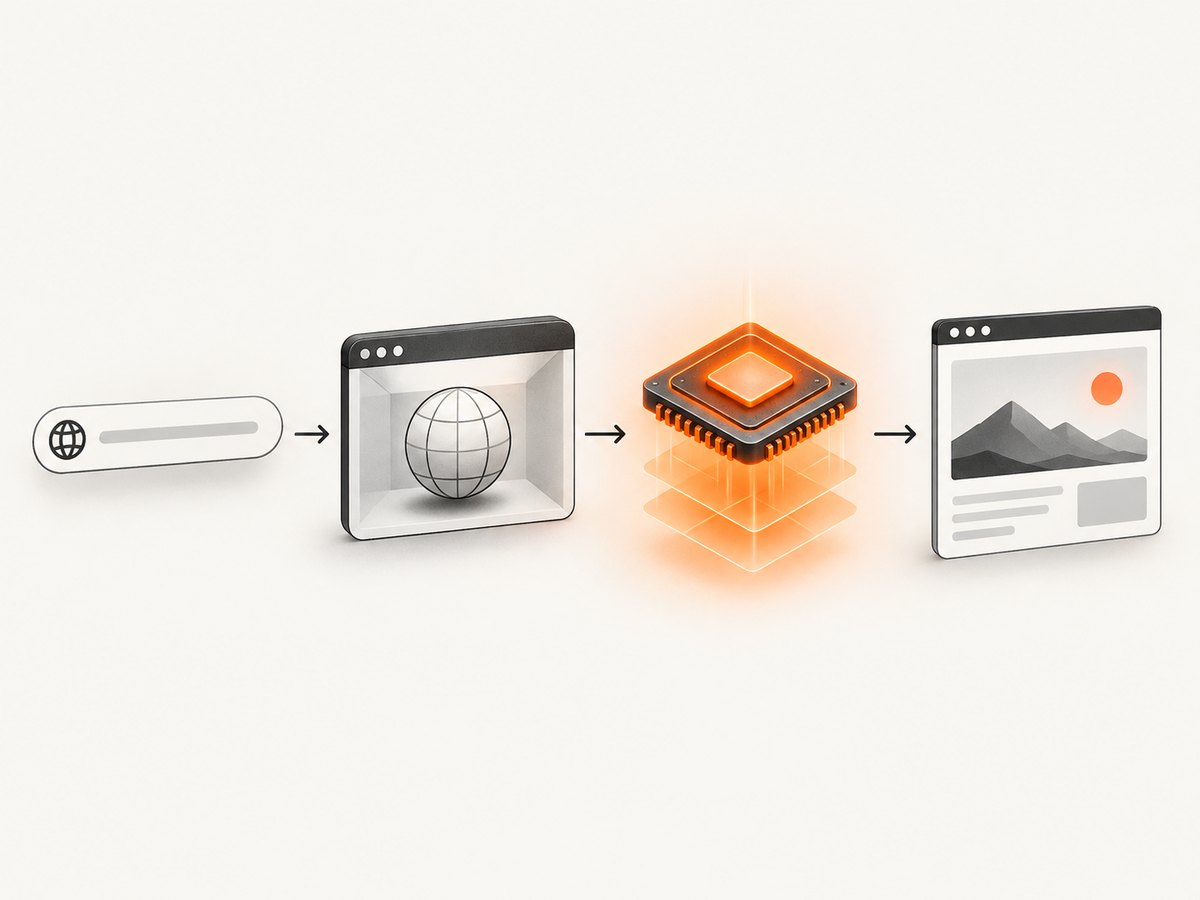
chrome --headless --screenshot --window-size=1280,900 https://example.comThe exact executable may be named google-chrome, chromium, or chromium-browser on your system.
Add GPU-related flags only after checking the host
google-chrome \
  --headless \
  --enable-gpu \
  --window-size=1280,900 \
  --screenshot=shot.png \
  https://example.com
--enable-gpu asks Chrome not to force software rendering. It does not install drivers, create a display, or guarantee that the page uses the GPU. On a Linux setup where Chromium’s documented Vulkan path is appropriate, you can test:
google-chrome \
  --headless \
  --enable-gpu \
  --use-angle=vulkan \
  --window-size=1280,900 \
  --screenshot=shot.png \
  https://example.com
Use one controlled change at a time and inspect chrome://gpu after each change.
Control waiting and time-dependent pages
The CLI’s --timeout sets a maximum wait before capture. --virtual-time-budget advances time-dependent page code as if time had elapsed. They solve different problems:
chrome --headless \
  --screenshot=dashboard.png \
  --window-size=1440,1000 \
  --timeout=15000 \
  --virtual-time-budget=5000 \
  https://example.com/dashboard
A timeout does not prove that the desired content rendered. A virtual-time budget does not wait for a network request that never completes. Prefer an application-specific readiness signal when you control the page, and verify the resulting image.
For a full-page capture, the CLI behavior depends on the Chrome version and page layout. If you need reliable full-page, element, masking, or custom wait controls, use a browser automation API.
4. Capture with Playwright
Playwright exposes page.screenshot() and controls for viewport capture, full-page output, image format, scale, animation handling, clipping, and injected styles. See the Page screenshot API reference.
Install and run a complete Node.js example
npm install playwright
npx playwright install chromium
const { chromium } = require('playwright');
(async () => {
const browser = await chromium.launch({
headless: true,
args: ['--enable-gpu']
});
const page = await browser.newPage({
viewport: { width: 1280, height: 900 },
deviceScaleFactor: 1
});
await page.goto('https://example.com', {
waitUntil: 'networkidle',
timeout: 30000
});
await page.screenshot({
path: 'screenshot.png',
type: 'png',
fullPage: true,
animations: 'disabled'
});
await browser.close();
})();Playwright’s networkidle state can be unsuitable for pages with analytics, polling, or open connections. In those cases, wait for a meaningful selector instead:
await page.goto('https://example.com', { waitUntil: 'domcontentloaded' });
await page.locator('[data-page-ready="true"]').waitFor({ state: 'visible', timeout: 20000 });
await page.screenshot({ path: 'ready.png', fullPage: true });
CSS pixels versus device pixels
deviceScaleFactor: 1 keeps output close to one image pixel per CSS pixel. A value of 2 produces a higher-resolution image and a larger file. Keep this value fixed for visual comparisons.
const page = await browser.newPage({
  viewport: { width: 1440, height: 900 },
  deviceScaleFactor: 2
});
Capture an element, clip a region, or hide volatile content
await page.locator('.invoice').screenshot({
  path: 'invoice.png',
  type: 'png'
});

await page.screenshot({
  path: 'hero.jpg',
  type: 'jpeg',
  quality: 85,
  clip: { x: 0, y: 0, width: 1280, height: 500 }
});

await page.screenshot({
  path: 'stable.png',
  style: `
    .clock, . rotating-ad, [data-live-value] {
      visibility: hidden !important;
    }
  `,
  animations: 'disabled'
});
Replace the example selectors with selectors from your page. Hiding a volatile region makes a comparison meaningful only when that region is intentionally excluded from the test.
5. Make GPU screenshots repeatable
Playwright’s visual comparison guidance warns that screenshots can vary with operating system, browser version, settings, hardware, power source, headless mode, and other factors. Read the Visual comparisons documentation and keep baseline and comparison environments aligned.
- Pin the browser build. Upgrade it deliberately and regenerate baselines only after reviewing the change.
- Use one image format and scale. PNG is lossless; JPEG quality changes pixels; WebP has its own encoding behavior.
- Fix viewport and fonts. Missing fonts change line wrapping and page height.
- Freeze time and animation. Disable animations, set a stable timezone, and wait for the same readiness condition.
- Control external data. Mock changing API responses or capture a known fixture.
- Separate intentional changes from drift. Review a baseline update as a code change, not as an unexplained test failure.
- Measure before tuning GPU flags. Record capture duration, failure count, output size, and CPU and memory use on representative pages.
6. Troubleshooting common failures
| Symptom | Likely cause | Fix |
|---|---|---|
| Chrome reports software rendering | Driver, display, device access, or backend is unavailable | Inspect chrome://gpu; verify drivers, X11/DISPLAY, container device access, and backend configuration. |
--enable-gpu changes nothing |
The host cannot use a supported graphics path | Treat the flag as a diagnostic variable, not proof. Compare a known-good host and check Chromium’s GPU notes. |
| Black or blank screenshot | WebGL or canvas initialization failed, or capture happened too early | Wait for a page-ready selector, inspect console errors, and verify the graphics backend. |
| Screenshot times out | Open connections, slow resources, or an unreachable dependency | Use a bounded timeout and an explicit readiness selector instead of waiting indefinitely for network idle. |
| Images are missing | Lazy loading has not been triggered, or requests are blocked | Scroll through the page, wait for image completion, and check network and content-security errors. |
| Visual diffs appear after a host change | OS, browser, fonts, GPU driver, scale, or power policy changed | Restore the baseline environment or create a separate baseline for the new environment. |
| Output is unexpectedly huge | High device scale, full-page dimensions, or lossless encoding | Use CSS-sized output, reduce viewport dimensions, or choose JPEG/WebP where loss is acceptable. |
7. Performance, reliability, and cost considerations
GPU acceleration is only one part of capture performance. A reliable worker should reuse a browser process when safe, limit concurrent pages according to available memory, set navigation and readiness timeouts, and record failures with the URL and environment metadata. Warm browser processes can avoid repeated startup work, while excessive concurrency can cause contention and make results less predictable.
For visual regression, prioritize deterministic rendering over maximum throughput. For interactive WebGL or canvas pages, verify that the actual pixels are correct; a successful process exit is not enough. There is no general speedup percentage that applies across hosts or websites, so benchmark your own representative URLs before changing infrastructure.
Self-hosting also carries operational costs: browser binaries, driver and OS updates, fonts, sandbox configuration, GPU or virtual display setup, queueing, retries, storage, and observability. If your workload is occasional or spans many unrelated sites, an HTTP screenshot service can remove much of that setup.
8. Or skip the browser setup
ScreenshotNeo provides a website screenshot API and MCP server. One GET request returns PNG, JPEG, WebP, or PDF, while the service handles browser setup for you. The same request accepts options for full-page capture with lazy images loaded, CSS-selector element capture, dark mode, device presets or custom viewports, retina scale, custom CSS and JavaScript, clicks, selector or network-idle waits, request blocking, headers, cookies, user agents, authorization, timezone, geolocation, transparent backgrounds, resizing, caching, signed links, asynchronous jobs, bulk capture, usage, and PDF settings.

Example cURL request (see the ScreenshotNeo API documentation):
curl -G "https://api.screenshotneo.com/v1/shot" \
  -d access_key=YOUR_API_KEY \
  --data-urlencode url=https://stripe.com \
  -o shot.webp
Python
import requests

r = requests.get(
    "https://api.screenshotneo.com/v1/shot",
    params={"access_key": "YOUR_API_KEY", "url": "https://stripe.com"},
    timeout=90,
)
r.raise_for_status()
open("shot.webp", "wb").write(r.content)
Node.js
const q = new URLSearchParams({ access_key: 'YOUR_API_KEY', url: 'https://stripe.com' });
const res = await fetch(`https://api.screenshotneo.com/v1/shot?${q}`);
if (!res.ok) throw new Error(`HTTP ${res.status}`);
require('fs').writeFileSync('shot.webp', Buffer.from(await res.arrayBuffer()));
ScreenshotNeo accepts consent banners before capture and removes more than 60 known consent platforms, newsletter popups, and chat widgets; each step can be turned off. Bot checks or CAPTCHAs, blank pages, timeouts, failed loads, and cache hits cost nothing, and the response identifies the result with X-Page-Verdict and X-Billed headers. Its MCP server provides take_screenshot, get_page_info, and capture_pdf for Claude, Cursor, and other MCP clients.
Plans include 1,000 screenshots per month free with no card; paid plans start at $5 for 3,000 screenshots. Growth is $15 for 15,000, Pro $39 for 60,000, Scale $99 for 250,000, and Business $249 for 1,000,000; yearly billing gives two months free, and every feature is available on every plan.
Create a free ScreenshotNeo account to try 1,000 screenshots a month without adding a card.
9. FAQ
Does headless Chrome always use my GPU?
No. Chromium documents GPU use as possible in some circumstances. Driver, display, backend, container, and host configuration determine whether acceleration is available.
Is Vulkan required?
No. Chromium’s documented default path uses OpenGL detection. The documentation notes that --use-angle=vulkan has worked on some Linux configurations; verify it on your host.
Should I use GPU screenshots for pixel-perfect tests?
Use a fixed environment and stable rendering settings. GPU availability alone does not make results reproducible, and changing drivers or hardware can change pixels.
When should I choose full-page capture?
Use it for complete documents and long pages. Use viewport, element, or clipped captures when you need a stable component image or smaller output.
Can I avoid installing Chrome locally?
Yes. ScreenshotNeo provides the capture endpoint and an MCP server, so your application can request screenshots without maintaining a local browser setup.


