GPU Rendering for Website Screenshots
Learn when headless Chrome uses the GPU, how to enable it in CI, and how to verify rendering without assuming a speedup.
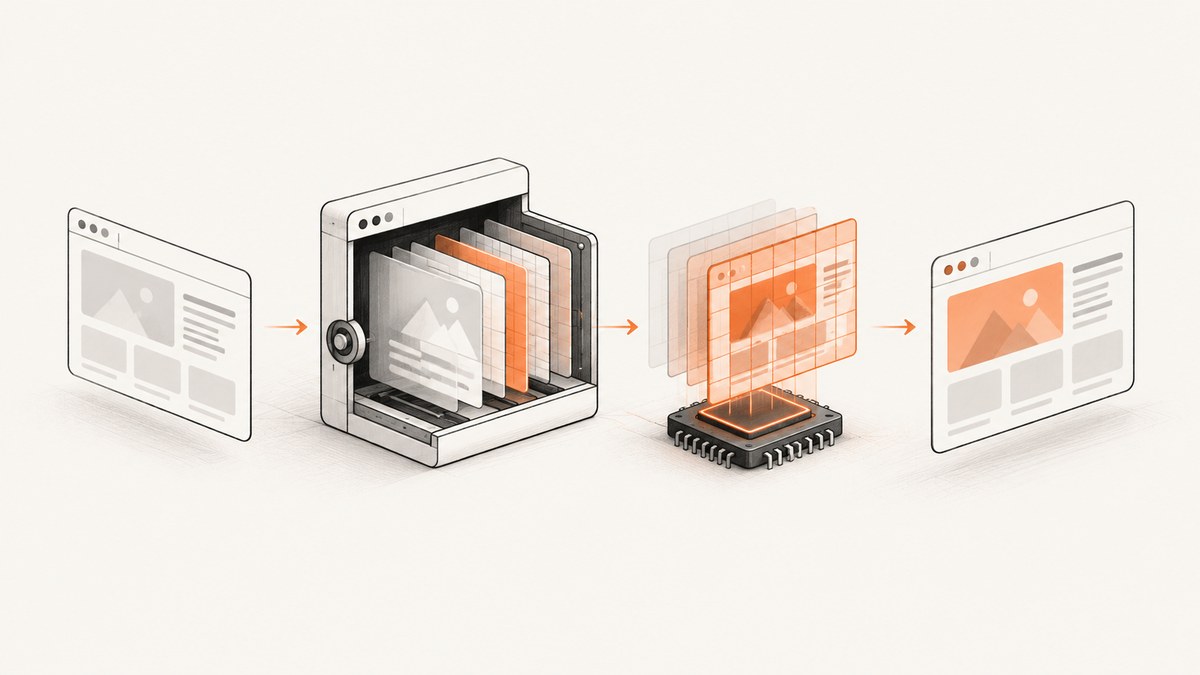
Short answer: headless Chrome can use the host GPU for parts of rendering, especially compositing, but GPU use is conditional. Enable it with --enable-gpu, satisfy the display and driver requirements, and verify the actual output and runtime on your target pages. Do not assume that every screenshot job uses the GPU or that GPU acceleration is faster for every workload.
Chromium describes screenshots as bitmaps generated from page contents. Its rendering pipeline paints page content, then composites layers into the final frame; the GPU can participate in that compositing step. Painting, layout, JavaScript, network activity and image decoding can still run elsewhere. The architectural description is useful as a model, while command-line behavior and compatibility depend on the current browser build and host.
How do I enable GPU rendering in headless Chrome?
Start with a current Chromium or Chrome for Testing build and pass --enable-gpu. This stops Chrome from forcing software rendering and lets its normal OpenGL driver detection decide how to proceed. On Linux, Chromium says that default OpenGL detection requires an X11 server and a DISPLAY environment variable. The guide also documents --use-angle=vulkan as working on some Linux configurations, not as a universal setting.
google-chrome \
  --headless=new \
  --disable-dev-shm-usage \
  --enable-gpu \
  --window-size=1440,900 \
  --screenshot=page.png \
  https://example.com
Use the equivalent flags with Chromium, Chrome for Testing, Puppeteer or another automation library. The exact headless mode is version-sensitive: Chromium’s README says that from M132 the old Headless implementation is no longer part of the Chrome binary, and --headless=old has no effect there. Older workflows may need the separate chrome-headless-shell binary.
Does headless Chrome always use the GPU?
No. Chromium’s current guidance says headless Chrome can utilize the local GPU “at least in some circumstances.” Whether it does depends on the browser version, OS, graphics driver, display server, graphics backend, sandbox and launch flags. A machine may expose a GPU while Chrome still falls back to software paths for a particular operation.
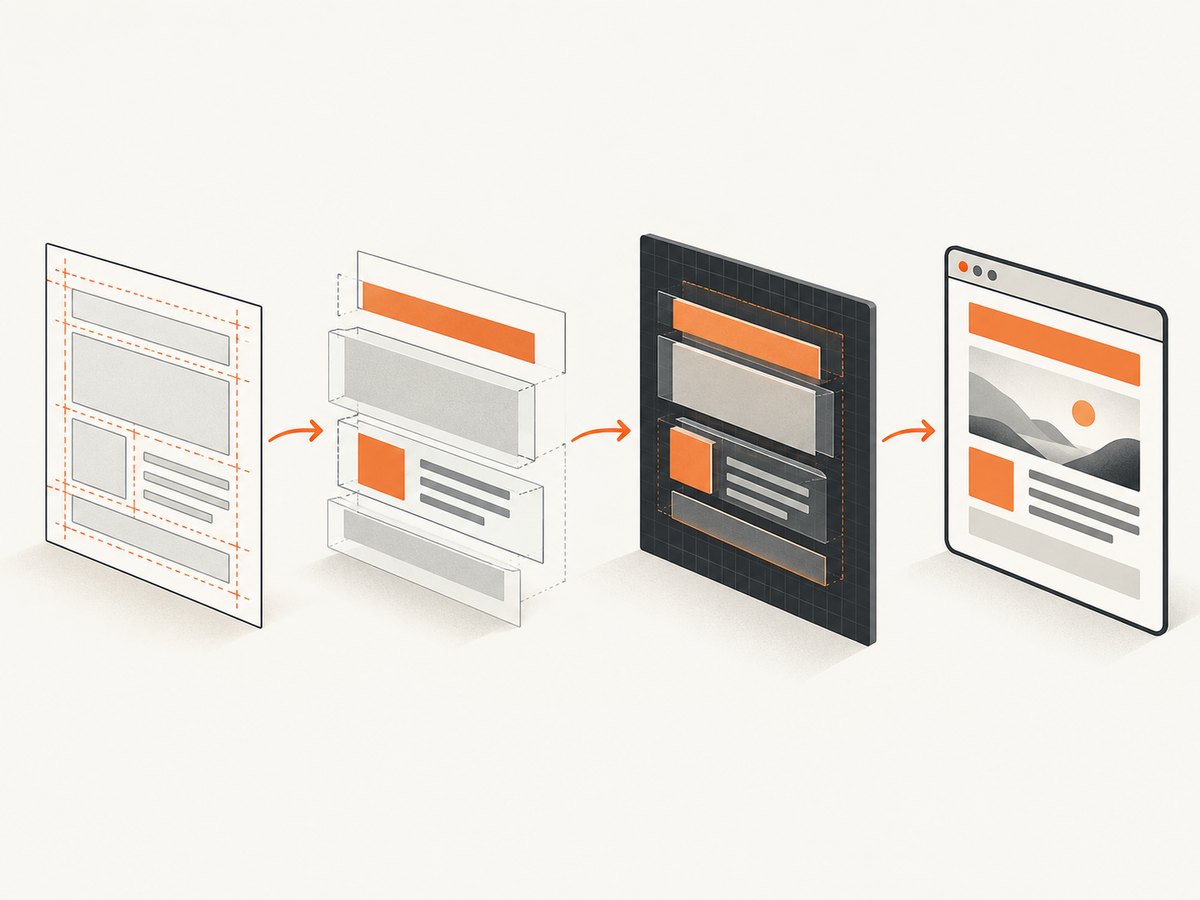
| Layer | What it does | Can involve the GPU? |
|---|---|---|
| Layout and style | Calculates element geometry and styles | Not automatically GPU work |
| Painting | Produces layer content | Implementation-dependent |
| Compositing | Combines layers, transforms and effects into a frame | GPU participation is possible |
| Readback | Copies the final frame into screenshot pixels | May add synchronization or copying cost |
Chromium’s compositing document is dated May 2014 and warns that implementation details change. Use it for the conceptual distinction between painting and compositing, not as a promise about current class names or every modern rendering path.
Linux prerequisites and launch choices
- Install a compatible Chrome or Chromium build and matching libraries.
- Expose a graphics environment. For the default Linux OpenGL path, provide an X11 server and a valid
DISPLAY. - Install a driver supported by the host and browser build.
- Pass
--enable-gpuand capture diagnostic output. - Test representative pages at the viewport, device scale and browser version used in production.
# Example CI setup with an X server already available
export DISPLAY=:99
google-chrome \
  --headless=new \
  --enable-gpu \
  --window-size=1365,768 \
  --screenshot=ci.png \
  https://example.com
If OpenGL initialization fails, investigate the X server, DISPLAY, driver libraries and sandbox permissions before changing rendering flags. Chromium documents --use-angle=vulkan as a configuration that has worked on some Linux systems:
google-chrome \
  --headless=new \
  --enable-gpu \
  --use-angle=vulkan \
  --screenshot=vulkan.png \
  https://example.com
Use Vulkan only after validating it on the exact OS, driver and browser image you deploy. A flag that works on one CI runner can fail or change pixels on another.
Node.js screenshot example with Puppeteer
Install Puppeteer, then launch Chromium with GPU enabled. Puppeteer downloads a compatible browser unless your environment supplies one.
npm install puppeteerconst puppeteer = require('puppeteer');
(async () => {
const browser = await puppeteer.launch({
headless: true,
args: [
'--enable-gpu',
'--disable-dev-shm-usage',
'--window-size=1440,900'
]
});
try {
const page = await browser.newPage();
await page.setViewport({ width: 1440, height: 900, deviceScaleFactor: 1 });
await page.goto('https://example.com', {
waitUntil: 'networkidle2',
timeout: 90000
});
await page.screenshot({ path: 'page.png', fullPage: true });
} finally {
await browser.close();
}
})();networkidle2 is a page-readiness heuristic, not proof that every lazy image or animation has settled. For deterministic captures, wait for a known selector, add a bounded delay, disable animations with injected CSS, and set a fixed viewport and device scale factor.
Python screenshot example with Playwright
pip install playwright
playwright install chromium
from pathlib import Path
from playwright.sync_api import sync_playwright
with sync_playwright() as p:
browser = p.chromium.launch(
headless=True,
args=['--enable-gpu', '--disable-dev-shm-usage']
)
page = browser.new_page(viewport={"width": 1440, "height": 900},
device_scale_factor=1)
page.goto('https://example.com', wait_until='networkidle', timeout=90000)
page.screenshot(path='page.png', full_page=True)
browser.close()How to verify whether the GPU path is active
Do not infer GPU use from a successful screenshot. Check browser diagnostics, launch logs and output from a representative test page. Chromium’s GPU testing documentation describes pixel tests that capture page snapshots and GPU-specific results where needed. That supports validating the rendering pipeline, not assuming that two machines with different drivers produce identical pixels.
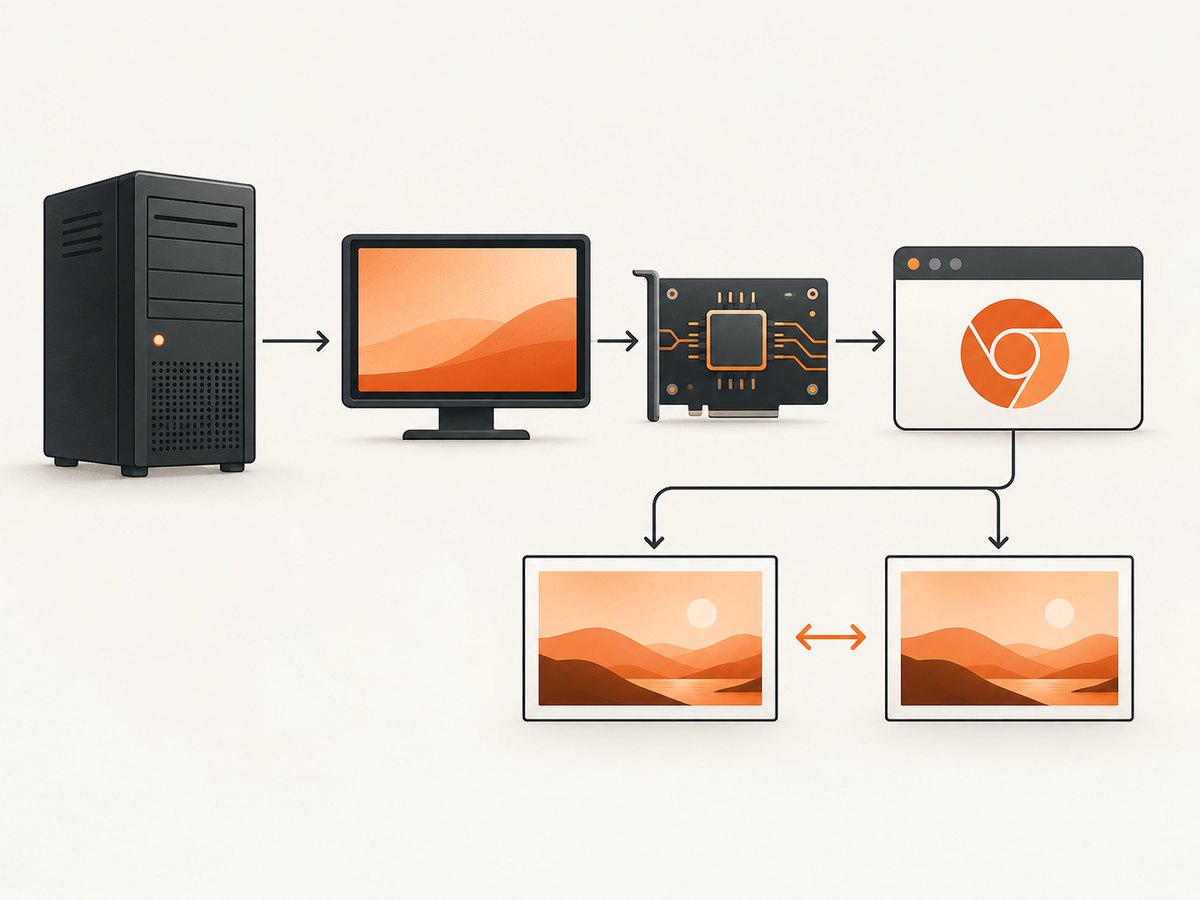
- Record the browser version, OS image, kernel, driver, graphics backend, flags and viewport.
- Capture a page containing CSS transforms, filters, gradients, videos or canvas so compositing behavior is exercised.
- Compare screenshots with a defined tolerance; anti-aliasing, font files, color management and driver differences can change pixels.
- Track failures separately from visual diffs. A blank page, timeout or browser crash is an availability failure, not a rendering mismatch.
Is GPU rendering faster for website screenshots?
There is no universal speedup in the cited Chromium documentation. End-to-end time includes DNS, TLS, server response, JavaScript, layout, image decoding, font loading, compositing and screenshot readback. GPU acceleration may help some compositing-heavy pages while leaving network or JavaScript-bound pages unchanged. It can also add setup and synchronization costs.
| Measure | Why it matters |
|---|---|
| Cold and warm latency | Separates browser startup and cache effects from page rendering. |
| Throughput at concurrency | Shows whether GPU contention appears when several captures run together. |
| CPU, memory and GPU utilization | Reveals whether the bottleneck moved rather than disappeared. |
| Pixel output | Detects driver, font and backend differences. |
| Failure rate | Captures crashes, timeouts, blank pages and initialization errors. |
Benchmark the browser build, pages, drivers and CI image you actually operate. Chromium’s GPU bots exist partly because graphics-card vendors and platforms can vary; adding hardware increases capacity, but does not guarantee identical output.
Common errors and fixes
| Symptom | Likely cause | Fix |
|---|---|---|
| “Failed to detect GPU” or software fallback | Missing driver, unavailable display server or forced software mode | Check driver libraries and DISPLAY; pass --enable-gpu; inspect logs. |
| OpenGL initialization fails on Linux | No X11 server or invalid DISPLAY |
Run a supported X server, export the correct display and verify access from the browser user. |
| Vulkan launch fails | Unsupported driver or backend on that host | Remove --use-angle=vulkan or validate the required Vulkan stack before retrying. |
| Browser crashes in containers | Shared-memory limits, sandbox restrictions or driver mismatch | Increase shared memory where possible, use --disable-dev-shm-usage when appropriate, and keep the sandbox unless your deployment requires another design. |
| Different pixels between CI and desktop | Fonts, browser versions, scale factors, drivers or color settings differ | Pin the browser image and fonts, set viewport and device scale, and compare with an agreed tolerance. |
| Screenshot is blank or incomplete | Capture occurred before navigation, lazy loading or hydration finished | Wait for a selector or network state, trigger lazy content, and use a bounded delay. |
| No visible performance gain | Workload is network, JavaScript or decode bound | Profile end-to-end stages and keep the simpler configuration if output and reliability are equivalent. |
Reliability checklist for production capture
- Pin a browser version and base image.
- Keep fonts and locale data consistent.
- Set explicit viewport, device scale factor, timezone and locale.
- Use bounded navigation and selector waits.
- Limit concurrency to the capacity you measured.
- Retry transient navigation failures with a cap and record the original error.
- Store browser, driver and rendering flags with each artifact.
- Run visual checks on pages that exercise transforms, filters, canvas and lazy images.
Or skip the browser setup
ScreenshotNeo provides a hosted screenshot API and MCP server. One GET request returns PNG, JPEG, WebP or PDF, so you do not maintain Chrome, X11, drivers or GPU flags.
curl -G "https://api.screenshotneo.com/v1/shot" -d access_key=YOUR_API_KEY --data-urlencode url=https://stripe.com -o shot.webpimport requests
r = requests.get("https://api.screenshotneo.com/v1/shot", params={"access_key": "YOUR_API_KEY", "url": "https://stripe.com"}, timeout=90)
open("shot.webp", "wb").write(r.content)const q = new URLSearchParams({ access_key: 'YOUR_API_KEY', url: 'https://stripe.com' });
const res = await fetch(`https://api.screenshotneo.com/v1/shot?${q}`);See the ScreenshotNeo API documentation for parameters. Cookie and consent banners, newsletter popups and chat widgets are removed before the shot. Bot checks, blank pages and failed loads are never billed, and response headers report the page verdict and billing status. Its MCP server lets Claude, Cursor and other MCP clients use take_screenshot, get_page_info and capture_pdf. The free plan includes 1,000 screenshots per month with no card; paid plans start at $5 for 3,000.
Create a free ScreenshotNeo account and start with 1,000 screenshots per month at no charge.
Cost and capacity considerations
Self-hosting GPU-enabled Chrome adds the cost of suitable hosts, drivers, display infrastructure, browser maintenance and operational time. A GPU is not automatically the cheapest option if your pages are network-bound or your concurrency is low. Compare total capture cost, latency, failure handling and maintenance against a hosted API.
ScreenshotNeo pricing is Free: 1,000 shots/month; Starter: $5 for 3,000; Growth: $15 for 15,000; Pro: $39 for 60,000; Scale: $99 for 250,000; Business: $249 for 1,000,000. Yearly billing gives two months free, and every feature is available on every plan.
FAQ
Can I force every screenshot operation onto the GPU?
No. You can enable GPU support and configure the environment, but individual rendering stages may remain software-based.
Do I need a physical GPU for headless screenshots?
Not necessarily. Headless Chrome can run with software rendering; GPU use requires a compatible environment and is optional.
Will GPU rendering make screenshots look different?
It can. Drivers, browser versions, fonts, scale factors and graphics backends may change anti-aliasing or compositing output, so validate pixels on the deployment environment.
Which flag should I try first on Linux?
Use --enable-gpu with a valid X11 display and DISPLAY. Try Vulkan only after confirming that your specific configuration supports it.
Where can I find Chromium’s operational guidance?
Read Chromium’s headless GPU guide, Headless README and GPU testing documentation.


