How to Make Headless Chrome Use a Real GPU Instead of SwiftShader
Use `--enable-gpu` to let headless Chrome select its normal graphics driver, then verify the renderer and features in `chrome://gpu`. Hardware acceleration still depends on GPU, driver, display, and backend support.
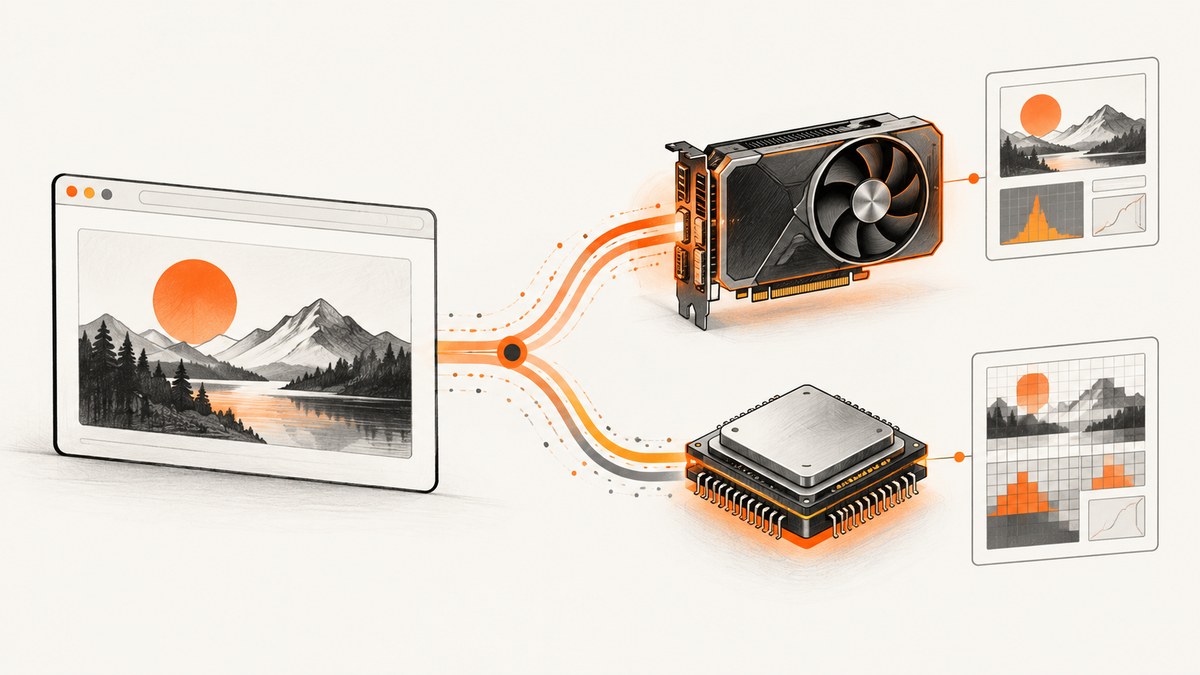
To let headless Chrome try to use a physical GPU instead of defaulting to SwiftShader, launch it with --enable-gpu. Then inspect chrome://gpu to confirm which renderer Chrome selected and whether the graphics features your workload needs are enabled. The flag changes Chrome’s selection behavior; it does not provide a GPU, install drivers, or guarantee hardware acceleration. [Chromium headless GPU guidance] [Chromium headless switch source]
On Linux, automatic OpenGL driver detection normally needs access to an X display and a correct DISPLAY environment variable. If there is no X11 display, Chromium says that forcing ANGLE’s Vulkan backend has worked in some configurations, but it is not a universal fix. Test the complete graphics path on the host that will run the workload.
1. What the flag changes
Headless Chrome uses SwiftShader by default for consistent behavior across headless environments. SwiftShader is a CPU-based implementation of Vulkan and OpenGL ES. Chromium’s --enable-gpu switch disables headless mode’s forced SwiftShader selection and returns graphics selection to Chrome’s regular driver-selection logic. That allows a physical GPU to be selected when the host, driver, display setup, and backend support it.
These are separate outcomes:
- Chrome launches: the browser process started. This says little about the renderer.
- WebGL works: a WebGL context was created. It could still be using SwiftShader on the CPU.
- A physical GPU is used: Chrome reports the hardware renderer and the relevant feature status. This is the outcome to verify.
Graphics features are not interchangeable. WebGL, WebGPU, compositing, rasterization, and video acceleration can have different support and status. Confirm the exact feature your application needs instead of treating a single “GPU enabled” signal as proof of everything.
2. Launch headless Chrome with GPU selection enabled
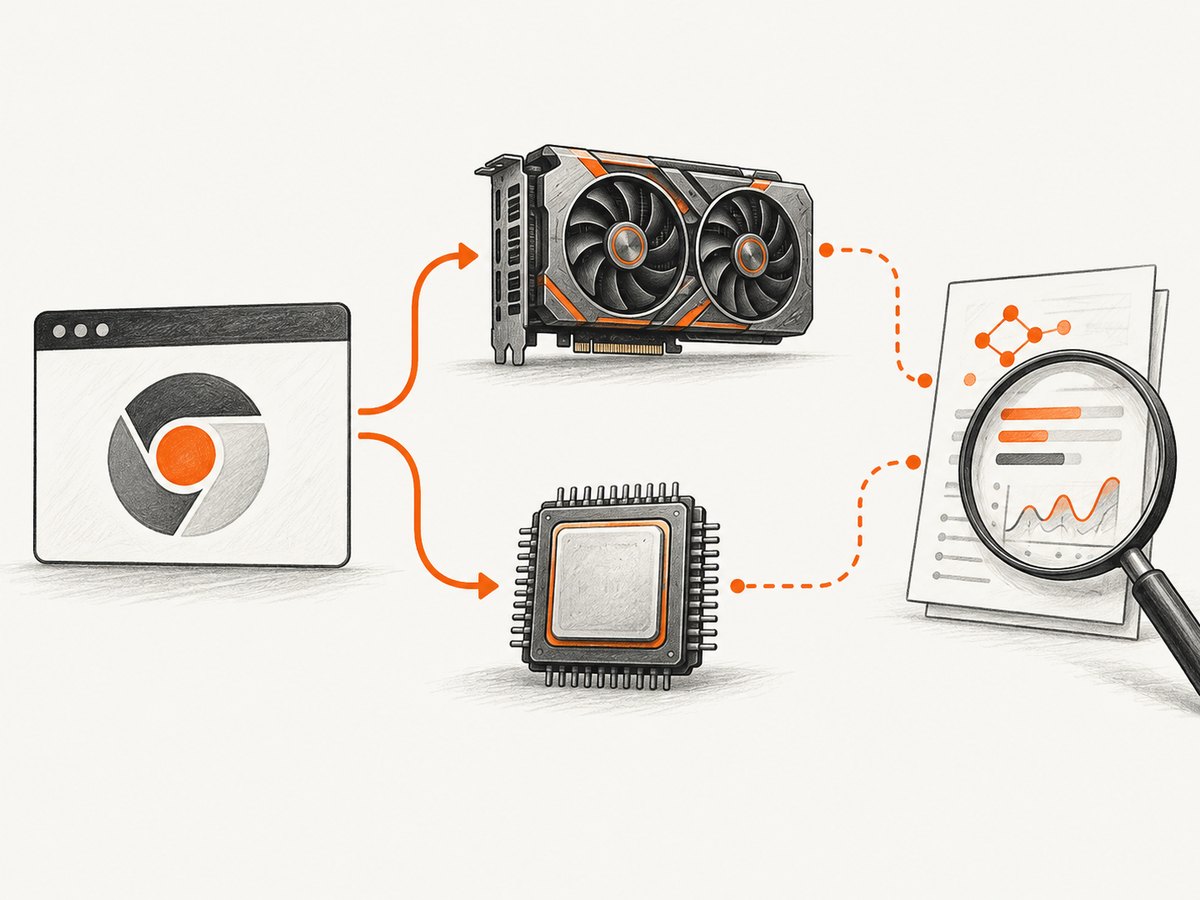
Start with the smallest change: add --enable-gpu to the launch arguments you already use. Keep your normal executable path and application arguments. Do not add backend-forcing flags unless you are troubleshooting a specific driver path.
Command line
google-chrome \\
  --headless \\
  --enable-gpu \\
  --no-first-run \\
  --user-data-dir=/tmp/chrome-gpu-profile \\
  https://example.com
Executable names differ by distribution. Some installations use chromium or chromium-browser instead of google-chrome. The example uses a dedicated temporary profile so it does not contend with a desktop Chrome profile already in use.
Puppeteer (Node.js)
import puppeteer from 'puppeteer';

const browser = await puppeteer.launch({
  headless: true,
  args: ['--enable-gpu'],
});

try {
  const page = await browser.newPage();
  await page.goto('https://example.com', { waitUntil: 'networkidle2' });
  await page.screenshot({ path: 'page.png', fullPage: true });
} finally {
  await browser.close();
}
Install the package in your project with npm install puppeteer. This launches the browser supplied by Puppeteer. If your deployment uses a separately installed Chrome binary, configure Puppeteer to use that binary and confirm its version and graphics dependencies there.
Playwright (Node.js)
import { chromium } from 'playwright';

const browser = await chromium.launch({
  headless: true,
  args: ['--enable-gpu'],
});

try {
  const page = await browser.newPage();
  await page.goto('https://example.com', { waitUntil: 'networkidle' });
  await page.screenshot({ path: 'page.png', fullPage: true });
} finally {
  await browser.close();
}
Install with npm install playwright and install its browser using the Playwright setup appropriate for your project. The important part for this configuration is passing the flag to Chromium’s launch arguments.
Selenium (Python)
from selenium import webdriver
from selenium.webdriver.chrome.options import Options

options = Options()
options.add_argument('--headless')
options.add_argument('--enable-gpu')

driver = webdriver.Chrome(options=options)
try:
    driver.get('https://example.com')
    driver.save_screenshot('page.png')
finally:
    driver.quit()
Install the Selenium Python package and make sure a compatible Chrome or Chromium installation and driver are available to Selenium. GPU access still comes from the machine and browser environment, not from Selenium itself.
3. Check what Chrome actually selected
Open chrome://gpu in the same Chrome build and environment used for the job. Review the graphics feature status and the reported renderer and driver information. If the renderer names SwiftShader, the graphics path is still software-based. A hardware renderer is stronger evidence of physical GPU use; also confirm that the specific feature required by the workload is reported as accelerated.
For automation, navigate a page to chrome://gpu and save the report. This Puppeteer example records the visible report as HTML, making it easier to inspect when a container or host changes:
import puppeteer from 'puppeteer';
import { writeFile } from 'node:fs/promises';

const browser = await puppeteer.launch({
  headless: true,
  args: ['--enable-gpu'],
});

try {
  const page = await browser.newPage();
  await page.goto('chrome://gpu');
  await writeFile('chrome-gpu-report.html', await page.content());
  console.log('Saved chrome-gpu-report.html');
} finally {
  await browser.close();
}
Keep this report with deployment diagnostics when investigating environment-specific differences. Browser version, OS, GPU, driver, backend, and display access can all change the result. A successful launch alone is not a substitute for checking the report.
4. Linux display access and backend selection
On Linux, first try Chrome’s regular selection with --enable-gpu. For its default OpenGL autodetection, Chromium documents the need for an available X display and a correctly set DISPLAY. In a desktop session, inspect echo "$DISPLAY" and check that the Chrome process can access that display. In a container, GPU device access and display access are separate requirements: passing a GPU device through does not automatically provide an X server.
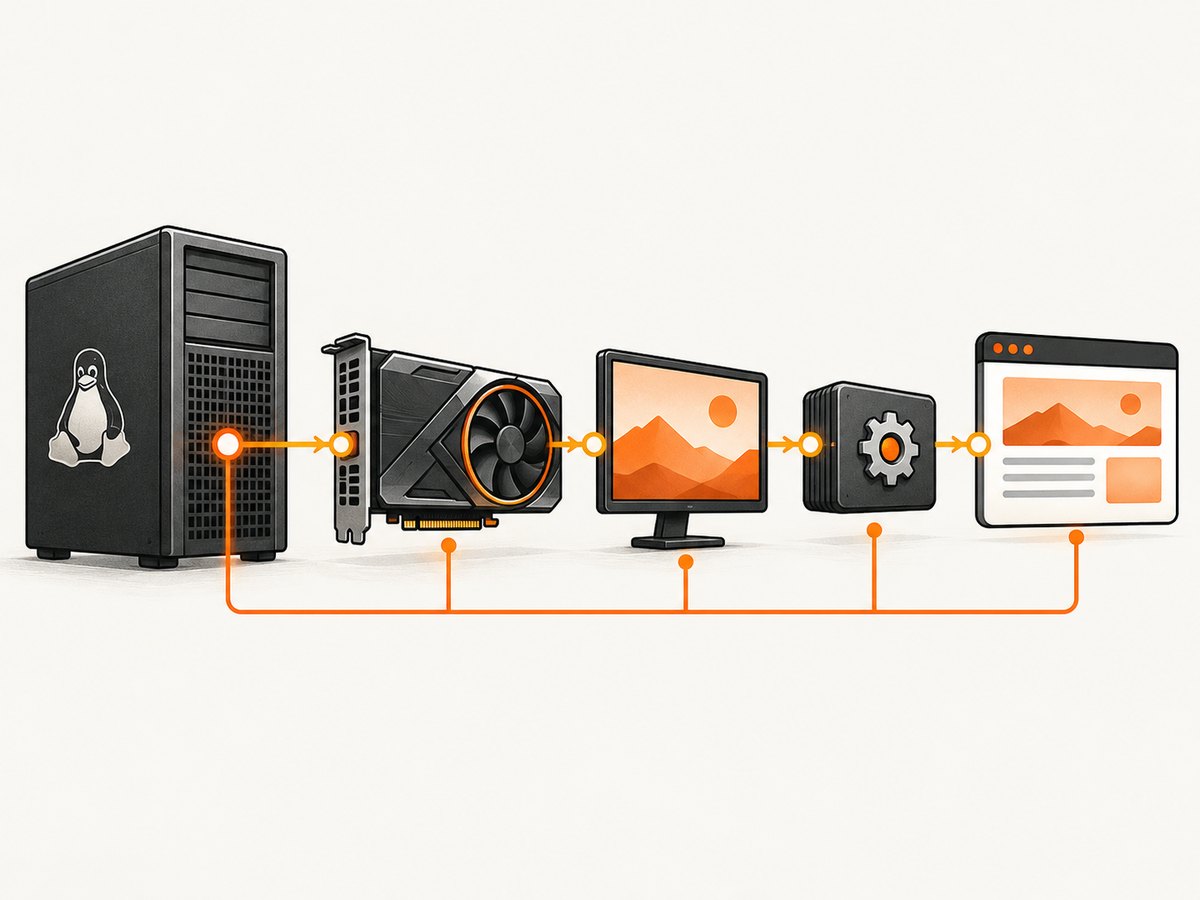
If X11 is not available, ANGLE’s Vulkan backend is a possible route to investigate on compatible systems:
google-chrome \\
  --headless \\
  --enable-gpu \\
  --use-angle=vulkan \\
  --user-data-dir=/tmp/chrome-vulkan-profile \\
  https://example.com
Use this as a targeted diagnostic, not a universal Linux recipe. Chromium notes that this has worked on some configurations. A backend override can fail when the host lacks a compatible Vulkan driver or runtime. Check chrome://gpu after each change.
When to use --use-gl or --use-angle
These flags force or influence driver/backend selection. They are useful when you have a known compatible stack and need to test it, but neither flag creates hardware support. Start with the default selection plus --enable-gpu; add one override at a time, record the report, and revert it if the result is worse.
| Configuration | What it does | When to consider it |
|---|---|---|
--enable-gpu |
Stops headless mode forcing SwiftShader and resumes regular driver selection. | First attempt to enable the host’s available GPU. |
--use-angle=vulkan |
Selects ANGLE’s Vulkan backend. | Possible Linux path to investigate when X11 is unavailable and Vulkan support exists. |
--use-gl=angle --use-angle=swiftshader |
Selects the SwiftShader driver path. | Testing or diagnosing a software-rendering setup; it does not enable a physical GPU. |
--use-gl=angle --use-angle=swiftshader-webgl |
Selects the SwiftShader WebGL fallback path. | Understanding or testing WebGL software fallback behavior. |
5. SwiftShader, fallback, and security
SwiftShader can be selected as the OpenGL ES driver or used as a WebGL fallback. In either case, graphics code may work while rendering on the CPU. Thus a page that creates a WebGL context—or a browser that renders successfully—does not establish physical GPU use.
Chromium documents --enable-unsafe-swiftshader as an opt-in for SwiftShader WebGL after automatic fallback was deprecated. The opt-in lowers security guarantees and is intended for developer testing, not for processing untrusted content. It is a software-rendering setting, not a GPU-enabling flag. Avoid enabling it in production merely to suppress a graphics error.
6. Troubleshooting
| Symptom | Likely cause | What to do |
|---|---|---|
chrome://gpu reports SwiftShader |
Chrome could not select or use the host GPU, or the flag did not reach the browser process. | Confirm --enable-gpu is in the actual launch arguments; inspect GPU and driver visibility; check Linux display access; read the report’s problems and feature status. |
| GPU works locally but not in CI/container | The runtime environment differs: device access, driver libraries, display server, or browser build may be missing or incompatible. | Capture the GPU report in both environments, compare Chrome versions and driver details, and configure the CI host/container to expose the supported GPU stack. |
| Chrome starts, but WebGL is unavailable | The selected backend may not support the needed API, or the GPU feature may be disabled or unavailable. | Check WebGL status and the reported renderer in chrome://gpu; verify the driver/backend combination for that API. |
| Vulkan override causes launch or rendering failure | The system may not have a compatible Vulkan driver/runtime, or that Chrome build may not support the path as configured. | Remove --use-angle=vulkan, return to default selection, and verify the host’s Vulkan setup before trying the override again. |
| WebGL renders, but performance remains CPU-bound | WebGL may be running through SwiftShader rather than a physical GPU. | Check the renderer field. A working WebGL context is not proof of hardware acceleration. |
| Results differ after a Chrome update | Browser builds, drivers, and graphics backends can change their compatibility and selection behavior. | Save and compare chrome://gpu reports and test the browser/driver combination deployed to production. |
| SwiftShader WebGL warning or fallback error | The workload reached the software fallback path; unsafe opt-in may be restricted or deprecated for the current use. | Prefer fixing GPU/backend availability. If testing software fallback, review Chromium’s security guidance and keep untrusted content out of that setup. |
7. Performance, reliability, and cost considerations
A physical GPU can make graphics work eligible for hardware acceleration, but the sources do not establish a universal speedup. Performance depends on the workload, GPU, driver, backend, and which features are accelerated. A GPU renderer reported as accelerated at reduced performance may still be slower than expected for a particular application. Measure the actual job on the target machine and do not extrapolate from another host’s results.
SwiftShader uses CPU rendering and can provide a consistent software path in environments without usable GPU access. That may be useful for reproducible tests, but it is not interchangeable with testing physical GPU behavior. For reliable automation, record the Chrome version and GPU report, pin compatible deployment components where appropriate, and treat a renderer change as an environment change worth investigating.
GPU availability also affects capacity planning: graphics work may consume GPU resources while page loading, JavaScript, and other browser work still consume CPU and memory. Avoid assuming that enabling the flag reduces total job time or cost. Benchmark representative pages and concurrency on the actual deployment target. No generally applicable benchmark or hardware recommendation follows from the available Chromium guidance.
8. Do-it-yourself decision checklist
- Add
--enable-gputo the browser’s real launch command. - Confirm the Chrome process can access the host GPU and compatible driver.
- On Linux, verify X display access for automatic OpenGL selection; investigate Vulkan only if it fits the host.
- Open
chrome://gpuin the same build and inspect renderer plus the specific feature status. - Repeat verification after changing the OS image, browser version, driver, or backend.
- Keep SwiftShader fallback testing separate from claims that a physical GPU is being used.
9. Or skip the browser setup
If the goal is to capture a website rather than run your own Chrome graphics stack, ScreenshotNeo provides a screenshot API and MCP server. Its API returns a PNG, JPEG, WebP, or PDF from one GET request. See the ScreenshotNeo API documentation for request options.
curl -G "https://api.screenshotneo.com/v1/shot" \\
  -d access_key=YOUR_API_KEY \\
  --data-urlencode url=https://stripe.com \\
  -o shot.webp
import requests
r = requests.get(
"https://api.screenshotneo.com/v1/shot",
params={"access_key": "YOUR_API_KEY", "url": "https://stripe.com"},
timeout=90,
)
r.raise_for_status()
open("shot.webp", "wb").write(r.content)const q = new URLSearchParams({
access_key: 'YOUR_API_KEY',
url: 'https://stripe.com',
});
const res = await fetch(`https://api.screenshotneo.com/v1/shot?${q}`);
if (!res.ok) throw new Error(`Screenshot request failed: ${res.status}`);
await Bun.write('shot.webp', res);ScreenshotNeo accepts cookie and consent banners like a visitor and removes more than 60 known consent platforms, newsletter popups, and chat widgets before capture; each step can be turned off. Bot checks, blank pages, timeouts, failed loads, and cache hits cost nothing, and response headers report the page verdict and billing status. Its MCP server gives AI agents tools for screenshots, page information, and PDF capture. The free plan includes 1,000 shots per month with no card; paid plans start at $5 for 3,000 shots.
Create a free ScreenshotNeo account for 1,000 screenshots a month, with no card required.
FAQ
Does --enable-gpu guarantee Chrome uses my graphics card?
No. It permits regular driver selection instead of forcing SwiftShader in headless mode. Hardware, driver, display, and backend support still determine the result.
Can I tell from a successful screenshot that the GPU worked?
No. A screenshot can be produced with software rendering. Inspect the reported renderer and feature status in chrome://gpu.
Is SwiftShader a physical GPU?
No. It implements Vulkan and OpenGL ES in software on the CPU, though it can make graphics APIs work without physical GPU acceleration.
Should I always force Vulkan on Linux?
No. Chromium describes it as having worked on some configurations. Use it only when appropriate for the host, then verify the selected renderer and required feature.


