Why Headless Chrome with Selenium Fails to Load Page Elements
Headless Chrome is usually waiting for the wrong state. Diagnose missing elements with explicit waits, locator checks, browser versions, and page-state logging.
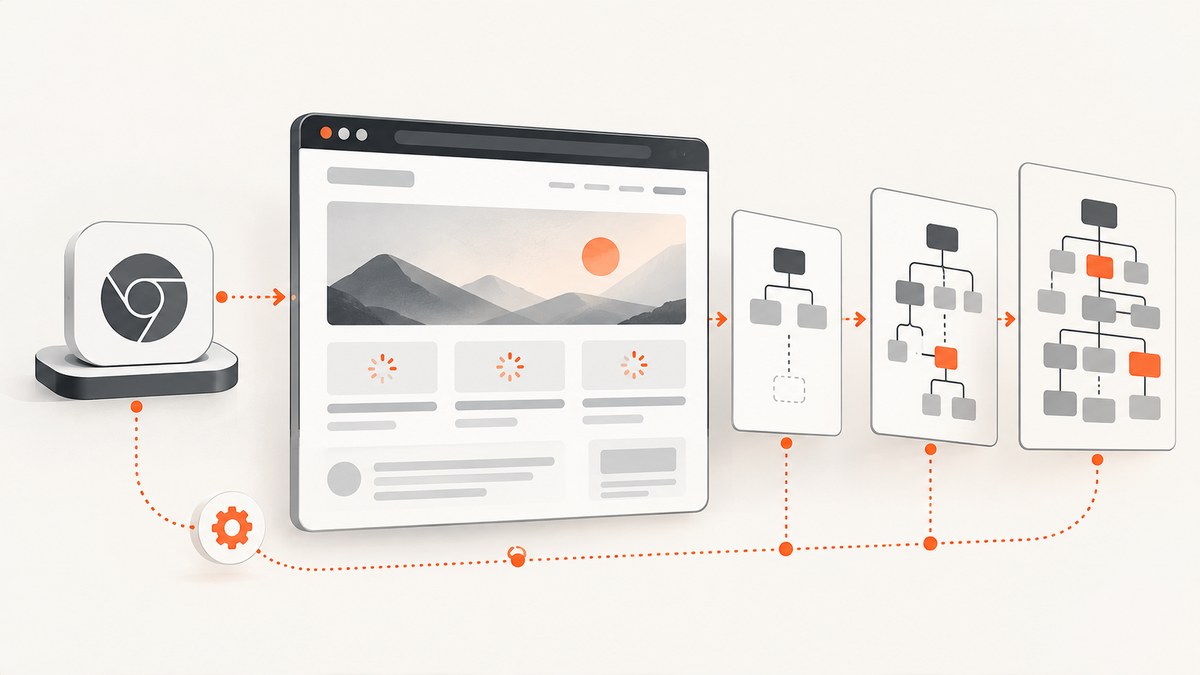
Why does headless Chrome with Selenium fail to load page elements? Usually because navigation finished before the application finished rendering the element you need. Selenium’s navigation wait observes a document loading milestone such as document.readyState; modern JavaScript can fetch data, create nodes, remove overlays, or reveal controls afterward.
A missing element can also have a different cause: the script is on the wrong page, the locator no longer matches, the element exists but is hidden or covered, Chrome and ChromeDriver are incompatible, or headless and headed runs take different application paths. Treat the symptom as a diagnostic problem rather than a single headless Chrome bug.
The reliable approach is to wait for the state required by the next action, inspect the page when it fails, and verify the browser stack. This guide provides a repeatable sequence, runnable examples, configuration options, troubleshooting, and a browser-free screenshot alternative.
What Selenium’s navigation wait actually guarantees
By default, Selenium waits for the page-load strategy to reach complete. The state describes resources declared in the document, not every later operation performed by JavaScript. Selenium’s documentation summarizes the distinction: “The readyState only concerns itself with loading assets defined in the HTML.” A single-page application may be a valid, complete document while its API response, component tree, or interactive control is still pending. See Selenium’s waiting strategies.
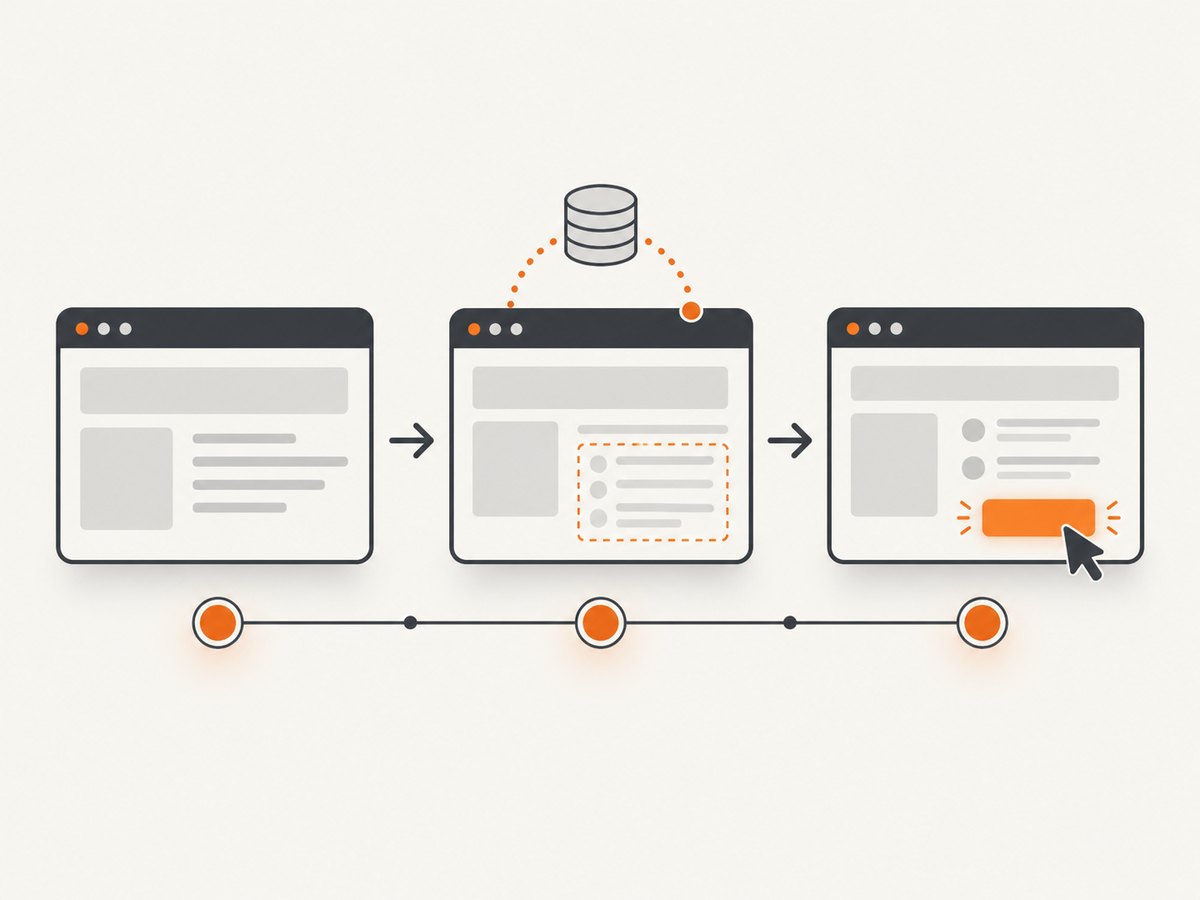
For example, this sequence is valid but racy:
driver.get("https://example.test/dashboard")
button = driver.find_element(By.CSS_SELECTOR, "button.export")
button.click()
The button may be inserted only after a fetch request. driver.get() returning does not prove that the button exists, is visible, is enabled, or is not covered by a modal.
A diagnostic sequence that isolates the cause
- Confirm what loaded. Record the current URL, title, ready state, console errors, and a screenshot or HTML dump. Check for login redirects, access-denied pages, consent screens, bot checks, and server errors.
- Identify the required application state. Decide whether the next command needs an element to exist, be visible, be enabled, be clickable, or contain particular text. Wait for that condition instead of waiting an arbitrary number of seconds.
- Classify the element failure. “No such element” means the locator found no matching node at that moment. A hidden, disabled, covered, or off-screen node produces a different interaction failure. Verify the selected node in DevTools or by evaluating JavaScript.
- Check synchronization settings. Avoid mixing implicit and explicit waits. Selenium warns that the combination can create unpredictable timing because each explicit poll can inherit the implicit timeout. Use one deliberate strategy.
- Verify Chrome and ChromeDriver. Log both versions and ensure their major versions match. Also check which Chrome binary is selected when a machine has multiple installations.
- Compare headed and headless runs. Keep the URL, profile, viewport, network, browser version, and script identical. A difference identifies an environment-dependent branch to investigate; it does not prove that headless mode itself is the cause.
- Separate Selenium waits from Chrome CLI timeouts. Chrome’s
--timeoutcontrols command-line capture operations such as--dump-dom, screenshots, and PDFs. It does not wait for a Selenium element condition.
Use explicit waits for the state your action needs
Explicit waits poll a condition until it succeeds or a timeout expires. Choose the narrowest condition that represents readiness.
Python example
from selenium import webdriver
from selenium.webdriver.common.by import By
from selenium.webdriver.support.ui import WebDriverWait
from selenium.webdriver.support import expected_conditions as EC
from selenium.common.exceptions import TimeoutException

options = webdriver.ChromeOptions()
options.add_argument("--headless=new")
options.add_argument("--window-size=1440,1000")

driver = webdriver.Chrome(options=options)
wait = WebDriverWait(driver, 30, poll_frequency=0.2)

try:
    driver.get("https://example.test/dashboard")
    wait.until(lambda d: d.execute_script("return document.readyState") == "complete")
    export = wait.until(EC.element_to_be_clickable((By.CSS_SELECTOR, "button.export")))
    export.click()
finally:
    driver.quit()
Use presence_of_element_located when existence is enough, visibility_of_element_located when it must be displayed, and element_to_be_clickable when it must be visible and enabled. A custom condition is useful for application state:
wait.until(lambda d: d.find_element(By.CSS_SELECTOR, "[data-status]")
           .get_attribute("data-status") == "ready")
Do not turn a fixed sleep into the permanent solution. time.sleep(10) can help determine whether latency is involved, but it wastes time on fast runs and still fails when the application needs longer.
Element state: present is not interactable
After locating a node, inspect the conditions that can prevent interaction:
- Hidden: CSS such as
display:none,visibility:hidden, zero dimensions, or a collapsed parent. - Disabled: a button may exist before its form validation or API state enables it.
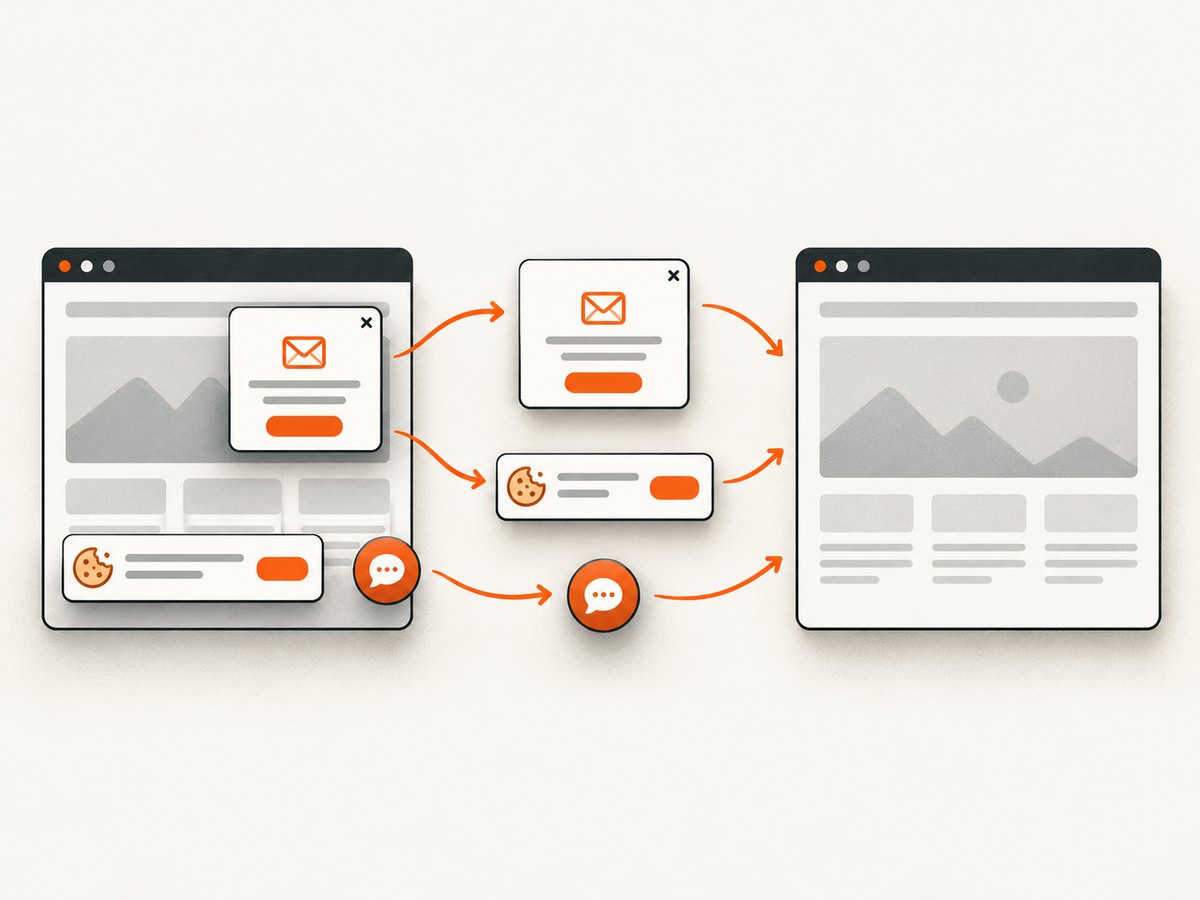
- Covered: a cookie banner, newsletter modal, chat widget, or loading mask may receive the click instead.
- Outside the viewport: scroll the element into view when the page or browser does not do so automatically.
- Wrong node: a broad selector may match a hidden template, duplicate mobile markup, or a parent instead of the actual control.
- Frame or shadow root: the element may be inside an iframe or shadow DOM and require the corresponding context switch.
element = wait.until(EC.presence_of_element_located((By.CSS_SELECTOR, "button.export")))
print("displayed:", element.is_displayed())
print("enabled:", element.is_enabled())
driver.execute_script("arguments[0].scrollIntoView({block: 'center'});", element)
wait.until(EC.element_to_be_clickable((By.CSS_SELECTOR, "button.export"))).click()
If an iframe is involved, wait for it and switch before locating descendants:
wait.until(EC.frame_to_be_available_and_switch_to_it((By.CSS_SELECTOR, "iframe.payment")))
wait.until(EC.visibility_of_element_located((By.NAME, "cardnumber")))
Locator and page-state checks
Before changing timeouts, prove that the locator is correct. Print the number of matches and useful attributes:
matches = driver.find_elements(By.CSS_SELECTOR, "button.export")
print("matches:", len(matches))
for item in matches:
    print(item.get_attribute("outerHTML")[:500])
print("url:", driver.current_url)
print("title:", driver.title)
print("readyState:", driver.execute_script("return document.readyState"))
print("body prefix:", driver.find_element(By.TAG_NAME, "body").text[:500])
Common locator failures include a changed class name, an element whose ID is generated per request, a selector that depends on presentation markup, and text that differs by locale. Prefer stable attributes such as data-testid when the application provides them. Make sure the command runs after the action that creates the element, not before it.
Capture diagnostics when a wait expires:
try:
    wait.until(EC.visibility_of_element_located((By.CSS_SELECTOR, "main.dashboard")))
except TimeoutException:
    driver.save_screenshot("timeout.png")
    with open("timeout.html", "w", encoding="utf-8") as f:
        f.write(driver.page_source)
    raise
Page-load strategies and wait configuration
Selenium supports normal, eager, and none page-load strategies. normal waits for the full document load event; eager returns earlier when the DOM is ready while subresources may continue; none returns without waiting for page loading. These settings change when navigation returns, but none of them knows that your application’s table, chart, or button is ready. Pair the chosen strategy with explicit application waits.
options = webdriver.ChromeOptions()
options.page_load_strategy = "eager"
options.add_argument("--headless=new")
driver = webdriver.Chrome(options=options)
Use a page-load timeout to cap navigation, and a separate explicit wait for the target state:
driver.set_page_load_timeout(60)
wait = WebDriverWait(driver, 30)
Set an implicit wait only if you intentionally want a global lookup grace period, and do not combine it with explicit waits. A global value can make every lookup slower and obscure which state is actually missing.
Headless-specific differences to investigate
Modern Chrome headless uses the regular Chrome code path from Chrome 112 onward. Since Chrome 132, the older implementation is distributed separately as chrome-headless-shell. This history matters when reproducing an old environment, but the version fact alone does not diagnose a missing element; inspect the actual browser and driver logs. See Chrome’s headless documentation.
Compare these variables between modes:
- Viewport width and height, device scale factor, and responsive breakpoints.
- User agent, locale, timezone, geolocation, permissions, and stored profile data.
- Proxy, DNS, certificates, firewall rules, and request interception.
- GPU and rendering behavior for canvas or layout-sensitive applications.
- Authentication cookies and whether a headed run reuses a logged-in profile.
Force a realistic viewport rather than relying on a default:
options.add_argument("--window-size=1440,1000")
options.add_argument("--force-device-scale-factor=1")
Do not prescribe --no-sandbox as a universal missing-element fix. Add environment flags only when your deployment requires them and you understand their security and rendering effects.
Chrome and ChromeDriver compatibility
Selenium’s Chrome guidance says the Chrome and ChromeDriver major versions should match. Log the versions in CI and containers, and verify the binary path when several Chrome installations exist. A mismatch can cause session creation errors, crashes, or behavior that looks like a page timing problem.
google-chrome --version
chromedriver --version
Also check the Selenium library version, operating system, container image, and whether an automated driver manager selected a different binary than expected. Reproduce with a pinned browser image when reliability matters.
Common errors and fixes
| Symptom | Likely cause | Fix |
|---|---|---|
NoSuchElementException |
Wrong page, locator, frame, or asynchronous rendering | Log URL and title, verify the selector, switch frames, then wait for presence or visibility. |
TimeoutException |
The requested condition never became true | Save a screenshot and HTML, inspect console and network failures, and identify the unmet application state. |
ElementNotInteractableException |
Node is hidden, disabled, or has no usable dimensions | Wait for visibility or clickability and inspect CSS and enabled state. |
ElementClickInterceptedException |
Overlay, consent banner, or another element covers the target | Wait for the overlay to disappear or close it through the supported UI, then retry. |
| Works headed, fails headless | Different viewport, profile, browser version, network, or responsive branch | Make those inputs identical and compare screenshots, DOM, console, and URL. |
| Session creation or browser crash | Chrome/ChromeDriver mismatch or wrong binary | Print both versions, align major versions, and set the intended binary explicitly. |
| Page is blank or an interstitial | Authentication, bot protection, certificate, DNS, or server failure | Inspect the loaded URL and body text before debugging selectors. |
Performance and reliability practices
- Wait on one meaningful readiness condition instead of adding a long global timeout.
- Use stable selectors and avoid matching transient CSS classes.
- Keep implicit waits disabled when using explicit waits.
- Pin browser and driver versions in CI, and record them with every failure artifact.
- Set a deliberate viewport, locale, timezone, and authentication state.
- Retry only operations that are safe to repeat. A retry cannot repair a wrong locator or a page that consistently returns an error.
- Use polling intervals that are responsive without hammering the application; 200–500 ms is often sufficient for UI conditions.
- Close each driver in a
finallyblock so failed tests do not exhaust workers.
Headless Chrome’s command-line --timeout is a maximum wait before capture, even if loading continues. It applies to --dump-dom, screenshots, and PDFs; it is not a replacement for Selenium’s condition-based waits. See Chrome’s command-line flags.
Or skip the browser setup
If your goal is a clean screenshot rather than browser automation, ScreenshotNeo provides a single API request. Its capture pipeline accepts cookie and consent banners like a visitor, then removes more than 60 known consent platforms, newsletter popups, and chat widgets before the shot. Each step can be turned off.
Only clean shots are billed. Bot checks or CAPTCHAs, blank pages, timeouts, failed loads, and cache hits cost nothing, and the response identifies the result with X-Page-Verdict and X-Billed headers. It also provides an MCP server with take_screenshot, get_page_info, and capture_pdf tools for Claude, Cursor, and other MCP clients.
Complete API details and all options are in the ScreenshotNeo documentation.
cURL
curl -G "https://api.screenshotneo.com/v1/shot" \
  -d access_key=YOUR_API_KEY \
  --data-urlencode url=https://stripe.com \
  -o shot.webp
Python
import requests

r = requests.get(
    "https://api.screenshotneo.com/v1/shot",
    params={"access_key": "YOUR_API_KEY", "url": "https://stripe.com"},
    timeout=90,
)
r.raise_for_status()
open("shot.webp", "wb").write(r.content)
Node.js
const q = new URLSearchParams({
  access_key: 'YOUR_API_KEY',
  url: 'https://stripe.com'
});
const res = await fetch(`https://api.screenshotneo.com/v1/shot?${q}`);
if (!res.ok) throw new Error(`HTTP ${res.status}`);
const fs = await import('node:fs/promises');
await fs.writeFile('shot.webp', Buffer.from(await res.arrayBuffer()));
ScreenshotNeo supports full-page capture with lazy images loaded, CSS-selector element capture, dark mode, 12 device presets or any viewport, retina scale, PDF paper settings and page ranges, custom CSS and JavaScript, clicks, selector or network-idle waits, request blocking, headers, cookies, user agents, authorization, timezone, geolocation, transparent backgrounds, resizing, configurable caching, signed links, asynchronous jobs with signed webhooks, bulk capture of 100 URLs per call, a usage API, and an OpenAPI specification. Parameter names used by other screenshot APIs also work to simplify migration.
Pricing starts with 1,000 screenshots per month free with no card. Paid plans are $5 for 3,000, $15 for 15,000, $39 for 60,000, $99 for 250,000, and $249 for 1,000,000; yearly billing provides two months free, and every feature is on every plan. Create a free ScreenshotNeo account to start with 1,000 screenshots a month and no card.
FAQ
Does document.readyState === "complete" mean the page is ready?
No. It describes document loading. JavaScript can still fetch data and create or reveal the element you need.
Should I increase Selenium’s implicit wait?
First identify the missing state. Prefer an explicit condition for the specific element, and avoid mixing implicit and explicit waits.
Why does a longer sleep sometimes work?
It gives asynchronous work more time, but it is sensitive to latency and can still fail. Replace it with a condition tied to application readiness.
Is headless Chrome a different browser?
Current headless Chrome uses the unified Chrome implementation from version 112. Differences can still come from viewport, profile, network, version, or application branches.
When should I use a screenshot API?
Use one when you need repeatable screenshots or PDFs without maintaining browser and driver processes, waits, consent cleanup, and capture infrastructure.


