Is It Safe to Run Headless Chrome Without a Sandbox on a Server?
Usually no. Learn why --no-sandbox removes a security boundary, how to run Chrome safely, and when an API is a better option.
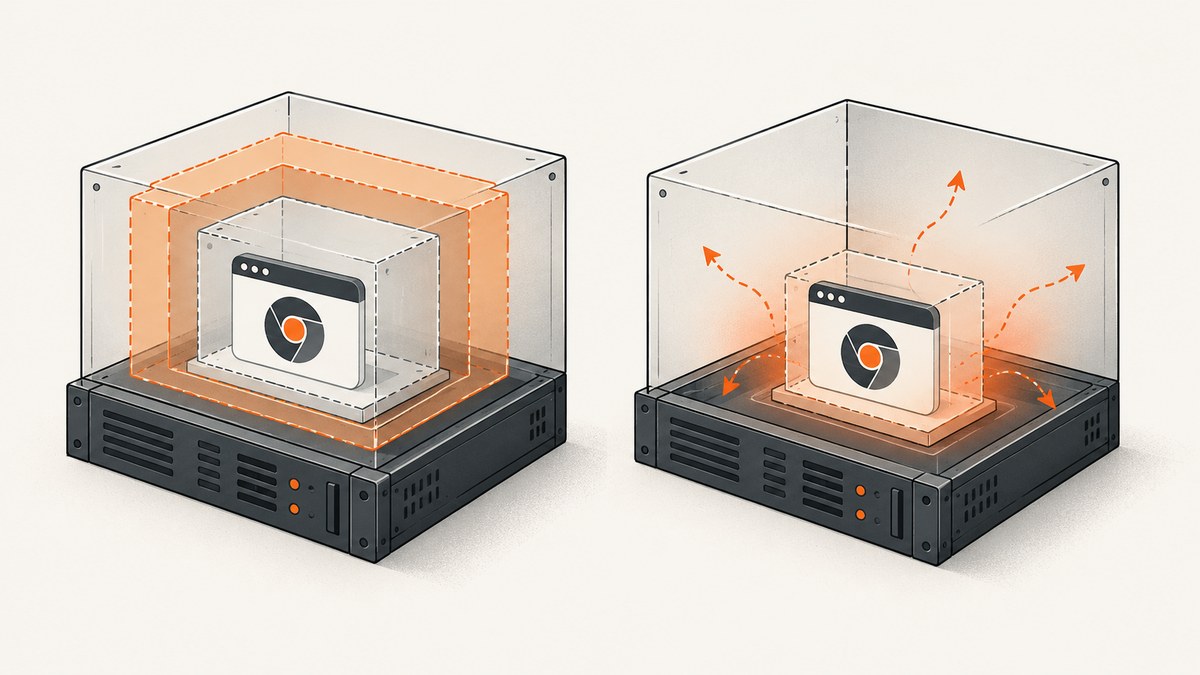
Usually, no. Headless mode does not make Chromium safe to run without its sandbox. The --no-sandbox flag disables a meaningful browser security boundary. Chromium documents that switch as a testing option, and Puppeteer strongly discourages using it in production. A safer deployment keeps Chromium’s sandbox enabled, runs the browser as a non-root user, and adds container or virtual-machine isolation where appropriate.
The exact risk depends on your browser build, Linux kernel, distribution, container runtime, permissions, and the data reachable from the browser process. A container helps, but it shares the host kernel and does not replace Chromium’s own sandbox.
What the Chromium sandbox protects
Chromium is a multiprocess browser. A renderer parses HTML, JavaScript, images, fonts, PDFs, and other complex input. If a vulnerability lets hostile page content compromise a renderer, sandbox restrictions limit what that process can read or execute on the operating system. Site Isolation also places different sites in separate sandboxed processes, reducing the chance that a compromised renderer can expose data from another origin. See Chromium’s Linux sandbox documentation and its Site Isolation overview.
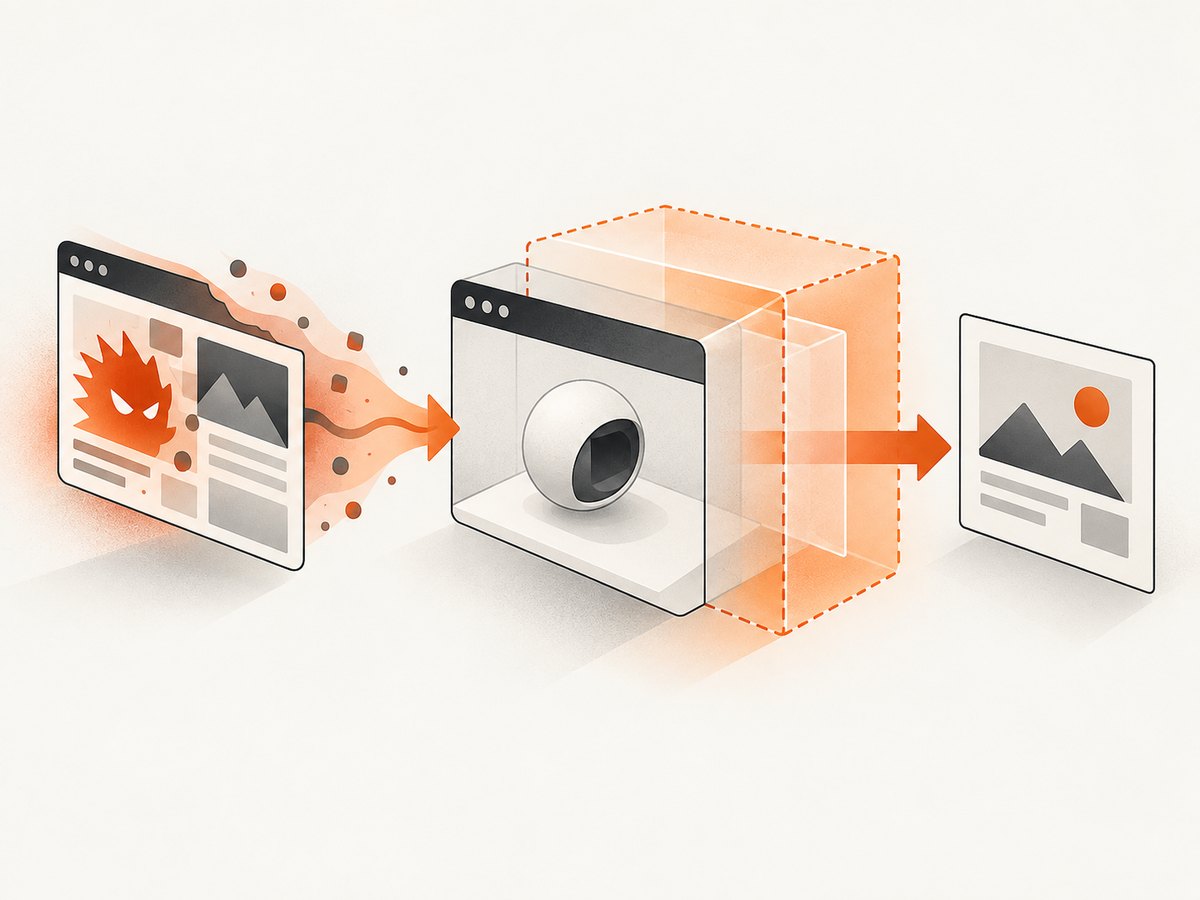
With --no-sandbox, you remove all of Chromium’s sandboxing. Chromium’s Linux guide states: “You can disable all sandboxing (for testing) with --no-sandbox.” That is not a headless optimization and does not merely turn off a cosmetic feature. It makes a browser compromise more consequential because the compromised process has fewer operating-system restrictions.
Why headless workloads are exposed
Screenshot and scraping jobs commonly load pages chosen by users, customers, feeds, or third parties. Those pages can include untrusted JavaScript, redirects, downloads, malformed media, and cross-origin frames. The browser may also receive cookies, authorization headers, cloud metadata access, or filesystem permissions from the worker.
Chromium’s secure-coding guidance describes a “Rule of Two”: code should never do more than two of the following at the same time: use an unsafe implementation language, process untrustworthy input, and run without a sandbox. A browser automation service already processes untrustworthy input. Removing the sandbox therefore consumes one of the two allowed risk factors before you account for the rest of the service. Read the Chromium Rule of Two guidance.
Recommended deployment model
- Keep the browser sandbox enabled. Treat
--no-sandboxas a diagnostic switch for a controlled test, not a production setting. - Run Chrome as an unprivileged user. Do not run the browser as root. Create a dedicated account with a private writable profile directory and no unnecessary group memberships.
- Verify kernel support. Chromium’s sandbox depends on Linux kernel features and distribution policy. User namespaces, setuid helpers, and AppArmor or similar restrictions can change what works.
- Add outer isolation. Use a container or VM with a read-only image, a small writable temporary directory, dropped capabilities, restricted networking, and resource limits. A VM can provide a separate kernel boundary; a normal container shares the host kernel.
- Minimize reachable secrets. Keep cloud credentials, service-account tokens, source trees, host sockets, and internal network routes away from the browser worker unless a job specifically needs them.
- Separate jobs. Use short-lived browser contexts or workers, clear profiles between tenants, limit concurrency, and terminate hung processes.
Puppeteer’s troubleshooting guide recommends configuring the host sandbox instead of reflexively adding --no-sandbox. Its Docker guide shows a non-root setup and a sandbox-mode image that requires a particular capability. That capability is an example for that image, not a blanket instruction to grant broad privileges to every container.
Running Puppeteer with the sandbox enabled
Install Node.js, Chromium, and Puppeteer in a worker account. The following example deliberately does not pass --no-sandbox:
import puppeteer from 'puppeteer';

const browser = await puppeteer.launch({
  headless: 'new',
  // No --no-sandbox flag: use Chromium's supported sandbox.
  args: [
    '--disable-dev-shm-usage'
  ]
});

try {
  const page = await browser.newPage();
  await page.goto('https://example.com', {
    waitUntil: 'networkidle2',
    timeout: 30_000
  });
  await page.screenshot({ path: 'example.png', fullPage: true });
} finally {
  await browser.close();
}
--disable-dev-shm-usage can help when a container has a very small shared-memory mount, but it is unrelated to sandboxing. Prefer increasing the container’s /dev/shm size when you control the runtime, because using disk-backed temporary files can reduce performance.
Run the process as a non-root user
FROM node:22-bookworm

WORKDIR /app
COPY package*.json ./
RUN npm ci
COPY . .

# Use the image's existing unprivileged node user.
USER node
CMD ["node", "capture.js"]
Check the effective identity inside the runtime with id. Also inspect the browser command line in process listings and application logs to ensure a wrapper has not silently appended --no-sandbox.
When the sandbox fails: diagnose the environment
The common error is No usable sandbox!. It means Chromium could not initialize one of its supported Linux sandbox mechanisms. It does not mean the correct fix is automatically to disable every sandbox.
| Symptom | Likely cause | Safer fix |
|---|---|---|
No usable sandbox! |
User namespaces disabled, sandbox helper unavailable, or restrictive policy | Check kernel settings, distribution documentation, and Puppeteer’s sandbox troubleshooting steps; run as non-root |
| Works locally, fails in a container | Container profile blocks required namespace or setuid operations | Use a browser image designed for sandbox mode and grant only its documented capability; review seccomp/AppArmor rules |
| Chrome exits immediately as root | Chromium refuses or cannot safely initialize its sandbox as root | Create a dedicated unprivileged user and give it ownership of the profile and cache directories |
| Random renderer crashes | Low shared memory, memory pressure, or process limits | Increase /dev/shm, set realistic concurrency, and monitor memory before changing security flags |
| Navigation hangs | Network policy, blocked DNS, page scripts, or an overly strict wait condition | Set a timeout, log the URL and phase, allow required egress only, and choose an appropriate waitUntil event |
| Pages cannot reach an internal service | Network isolation is working as configured | Add a narrowly scoped route or proxy; never expose the whole private network to arbitrary pages |
Useful checks
# Confirm the worker identity
id

# Inspect namespace-related kernel settings (distribution dependent)
sysctl kernel.unprivileged_userns_clone 2>/dev/null || true

# Check whether a sandbox helper is present
which chrome-sandbox || true

# Show the browser process arguments
ps -ef | grep -E '[c]hrome|[c]hromium'
Do not copy a capability setting from a blog post without comparing it with your runtime’s threat model. A capability that is necessary for one official image may be excessive for another.
Containers, VMs, and the limits of isolation
Containers restrict processes with namespaces, cgroups, seccomp, capabilities, and filesystem policy, but ordinary containers share the host kernel. A kernel vulnerability can therefore cross the container boundary. ChromeOS documentation describes a VM boundary around its containers as an additional barrier; this illustrates layered isolation rather than a guarantee for every container platform. See the ChromeOS container and VM architecture notes.
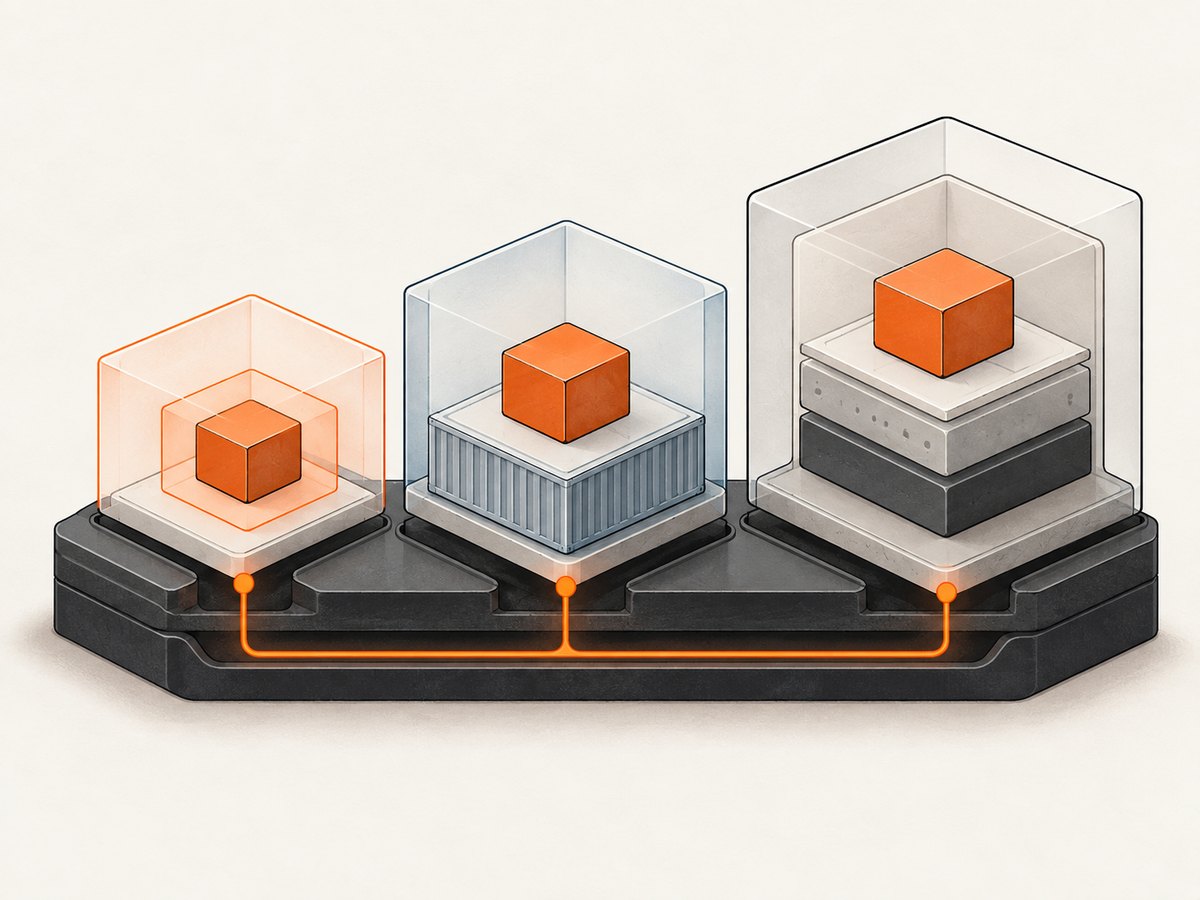
For a multi-tenant screenshot service, a practical hierarchy is:
- Browser sandbox: isolates renderer and browser processes from the operating system.
- Container: limits filesystem, process, capability, and resource access.
- VM or separate host: adds a distinct kernel boundary when the workload or tenant mix justifies it.
- Application controls: validate URLs, block private address ranges, restrict redirects, cap response sizes, and remove credentials after each job.
Performance and reliability trade-offs
Keeping the sandbox enabled is normally a reliability decision as well as a security decision. Disabling it can make a broken environment appear to work, but it leaves an insecure configuration that becomes difficult to audit. Fix the underlying namespace, helper, or policy issue instead.
Measure the parts that actually dominate capture time:
- Browser launch cost: reuse a carefully isolated browser process when jobs are trusted and profiles are separated.
- Page load cost: set navigation and overall job timeouts; avoid waiting forever for analytics or long polling.
- Concurrency: increase workers gradually while watching memory, file descriptors, CPU, and renderer crash rates.
- Resource limits: enforce maximum HTML size, download size, screenshot dimensions, and wall-clock duration.
- Network policy: cache approved assets or use a controlled proxy, but do not share cookies or authorization data across tenants.
There is no universal safe concurrency number or risk percentage. Browser version, kernel, page mix, and runtime configuration determine the result, so validate changes in the same image and host profile used in production.
When an API is a better fit
If your service only needs images or PDFs and you do not need to operate Chromium, a hosted capture API can remove browser patching, sandbox configuration, and worker isolation from your application. Compare providers on input handling, failed-job behavior, controls, and cost rather than assuming every screenshot response is equivalent.
Or skip the browser setup
ScreenshotNeo is a website screenshot API and MCP server. It accepts one GET request and returns PNG, JPEG, WebP, or PDF. Before capture it accepts cookie or consent banners and removes more than 60 known consent platforms, newsletter popups, and chat widgets; each step can be turned off. Bot checks, CAPTCHAs, blank pages, timeouts, failed loads, and cache hits are not billed, and the response reports the result in X-Page-Verdict and X-Billed headers.
Use the same request from cURL:
curl -G "https://api.screenshotneo.com/v1/shot" \
  -d access_key=YOUR_API_KEY \
  --data-urlencode url=https://stripe.com \
  -o shot.webp
Python:
import requests

r = requests.get(
    "https://api.screenshotneo.com/v1/shot",
    params={"access_key": "YOUR_API_KEY", "url": "https://stripe.com"},
    timeout=90,
)
r.raise_for_status()
open("shot.webp", "wb").write(r.content)
Node.js:
const q = new URLSearchParams({ access_key: 'YOUR_API_KEY', url: 'https://stripe.com' });
const res = await fetch(`https://api.screenshotneo.com/v1/shot?${q}`);
if (!res.ok) throw new Error(`HTTP ${res.status}`);
const bytes = new Uint8Array(await res.arrayBuffer());
await Bun.write('shot.webp', bytes);
See the complete parameter reference and response details in the ScreenshotNeo documentation. Options include full-page capture with lazy images loaded, CSS-selector element capture, dark mode, device presets or custom viewports, retina scale, PDF paper size and margins, custom CSS and JavaScript, clicks, selector or network-idle waits, request blocking, headers, cookies, user agents, authorization, timezone, geolocation, transparent backgrounds, resizing, cache TTLs, signed image links, asynchronous jobs with signed webhooks, bulk capture for up to 100 URLs, a usage API, and an OpenAPI specification. Parameter names used by other screenshot APIs also work.
ScreenshotNeo has an MCP server with take_screenshot, get_page_info, and capture_pdf tools for Claude, Cursor, and other MCP clients. The Free plan includes 1,000 shots per month with no card; paid plans start at $5 for 3,000 shots, and every feature is available on every plan.
Start with 1,000 free screenshots a month—no card required.
Security checklist
- Chromium sandbox remains enabled in production.
- Browser runs as a dedicated non-root user.
- Container or VM permissions are minimal and documented.
- Private IP ranges, metadata endpoints, and dangerous protocols are blocked.
- Credentials and cookies are isolated per job and removed afterward.
- CPU, memory, disk, network, page size, and wall-clock limits are enforced.
- Browser and base images receive routine security updates.
- Logs record browser version, verdict, timeout phase, and failure reason without secrets.
FAQ
Is --no-sandbox ever acceptable?
Only for controlled testing where the input and host are trusted and the process is disposable. Do not treat it as a production fix for a missing sandbox.
Does headless mode disable security features?
No. Headless is a display mode. It does not make the browser sandbox unnecessary.
Does running Chrome in Docker make it safe?
No. Docker adds controls, but a normal container shares the host kernel. Keep Chromium’s sandbox and configure the container with the least permissions required.
Should I grant SYS_ADMIN?
Only when the specific browser image and runtime documentation require it, and after reviewing the resulting threat model. Do not grant broad capabilities by default.
What should I do first after seeing “No usable sandbox!”?
Record the browser version, effective user, kernel, container profile, and full launch arguments. Then follow Puppeteer’s sandbox troubleshooting guidance and correct the host or image configuration.
Can ScreenshotNeo replace Puppeteer for every workload?
It is designed for website screenshots and PDFs through an API or MCP tools. Workloads that require arbitrary browser control still need a browser automation stack; for standard captures, the hosted API avoids operating your own Chromium workers.


