Does Headless Chromium Support Wide-Gamut CSS Colors?
Yes, headless Chromium supports Display P3 and Rec.2020 CSS colors. Whether screenshots preserve those colors depends on the browser profile and capture pipeline.
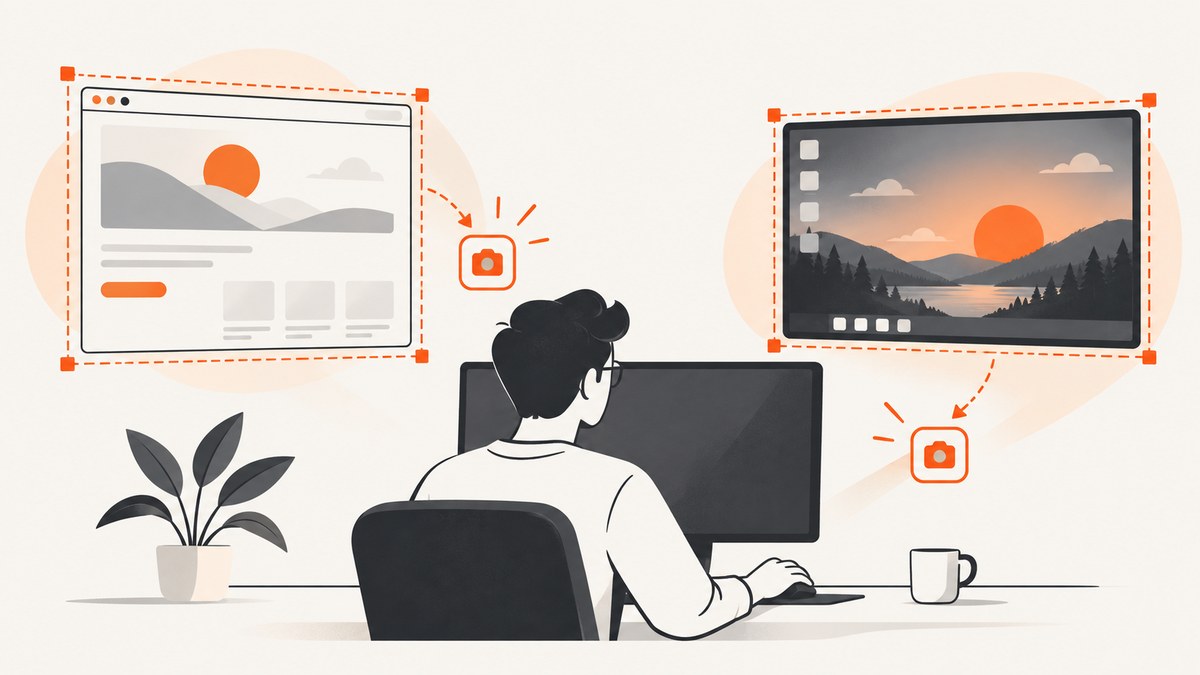
Yes. Headless Chromium supports CSS Color 4 wide-gamut syntax such as color(display-p3 1 0 0) and color(rec2020 1 0 0). Headless mode uses Chromium’s Blink rendering engine, so CSS parsing and rendering support are expected there too. The key distinction is that browser support does not guarantee that a saved screenshot retains wide-gamut pixel values or a matching color profile.
To verify the result, check CSS support, query the page’s reported color-gamut, control Chromium’s output color profile where possible, then inspect the captured image’s ICC profile and pixel data. An image can look plausible while having been converted to sRGB during capture or saving.
1. What “support” means for a headless screenshot
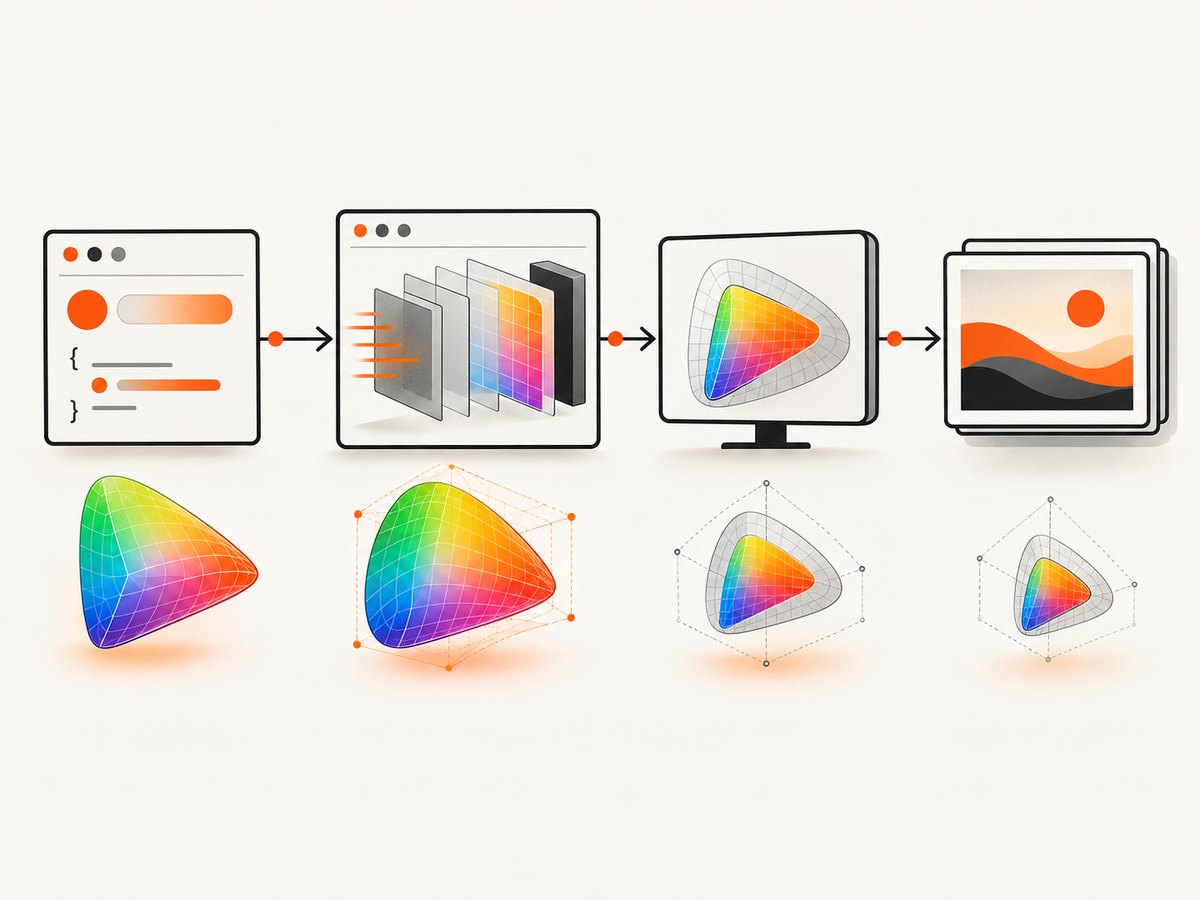
Wide-gamut rendering involves several stages. CSS supplies a color in a specified space; Chromium parses and converts it through its rendering pipeline; the output color profile affects how colors are represented; and the screenshot library serializes pixels into an image. A positive result at one stage does not prove success at the next.
| Question | What it tells you |
|---|---|
Does CSS.supports() accept the declaration? |
The browser recognizes the CSS syntax. |
Does matchMedia('(color-gamut: p3)') match? |
The page reports a display or emulated capability at least as wide as P3. |
| Which Chromium output profile is active? | How rendered colors are mapped for the browser output path. |
| What profile is embedded in the screenshot? | How image viewers should interpret the saved pixels. |
| What are the pixel values? | Whether the captured data retains the distinctions you expect. |
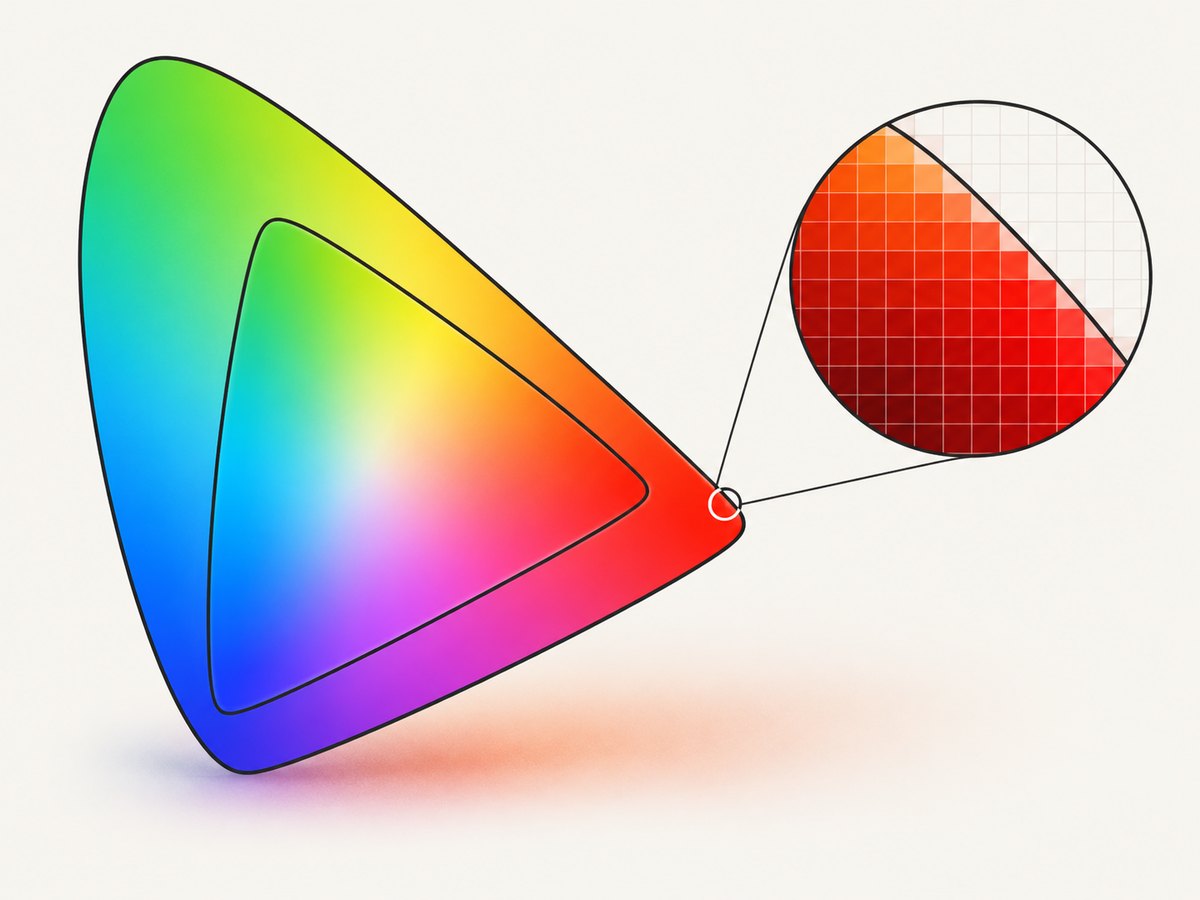
Chromium documents support for CSS Color 4 gamuts and color spaces, including the color() function with display-p3 and rec2020. Chrome’s guidance describes Display P3 as covering 45.5% of the visible spectrum and Rec.2020 as covering 77.6%. These are gamut coverage figures, not guarantees about any particular screenshot file. See the Chrome high-definition CSS color guide.
2. Add wide-gamut CSS with a fallback
Progressive enhancement lets browsers that do not support the wide-gamut declaration retain a usable sRGB color. Put the fallback first and the wide-gamut declaration second:
.swatch {
  color: rgb(255 0 0); /* sRGB fallback */
  color: color(display-p3 1 0 0);
}
For a background, use the same order:
.swatch {
  background-color: rgb(255 0 0);
  background-color: color(display-p3 1 0 0);
}
To apply the declaration only when supported, use @supports:
.swatch {
  background-color: rgb(255 0 0);
}

@supports (color: color(display-p3 0 0 0)) {
  .swatch {
    background-color: color(display-p3 1 0 0);
  }
}
Chrome documents this fallback pattern and feature query in its wide-gamut color guidance. The fallback makes the page usable; it does not make an sRGB screenshot preserve P3 color.
3. Verify CSS and gamut in the page
Run both a syntax check and a media query check in the same browser context that will capture the page:
const result = await page.evaluate(() => ({
  supportsDisplayP3: CSS.supports('color: color(display-p3 1 0 0)'),
  supportsRec2020: CSS.supports('color: color(rec2020 1 0 0)'),
  reportsP3: matchMedia('(color-gamut: p3)').matches,
  reportsRec2020: matchMedia('(color-gamut: rec2020)').matches,
  reportsSrgb: matchMedia('(color-gamut: srgb)').matches,
}));
console.log(result);
Interpret the fields separately. supportsDisplayP3 indicates syntax support. reportsP3 describes the gamut reported to the page under the current environment and emulation. A false P3 media query does not necessarily mean Chromium cannot parse P3 CSS; it means the page is not being told that its output supports P3. The color-gamut feature can report or be emulated as srgb, p3, or rec2020.
Use the actual page style and inspect computed styles too. A CSS feature query can pass even when a selector does not match, a later declaration overrides it, or the capture path subsequently converts the result.
4. Runnable capture example with Playwright
This Node.js example starts Chromium, checks support and the reported gamut, renders an intentionally wide-gamut swatch, and captures a PNG. It demonstrates an sRGB fallback and returns the checks alongside the capture. It does not assert that the resulting PNG has a particular ICC profile; inspect the file separately for that.
npm install playwright
npx playwright install chromium
// save as capture-p3.mjs
import { chromium } from 'playwright';
const browser = await chromium.launch({ headless: true });
const page = await browser.newPage({
viewport: { width: 900, height: 500 },
deviceScaleFactor: 1,
});
await page.setContent(`
<!doctype html>
<meta charset="utf-8">
<style>
body { margin: 0; font: 18px sans-serif; background: #eee; }
.swatch {
width: 600px; height: 300px; margin: 60px auto;
background: rgb(255 0 0);
background: color(display-p3 1 0 0);
}
</style>
<div class="swatch"></div>
`);
const checks = await page.evaluate(() => ({
displayP3Syntax: CSS.supports('color: color(display-p3 1 0 0)'),
rec2020Syntax: CSS.supports('color: color(rec2020 1 0 0)'),
p3Gamut: matchMedia('(color-gamut: p3)').matches,
rec2020Gamut: matchMedia('(color-gamut: rec2020)').matches,
computedBackground: getComputedStyle(document.querySelector('.swatch')).backgroundColor,
}));
await page.screenshot({ path: 'wide-gamut.png' });
console.log(checks);
await browser.close();Run it with node capture-p3.mjs. For a full-page capture, pass fullPage: true to page.screenshot(). That changes the captured area, not the underlying color profile. To capture one element, call locator('.swatch').screenshot({ path: 'swatch.png' }).
5. Control the Chromium color profile
Chromium has forced color profile options, including Display P3 D65 and ITU-R BT.2020. Its flag description says the setting forces Chrome to use a specified profile instead of the current monitor’s profile. This is useful for a controlled comparison, but profile behavior can vary with Chromium version, operating system, and automation setup. Record those details with results.
With Playwright, pass a Chromium argument at launch:
const browser = await chromium.launch({
  headless: true,
  args: ['--force-color-profile=display-p3-d65'],
});
For a Rec.2020 experiment, Chromium’s profile name is rec2020:
args: ['--force-color-profile=rec2020']Or launch Chromium directly with the corresponding flag:
chromium --headless --force-color-profile=display-p3-d65 --screenshot=page.png https://example.comCommand-line flags and executable names depend on the installed Chromium build and platform. Confirm the selected profile is accepted by your binary. Setting an output profile helps make runs repeatable; it does not alone prove the saved file is tagged or encoded in that space. Chromium’s relevant implementation details are available in the color space source and its profile definitions.
6. Inspect the screenshot, not just the page
After capture, check the image metadata and pixel channel values with a tool that can report ICC profiles and decode the image. Compare a known sample region from the sRGB fallback and the P3 declaration. Use a source color that is outside sRGB; a color that fits inside both spaces may produce identical values and tell you little.
- Record Chromium version, OS, headless or headed mode, and automation library/version.
- Record the
CSS.supports()andcolor-gamutresults. - Record the forced profile, if any, and how the screenshot was generated.
- Inspect whether the output file contains an ICC profile and identify that profile.
- Decode the image and compare pixel values in the swatch region against your expected rendering.
- Open the image in a color-managed viewer as a visual cross-check, not as the only measurement.
Some formats or libraries may omit profile metadata or convert to a narrower space when encoding. A visually vivid screenshot alone does not establish that the image contains wide-gamut values. Treat the screenshot serialization step as part of the experiment.
7. Puppeteer and other capture libraries
Puppeteer and Playwright both automate Chromium, so the same distinction applies: engine CSS support, page-reported gamut, selected output profile, and saved image profile are separate checks. For Puppeteer, launch Chromium with the profile argument and use the standard page evaluation and screenshot APIs:
import puppeteer from 'puppeteer';

const browser = await puppeteer.launch({
  headless: true,
  args: ['--force-color-profile=display-p3-d65'],
});
const page = await browser.newPage();
await page.setViewport({ width: 900, height: 500, deviceScaleFactor: 1 });
await page.setContent(`<div style="width:400px;height:200px;
  background:rgb(255 0 0);
  background:color(display-p3 1 0 0)"></div>`);
console.log(await page.evaluate(() => ({
  supports: CSS.supports('color: color(display-p3 1 0 0)'),
  gamut: matchMedia('(color-gamut: p3)').matches,
})));
await page.screenshot({ path: 'puppeteer-p3.png' });
await browser.close();
When switching libraries, do not assume identical defaults. Compare the same Chromium build, profile setting, viewport, device scale, page, and output format. If a library wraps Chromium or post-processes screenshots, include that step in the comparison.
8. Troubleshooting common problems
| Symptom | Likely cause | Fix |
|---|---|---|
CSS.supports() is false |
The browser build is old, the expression is malformed, or the tested property/value is not valid. | Check the exact CSS Color 4 syntax and Chromium version. Test color(display-p3 1 0 0) directly. |
CSS support is true, but color-gamut: p3 is false |
The current environment reports sRGB, or the automation context is not emulating a wider gamut. | Keep the sRGB fallback. Configure a supported emulation/profile for the experiment and record both results. |
| The computed color looks like RGB | Computed style serialization may express a converted color in a different notation; a declaration may also be overridden. | Inspect the matched CSS rule and screenshot pixels. Do not infer output gamut from one computed-style string. |
| Headed and headless images differ | Monitor profile, OS color management, Chromium profile, device scale, or capture-library path differs. | Use the same Chromium build and explicit profile where possible; record environment and compare metadata and pixels. |
| The image looks sRGB in an editor | The file may be converted to sRGB, lack a usable ICC profile, or be viewed in a non-color-managed application. | Inspect the embedded profile and decoded channel values with a color-aware image tool. |
| The P3 and sRGB test swatches match | The chosen color may be within sRGB, or the output stage may have converted both to sRGB. | Choose an intentionally out-of-sRGB color and verify the output profile and pixel data. |
| The profile flag appears ineffective | The Chromium binary may not recognize that profile name or the automation library may launch a different executable. | Check the actual executable and version, use Chromium’s supported profile value, and inspect the resulting image. |
| Screenshot is blank or clipped | Capture occurred before content rendered, or the screenshot area/viewport was wrong. | Wait for the target element, set an explicit viewport, and capture the intended element or full page. |
9. Performance, reliability, and cost
Color support checks are inexpensive page evaluations. The costly parts of a screenshot workflow are generally browser startup, page navigation, waiting for the page to reach the desired state, rendering, and image encoding. The research sources do not establish a universal performance difference for wide-gamut screenshots, so measure with your own Chromium build and page rather than assuming P3 or Rec.2020 adds a fixed overhead.
For repeatable captures, pin the browser version where practical, use a stable profile setting, wait for the exact content needed, and keep viewport and device scale constant. Avoid comparing a headed run on a calibrated wide-gamut monitor with a headless run using unspecified defaults. Save environment details next to test artifacts, and inspect both image metadata and pixels.
CI workers often have no physical monitor. That makes implicit reliance on the host display profile especially hard to interpret. An explicit Chromium profile can make an experiment more controlled, but validate the complete encoding path on the worker image used in production. If screenshots are stored in multiple formats or post-processed, inspect each final format.
10. Or skip the browser setup
ScreenshotNeo is a website screenshot API and MCP server for developers. For a quick capture, make one GET request; see the API documentation for options and setup:
curl -G "https://api.screenshotneo.com/v1/shot" \
  -d access_key=YOUR_API_KEY \
  --data-urlencode url=https://example.com \
  -o shot.webp
Python:
import requests

r = requests.get(
    "https://api.screenshotneo.com/v1/shot",
    params={"access_key": "YOUR_API_KEY", "url": "https://example.com"},
    timeout=90,
)
open("shot.webp", "wb").write(r.content)
Node.js:
const q = new URLSearchParams({
  access_key: 'YOUR_API_KEY',
  url: 'https://example.com',
});
const res = await fetch(`https://api.screenshotneo.com/v1/shot?${q}`);
if (!res.ok) throw new Error(`Screenshot request failed: ${res.status}`);
await import('node:fs/promises').then(({ writeFile }) =>
  writeFile('shot.webp', Buffer.from(await res.arrayBuffer()))
);
ScreenshotNeo removes cookie and consent banners, newsletter popups, and chat widgets before capture; those steps can be turned off. Bot checks, blank pages, failed loads, timeouts, and cache hits are not billed, and response headers report the page verdict and billing status. Its MCP server gives AI agents tools for screenshots, page information, and PDFs. The free plan includes 1,000 shots per month with no card; paid plans start at $5 for 3,000 shots. These API details do not establish a particular wide-gamut ICC profile: inspect the returned image if color fidelity is a requirement.
Sign up free for 1,000 screenshots a month, no card required.
11. FAQ
Does headless Chromium support Display P3?
Yes, Chromium supports CSS Color 4 Display P3 syntax. Verify the page’s reported gamut and inspect the saved image to confirm the capture path’s result.
Does a passing CSS feature query prove my screenshot is P3?
No. It proves that the CSS syntax is supported. It does not prove the output profile or saved pixel encoding.
Does color-gamut: p3 turn on P3 rendering?
It reports a gamut capability to CSS and can be emulated. Treat it as a capability check, then separately control and validate the rendering and screenshot output profile.
Should I use Rec.2020 instead of Display P3?
Use the color space your design and output pipeline require. Rec.2020 is wider, but that does not mean a given display, screenshot format, or viewer will preserve or show all its colors.
Can I trust what the image looks like in my browser?
Use visual inspection as a cross-check. For fidelity work, also inspect the ICC profile and decoded pixels, because viewers and color management affect appearance.


