BlogScreenshots on your device
How to Capture Google Chrome in OBS
Capture only a Chrome window in OBS on Windows, macOS, or Linux, with platform-specific settings, troubleshooting, and recording tips.
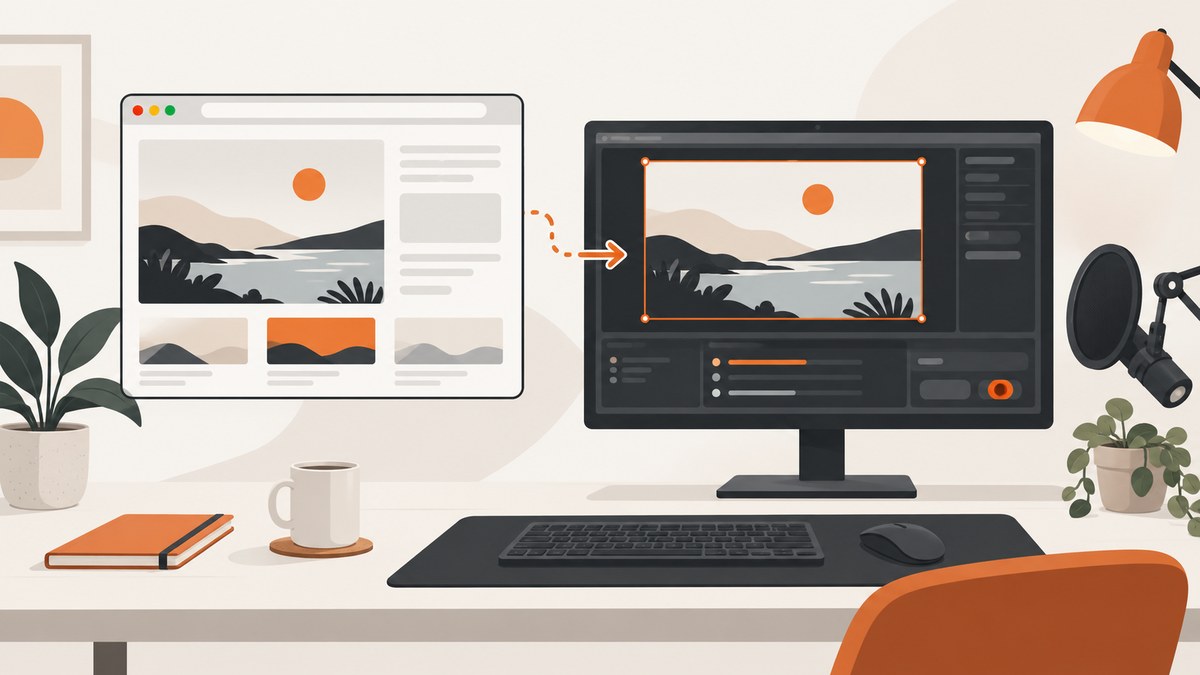
Direct answer: In OBS, add a Window Capture source, open its properties, and select the Chrome window. This captures that window even when other windows overlap it. On macOS 13 or later, use macOS Screen Capture instead. On Linux, choose the window or screen-capture source available for your OBS build and desktop session. Check the preview and make a short test recording before your real stream.
Choose the right OBS source
| Goal | Source | What appears |
|---|---|---|
| Show one already-open Chrome window | Window Capture | The selected Chrome window and its contents |
| Capture Chrome on macOS 13 or later | macOS Screen Capture | A selected window, application, or display |
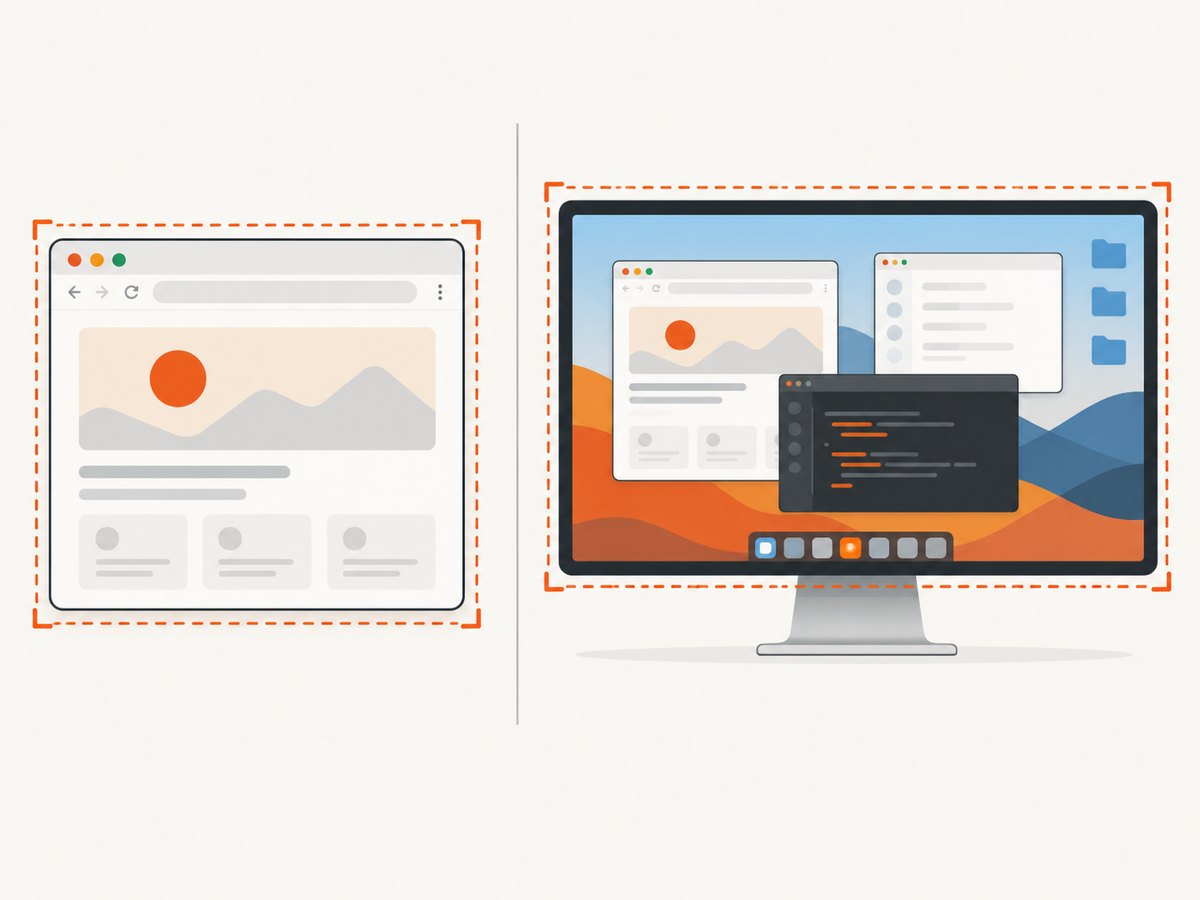
| Show the entire monitor | Display Capture | Everything visible on the display, including overlapping windows |
| Render a webpage inside OBS | Browser Source | A page rendered by Chrome Embedded Framework, not your existing Chrome window |
OBS describes Window Capture as capturing “a specific window and its contents.” See the official Window Capture Sources and Sources Guide documentation for the source controls.
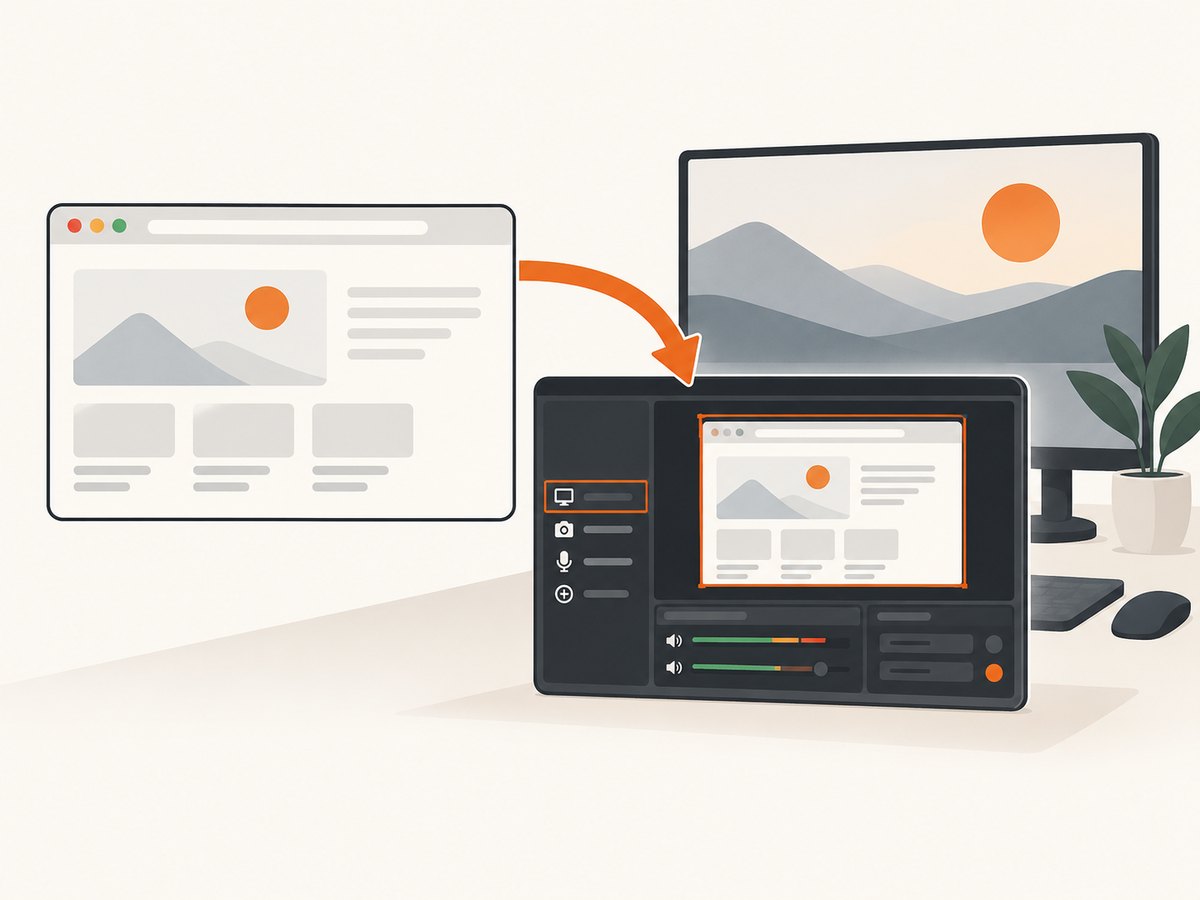
Windows: capture a Chrome window
- Open Chrome and navigate to the page you want to show.
- Open OBS and select or create the scene for your recording or stream.
- In the Sources dock, click + and choose Window Capture.
- Give the source a clear name, such as
Chrome - Demo, and click OK. - In the properties dialog, open the Window list and choose the Chrome window.
- Review the preview. Drag the red transform handles to resize it, or use the transform controls to position it in the scene.
- Set the documented cursor option according to whether the pointer should be visible.
- Click OK, then make a short recording and inspect the result.
Window Capture includes capture-method and window-match settings. Leave the defaults initially, then adjust them only if the selected window is not captured correctly. On a Windows laptop with more than one GPU, OBS notes that performance or capture-type problems can occur when OBS and the application run on different GPUs. Follow the OBS GPU Selection Guide if that applies.
Keep Chrome-only capture clean
- Keep the Chrome window open and identifiable in the Window list.
- Place the Chrome source above lower sources in the Sources list when it should appear in front; sources higher in the list render above sources below them.
- Use a dedicated Chrome window for the session so notifications, unrelated tabs, and personal content are not shown.
- Use Display Capture only when you actually need the whole desktop.
macOS: use macOS Screen Capture
For macOS 13 and later, OBS marks the older Window Capture source as deprecated. Add macOS Screen Capture instead, then select the Chrome window or the Chrome application. The source is based on ScreenCaptureKit and supports audio capture on macOS 13 and later. The official setup is documented in macOS Screen Capture Source.
- Open Chrome and the target page.
- In OBS, choose the scene that will contain the capture.
- Click + in Sources and add macOS Screen Capture.
- In its properties, choose the Chrome window or application from the capture selection.
- Check the preview, position the source, and record a short test.
OBS documents macOS Screen Capture without audio for macOS 12.3–12.6, while the older Window Capture source is documented for macOS 10.15–12.6. OBS also notes that Window Capture is less performant on macOS than on other platforms and suggests Display Capture for a smoother experience. Source availability and performance depend on the installed OBS version, so verify with a test recording.
Linux: select the source provided by your session
Linux menus vary with the OBS package and desktop session. OBS documents Window Capture (Xcomposite) and Window Capture (PipeWire) options. PipeWire requires Wayland according to OBS’s display-capture documentation.
- Open Chrome and the page to be shown.
- In OBS, click + in the Sources dock.
- Choose the available window-capture source, such as Xcomposite or PipeWire, or the display-capture source supplied by your session.
- Select Chrome when the source exposes a window list.
- Check the preview and make a short test recording.
There is no single identical menu path on every Linux system. If your session exposes only display capture, use it with care because unrelated windows can appear.
Window Capture, Display Capture, or Browser Source?
Window Capture
Choose this for an existing Chrome application window. It is the most direct way to show Chrome without intentionally capturing the rest of the desktop.
Display Capture
Choose this when the full monitor is part of the presentation or when a suitable window source is unavailable. It can include overlapping windows, desktop notifications, and other content.
Browser Source
Browser Source opens a webpage inside OBS using Chrome Embedded Framework. It is useful when you want OBS to render the page itself. It does not capture the tabs, extensions, address bar, or state of an already-open Chrome window. OBS documents this distinction in its Browser Source guide.
Test before recording or streaming
- Confirm the correct Chrome window or application is selected.
- Check that the page is visible in the OBS preview.
- Resize the source and verify that the content is not cropped.
- Move the pointer if it should appear in the recording.
- Record a short clip, stop, and watch the file from start to finish.
- Check the final output for missing content, black frames, dropped frames, or unwanted desktop material.
OBS’s Quick Start Guide recommends a brief test before relying on a recording or stream. This catches source-selection and performance problems while they are easy to fix.
Troubleshooting
| Symptom | Likely cause | Fix |
|---|---|---|
| Chrome is missing from the Window list | Chrome was not open when the properties dialog was checked, or the source list has not refreshed. | Open the Chrome window, reopen the source properties, and check the list again. Confirm that you added a window source rather than Browser Source. |
| The preview shows the wrong window | A different Chrome window is selected, or the source is matching by a broad rule. | Open properties and select the exact Chrome window. Rename separate Chrome windows so they are easy to distinguish. |
| Other applications appear | Display Capture is being used. | Use Window Capture on supported systems, or macOS Screen Capture on macOS 13 and later, when only Chrome should appear. |
| macOS does not offer the expected source | The OBS version or macOS version exposes different capture sources. | On macOS 13 or later, add macOS Screen Capture. On older versions, check the available Window Capture and Display Capture sources, then test. |
| Capture is slow or unstable on a Windows laptop | OBS and Chrome may be running on different GPUs. | Review OBS’s GPU Selection Guide and align the GPU assignment where appropriate. |
| Linux has no identical Window Capture menu | The available source depends on the desktop session, display protocol, and OBS package. | Use the Xcomposite or PipeWire window source exposed by your build. PipeWire requires Wayland. If only display capture is available, use it and keep unrelated windows out of the display. |
| The page is visible but browser controls are missing | The source is Browser Source, which renders the page rather than capturing the application window. | Use Window Capture or macOS Screen Capture when the existing Chrome UI is required. |
Blank captures, protected video, browser hardware acceleration, and compositor-specific failures can depend on the application, driver, OBS version, and desktop session. Treat them as case-specific: first verify the selected source and platform support, then make a short test with the simplest scene.
Performance and reliability checklist
- Capture only the window or application you need.
- Close unrelated Chrome windows and heavy tabs before recording.
- Keep the OBS preview visible during setup so a lost source is obvious.
- Use a short test recording after changing the source, GPU assignment, or operating-system version.
- For live sessions, prepare a fallback scene using Display Capture or a static scene in case the window source disappears.
- On macOS, prefer macOS Screen Capture on version 13 or later.
Or skip the browser setup
If you need a saved image of a webpage rather than a live recording of your Chrome desktop, ScreenshotNeo provides a website screenshot API. One GET request returns a PNG, JPEG, WebP, or PDF. The API accepts the page URL and can handle full-page capture, device presets, custom viewports, dark mode, waits, custom CSS and JavaScript, cookies, headers, geolocation, and other capture settings. See the ScreenshotNeo documentation for all options.
curl -G "https://api.screenshotneo.com/v1/shot" -d access_key=YOUR_API_KEY --data-urlencode url=https://stripe.com -o shot.webpimport requests
r = requests.get(
"https://api.screenshotneo.com/v1/shot",
params={"access_key": "YOUR_API_KEY", "url": "https://stripe.com"},
timeout=90,
)
open("shot.webp", "wb").write(r.content)const q = new URLSearchParams({ access_key: 'YOUR_API_KEY', url: 'https://stripe.com' });
const res = await fetch(`https://api.screenshotneo.com/v1/shot?${q}`);Cookie banners, newsletter popups, and chat widgets are removed before the shot. Bot checks, blank pages, failed loads, timeouts, and cache hits are not billed, and response headers identify the page verdict and billing result. ScreenshotNeo also provides an MCP server so Claude, Cursor, and other MCP clients can take screenshots, inspect page information, or capture PDFs. The Free plan includes 1,000 screenshots per month with no card; paid plans start at $5 for 3,000 shots. Create a free ScreenshotNeo account.
FAQ
Can OBS capture Chrome while another window is on top?
Window Capture is designed to capture the selected window even when other windows overlap it. Display Capture can show the overlapping window.
Should I capture a Chrome tab or the whole Chrome window?
Window Capture selects the Chrome window, including the browser interface visible in that window. Use Browser Source when you want OBS to render only the webpage inside OBS.
Which source should macOS 13 users choose?
Use macOS Screen Capture and select the Chrome window or application.
Why make a test recording?
A short test verifies the source, framing, cursor behavior, audio expectations, and performance before a real stream or recording.
Can ScreenshotNeo replace an OBS recording?
No. ScreenshotNeo captures webpages as image files or PDFs through an API. OBS records or streams your desktop and application windows.


