How to Use Figma MCP
Set up Figma MCP in VS Code, Claude Code, Gemini CLI, Codex, Cursor, and other clients. Learn remote versus desktop servers and design-to-code workflows.

Figma MCP connects Figma design context to an AI coding client. The recommended setup for most users is Figma’s hosted server at https://mcp.figma.com/mcp. Add that Streamable HTTP endpoint to an MCP-capable client, start the server, complete Figma’s browser authorization, and then give the agent a selected frame or focused file context.
Figma MCP can expose components, variables, layout data, FigJam content, and Make resources. Supported workflows can generate implementation code from selected frames and, where available, create or modify native Figma content. Figma announced the beta on June 4, 2025, describing it as a way to bring Figma into design-informed code generation. See the official Figma MCP guide and Figma’s MCP documentation for current availability.
What you need
- An MCP-capable client such as VS Code, Claude Code, Gemini CLI, Codex, Cursor, or another client listed in Figma’s supported catalog.
- A Figma account that can authorize the remote server. Remote availability and feature access depend on the client, seat, plan, and organization settings.
- A design file or frame that you are allowed to view. Selecting a bounded frame usually gives an agent clearer context than sending an entire file.
Remote Figma MCP: recommended setup
- Open your MCP client’s server configuration.
- Add an HTTP or Streamable HTTP server with the URL
https://mcp.figma.com/mcp. - Start the server from the client’s MCP controls.
- Complete the browser-based Figma authorization flow.
- Return to the client and confirm that the Figma server reports an authenticated connection.
- Open a Figma file, select a useful frame or focus the relevant file area, and ask the agent to inspect the design before writing code.
VS Code
In VS Code, open the Command Palette and choose MCP: Open User Configuration (or the workspace configuration command). Add this server entry:
{
  "inputs": [],
  "servers": {
    "figma": {
      "url": "https://mcp.figma.com/mcp",
      "type": "http"
    }
  }
}
Save the file, click Start above the server entry, and finish authentication in the external browser window. The URL and configuration pattern are documented in VS Code’s MCP server documentation and Figma’s setup guide.
Claude Code
Run Figma’s remote installation command:
claude mcp add --transport http figma https://mcp.figma.com/mcpAdd --scope user if the server should be available across projects. Start a new Claude Code instance, run /mcp, choose the Figma server, select Authenticate, and approve the connection in your browser.
Gemini CLI
Install Figma’s documented extension and authenticate it:
gemini extensions install https://github.com/figma/mcp-server-guide
gemini
/mcp auth figma
Codex
For the desktop workflow in Codex, open Settings → MCP servers, click Add server, change the type from STDIO to Streamable HTTP, name the server figma-desktop, and enter http://127.0.0.1:3845/mcp. The remote endpoint is the better choice when you want Figma’s hosted feature set; the localhost endpoint is for the desktop server described below.
Cursor and other clients
Use the client’s MCP settings to add an HTTP or Streamable HTTP server. The endpoint remains https://mcp.figma.com/mcp; only the client’s configuration screen or file format changes. If your client is not in Figma’s supported catalog, verify compatibility before troubleshooting the URL.
Remote server versus desktop server
| Question | Remote server | Desktop server |
|---|---|---|
| Endpoint | https://mcp.figma.com/mcp |
http://127.0.0.1:3845/mcp |
| Figma desktop app required? | No | Yes |
| How it runs | Hosted by Figma | Local service in the Figma desktop app |
| Setup | Add the URL, start it, authenticate in a browser | Open a Design file, enter Dev Mode, enable MCP server, copy the local URL |
| Feature breadth | Figma recommends it for most users and documents it as the broadest option | Specialized local workflow for particular organization and enterprise needs |
| Plan and seat notes | Figma documents availability across all seats and plans, subject to client and feature access | Figma documents availability on a Dev or Full seat for paid plans |
Choose remote unless you specifically need the local desktop workflow, local network behavior, or an organization requirement that calls for it. Figma’s comparison guidance is the source of these availability and recommendation details.
Enable the desktop MCP server
- Install and open the Figma desktop app.
- Open a Design file.
- Switch to Dev Mode.
- Enable MCP server in the right sidebar.
- Copy the displayed local URL, normally
http://127.0.0.1:3845/mcp. - Add that URL as a Streamable HTTP server in your MCP client.
- Keep the Figma desktop app open while the client connects.
If the local URL does not respond, confirm that the desktop app is running, a Design file is open, Dev Mode is active, and the MCP toggle is enabled.

Use Figma MCP for design-to-code
1. Give the agent bounded context
Select one frame, component, or short flow. A focused selection reduces unrelated design information and makes follow-up changes easier to reason about.
2. Ask for an inventory before implementation
Inspect the selected frame before writing code. List its layout structure, components, variables, typography, spacing, colors, responsive behavior, and referenced assets. Identify anything that is ambiguous.3. Request code that matches the repository
Using the existing project conventions, implement this frame as a reusable component. Preserve the project’s framework, routing, styling approach, naming conventions, and design tokens. Explain which Figma variables map to existing tokens and flag any missing assets.4. Compare and iterate
Render the result, compare it with the source frame, and ask for focused corrections such as “fix the 8 px spacing mismatch in the card header” or “use the existing Button component.” Dev Mode and Code Connect can help map design-system components to production components.
5. Use write-to-canvas workflows carefully
Where your client and account support it, ask the agent to create or modify native Figma content. Confirm the intended target frame and review the changes in Figma before continuing.
Useful prompt patterns
- Responsive behavior: “Infer desktop, tablet, and mobile behavior from the selected frame. Separate observed constraints from assumptions.”
- Accessibility: “Recommend semantic elements, keyboard behavior, focus states, and accessible names for every interactive element.”
- Asset handling: “List every image, icon, and font required. Do not invent URLs; mark unavailable assets as placeholders.”
- Token mapping: “Map colors, spacing, typography, and radii to existing project tokens. Report values with no matching token.”
- Review: “Compare the implementation against the selected frame and return a checklist of visual differences grouped by layout, type, color, and assets.”
What the server can expose
Depending on the supported client, account, and workflow, Figma MCP can provide:
- Component and design-system information.
- Variables and layout data.
- Content from FigJam.
- Make resources.
- Design context for code generation from selected frames.
- Support for creating or modifying native Figma content in supported workflows.
Do not assume every client exposes every capability. The client catalog, seat, plan, organization policy, and whether you use remote or desktop mode all affect availability.
Troubleshooting
| Symptom | Likely cause | Fix |
|---|---|---|
| Server does not appear in the client | Invalid configuration or unsupported client | Check the JSON or command, restart the client, and confirm the client appears in Figma’s supported catalog. |
| Authentication window never opens | Client blocked the browser handoff | Start the server again, allow the external browser prompt, and complete authorization in the same account you use for Figma. |
| Server says unauthenticated | Authorization was cancelled, expired, or completed in another account | Use the client’s reconnect or authenticate action and approve access again. |
| Remote endpoint fails to connect | Wrong transport or URL | Use an HTTP or Streamable HTTP server and exactly https://mcp.figma.com/mcp. Do not configure it as a STDIO command. |
| Desktop endpoint is unreachable | Figma desktop app, Dev Mode, or MCP server is not active | Open a Design file, enable Dev Mode and MCP server, keep the app open, then retry http://127.0.0.1:3845/mcp. |
| Agent sees the wrong design | Too much file context or no selected frame | Select a bounded frame and name the exact screen or component in the prompt. |
| Generated code misses components or tokens | Design context is incomplete or the repository mapping is unclear | Ask for an inventory first, then provide the project’s component and token conventions. |
| A feature is unavailable | Seat, plan, client, organization policy, or server mode restriction | Check Figma’s current availability documentation and try the hosted server if you are using desktop mode. |
Performance, reliability, and security considerations
- Context size: Start with one frame or flow. Large files can add irrelevant context and make generated changes harder to review.
- Iteration speed: Use short, targeted follow-up prompts after the first implementation instead of resending the entire request.
- Availability: Remote MCP removes the requirement to keep the desktop app running. Desktop MCP depends on the local app, the open file, Dev Mode, and the local service.
- Authentication: Treat the MCP connection as access to design files. Use the intended Figma account and follow your organization’s access policy.
- Reproducibility: Record the selected frame, client, server mode, and prompt when reviewing generated code so another developer can reproduce the context.
Or skip the browser setup
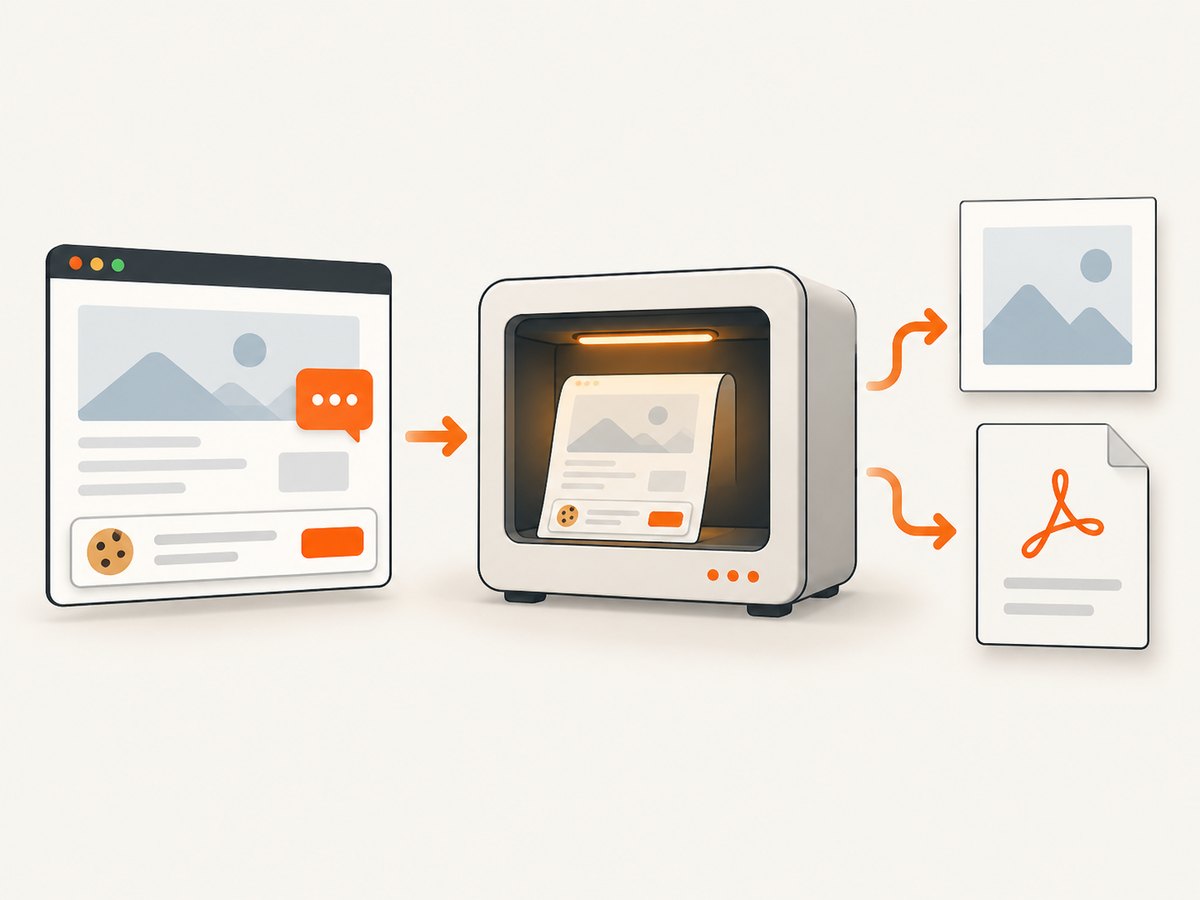
If your next task is capturing the rendered result of a Figma-generated page, ScreenshotNeo provides a website screenshot API and MCP server. It accepts one GET request and returns a PNG, JPEG, WebP, or PDF. Cookie and consent banners, newsletter popups, and chat widgets are removed before capture; bot checks, blank pages, failed loads, timeouts, and cache hits are not billed.
cURL:
curl -G "https://api.screenshotneo.com/v1/shot" -d access_key=YOUR_API_KEY --data-urlencode url=https://www.figma.com -o shot.webpPython:
import requests
r = requests.get("https://api.screenshotneo.com/v1/shot", params={"access_key": "YOUR_API_KEY", "url": "https://www.figma.com"}, timeout=90)
open("shot.webp", "wb").write(r.content)
Node.js:
const q = new URLSearchParams({ access_key: 'YOUR_API_KEY', url: 'https://www.figma.com' });
const res = await fetch(`https://api.screenshotneo.com/v1/shot?${q}`);
See the ScreenshotNeo API documentation for the options. Its MCP server gives Claude, Cursor, and other MCP clients tools named take_screenshot, get_page_info, and capture_pdf. The response headers X-Page-Verdict and X-Billed explain whether a capture was clean and billed. Plans include 1,000 screenshots per month free with no card; paid plans start at $5 for 3,000. Create a free ScreenshotNeo account.
FAQ
Do I need the Figma desktop app?
No for the hosted server. You need it for the local desktop server.
Which endpoint should I use first?
Use https://mcp.figma.com/mcp unless you have a specific reason to run the desktop server locally.
Can Figma MCP write back to Figma?
Supported workflows and skills can create or modify native Figma content, but availability depends on the client, account, and enabled capabilities.
Why should I select a frame?
A selected frame gives the agent a bounded design context for more focused inspection and implementation.
Is Figma MCP an API key integration?
The documented remote setup uses browser-based Figma authorization in the MCP client rather than a manually pasted API key.


