Why html2canvas Produces Different Results on Each Click and How to Fix It
html2canvas rebuilds the DOM instead of capturing browser pixels. Learn why repeated clicks differ and how to make captures stable.
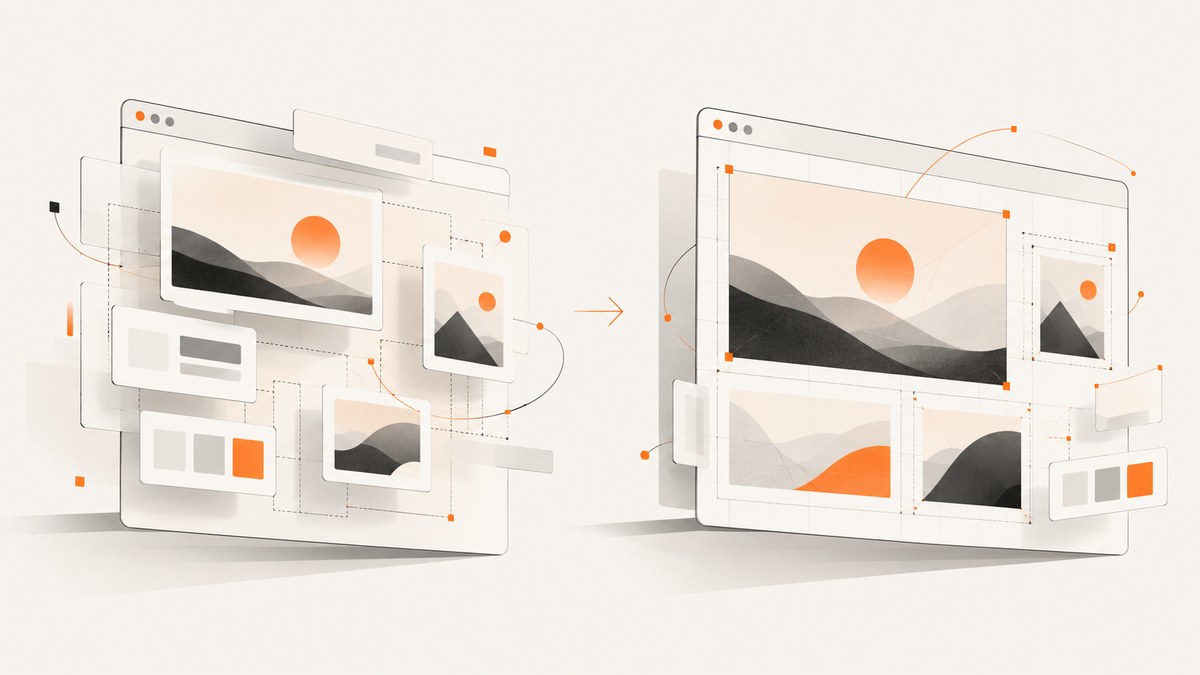
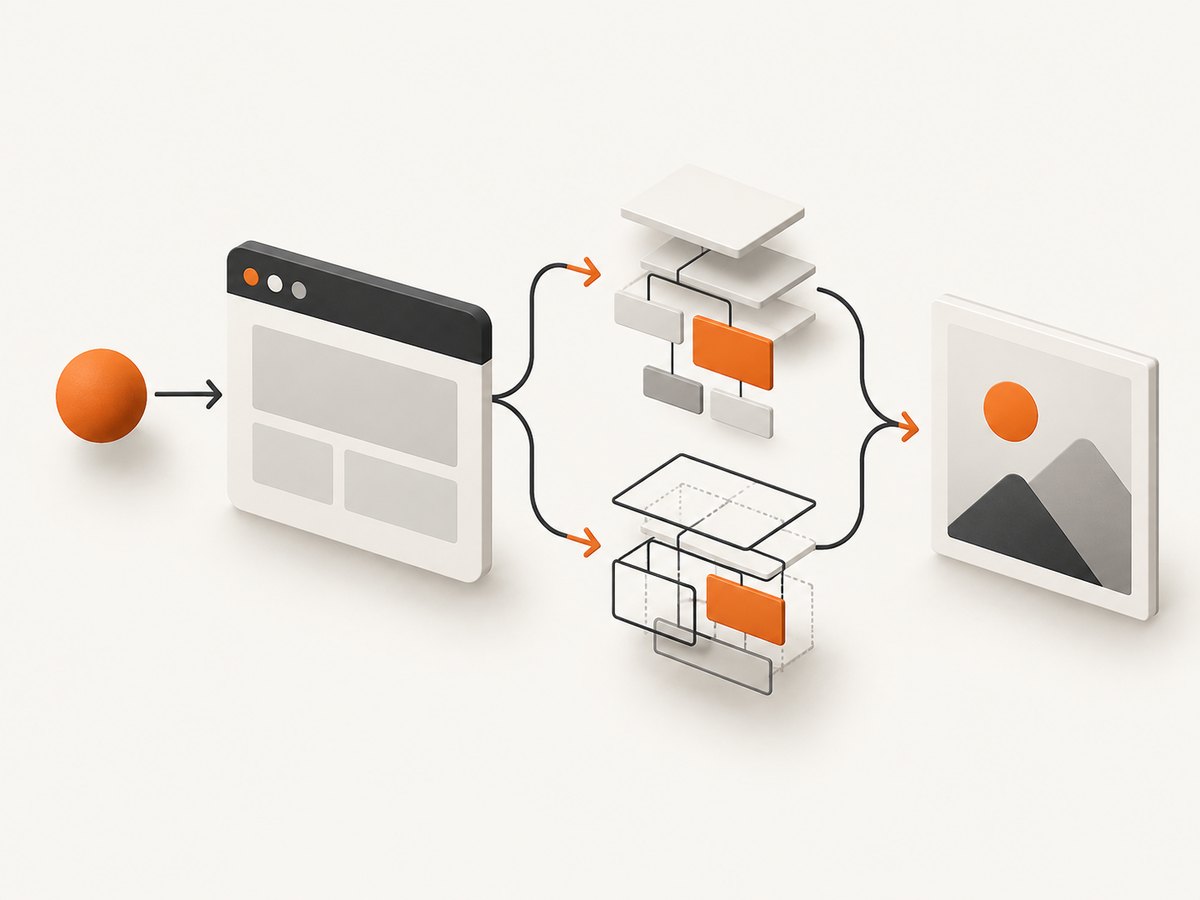
Short answer: html2canvas does not take a pixel screenshot of the browser. It traverses the DOM and reconstructs an image from the CSS and element information it supports. If the DOM state, viewport, scroll position, device-pixel ratio, resources, fonts, animations, or supported CSS differ between clicks, the canvas can differ too. Make those inputs explicit and wait for your application and assets to be ready before calling html2canvas().
The library’s official documentation describes this reconstruction model. It also means that changing timing cannot make an unsupported CSS property render correctly, and browser security rules still apply to cross-origin images.
What changes between two clicks?
Start by treating every capture as a function of its inputs:
pixels = f(domState, css, viewport, scroll, devicePixelRatio,
            resources, fonts, animations, html2canvasOptions)
If any input changes, a different result is expected. Common causes are:
- Mutable DOM state: React/Vue updates, lazy content, counters, timestamps, random IDs, ads, or a selected tab change between calls.
- Viewport and media queries:
windowWidth,windowHeight, browser zoom, or device-pixel ratio changes which rules match. - Scroll position: fixed and sticky elements are positioned relative to the capture viewport and scroll offsets.
- Resources still loading: images, web fonts, CSS, and application requests may finish after the first click.
- Animation and transitions: a cloned page can be captured at a different animation frame each time.
- Cross-origin policy: images without permission may be skipped or taint the canvas.
- Unsupported CSS: html2canvas implements CSS properties manually; browser rendering support is broader.
- Canvas limits: very large dimensions can produce a blank or truncated output.
Make a capture reproducible
1. Capture a known element and log its state
Use a stable selector and record the values that can explain a mismatch before comparing image bytes.
const target = document.querySelector('#capture');
if (!target) throw new Error('Missing #capture element');

const rect = target.getBoundingClientRect();
console.table({
  width: rect.width,
  height: rect.height,
  viewportWidth: window.innerWidth,
  viewportHeight: window.innerHeight,
  scrollX: window.scrollX,
  scrollY: window.scrollY,
  devicePixelRatio: window.devicePixelRatio
});
2. Set scale and viewport options explicitly
According to the configuration reference, scale defaults to window.devicePixelRatio. That default differs across monitors and browser settings. Set it when output dimensions must be stable. Set windowWidth and windowHeight when media-query behavior must be stable. Set scrollX and scrollY when fixed or sticky content is involved.
const canvas = await html2canvas(target, {
  scale: 1,
  windowWidth: 1280,
  windowHeight: 800,
  scrollX: 0,
  scrollY: 0,
  logging: true
});
These options control the rendering context; they do not freeze application state or make all browsers paint identically.
3. Wait for fonts, application data, and images
document.fonts.ready waits for the browser’s known font faces, but it does not wait for every image or API request. Use your application’s own “ready” signal, then wait for images that the target actually contains.
await document.fonts?.ready;

const target = document.querySelector('#capture');
if (!target) throw new Error('Missing #capture element');

const images = [...target.querySelectorAll('img')];
await Promise.all(images.map((img) => {
  if (img.complete) return Promise.resolve();
  return new Promise((resolve) => {
    img.addEventListener('load', resolve, { once: true });
    img.addEventListener('error', resolve, { once: true });
  });
}));

const canvas = await html2canvas(target, { scale: 1 });
For lazy-loaded images, scroll or otherwise trigger the page’s loading mechanism first. A successful img.complete check only means the element finished its request; it does not guarantee the image is the intended version.
4. Freeze transient UI in onclone
html2canvas clones the document before rendering. The onclone callback lets you change that clone without changing the live page. Disable animations, transitions, blinking carets, rotating banners, and temporary controls there.
const canvas = await html2canvas(target, {
  scale: 1,
  windowWidth: 1280,
  windowHeight: 800,
  onclone: (clonedDocument) => {
    clonedDocument.querySelectorAll('.animated, .transient').forEach((node) => {
      node.style.animation = 'none';
      node.style.transition = 'none';
      node.style.caretColor = 'transparent';
    });
  },
  onError: (error) => console.error('Capture resource error:', error),
  logging: true
});
Use a capture-only stylesheet if you control the page:
const canvas = await html2canvas(target, {
  onclone: (doc) => {
    const style = doc.createElement('style');
    style.textContent = `
      *, *::before, *::after {
        animation: none !important;
        transition: none !important;
        caret-color: transparent !important;
      }
    `;
    doc.head.appendChild(style);
  }
});
Complete deterministic example
This browser example waits for fonts and images, fixes the viewport inputs, freezes the cloned document, and downloads a PNG.
<button id="save">Capture</button>
<section id="capture">Your stable content</section>
<script src="https://cdn.jsdelivr.net/npm/html2canvas@latest/dist/html2canvas.min.js"></script>
<script>
async function capture() {
  const element = document.querySelector('#capture');
  if (!element) throw new Error('Missing #capture');

  await document.fonts?.ready;
  await Promise.all([...element.querySelectorAll('img')].map((img) => {
    if (img.complete) return Promise.resolve();
    return new Promise((resolve) => {
      img.addEventListener('load', resolve, { once: true });
      img.addEventListener('error', resolve, { once: true });
    });
  }));

  const canvas = await html2canvas(element, {
    scale: 1,
    windowWidth: 1280,
    windowHeight: 800,
    scrollX: 0,
    scrollY: 0,
    logging: true,
    onclone: (doc) => {
      doc.querySelectorAll('.animated, .transient').forEach((node) => {
        node.style.animation = 'none';
        node.style.transition = 'none';
      });
    },
    onError: console.error
  });

  const link = document.createElement('a');
  link.download = 'capture.png';
  link.href = canvas.toDataURL('image/png');
  link.click();
}

document.querySelector('#save').addEventListener('click', capture);
</script>
Configuration checklist
| Need | Options or action | Limit |
|---|---|---|
| Stable pixel dimensions | scale, windowWidth, windowHeight |
Does not freeze DOM or network state. |
| Known page position | scrollX, scrollY |
Sticky and fixed layouts can still depend on page CSS. |
| Whole element | foreignObjectRendering only when appropriate; otherwise html2canvas reconstruction |
Browser support and CSS fidelity vary. |
| Cross-origin images | useCORS: true or the documented proxy option |
The image server must allow the request; html2canvas cannot bypass browser policy. |
| Debugging | logging: true, onError |
Logs identify clues, not a universal fix. |
| Large pages | Capture smaller regions, reduce scale, or use explicit dimensions |
Canvas limits vary by browser, platform, GPU, and memory. |
| Hidden controls | ignoreElements or capture-only CSS |
Ensure the selector does not remove required layout content. |
Read the full option reference before relying on defaults. Defaults can change between releases.
Troubleshooting
“The screenshot taken with different viewports return different images.”
GitHub issue #2947 records this report for Chrome 104 on Windows 10. It is an individual report, not proof of one universal cause. Compare target dimensions, viewport values, scroll offsets, device-pixel ratio, DOM state, and resource timing for each click. Freeze animations with onclone and reproduce with a fixed viewport.
Why aren’t my images rendered?
Most often the image is cross-origin and the server does not send an appropriate Access-Control-Allow-Origin header. Try useCORS: true only when the server permits CORS; that option requests CORS and does not override policy. Otherwise serve the image from the same origin or configure the documented proxy. Also check that lazy loading has completed and that the URL returns an image rather than a redirect or error page. See the FAQ.
Why is the produced canvas empty or cuts off halfway?
The canvas may exceed a browser or platform size limit. Reduce the element dimensions or scale, capture sections separately, and set windowWidth and windowHeight to sensible dimensions. The FAQ’s canvas figures are rough guidance, not constants; available limits vary by browser, operating system, GPU, and memory.
Why doesn’t CSS property X render correctly or only partially?
html2canvas must implement each CSS property itself, so unsupported or partial support is expected. Check the project’s supported-features reference and isolate the property with a minimal test. Reordering waits or changing scale cannot add CSS support. For effects that must match the browser’s painted output, use a real browser capture instead.
Text, fonts, or layout shift between clicks
Wait for document.fonts.ready and your app’s data-ready signal. A fallback font can change line wrapping and element height. Also remove timestamps, random values, caret blinking, and content that changes on an interval in the cloned document.
Only fixed or sticky elements move
Log scrollX and scrollY, then pass explicit values. Verify that the target’s bounding rectangle is stable and that your test does not scroll between the two clicks. A fixed element can legitimately appear at a different position when the capture viewport differs.
When html2canvas is the wrong capture method
Use html2canvas when you need a client-side reconstruction of a DOM region. Choose a different method when the requirement is the browser’s actual painted pixels:
- Browser extension: use the browser’s native tab-capture APIs, as the html2canvas FAQ recommends.
- Server-side screenshot: use a real-browser tool such as Puppeteer or Playwright. This better handles browser layout, dynamic content, and CSS, but requires browser processes and their operational overhead.
- Very large or repeated jobs: use a hosted screenshot API when you need a consistent remote environment, queueing, retries, and an output URL or binary response.
Performance, reliability, and cost
- Capture the smallest required element. Full-page DOM traversal and large canvases consume more CPU and memory.
- Use
scale: 1for predictable dimensions; higher scales increase pixels and memory roughly with the square of the scale. - Wait for required assets, but avoid arbitrary long delays. An application-ready signal is more reliable than a timer.
- Disable animation and transient UI in the clone so retries produce comparable output.
- Record options and environment details with each capture: library version, browser, viewport, device-pixel ratio, target bounds, scroll offsets, and resource errors.
- For cross-origin assets, plan CORS or proxy handling before production. A missing image can otherwise make two captures appear inconsistent.
- Do not treat identical output as proof of correctness. Unsupported CSS can be rendered consistently and still differ from the browser.
Or skip the browser setup
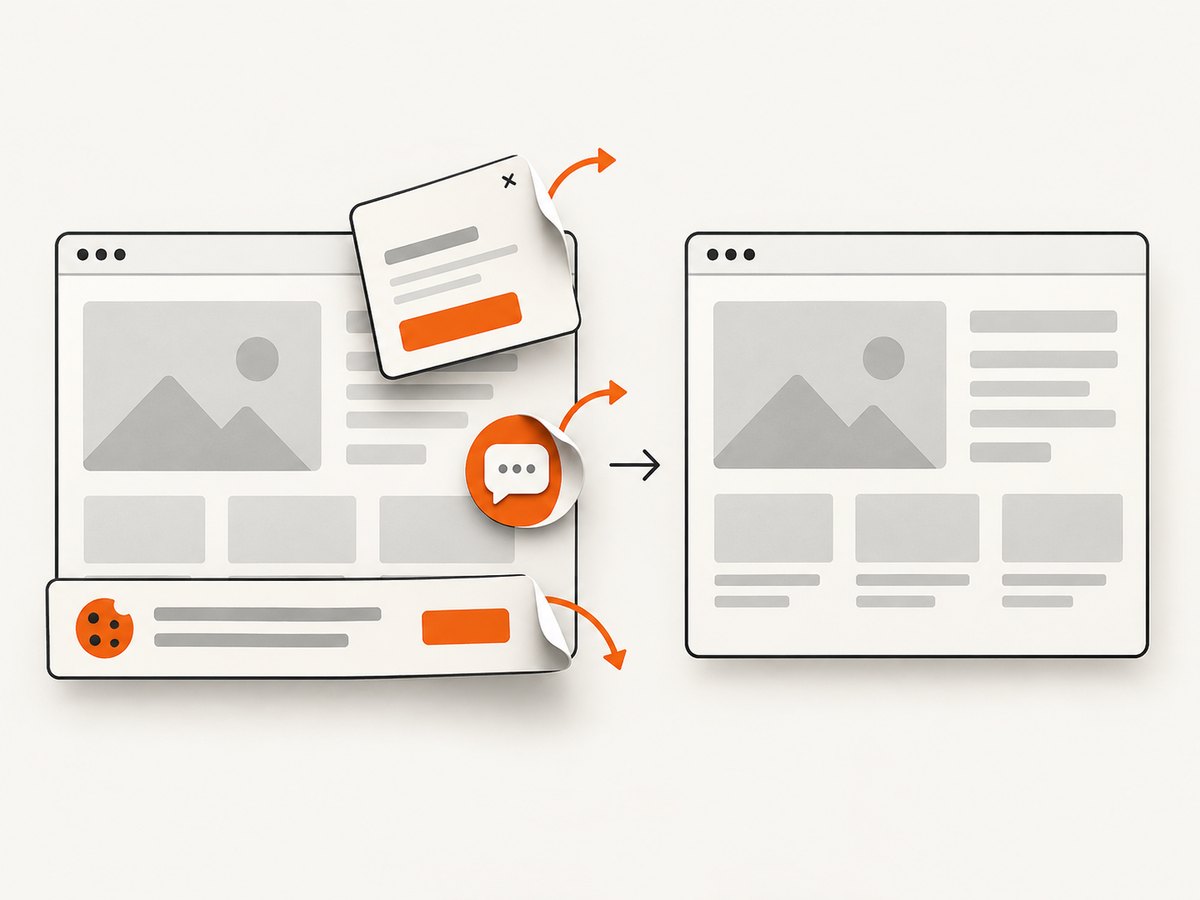
ScreenshotNeo captures a URL in a real browser and returns PNG, JPEG, WebP, or PDF. Cookie and consent banners are accepted and removed before capture, along with 60+ known consent platforms, newsletter popups, and chat widgets; each cleanup step can be turned off. Bot checks, blank pages, timeouts, failed loads, and cache hits are not billed, and response headers report the page verdict and billing result.
One GET request is enough. See the ScreenshotNeo API documentation for all options.
cURL
curl -G "https://api.screenshotneo.com/v1/shot" \
  -d access_key=YOUR_API_KEY \
  --data-urlencode url=https://stripe.com \
  -o shot.webp
Python
import requests

r = requests.get(
    "https://api.screenshotneo.com/v1/shot",
    params={"access_key": "YOUR_API_KEY", "url": "https://stripe.com"},
    timeout=90,
)
r.raise_for_status()
open("shot.webp", "wb").write(r.content)
Node.js
const q = new URLSearchParams({
  access_key: 'YOUR_API_KEY',
  url: 'https://stripe.com'
});
const res = await fetch(`https://api.screenshotneo.com/v1/shot?${q}`);
if (!res.ok) throw new Error(`HTTP ${res.status}`);
const bytes = Buffer.from(await res.arrayBuffer());
require('fs').writeFileSync('shot.webp', bytes);
ScreenshotNeo also supports full-page capture with lazy images loaded, element selectors, dark mode, device presets and custom viewports, retina scale, custom CSS and JavaScript, clicks, waits, blocked resources, headers, cookies, user agents, authorization, timezone, geolocation, transparent backgrounds, resizing, caching with a chosen TTL, signed links, asynchronous jobs with signed webhooks, bulk capture of up to 100 URLs per call, usage reporting, and an OpenAPI specification. Its MCP server provides take_screenshot, get_page_info, and capture_pdf for Claude, Cursor, and other MCP clients.
There is a free plan with 1,000 screenshots per month and no card. Paid plans start at $5 for 3,000 shots; every feature is available on every plan. Create a free ScreenshotNeo account.
FAQ
Is html2canvas random?
Usually the inputs changed or the library encountered a browser or CSS limitation. It is not established that html2canvas is inherently random.
Does setting scale: 1 solve every mismatch?
No. It stabilizes pixel scaling, but DOM state, fonts, resources, viewport media queries, scroll, animation, and CSS support can still differ.
Can html2canvas capture another website from my page?
Only when browser security rules allow its resources. Cross-origin images need server CORS permission or a proxy; the library cannot bypass that policy.
Should I use foreignObjectRendering for exact browser output?
It can use browser foreign-object rendering where supported, but it is not a universal guarantee of identical output. Test the target browser and CSS, and use a real-browser screenshot method when pixel fidelity is the requirement.
What should I compare first when debugging?
Compare target bounds, DOM state, viewport width and height, scroll offsets, device-pixel ratio, library options, resource completion, and animation state before comparing pixels.


