Why HTML2Canvas ForeignObjectRendering Captures Only the Viewport
ForeignObjectRendering follows the browser viewport by default. Learn how to set full-page dimensions, avoid canvas limits, and fix cut-off captures.
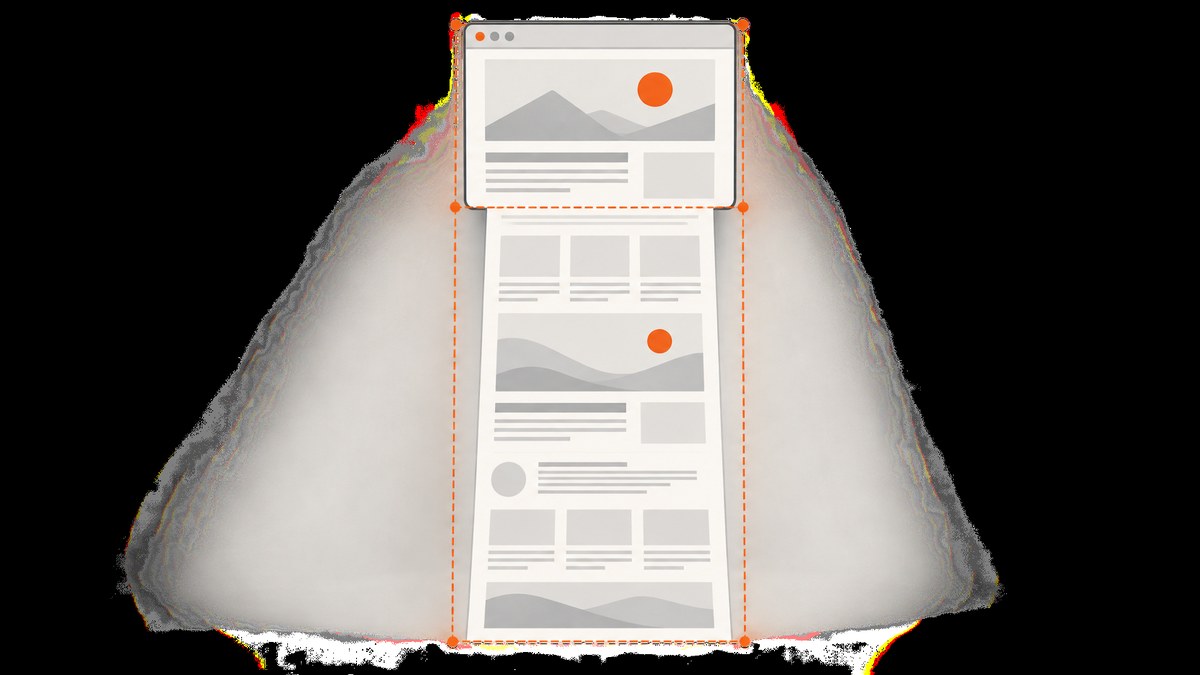
Short answer: foreignObjectRendering does not mean “capture the whole page.” html2canvas defaults windowWidth and windowHeight to window.innerWidth and window.innerHeight. Those values define the cloned document’s rendering window, so the ForeignObjectRenderer usually receives viewport-sized bounds. Content below or beside that boundary is never painted into the canvas.
Use the target element’s scroll dimensions for the cloning window and, when you need an explicit output boundary, for width and height too:
const element = document.documentElement;

const canvas = await html2canvas(element, {
  foreignObjectRendering: true,
  windowWidth: element.scrollWidth,
  windowHeight: element.scrollHeight,
  width: element.scrollWidth,
  height: element.scrollHeight
});

document.body.appendChild(canvas);
The configuration reference documents these options, and the project FAQ specifically recommends using scrollWidth and scrollHeight when output is cut off: html2canvas configuration and official FAQ.
What ForeignObjectRendering is actually doing
html2canvas is a DOM and CSS reconstruction library. It reads the page, clones relevant nodes, serializes the clone into an SVG foreignObject, loads that SVG as an image, and draws the image into a canvas. It does not ask the browser for a native screenshot surface.
At the entry point, html2canvas obtains default window dimensions from the document’s default view. Unless you override them, those defaults are the current viewport. The cloned document is laid out using a windowBounds object, and the renderer then chooses either the regular renderer or ForeignObjectRenderer.
The ForeignObjectRenderer creates a canvas using options.width * options.scale and options.height * options.scale. It gives the serialized foreignObject the same scaled dimensions, loads it, then draws it after applying the configured x and y offsets. If width and height remain viewport-sized, the output boundary remains viewport-sized as well. The source marks this renderer as experimental; behavior can vary with browsers, CSS, fonts, and resources. See the official source repository.
Capture the full document
1. Measure the actual target
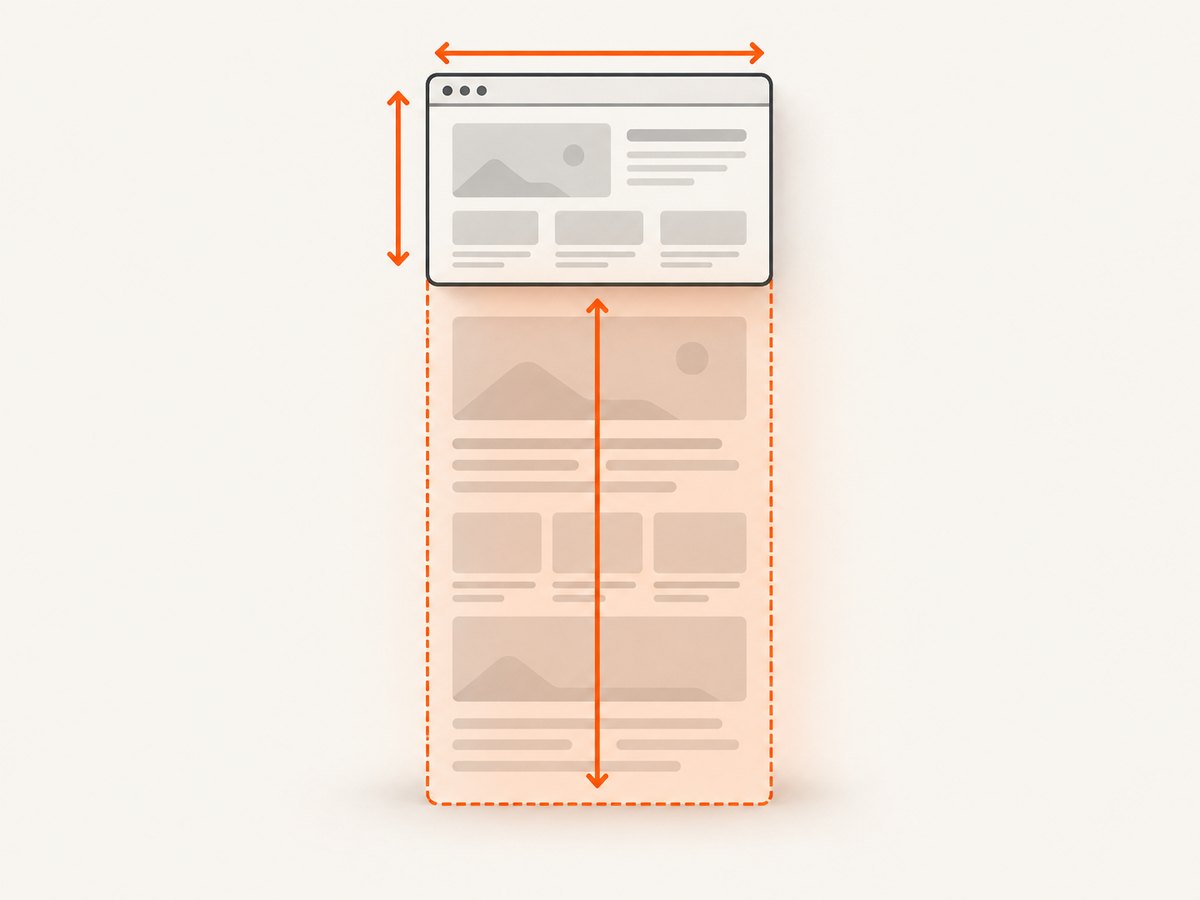
Do not assume that document.documentElement is the right target. A dashboard may have a scrollable app shell, while a report may be a single article element. Inspect the dimensions before choosing options:
const element = document.querySelector('#report') ?? document.documentElement;
const rect = element.getBoundingClientRect();

console.table({
  rectWidth: rect.width,
  rectHeight: rect.height,
  scrollWidth: element.scrollWidth,
  scrollHeight: element.scrollHeight,
  clientWidth: element.clientWidth,
  clientHeight: element.clientHeight
});
getBoundingClientRect() describes the visible border box at its current position. scrollWidth and scrollHeight include overflow content. For a full-page capture, the scroll dimensions are usually the useful values.
2. Pass both cloning and output dimensions
async function captureFullPage(selector = 'html') {
  const element = document.querySelector(selector);
  if (!element) throw new Error(`No element matched ${selector}`);

  const width = element.scrollWidth;
  const height = element.scrollHeight;

  if (!width || !height) {
    throw new Error(`Target has invalid dimensions: ${width}x${height}`);
  }

  return html2canvas(element, {
    foreignObjectRendering: true,
    windowWidth: width,
    windowHeight: height,
    width,
    height,
    x: 0,
    y: 0,
    scrollX: window.scrollX,
    scrollY: window.scrollY,
    backgroundColor: '#ffffff'
  });
}

const canvas = await captureFullPage();
const link = document.createElement('a');
link.download = 'full-page.png';
link.href = canvas.toDataURL('image/png');
link.click();
windowWidth and windowHeight control the cloned browser window. width and height control the canvas boundary. Setting all four removes ambiguity and makes a cut-off result easier to diagnose.
3. Capture a scrollable application panel
If the page itself does not scroll but a panel does, use that panel’s scroll dimensions. You may also need to temporarily remove clipping, because overflow: hidden or a fixed height can prevent descendants from being painted outside the panel.
const panel = document.querySelector('.results');
const oldHeight = panel.style.height;
const oldOverflow = panel.style.overflow;

try {
  panel.style.height = `${panel.scrollHeight}px`;
  panel.style.overflow = 'visible';

  const canvas = await html2canvas(panel, {
    foreignObjectRendering: true,
    windowWidth: panel.scrollWidth,
    windowHeight: panel.scrollHeight,
    width: panel.scrollWidth,
    height: panel.scrollHeight
  });

  document.querySelector('#preview').replaceChildren(canvas);
} finally {
  panel.style.height = oldHeight;
  panel.style.overflow = oldOverflow;
}
Make this change only while capturing. Restoring the styles prevents layout changes for users.
Options that affect the boundary
| Option | Purpose | Typical full-page value |
|---|---|---|
windowWidth |
Width used while cloning and laying out the document | element.scrollWidth |
windowHeight |
Height used while cloning and laying out the document | element.scrollHeight |
width |
Canvas width before scale is applied | element.scrollWidth |
height |
Canvas height before scale is applied | element.scrollHeight |
scale |
Output pixel density; defaults to the device pixel ratio | Lower it for very large pages |
x, y |
Origin of the rendered region | 0, 0 for a document capture |
scrollX, scrollY |
Scroll positions used during rendering | Set deliberately for fixed elements or a scrolled target |
foreignObjectRendering |
Uses the SVG foreignObject path | true |
Changing only foreignObjectRendering selects a renderer; it does not request a larger viewport. Likewise, changing windowWidth without width and height can leave the final canvas smaller than the cloned layout.
Fixed, sticky, and positioned content
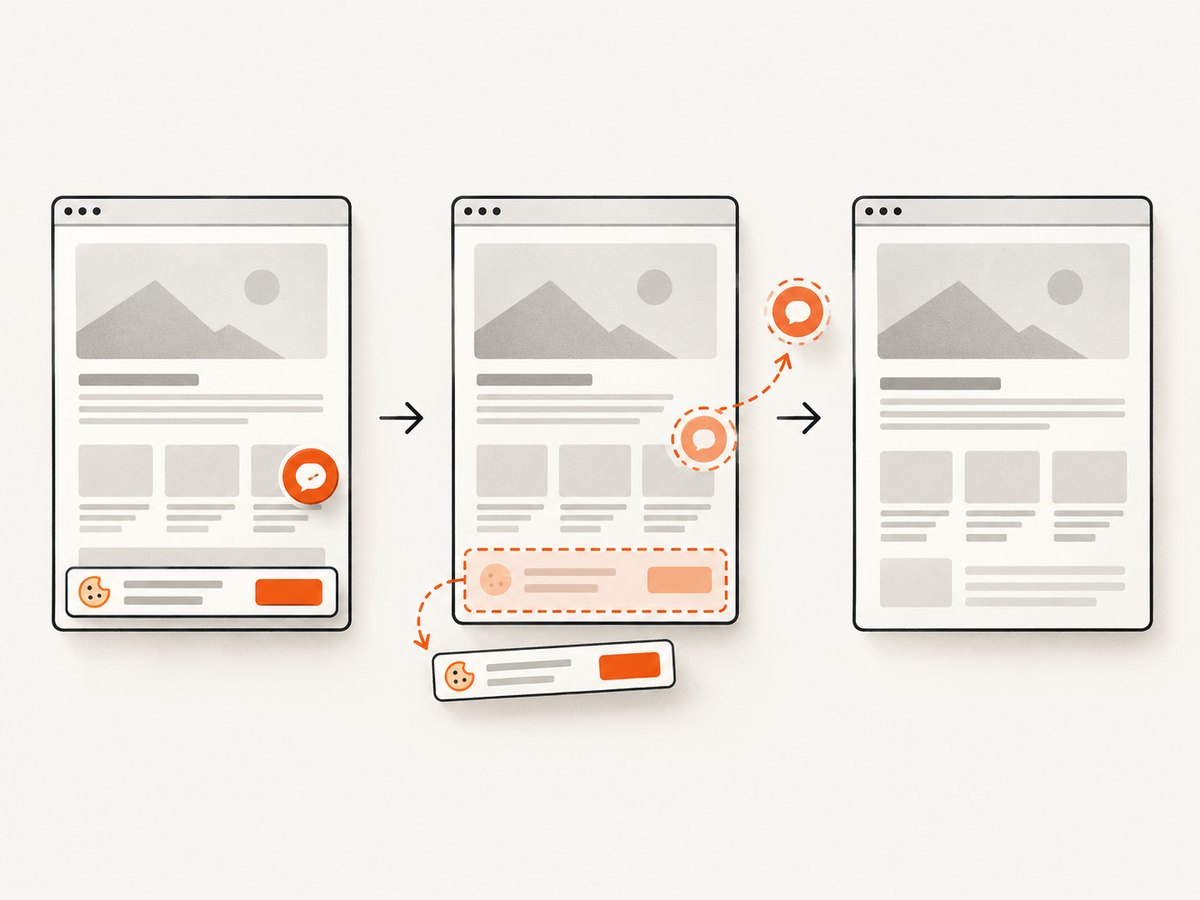
Fixed elements are positioned relative to the viewport, not the document. A cookie banner, header, or floating chat button can therefore appear at the top or bottom of every capture. Decide whether it belongs in the image and use onclone to alter the cloned document without changing the live page:
const canvas = await html2canvas(document.documentElement, {
  foreignObjectRendering: true,
  windowWidth: document.documentElement.scrollWidth,
  windowHeight: document.documentElement.scrollHeight,
  width: document.documentElement.scrollWidth,
  height: document.documentElement.scrollHeight,
  onclone: clonedDocument => {
    clonedDocument.querySelectorAll('.cookie-banner, .chat-widget')
      .forEach(node => node.remove());
  }
});
For a scrolled target, set scrollX and scrollY explicitly. If a sticky header overlaps content, either keep the intended scroll position or hide the header in the clone.
Canvas limits and oversized pages
A full document can exceed browser canvas limits. The official FAQ says limits vary by browser and platform; oversized canvases may be blank or partially rendered without throwing an exception. Rough limits in evergreen browsers are around 32,767 pixels per dimension, with separate area limits that also vary.
Before rendering, calculate the scaled size:
const scale = window.devicePixelRatio;
const pixels = element.scrollWidth * element.scrollHeight * scale * scale;
console.log({ width: element.scrollWidth * scale,
              height: element.scrollHeight * scale,
              pixels });
If the page is too large:
- Lower
scaleto 1 or less. - Capture logical sections and stitch them together.
- Capture only the required element instead of the entire document.
- Prefer a browser-native full-page screenshot when exact layout and very tall pages matter.
CSS, fonts, and cross-origin resources
Because html2canvas reconstructs the page, it cannot guarantee native screenshot fidelity for every CSS feature. Unsupported CSS, cross-origin images without suitable CORS headers, blocked fonts, animations, and delayed lazy loading can all change the result. Wait for fonts and images before capture:
await document.fonts.ready;
await Promise.all(
  [...document.images].map(img => img.complete
    ? Promise.resolve()
    : new Promise(resolve => {
        img.addEventListener('load', resolve, { once: true });
        img.addEventListener('error', resolve, { once: true });
      }))
);
Freeze animations in the clone when deterministic output matters:
const canvas = await html2canvas(element, {
  foreignObjectRendering: true,
  windowWidth: element.scrollWidth,
  windowHeight: element.scrollHeight,
  width: element.scrollWidth,
  height: element.scrollHeight,
  onclone: clonedDocument => {
    const style = clonedDocument.createElement('style');
    style.textContent = '* { animation: none !important; transition: none !important; }';
    clonedDocument.head.appendChild(style);
  }
});
Common errors and fixes
| Symptom | Likely cause | Fix |
|---|---|---|
| Only the visible viewport appears | Default innerWidth/innerHeight are still in use | Pass scroll dimensions as window, width, and height options |
| Bottom is cut off | Target has a scroll container or fixed height | Capture the scrolling element and temporarily expand its height |
| Right side is missing | Horizontal overflow is outside the measured target | Use the element’s scrollWidth and inspect overflow ancestors |
| Canvas is blank | Browser canvas size or area limit | Reduce scale, split the capture, or use native automation |
| Fixed header repeats or covers content | Viewport-positioned element is cloned | Set scroll positions or remove it in onclone |
| Images are missing | Cross-origin restrictions or images not loaded | Configure CORS, wait for images, and verify the image URL |
| Fonts or layout differ | Fonts have not loaded or CSS is unsupported | Await document.fonts.ready and reduce the case to a reproducible page |
| Firefox differs from Chrome | ForeignObjectRendering is experimental and browser-specific | Compare the default renderer and test a minimal example |
Performance, reliability, and cost
Rendering time grows with DOM size, CSS complexity, image count, and output pixels. A high device-pixel ratio multiplies memory use because both dimensions are scaled. Measure dimensions first, avoid capturing hidden application shells, and disable animations and unnecessary widgets in the clone.
For repeatable jobs, wait for fonts and images, use a fixed viewport, and record the browser and html2canvas version. Keep a fallback path because ForeignObjectRendering is experimental and unsupported CSS can produce browser-specific output. Do not treat a resolved promise as proof that every pixel rendered; inspect the canvas dimensions and image content.
html2canvas runs in the user’s browser, so its direct software cost is typically your page’s client-side CPU and memory. A server-side screenshot service adds an API request and service pricing but avoids shipping browser automation and dealing with per-browser canvas limits.
Or skip the browser setup
ScreenshotNeo provides a website screenshot API and MCP server. One GET request returns PNG, JPEG, WebP, or PDF, so you do not need to maintain a browser page, clone DOM nodes, or tune canvas dimensions.
cURL:
curl -G "https://api.screenshotneo.com/v1/shot" -d access_key=YOUR_API_KEY --data-urlencode url=https://stripe.com -o shot.webpPython:
import requests

r = requests.get(
    "https://api.screenshotneo.com/v1/shot",
    params={"access_key": "YOUR_API_KEY", "url": "https://stripe.com"},
    timeout=90,
)
r.raise_for_status()
open("shot.webp", "wb").write(r.content)
Node.js:
const q = new URLSearchParams({ access_key: 'YOUR_API_KEY', url: 'https://stripe.com' });
const res = await fetch(`https://api.screenshotneo.com/v1/shot?${q}`);
if (!res.ok) throw new Error(`HTTP ${res.status}`);
const fs = await import('node:fs/promises');
await fs.writeFile('shot.webp', Buffer.from(await res.arrayBuffer()));
See the ScreenshotNeo API documentation for parameters. Cookie banners, newsletter popups, and chat widgets are removed before the shot; each of those steps can be turned off. Bot checks, blank pages, timeouts, failed loads, and cache hits are not billed, and response headers report the page verdict and billing status. The MCP server includes take_screenshot, get_page_info, and capture_pdf for Claude, Cursor, and other MCP clients. The Free plan includes 1,000 screenshots per month with no card; paid plans start at $5 for 3,000 shots.
Create a free ScreenshotNeo account and start with the 1,000 monthly screenshots.
FAQ
Does foreignObjectRendering: true guarantee a full-page image?
No. It selects the foreign-object renderer. Full-page output still depends on the effective window, width, height, target, and browser canvas limits.
Should I use body.scrollHeight or documentElement.scrollHeight?
Measure both when diagnosing a page. Use the element that actually owns the scrollable content; on many documents that is document.documentElement.
Why do larger windowWidth values sometimes appear ignored?
Historical html2canvas issues show version-specific ForeignObjectRendering behavior. Reproduce the case with the current release, pass explicit output dimensions, and compare the default renderer.
Can html2canvas capture a page from another origin?
The library runs in the current page and is subject to browser security and resource policies. Cross-origin images and fonts need compatible CORS handling.
When should I use native browser automation?
Use it when you need browser-consistent full-page capture, very tall pages, or CSS behavior that DOM reconstruction cannot reproduce reliably.


