Why html2canvas Scrolls the Page to the Top and How to Fix It
Learn why html2canvas jumps to the top, how scroll offsets and nested containers affect captures, and the reliable fixes for browser and server screenshots.
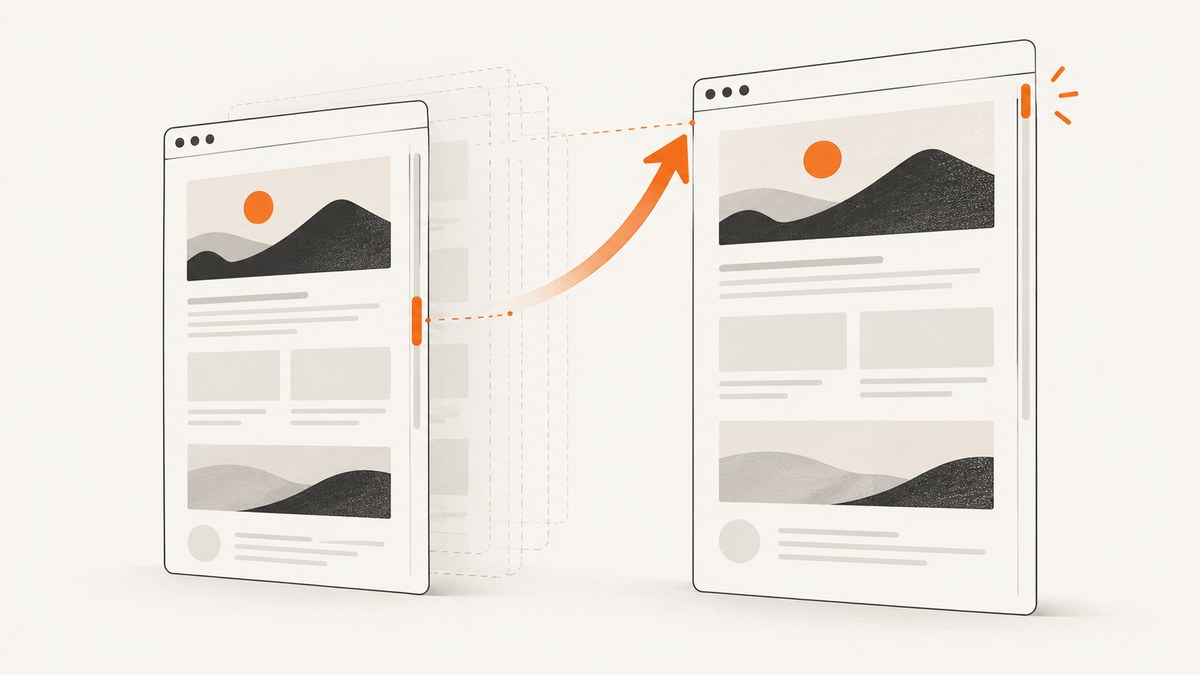
Short answer: html2canvas can appear to scroll your page to the top because it clones the document into a temporary iframe, writes the cloned document, and then restores the source page’s scroll position. A browser side effect during document.write, application code, anchor navigation, focus changes, or a nested scroll container can make the jump visible or leave the page at the wrong position. Record the scroll state, pass explicit scrollX and scrollY, and handle each scroll container separately.
This guide explains the mechanism, gives runnable fixes, shows how to capture a scrollable element, and covers full-page limits, fixed headers, debugging, performance, and production alternatives.
What html2canvas is doing during capture
html2canvas does not take a bitmap directly from the browser compositor. It reads the live DOM and styles, creates a cloned document in an iframe, lays out that clone, and paints the result onto a canvas. During cloning, the library reads the source window’s page offsets. Its source includes a comment: “Chrome scrolls the parent document for some reason after the write to the cloned window???” The implementation then calls a restoration routine to put the original document back where it was.
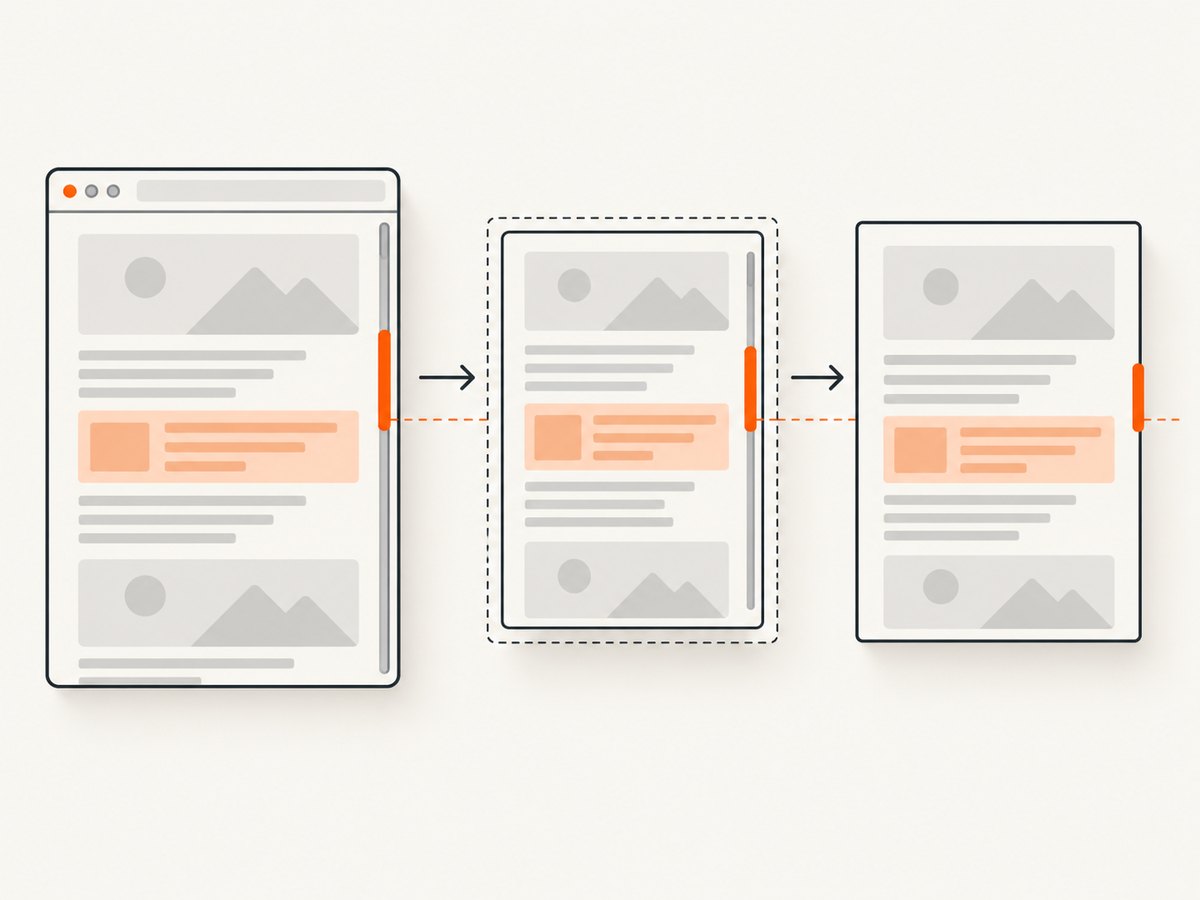
That process explains two different symptoms:
- Transient jump: the page moves while the promise is pending, then returns to its original position.
- Persistent jump: another handler, route change, focus call, anchor link, or scroll container mistake leaves the live page at
0,0or at an unintended offset.
The first diagnostic question is therefore: did the live window move, or did the cloned render simply use the wrong coordinates? Log scroll events while the capture runs before changing application code.
Fix the page-level scroll position
The options reference defines scrollX and scrollY as the coordinates used for rendering. For a viewport capture that should preserve the currently visible portion of the page, use the negative window offsets:
import html2canvas from 'html2canvas';

const target = document.querySelector('#report');
const canvas = await html2canvas(target, {
  scrollX: -window.scrollX,
  scrollY: -window.scrollY,
});
document.querySelector('#preview').replaceChildren(canvas);
Why negative values? The cloned document is rendered as if its viewport starts at the requested coordinates. Negating the live page offset counteracts the current scroll and aligns the clone with what the user sees. This pattern is recorded in html2canvas issue discussions and is especially useful when fixed or sticky elements are part of the target.
Preserve and verify the original position
const before = { x: window.scrollX, y: window.scrollY };
const events = [];
const onScroll = () => events.push({
  x: window.scrollX,
  y: window.scrollY,
  time: performance.now(),
});

window.addEventListener('scroll', onScroll, { passive: true });
try {
  const canvas = await html2canvas(document.body, {
    scrollX: -before.x,
    scrollY: -before.y,
  });
  console.table(events);
  console.log('before', before, 'after', {
    x: window.scrollX,
    y: window.scrollY,
  });
  document.body.append(canvas);
} finally {
  window.removeEventListener('scroll', onScroll);
}
If the final coordinates differ, inspect code that calls scrollTo, changes the route, focuses an input, opens a modal, or follows a link with href="#". Disable those handlers temporarily and repeat the capture.
Capture a scrollable child correctly
window.scrollY describes the document viewport. It does not describe a nested element such as a 500-pixel-tall panel with its own scrollbar. Passing a negative window offset cannot reveal content clipped by that child.
const panel = document.querySelector('.results-panel');
console.log({
  clientWidth: panel.clientWidth,
  clientHeight: panel.clientHeight,
  scrollWidth: panel.scrollWidth,
  scrollHeight: panel.scrollHeight,
  scrollLeft: panel.scrollLeft,
  scrollTop: panel.scrollTop,
});
You have three practical choices:
- Capture the visible panel: keep its current dimensions and pass the panel’s position relative to the viewport.
- Capture all panel content: temporarily expand the clone or the live element to its
scrollWidthandscrollHeight, then restore the styles. - Capture slices: move
scrollTopthrough the panel and render multiple canvases when the complete content is too large for one canvas.
Expand only the cloned element with onclone
const panel = document.querySelector('.results-panel');
const canvas = await html2canvas(panel, {
  scrollX: -window.scrollX,
  scrollY: -window.scrollY,
  onclone: (clonedDocument) => {
    const clonedPanel = clonedDocument.querySelector('.results-panel');
    if (!clonedPanel) return;
    clonedPanel.style.height = `${clonedPanel.scrollHeight}px`;
    clonedPanel.style.maxHeight = 'none';
    clonedPanel.style.overflow = 'visible';
  },
});
onclone receives the cloned document. Use it to remove sticky toolbars, hide buttons, expand overflow, or adjust print-only styles without mutating the live page. If the panel’s content is loaded lazily, wait until its data and images are present before starting.
Full-page captures and browser canvas limits
For a large document, set the render window to the target’s scroll dimensions deliberately:
const page = document.documentElement;
const canvas = await html2canvas(document.body, {
  windowWidth: page.scrollWidth,
  windowHeight: page.scrollHeight,
  scrollX: 0,
  scrollY: 0,
});
The html2canvas FAQ describes rough current evergreen-browser guidance of about 32,767 pixels for a maximum canvas dimension in Chrome/Chromium, Firefox, and desktop Safari. Area limits and mobile limits vary, and iOS Safari is often lower in practice. These are capability guidelines, not contractual constants. A page can therefore produce a blank, truncated, or memory-heavy canvas even when the DOM is correct.
For long pages, measure the requested pixel dimensions before rendering. Reduce scale, split the page into sections, or generate a PDF with a browser automation tool when one enormous bitmap is not required.
Fixed and sticky elements
A position: fixed element is positioned against the viewport, while a sticky element changes behavior after crossing a scroll threshold. Their appearance depends on the coordinates used for the clone. Explicit scroll options usually produce a more predictable result. You can also alter the clone:
await html2canvas(document.querySelector('#page'), {
  scrollX: -window.scrollX,
  scrollY: -window.scrollY,
  onclone: (doc) => {
    doc.querySelectorAll('.sticky-toolbar, .capture-controls')
      .forEach((node) => { node.style.display = 'none'; });
  },
});
Do not hide the live toolbar before capture unless you are prepared to manage layout shifts. Clone-only changes avoid flicker and reduce the chance that an application observer reacts to the temporary state.
Complete browser example with diagnostics
import html2canvas from 'html2canvas';

async function captureCurrentView(selector) {
  const element = document.querySelector(selector);
  if (!element) throw new Error(`Missing element: ${selector}`);

  await document.fonts.ready;
  const start = { x: window.scrollX, y: window.scrollY };
  const scrollLog = [];
  const record = () => scrollLog.push({
    x: window.scrollX,
    y: window.scrollY,
    active: document.activeElement?.tagName,
    time: performance.now(),
  });
  window.addEventListener('scroll', record, { passive: true });

  try {
    const canvas = await html2canvas(element, {
      backgroundColor: '#ffffff',
      useCORS: true,
      scrollX: -start.x,
      scrollY: -start.y,
      onclone: (doc) => {
        doc.querySelectorAll('[data-capture-hide]')
          .forEach((node) => { node.style.visibility = 'hidden'; });
      },
    });

    console.table(scrollLog);
    if (window.scrollX !== start.x || window.scrollY !== start.y) {
      window.scrollTo(start.x, start.y);
    }
    return canvas;
  } finally {
    window.removeEventListener('scroll', record);
  }
}

const canvas = await captureCurrentView('#invoice');
const link = document.createElement('a');
link.download = 'invoice.png';
link.href = canvas.toDataURL('image/png');
link.click();
Common errors and fixes
| Symptom | Likely cause | Fix |
|---|---|---|
| Page visibly jumps to the top and stays there | Application scroll handler, anchor navigation, focus, or route transition | Log scroll events and activeElement; disable the handler; restore the saved coordinates in a finally block. |
Negative scrollY fixes the page but not a panel |
The panel has its own scrollTop |
Measure the child; expand it in onclone or capture slices. |
| Sticky header appears in the wrong place | Clone viewport coordinates differ from the live viewport | Pass explicit offsets and hide or restyle the header in onclone. |
| Images are blank or taint the canvas | Cross-origin image policy or images not loaded yet | Wait for images, configure server CORS, and use useCORS where the image server permits it. A proxy may be required. |
| Full-page result is blank or cut off | Canvas width, height, or area limit | Lower scale, split the capture, or use a headless browser/PDF workflow. |
| Capture fails in Node.js | html2canvas depends on browser window, document, and computed styles |
Run it in a real browser, or use Puppeteer/Playwright for server-side rendering. |
Performance and reliability checklist
- Wait for fonts, images, and asynchronous data before rendering.
- Capture the smallest element that satisfies the requirement.
- Use a lower scale for previews and the target scale for downloads.
- Prefer clone-only style changes to avoid live layout shifts.
- Split very tall documents before they approach browser canvas limits.
- Debounce repeated captures triggered by resize or scroll events.
- Keep a saved scroll position and restore it in
finally, including error paths. - For automated server jobs, use a real browser engine rather than trying to emulate DOM APIs in Node.
Or skip the browser setup
If you need repeatable server-side screenshots, ScreenshotNeo provides a GET endpoint that returns PNG, JPEG, WebP, or PDF. It handles the browser session for you and supports full-page capture, element selectors, custom CSS and JavaScript, waits, device presets, dark mode, headers, cookies, user agents, geolocation, blocking rules, resizing, caching, asynchronous jobs, bulk capture, signed links, and PDF options. See the ScreenshotNeo API documentation for the complete parameter list.
curl -G "https://api.screenshotneo.com/v1/shot" -d access_key=YOUR_API_KEY --data-urlencode url=https://stripe.com -o shot.webpimport requests
r = requests.get("https://api.screenshotneo.com/v1/shot", params={"access_key": "YOUR_API_KEY", "url": "https://stripe.com"}, timeout=90)
open("shot.webp", "wb").write(r.content)const q = new URLSearchParams({ access_key: 'YOUR_API_KEY', url: 'https://stripe.com' });
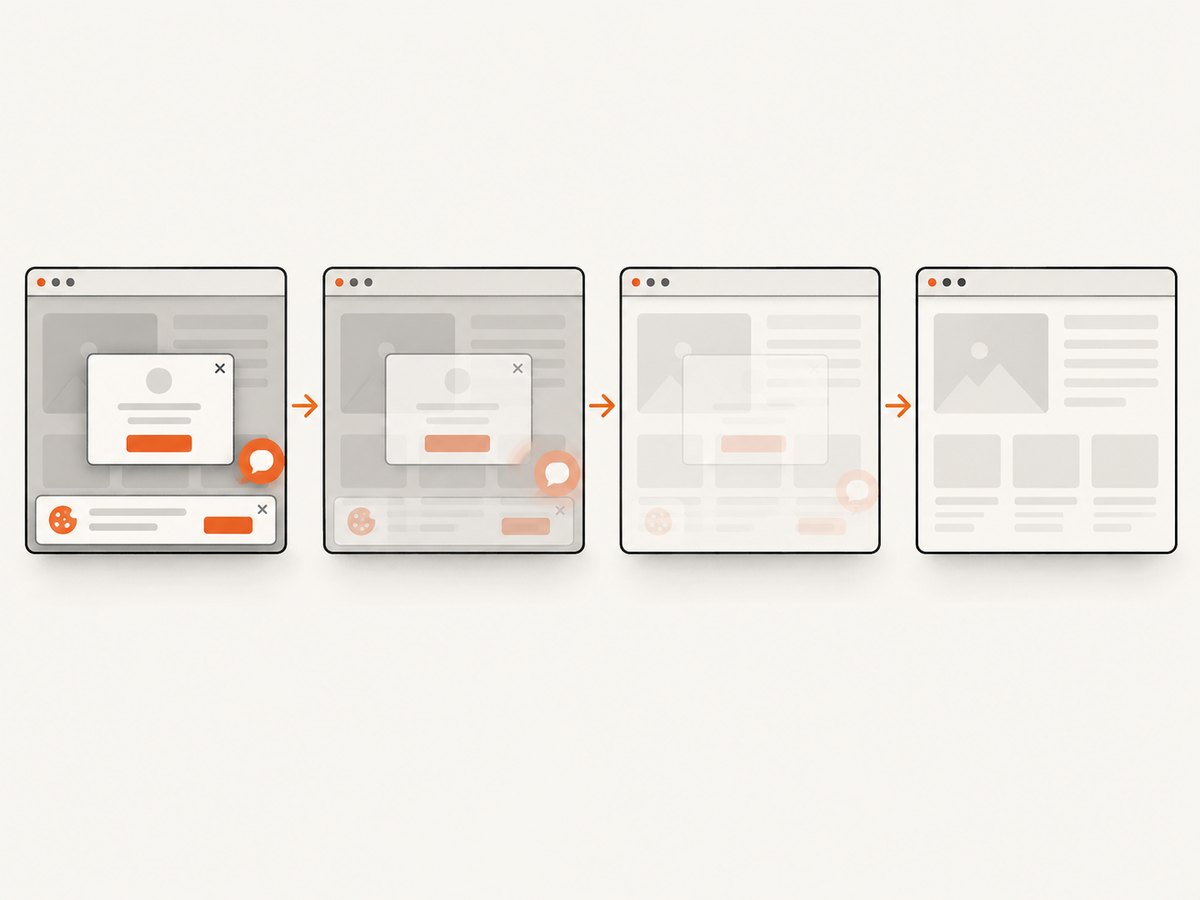
const res = await fetch(`https://api.screenshotneo.com/v1/shot?${q}`);Cookie banners, newsletter popups, and chat widgets are removed before the shot. Bot checks, blank pages, failed loads, timeouts, and cache hits are not billed, and response headers report the page verdict and billing state. An MCP server provides take_screenshot, get_page_info, and capture_pdf tools for Claude, Cursor, and other MCP clients. The Free plan includes 1,000 screenshots each month with no card; paid plans start at $5 for 3,000.
Create a free ScreenshotNeo account and try the API with 1,000 shots per month at no charge.
Frequently asked questions
Does html2canvas always scroll the page to the top?
No. The clone process can trigger a browser-specific visible movement, but persistent resets often involve application code or a nested scroll container.
Should I always use negative window.scrollY?
Use it when you want the clone aligned with the current page viewport. It is not a substitute for a child element’s scrollTop.
Can html2canvas capture a whole website from Node?
Not by itself. It relies on browser APIs. Use it in a browser page, or choose a real headless browser for server-side work.
Why is my output different from what I see?
Fonts, cross-origin images, animations, lazy loading, viewport-dependent CSS, and fixed elements can change during cloning. Wait for resources and control the clone with explicit options and onclone.
When should I use a screenshot API?
Use one when captures run on a server, need consistent browser setup, must process many URLs, or should produce PDFs without maintaining browser infrastructure.


