BlogScreenshots on your device
Why ImageGrab Bounding Boxes Fail with Coordinate Variables
Fix ImageGrab captures that are wrong, black, or empty by matching bbox order, pixel units, DPI scaling, and monitor coordinates.
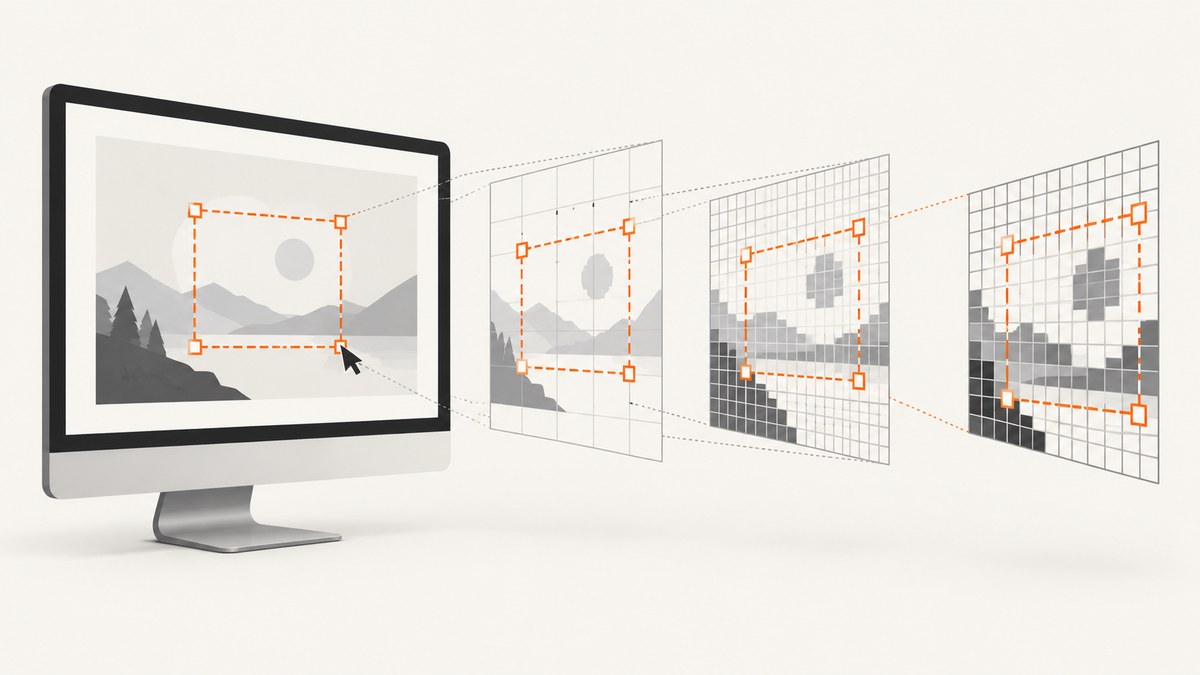
ImageGrab.grab(bbox=...) expects (left, upper, right, lower) in screenshot pixel coordinates. It does not expect (x, y, width, height), and it does not automatically convert GUI points, cursor coordinates, or DPI-scaled values into image pixels.
Most incorrect, black, or empty captures come from one of these mismatches:
- The tuple contains width and height instead of right and bottom.
- The variables are logical coordinates while the screenshot uses physical pixels.
- Retina or Windows display scaling changes the relationship between coordinates and pixels.
- A secondary monitor uses negative desktop coordinates.
- The coordinates came from a different origin or capture space.
This guide shows how to diagnose each case and provides working Python examples for single-monitor, Retina, Windows DPI, and multi-monitor captures.
1. Understand the bbox contract
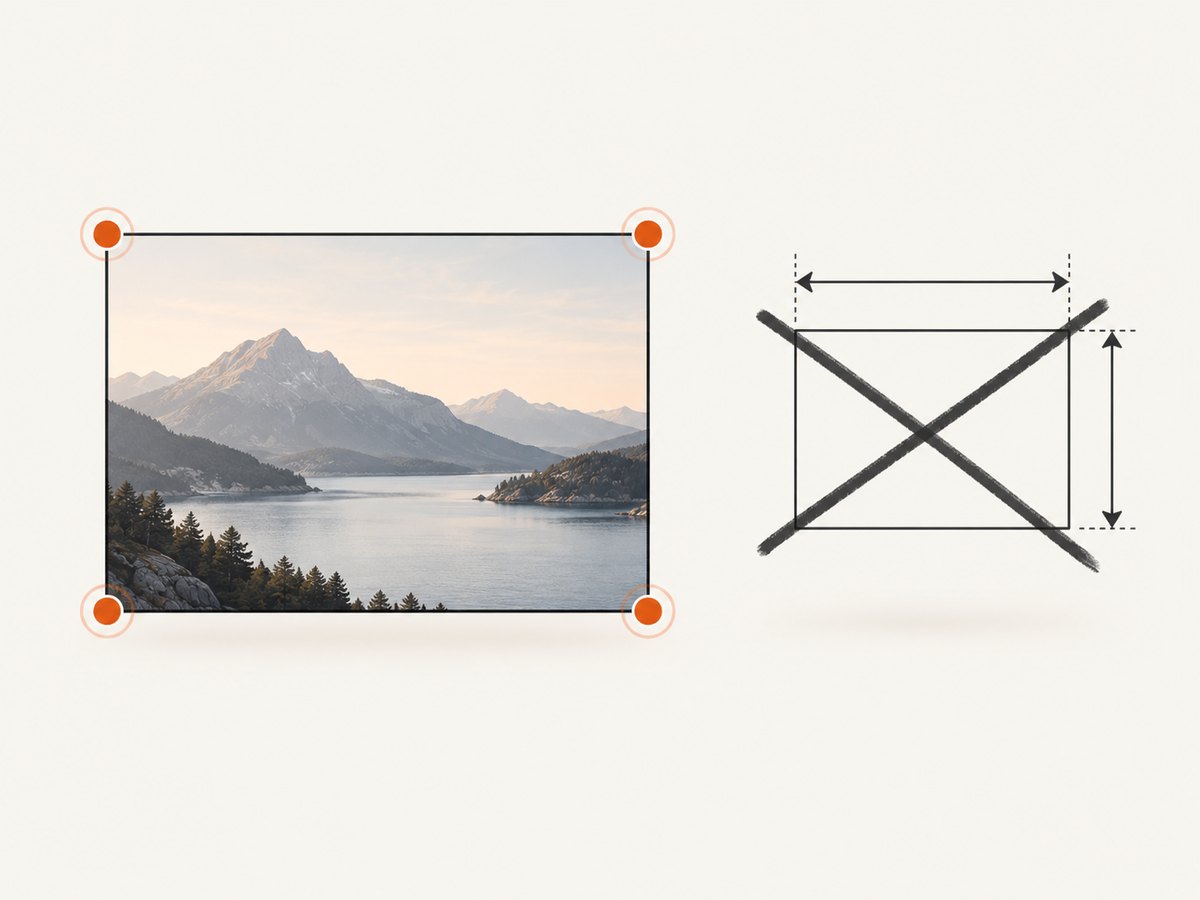
Pillow documents ImageGrab.grab() as a screen snapshot function. Its bbox argument is a four-value box in the order (left, upper, right, lower). The returned pixels are RGBA on macOS and RGB elsewhere. See the official ImageGrab documentation.
from PIL import ImageGrab

image = ImageGrab.grab(bbox=(100, 200, 900, 700))
image.save("region.png")
That captures from x=100 through x=900 and y=200 through y=700. The requested width is approximately 900 - 100 = 800 pixels and the height is approximately 700 - 200 = 500 pixels.
The common width-and-height mistake
# Wrong: interpreted as left=100, top=200, right=800, bottom=500
bbox = (100, 200, 800, 500)

# Correct conversion from x, y, width, height
x, y, width, height = 100, 200, 800, 500
bbox = (x, y, x + width, y + height)
If width or height is smaller than the starting coordinate, the resulting region may be much smaller than expected or invalid for the platform.
2. A reliable diagnostic script
Before changing scaling factors, print the values and compare them with a full-screen capture. This tells you whether the problem is tuple semantics, coordinate units, or monitor origin.
from PIL import ImageGrab

x, y, width, height = 100, 200, 800, 500
bbox = (x, y, x + width, y + height)

full = ImageGrab.grab()
print("bbox:", bbox)
print("full image size:", full.size)
print("region size:", (bbox[2] - bbox[0], bbox[3] - bbox[1]))

if bbox[2] <= bbox[0] or bbox[3] <= bbox[1]:
    raise ValueError("right must be greater than left and lower must be greater than upper")

region = ImageGrab.grab(bbox=bbox)
region.save("debug-region.png")
Record these details when debugging a machine you cannot inspect directly:
- Operating system and version.
- Pillow version.
- Monitor arrangement and which display contains the target.
- Display scaling or Retina status.
- Where each coordinate came from: a toolkit, cursor API, accessibility API, or selection overlay.
- Whether the target is the full desktop, a window, or a region.
3. Convert variables into the correct tuple
Keep coordinate conversion explicit. A helper prevents accidental reuse of a width-height tuple as a right-bottom tuple.
from PIL import ImageGrab


def grab_xywh(x, y, width, height, path="region.png"):
    if width <= 0 or height <= 0:
        raise ValueError("width and height must be positive")
    bbox = (int(x), int(y), int(x + width), int(y + height))
    image = ImageGrab.grab(bbox=bbox)
    image.save(path)
    return image


grab_xywh(100, 200, 800, 500)
For two corners, validate the order instead:
from PIL import ImageGrab

left, top = 100, 200
right, bottom = 900, 700

if right <= left or bottom <= top:
    raise ValueError("invalid corner coordinates")

ImageGrab.grab(bbox=(left, top, right, bottom)).save("corners.png")
4. Logical coordinates versus physical pixels
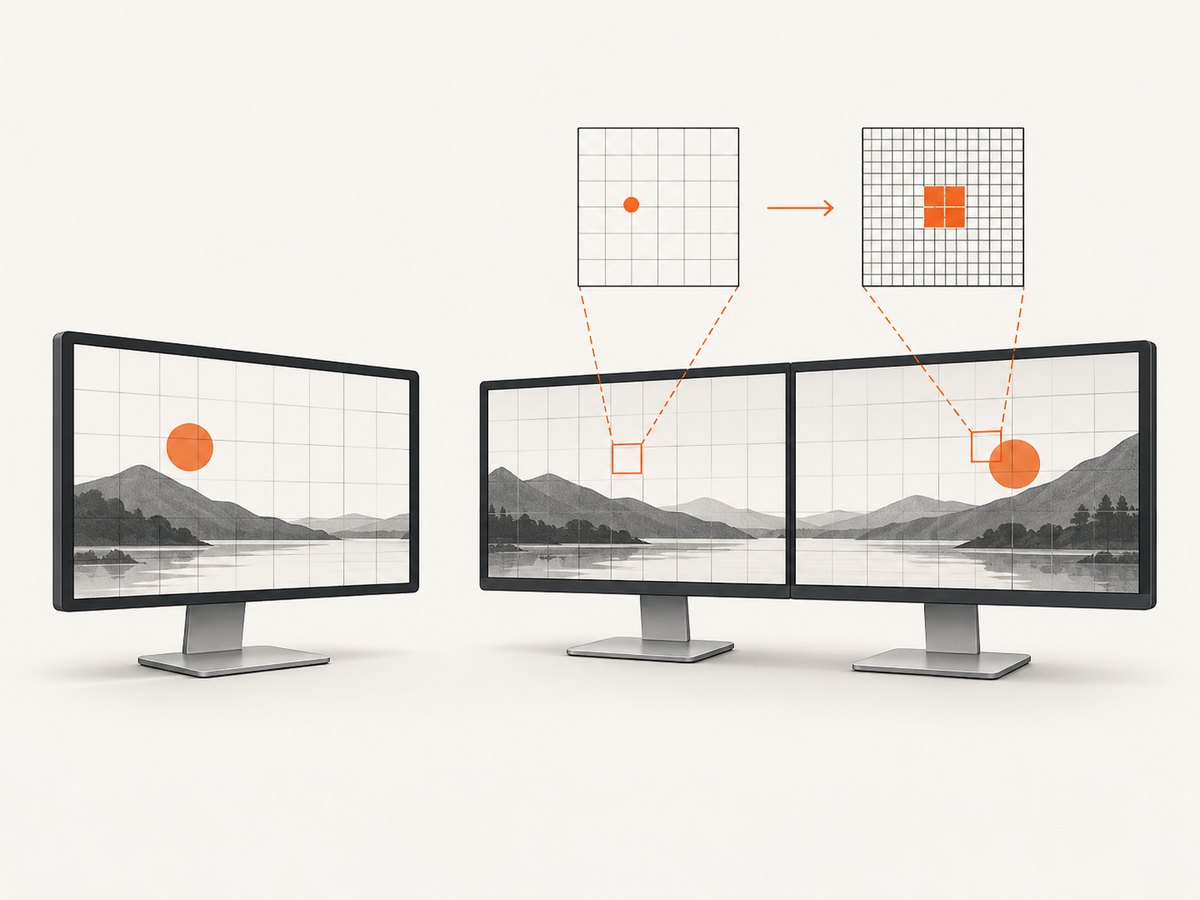
A coordinate can be numerically correct and still point to the wrong place if it belongs to another coordinate system. GUI frameworks often expose logical points. Screenshot APIs generally crop physical image pixels. On a 2x display, a logical position of 400 may correspond to a physical pixel position of 800.
| Source of values | Typical unit | Risk | What to verify |
|---|---|---|---|
ImageGrab.grab().size |
Image pixels | Lowest | Use these values as the reference space. |
| GUI toolkit geometry | Logical points or scaled units | High | Find the toolkit's scale factor and origin. |
| Cursor or accessibility API | OS desktop coordinates | Medium to high | Check DPI awareness and monitor origin. |
| Selection overlay | Often logical or overlay-relative | High | Convert its origin and scale before cropping. |
Do not multiply coordinates until you know both the source unit and the capture unit. A scale factor applied twice moves the crop just as surely as a missing factor.
5. macOS Retina displays
On macOS, Pillow documents Retina captures as 2x by default. Pillow issue #6144 describes a 72-DPI virtual coordinate space being used with 144-DPI physical pixels. In that situation, all four bbox values must be converted consistently.
Scale logical points to physical pixels
from PIL import ImageGrab

# Values supplied by a logical-point API
logical_left, logical_top = 100, 200
logical_width, logical_height = 800, 500
scale = 2.0

left = round(logical_left * scale)
top = round(logical_top * scale)
right = round((logical_left + logical_width) * scale)
bottom = round((logical_top + logical_height) * scale)

image = ImageGrab.grab(bbox=(left, top, right, bottom))
image.save("retina-region.png")
The correct factor is not always exactly 2.0 when external displays or accessibility settings are involved. Determine it from the API that produced the variables, or compare a known physical distance with the dimensions of a full capture.
Why secondary displays can still fail
The same Pillow issue reports failures on a secondary monitor. A Retina factor alone cannot fix a wrong display origin. Confirm whether the coordinate provider reports the secondary display in a global desktop space, a display-local space, or a logical space.
6. Windows DPI virtualization
Windows can virtualize coordinates for processes that are not DPI aware. Pillow issue #7898 reports incorrect values from win32api.GetCursorPos() under display scaling and recommends making the process per-monitor DPI aware before reading coordinates.
Set DPI awareness before collecting coordinates
import ctypes
from PIL import ImageGrab

# Windows 10+: per-monitor v2 awareness
try:
    ctypes.windll.shcore.SetProcessDpiAwareness(2)
except (AttributeError, OSError):
    # Fallback for older Windows versions
    try:
        ctypes.windll.user32.SetProcessDPIAware()
    except (AttributeError, OSError):
        pass

# Obtain cursor or window coordinates only after the call above.
# Then pass pixel coordinates to ImageGrab.grab().
image = ImageGrab.grab(bbox=(100, 100, 900, 700))
image.save("windows-region.png")
Set awareness before importing or calling the coordinate API when possible. Existing coordinates collected before the change may already have been virtualized and should be discarded.
7. Negative coordinates and multiple monitors
With Windows and all_screens=True, the desktop origin can be negative when a monitor is positioned left of or above the primary display. The current documentation notes that the top-left point may be negative. Pillow issue #1547 explains why signed coordinates are required in that layout.
from PIL import ImageGrab

# Example: a monitor to the left of the primary display
bbox = (-1400, 100, -600, 700)
image = ImageGrab.grab(bbox=bbox, all_screens=True)
image.save("left-monitor.png")
Do not clamp negative values to zero. Doing so silently changes the target to the primary monitor. Also remember that a full desktop image has an origin offset; a local crop must be translated into the same global coordinate space before it is passed to Pillow.
8. Platform implementation differences
Pillow does not implement every operating system with the same capture path. The current source uses macOS screencapture -R for a region, crops a window capture separately, and applies a Retina scale in that path. On Windows, Pillow obtains a desktop image and crops relative to a desktop origin. See the current ImageGrab source.
This explains why a workaround that succeeds on one platform may fail on another. Test the coordinate conversion on each supported operating system and monitor layout.
9. A complete cross-platform Python example
The following script accepts either a corner tuple or an x/y/width/height tuple, validates the values, optionally applies a known scale, and supports all screens on Windows.
from __future__ import annotations

import argparse
import platform
from PIL import ImageGrab


def make_bbox(left: float, top: float, right: float, bottom: float, scale: float = 1.0):
    if scale <= 0:
        raise ValueError("scale must be positive")
    values = [round(value * scale) for value in (left, top, right, bottom)]
    bbox = tuple(int(value) for value in values)
    if bbox[2] <= bbox[0] or bbox[3] <= bbox[1]:
        raise ValueError(f"invalid bbox: {bbox}")
    return bbox


def main():
    parser = argparse.ArgumentParser()
    parser.add_argument("--left", type=float, required=True)
    parser.add_argument("--top", type=float, required=True)
    parser.add_argument("--right", type=float, required=True)
    parser.add_argument("--bottom", type=float, required=True)
    parser.add_argument("--scale", type=float, default=1.0)
    parser.add_argument("--all-screens", action="store_true")
    parser.add_argument("--output", default="capture.png")
    args = parser.parse_args()

    bbox = make_bbox(args.left, args.top, args.right, args.bottom, args.scale)
    print("system:", platform.system())
    print("bbox in capture pixels:", bbox)

    kwargs = {}
    if platform.system() == "Windows":
        kwargs["all_screens"] = args.all_screens

    image = ImageGrab.grab(bbox=bbox, **kwargs)
    print("captured size:", image.size)
    image.save(args.output)


if __name__ == "__main__":
    main()
Example invocation:
python capture.py --left 100 --top 200 --right 900 --bottom 700 --output region.png
python capture.py --left 100 --top 200 --right 900 --bottom 700 --scale 2 --output retina.png
python capture.py --left -1400 --top 100 --right -600 --bottom 700 --all-screens
10. Troubleshooting checklist
| Symptom | Likely cause | Fix |
|---|---|---|
| Region is the wrong size | Used (x, y, width, height). |
Convert to (x, y, x + width, y + height). |
| Region is shifted on Retina | Logical points passed as physical pixels. | Apply the display scale to every coordinate and verify the origin. |
| Cursor-based box is shifted on Windows | DPI virtualization. | Enable per-monitor DPI awareness before reading the cursor position. |
| Capture is black on a second monitor | Monitor lies outside the primary bounds or has negative coordinates. | Preserve signed coordinates and use all_screens=True on Windows. |
| Only part of the intended area appears | Right or bottom treated as width or height, or the box crosses a coordinate-space boundary. | Print the tuple, compare it with the full image size, and convert both corners in one space. |
| Exception for an invalid box | right <= left or bottom <= top. |
Validate after conversion and before calling grab. |
| Correct on one machine, wrong on another | Different scale, monitor arrangement, OS, or Pillow version. | Log those environmental details and calculate the conversion per host. |
| Selection overlay coordinates do not match | Overlay uses its own origin or logical units. | Translate the overlay rectangle into global physical capture pixels. |
11. Performance, reliability, and cost considerations
- Capture only the required region when a full desktop image is unnecessary; it reduces image memory and save time.
- A full-screen capture followed by a Pillow crop can be easier to reason about when coordinate origins differ, because you can inspect the complete desktop image first.
- Do not infer a scale from one cursor position. Compare known dimensions or query the operating system's display metrics.
- Keep the Pillow version and operating system consistent in production. Platform-specific implementation changes can affect edge cases.
- For unattended servers, desktop capture depends on an active graphical session. A headless process may need a virtual display or a browser-based capture service.
12. Or skip the browser setup
If the goal is a dependable website image rather than a local desktop region, ScreenshotNeo removes the coordinate, DPI, and monitor setup. It captures a URL with one request and returns PNG, JPEG, WebP, or PDF.
cURL:
curl -G "https://api.screenshotneo.com/v1/shot" -d access_key=YOUR_API_KEY --data-urlencode url=https://stripe.com -o shot.webpPython:
import requests
r = requests.get("https://api.screenshotneo.com/v1/shot", params={"access_key": "YOUR_API_KEY", "url": "https://stripe.com"}, timeout=90)
open("shot.webp", "wb").write(r.content)
Node.js:
const q = new URLSearchParams({ access_key: 'YOUR_API_KEY', url: 'https://stripe.com' });
const res = await fetch(`https://api.screenshotneo.com/v1/shot?${q}`);
See the ScreenshotNeo API documentation for parameters and response details. Cookie banners, newsletter popups, and chat widgets are removed before the shot. Bot checks, blank pages, failed loads, timeouts, and cache hits are not billed, and response headers identify the page verdict and billing status. An MCP server lets Claude, Cursor, and other MCP clients call take_screenshot, get_page_info, and capture_pdf. The free plan includes 1,000 screenshots per month with no card; paid plans start at $5 for 3,000 shots.
Create a free ScreenshotNeo account.
13. FAQ
Is bbox inclusive or exclusive?
Use the documented Pillow box order and calculate the requested dimensions as right - left and lower - upper. Treat the values as image-pixel boundaries rather than width and height fields.
Should I always multiply macOS coordinates by two?
No. Retina captures are commonly 2x, but external displays and display settings can differ. Confirm the scale of the coordinate source and the captured image.
Why does a negative coordinate look invalid?
It can be valid on a Windows multi-monitor desktop. A display left of or above the primary monitor has negative global coordinates.
Can ImageGrab capture a web page reliably on a server?
It captures the desktop available to the process. For URL rendering without a desktop session, use a browser-based API such as ScreenshotNeo.
What is the fastest way to identify the bug?
Print the four values, print ImageGrab.grab().size, confirm the tuple order, and document the OS, scale, monitor layout, and coordinate source.


