Improve This APNG Webpage Recorder to Capture Smooth 30+ FPS Video
A 10 ms sleep does not make Playwright screenshots run at 100 FPS. Measure capture latency, find where frames are lost, and choose a recording method that fits your animation.
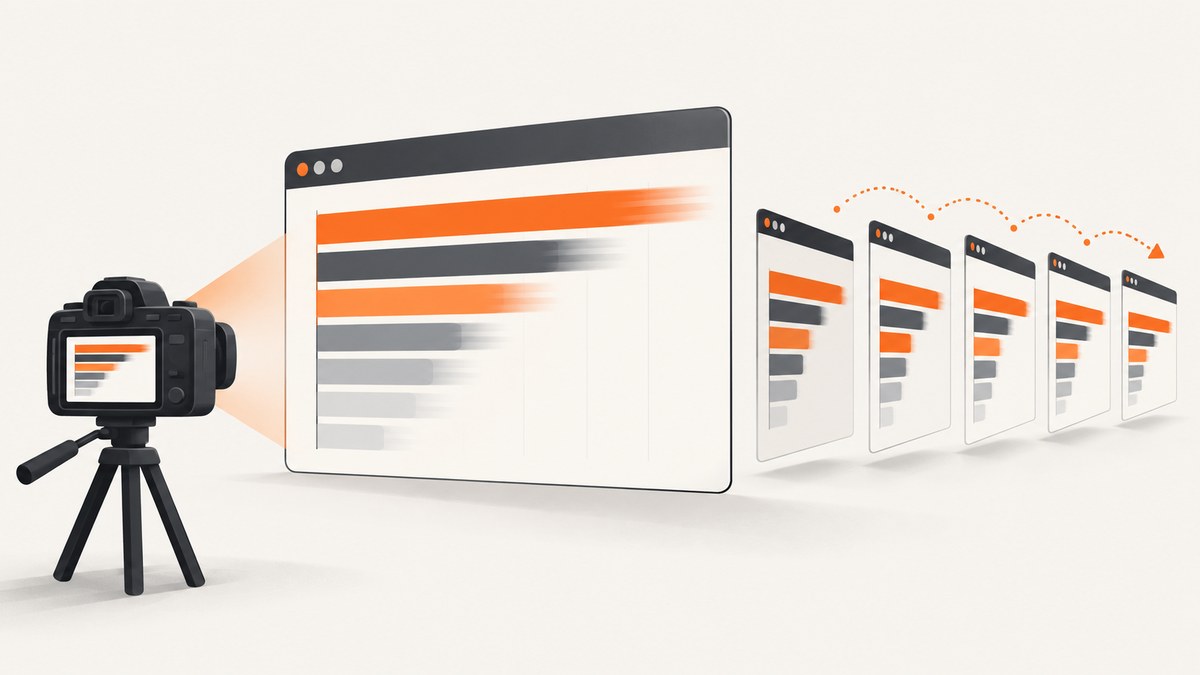
A Playwright loop that calls page.screenshot(full_page=True) synchronously cannot guarantee 30 FPS, let alone 100. The next iteration cannot begin until the current screenshot finishes, so capture latency sets a lower bound on the frame interval. A 10 ms sleep only adjusts the delay after the work; it does not make the screenshot operation faster.
If your APNG contains 60 frames after a 5–7 second recording, the available evidence does not identify one definitive cause. First distinguish how many screenshots completed, how many frames were written to the APNG, and how the file plays back. Then decide whether you need a real-time recording of an arbitrary page or deterministic frames from an animation you control.
1. Measure capture rate before changing the recorder
The loop’s requested interval is not its measured frame rate. Record monotonic timestamps around each screenshot, count successes and exceptions, and calculate the rate from completed captures. This identifies whether frames are failing during capture or disappearing later during APNG encoding or playback.
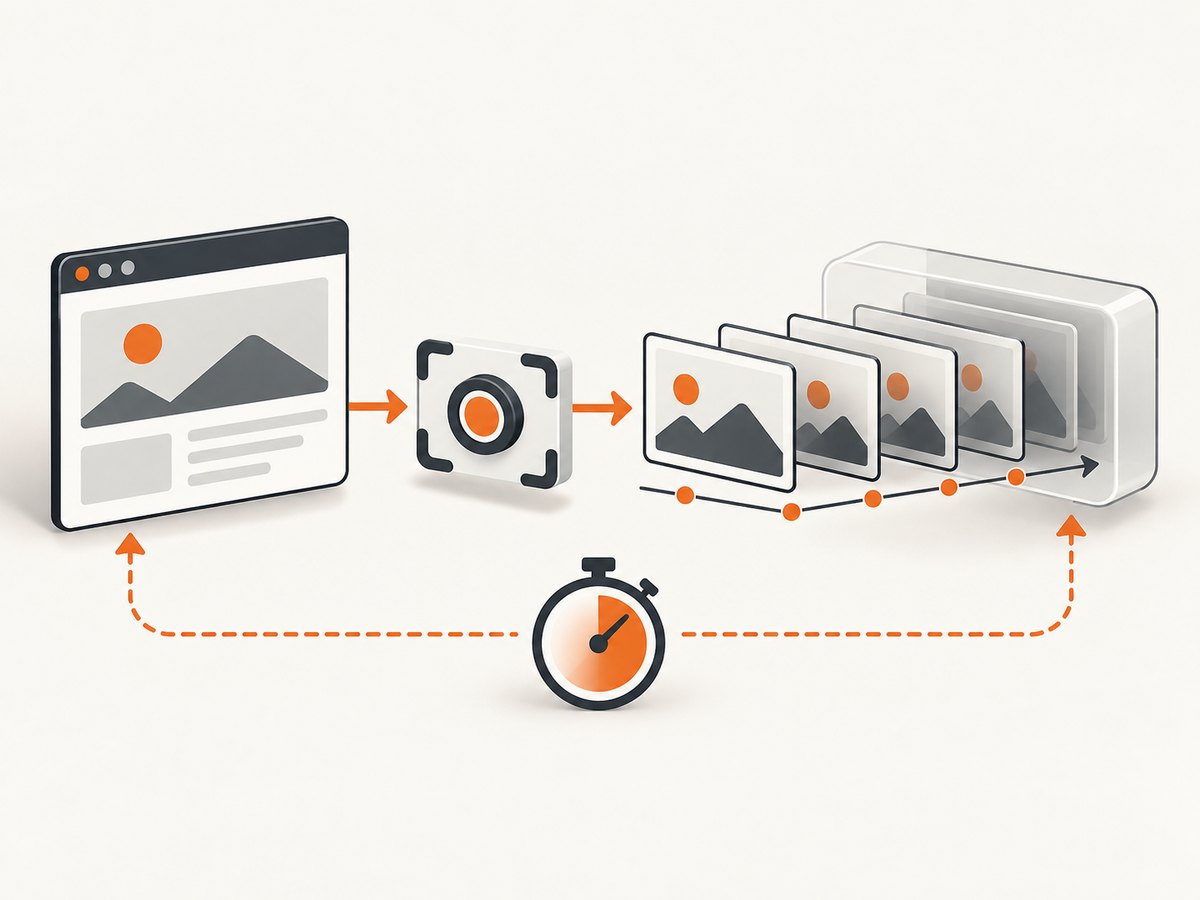
For completed captures with timestamps t₀ and tₙ, calculate the average rate as:
measured_fps = successful_frames / (last_completed_time - first_completed_time)For an interval-based estimate that uses the elapsed span between frame completions, use (successful_frames - 1) / (last_completed_time - first_completed_time). State which convention you use. The first formula counts frames per elapsed second; the second estimates the rate of intervals between frames.
Add timing and failure logs
This example keeps the screenshot operation synchronous, like the original pattern, but records timing and exceptions so the result is diagnosable. It assumes page is an open Playwright page and that frames is a list used later by your APNG writer.
import time

frames = []
errors = []
start = time.monotonic()
interval = 0.010  # requested interval: 10 ms, not a promised frame rate

while recording:
    loop_started = time.monotonic()
    shot_started = time.monotonic()
    try:
        png_bytes = page.screenshot(full_page=True)
        completed = time.monotonic()
        frames.append((completed, png_bytes))
        print(
            f"frame={len(frames)} "
            f"capture_ms={(completed - shot_started) * 1000:.1f} "
            f"elapsed_s={completed - start:.3f}"
        )
    except Exception as exc:
        errors.append((time.monotonic(), repr(exc)))
        print(f"capture_error={exc!r}")

    # Sleep only for the remaining requested interval. If capture itself
    # exceeds the interval, the next iteration starts immediately.
    remaining = interval - (time.monotonic() - loop_started)
    if remaining > 0:
        time.sleep(remaining)

print(f"successful_frames={len(frames)} errors={len(errors)}")
if len(frames) > 1:
    elapsed = frames[-1][0] - frames[0][0]
    if elapsed > 0:
        print(f"interval_based_fps={(len(frames) - 1) / elapsed:.2f}")
Make sure recording is set to False by your stop hotkey or other stop condition. If the hotkey runs in another thread, use a thread-safe event rather than relying on an unshared local variable. Keep exception counts separate from successful frames; otherwise a loop can run for several seconds while capturing far fewer frames than expected.
2. Check capture, encoding, and playback separately
The reported 60-frame output could result from several stages, and the question does not provide timings, saved-file metadata, or environment details to establish which one. Use this sequence to localize it:
- Capture buffer: print
len(frames)immediately before APNG writing. This is the number of successful screenshot results your script retained. - Exceptions: report the number and text of capture errors. A screenshot only reaches the buffer after the call returns successfully.
- Output file: inspect the encoded file’s frame count using the image library or a separate APNG inspector. Compare it with the buffer count.
- Playback: open the APNG in a viewer known to support animated PNG and check whether it plays all encoded frames. A viewer’s behavior is not evidence that the capture loop stopped.
If the buffer contains more than 60 frames but the file contains 60, investigate the APNG-writing path and its inputs. If both counts are 60, investigate capture timing, stop conditions, and exceptions. If the file has more frames but playback appears truncated, check the viewer. Do not assume the browser, APNG format, or Pillow imposed a 60-frame cap without evidence.
3. Make the Playwright capture loop less expensive
Capture cost depends on the page and the pixels being read back. The example settings include a 1920×1080 viewport, device_scale_factor=4, and full-page screenshots. As a diagnostic, try a smaller viewport and device_scale_factor=1. High pixel dimensions and full-page captures can increase work per screenshot; this is a plausible factor to measure, not a proven explanation for the specific 60-frame report.
Record only the region you need
full_page=True captures the full document. That can be useful for a static page, but a chart-race recording usually needs the chart area and its surrounding labels, not every page section. If the page layout lets you capture the chart as the viewport, use a normal viewport screenshot. If you need one element, Playwright’s locator screenshot API can target it:
# page is a Playwright Page; selector should identify the chart container.
chart = page.locator("#chart")
chart.screenshot(path="chart.png")
This saves one PNG; adapt it to your repeated capture loop if you need a sequence. Check that the selected element includes all changing content and does not clip labels, tooltips, or overflow. Element capture may reduce unnecessary pixels, but it does not create a guaranteed frame rate.
Keep timing honest
For a fixed requested cadence, measure the work and wait only for the remaining interval. The sample loop does this. A fixed sleep after each screenshot adds capture time to the intended interval, so a 10 ms screenshot followed by a 10 ms sleep yields at most roughly 50 iterations per second before other work. If a capture itself takes longer than the target interval, sleeping cannot recover the lost time.
Avoid launching overlapping screenshot calls as a quick fix. Concurrent captures can compete for browser and memory resources, produce frames with unclear ordering, and still do not make the page render at a higher rate. First establish the completed capture rate and whether it is sufficient for the desired output.
4. Choose a recording path based on control of the animation
| Approach | Best fit | Timing and output |
|---|---|---|
| Playwright screenshots | An arbitrary rendered webpage that must be observed live | Real-time capture; screenshot latency limits cadence; encode captured images as APNG if that is the required output |
| Canvas plus MediaRecorder | A canvas surface you can access and record | Browser media recording; MIME support varies; output is not automatically APNG |
| WebCodecs with fixed-step rendering | An animation you can control and render at chosen time steps | More control over frame generation; encoded chunks need suitable packaging; manage backpressure and frame resources |
| CCapture.js | A canvas animation under your control, especially one suited to virtual-time capture | Documents fixed-step capture and video/image archive paths; another encoder is needed for formats such as APNG |
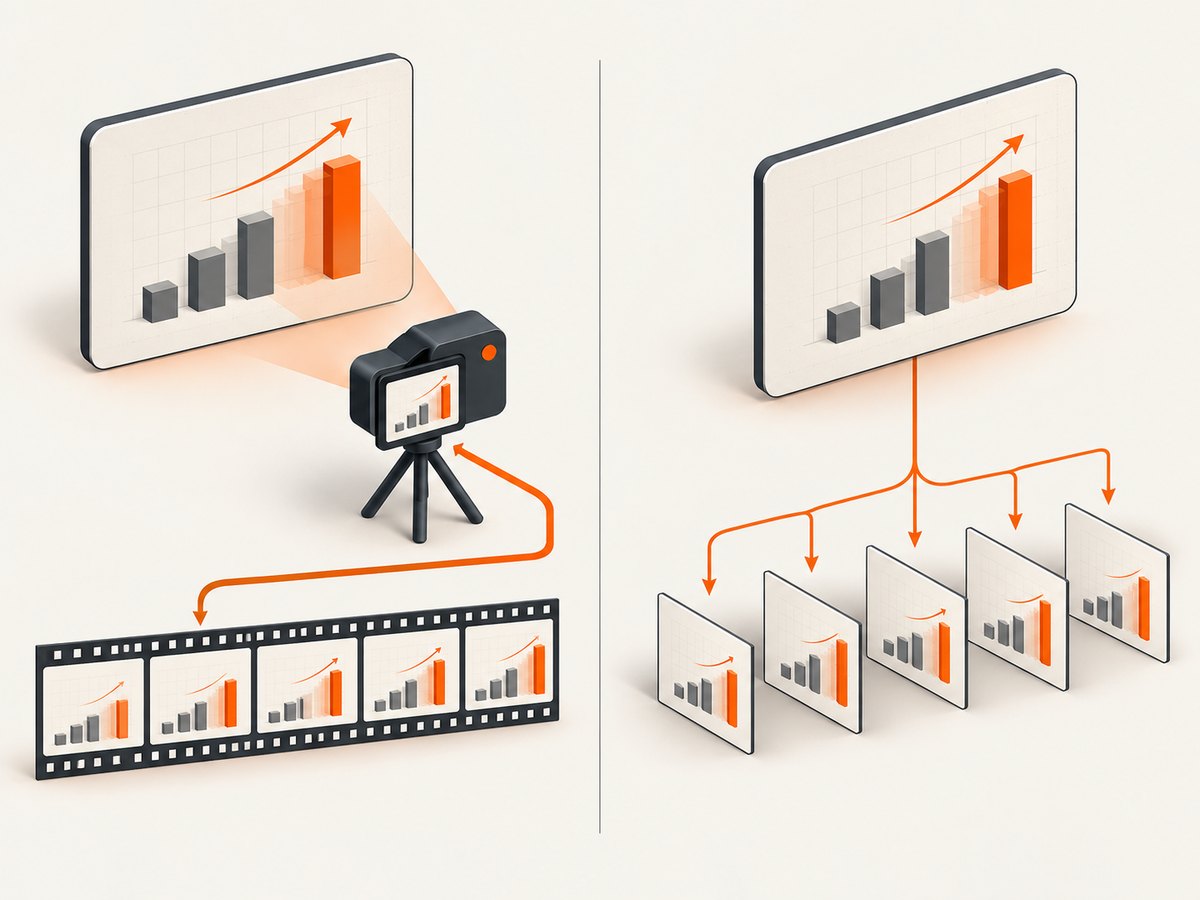
These browser APIs are conditional options, not drop-in replacements for recording any third-party webpage. Choose based on whether you control the animation surface and whether the deliverable must remain APNG.
Canvas recording with MediaRecorder
If the chart is drawn to a canvas you can access, a canvas stream can be passed to MediaRecorder. Check browser support for the MIME type you want rather than assuming a codec/container combination is available. MediaRecorder creates a media recording; it does not directly write an APNG. See MDN’s MediaRecorder constructor documentation.
// Run in the page context for a canvas you own or can access.
const canvas = document.querySelector("canvas");
if (!canvas) throw new Error("Canvas not found");

const preferredType = "video/webm;codecs=vp9";
const mimeType = MediaRecorder.isTypeSupported(preferredType)
  ? preferredType
  : "video/webm";
if (!MediaRecorder.isTypeSupported(mimeType)) {
  throw new Error("No supported MediaRecorder MIME type found");
}

const stream = canvas.captureStream();
const recorder = new MediaRecorder(stream, { mimeType });
const chunks = [];
recorder.ondataavailable = (event) => {
  if (event.data.size > 0) chunks.push(event.data);
};
recorder.start();

// Stop when your own animation or recording condition is reached.
function stopRecording() {
  recorder.stop();
}

recorder.onstop = () => {
  const blob = new Blob(chunks, { type: recorder.mimeType });
  const link = document.createElement("a");
  link.href = URL.createObjectURL(blob);
  link.download = "chart-recording.webm";
  link.click();
  URL.revokeObjectURL(link.href);
};
The example illustrates the browser-side recording path; integrate start/stop with the page’s actual lifecycle. Verify the resulting media in a compatible player. If APNG is mandatory, use a conversion or an encoder that explicitly supports APNG rather than treating a WebM recording as one.
Deterministic rendering with WebCodecs
For an animation you control, fixed time steps can make frame generation repeatable: render the animation at a known time, encode that image, advance by a fixed duration, and repeat. WebCodecs provides a VideoEncoder path, but it is lower level than a screenshot loop. The implementation must monitor encoder queue growth, close every VideoFrame after use, and flush the encoder before finalizing output. Encoded chunks still need a suitable container or packaging step; WebCodecs does not itself produce an APNG. Consult MDN’s WebCodecs API guide for the API’s encoding workflow.
Do not use this route for an arbitrary page unless you can control how its animation advances. A chart driven by wall-clock timers, live data, or inaccessible cross-origin content may not be reproducible at fixed time steps.
CCapture.js for controlled canvas animations
CCapture.js documents a virtual clock and fixed-step capture for canvas animations, with video and image-archive output paths. Its documentation describes custom encoders for formats such as APNG. It applies to animations under your control; it is not a general recorder for any third-party webpage.
5. APNG frame duration and smoothness
The original script saves frames with a nominal duration=10 milliseconds. That value describes the intended display delay between stored frames; it does not prove the screenshots were captured every 10 ms. If 60 screenshots were captured over six seconds, the capture average is about 10 frames per second regardless of a 10 ms delay written into the APNG. The file may therefore play faster than real time if its encoded per-frame duration does not reflect capture timing.
Keep capture timestamps with the image bytes. When creating the APNG, decide whether playback should represent elapsed real time or play at a fixed rate. For real-time representation, derive frame delays from timestamp differences, subject to the APNG library’s timing units and limits. For fixed-rate playback, choose an explicit frame interval and understand that this may speed up or slow down the original animation. Verify the library’s duration semantics before writing; a unit mismatch can produce unexpectedly fast or slow playback.
6. Memory, performance, and reliability
- Pixel volume: high device scale factors and full-page capture increase image dimensions. Reducing the scale and capture area is a useful controlled experiment.
- Buffer memory: retaining every PNG byte string and then decoding all frames into RGBA can consume substantial memory. A long recording at high resolution multiplies the per-frame cost. Estimate memory from actual frame dimensions and avoid keeping redundant encoded and decoded copies longer than necessary.
- Encode after capture: avoid doing expensive image conversion inside the timed capture loop if capture cadence matters. Record first, then encode, or use a carefully designed bounded pipeline that preserves frame order.
- Backpressure: if you encode while capturing, monitor queued work. WebCodecs explicitly requires managing queue growth and frame resources. A queue that grows faster than it drains shifts the failure from slow capture to memory pressure.
- Page stability: screenshots can fail while navigation, tab closure, or browser shutdown is in progress. Stop the recording cleanly before closing the page and count errors.
- Reproducibility: record viewport, device scale factor, browser version, page URL, recording duration, capture count, and output frame count with each diagnostic run. These details help compare runs without mistaking different workloads for a code regression.
7. Troubleshooting common symptoms
| Symptom | Likely area to inspect | Next action |
|---|---|---|
| Exactly 60 frames in the buffer | Loop stop condition, hotkey/event handling, capture duration, or errors | Log each completed frame, elapsed time, stop event, and exceptions. The available report does not establish a 60-frame cap. |
| Buffer has more frames than the APNG | Frame conversion or APNG save arguments | Compare the pre-save buffer count to the encoded file’s frame count; inspect the writer’s handling of appended frames and save options. |
| APNG file has all frames, viewer stops early | Playback application or file interpretation | Check the file in another APNG-capable viewer and inspect metadata independently. |
| Output plays too quickly | Stored frame duration does not match capture timing | Check duration units and choose between real-time timestamp-based delays and fixed-rate playback. |
| Measured rate is much lower than requested | Screenshot latency, capture dimensions, or other synchronous work | Log screenshot duration; test a smaller viewport, scale factor 1, and chart-only capture. |
| Capture loop exits unexpectedly | Hotkey state, thrown exception, or page/browser lifecycle | Log the stop reason, catch and count capture errors, and use a thread-safe stop event when control comes from another thread. |
| Canvas recorder rejects the MIME type | Browser codec/container support | Call MediaRecorder.isTypeSupported() and select a supported type. The available types vary by browser. |
| WebCodecs memory or queue growth | Frames produced faster than encoding/output handling | Apply backpressure, close frames after encoding, and flush before finalizing. |
8. Or skip the browser setup
If you need a clean still screenshot of the page rather than a timed APNG recording, ScreenshotNeo provides a website screenshot API and MCP server. One GET request returns a PNG, JPEG, WebP, or PDF. It does not replace a high-frame-rate video recorder, but it can handle screenshot capture without setting up Playwright in your own service.
cURL:
curl -G "https://api.screenshotneo.com/v1/shot" -d access_key=YOUR_API_KEY --data-urlencode url=https://stripe.com -o shot.webpPython:
import requests

r = requests.get(
    "https://api.screenshotneo.com/v1/shot",
    params={"access_key": "YOUR_API_KEY", "url": "https://stripe.com"},
    timeout=90,
)
open("shot.webp", "wb").write(r.content)
Node.js:
const q = new URLSearchParams({ access_key: 'YOUR_API_KEY', url: 'https://stripe.com' });
const res = await fetch(`https://api.screenshotneo.com/v1/shot?${q}`);
if (!res.ok) throw new Error(`Screenshot request failed: ${res.status}`);
await import('node:fs/promises').then(({ writeFile }) => writeFile('shot.webp', Buffer.from(await res.arrayBuffer())));
See the ScreenshotNeo API documentation for request options and setup. Cookie banners, newsletter popups, and chat widgets are removed before the shot. Bot checks, blank pages, and failed loads are never billed; responses identify page verdict and billing status in headers. An MCP server lets AI agents use take_screenshot, get_page_info, and capture_pdf. The free plan includes 1,000 screenshots a month with no card, and paid plans start at $5 for 3,000. Sign up for 1,000 free screenshots a month, with no card required.
9. FAQ
Can Playwright screenshots reliably reach 30 FPS on every page?
No universal rate can be promised by a synchronous screenshot loop. Measure the actual page, viewport, scale factor, and screenshot latency; a requested sleep interval is not a capture guarantee.
Does MediaRecorder save APNG?
No. It records browser-supported media formats. To deliver APNG, add a suitable conversion or APNG encoder step.
Is 60 frames evidence of a browser limit?
No. The report alone does not show why that count occurred. Compare buffer, encoded file, and viewer counts, and log stop conditions and exceptions.
When should I use fixed-step rendering?
Use it when you control the animation and can render it at explicit times. For an arbitrary live page, a screenshot or screen-recording workflow is more applicable.


