Improving URL-to-Image Screenshot Performance
Make URL screenshots faster and more reliable by measuring each pipeline stage, choosing the right wait condition, and capturing only what you need.

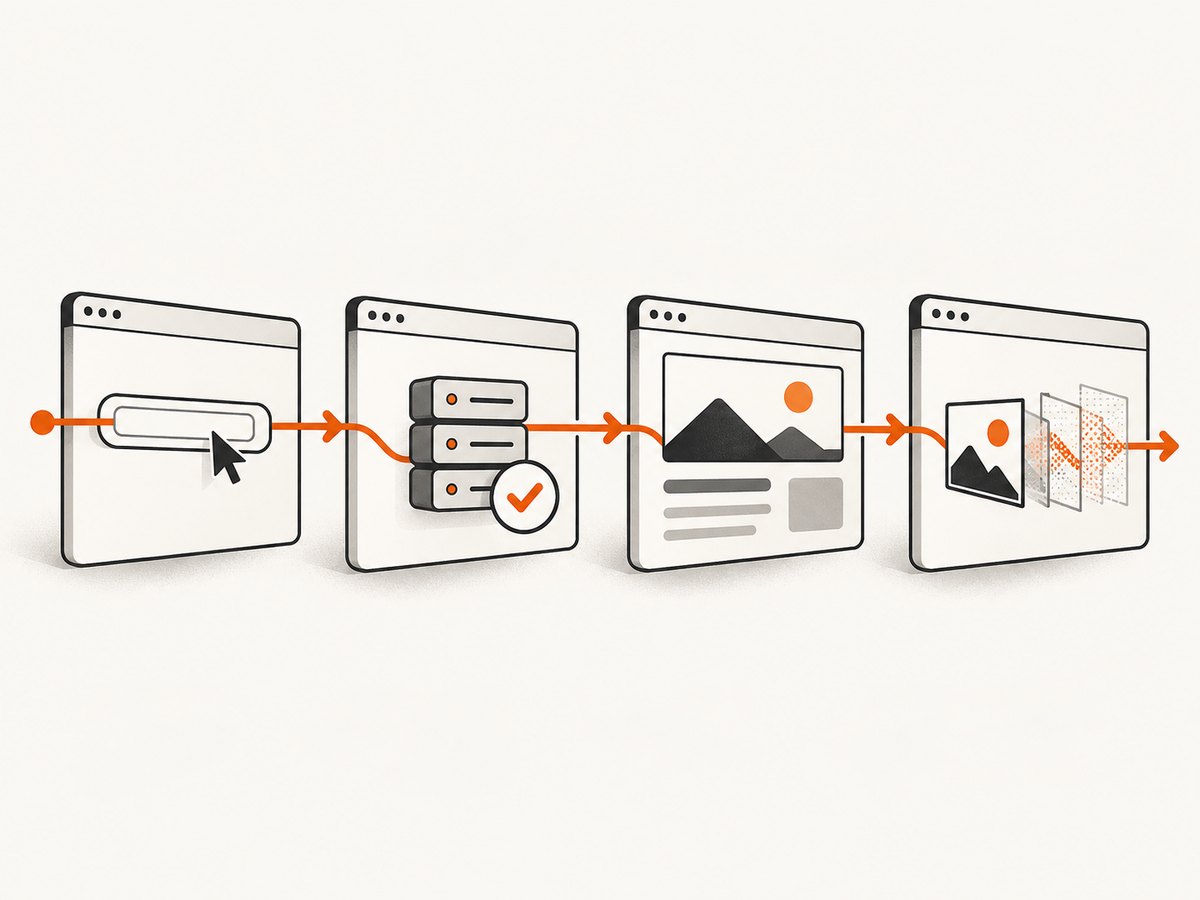
To make URL-to-image screenshots faster, measure the pipeline in stages, wait for a page-specific ready condition, capture the smallest required scope, and optimize the page or browser stage that actually limits throughput. There is no single browser flag or wait setting that makes every website faster. A reliable implementation separates navigation, application readiness, rendering, screenshot encoding and output handling so each change can be measured against the same workload.
1. Define what “faster” means
Before changing code, choose the performance target. “Screenshot performance” can mean several different things:
- Time to first usable image: elapsed time from the request until a consumer can use the screenshot.
- End-to-end latency: navigation, waiting, capture, encoding and writing the result.
- Throughput: URLs completed per minute when many jobs run concurrently.
- Cost per image: browser CPU, memory, bandwidth and hosted API usage for each output.
Record the browser and version, URL set, viewport, device scale factor, cache state, readiness rule and output format. Run the same URLs before and after each change. The reviewed documentation does not establish a general screenshot throughput benchmark, so use an experiment plan rather than promising a universal percentage improvement.
2. Measure every stage of the pipeline
Instrument separate timers for navigation, application readiness, screenshot capture and output handling. A single total duration hides the bottleneck. For example, a page can navigate quickly but spend most of its time waiting for a client-side chart, or capture quickly while PNG encoding dominates CPU time.
import { chromium } from 'playwright';

const browser = await chromium.launch();
const page = await browser.newPage({ viewport: { width: 1440, height: 900 } });
const url = 'https://example.com/dashboard';

const started = performance.now();
await page.goto(url, { waitUntil: 'domcontentloaded' });
const navigated = performance.now();

await page.locator('[data-ready="true"]').waitFor({ state: 'visible', timeout: 15000 });
const ready = performance.now();

await page.screenshot({ path: 'dashboard.webp', type: 'webp', quality: อย่าง }).catch(() => {});
const captured = performance.now();

console.log({
  navigationMs: navigated - started,
  readinessMs: ready - navigated,
  captureMs: captured - ready,
  totalMs: captured - started
});
await browser.close();
Replace the placeholder quality value with a number supported by your Playwright version, or omit it when using the default. In production code, record errors instead of swallowing them. Keep the page, browser version, viewport, cache condition and readiness assertion constant while comparing runs. Do not shorten a timeout simply to improve a metric if it returns incomplete or inconsistent images.
3. Choose a page-specific readiness condition
Playwright supports commit, domcontentloaded, load and networkidle navigation signals. Its documentation explicitly warns against using network idle as a test readiness rule: “'networkidle' – DISCOURAGED consider operation to be finished when there are no network connections for at least 500 ms. Don’t use this method for testing, rely on web assertions to assess readiness instead.” The 500 ms value defines the event; it is not a recommended delay or speed target.
Puppeteer documents navigation followed by a screenshot and shows waitUntil: 'networkidle2' as an available option. Treat it as one tool, not a universal answer. Pages may keep connections open for analytics, ads, WebSockets or polling. Other pages render their meaningful content after JavaScript finishes even though network activity has already stopped.
Practical readiness patterns
// Playwright: wait for an application signal
await page.goto(url, { waitUntil: 'domcontentloaded' });
await page.locator('[data-testid="report-ready"]').waitFor({ state: 'visible' });

// Wait for a specific text value
await expect(page.getByRole('heading', { name: 'Quarterly report' })).toBeVisible();

// Puppeteer: use networkidle2 when it matches the page behavior
await page.goto(url, { waitUntil: 'networkidle2', timeout: 30000 });
await page.waitForSelector('#report-ready', { visible: true, timeout: 15000 });
Prefer an application-specific selector, text assertion or state attribute. If no reliable signal exists, combine a conservative navigation event with a bounded delay and validate the resulting image or DOM state. For visual tests, Playwright’s toHaveScreenshot assertion waits for two consecutive screenshots to stabilize before comparing with a baseline. That can reduce captures during an animation, but it does not guarantee that every website stabilizes automatically.
4. Capture only the scope your consumer needs
Capture scope affects rendering work, output size and correctness. Use a viewport screenshot when the consumer needs the visible screen, an element screenshot for a component, and a full-page screenshot only when the complete document is required. Puppeteer documents ElementHandle.screenshot(); Playwright supports viewport, element and full-page capture.
// Viewport: smallest output for a hero or dashboard screen
await page.screenshot({ path: 'viewport.png' });

// Element: capture one card or chart
await page.locator('.pricing-card').screenshot({ path: 'pricing-card.png' });

// Full page: use only when the entire document is required
await page.screenshot({ path: 'full-page.png', fullPage: true });
A full-page image is not automatically the fastest or best choice if the consumer only needs the initial viewport or one element. This is an operational inference from the different capture scopes supported by Playwright and Puppeteer, not a measured speed ranking.
Reduce unnecessary rendering
- Set the smallest useful viewport dimensions.
- Use an element selector instead of stitching a whole document.
- Disable animations in a test-only stylesheet when motion is not part of the requirement.
- Hide large off-screen widgets that are irrelevant to the output.
- Choose WebP or JPEG when lossless PNG is not required; compare visual quality and encoding time on your own pages.
5. Check the source page for bottlenecks
If navigation or readiness dominates, optimize the page being captured. Lighthouse identifies oversized image delivery as an opportunity and recommends sizing images appropriately for their rendered dimensions and device pixel ratio. This advice concerns page-load work; it is not proof that resizing source images reduces browser screenshot encoding time.
Inspect waterfalls for slow third-party requests, large JavaScript bundles, blocked fonts, redirects and API calls that delay the ready condition. Where you control the page, serve responsive images, compress assets, cache static resources and remove unnecessary third-party work. Where you do not control it, use request blocking carefully: blocking analytics can help, but blocking a script that builds the page will produce an incorrect image.
6. A complete Playwright implementation
import { chromium } from 'playwright';

const browser = await chromium.launch({ headless: true });
const context = await browser.newContext({
  viewport: { width: 1440, height: 900 },
  deviceScaleFactor: 1
});
const page = await context.newPage();

try {
  await page.goto('https://example.com/dashboard', {
    waitUntil: 'domcontentloaded',
    timeout: 30000
  });
  await page.locator('[data-ready="true"]').waitFor({
    state: 'visible',
    timeout: 15000
  });
  await page.screenshot({
    path: 'dashboard.webp',
    type: 'webp',
    quality: 80,
    animations: 'disabled'
  });
} finally {
  await browser.close();
}
Keep navigation and readiness timeouts separate so logs show which condition failed. If the page has no ready marker, assert on a meaningful heading, table row or component. Avoid a large fixed sleep when an observable condition is available.
7. Puppeteer implementation
const puppeteer = require('puppeteer');

(async () => {
  const browser = await puppeteer.launch({ headless: 'new' });
  const page = await browser.newPage();
  await page.setViewport({ width: 1440, height: 900 });

  try {
    await page.goto('https://example.com/dashboard', {
      waitUntil: 'domcontentloaded',
      timeout: 30000
    });
    await page.waitForSelector('[data-ready="true"]', {
      visible: true,
      timeout: 15000
    });
    await page.screenshot({ path: 'dashboard.png', type: 'png' });
  } finally {
    await browser.close();
  }
})();
8. Or skip the browser setup
ScreenshotNeo is a hosted URL screenshot API and MCP server. It accepts one GET request and returns PNG, JPEG, WebP or PDF. The API can load lazy images, capture an element by CSS selector, emulate dark mode and device presets, set a viewport and retina scale, inject CSS or JavaScript, click an element, wait for a selector, delay or network idle, block ads, trackers, requests or resource types, apply headers, cookies, user agent, Authorization, timezone and geolocation, resize images, cache with a chosen TTL, create signed links, run asynchronous jobs with signed webhooks, capture up to 100 URLs per bulk call and report usage. See the ScreenshotNeo API documentation for parameter details.
curl -G "https://api.screenshotneo.com/v1/shot" -d access_key=YOUR_API_KEY --data-urlencode url=https://stripe.com -o shot.webpimport requests
r = requests.get("https://api.screenshotneo.com/v1/shot", params={"access_key": "YOUR_API_KEY", "url": "https://stripe.com"}, timeout=90)
open("shot.webp", "wb").write(r.content)const q = new URLSearchParams({ access_key: 'YOUR_API_KEY', url: 'https://stripe.com' });
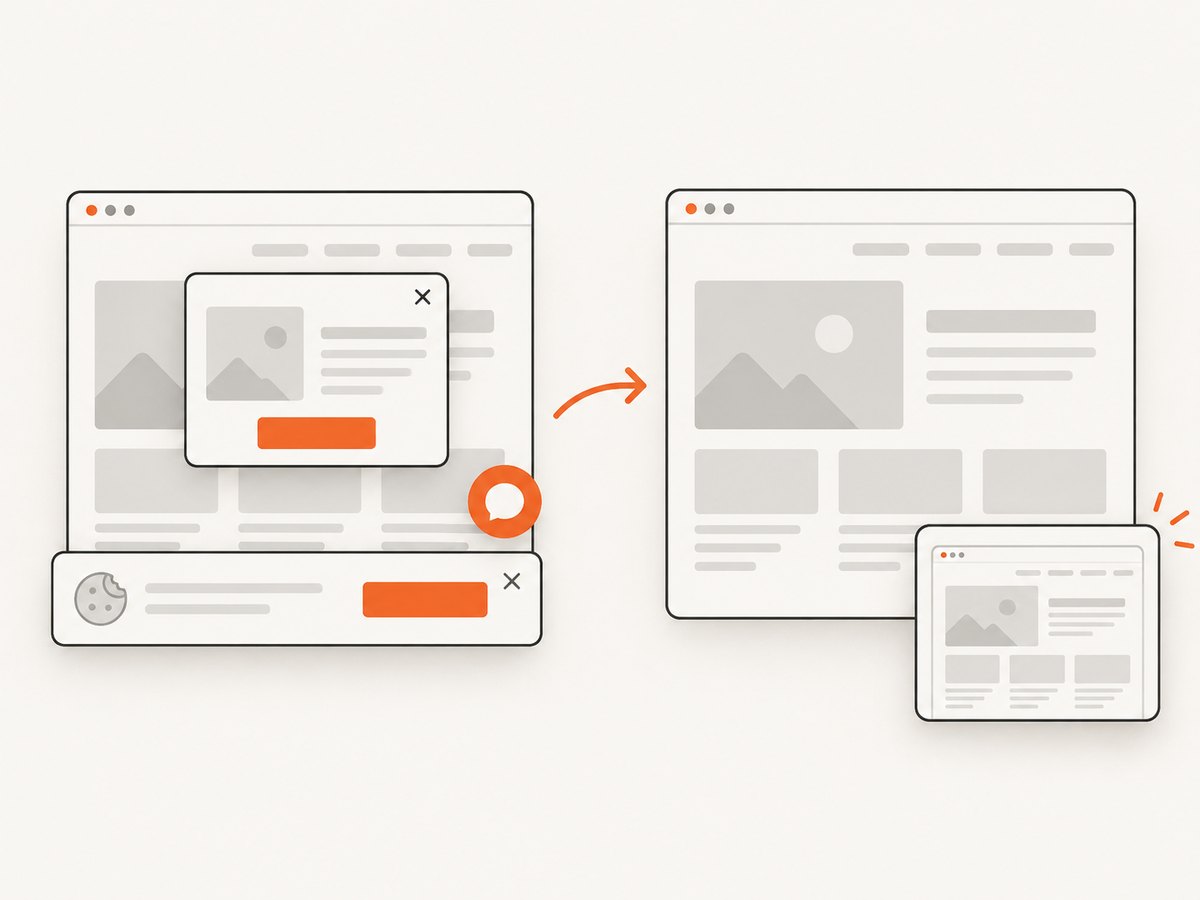
const res = await fetch(`https://api.screenshotneo.com/v1/shot?${q}`);Cookie and consent banners are accepted like a visitor, then more than 60 known consent platforms, newsletter popups and chat widgets can be removed before capture; each step can be turned off. Bot checks, CAPTCHAs, blank pages, timeouts, failed loads and cache hits cost nothing, and response headers identify the page verdict and whether it was billed. An MCP server provides take_screenshot, get_page_info and capture_pdf tools for Claude, Cursor and other MCP clients. The Free plan includes 1,000 screenshots a month with no card; paid plans start at $5 for 3,000 shots. Create a free ScreenshotNeo account.
9. Concurrency, caching and reliability
For many URLs, measure throughput at realistic concurrency instead of launching unlimited browser tabs. Each page consumes memory, and high concurrency can cause contention that increases latency. Reuse a browser process and create isolated contexts where appropriate, but close pages and contexts after each job. Apply bounded retries only to transient navigation failures; retrying a deterministic selector timeout will not fix a missing element.
Cache results when the URL and page state are equivalent. Include viewport, locale, authentication state, query parameters and relevant headers in your cache key. A cached screenshot is fast, but it may be stale. ScreenshotNeo supports a TTL you choose and identifies cache hits in the response, which helps separate rendering work from cache behavior.
For correctness, store the URL, timestamp, browser version, viewport, readiness rule and output type with each artifact. Compare representative images after performance changes. A faster capture that omits a chart, font or lazy image is a failed optimization.
10. Troubleshooting
| Symptom | Likely cause | Fix |
|---|---|---|
| Screenshot contains a spinner | Navigation completed before client rendering. | Wait for a page-specific ready selector or assertion. |
| Network-idle wait never finishes | Persistent polling, WebSockets or third-party requests. | Use domcontentloaded or load, then assert on meaningful content. |
| Full-page capture is slow or huge | The output scope exceeds the requirement. | Capture the viewport or a specific element. |
| Lazy images are missing | They load only after scrolling or intersection. | Scroll in controlled steps, wait for image completion, or use a capture service that loads lazy images. |
| Fonts change between runs | Web fonts have not loaded or differ by environment. | Wait for document.fonts.ready, install the required fonts and keep browser versions consistent. |
| Requests time out | Slow origin, blocked resource or an overly short timeout. | Inspect the waterfall, increase the bounded timeout, or fix the origin; do not hide repeated failures with retries. |
| Blank or bot-check page | The origin returned a challenge or failed to render. | Record the verdict, verify access requirements and use an authorized authenticated session where needed. |
| Output is expensive to store | Large PNG dimensions or retina scale. | Use the required dimensions and a suitable WebP or JPEG quality. |
11. Cost and operational notes
Self-managed browsers trade subscription cost for infrastructure, patching, queueing, fonts, proxies and observability. Hosted APIs trade that maintenance for per-use pricing and provider-specific limits. Compare the options using your actual URLs and concurrency: environment control, interactions, device or geographic emulation, latency, reliability and total usage cost.
ScreenshotNeo’s plans are Free 1,000 shots per month, Starter $5 for 3,000, Growth $15 for 15,000, Pro $39 for 60,000, Scale $99 for 250,000 and Business $249 for 1,000,000. Yearly billing gives two months free, and every feature is available on every plan. Only clean shots are billed, while failed loads, bot checks, blank pages, timeouts and cache hits are free.
12. FAQ
Should I always use network idle?
No. Playwright marks it as discouraged for testing. Use an application-specific assertion when possible; Puppeteer’s network-idle options are useful only when they match the page’s behavior.
Is viewport capture always faster than full-page capture?
It usually does less work because it captures less content, but the result depends on the page and environment. Measure both with the same readiness rule.
How do I prove an optimization helped?
Repeat the same URL set with fixed browser, viewport, cache and readiness settings. Compare stage timings and inspect representative images for correctness.
Can I capture authenticated pages?
Yes, when your automation or service supplies the required cookies, headers or authorization and the site permits that access. Keep credentials out of logs and cache keys.
When should I use a hosted API?
Use one when browser installation, scaling, consent cleanup, retries and multi-URL operations would consume more engineering time than the usage cost. Evaluate it against your real pages and output requirements.


