How to Install and Configure MariaDB on Ubuntu and CentOS
Install MariaDB safely on Ubuntu or CentOS with package, repository, security, service, TLS, remote access, and troubleshooting guidance.
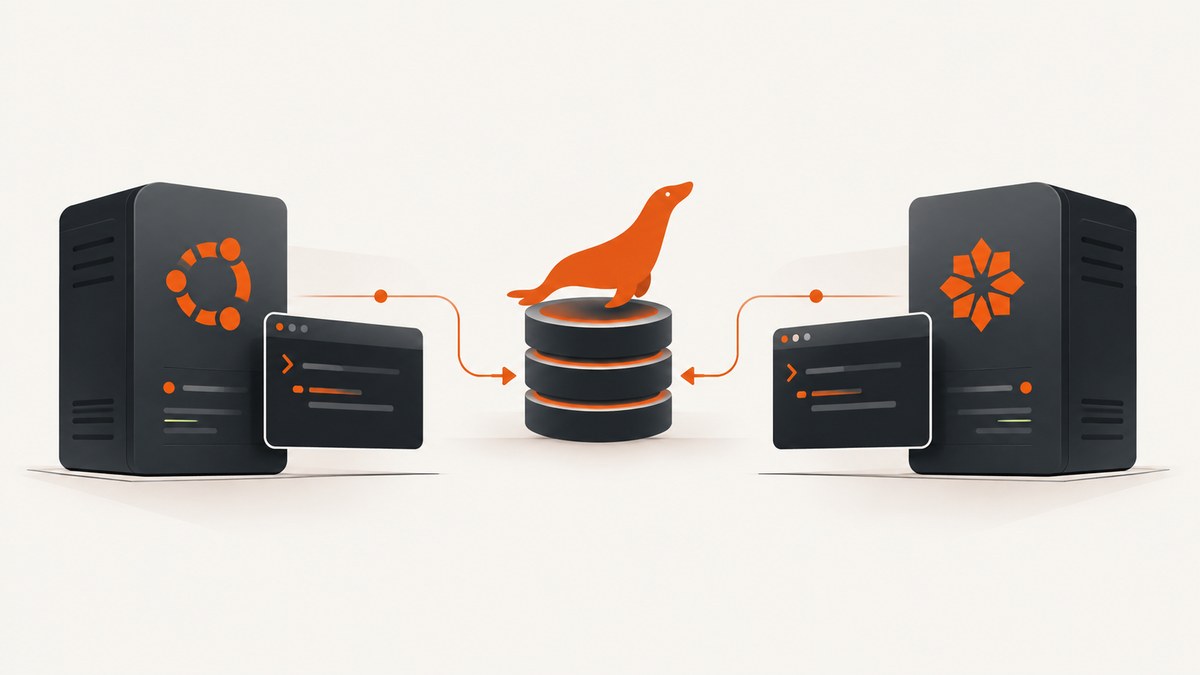
Install MariaDB with your distribution package manager, secure the default installation, enable the service, and verify a local connection. Ubuntu uses APT; CentOS and related Red Hat family systems use DNF or YUM. Before running repository commands, identify your exact operating system release, CPU architecture, and target MariaDB series because repository support changes over time.
This guide covers Ubuntu and CentOS-family systems, including repository selection, MariaDB 10.4+ authentication behavior, TLS, remote connections, performance choices, and common failures.
1. Decide your operating system and MariaDB source
Run these commands first:
cat /etc/os-release
uname -m
mariadb --version 2>/dev/null || true
There are two practical installation paths:
| Choice | Best for | Trade-off |
|---|---|---|
| Distribution packages | Fast setup and integration with Ubuntu or CentOS updates | MariaDB version is selected by the operating system repositories |
| MariaDB repository | Selecting a MariaDB major series or pinning a version | Requires matching the repository to your exact release and architecture |
MariaDB’s installation documentation provides current repository tools. Use the generated configuration for your release rather than copying an example for an older Ubuntu or CentOS version. If you pin a minor version, update the repository configuration carefully when changing series.
2. Install MariaDB on Ubuntu
Option A: Ubuntu packages
Update package metadata and install the server and client:

sudo apt update
sudo apt install mariadb-server mariadb-client
The server package provides the database daemon. The client package provides the mariadb command-line client and related tools. APT normally starts the service during installation, but verify that explicitly in the next section.
Option B: MariaDB’s APT repository
Use MariaDB’s official Debian and Ubuntu repository instructions when you need a MariaDB-provided release or a deliberate major-series choice. Select the Ubuntu codename, architecture, and MariaDB series in the repository configuration tool. Then install the packages:
sudo apt update
sudo apt install mariadb-server mariadb-client
Do not mix package names or repository entries from different major series. If you later switch from distribution packages to MariaDB’s repository, review the configured source files and available package versions before upgrading.
3. Install MariaDB on CentOS and other RPM systems
CentOS 7 commonly uses yum; newer CentOS Stream, RHEL-compatible distributions, and Fedora-family systems generally use dnf. Confirm which command exists:
command -v dnf || command -v yum
cat /etc/redhat-release 2>/dev/null || true
Option A: Distribution packages
sudo dnf install mariadb mariadb-serverOn a system that provides only YUM, use:
sudo yum install mariadb mariadb-serverOption B: MariaDB’s RPM repository
Follow the current MariaDB RPM instructions for the exact CentOS, RHEL, Rocky, AlmaLinux, or Fedora release. A basic standalone server installation in the documented repository context is:
sudo dnf install MariaDB-serverThe broader package set shown in MariaDB’s RPM documentation is:
sudo dnf install MariaDB-server MariaDB-server-galera galera-4 MariaDB-client MariaDB-shared MariaDB-backup MariaDB-commonInstall the broader set only when you need those components. A standalone database does not require Galera. From MariaDB 12.3, Galera support is no longer included in the base server package and requires MariaDB-server-galera explicitly.
4. Start, enable, and verify the service
Use systemd on both platforms:
sudo systemctl enable --now mariadb
sudo systemctl status mariadb --no-pager
If the service was installed but not started, start it directly:
sudo systemctl start mariadbCheck recent logs when startup fails:
sudo journalctl -u mariadb -b --no-pager -n 100Verify the client and server locally. MariaDB 10.4 and later commonly use Unix socket authentication for the local administrative account:
sudo mariadbIf your installation was configured for password authentication, use:
mariadb -u root -pInside the client, run:
SELECT VERSION();
SHOW DATABASES;
EXIT;
5. Run the security installation
Run the interactive hardening script:
sudo mariadb-secure-installationIt can remove anonymous accounts, root accounts accessible outside the local host, and the default test database. Read each prompt against your deployment rather than blindly accepting a tutorial’s answers.
MariaDB documentation notes that from 10.4 Unix socket authentication is enabled by default and there is usually no need to create a root password. This means an older tutorial that insists on setting a root password may not match your installation. Use sudo mariadb for local administration when socket authentication is active, and create separate password-authenticated accounts for applications.
Create an application database and account
sudo mariadbCREATE DATABASE appdb CHARACTER SET utf8mb4 COLLATE utf8mb4_unicode_ci;
CREATE USER 'appuser'@'localhost' IDENTIFIED BY 'replace-with-a-long-random-password';
GRANT ALL PRIVILEGES ON appdb.* TO 'appuser'@'localhost';
FLUSH PRIVILEGES;
EXIT;Grant only the privileges the application needs. Keep administrative access separate from application credentials, and store the password in your deployment secret manager rather than source control.
6. Understand MariaDB configuration files
Keep local changes in a custom option file under an included directory instead of editing distribution defaults. The exact include order can vary, so inspect the active configuration if you are unsure:
mariadbd --help --verbose 2>/dev/null | sed -n '/Default options are read from the following files/,/Variables and options/p'Recommended custom file locations from MariaDB’s TLS guidance are:
- Ubuntu and Debian:
/etc/mysql/mariadb.conf.d/z-custom-my.cnf - RHEL, CentOS, Rocky Linux, and SLES:
/etc/my.cnf.d/z-custom-my.cnf
The z- prefix helps the file load after earlier snippets. Always confirm the directory exists on your release.
Example basic server settings
[mariadb]
max_connections =  hundred
character-set-server = utf8mb4
collation-server = utf8mb4_unicode_ci
Replace the illustrative connection value with a number appropriate for your workload; do not increase it simply because memory is available. Every connection consumes resources. After changing settings:
sudo systemctl restart mariadb
sudo systemctl status mariadb --no-pager
7. Configure TLS for client connections
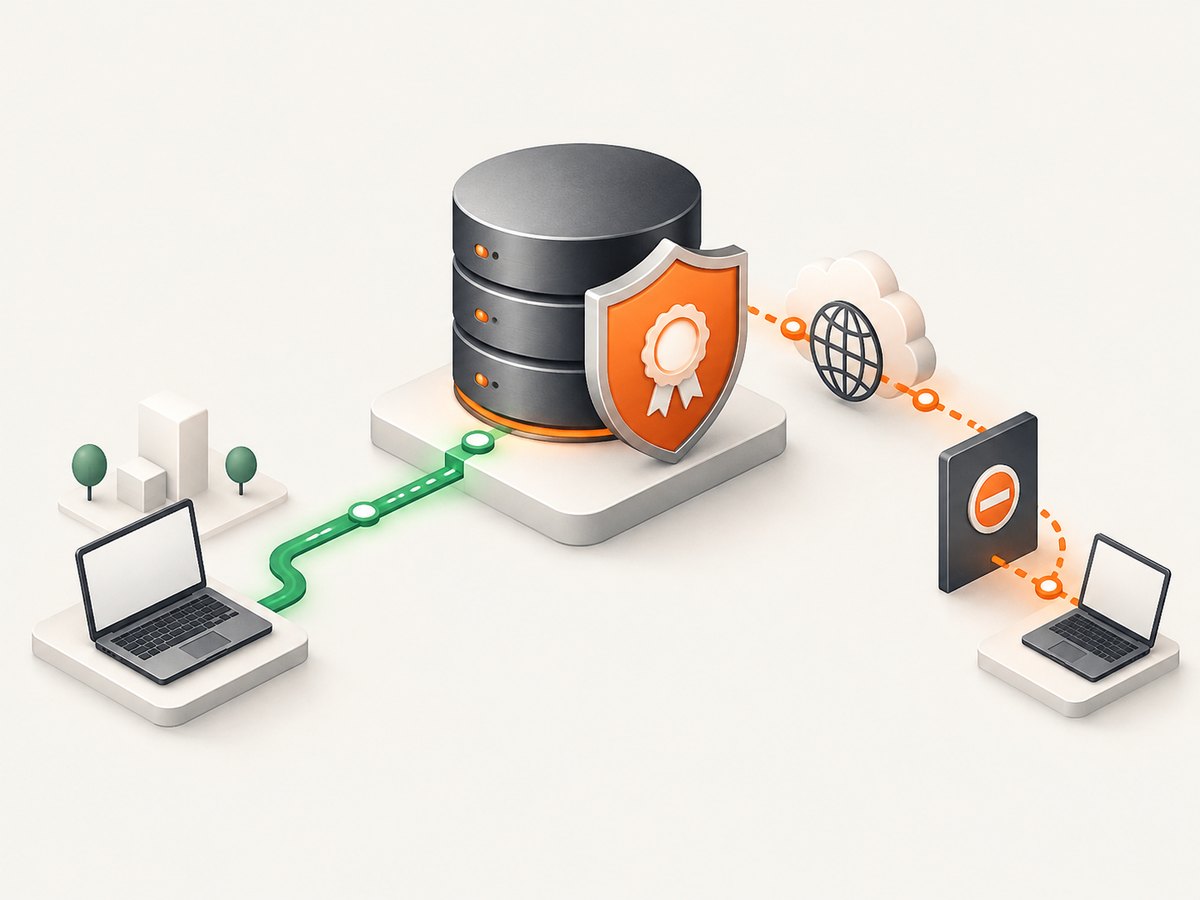
TLS is not automatically enabled merely by installing MariaDB. Obtain a server certificate, private key, and certificate authority file, protect their permissions, and reference them in the custom server file:
[mariadb]
ssl_cert = /path/to/server-cert.pem
ssl_key  = /path/to/server-key.pem
ssl_ca   = /path/to/ca.pem
Use paths readable by the MariaDB service account and restrict the private key. Restart after editing:
sudo systemctl restart mariadbConfirm the variables from the client:
sudo mariadb -e "SHOW VARIABLES LIKE 'ssl%';"Configure clients to validate the CA, not merely to encrypt traffic. MariaDB’s secure-connections documentation covers certificate requirements and client options.
8. Allow remote connections deliberately
MariaDB normally listens on port 3306. Remote access requires three separate decisions:
- MariaDB must listen on an address reachable by the client.
- The operating system firewall must allow TCP 3306 from intended source addresses.
- A MariaDB account must be permitted from the client’s host or network.
Do not expose port 3306 to the entire internet. Restrict the firewall to application subnets or fixed administrative addresses and use TLS when traffic crosses a network.
Check the listening socket:
sudo ss -ltnp | grep 3306On systems using firewalld, an example restricted rule is preferable to a world-open rule:
sudo firewall-cmd --permanent --add-rich-rule='rule family="ipv4" source address="203.0.113.10/32" port protocol="tcp" port="3306" accept'
sudo firewall-cmd --reload
Replace the example source address with the real client network. Create a remote account only when needed:
CREATE USER 'appuser'@'203.0.113.%' IDENTIFIED BY 'replace-with-a-long-random-password';
GRANT ALL PRIVILEGES ON appdb.* TO 'appuser'@'203.0.113.%';
FLUSH PRIVILEGES;
A narrow host pattern is safer than '%'. Test from the client host with TLS settings enabled.
9. Performance and reliability choices
- Choose a supported series: distribution packages reduce maintenance work; MariaDB repositories give more control over major or minor versions.
- Plan memory: connection limits and buffer sizes must fit the machine alongside the operating system and application.
- Use SSD-backed storage and backups: MariaDB’s backup tooling is available in the repository package sets; schedule and restore-test backups before relying on them.
- Keep changes reviewable: use a separate custom file and record each setting change.
- Monitor service health: alert on systemd failures, disk exhaustion, connection saturation, and replication or cluster errors if those features are deployed.
- Pin intentionally: minor-version pinning can improve reproducibility, but it also means you must plan security updates and repository changes.
10. Troubleshooting checklist
| Symptom | Likely cause | Fix |
|---|---|---|
Unable to locate package mariadb-server |
Stale package metadata or an unsupported repository entry | Run sudo apt update, confirm the OS codename, and use the current MariaDB repository instructions. |
| RPM dependency or GPG errors | Repository does not match the OS release or architecture | Review the generated RPM repository file, enabled repositories, and signing-key instructions. |
| Service will not start | Configuration syntax, permissions, port conflict, or damaged data directory | Read journalctl -u mariadb -b; temporarily correct the reported option or file permission, then restart. |
Access denied for user 'root' |
Socket authentication or a password method different from the command used | Try sudo mariadb; inspect the installed authentication setup before changing credentials. |
| Remote connection times out | Firewall, bind address, routing, or cloud security rule | Check ss -ltnp, firewall rules, network routes, and the account host pattern. |
| TLS handshake failure | Wrong certificate path, permissions, CA, hostname, or client TLS mode | Check the ssl_* variables, private-key permissions, certificate chain, and client verification settings. |
| Configuration change has no effect | File is outside the included directories or overridden later | Inspect MariaDB’s default option-file list and place the setting in a late-loading custom file. |
11. Or skip the browser setup
If you need screenshots of your MariaDB documentation, runbooks, dashboards, or status pages while preparing an installation guide, ScreenshotNeo provides a single HTTP call instead of maintaining a browser automation stack. Cookie banners, newsletter popups, and chat widgets are removed before the shot. Bot checks, blank pages, timeouts, failed loads, and cache hits are not billed, and response headers identify the page verdict and billing status. Its MCP server lets Claude, Cursor, and other MCP clients use take_screenshot, get_page_info, and capture_pdf.
See the ScreenshotNeo API documentation for all options, including full-page capture, CSS selectors, device presets, custom headers, cookies, JavaScript, wait conditions, blocking rules, PDFs, caching, signed links, asynchronous jobs, bulk capture, and usage reporting.
cURL
curl -G "https://api.screenshotneo.com/v1/shot" -d access_key=YOUR_API_KEY --data-urlencode url=https://stripe.com -o shot.webpPython
import requests

r = requests.get(
    "https://api.screenshotneo.com/v1/shot",
    params={"access_key": "YOUR_API_KEY", "url": "https://stripe.com"},
    timeout=90,
)
r.raise_for_status()
open("shot.webp", "wb").write(r.content)
Node.js
const q = new URLSearchParams({ access_key: 'YOUR_API_KEY', url: 'https://stripe.com' });
const res = await fetch(`https://api.screenshotneo.com/v1/shot?${q}`);
if (!res.ok) throw new Error(`HTTP ${res.status}`);
const fs = await import('node:fs/promises');
await fs.writeFile('shot.webp', Buffer.from(await res.arrayBuffer()));
There is a free allowance of 1,000 screenshots per month with no card. Paid plans start at $5 for 3,000 shots, and every feature is available on every plan. Create a free ScreenshotNeo account.
12. FAQ
Should I use Ubuntu’s package or MariaDB’s repository?
Use Ubuntu’s package for the simplest integrated maintenance. Use MariaDB’s repository when you need a specific supported major series or version policy.
Do I need to set a MariaDB root password?
Not usually on MariaDB 10.4 and later installations using Unix socket authentication. Confirm your local authentication method and use sudo mariadb when appropriate.
Is Galera required for a normal server?
No. Install Galera packages only when deploying a Galera cluster. MariaDB 12.3 and later separate the Galera server package from the base server package.
What port does MariaDB use?
TCP 3306 is the default. Opening it for remote clients requires deliberate firewall, listener, account, and usually TLS configuration.
Where should custom settings go?
Use an included custom option file such as /etc/mysql/mariadb.conf.d/z-custom-my.cnf on Ubuntu or /etc/my.cnf.d/z-custom-my.cnf on CentOS-family systems, then restart MariaDB.