How to Integrate MCP with Claude Desktop
Connect MCP servers to Claude Desktop with DXT extensions or manual JSON, fix common errors, secure secrets, and add ScreenshotNeo for screenshots.

Direct answer: Claude Desktop can connect to an MCP server in two ways: install a desktop extension (DXT) from Settings > Extensions, or manually add the server under the mcpServers object in claude_desktop_config.json. After installation, restart Claude Desktop and confirm that the server’s tools appear. If they do not, validate the JSON, executable path, permissions, and required environment variables before checking extension logs.
What MCP does in Claude Desktop
MCP (Model Context Protocol) is an open-source standard for connecting AI applications to external systems. The official documentation compares it with a USB-C port for AI applications: Claude is the host, an MCP server supplies a capability, and the protocol provides a consistent connection between them. A server can expose local files, databases, search tools, calculators, or a specialized workflow.
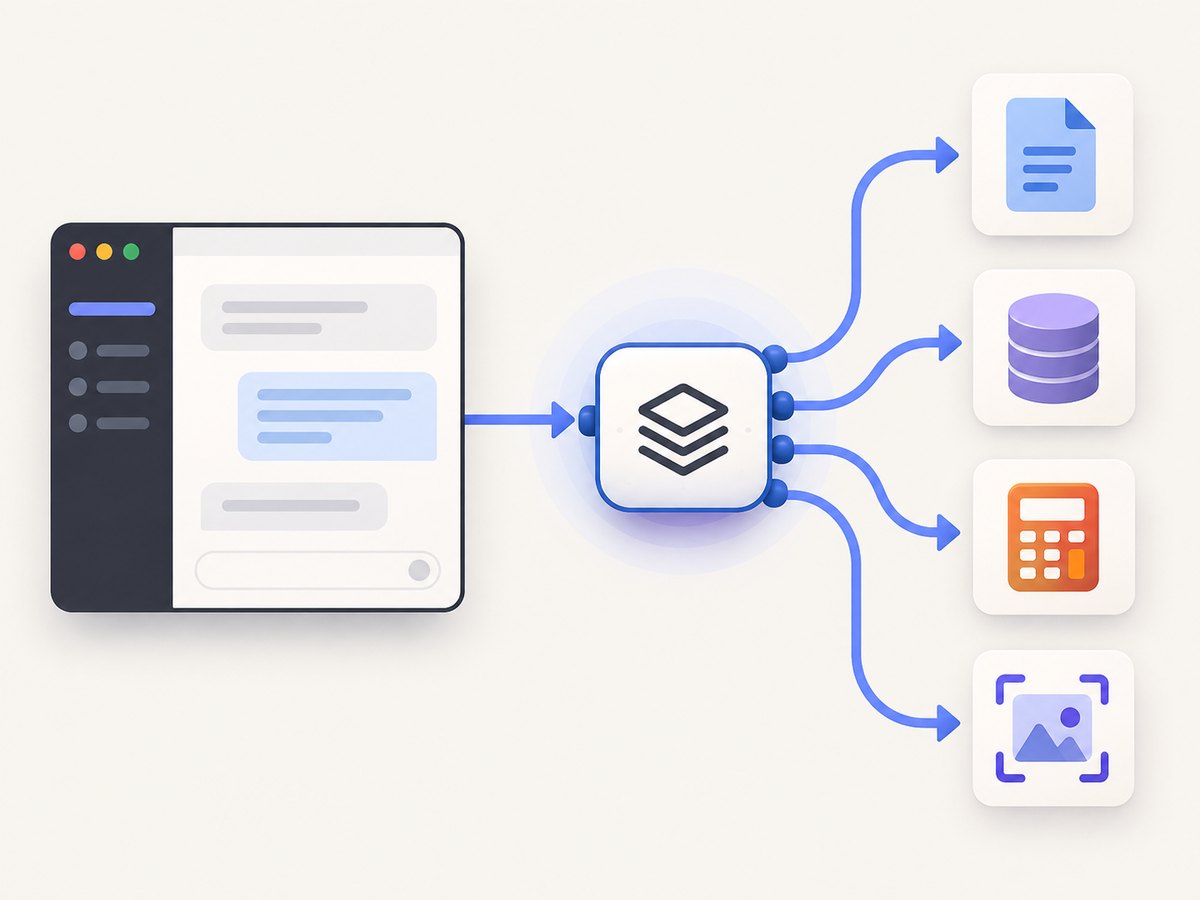
Installing an MCP server does not automatically give Claude unrestricted access to your computer. The server defines the tools and resources it exposes, while Claude requests those tools during a conversation. Read the server’s documentation and review its permissions before installing it.
Supported operating systems and prerequisites
Anthropic currently lists Claude Desktop support for macOS 11 or later, Windows 10 or later, and Linux beta on Ubuntu 22.04 LTS or newer or Debian 12 or newer. Both x64 and arm64 are listed for Linux. Update Claude Desktop before troubleshooting an integration so the configuration and extension behavior match the current release.
- Install Claude Desktop from Anthropic and sign in.
- Obtain a reviewed DXT extension or the MCP server’s official installation instructions.
- Install every runtime the server requires, such as Node.js or Python, if the server is configured to launch an executable locally.
- Keep API keys in extension settings or environment variables, never in a public repository or article.
Method 1: Install a DXT extension
Desktop extensions are packaged MCP servers. This is usually the simplest option because the package carries its launch details and Claude provides a settings interface for required values.
- Open Claude Desktop and choose Settings > Extensions.
- Browse the directory and select an extension whose publisher and permissions you trust.
- Click Install.
- Enter required settings such as API keys. Anthropic says sensitive values are encrypted with operating-system secure storage, including Keychain on macOS and Credential Manager on Windows.
- Restart or reload Claude Desktop if requested.
- Start a new conversation and look for the MCP tools indicator. Ask Claude to use one of the newly installed tools with a small, reversible request.
For a custom package, open Settings > Extensions > Advanced settings > Extension Developer > Install Extension… and select the .dxt file. Only install a file obtained from a source you trust.
Method 2: Configure a local server manually
Manual configuration is useful when the server is not available as a DXT, when you need custom arguments, or when you want to keep configuration in a reproducible setup. Claude reads a JSON file with a top-level mcpServers object.
Find the configuration file
| Platform | Path |
|---|---|
| macOS | ~/Library/Application Support/Claude/claude_desktop_config.json |
| Linux | ~/.config/Claude/claude_desktop_config.json |
| Windows | $env:AppData\\Claude\\claude_desktop_config.json |
The file may not exist yet. Create the parent directory if necessary. On Windows, use the AppData path for the account running Claude Desktop, not a different administrator account.
Add a server without deleting existing entries
Preserve any servers already in the file and add another property inside mcpServers. The following is the official configuration pattern; replace the placeholder package, command, arguments, and environment variable names with values from the server’s own documentation.
{
  "mcpServers": {
    "example": {
      "command": "npx",
      "args": ["-y", "your-mcp-server"],
      "env": {
        "EXAMPLE_API_KEY": "use-a-secret-management-approach"
      }
    }
  }
}
command is the executable Claude launches. args is an ordered array of command-line arguments. env supplies environment variables to that process and is optional. Do not guess a package name or token variable: a syntactically valid configuration can still fail if the server expects different values.
Validate before restarting
- Check that every opening brace, bracket, and quote has a matching pair.
- Confirm that there are no comments or trailing commas; standard JSON does not allow them.
- Verify the executable is available to Claude’s process. A command that works in an interactive shell may not be on Claude’s PATH.
- Check that each required environment variable is present and spelled exactly as documented.
- Save the file, completely quit Claude Desktop, then reopen it.
Claude’s MCP interface appears only when at least one server is properly configured. A missing interface therefore points first to an absent or invalid configuration.
Using an MCP server after installation
When a server is loaded, Claude can decide to call its tools when your request requires them. Start with an explicit request that names the capability, such as “Use the calendar tool to list tomorrow’s events” or “Read the project database and summarize failed jobs.” Review the tool call and its arguments before allowing a write, delete, purchase, or other consequential action.
Keep prompts specific about scope. State the account, folder, date range, or record set Claude may access. If a server exposes both read and write operations, ask for a dry run or preview first when the server supports it.
Adding ScreenshotNeo as an MCP server for screenshots
ScreenshotNeo is a website screenshot API and MCP server. Its MCP tools include take_screenshot, get_page_info, and capture_pdf, so Claude and other MCP clients can request screenshots or PDFs without you building browser automation. Follow the current ScreenshotNeo documentation for the server-specific installation and authentication values; do not invent a command or environment variable in your Claude configuration.
The same service can be called directly over HTTP when you need a deterministic script or a CI job.
curl -G "https://api.screenshotneo.com/v1/shot" -d access_key=YOUR_API_KEY --data-urlencode url=https://stripe.com -o shot.webpimport requests
r = requests.get("https://api.screenshotneo.com/v1/shot", params={"access_key": "YOUR_API_KEY", "url": "https://stripe.com"}, timeout=90)
open("shot.webp", "wb").write(r.content)const q = new URLSearchParams({ access_key: 'YOUR_API_KEY', url: 'https://stripe.com' });
const res = await fetch(`https://api.screenshotneo.com/v1/shot?${q}`);ScreenshotNeo supports full-page captures with lazy images loaded, CSS-selector element shots, dark mode, device presets, custom viewports, retina scale, PDFs, HTML/CSS rendering, custom CSS and JavaScript, clicks, selector or network-idle waits, blocked ads and trackers, custom headers and cookies, timezone and geolocation, transparent backgrounds, resizing, caching, signed links, asynchronous jobs, bulk capture, usage reporting, and an OpenAPI specification. Its parameter names are compatible with those used by other screenshot APIs, which can simplify migration.
Or skip the browser setup
ScreenshotNeo accepts consent banners before capture and removes more than 60 known consent platforms, newsletter popups, and chat widgets. Each cleanup step can be disabled. Bot checks, blank pages, timeouts, failed loads, and cache hits are not billed; response headers identify the page verdict and whether the request was billed. An MCP server lets Claude, Cursor, and other MCP clients take screenshots through take_screenshot, get_page_info, and capture_pdf.
The Free plan includes 1,000 shots per month with no card. Paid plans start at $5 for 3,000 shots; every feature is available on every plan. Create a free ScreenshotNeo account and start with the MCP or HTTP integration.
Troubleshooting Claude Desktop MCP
No MCP controls or tools appear
Cause: Claude has no valid server loaded. The official guide says MCP UI elements appear only when at least one server is properly configured.

Fix: Confirm the file path for your operating system, check that mcpServers is top-level, validate JSON, and restart Claude Desktop completely. If using DXT, verify the extension is listed as installed and configured.
The server fails to start
Cause: The command is missing, not executable, or unavailable on Claude’s PATH; an argument or working path may also be wrong.
Fix: Run the documented command independently, use an absolute executable path when appropriate, and compare every argument with the server’s official instructions. Ensure the runtime is installed for the same user account that runs Claude.
Authentication errors
Cause: A key is absent, expired, misspelled, or assigned to the wrong environment variable.
Fix: Re-enter the value through the DXT settings panel or the documented environment mechanism. Do not paste keys into prompts, source control, or shared screenshots. Restart Claude after changing environment values.
JSON parse errors
Cause: Comments, trailing commas, smart quotes, or an unmatched delimiter.
Fix: Parse the file with a JSON validator, then inspect the exact line reported. Merge new servers into the existing object instead of replacing the whole file.
The tool is present but produces empty or incorrect results
Cause: The request may be outside the server’s supported scope, credentials may point to another account, or the remote system may return no data.
Fix: Ask Claude for a small read-only request, inspect the tool arguments, and test the underlying service directly. For ScreenshotNeo, check the returned X-Page-Verdict and X-Billed headers and adjust waits, selectors, cookies, or viewport settings.
Logs and deeper diagnostics
Use the extension logs in Claude Desktop’s Extensions settings when a DXT fails. Anthropic also recommends enabling Claude Desktop debug logging and following the MCP debugging guide for deeper diagnosis. Capture the first error after a clean restart; later messages are often secondary failures.
For a manual server, temporarily reduce the configuration to one server. If that works, add the remaining entries one at a time. This isolates malformed JSON and startup conflicts without exposing credentials.
Security and reliability checklist
- Install extensions from a source you trust and review requested permissions.
- Store secrets in secure extension settings or environment handling.
- Use least-privilege API keys and separate development credentials from production credentials.
- Keep read and write tools distinct when the server supports that choice.
- Pin a server version when reproducible deployments matter, and document the required runtime.
- Set explicit timeouts and retries in the underlying service or client where supported.
- For screenshot jobs, use caching and asynchronous jobs for repeated or long captures; use bulk capture for up to 100 URLs per call.
DXT versus manual JSON
| Consideration | DXT extension | Manual JSON |
|---|---|---|
| Installation effort | One-click installation and settings | Create and maintain the configuration file |
| Trust and review | Can come from Anthropic’s reviewed directory | Depends on the server source you choose |
| Dependencies | Packaged launch details | You manage runtimes, paths, and arguments |
| Secrets | Settings UI with secure storage | Environment handling specified by the server |
| Portability | Claude manages the desktop package | You must account for OS-specific paths |
| Diagnostics | Extension logs are easy to access | Use Claude debug logging and process-level checks |
Performance, reliability, and cost considerations
MCP adds a protocol hop, so tool calls can take longer than answering from Claude’s built-in context. Keep tool inputs narrow, avoid repeatedly fetching unchanged data, and let the server perform filtering where possible. For local servers, startup time and dependency installation affect the first call; keeping the process warm can reduce repeated startup overhead if the server supports it.
Remote service costs are determined by that service’s pricing and usage rules. ScreenshotNeo bills only clean shots; bot checks, blank pages, timeouts, failed loads, and cache hits cost nothing, and the response identifies billing status. Its Free plan provides 1,000 shots monthly without a card, followed by Starter at $5 for 3,000, Growth at $15 for 15,000, Pro at $39 for 60,000, Scale at $99 for 250,000, and Business at $249 for 1,000,000. Yearly billing gives two months free.
FAQ
Where is claude_desktop_config.json on Windows?
Use $env:AppData\\Claude\\claude_desktop_config.json for the Windows account running Claude Desktop.
Can I configure more than one MCP server?
Yes. Add multiple named entries under the same top-level mcpServers object and preserve existing entries.
Do I need an MCP server to use Claude Desktop?
No. MCP is an optional interoperability layer for connecting Claude to external tools and data.
Why should I use a DXT instead of JSON?
A DXT can package launch details and provide a settings interface, reducing manual path and dependency work. Manual JSON remains useful for servers without a DXT or for custom arguments.
Can Claude Desktop use ScreenshotNeo without browser automation code?
Yes. ScreenshotNeo provides an MCP server with screenshot, page-info, and PDF tools. Use its current documentation for the exact installation configuration.


