How to Integrate MCP with ChatGPT
Connect a remote MCP server to ChatGPT Developer Mode, choose the right SDK route, secure OAuth, test tools, and publish safely.
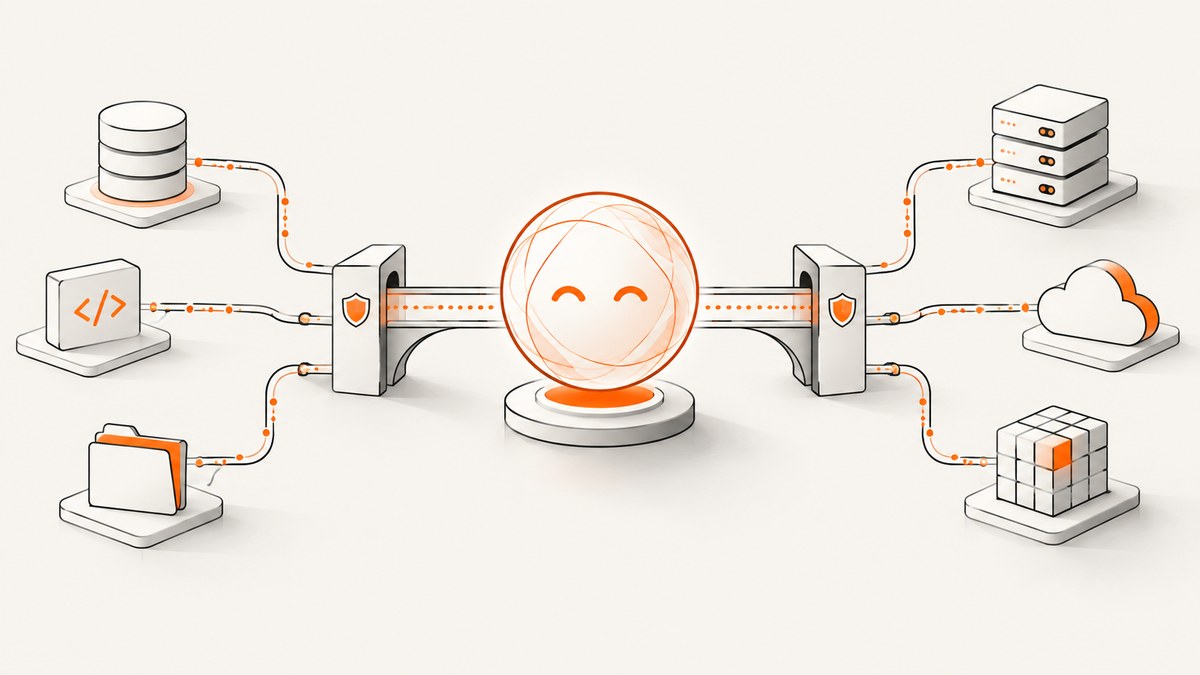
Model Context Protocol (MCP) lets ChatGPT call tools and access data from an external server. For an existing MCP server, the current ChatGPT workflow is: enable Developer Mode in an eligible workspace, create a custom app, enter the server endpoint and metadata, choose authentication, scan the tools, test a draft, and have an administrator or owner publish it. If you are building the app experience itself, including its chat logic and interface, use the Apps SDK instead.
OpenAI’s rollout is changing. The current Help Center describes apps, Developer Mode, and full MCP on ChatGPT web for Business and Enterprise/Edu. Full write and modify support is in beta. Pro support is described as read/fetch MCP access in Developer Mode. Check your workspace’s current settings before designing a production workflow.
Choose your integration route
| Starting point | Use | What you build | Publishing path |
|---|---|---|---|
| You already operate an MCP server | Custom MCP app in Developer Mode | Tool and data connection from ChatGPT to your server | Workspace draft, testing, then admin or owner publication |
| You want a complete in-ChatGPT experience | Apps SDK | App behavior, backend connection, and interface | Test in ChatGPT, then follow the separate submission process if directory publication is desired |
The Apps SDK is the documented route for designing both the logic and interface of an app that runs inside ChatGPT. A custom MCP app is the shorter route when your server and tool definitions already exist.
Prerequisites and access checks
- A remotely reachable MCP server endpoint. ChatGPT does not connect directly to a server running only on your laptop or private network.
- Workspace permission to enable Developer Mode and create apps. Business admins or owners enable it for themselves; Enterprise and Edu administrators can grant access with role-based controls.
- Tool definitions that accurately describe inputs, outputs, side effects, and authentication requirements.
- An OAuth or OpenID Connect configuration if your server requires user authorization.
- A test account and representative prompts for every read and write action.
For a private, on-premises, or developer-machine server, OpenAI points developers to Secure MCP Tunnel. Treat the tunnel as part of your security boundary and restrict which tools and data it exposes.
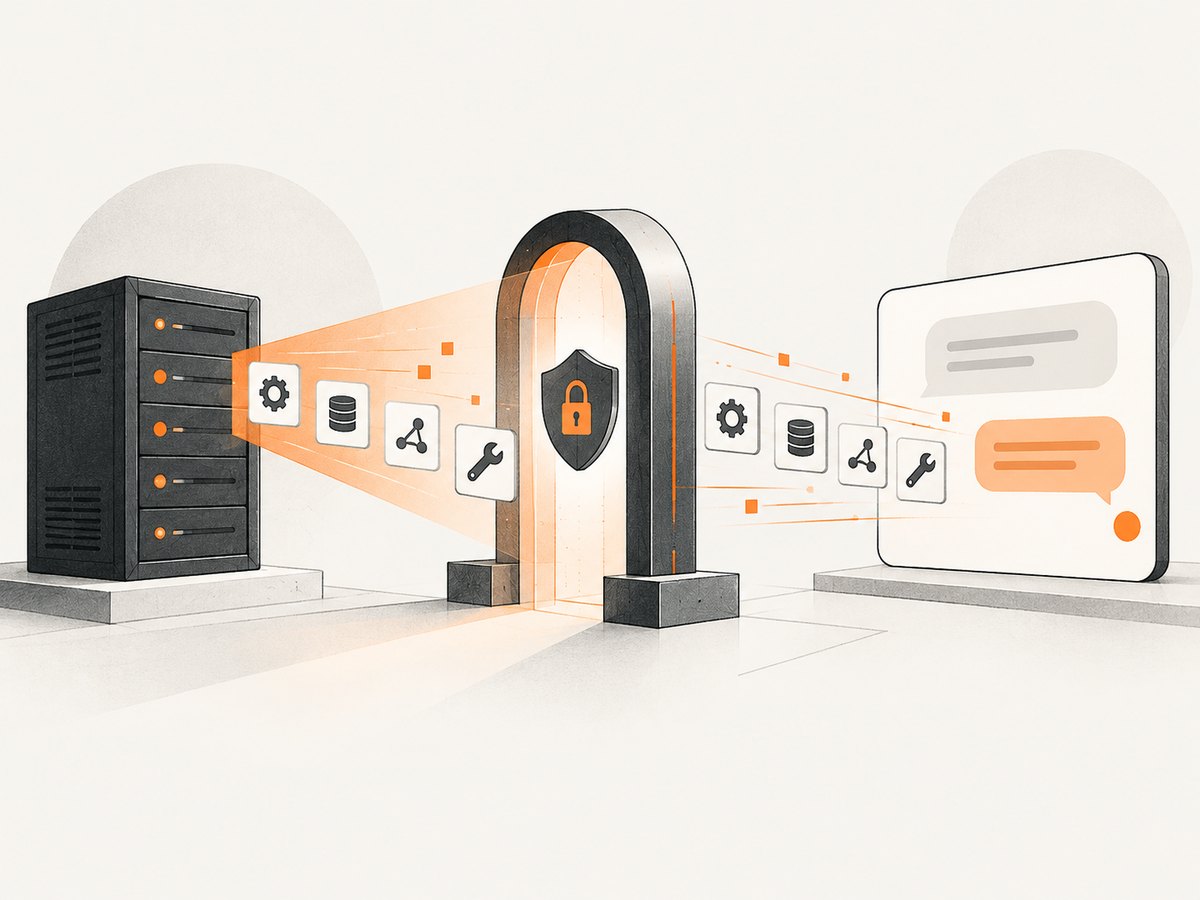
Step-by-step: connect an existing MCP server
- Enable Developer Mode. Ask the workspace administrator or owner to enable it in workspace settings. Enterprise and Edu administrators can use RBAC to limit who may develop or access apps.
- Open the app creation screen. In ChatGPT web, go to Workspace settings → Apps → Create, or the corresponding user settings flow if your role is allowed to create apps.
- Enter server details. Provide the remote MCP endpoint and the metadata requested by the form. Use the server’s canonical name, description, logo or metadata fields where required by the current UI.
- Select authentication. Choose the mechanism your server supports. For OAuth or OIDC, provide the issuer and client details expected by the configuration flow.
- Scan tools. Select Scan Tools. Complete the OAuth authorization prompt if one appears, then wait for ChatGPT to retrieve the available tools and input schemas.
- Review the tool inventory. Check names, descriptions, required fields, data access, and whether each action can change external state. Remove or disable anything the workspace does not need.
- Create a draft. Select Create. The app is initially a draft and is not yet available as a published workspace app.
- Test in a new chat. Open a new conversation, select the draft from the tools menu, and try normal and adversarial requests. Confirm that ChatGPT asks for confirmation before sensitive writes when the configuration requires it.
- Publish after review. An admin or owner publishes the app from workspace app settings. Enterprise and Edu administrators can configure access and actions before making it available to a wider group.
Design the MCP server for dependable calls
Describe tools precisely
Tool descriptions are part of the model’s decision context. State what the tool does, which account or tenant it affects, required identifiers, possible failure states, and whether it reads or changes data. Use explicit input schemas with enums, bounds, and required fields. Return structured results so the model can distinguish a successful empty result from an error.
Separate reads from writes
Give read and write operations separate tools. A read tool should not silently trigger a mutation. For writes, return a concise preview of the proposed change and an idempotency key or operation identifier. This makes confirmation and retry behavior easier to reason about.
Make retries safe
Network failures can leave the client unsure whether a request completed. For a mutation, accept an idempotency key and return the same result when the key is retried. For reads, support pagination and stable cursors. Include a request identifier in errors so operators can trace a call without exposing secrets to the model.
Limit data exposure
Return only fields needed for the task. Apply tenant checks on every request, not only during login. Redact tokens, passwords, and unnecessary personal data from tool output and logs. Keep authorization scopes narrow and document which scopes map to which tools.
OAuth and session reliability
If your server uses OAuth or OpenID Connect, verify that the provider issues refresh tokens. OpenAI notes that OIDC providers commonly request refresh access with the offline_access scope and should advertise it in discovery metadata such as .well-known/openid-configuration or .well-known/oauth-authorization-server. Without a refresh token, an authorization can expire and users may have to authenticate again.
- Publish correct discovery metadata and redirect URI information for the ChatGPT flow.
- Request only the scopes required by the tools you expose.
- Store refresh tokens server-side with encryption and rotation controls.
- Return a clear unauthorized response when a token expires, rather than a generic tool failure.
- Test revoked consent, expired access tokens, a user removed from a tenant, and a scope that no longer grants a requested action.
Tool snapshots, updates, and deployment
A published app uses a reviewed snapshot of its available tools and inputs. Changes on your server do not automatically update that snapshot. Enterprise and Edu administrators can refresh tools and review differences; newly added actions are disabled by default. If a tool definition changes incompatibly, calls can fail until an administrator refreshes the actions. Users are not automatically prompted to update an app when a call errors.
Use a release process for tool changes:
- Additive, backward-compatible fields can be introduced with defaults.
- Keep old tool names and schemas while clients migrate.
- Document renamed arguments and removed actions in the release notes shown to administrators.
- After a refresh, test every critical prompt, including malformed input and denied authorization.
Security review before publication
Connecting an unsafe or untrusted MCP server can increase exposure to prompt injection. Vet the server owner, source code or deployment, domains, authentication flow, data retention, and logging. Read every tool description as a permission statement, not just as documentation.
- Identify tools that can send messages, delete records, spend money, change permissions, or publish content.
- Require confirmation for consequential writes and keep high-risk operations behind an additional policy check.
- Use separate credentials and tenants for development and production.
- Restrict app access with workspace roles and groups where available.
- Monitor tool calls, authorization failures, unusual volume, and repeated destructive attempts.
Testing checklist
- Call each tool with the smallest valid input.
- Try missing, extra, wrong-type, and out-of-range fields.
- Test an empty result, a large paginated result, and a server timeout.
- Verify that a denied write does not partially change state.
- Repeat a timed-out mutation with the same idempotency key.
- Expire and revoke OAuth credentials, then reconnect.
- Ask ChatGPT to perform a write without enough context and confirm that it requests clarification.
- Test concurrent calls for tenant isolation and race conditions.
Or skip the browser setup
If your goal is to give ChatGPT or another MCP client reliable website screenshots, ScreenshotNeo provides an MCP server with take_screenshot, get_page_info, and capture_pdf tools. It is also a website screenshot API at screenshotneo.com. Cookie and consent banners are accepted and removed before capture, along with more than 60 known consent platforms, newsletter popups, and chat widgets. Each step can be disabled.

Only clean shots are billed. Bot checks and CAPTCHAs, blank pages, timeouts, failed loads, and cache hits cost nothing, and each response reports the result with X-Page-Verdict and X-Billed headers. The service supports full-page and element captures, device presets, custom viewports, dark mode, retina scale, PDFs, custom CSS and JavaScript, clicks, waits, blocked resources, headers, cookies, user agents, authorization, timezone, geolocation, transparent backgrounds, resizing, configurable caching, signed links, asynchronous jobs, webhooks, bulk capture, usage reporting, and an OpenAPI specification. See the ScreenshotNeo documentation for the current parameter reference.
cURL
curl -G "https://api.screenshotneo.com/v1/shot" -d access_key=YOUR_API_KEY --data-urlencode url=https://stripe.com -o shot.webpPython
import requests

r = requests.get(
    "https://api.screenshotneo.com/v1/shot",
    params={"access_key": "YOUR_API_KEY", "url": "https://stripe.com"},
    timeout=90,
)
r.raise_for_status()
open("shot.webp", "wb").write(r.content)
Node.js
const q = new URLSearchParams({ access_key: 'YOUR_API_KEY', url: 'https://stripe.com' });
const res = await fetch(`https://api.screenshotneo.com/v1/shot?${q}`);
if (!res.ok) throw new Error(`Screenshot failed: ${res.status}`);
const data = Buffer.from(await res.arrayBuffer());
await import('node:fs/promises').then(fs => fs.writeFile('shot.webp', data));
ScreenshotNeo has a free plan with 1,000 shots per month and no card. Paid plans start at $5 for 3,000 shots; every feature is included on every plan. An MCP server lets AI agents such as Claude, Cursor, and other MCP clients take screenshots. Create a free ScreenshotNeo account.
Performance, reliability, and cost planning
Performance
Keep tool responses small and avoid serial calls when independent reads can run concurrently. Cache stable metadata, paginate large results, and set server-side timeouts shorter than the client timeout so failures return a useful error. For screenshot workflows, use caching with a TTL you choose, block unnecessary resource types, and wait on a specific selector or network idle only when the page requires it.
Reliability
Use health checks for the MCP endpoint, bounded retries for transient failures, and idempotency for writes. Preserve correlation IDs across ChatGPT, your MCP gateway, and downstream services. During an outage, return a typed temporary-unavailable error that allows the model to explain the limitation instead of guessing.
Cost
Estimate cost from tool-call volume, downstream API charges, storage, and observability. Set per-user and per-workspace limits. For ScreenshotNeo, cache hits are not billed, while clean captures are billed according to the account plan; failed loads and other non-clean verdicts are not billed. The published plans are Free (1,000 monthly), Starter ($5/3,000), Growth ($15/15,000), Pro ($39/60,000), Scale ($99/250,000), and Business ($249/1,000,000). Yearly billing gives two months free.
Troubleshooting
| Symptom | Likely cause | Fix |
|---|---|---|
| Developer Mode or Apps is missing | Plan, workspace role, region, or rollout does not include it | Ask an admin to check current Help Center eligibility and RBAC settings on ChatGPT web. |
| Tool scan fails | Endpoint is unreachable, metadata is invalid, or OAuth discovery is incomplete | Check HTTPS reachability, discovery documents, redirect URIs, and server logs; retry after correcting the first protocol error. |
| Authorization works once, then expires | No refresh token was issued | Request offline_access where supported and verify refresh-token handling. |
| A newly added tool is unavailable | The published snapshot is stale | Have an Enterprise/Edu administrator refresh and review the tool diff, then retest. |
| ChatGPT calls the wrong tool | Descriptions overlap or inputs are ambiguous | Rename or rewrite descriptions, make schemas stricter, and separate read and write actions. |
| Local server cannot connect | ChatGPT cannot reach localhost or a private address directly | Deploy a remote endpoint or use Secure MCP Tunnel. |
| Screenshot contains a popup | The page uses a consent or widget platform not enabled for removal | Use ScreenshotNeo options to control cleanup, hide selectors, custom CSS, waits, or click actions. |
FAQ
Can I connect an MCP server from ChatGPT mobile?
The current Help Center describes MCP apps as available on ChatGPT web. Check the current product documentation before planning a mobile-only workflow.
Do I need search and fetch tools?
No. They are not required for every MCP server. Expose only the tools your use case needs.
Can Deep Research or Agent mode use my custom app?
Custom apps can be used by Deep Research for read and fetch actions. The current Help Center says Agent mode will not use custom apps.
Can Company Knowledge use an interactive MCP interface?
Company Knowledge supports custom apps with search and fetch; interactive UI apps are not currently supported there.
What should I do when my server changes?
Keep changes backward-compatible, notify the workspace administrator, refresh the published tool snapshot, review newly added actions, and run the regression checklist again.


