How to Integrate MCP with CrewAI
Connect MCP server tools to CrewAI agents with the MCP adapter. Set up STDIO or SSE, manage connections, and handle security and common errors.
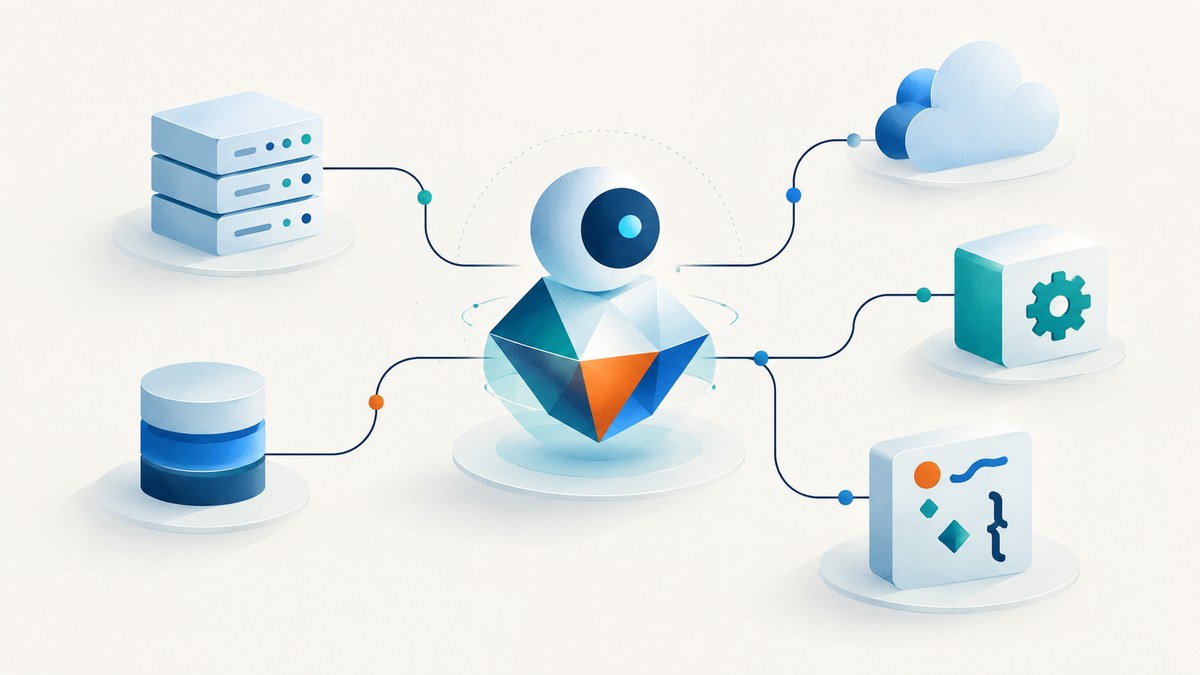
To integrate MCP with CrewAI, install the optional MCP dependencies for crewai-tools, configure the MCP server connection, and pass the tools exposed by MCPServerAdapter to a CrewAI agent. Use the adapter as a context manager for a straightforward run so it closes the connection when the work finishes. If you manage its lifecycle yourself, call stop() in a finally block.
The examples below follow the documented crewAI-tools adapter pattern. Package APIs and supported transports can change, so check the documentation for the versions you install: crewAI-tools README.
1. Install MCP support
The adapter is in crewai-tools; MCP support is an optional extra. Install it with pip:
pip install 'crewai-tools[mcp]'Or add the extra with uv:
uv add crewai-tools --extra mcpUse the same Python environment to install the package and run your crew. If your project already pins CrewAI dependencies, update its dependency file and lockfile together, then validate the MCP extra against those pinned versions. Avoid mixing an environment’s global Python with a virtual environment’s package installer.
2. Choose how the MCP server runs
The documented adapter examples show two connection shapes: STDIO for a local server process and an SSE URL for a remote server. Which one fits depends on where the server runs and how you operate it. Treat the sample command and localhost endpoint below as illustrative configuration, not as a recommendation for a live server.
Local server over STDIO
STDIO starts a process on the machine running the CrewAI application. Provide the executable, its arguments, and any environment variables it needs. The example uses uvx and a placeholder server package:
from mcp import StdioServerParameters

server_params = StdioServerParameters(
    command="uvx",
    args=["--quiet", "your-mcp-server"],
    env={"API_KEY": "read-from-environment"},
)
Replace the command and arguments with the launch instructions for a server you trust. Keep credentials outside source control: load them from your deployment’s secret or environment configuration instead of hard-coding them. The exact environment parameter behavior should be checked against the installed MCP and crewai-tools versions.
Remote server over SSE
The README also demonstrates passing a URL dictionary for a remote SSE server:
server_params = {"url": "http://localhost:8000/sse"}Replace the illustrative local URL with the endpoint and transport supported by your server and installed adapter. Do not infer transport security from the fact that a server is remote or uses SSE; verify the service’s deployment and authentication requirements independently.
3. Expose MCP tools to a CrewAI agent
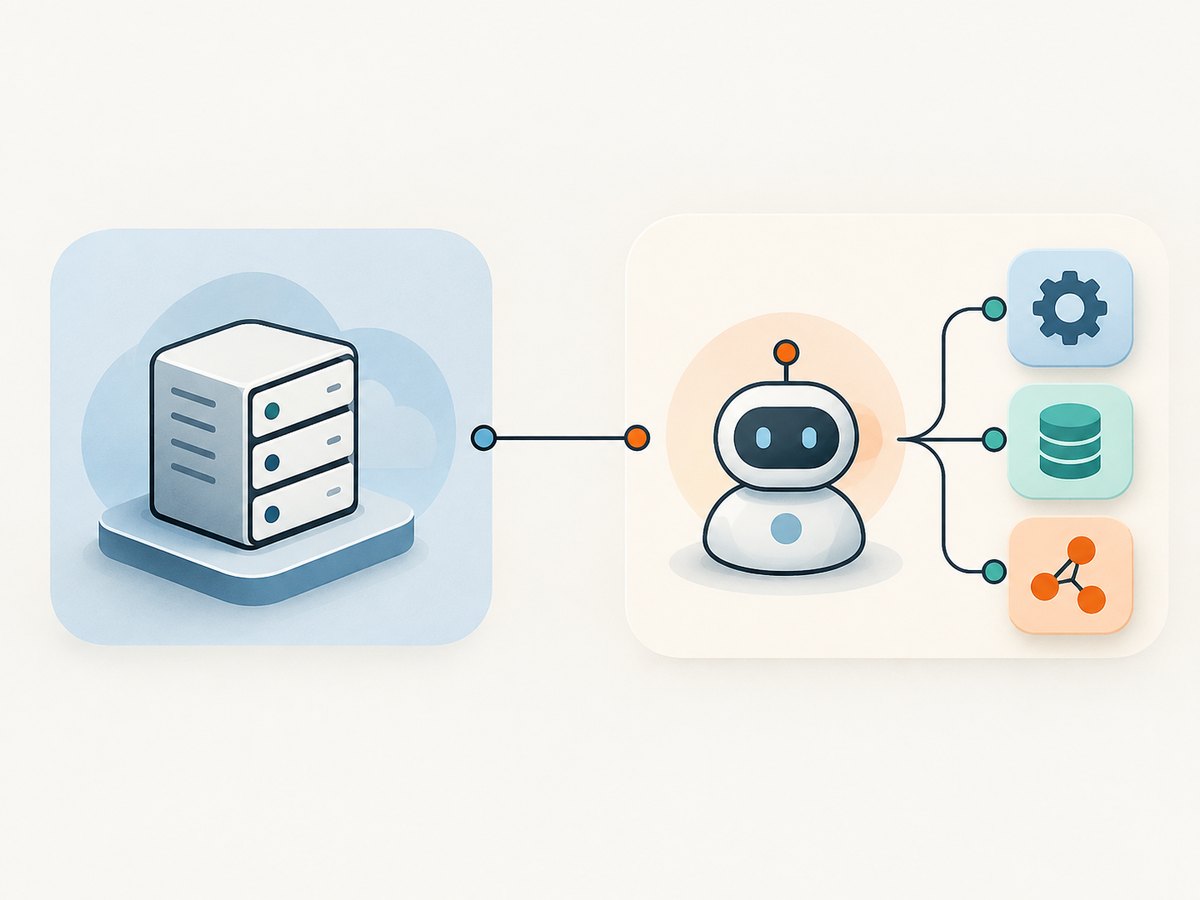
Here is a complete example of the adapter-managed flow. It connects to a configured local STDIO server, makes its tools available to an agent, runs a task, and closes the adapter when the block exits.
from crewai import Agent, Crew, Task
from crewai_tools import MCPServerAdapter
from mcp import StdioServerParameters

server_params = StdioServerParameters(
    command="uvx",
    args=["--quiet", "your-mcp-server"],
    env={"API_KEY": "read-from-environment"},
)

with MCPServerAdapter(server_params) as tools:
    agent = Agent(
        role="Research assistant",
        goal="Use the available MCP tools to answer the assigned question",
        backstory="You gather relevant information from approved tools and report it clearly.",
        tools=tools,
        verbose=True,
    )

    task = Task(
        description="Use the available tools to find the requested information and summarize it.",
        expected_output="A concise answer based on the tool results.",
        agent=agent,
    )

    crew = Crew(agents=[agent], tasks=[task], verbose=True)
    result = crew.kickoff()
    print(result)
The adapter supplies the tools; CrewAI still defines the agent’s role, task, and orchestration. Keep the task specific about what information the agent should retrieve and what it should return. An MCP connection does not, by itself, determine which tool the agent should call or whether the server’s result is trustworthy.
4. Manage the adapter lifecycle
Use a context manager for a bounded run
The with MCPServerAdapter(...) pattern is suitable when the tools are needed during one script or crew execution. The adapter starts for the block and is cleaned up when the block exits, including when an exception interrupts the work. Keep the crew execution inside the block so the connection remains available for tool calls.
Use manual cleanup when you need explicit control
If your application needs to control when the adapter starts or stops, obtain its tools and guarantee cleanup with try/finally:
from crewai import Agent, Crew, Task
from crewai_tools import MCPServerAdapter
from mcp import StdioServerParameters

server_params = StdioServerParameters(
    command="uvx",
    args=["--quiet", "your-mcp-server"],
    env={"API_KEY": "read-from-environment"},
)

adapter = MCPServerAdapter(server_params)
try:
    tools = adapter.tools
    agent = Agent(
        role="Research assistant",
        goal="Answer the task using approved MCP tools",
        backstory="You use available tools carefully and summarize their results.",
        tools=tools,
    )
    task = Task(
        description="Retrieve the requested information and summarize it.",
        expected_output="A clear, concise summary.",
        agent=agent,
    )
    crew = Crew(agents=[agent], tasks=[task])
    result = crew.kickoff()
    print(result)
finally:
    adapter.stop()
Do not omit the finally cleanup just because a normal run completes successfully. Failures during a task, a tool call, or crew execution should not leave a server process or connection running unintentionally.
5. Configure MCP tools with CrewBase
CrewAI’s annotations guide documents another pattern: define mcp_server_params on a @CrewBase class and retrieve the MCP tools through get_mcp_tools(). The guide describes the adapter as starting lazily and an internal after-kickoff hook stopping it. Since this behavior can depend on the documentation and package version, confirm the current API before adopting it.
from crewai.project import CrewBase

@CrewBase
class ResearchCrew:
    mcp_server_params = {
        "url": "http://localhost:8000/sse"
    }

    def research_agent(self):
        return Agent(
            role="Research assistant",
            goal="Research the assigned question with approved tools",
            backstory="You collect relevant information and summarize it.",
            tools=self.get_mcp_tools(),
        )
This is the documented configuration shape, not a full standalone CrewBase project: the application still needs its agent, task, and crew definitions according to its project structure. See CrewAI’s annotations guide and check it alongside the installed version.
6. Understand what the adapter passes through
MCP provides a way for an application to interact with tools exposed by a server. In the documented crewai-tools adapter flow, those server tools become CrewAI tools that can be assigned to an agent. The README describes support for MCP server tools, rather than other MCP primitives such as prompts and resources. It also says the adapter returns only the first text output from a tool result. These are version-sensitive behavior details: if your application depends on resources, prompts, multiple content blocks, or non-text output, verify what your installed adapter supports before designing around it.
CrewAI’s broader orchestration choice is separate from MCP. CrewAI describes Crews as suited to autonomous collaboration and Flows as structured, event-driven orchestration with more precise control. MCP supplies external tools; a Crew or Flow structures the surrounding application. Choose according to how much autonomy or explicit control your workflow needs. See the CrewAI Agents introduction.
7. Secure the connection and constrain tool access
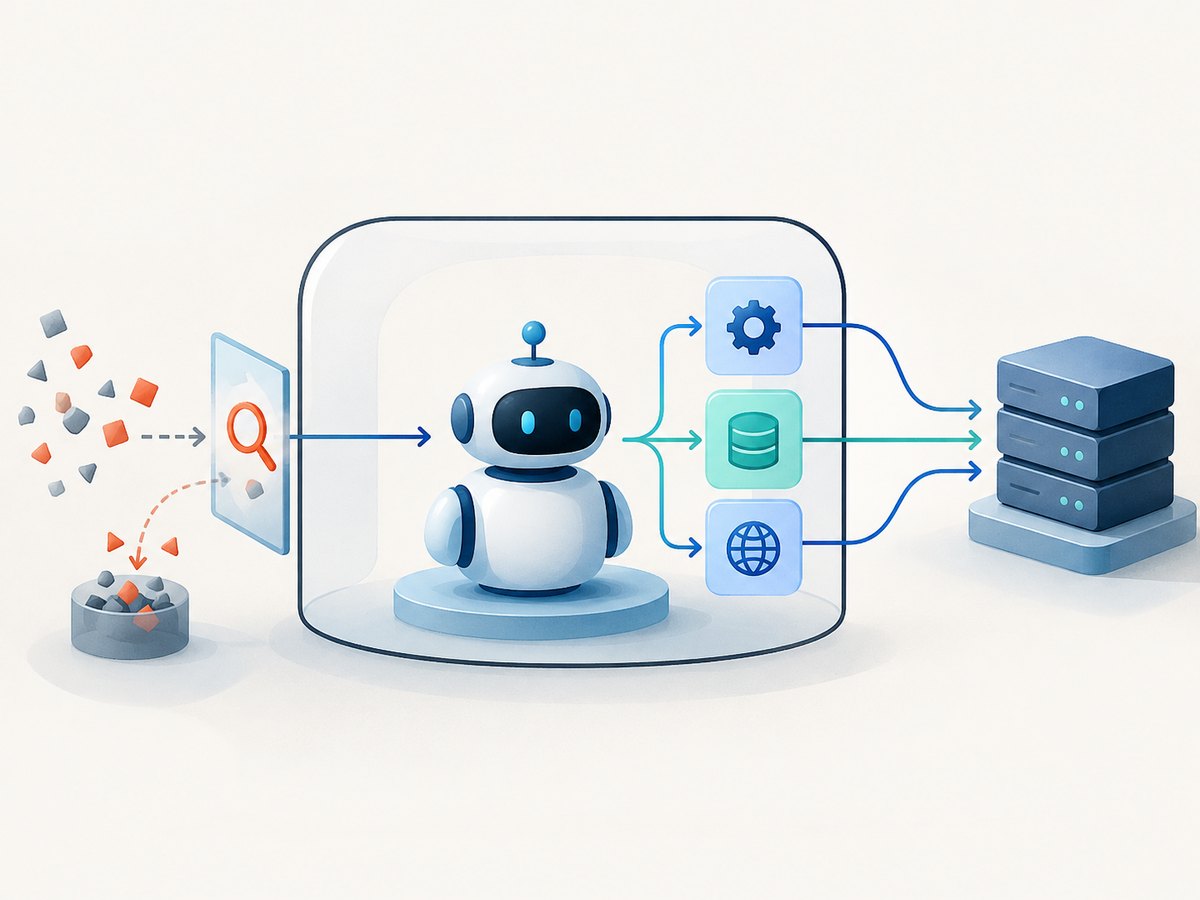
- Trust the server before connecting. The crewAI-tools README warns that a STDIO server executes code on the local machine. Only launch local servers whose source and behavior you trust.
- Assess remote servers too. The README warns that remote SSE is not inherently safe from malicious-server injection. Treat server-provided tool definitions and returned content as untrusted inputs.
- Expose only needed tools. As a practical least-privilege measure, make only the tools needed for the task available to the agent. Tool availability defines what actions the agent may attempt through that connection.
- Protect credentials. Supply secrets through environment or deployment configuration, limit their scope where possible, and avoid printing them in logs or task output.
- Review consequential actions. For tools that change data or trigger external actions, decide what approval and application-side checks are appropriate before giving them to an autonomous agent.
These precautions do not guarantee that a server or model output is safe. They help keep the connection’s trust boundary visible and limit the consequences of a mistaken or malicious tool interaction.
8. Troubleshoot common integration problems
| Symptom | Likely cause | What to check |
|---|---|---|
MCPServerAdapter or MCP import fails |
The MCP extra is missing, or the command uses a different Python environment from the installer. | Install crewai-tools[mcp] in the active environment and run the application with that environment’s Python. |
| Local process does not start | The command is unavailable, arguments are wrong, or the server package cannot launch. | Check the executable and server’s documented launch command in the same environment. Confirm required environment variables are present without exposing their values. |
| Connection starts but no tools are available | The server exposes no tools, the endpoint or transport does not match, or initialization failed. | Verify the server’s tool list and the adapter’s expected parameters for your installed version. Check server and application logs for initialization errors. |
| Remote connection fails | The URL is incorrect or unreachable, or the endpoint does not provide the transport expected by the adapter. | Confirm the full endpoint path, server availability, network access, and the transport supported by the installed adapter. |
| Agent does not call the expected tool | The task is ambiguous, the tool description is not relevant to the requested action, or the agent has too many choices. | Make the task’s desired action and output explicit. Provide only relevant tools and inspect the tool descriptions exposed by the server. |
| Tool result is incomplete | The adapter documentation describes returning only the first text output; the result may also use unsupported content types or additional blocks. | Check the installed version’s behavior and the server’s result format. Do not assume prompts, resources, or all result content are passed through. |
| Server process remains after an error | Manual lifecycle management skipped cleanup. | Use the context manager or ensure adapter.stop() runs in a finally block. |
| Unexpected or unsafe tool behavior | The server or its output may be untrusted, or the agent has access to more tools than the task requires. | Disconnect from untrusted servers, review the tools and outputs, restrict access, and add application-side checks for consequential actions. |
9. Performance, reliability, and cost considerations
The integration introduces a server connection and tool execution into the agent’s work. A task that invokes tools depends on the server being reachable and responsive for the duration of those calls. Keep the adapter open for the period in which the crew needs it, then close it reliably. For remote services, plan for connection failures and tool errors in the surrounding application rather than assuming every call succeeds.
There is no single performance figure for this setup: behavior depends on the server, the work performed by each tool, network conditions for remote connections, and the agent’s own run. Keep tasks focused, provide only relevant tools, and avoid unnecessary tool calls where the workflow permits. Measure your own application with representative workloads before choosing timeouts or concurrency settings; the cited sources do not establish universal values.
Package and server costs are separate from CrewAI’s orchestration code and depend on the services and infrastructure you choose. The research sources do not establish pricing for MCP servers or CrewAI usage. Account for the compute needed to run a local process, remote server charges if any, and any model or third-party service costs in your deployment.
Or skip the browser setup
If a CrewAI workflow also needs website screenshots, ScreenshotNeo provides a screenshot API and MCP server. Its tools can let an AI agent request a screenshot without you setting up a browser capture stack. The API can also be called directly:
curl -G "https://api.screenshotneo.com/v1/shot" -d access_key=YOUR_API_KEY --data-urlencode url=https://stripe.com -o shot.webpSee the ScreenshotNeo API documentation for request options. With ScreenshotNeo, cookie banners are accepted and removed before capture, along with known newsletter popups and chat widgets. Bot checks, blank pages, timeouts, failed loads, and cache hits cost nothing, and response headers say which verdict and billing status applied. Its MCP server offers take_screenshot, get_page_info, and capture_pdf for Claude, Cursor, and other MCP clients. The free plan includes 1,000 screenshots a month with no card; paid plans start at $5 for 3,000 shots.
Create a free ScreenshotNeo account to get 1,000 screenshots a month with no card.
FAQ
Does MCP replace CrewAI agents or tasks?
No. The adapter makes MCP server tools available to an agent. CrewAI still defines the agents, tasks, and orchestration for the application.
Can I use both MCP tools and other CrewAI tools?
The examples show adapter-provided tools being assigned through an agent’s tools argument. Check the installed CrewAI version’s tool assignment interface if you need to combine or transform tool lists.
Should I use a Crew or a Flow?
Use the orchestration style that matches the workflow. CrewAI positions Crews for autonomous collaboration and Flows for structured, event-driven control; either choice is distinct from how the MCP server exposes tools.
Can I rely on adapter behavior being identical across versions?
No. Confirm transport configuration, lifecycle behavior, supported MCP capabilities, and result handling against the package versions you deploy.