How to Integrate MCP with Vapi
Connect Vapi assistants to MCP tools with Streamable HTTP, secure credentials, runtime discovery, troubleshooting, and practical API examples.
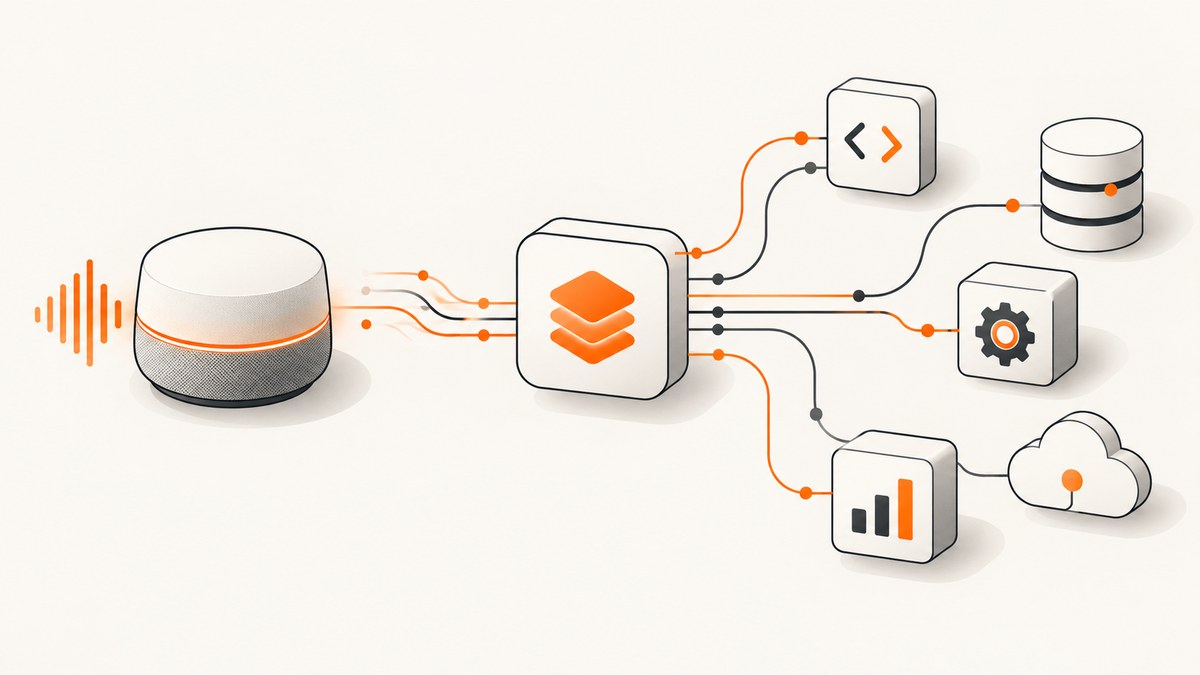
Direct answer: In Vapi, create an MCP tool, give it the MCP server URL, add the tool to an assistant, and publish the assistant. Vapi then discovers the tools exposed by that server during a call or chat and makes them available to the model. Use Streamable HTTP (shttp) unless the server specifically requires SSE; Vapi documents SSE as deprecated.
This guide explains both directions of the integration: using an external MCP server from a Vapi assistant, and using Vapi itself as an MCP server for Claude, Cursor, or another MCP client. It also covers authentication, tool-surface design, API configuration, transport selection, debugging, reliability, and when MCP is a better fit than a Vapi API Request or Function tool.
What MCP integration does in Vapi
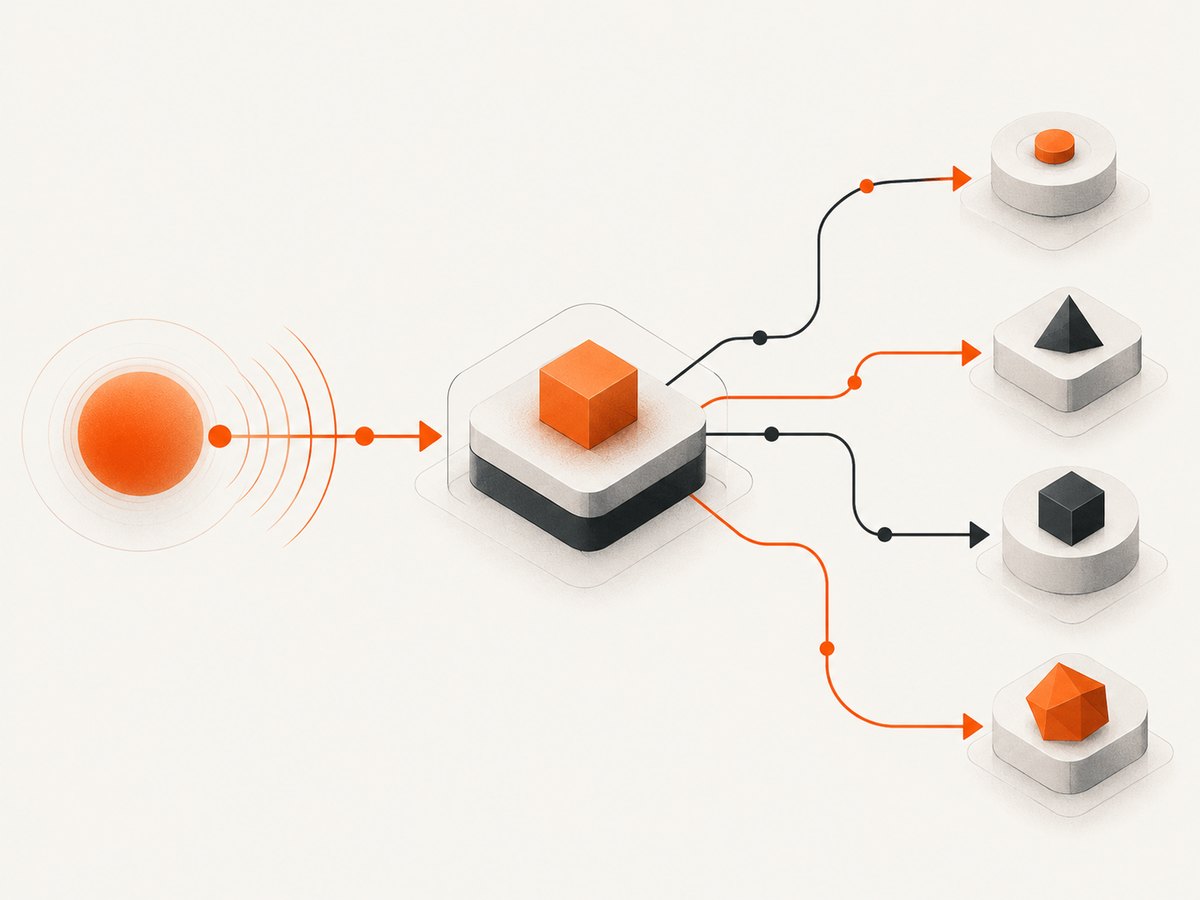
The Model Context Protocol lets a client discover and call a set of tools from a server. In Vapi, the MCP tool is a connection definition. The model does not invoke that wrapper directly; Vapi uses it to connect to the remote server, imports the server’s available tools, and exposes those imported tools to the assistant.
At runtime, Vapi opens a new MCP connection for each invocation. It sends identifiers such as X-Call-Id or X-Chat-Id so the server can associate work with the current interaction. Chat sessions may also include X-Session-Id. Because the complete tool list is discovered, a server with dozens of tools can add substantial context and latency. Keep the published surface small.
Before you start
- A Vapi account and an assistant that you can edit and publish.
- An MCP server URL from your provider or your own deployment. Treat the URL as a credential when it contains a token.
- A list of the exact operations the assistant needs. Prefer read-only tools unless a write operation is required.
- Credentials stored in a secret manager or environment variables, never in source control or client-side code.
Path A: connect an external MCP server to a Vapi assistant
1. Create the MCP tool in the Dashboard
- Open Tools in the Vapi Dashboard.
- Choose Create Tool, then select MCP.
- Enter a tool name that describes the server’s purpose, such as
crm_mcp. - Write an invocation description that tells the assistant when to use it.
- Paste the MCP server URL.
- Leave the protocol set to
shttpunless the provider requires SSE. - Add the MCP tool to the assistant from the assistant’s Tools tab.
- Publish the assistant.
For a Make, Zapier, or Composio server, create the connection and restrict its permissions first. A provider token that can mutate records should not be used for an assistant that only needs lookups.
2. Configure the same tool through the API
The important API field is server.url. Optional HTTP headers belong in server.headers, and the transport is selected with metadata.protocol.
{
  "type": "mcp",
  "function": {
    "name": "crm_mcp",
    "description": "Use CRM tools when the caller asks to look up or update a customer"
  },
  "server": {
    "url": "https://your-mcp-provider.example/mcp",
    "headers": {
      "Authorization": "Bearer ${CRM_MCP_TOKEN}"
    }
  },
  "metadata": {
    "protocol": "shttp"
  }
}
Replace the example URL and header with values from your provider. Keep secrets outside the JSON committed to your repository. If your provider authenticates through a URL token, protect the entire URL as a secret.
3. Add instructions for tool use
Assistant instructions should state when the dynamic tools are appropriate, what arguments are required, and what to say if a tool is unavailable. For example:
Use CRM tools only for customer lookups and updates requested by the caller.
Confirm the customer's identity before changing data.
If the CRM tool is unavailable, explain that the lookup cannot be completed and offer a callback.
Summarize tool results briefly; do not repeat large records.
4. Verify discovery before taking a live call
Use a test assistant or chat session and ask for an operation that maps clearly to one imported tool. Check the Vapi logs for connection and tool errors. Confirm that the server receives the expected call or chat identifier and that the response is small enough for the model context.
Transport: Streamable HTTP versus SSE
shttp (Streamable HTTP) is Vapi’s default and should be your first choice. It supports the current MCP request pattern over HTTP. SSE is deprecated in Vapi’s documentation and is appropriate only when the server cannot use Streamable HTTP. If an SSE-only provider fails with the default, set metadata.protocol to sse and follow that provider’s authentication requirements.
| Decision | Use | Reason |
|---|---|---|
| New integration | shttp |
Vapi’s default transport and the current choice for compatible servers. |
| Legacy provider | sse |
Only when the server requires it; plan a migration if possible. |
| Unsure | Ask the provider or inspect its MCP documentation | A transport mismatch prevents discovery before any tool can run. |
Path B: use Vapi as an MCP server
Vapi exposes an MCP endpoint at https://mcp.vapi.ai/mcp. An MCP client authenticates with a Vapi API key in the HTTP Authorization: Bearer header. The server provides operations for assistants, calls, phone numbers, and tools.
Claude Desktop or another stdio client
{
  "mcpServers": {
    "vapi-mcp": {
      "command": "npx",
      "args": [
        "mcp-remote",
        "https://mcp.vapi.ai/mcp",
        "--header",
        "Authorization: Bearer ${VAPI_TOKEN}"
      ],
      "env": {
        "VAPI_TOKEN": "YOUR_VAPI_API_KEY"
      }
    }
  }
}
Save the configuration, set the environment variable in the client process, and restart the MCP client. Do not place a real key in a shared configuration file.
Streamable HTTP client example
import { Client } from "@modelcontextprotocol/sdk/client/index.js";
import { StreamableHTTPClientTransport } from "@modelcontextprotocol/sdk/client/streamableHttp.js";

const token = process.env.VAPI_TOKEN;
if (!token) throw new Error("Set VAPI_TOKEN");

const client = new Client({ name: "vapi-mcp-client", version: "1.0.0" });
const transport = new StreamableHTTPClientTransport(
  new URL("https://mcp.vapi.ai/mcp"),
  { requestInit: { headers: { Authorization: `Bearer ${token}` } } }
);
await client.connect(transport);
const result = await client.listTools();
console.log(result.tools.map(tool => tool.name));
Choosing MCP, API Request, or Function tools
| Pattern | Best fit | Trade-offs |
|---|---|---|
| MCP | A curated, discoverable tool surface owned by an MCP provider | Runtime discovery increases context and can add connection latency. |
| API Request | An ordinary JSON webhook with a stable request and response shape | You define the endpoint and schema directly; there is no dynamic tool catalog. |
| Function | Workflows that need Vapi’s tool-calls envelope and call, assistant, or artifact context |
You maintain the function schema and handler contract yourself. |
Choose MCP when a provider owns a useful set of tools and you want Vapi to discover them. Choose API Request for a normal JSON integration. Choose Function when the Vapi-specific call context is part of the workflow.
Provider-specific setup notes
Make
Create the required scenario, generate an MCP token with the smallest management scope, restrict scenario access, and copy the resulting connection URL into Vapi. Management permissions can expose mutating operations, so grant them only when needed.
Zapier
Follow Vapi’s documented Zapier MCP URL-generation flow, then use the generated URL as server.url. Vapi documentation describes access to more than 7,000 apps and 30,000 actions; verify current limits and availability with Zapier before designing around them.
Composio
Select the required tool, connect the account through Composio’s authentication flow, create a server, and copy its generated URL into Vapi. Start with one service and a small tool set so discovery remains predictable.
Security checklist
- Store MCP URLs, provider tokens, and Vapi API keys in environment variables or a secret manager.
- Expose only the tools the assistant needs. Remove unused write tools.
- Apply provider-side access controls and per-operation permissions.
- Keep large records out of tool responses. Return fields the assistant can actually use.
- Require confirmation in assistant instructions before destructive actions.
- Rotate credentials when a URL or key may have been exposed.
Reliability, latency, and cost considerations
Vapi creates a fresh MCP connection for each invocation, so account for connection setup time in your timeout budget. A large discovered catalog consumes context before the model answers. Reduce latency by publishing fewer tools, filtering response fields, and avoiding unnecessary multi-step calls.
Make provider calls idempotent where possible. If a call can be retried, use an operation identifier or a lookup-before-write pattern to prevent duplicate updates. Give the assistant a clear fallback when the MCP server is down instead of letting it invent a result.
Monitor failed connections, tool timeouts, response sizes, and provider rate limits. MCP does not remove the cost or quota limits of the underlying services; it adds a discovery and transport layer around them.
Troubleshooting
The tool list is empty
Cause: The URL is wrong, authentication is missing, or the selected transport does not match the server. Fix: Open the exact MCP endpoint, verify the authorization header, and try shttp. Use sse only for an SSE-only server.
Authentication fails
Cause: A token is expired, embedded incorrectly, or sent in the wrong header. Fix: Regenerate the provider token, use server.headers for header-based auth, and remove whitespace around the value.
The assistant never calls the imported tool
Cause: The MCP tool was not added to the assistant, the assistant was not republished, or the description does not explain when to use it. Fix: Confirm the assistant’s Tools tab, publish again, and add explicit invocation rules.
Calls time out
Cause: The provider is slow, the tool list is too large, or a tool returns an oversized payload. Fix: expose fewer tools, reduce response fields, add provider-side timeouts, and split long workflows into smaller operations.
Changes appear in one session but not another
Cause: The assistant configuration was changed without publishing, or the client cached its MCP configuration. Fix: publish the Vapi assistant and restart the IDE or desktop MCP client.
IDE setup does not work
For Vapi-specific IDE documentation, the Vapi CLI provides vapi mcp setup targets for Cursor, Windsurf, and VS Code. Restart the IDE, inspect its MCP output logs, verify that npm is available, and update the installed Vapi MCP package if its documentation appears stale.
Or skip the browser setup
If your Vapi assistant needs website screenshots, you can expose ScreenshotNeo through its MCP server or call its screenshot API directly. ScreenshotNeo accepts one GET request and returns a PNG, JPEG, WebP, or PDF. Before capture, it accepts cookie and consent banners and removes more than 60 known consent platforms, newsletter popups, and chat widgets. Each step can be disabled. Bot checks, blank pages, timeouts, failed loads, and cache hits are not billed, and the response identifies the result with X-Page-Verdict and X-Billed headers.
See the ScreenshotNeo API documentation for all options, including full-page and element capture, device presets, dark mode, custom CSS and JavaScript, waits, request blocking, authentication headers and cookies, geolocation, caching, signed links, asynchronous jobs, bulk capture, and usage reporting.
curl -G "https://api.screenshotneo.com/v1/shot" -d access_key=YOUR_API_KEY --data-urlencode url=https://stripe.com -o shot.webpimport requests
r = requests.get("https://api.screenshotneo.com/v1/shot", params={"access_key": "YOUR_API_KEY", "url": "https://stripe.com"}, timeout=90)
open("shot.webp", "wb").write(r.content)const q = new URLSearchParams({ access_key: 'YOUR_API_KEY', url: 'https://stripe.com' });
const res = await fetch(`https://api.screenshotneo.com/v1/shot?${q}`);ScreenshotNeo also provides an MCP server with take_screenshot, get_page_info, and capture_pdf, so Claude, Cursor, and other MCP clients can request captures. The Free plan includes 1,000 shots per month with no card; paid plans start at $5 for 3,000 shots. Create a free ScreenshotNeo account.
FAQ
Does Vapi support any MCP server?
Vapi can consume tools from an MCP-compatible server reachable at the configured URL, provided its transport and authentication match the server configuration.

Can I expose only one MCP operation?
Prefer a provider configuration that publishes only the required tools. Vapi discovers the server’s exposed list, so least-privilege configuration belongs at the provider as well as in Vapi.
Should I put the MCP URL in frontend code?
No. Treat the URL as a credential, especially when it contains a token. Keep it in Vapi configuration or a protected backend environment.
Can an MCP tool return a large document?
It can, but large responses consume model context and increase latency. Return a summary, identifiers, or paginated fields and fetch details only when needed.
How do I connect an IDE to Vapi?
Run vapi mcp setup with the target for Cursor, Windsurf, or VS Code, then restart the IDE and inspect its MCP logs if the server is not detected.