How to Integrate MCP with Zapier
Connect an AI client to Zapier actions—or call a remote MCP server from a Zap. This guide covers setup, transports, authentication, troubleshooting, and costs.
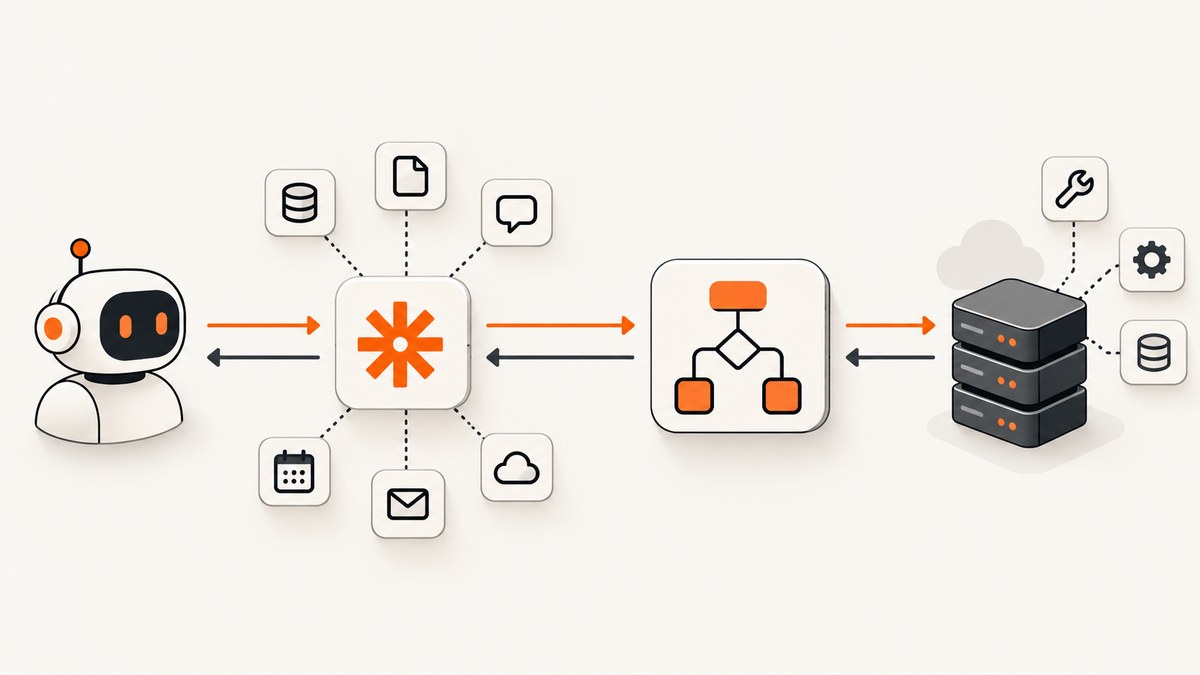
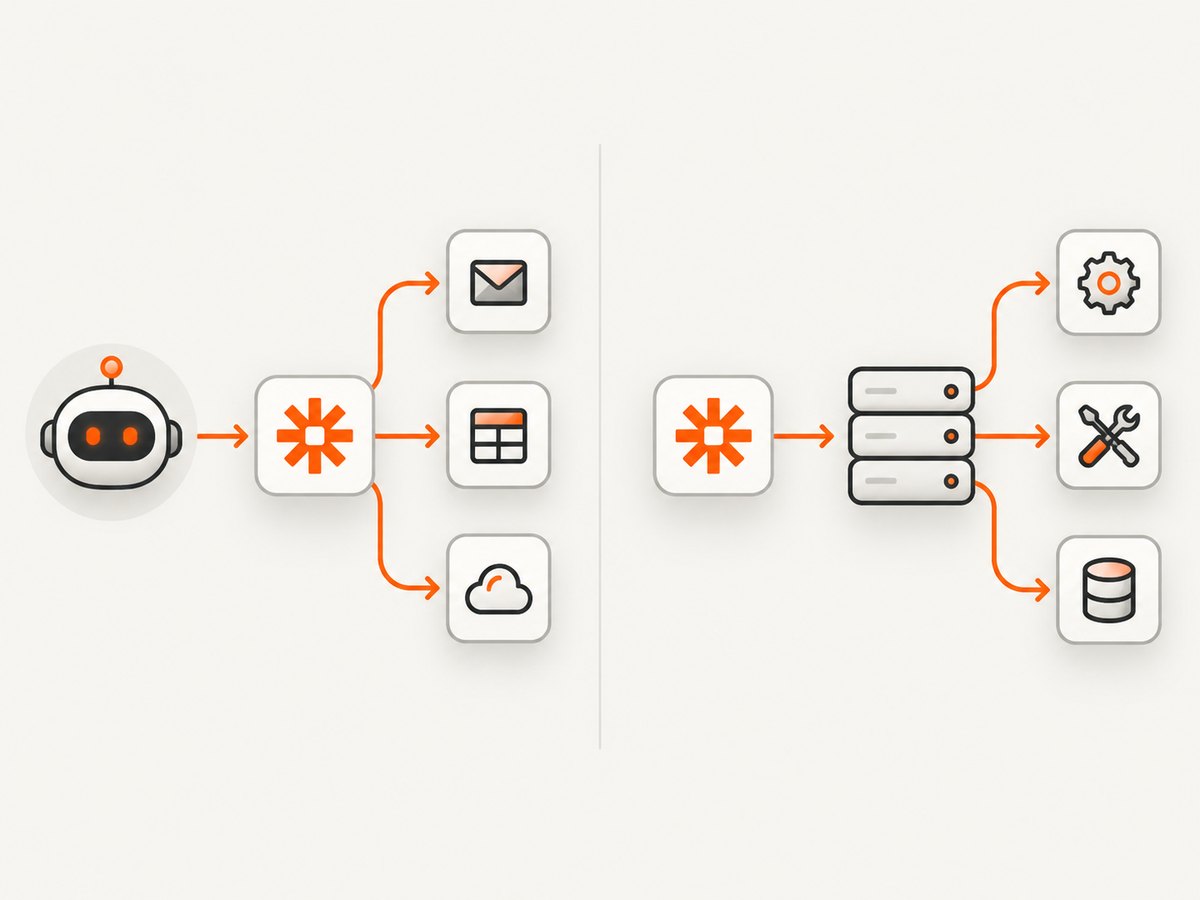
To integrate MCP with Zapier, first choose which direction the tools need to flow. Use Zapier MCP when an AI client should run actions in apps connected to your Zapier account. Use Zapier’s separate MCP Client integration when a Zapier workflow should call tools on a remote MCP server. These are different setup paths, with different transports and maturity.
In short: AI client → Zapier actions means create a Zapier MCP server and connect your client. Remote MCP server → Zap means add the MCP Client integration to Zapier and configure the remote server’s URL, transport, and authentication.
1. Choose the integration direction
| Question | Zapier MCP | MCP Client by Zapier |
|---|---|---|
| Who calls the tools? | An MCP-compatible AI client, such as a supported desktop client. | A Zapier workflow. |
| Where do the tools come from? | Actions in apps connected to your Zapier account. | A remote MCP server you specify. |
| What do you configure? | A Zapier MCP server, selected actions, and the client connection. | A remote server URL, its supported transport, and its authentication. |
| Transport noted in Zapier’s documentation | Streamable HTTP; Zapier says it does not support SSE for this route. | Streamable HTTP or SSE. |
| Maturity | Zapier MCP. | Documented as beta. |
Zapier describes MCP as a standard for connecting MCP clients to outside tools and data. For these two routes, think of the client as the caller and the server as the tool provider. The key is to identify which system should initiate the call before copying connection details.
2. Let an AI client use Zapier actions
This is the route to choose when you want an AI assistant to work with services already connected to Zapier—for example, by invoking a configured app action. Each exposed tool represents an action. The account owner selects which actions the client may use and completes any required app authentication and action fields.
Prerequisites
- A Zapier account.
- An MCP-compatible AI client that can connect to Zapier MCP.
- At least one app connected to the Zapier account, with the intended action available.
Setup steps
- Open mcp.zapier.com and create a server for the client you intend to connect.
- Select the named client if it is listed, or choose the generic “Other” option if appropriate.
- Add only the app actions that the client should be able to invoke. Connect the app account if prompted, then configure required action fields. Review the action inputs carefully; those fields define what the client must provide when it calls the tool.
- Follow the connection instructions Zapier presents for that client. Enable the Zapier MCP connection in the client, using the provided server details.
- In the client, ask it to list or inspect the available tools. Confirm that the actions you selected appear.
- Run a low-impact test action with known inputs. Verify the result in the destination app before relying on the integration for important work.
Tool access choices
Zapier documents both a dynamic mode, in which the server can discover and enable tools as needed, and a fixed set of tools for more tightly scoped access. Choose the configuration shown for your client and use case. A fixed set is easier to reason about when you know the precise actions the assistant needs; dynamic discovery can help when the available tools need to be selected as work changes. Do not assume every client setup exposes the same controls.
Keep the enabled action list narrow. An assistant can only use what the server makes available, so removing unneeded actions reduces accidental calls and makes the tool list easier to understand. Revisit the list when app connections or workflow requirements change.
3. Use a remote MCP server in a Zapier workflow
Choose this route when a Zap should call tools hosted by another MCP server. It is not the same as exposing your Zapier-connected app actions to an AI client. The remote server’s documentation is authoritative for its URL, transport, credentials, and authorization requirements.
Setup steps
- In Zapier, add an app connection and select MCP Client.
- Enter the remote MCP server URL supplied by its operator.
- Select Streamable HTTP or SSE according to the transport the remote server supports. The server and client must agree; choosing a transport the server does not offer will prevent a connection.
- Choose OAuth if the server requires it, or provide a bearer token if that is the server’s documented authentication method.
- Continue through the MCP Client authorization flow. Sign in to the remote service and grant the requested access if prompted.
- Use the connection in the intended Zap workflow and verify the tool call with safe, representative inputs.
Zapier labels this MCP Client integration beta and says it supports tool calls. Its documentation says it does not support connecting to Zapier’s own MCP servers. Connect only to remote servers you trust: tool calls may send inputs to that server, and the server’s own access grants determine what it can do.
4. Understand transports, authentication, and related features
Transport
Transport is the protocol used to exchange MCP messages. For the AI-client-to-Zapier route, Zapier documents Streamable HTTP and says SSE is not supported. For the remote-server-to-Zapier MCP Client route, Zapier lists Streamable HTTP and SSE. Do not transfer a transport assumption from one route to the other.
Authentication
For Zapier MCP, follow the client-specific server instructions Zapier provides; the client connection is established using those details. App authentication is a separate step: connect the app account for each action that requires it. For a remote MCP server, use the authorization flow and credential type that server requires. A bearer token is a secret: do not paste it into a shared document, expose it in logs, or commit it to source control.
Next Gen Zaps is separate
Zapier also describes Next Gen Zaps, where an MCP client can build and deploy Zap workflows using natural-language instructions. Zapier documents this as early access by request, with limited availability and active development. It is not a required transport or a prerequisite for either integration path above.
5. Troubleshoot common connection problems
| Symptom | Likely cause | What to check |
|---|---|---|
| The AI client cannot connect to Zapier MCP | Wrong server details, unsupported client setup, or the connection is not enabled. | Reopen the connection instructions for the selected client, confirm the URL and connection details exactly, and check that the client has enabled the Zapier MCP connection. |
| A configured action is missing from the AI client | The action was not added to the server, setup was not saved, or the client has stale tool information. | Confirm the action appears in the Zapier MCP server configuration, then refresh or reconnect the client and inspect its tool list again. |
| The tool appears but fails when called | A required action field is absent or invalid, or the connected app account needs attention. | Review the action’s required inputs and app connection. Try a small test with known valid values and inspect the returned error. |
| Zapier cannot connect to a remote MCP server | Incorrect URL, unsupported transport selection, or failed authorization. | Copy the endpoint from the server’s documentation, select a transport it supports, and repeat the server’s documented sign-in or token flow. |
| The new remote connection does not appear in the Zap editor | The editor may not have refreshed its available connections. | Refresh the Zap editor page and select the connection again. |
| The integration immediately requests reconnection | Authorization was not granted, permissions are insufficient, or transport settings do not match. | Confirm the authorization flow completed, check granted permissions, and verify transport compatibility with the remote server. |
| Calls work intermittently | The remote service, app connection, or authorization may be unavailable or expired. | Check the service’s status and logs if available, reauthorize when required, and retry with a minimal call to isolate the failing tool. |
6. Reliability, access control, and cost
For either path, start with one low-risk action and verify its effect at the destination before enabling broader use. Keep credentials under the control of the account or team that owns the connected apps and remote server. If a tool can create, update, or delete records, document which inputs it accepts and test failure behavior before letting it run unattended.
Zapier’s Help Center article “What is Zapier MCP?” was updated September 8, 2026. It says Zapier MCP is included with existing Zapier plans with no separate MCP billing, and that each successful tool call uses two tasks while failed calls do not use tasks. Treat those as dated terms and verify the current plan and task rules in Zapier’s documentation before estimating production usage. The same article says one server is created for each client, with one server per named client; sharing a server requires Team or Enterprise, while tool-list bundles can be shared on any plan. These plan details can change.
For workload estimates, count successful calls rather than user prompts: one conversation may cause more than one tool call. Include retries and follow-up actions in your expected task use, then leave room for traffic variation. A failed call may still consume time or require operator attention even when, according to the cited dated article, it does not consume Zapier tasks.
Zapier’s help article gives figures of 9,000+ apps and 40,000+ actions, while its product page publishes a different action count. Catalog totals are therefore page-specific and time-sensitive; they are not a guarantee that a particular action is available for your account. Check the current action catalog for the app and operation you need.
7. Add screenshots to an AI or Zapier workflow
If your workflow also needs a webpage screenshot, ScreenshotNeo is a website screenshot API and MCP server from ScreenshotNeo. Its MCP tools include take_screenshot, get_page_info, and capture_pdf, so an AI agent can request a screenshot through an MCP client. The screenshot API accepts one GET request with a URL and returns PNG, JPEG, WebP, or PDF. See the ScreenshotNeo API documentation for request options.
Or skip the browser setup
Use this one-call example to capture a webpage as WebP:
curl -G "https://api.screenshotneo.com/v1/shot" \
  -d access_key=YOUR_API_KEY \
  --data-urlencode url=https://stripe.com \
  -o shot.webp
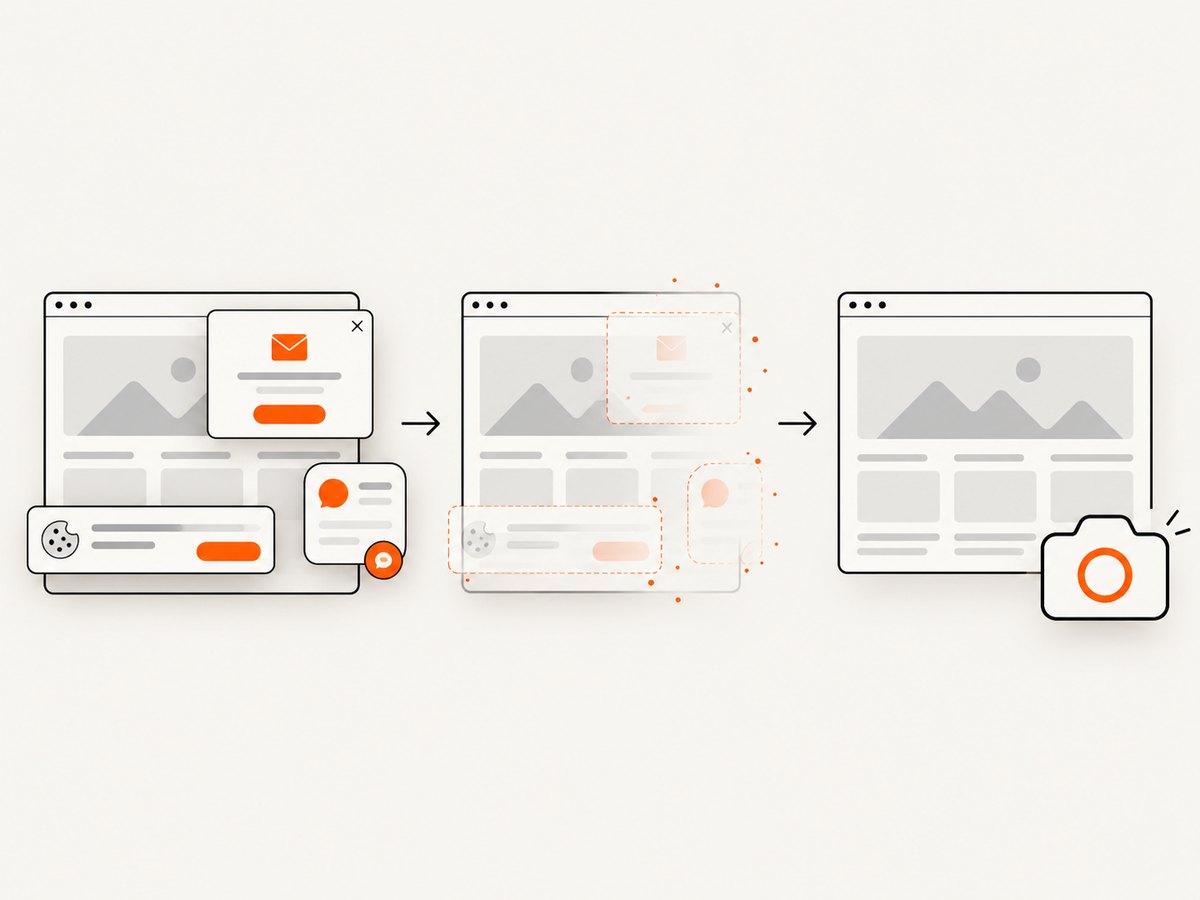
ScreenshotNeo removes cookie banners, newsletter popups, and chat widgets before the shot. Bot checks, blank pages, and failed loads are never billed. Its MCP server lets AI agents take screenshots. The free plan includes 1,000 screenshots a month with no card; paid plans start at $5 for 3,000. Sign up for 1,000 free screenshots a month, with no card.
8. Frequently asked questions
Can Zapier MCP and MCP Client be used together?
They serve different directions. You can use both in a broader system if you have both needs, but each connection has its own setup, credentials, and tool provider.
Does MCP Client by Zapier connect to every MCP server?
It depends on the server’s reachable endpoint, supported transport, and authorization method. Confirm those requirements with the remote server operator; Zapier documents its integration as beta.
Is Next Gen Zaps required to connect an MCP client?
No. It is a separate early-access capability for building and deploying Zaps through natural-language interaction, not a prerequisite for either connection recipe in this guide.
Where should I look if Zapier changes its interface or limits?
Use Zapier’s current Help Center setup instructions for the route you chose. In particular, recheck beta status, transport support, task usage, and plan limits before publishing a production estimate.