How to Capture iOS Simulator Screenshots with MCP
Use MCP to capture repeatable iOS Simulator screenshots, select devices, control output, troubleshoot failures, and automate the raw simctl workflow.
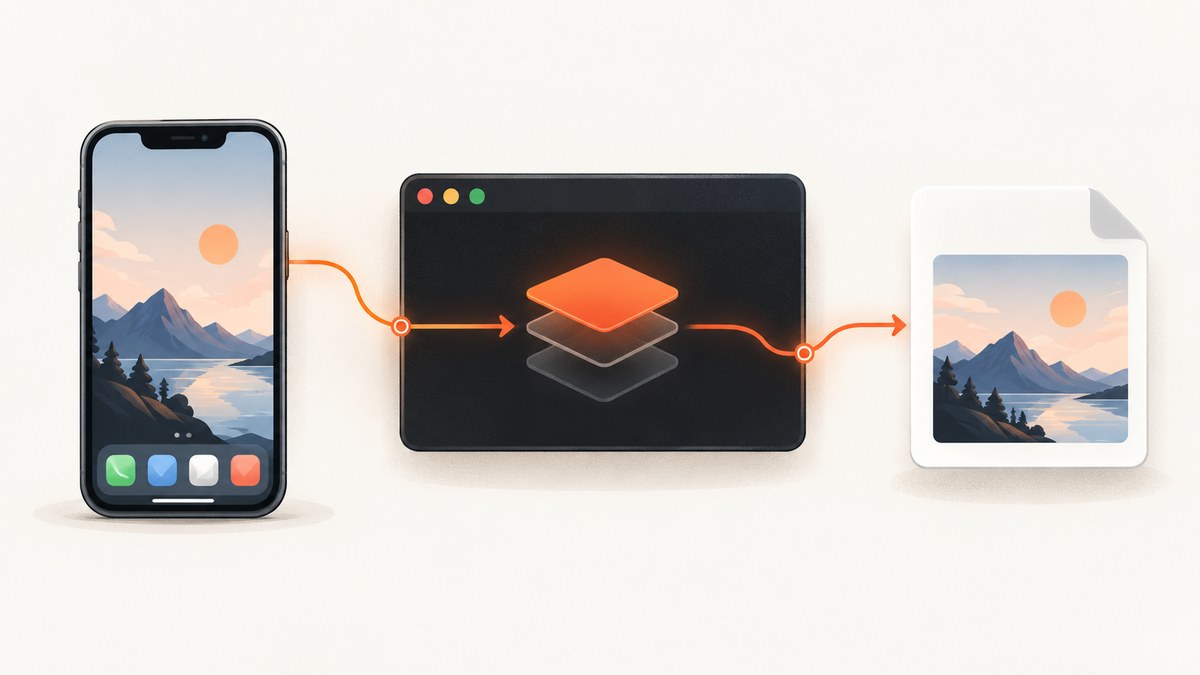
Direct answer: an MCP screenshot server usually orchestrates Apple’s Simulator command-line tools. Boot the simulator, launch the screen you need, then call the MCP server’s screenshot tool with a simulator UDID (or the booted device), an output path, and any format or display options it supports. Underneath, the capture commonly becomes this command:
xcrun simctl io booted screenshot screenshot.pngFor one running simulator, booted is convenient. If several simulators are running, pass the intended device name or UDID. MCP adds a callable interface for an AI client, but the image is still produced by xcrun simctl io ... screenshot.
What you need before calling MCP
- A Mac with Xcode installed. Apple’s Simulator management tools, including
simctl, ship with Xcode’s command-line tools. - The active developer directory set to Xcode. If
xcruncannot findsimctl, select the Xcode installation withxcode-select. - At least one iOS Simulator runtime and device. The target must be fully booted before capture.
- An MCP client and a screenshot-capable MCP server. The exact tool name and arguments vary by implementation. Public implementations commonly accept a UDID or discover a booted device, an output path, and image settings.
Verify Xcode and Simulator tooling
xcode-select -p
xcrun --find simctl
xcrun simctl list devices
The first command should point to an Xcode developer directory. The second should resolve the simctl executable. The device list shows available simulators and whether each one is Booted, Shutdown, or in another state.
If the active path is wrong, choose the installed Xcode application:
sudo xcode-select --switch /Applications/Xcode.app/Contents/DeveloperRun the verification commands again after switching. A machine can have multiple Xcode installations, so confirm that the selected path is the one containing the Simulator runtime you intend to use.
Capture a screenshot with the direct simctl command
Before involving MCP, prove that the underlying capture works. This isolates Apple tooling, simulator state, and filesystem permissions from MCP configuration.
- List devices and identify a booted simulator.
- Boot one if necessary.
- Launch your app and navigate to the exact screen.
- Write the screenshot to a directory the current shell can modify.
xcrun simctl list devices
xcrun simctl io booted screenshot /tmp/ios-simulator.png
open /tmp/ios-simulator.png
booted targets the running simulator. To select a specific device, replace it with the device name or UDID:
xcrun simctl io 01234567-89AB-CDEF-0123-456789ABCDEF screenshot /tmp/iphone-specific.pngUse a UDID when more than one simulator is booted. It makes an automated run deterministic and prevents a screenshot from silently coming from the wrong device.
Choose a writable output path
Use an absolute path when an MCP server requires one. Relative paths are interpreted by the server process, which may have a different working directory from your terminal. Confirm that the parent directory exists and that the MCP process has write permission.
mkdir -p "$HOME/Desktop/simulator-captures"
xcrun simctl io booted screenshot "$HOME/Desktop/simulator-captures/home.png"
Call the screenshot through MCP
MCP is an orchestration layer: your client sends a structured tool call, the server resolves a simulator target, invokes the platform capture command, and either writes the image or returns a reference to it. Tool schemas differ, so inspect the server’s tool definition before sending arguments.
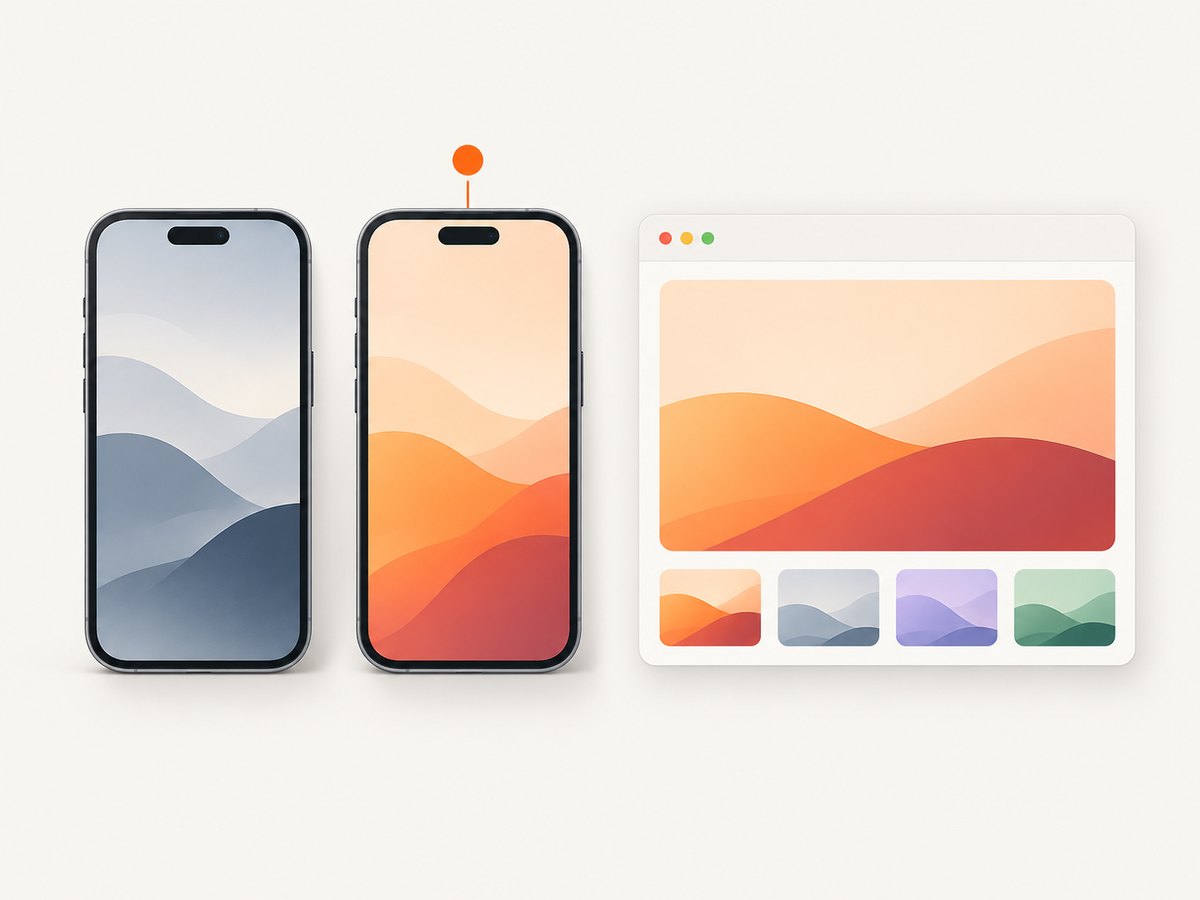
A typical call has these logical fields:
| Field | Purpose | Practical guidance |
|---|---|---|
udid or device |
Selects the simulator | Use booted for one device; use a UDID for repeatability. |
outputPath |
Where the file is written | Prefer an absolute, writable path. |
format |
Image encoding | PNG is the normal simctl workflow; some MCP servers add JPEG, TIFF, BMP, or GIF. |
display |
Chooses a display on devices with more than one | Use the server’s internal or external display value when available. |
mask |
Handles non-rectangular display regions | Implementations may expose ignored, alpha, or black. |
In an MCP client, the sequence is:
- Discover the screenshot tool exposed by the connected server.
- Pass the target UDID or booted-device option accepted by that tool.
- Set an absolute output path.
- Choose format, display, and mask only if the server documents those parameters.
- Open the resulting file and confirm that it represents the intended simulator.
Do not assume that every MCP server returns raw image bytes. Some only write a file and return its path. Your client needs access to that path, and the server process must be able to write there.
Automate a repeatable capture workflow
For CI-like local scripts, make the simulator target explicit and use a unique output filename. A stable naming scheme helps compare screenshots across app builds.
#!/usr/bin/env bash
set -euo pipefail

UDID="01234567-89AB-CDEF-0123-456789ABCDEF"
OUT="${HOME}/Desktop/simulator-captures/${UDID}-settings.png"
mkdir -p "$(dirname "$OUT")"

xcrun simctl list devices | grep -F "$UDID"
xcrun simctl io "$UDID" screenshot "$OUT"
echo "Saved $OUT"
The direct command is useful as a health check even when your normal workflow is MCP. If it fails, fix the simulator or Xcode environment first; changing MCP arguments will not repair a missing simctl installation.
Formats, displays, and masks
PNG is the default documented format for the basic simctl command and is usually the best choice for pixel-accurate UI comparisons. Some MCP implementations expose additional formats such as JPEG, TIFF, BMP, and GIF. Use a format option only when the server explicitly supports it.
Representative servers may also expose:
- Display selection: internal or external display where the simulator provides more than one display target.
- Mask policy: how non-rectangular display areas are represented. An
ignoredpolicy may omit masking, whilealphaandblackpolicies preserve the shape with transparency or a black fill.
These are MCP-server capabilities, not universal simctl arguments. Check the server schema and error messages rather than copying options between implementations.
Common failures and fixes
| Error or symptom | Likely cause | Fix |
|---|---|---|
xcrun: error: unable to find utility "simctl" |
Xcode is missing or the active developer directory points elsewhere. | Install Xcode, run xcode-select -p, switch to Xcode’s Developer directory, then retry. |
| No device matches the UDID | The identifier is mistyped, belongs to a deleted device, or is not available on this Mac. | Run xcrun simctl list devices and copy the exact identifier. |
| “No devices are booted” | The command uses booted but every simulator is shut down or still starting. |
Boot the intended device, wait until it is fully usable, or pass its UDID. |
| The wrong simulator is captured | Several devices are booted and the workflow uses booted. |
Use an explicit UDID and record it in your script or MCP call. |
| The MCP call succeeds but no file appears | The output path is relative, the parent directory is absent, or the server lacks permission. | Use an absolute path, create the directory, and test writing there from the server’s runtime account. |
| Capture fails only through MCP | The underlying command may work, but the server’s argument names, process environment, or path handling differ. | Run the direct xcrun simctl io ... screenshot command first, then inspect the MCP tool schema and server logs. |
| A display or mask option is rejected | That option is not implemented by the selected MCP server. | Remove it or use only values documented by that server. |
| The image is stale or shows the wrong screen | The app has not finished navigation or rendering before capture. | Wait for the screen to settle in the client automation, then invoke the screenshot tool. |
Fast isolation checklist
- Can
xcrun --find simctllocate the tool? - Does
xcrun simctl list devicesshow the intended device? - Does the device state say
Booted? - Does the direct command write a valid PNG to
/tmp/test.png? - Is the MCP output path absolute and writable?
- Are you using the argument names exposed by this MCP server?
Performance, reliability, and cost considerations
Simulator capture itself is local, so the main delays come from boot time, app launch, navigation, and rendering. Keep a simulator booted when taking many screenshots, and reuse one device for a batch. For parallel work, assign a distinct UDID and output directory to each worker; otherwise booted can make results ambiguous.
Reliability improves when you:
- Target a UDID instead of relying on whichever device happens to be booted.
- Wait for the app’s final screen before invoking capture.
- Write to a known directory and verify the file exists after the tool returns.
- Keep the direct
simctlcommand as a diagnostic fallback. - Record the simulator model, runtime, app build, and capture timestamp alongside artifacts.
There is no ScreenshotNeo charge for local simctl captures. If you use a hosted screenshot API for web pages or documentation assets, review its billing and failure semantics separately.
Or skip the browser setup
When the target is a web page rather than a local iOS Simulator surface, ScreenshotNeo provides a single HTTP request for a PNG, JPEG, WebP, or PDF. It is not a replacement for simctl and cannot capture an app running inside your local Simulator. It is useful when your MCP agent needs web screenshots without installing and managing a browser.
See the ScreenshotNeo API documentation for the complete parameter set. The basic calls are:
cURL
curl -G "https://api.screenshotneo.com/v1/shot" -d access_key=YOUR_API_KEY --data-urlencode url=https://stripe.com -o shot.webpPython
import requests
r = requests.get("https://api.screenshotneo.com/v1/shot", params={"access_key": "YOUR_API_KEY", "url": "https://stripe.com"}, timeout=90)
open("shot.webp", "wb").write(r.content)
Node.js
const q = new URLSearchParams({ access_key: 'YOUR_API_KEY', url: 'https://stripe.com' });
const res = await fetch(`https://api.screenshotneo.com/v1/shot?${q}`);
ScreenshotNeo removes cookie and consent banners, newsletter popups, and chat widgets before capture. Bot checks, blank pages, timeouts, failed loads, and cache hits are not billed, and the response identifies the result with X-Page-Verdict and X-Billed headers. Its MCP server exposes take_screenshot, get_page_info, and capture_pdf for Claude, Cursor, and other MCP clients.
The API also supports full-page captures with lazy images loaded, CSS-selector element capture, dark mode, device presets and custom viewports, retina scale, PDF paper and margin controls, custom CSS and JavaScript, clicks, selector or network-idle waits, request blocking, custom headers and cookies, timezone and geolocation, transparent backgrounds, resizing, configurable caching, signed links, asynchronous jobs with signed webhooks, bulk capture of up to 100 URLs per call, usage data, and an OpenAPI specification.
The free plan includes 1,000 screenshots per month with no card. Paid plans start at $5 for 3,000 shots; every feature is available on every plan. Create a free ScreenshotNeo account.
FAQ
Can MCP capture a Simulator that is not booted?
No. Boot the device first, or have the MCP server start it if that implementation explicitly supports lifecycle management. The basic workflow assumes a running Simulator.
Should I use a device name or UDID?
Use booted for a quick one-device capture. Use a UDID for scripts, parallel runs, and any workflow where selecting the wrong simulator would invalidate the artifact.
Why does PNG work while another format fails?
PNG is the normal simctl output. JPEG, TIFF, BMP, and GIF are optional MCP-server features, so confirm that the connected server implements the requested format.
Does ScreenshotNeo capture my local Simulator?
No. ScreenshotNeo captures reachable web URLs. Use xcrun simctl or an MCP server connected to your Mac for local Simulator screenshots.
What is the best first debugging command?
Run xcrun simctl io booted screenshot /tmp/test.png directly. If that fails, fix Xcode, simulator state, or the output path before debugging MCP.


