BlogScreenshots on your device
Why Java Screenshots Turn Black After a JFrame Change and How to Fix It
A black JFrame screenshot usually means repainting, coordinates, or capture timing is wrong. Diagnose Swing and Robot step by step.
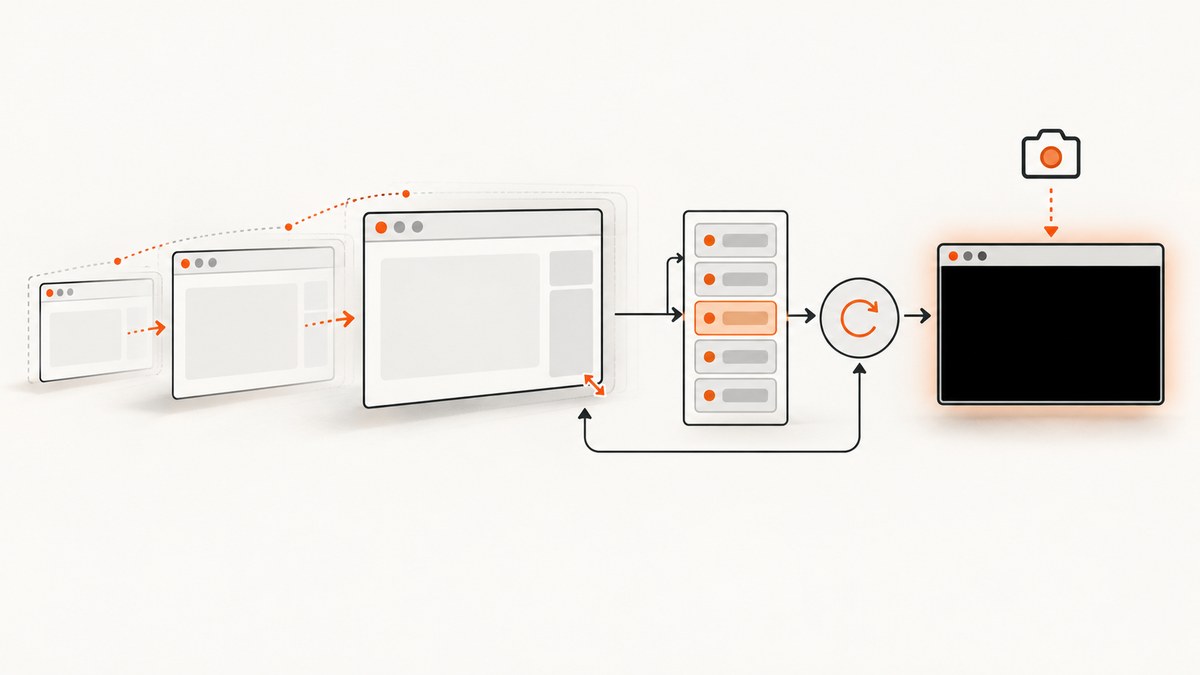
Short answer: a black screenshot after changing a JFrame often means the capture ran before Swing processed the repaint and layout work. Swing repaint requests are asynchronous. The call to repaint() schedules painting; it does not mean painting has finished when it returns. A black result can also come from incorrect custom painting, stale screen coordinates, display scaling, a hidden frame, or an unavailable desktop capture environment.
Start by deciding what you need to capture. Render a Swing component into a BufferedImage when you need deterministic component pixels. Use Robot.createScreenCapture when you need the actual desktop rectangle, including window borders and other visible pixels. Then keep UI changes on the event dispatch thread (EDT), move capture work to a worker thread, re-read the frame’s screen bounds, and inspect the custom painting code.
1. Identify the capture target before changing code
| Goal | Best API | What it includes | Typical risks |
|---|---|---|---|
| Component or panel content | JComponent.printAll or paint into a BufferedImage |
Only the component hierarchy | Wrong size, missing layout, custom painting errors |
| Visible desktop pixels | Robot.createScreenCapture |
Window decorations and anything on screen inside the rectangle | Timing, permissions, scaling, monitor coordinates, occlusion |
Oracle describes repaint() as a scheduling request and advises applications not to invoke paint() directly as the normal update mechanism. See Oracle’s AWT and Swing painting overview and the JComponent API.
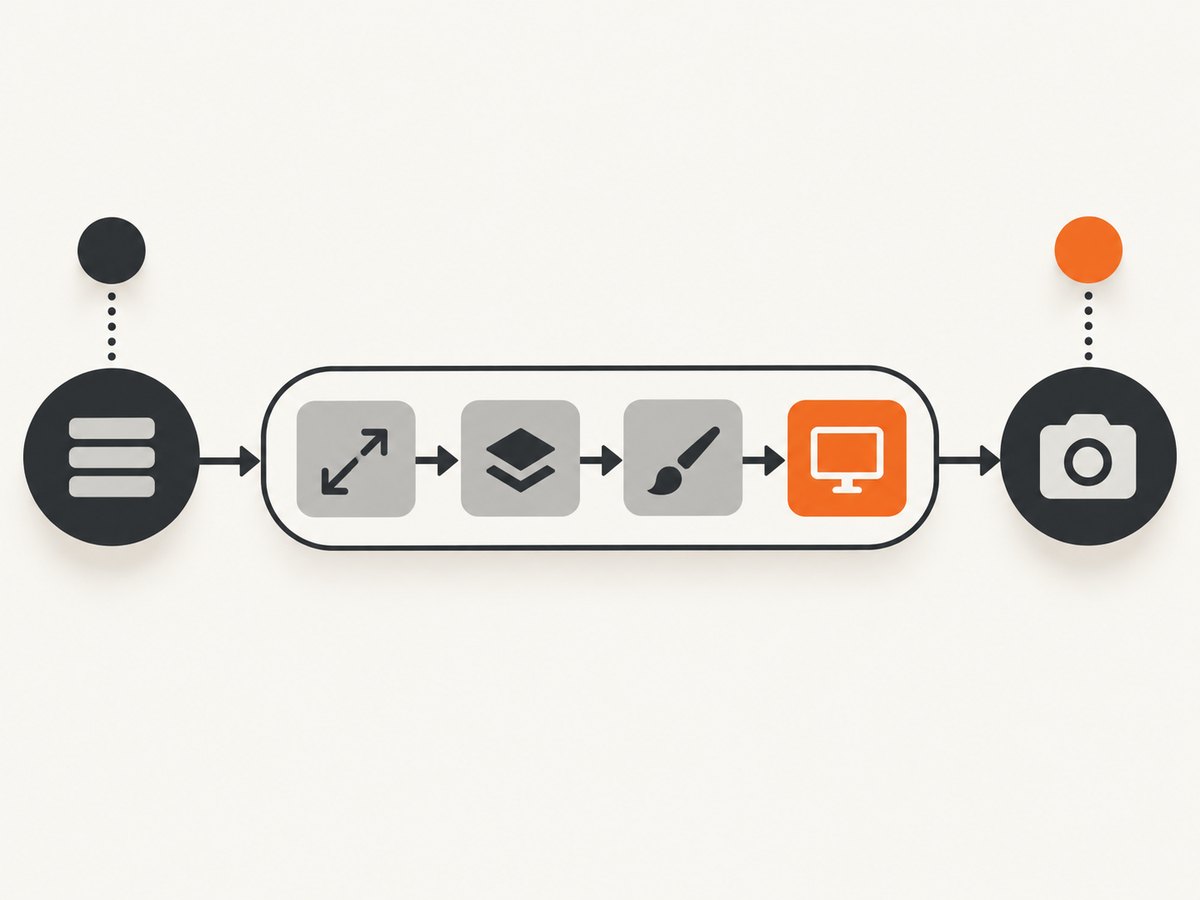
2. Apply the safe Swing update sequence
- Queue the size, content, look-and-feel, or visibility change on the EDT.
- Call
revalidate()when hierarchy or layout changed. - Call
repaint()after state changes. - Queue a second EDT task so the first task has run.
- Capture from a worker thread, never from the EDT.
import java.awt.AWTException;
import java.awt.EventQueue;
import java.awt.IllegalComponentStateException;
import java.awt.Point;
import java.awt.Rectangle;
import java.awt.Robot;
import java.awt.image.BufferedImage;
import javax.swing.JFrame;
import javax.swing.JPanel;
import javax.swing.SwingUtilities;

public final class JFrameCapture {
    private final JFrame frame;
    private final JPanel content;
    private final Robot robot;

    public JFrameCapture(JFrame frame, JPanel content) throws AWTException {
        this.frame = frame;
        this.content = content;
        this.robot = new Robot();
    }

    public void changeThenCapture(int width, int height) {
        SwingUtilities.invokeLater(() -> {
            frame.setSize(width, height);
            content.revalidate();
            content.repaint();
            // This task runs after the mutation task in the EDT queue.
            EventQueue.invokeLater(this::captureOnWorker);
        });
    }

    private void captureOnWorker() {
        try {
            robot.waitForIdle();
            // Read current on-screen coordinates after the resize.
            Point location = frame.getLocationOnScreen();
            Rectangle bounds = frame.getBounds();
            bounds.setLocation(location);
            BufferedImage image = robot.createScreenCapture(bounds);
            // Write image with ImageIO, inspect it, or pass it to your pipeline.
            System.out.println(image.getWidth() + "x" + image.getHeight());
        } catch (IllegalComponentStateException ex) {
            System.err.println("The frame is not showing: " + ex.getMessage());
        } catch (SecurityException ex) {
            System.err.println("Screen-capture permission denied: " + ex.getMessage());
        }
    }
}
This pattern is schematic: construct the Robot only where your runtime permits it, make sure the frame is visible, and handle AWTException. waitForIdle() waits for events currently on the AWT queue; it does not promise that the operating-system compositor has displayed the final resized frame. If a transient black frame remains, test a short delay on the worker thread in that specific environment. There is no universal delay that guarantees compositor presentation.
3. Capture a Swing component without the desktop
When window borders and other desktop pixels are irrelevant, component rendering avoids screen-coordinate and occlusion problems. The component must have a meaningful size and a laid-out hierarchy.
import java.awt.Dimension;
import java.awt.Graphics2D;
import java.awt.image.BufferedImage;
import javax.imageio.ImageIO;
import javax.swing.JPanel;
import javax.swing.SwingUtilities;
import java.io.File;
import java.io.IOException;

public static BufferedImage renderPanel(JPanel panel) {
    if (!SwingUtilities.isEventDispatchThread()) {
        throw new IllegalStateException("Call renderPanel on the EDT");
    }
    Dimension size = panel.getSize();
    if (size.width <= 0 || size.height <= 0) {
        size = panel.getPreferredSize();
        panel.setSize(size);
        panel.doLayout();
    }
    BufferedImage image = new BufferedImage(
        size.width, size.height, BufferedImage.TYPE_INT_ARGB);
    Graphics2D graphics = image.createGraphics();
    try {
        panel.printAll(graphics);
    } finally {
        graphics.dispose();
    }
    return image;
}

// Example use on the EDT:
SwingUtilities.invokeLater(() -> {
    BufferedImage image = renderPanel(myPanel);
    try {
        ImageIO.write(image, "png", new File("panel.png"));
    } catch (IOException e) {
        e.printStackTrace();
    }
});
Use this route for reports, previews, tests, and export jobs where a deterministic component image is more useful than a photograph of the desktop. It will not include the title bar, shadows, or pixels outside the component.
4. Make custom painting repaint-safe
Put custom drawing in paintComponent(Graphics). Call super.paintComponent(g) when the UI delegate should paint the background. If you omit the superclass call, paint an opaque background yourself. Code that assumes a fixed width or height can also paint outside the valid area after a resize.
import java.awt.Color;
import java.awt.Graphics;
import javax.swing.JPanel;

final class ChartPanel extends JPanel {
    private int value;

    ChartPanel() {
        setOpaque(true);
        setBackground(Color.WHITE);
    }

    void setValue(int value) {
        this.value = value;
        repaint();
    }

    @Override
    protected void paintComponent(Graphics g) {
        super.paintComponent(g);
        int barWidth = Math.max(0, Math.min(getWidth() - 20, value));
        g.setColor(Color.BLUE);
        g.fillRect(10, 10, barWidth, 24);
    }
}
5. Use Robot with current screen coordinates
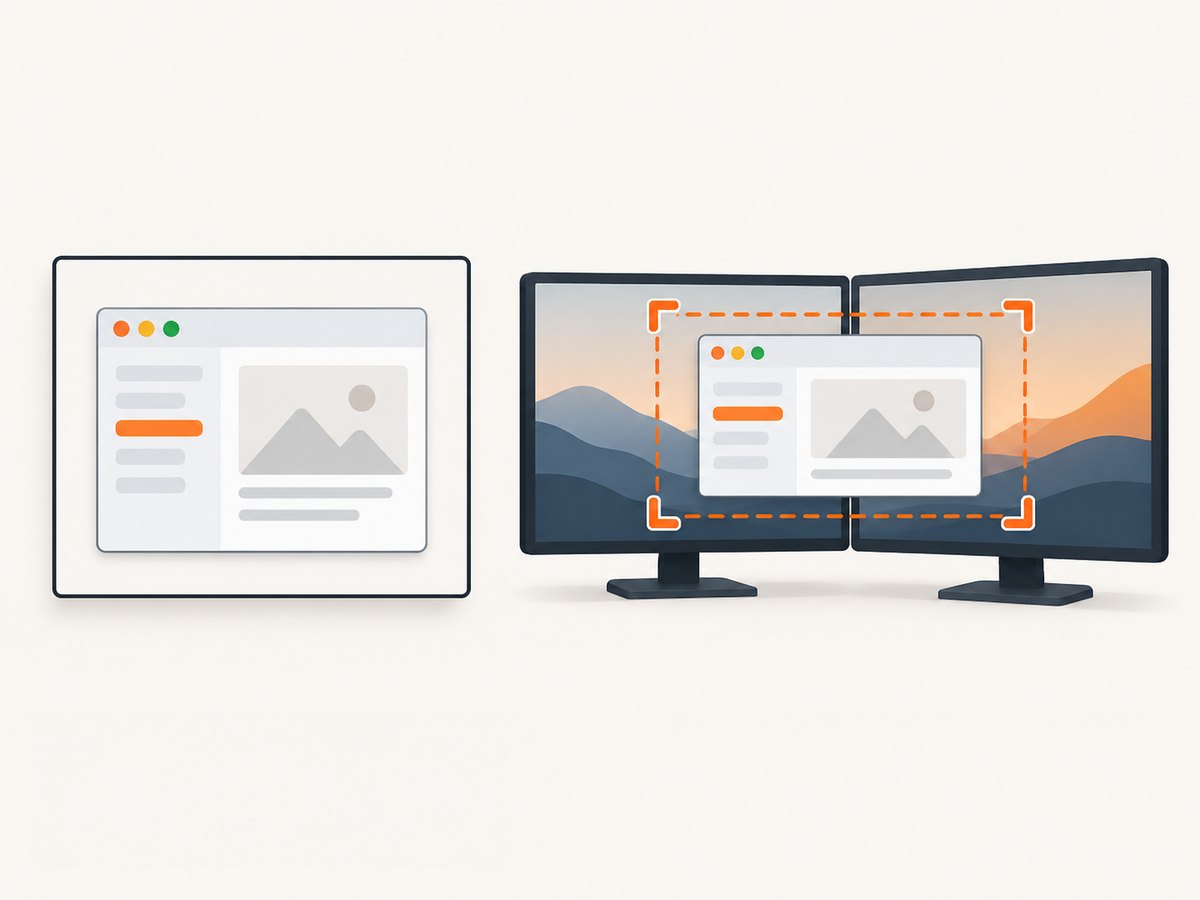
Robot captures a desktop rectangle in screen coordinates. After resizing, maximizing, moving between monitors, or changing display configuration, do not reuse an old rectangle. Ask the frame for its current location and bounds immediately before capture.
Robot robot = new Robot();

// The frame must be showing before this call.
Point topLeft = frame.getLocationOnScreen();
Rectangle frameBounds = frame.getBounds();
frameBounds.setLocation(topLeft);
BufferedImage screenshot = robot.createScreenCapture(frameBounds);
Oracle’s Robot documentation covers screen coordinates, multi-resolution images, permission failures, and the recommendation to avoid screen capture on the EDT. On scaled displays, inspect the native-resolution variant of a multi-resolution image when your downstream code needs physical pixels. Multiple monitors can share a virtual coordinate space, and negative coordinates are valid on some layouts.
6. Diagnose the black frame in a fixed order
- Reproduce with logging. Log the mutation time, repaint request, frame visibility, size,
getLocationOnScreen(), capture rectangle, image dimensions, and whether the result is uniformly black. - Separate component and desktop captures. If component rendering is correct but Robot is black, focus on timing, permissions, coordinates, scaling, or compositor behavior.
- Check visibility.
frame.isShowing()must be true before callinggetLocationOnScreen(). A minimized, hidden, or disposed frame cannot provide a useful desktop image. - Verify painting. Inspect
paintComponent, superclass calls, opacity, and size-dependent calculations. - Move work off the EDT. A long capture or file write can block repaint processing and create a feedback loop.
- Test one monitor and 100% scaling. This isolates coordinate and scaling errors before you add back the production display setup.
- Check the runtime. Headless servers, remote desktops, sandbox permissions, and OS screen-recording controls can prevent a valid desktop capture.
7. Troubleshooting table
| Symptom | Likely cause | Fix |
|---|---|---|
| Black only immediately after resize or content replacement | Capture races queued repaint/layout work | Mutate on the EDT, call revalidate()/repaint(), queue capture after the mutation, then capture on a worker. |
| Component image is black too | Custom painting or background code is wrong | Use paintComponent, call super.paintComponent, set an explicit opaque background, and handle zero-sized components. |
| Image has the wrong monitor or an empty area | Stale or incorrect screen rectangle | Re-read getLocationOnScreen() and bounds immediately before capture; inspect scaling and negative monitor coordinates. |
IllegalComponentStateException |
Frame is not showing or has no peer | Call pack() or setSize(), then setVisible(true); capture only after visibility is established. |
AWTException constructing Robot |
Robot is unsupported or the environment is headless | Run with a desktop session and a supported graphics environment, or use component rendering instead. |
SecurityException or black desktop pixels |
Screen-capture permission or sandbox restriction | Grant the OS permission, run in an allowed session, or switch to component rendering. |
| Capture freezes the UI | Robot capture or image encoding runs on the EDT | Keep mutation and repaint on the EDT; perform Robot capture, encoding, and I/O on a worker. |
| Works on one JDK or OS only | Platform compositor, scaling, or permission differences | Log bounds and image variants, test the target deployment environment, and avoid relying on an undocumented sleep duration. |
8. Performance, reliability, and cost considerations
- Performance: desktop capture and image encoding can be expensive for large, high-DPI rectangles. Capture the smallest required area and choose PNG, JPEG, or another format based on fidelity and size.
- EDT responsiveness: never perform Robot capture, compression, network uploads, or disk writes on the EDT.
- Reliability: make the capture pipeline report whether the frame was visible, the rectangle used, and the resulting dimensions. Retry only after correcting state; blind retries can save the same black frame repeatedly.
- Determinism: component rendering is easier to reproduce in CI because it does not depend on a logged-in desktop, monitor arrangement, compositor, or screen permissions.
- Scaling: decide whether your consumer expects logical Swing coordinates or physical pixels, then normalize dimensions at the boundary.
9. Or skip the browser setup
If your actual goal is a website screenshot rather than a visible Swing desktop, ScreenshotNeo provides a single HTTP request for PNG, JPEG, WebP, or PDF output. It accepts cookie and consent banners before capture and removes more than 60 known consent platforms, newsletter popups, and chat widgets; each step can be disabled. Bot checks, blank pages, timeouts, failed loads, and cache hits are not billed, and response headers report the page verdict and billing result. Its MCP server provides take_screenshot, get_page_info, and capture_pdf tools for Claude, Cursor, and other MCP clients.
See the ScreenshotNeo API documentation for all options.
cURL
curl -G "https://api.screenshotneo.com/v1/shot" -d access_key=YOUR_API_KEY --data-urlencode url=https://stripe.com -o shot.webpPython
import requests
r = requests.get("https://api.screenshotneo.com/v1/shot", params={"access_key": "YOUR_API_KEY", "url": "https://stripe.com"}, timeout=90)
open("shot.webp", "wb").write(r.content)
Node.js
const q = new URLSearchParams({ access_key: 'YOUR_API_KEY', url: 'https://stripe.com' });
const res = await fetch(`https://api.screenshotneo.com/v1/shot?${q}`);
Plans include 1,000 screenshots per month free with no card. Paid plans start at $5 for 3,000 shots; every feature is available on every plan. Create a free ScreenshotNeo account.
10. FAQ
Does repaint() block until the frame is drawn?
No. It schedules painting, and Swing may coalesce multiple repaint requests.
Is Robot.waitForIdle() a compositor flush?
No. It waits for events currently on the AWT event queue; native presentation can still lag.
Should I add Thread.sleep(100)?
Use a short worker-thread delay only as an environment-specific diagnostic. It is not a portable guarantee.
Can Robot capture a minimized window?
Robot captures desktop pixels. A minimized or occluded window may not contain the rendered content you expect.
When should I choose component rendering?
Choose it when you need component content, repeatable output, or headless-friendly tests. Choose Robot when the real desktop view and decorations matter.


