BlogScreenshots on your device
Why Java Robot Cannot Capture Screenshots When the Computer Is Locked
Java Robot reads the active desktop, so Windows locking switches it away. Learn why captures turn black and how to design reliable alternatives.
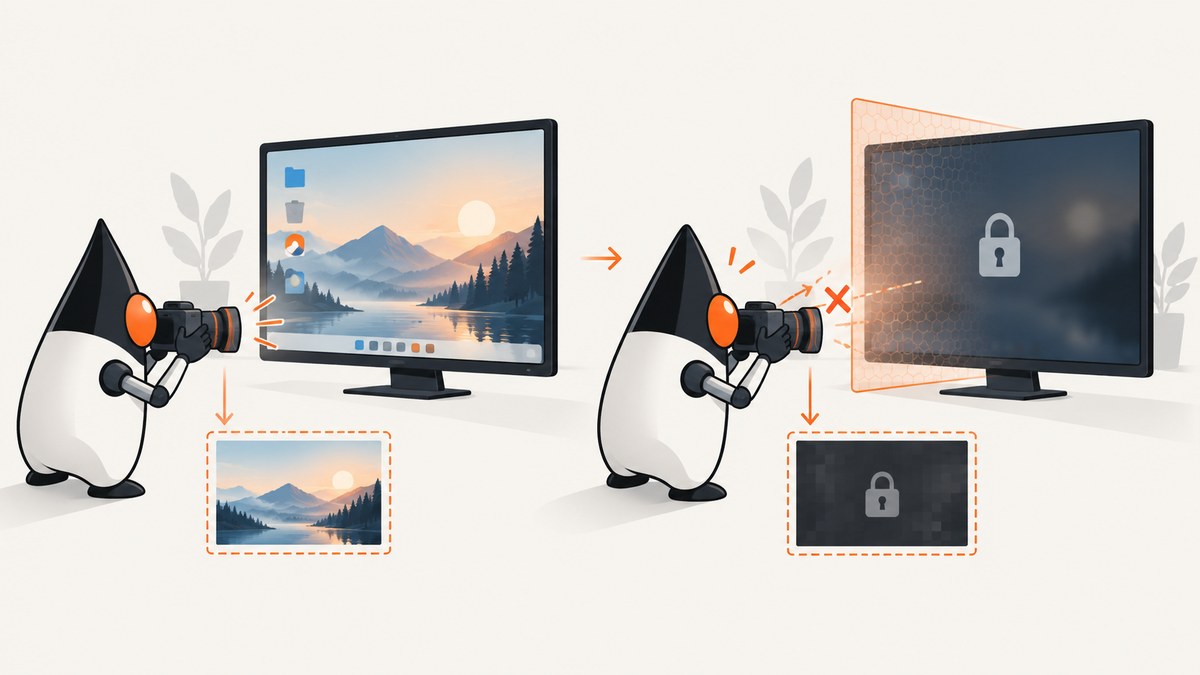
Short answer: java.awt.Robot captures pixels from the desktop visible to its process. When Windows locks the workstation, the active desktop changes from the normal Default desktop to a protected ScreenSaver or Winlogon desktop. A Java process running as a service, scheduled task, or in another session may also be attached to a noninteractive window station. Robot then cannot see the ordinary user interface, so the result can be black, blank, undefined, or a different desktop.
There is no portable Robot flag that bypasses Windows desktop isolation. A reliable design either captures in the intended interactive user session while it is available, or avoids rendered screen pixels by using application APIs, test hooks, logs, or export functions.
What Robot actually captures
Oracle describes Robot as creating an image containing pixels read from the screen. It is a screen-pixel reader, not an API that asks an application to render its state independently of Windows sessions.
import java.awt.Rectangle;
import java.awt.Robot;
import java.awt.Toolkit;
import java.awt.image.BufferedImage;
import javax.imageio.ImageIO;
import java.io.File;

public class Capture {
    public static void main(String[] args) throws Exception {
        Robot robot = new Robot();
        Rectangle screen = new Rectangle(Toolkit.getDefaultToolkit().getScreenSize());
        BufferedImage image = robot.createScreenCapture(screen);
        ImageIO.write(image, "png", new File("screen.png"));
    }
}
This code works when the process can access the active interactive desktop. The rectangle only selects coordinates on that desktop; it cannot select a hidden or protected desktop.
What Windows changes when you lock the computer
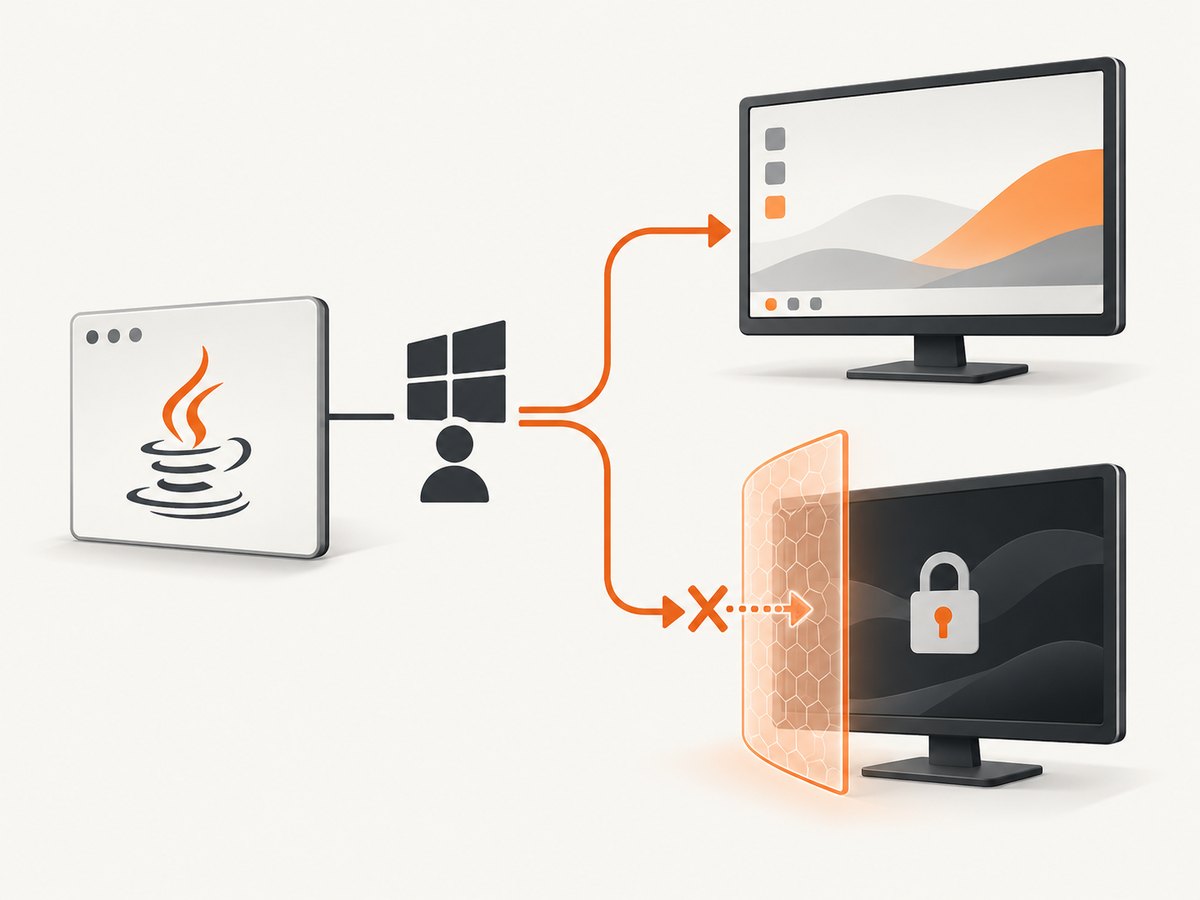
Windows uses window stations and desktops to isolate graphical sessions:
| Component | Role | Effect on Robot |
|---|---|---|
WinSta0 |
The interactive window station that can display a user interface and receive input. | Robot can potentially capture it when the process is in the same session and has permission. |
Default |
Normal logged-in user desktop. | Contains the application windows you expect to capture. |
ScreenSaver |
Protected desktop used by a secure screen saver or lock state. | The normal application desktop is hidden from the locked user view. |
Winlogon |
Protected desktop used for secure sign-in and related credentials UI. | Ordinary processes cannot treat it as their application canvas. |
| Noninteractive station | Station commonly used by services and other noninteractive processes. | No user display is available to capture. |
Only one desktop in an interactive station is active at a time. Locking switches away from Default, protecting the user interface from ordinary processes. A service started under a service account can also be in another session entirely, even when the same user is logged in at the console.
Why the symptom varies
- Black or blank image: the process can create an image but the pixels it can access are unavailable or protected.
AWTExceptionduringnew Robot(): the Java environment is headless or the platform cannot provide Robot support.SecurityExceptionduring capture: the desktop or operating system denied screen access.- Unexpected sign-in or service screen: the process is seeing another active desktop or session.
- Works in an IDE, fails in production: the IDE runs in your interactive session while the deployed job runs as a service, scheduled task, or different account.
Headless mode is a separate issue
java.awt.headless describes whether Java has a display environment. Setting -Djava.awt.headless=false does not unlock Windows or grant access to a protected desktop. Conversely, a non-headless Java process can still be unable to read the locked desktop because it is in the wrong session, station, or desktop.
Diagnose the session before changing code
- Run the capture while logged in and unlocked. Record the Java user, Windows session ID, window station, and desktop.
- Lock the workstation and run the same diagnostics. Compare the values and the captured image.
- Check whether
new Robot()throwsAWTException, or whethercreateScreenCapturethrowsSecurityException. - Check the job type. A Windows service and many scheduled-task configurations do not share the interactive user’s
WinSta0session. - Clarify what must be captured: the visible user desktop, one application window, or application state. Only the first requires the rendered interactive desktop.
For operational logging, include the account name, process ID, session ID, whether Java reports headless mode, and the exception class and message. Do not log credentials or screen contents merely to diagnose this problem.
Supported designs
Capture in the interactive session
If the requirement truly is a picture of what a user sees, run a worker in that user’s interactive session. A service can coordinate work, but the worker must execute where the target desktop is available. Define what should happen when the session is locked, disconnected, or switched before starting a job.
Capture application state instead of pixels
For unattended jobs, prefer an application-level interface:
- Use an HTTP or SDK API that returns the report, document, or data being displayed.
- Use an export endpoint such as PDF, CSV, or image generation supplied by the application.
- Use test hooks or a browser automation protocol that renders in a controlled worker session.
- Use logs and structured state for monitoring rather than comparing screenshots.
Console and Remote Desktop sessions
Console, Remote Desktop, disconnected, and switched-user sessions can expose different active desktops. A design that happens to work over an open Remote Desktop connection may fail after disconnecting because the interactive display state changes. Treat the session and desktop as runtime prerequisites, not as permanent machine properties.
Common fixes that do not solve the root cause
| Attempt | Why it does not fix a locked desktop |
|---|---|
| Add a delay before capture | Waiting does not change which desktop or session the process can access. |
Change the Rectangle |
Coordinates still refer to the process-visible desktop. |
Set -Djava.awt.headless=false |
Headless configuration is not a lock-screen bypass. |
| Grant ordinary file permissions | Writing the PNG is different from reading protected screen pixels. |
| Run as a service with “interact with desktop” assumptions | Modern Windows session isolation means services generally use noninteractive stations. |
| Automate entering a password to unlock Windows | This is not a generally safe or supported workaround and requires platform-specific security review. |
Reliability and performance considerations
- Reliability: Make the session check explicit and return a clear “interactive desktop unavailable” result instead of treating a black image as valid data.
- Concurrency: Serialize captures if the target application changes state in response to focus, clicks, or animations.
- Timing: Wait for the application state you need, but do not assume waiting can overcome a locked or noninteractive desktop.
- Validation: Check image dimensions, file size, and a known visual marker when a blank image would be harmful.
- Security: Keep screen captures and session-control credentials protected. Avoid designs that weaken the lock screen solely to obtain pixels.
- Cost: Local Robot has no API charge, but maintaining an always-logged-in interactive worker adds operational and security cost. An application-level capture service can reduce that maintenance.
Or skip the browser setup
If the target is a web page rather than the Windows user’s physical desktop, ScreenshotNeo captures the page on its servers through one HTTP request. See the ScreenshotNeo API documentation for all options.
curl -G "https://api.screenshotneo.com/v1/shot" -d access_key=YOUR_API_KEY --data-urlencode url=https://stripe.com -o shot.webpimport requests
r = requests.get("https://api.screenshotneo.com/v1/shot", params={"access_key": "YOUR_API_KEY", "url": "https://stripe.com"}, timeout=90)
open("shot.webp", "wb").write(r.content)const q = new URLSearchParams({ access_key: 'YOUR_API_KEY', url: 'https://stripe.com' });
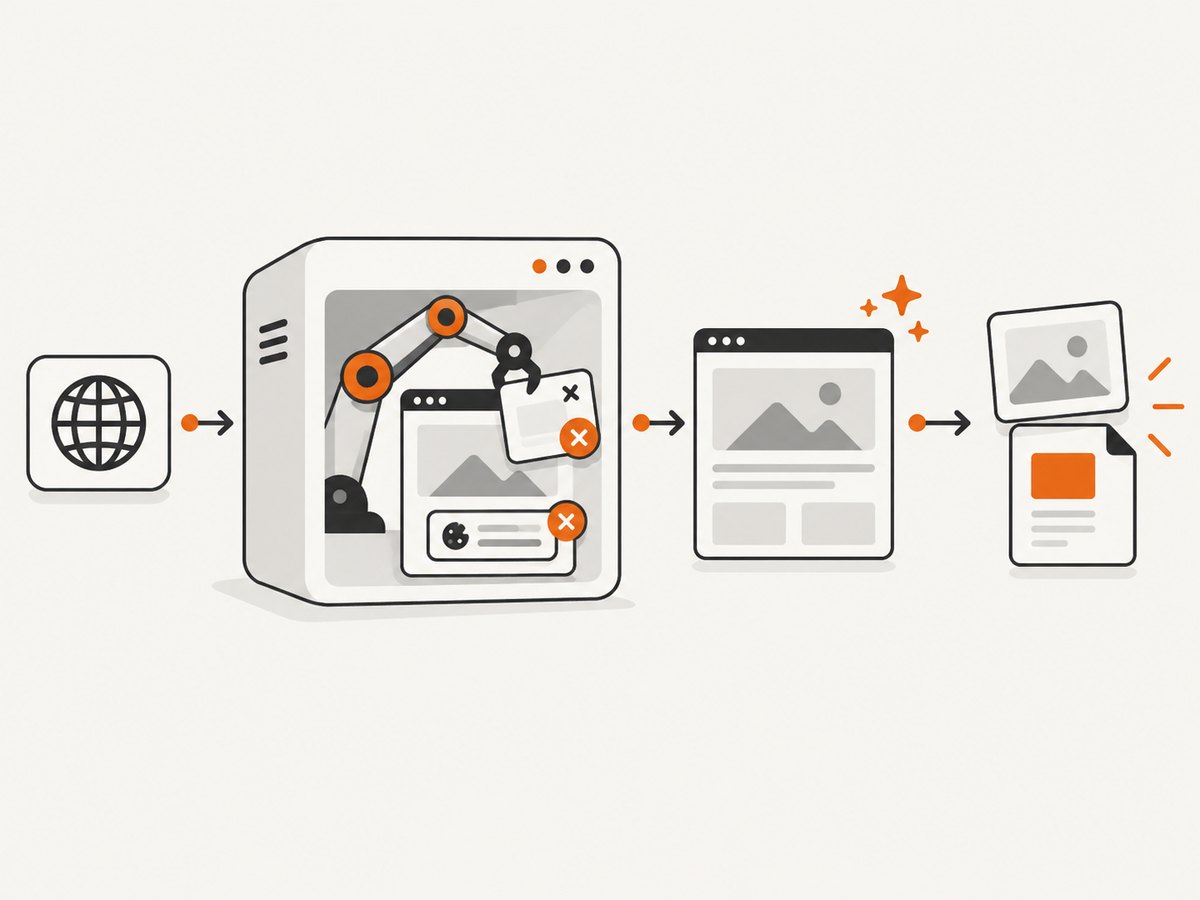
const res = await fetch(`https://api.screenshotneo.com/v1/shot?${q}`);Cookie banners, newsletter popups, and chat widgets are removed before the shot. Bot checks, blank pages, timeouts, failed loads, and cache hits are not billed, and response headers identify the page verdict and billing status. An MCP server lets AI agents use take_screenshot, get_page_info, and capture_pdf. The free plan includes 1,000 screenshots a month with no card; paid plans start at $5 for 3,000 shots.
Create a free ScreenshotNeo account.
Troubleshooting checklist
| Symptom | Likely cause | Action |
|---|---|---|
| Robot constructor fails | Headless environment or platform restriction | Verify the display environment and inspect the AWTException; redesign if the worker is intentionally headless. |
| Constructor succeeds, capture is black after lock | Active desktop changed to ScreenSaver or Winlogon |
Capture before lock in the user session, or use an application-level capture path. |
| Works manually, fails from Task Scheduler | Task runs only when the user is logged on, or in another session | Inspect task identity and session behavior; do not assume scheduled execution has a visible desktop. |
| Works on console, fails after RDP disconnect | Remote session desktop state changed | Test the disconnected state explicitly and move capture to a controlled worker if needed. |
| Capture shows the wrong application | Window focus or session changed | Confirm the active session and desktop; prefer an application API for deterministic output. |
FAQ
Can Java take a screenshot while Windows is locked?
Not reliably with Robot from the ordinary user desktop. Locking protects that desktop; use an interactive worker while available or an application-level method.
Is a locked desktop the same as headless mode?
No. Headless mode means Java has no display environment. A locked desktop can still have a display environment while hiding the normal desktop from the process.
Will running Java as administrator help?
Elevation does not provide a universal way through Windows desktop isolation. The process still needs the correct session, station, desktop, and permissions.
What if I only need a web page screenshot?
Use a web screenshot service or browser worker instead of reading the physical Windows display. ScreenshotNeo is one option when you need a clean page image or PDF without keeping an interactive desktop unlocked.
Can I capture a specific window while the computer is locked?
A window handle does not make its pixels available when its desktop is protected or its session is unavailable. Use the application’s export/API path or a worker designed for unattended rendering.


