BlogScreenshots on your device
How to Capture Screenshots with a Java Program Running as a Windows Service
Capture Windows screenshots reliably with Java Robot by running capture code in the interactive user session, not isolated Session 0.
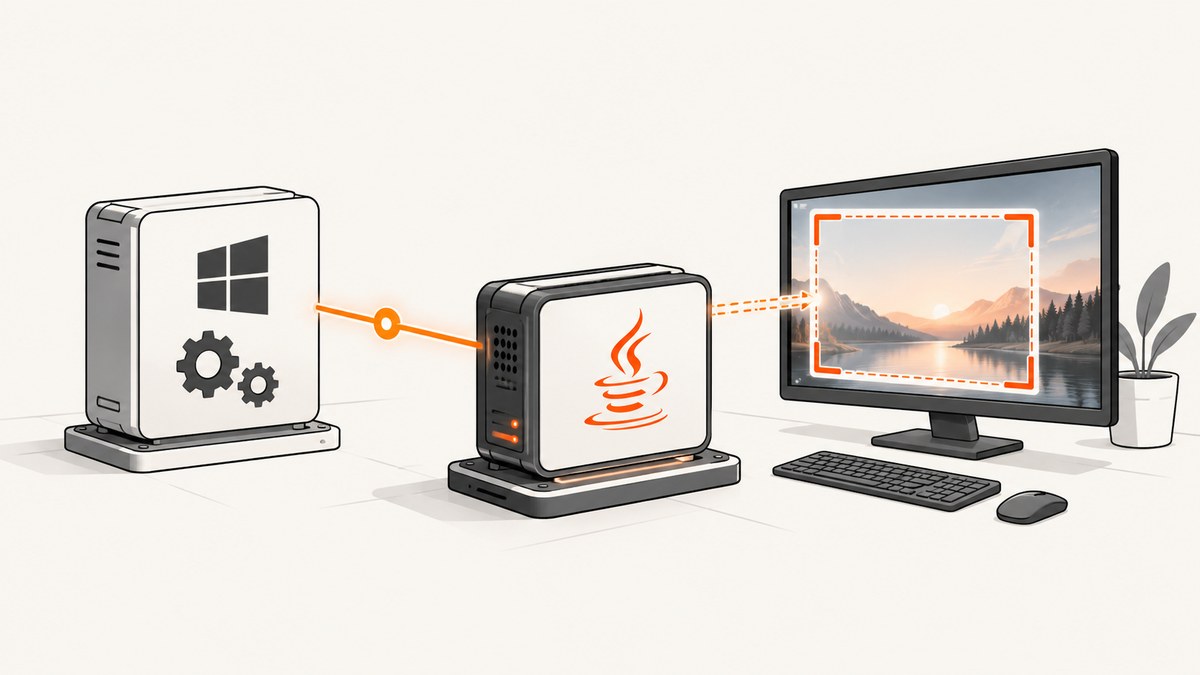
Short answer: use Java’s java.awt.Robot to capture the screen, but run the capture code inside the signed-in user’s interactive Windows session. A conventional Windows service runs in isolated Session 0 and should not be expected to see the desktop displayed to a user. Keep the service for orchestration, lifecycle, permissions and job control; run a worker process or per-user service beside the desktop it must capture.
Microsoft documents Session 0 isolation and the separation between service and interactive sessions. Oracle’s Java Robot API documentation describes screen capture, display selection and the exceptions that can occur in headless or restricted environments.
1. Recommended architecture
Use two components when the application must remain a Windows service:
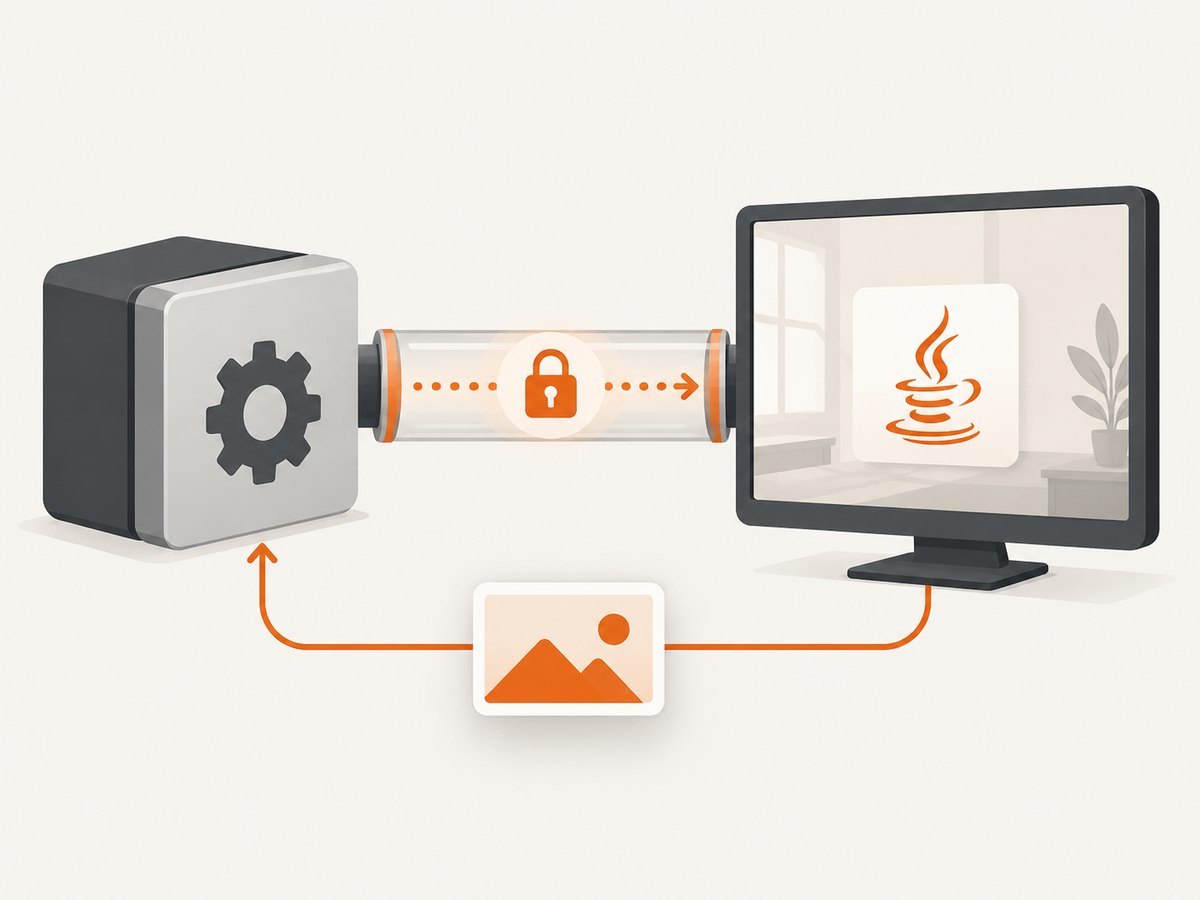
- Windows service: accepts requests, authenticates callers, manages job state, starts or supervises workers and performs privileged work.
- Interactive capture worker: runs under the active user’s account and session, creates a
Robot, captures pixels and returns an image or event through a secured IPC channel.
This split addresses the Windows boundary: services normally run in non-interactive Session 0, while the visible desktop is in an interactive user session. A per-user service is another valid design when capture should start and stop with a user’s sign-in session. Choose based on who owns worker lifecycle, what happens at sign-out, whether multiple users can be logged in, and how captured data is protected in transit.
Session and process checklist
- Confirm the worker’s Windows session ID is the active user’s session.
- Run the worker under the intended user identity, not only under
LocalSystemin Session 0. - Verify that the session has a graphical desktop and that the process is not headless.
- Decide how sign-in, sign-out, disconnect, reconnect and multiple sessions affect capture.
- Secure the service-to-worker IPC endpoint and the image data it carries.
2. Minimal Java capture program
The following program captures the bounds of the selected screen and writes a PNG. It is intended to run in the interactive worker process.
import java.awt.AWTException;
import java.awt.GraphicsDevice;
import java.awt.GraphicsEnvironment;
import java.awt.Rectangle;
import java.awt.Robot;
import java.awt.Toolkit;
import java.awt.image.BufferedImage;
import java.io.IOException;
import java.nio.file.Files;
import java.nio.file.Path;

public final class ScreenCapture {
    public static void main(String[] args) throws IOException {
        if (GraphicsEnvironment.isHeadless()) {
            throw new IllegalStateException("Java is running in a headless environment");
        }

        GraphicsDevice device = GraphicsEnvironment
                .getLocalGraphicsEnvironment()
                .getDefaultScreenDevice();
        Rectangle bounds = device.getDefaultConfiguration().getBounds();

        try {
            Robot robot = new Robot(device);
            BufferedImage image = robot.createScreenCapture(bounds);
            Path output = Path.of(args.length == 0 ? "screen.png" : args[0]);
            javax.imageio.ImageIO.write(image, "png", output.toFile());
            System.out.println("Captured " + bounds + " to " + output.toAbsolutePath());
        } catch (AWTException | SecurityException ex) {
            throw new IllegalStateException("Cannot access the selected display", ex);
        }
    }
}
Compile and run it from a signed-in desktop session:
javac ScreenCapture.java
java ScreenCapture C:\captures\screen.png
Robot(GraphicsDevice) associates the capture with a particular display. For a single monitor, the default device is sufficient. For multiple monitors, enumerate devices and choose deliberately.
Capturing a specific monitor
GraphicsDevice[] devices = GraphicsEnvironment
        .getLocalGraphicsEnvironment()
        .getScreenDevices();

int monitorIndex = 0;
if (monitorIndex < 0 || monitorIndex >= devices.length) {
    throw new IllegalArgumentException("Monitor index is out of range");
}

GraphicsDevice device = devices[monitorIndex];
Rectangle bounds = device.getDefaultConfiguration().getBounds();
Robot robot = new Robot(device);
BufferedImage image = robot.createScreenCapture(bounds);
Windows can report monitor coordinates that are negative when a display is positioned to the left of the primary monitor. Use the returned Rectangle instead of assuming that coordinates begin at (0, 0).
3. Full virtual desktop capture
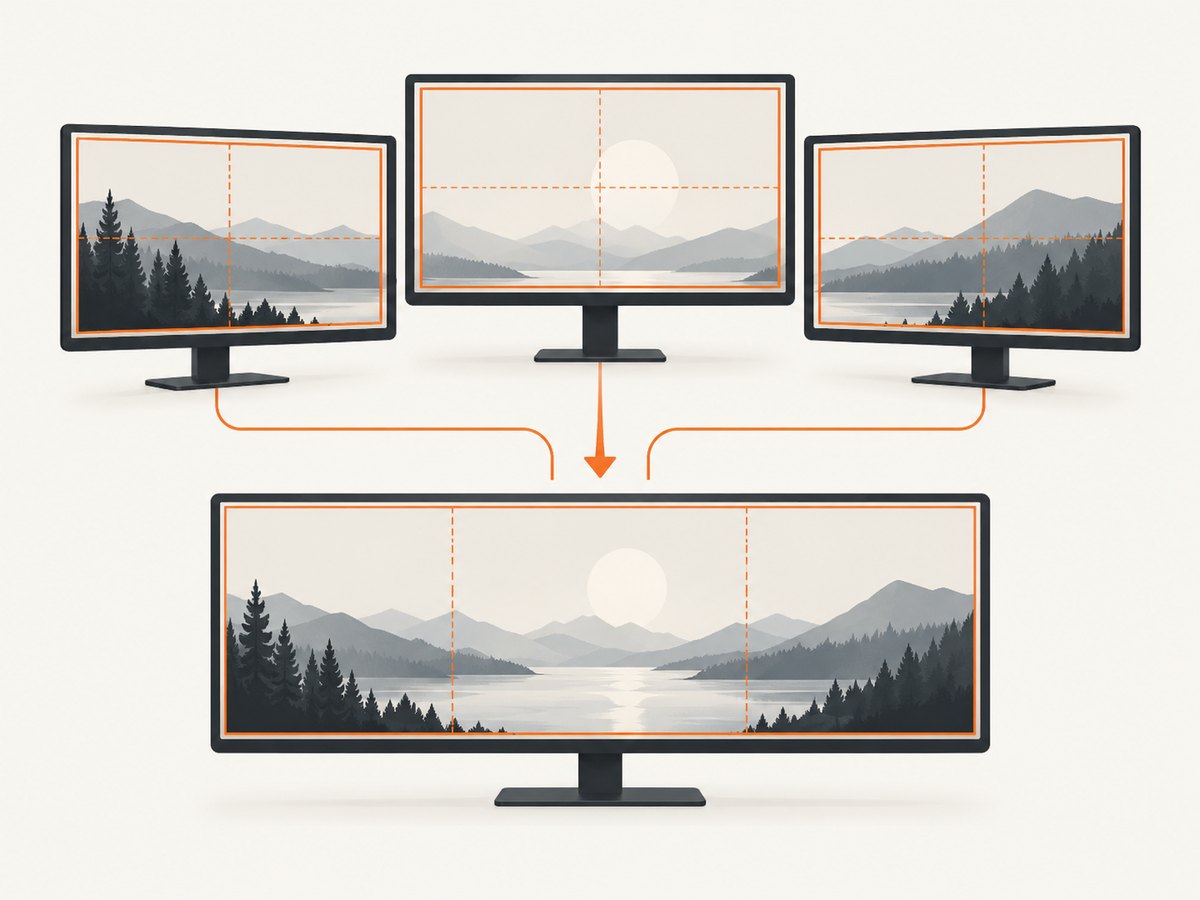
If the requirement is one image containing every attached monitor, capture the union of all device bounds.
import java.awt.GraphicsDevice;
import java.awt.GraphicsEnvironment;
import java.awt.Rectangle;
import java.awt.Robot;
import java.awt.image.BufferedImage;
import javax.imageio.ImageIO;
import java.io.File;

GraphicsDevice[] devices = GraphicsEnvironment
        .getLocalGraphicsEnvironment()
        .getScreenDevices();

Rectangle desktop = new Rectangle();
for (GraphicsDevice device : devices) {
    desktop = desktop.union(device.getDefaultConfiguration().getBounds());
}

Robot robot = new Robot();
BufferedImage image = robot.createScreenCapture(desktop);
ImageIO.write(image, "png", new File("virtual-desktop.png"));
Test this with the actual monitor arrangement and display scaling used in production. Coordinate systems can change when displays are added, removed or reconfigured, so recreate the Robot and bounds after a display configuration change.
4. Connecting the Windows service to the worker
The Java API does not prescribe an IPC mechanism. Select one that fits your deployment, then authenticate both ends and restrict access to the intended account or service identity. Common choices include:
| Pattern | When it fits | Operational points |
|---|---|---|
| Service launches a worker after sign-in | The service owns job scheduling and worker lifecycle | Track the target session ID, restart workers after failure, stop them on sign-out |
| Per-user service | Capture belongs to one signed-in user | Handle each user’s lifecycle separately; do not assume one global desktop |
| Local socket or named-pipe style IPC | Low-latency local commands and image transfer | Apply endpoint ACLs, authenticate requests and limit payload size |
| File handoff | Simple asynchronous workflows | Use a private directory, atomic writes and cleanup; avoid exposing partial files |
A useful request protocol includes a request ID, target session ID, monitor or region, output format, timeout and response path. Return explicit states such as CAPTURED, NO_INTERACTIVE_SESSION, HEADLESS and CAPTURE_FAILED so the service can distinguish a retryable condition from a configuration error.
5. Running the worker at the right time
Starting a worker during system boot does not guarantee that a user desktop exists. Design around these transitions:
- Before sign-in: report that no interactive capture target exists.
- After sign-in: start or attach the worker for that user’s session.
- Locked workstation: decide whether a locked desktop is an acceptable capture target and verify it on the Windows versions you support.
- Remote Desktop disconnect: treat the session state as a deployment-specific condition and log it.
- Sign-out: stop the worker, close IPC handles and discard stale requests.
- Multiple users: choose the intended session explicitly; never assume the first session returned is the correct one.
6. Diagnostics and logging
Log enough context to diagnose session mistakes without recording sensitive screen content in ordinary logs:
- Windows session ID and user identity
- Process ID and worker start time
GraphicsEnvironment.isHeadless()result- Screen-device count, bounds and display configuration
- Capture duration, output dimensions and output format
- Exception class and message
- Service request ID and worker response state
Store images with restrictive permissions, define retention, and avoid placing credentials or personal data in diagnostic filenames.
7. Troubleshooting
| Symptom | Likely cause | Fix |
|---|---|---|
AWTException when constructing Robot |
The process is headless or has no usable display | Run the worker in the active user’s graphical session and check isHeadless(). |
| Black, blank or undefined image | Wrong session, display restriction or platform permission | Verify the session ID and user, then test from the visible desktop. Log the returned image dimensions and inspect a real capture. |
| Capture works manually but not as a service | The service runs in isolated Session 0 | Move Robot code into a worker launched in the interactive session. |
| Only one monitor appears | The default device was selected | Enumerate devices or capture the union of all monitor bounds. |
| Wrong monitor or offset image | Negative coordinates or changed monitor arrangement | Use each device’s reported Rectangle; recreate device and bounds after reconfiguration. |
| Intermittent failures after sign-out | The worker retained stale handles or requests | Stop the worker on sign-out, reject requests for inactive sessions and start a fresh worker after sign-in. |
| Multiple logged-in users captured incorrectly | No explicit target session | Include a session ID in the request and enforce a policy for selecting the target user. |
SecurityException |
Platform policy denies screen access | Review account policy and permissions, then test under the exact production identity. |
8. Performance, reliability and cost considerations
- Reuse carefully: Reusing a
Robotcan avoid setup overhead, but recreate it when display devices or coordinate systems change. - Limit capture area: Capturing one monitor or region uses less memory than the entire virtual desktop.
- Choose format deliberately: PNG preserves exact pixels but can produce large files; select another format only when its quality and encoding behavior meet your requirement.
- Bound work: Apply request timeouts, one request ID per capture and a queue limit so a slow consumer cannot exhaust worker memory.
- Retry selectively: Retry worker startup or transient IPC failures. Do not blindly retry a missing interactive session or a denied permission.
- Validate deployment: Test sign-in, lock, unlock, disconnect, reconnect, sign-out, multiple monitors and every Windows account type you support.
Java-side capture has no API charge, but your service still pays in CPU, memory, disk and IPC bandwidth. Measure image dimensions and encoded size in your own deployment rather than assuming one fixed cost.
9. Or skip the browser setup
If your actual goal is a URL screenshot rather than the pixels currently displayed on a Windows desktop, ScreenshotNeo provides a one-request screenshot API and an MCP server. Cookie and consent banners are accepted and removed before capture, along with more than 60 known consent platforms, newsletter popups and chat widgets. Bot checks, blank pages, failed loads and cache hits are not billed, and response headers identify the page verdict and billing status. Its MCP server lets Claude, Cursor and other MCP clients call take_screenshot, get_page_info and capture_pdf.
See the ScreenshotNeo API documentation for options such as full-page capture, element selectors, device presets, custom headers, cookies, JavaScript, waiting rules, blocking rules, caching, signed links, asynchronous jobs and bulk capture.
cURL
curl -G "https://api.screenshotneo.com/v1/shot" -d access_key=YOUR_API_KEY --data-urlencode url=https://stripe.com -o shot.webpPython
import requests
r = requests.get("https://api.screenshotneo.com/v1/shot", params={"access_key": "YOUR_API_KEY", "url": "https://stripe.com"}, timeout=90)
open("shot.webp", "wb").write(r.content)
Node.js
const q = new URLSearchParams({ access_key: 'YOUR_API_KEY', url: 'https://stripe.com' });
const res = await fetch(`https://api.screenshotneo.com/v1/shot?${q}`);
There is a free plan with 1,000 screenshots per month and no card. Paid plans start at $5 for 3,000 shots. Create a free ScreenshotNeo account.
10. FAQ
Can a Java Windows service use Robot directly?
It can construct the API in some environments, but a conventional service in Session 0 should not be expected to capture the signed-in user’s desktop. Put capture in an interactive worker.
Does the worker need administrator rights?
Use the least-privileged account that can access the intended desktop and IPC endpoint. The required account and policy depend on your deployment; validate them on the target machines.
Can I capture a browser window instead of the whole screen?
Robot captures a screen rectangle. To target a window, obtain its bounds through a Windows-specific integration, then capture that rectangle while the window is visible.
What happens when no user is signed in?
Return an explicit no-interactive-session result. Queueing or skipping the request is safer than attempting capture from Session 0.
Is URL capture the same as desktop capture?
No. Robot captures pixels in a Windows session. ScreenshotNeo renders a URL remotely and returns an image or PDF, so it does not require a desktop session on your machine.


