JavaScript Math Engine Fingerprint Test
Learn what a JavaScript Math engine fingerprint test measures, what its results can and cannot show, and how to capture a reproducible browser test.
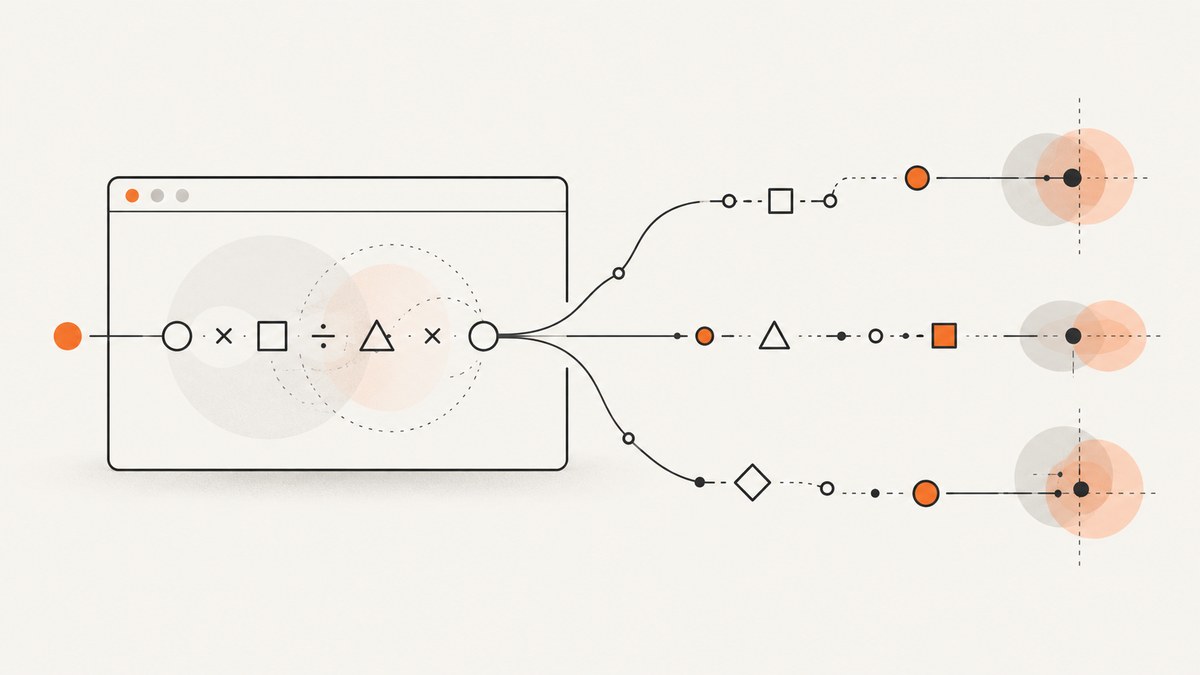
A JavaScript Math engine fingerprint test runs calculations near floating-point edge cases and compares the results. Small differences can be a clue about the browser’s JavaScript implementation or underlying platform. They are only one possible browser signal: one result does not identify a person, establish a unique browser, or prove which engine caused the difference.
This guide explains how to interpret the test, how to inspect Math behavior yourself, and how to capture a browser page for a reproducible comparison. It also covers the limits of the available evidence: the test publisher’s entropy claim has not been independently established by the sources reviewed here.
1. What the test measures
The page titled “Math Engine Fingerprint Test” describes its test as checking JavaScript Math precision to detect possible differences among browser engines. It names V8, SpiderMonkey, and JavaScriptCore as examples and refers to floating-point edge cases. The inspected page did not disclose enough implementation detail to verify exactly which expressions it currently runs or how it maps outputs to engines.
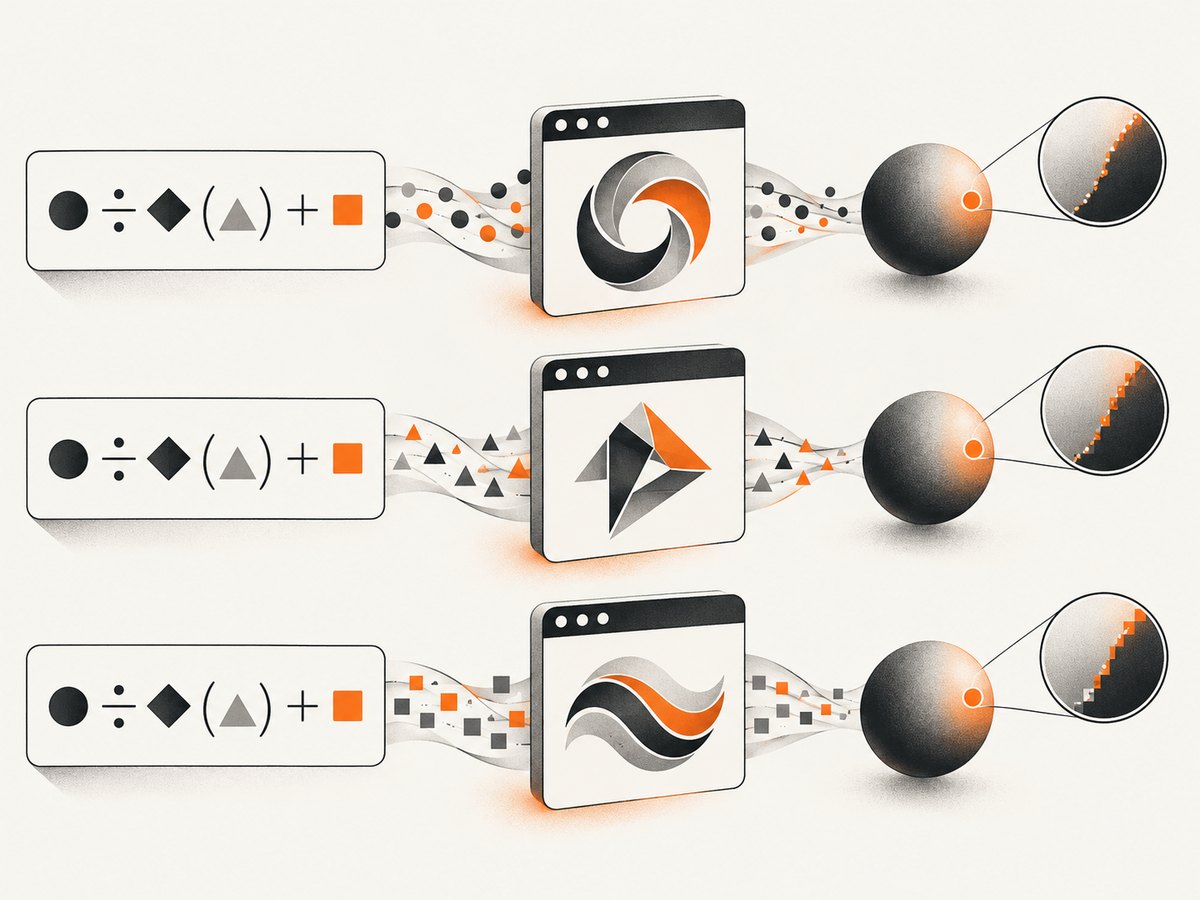
JavaScript numbers generally use IEEE 754 double-precision floating-point representation. Many familiar Math operations cannot be represented with perfect real-number precision, and the ECMAScript specification permits implementation latitude in how many mathematical functions are approximated. That latitude helps explain why a carefully chosen expression may produce slightly different low-order bits across implementations, platforms, or versions. It does not mean ordinary arithmetic is arbitrary, or that every Math function differs between browsers. BrowserLeaks’ JavaScript security research discusses this general mechanism and examples of functions where implementation differences may appear; it does not confirm the current test’s exact expression set.
A simplified illustration is comparing the encoded result of a function rather than printing a rounded decimal. Two values can look identical when formatted for a page yet differ in their least significant bits. Conversely, repeated results can match across several engines. A match does not show that the browsers are identical.
2. What a result can and cannot tell you
A Math result can be treated as a candidate signal: an observation about browser behavior that might help distinguish some browser configurations in some circumstances. Browser fingerprinting usually combines multiple attributes. EFF’s Cover Your Tracks explanation describes signals such as user-agent information, screen characteristics, fonts, platform, language, and canvas or WebGL hashes.
| Observation | Careful interpretation |
|---|---|
| A Math output differs between two runs | The observed environments produced different values. Check version, operating system, runtime, and test conditions before attributing a cause. |
| A Math output matches | This expression did not distinguish those runs. Other expressions or browser attributes may still differ. |
| A page labels an output with an engine | That is the page’s interpretation. Without its method and validation data, treat it as a hypothesis rather than proof. |
| A page reports entropy | Ask what population, sample, and combined attributes the number describes. Do not transfer a study’s figure to a different test. |
The test publisher states that this method yields “4–6 bits of entropy” and is difficult to prevent. The inspected page provided no method, dataset, or independent validation for those statements. Treat them as publisher claims, not an established measurement of this test.
For historical context, Peter Eckersley’s PETS 2010 paper states, “We observe that the distribution of our fingerprint contains at least 18.1 bits of entropy.” That figure describes the distribution of the study’s combined browser fingerprints, not JavaScript Math results or this test. It is a historical result from that study and sample, not a current population-wide measurement. Read Eckersley’s paper.
A separate 2011 study by Mowery, Bogenreif, Yilek, and Shacham examined JavaScript execution characteristics among 1,015 participants, including information related to browser version, operating system, and microarchitecture. Its primary technique used JavaScript performance characteristics; it should not be conflated with a Math precision test. Read the study.
3. Inspect Math behavior in your own browser
For a controlled comparison, run the same expressions in each browser and record the browser version, operating system, runtime context, and exact output. The following snippet is a small demonstration, not a clone of the named test and not a validated engine classifier. It prints each result with enough digits to inspect the represented number, along with its raw 64-bit encoding where the browser supports the necessary APIs.
const cases = [
  ["sin(1)", () => Math.sin(1)],
  ["cos(1)", () => Math.cos(1)],
  ["tan(1)", () => Math.tan(1)],
  ["acos(0.5)", () => Math.acos(0.5)],
  ["expm1(1)", () => Math.expm1(1)],
  ["sinh(1)", () => Math.sinh(1)],
];

function bitsOf(value) {
  const buffer = new ArrayBuffer(8);
  const view = new DataView(buffer);
  view.setFloat64(0, value, false);
  return view.getBigUint64(0, false).toString(16).padStart(16, "0");
}

const report = cases.map(([name, calculate]) => {
  const value = calculate();
  return { name, value: value.toPrecision(17), bits: bitsOf(value) };
});

console.table(report);
console.log({
  userAgent: navigator.userAgent,
  platform: navigator.platform,
  language: navigator.language,
  timezone: Intl.DateTimeFormat().resolvedOptions().timeZone
});
Open a page you control, paste this into the developer console, and save the output. In another browser, repeat it under comparable conditions. The selected functions are examples of Math operations discussed in security research; they are not evidence of what the third-party page runs.
Make comparisons reproducible
- Record browser name and full version, operating system and version, and whether the run is in a normal tab, private window, automation session, or embedded webview.
- Use the same code and avoid changing the expressions, formatting, or browser flags between runs.
- Repeat a run after a full page reload. Check for extensions, privacy protections, emulation, or browser settings that might alter the environment.
- Compare hexadecimal bit patterns as well as decimal output. A display rounded to fewer digits can conceal a small difference.
- Keep the raw observations. Do not convert a small sample into an engine label unless you have a documented method and independently validated reference data.
4. Capture the test page for a repeatable record
A screenshot preserves what the page displayed at one moment; it does not capture the underlying JavaScript values, prove how the page reached its conclusion, or replace saving console output. For a useful record, save the screenshot together with your test code, output, timestamp, browser version, and operating system.

Capture with Playwright
This runnable Node.js example opens a page, waits for the document to load, then saves a full-page screenshot. Install Playwright and its browser first with npm install playwright and npx playwright install chromium. Substitute the exact test URL you want to document.
// save as capture.mjs; run with: node capture.mjs
import { chromium } from "playwright";

const url = "https://example.com/"; // replace with the test page URL
const browser = await chromium.launch({ headless: true });
const page = await browser.newPage({ viewport: { width: 1440, height: 1000 } });
try {
  await page.goto(url, { waitUntil: "domcontentloaded", timeout: 60000 });
  await page.screenshot({ path: "math-test.png", fullPage: true });
  console.log("Saved math-test.png");
} finally {
  await browser.close();
}
For a test that renders results after additional work, wait for a stable result selector or a short, measured delay before capturing. A screenshot taken while the page still says “computing…” documents an incomplete display, not a completed test. The inspected text for the named test showed “computing…” in its results area, so this research did not run or validate its output.
Capture with cURL, Python, or Node.js
These ScreenshotNeo examples capture a URL through a hosted browser screenshot API. Replace the target URL with the page you are documenting and keep your access key private. The API returns an image response for this request; consult the ScreenshotNeo API documentation for current request parameters and response details.
curl -G "https://api.screenshotneo.com/v1/shot" \
  -d access_key=YOUR_API_KEY \
  --data-urlencode url=https://example.com/ \
  -o math-test.webp
import requests
r = requests.get(
"https://api.screenshotneo.com/v1/shot",
params={"access_key": "YOUR_API_KEY", "url": "https://example.com/"},
timeout=90,
)
r.raise_for_status()
open("math-test.webp", "wb").write(r.content)const q = new URLSearchParams({
access_key: "YOUR_API_KEY",
url: "https://example.com/",
});
const res = await fetch(`https://api.screenshotneo.com/v1/shot?${q}`);
if (!res.ok) throw new Error(`Screenshot request failed: ${res.status}`);
const bytes = new Uint8Array(await res.arrayBuffer());
await (await import("node:fs/promises")).writeFile("math-test.webp", bytes);A remote screenshot shows the page as seen by ScreenshotNeo’s capture browser. It is not a screenshot of your local browser session and cannot establish that the local and remote environments share an engine, operating system, extensions, or settings. For comparisons, label each capture with its environment and retain the local console output separately.
5. Or skip the browser setup
ScreenshotNeo is a website screenshot API and MCP server for developers. One GET request captures a URL as PNG, JPEG, WebP, or PDF. For a page capture, the request is:
curl -G "https://api.screenshotneo.com/v1/shot" \
  -d access_key=YOUR_API_KEY \
  --data-urlencode url=https://example.com/ \
  -o math-test.webp
Cookie banners, newsletter popups, and chat widgets are removed before the shot; each cleanup step can be turned off. Bot checks and CAPTCHAs, blank pages, timeouts, failed loads, and cache hits are not billed, and the response identifies page verdict and billing status in headers. An MCP server gives AI agents tools to take screenshots, get page information, and capture PDFs. The free plan includes 1,000 shots a month with no card; paid plans start at $5 for 3,000 shots. See the API docs for request options, and sign up for 1,000 free screenshots a month with no card.
6. Options for a useful capture
Choose capture settings to make the visual record consistent. ScreenshotNeo supports full-page capture with lazy images loaded, CSS-selector element capture, dark mode, 12 device presets or a custom viewport, and retina scale. It can also produce PDFs with paper size, margins, landscape orientation, and page ranges. For a test page that depends on a visible result, selector waits or network-idle waits can help avoid capturing too early; avoid relying on network idle if the page continuously polls.
| Need | Relevant capability | Use carefully |
|---|---|---|
| Keep the capture focused | Element capture by CSS selector or hide selectors | Record what was hidden so the screenshot remains interpretable. |
| Wait for a test to finish | Wait for a selector, a delay, or network idle | Prefer a result selector when the page offers one; fixed delays can be too short or waste time. |
| Match a device presentation | Device preset, viewport, retina scale, and dark mode | Keep viewport and scale identical across captures. |
| Reproduce a gated page | Custom headers, cookies, user agent, and Authorization | Credentials and session cookies are sensitive; do not expose them in public URLs or logs. |
| Reduce unnecessary loading | Block ads, trackers, requests, or resource types | Blocking scripts or resources may change the page under observation. |
Other available options include custom CSS and JavaScript, clicking an element before capture, timezone and geolocation, transparent background, image resizing, configurable cache TTL, signed links for public image tags, asynchronous jobs with signed webhooks, bulk capture of up to 100 URLs per call, a usage API, and an OpenAPI specification. ScreenshotNeo accepts parameter names used by other screenshot APIs to ease migration. These options can help automate visual records; they do not turn screenshots into validated fingerprint measurements.
7. Privacy, reliability, performance, and cost
Privacy
Fingerprinting defenses can reduce exposure but are not a guarantee that Math variation or all tracking is prevented. EFF describes Tor Browser, tracker-blocking tools, and NoScript as measures with tradeoffs. Browser hardening, script blocking, or standardizing browser configuration may affect compatibility and may change what a page can run. The available research did not establish whether the named test stores or transmits results; check the current page and its privacy disclosures before submitting sensitive information.
For your own research, collect only what you need, avoid attaching identifying account information to test records, and document whether a run was local or remotely captured. A hosted screenshot request sends the target URL to the screenshot service for capture; do not include secrets in a URL.
Reliability and performance
Browser rendering depends on network response, page scripts, third-party resources, and timing. A screenshot is a point-in-time visual record, so use a deliberate readiness condition, consistent viewport, and repeat captures when timing matters. Full-page shots and lazy-image loading can take longer than a viewport capture. Blocking trackers or other resources may speed capture, but can also alter page behavior. Cache settings improve reuse when a visual record need not be fresh; use an appropriate TTL and disable or bypass caching when a fresh comparison is essential.
For larger batches, use asynchronous jobs and signed webhooks or bulk capture rather than launching an uncontrolled number of simultaneous browser sessions. Record failures separately from valid page results. ScreenshotNeo’s page-verdict and billing headers can help distinguish clean captures from bot checks, blank pages, and failed loads; inspect them as part of operational logging.
Cost
ScreenshotNeo pricing is Free: 1,000 shots per month; Starter: $5 for 3,000; Growth: $15 for 15,000; Pro: $39 for 60,000; Scale: $99 for 250,000; Business: $249 for 1,000,000. Yearly billing gives two months free, and every feature is available on every plan. A local Playwright run has no per-capture ScreenshotNeo charge, but you operate the browser, compute, and maintenance yourself. Compare total cost with the volume, concurrency, and reliability you need rather than treating a single screenshot price as the whole cost.
8. Troubleshooting
| Symptom | Likely cause | What to do |
|---|---|---|
| Results remain at “computing…” | The page has not completed, a script failed, or its result depends on browser conditions. | Wait for a documented completion indicator, inspect the console and network errors, and retry in a supported browser. Do not treat the pending state as a result. |
| Decimal values look identical | Display formatting rounded away low-order differences. | Compare full-precision output or the hexadecimal bit representation. |
| Results differ between runs on one machine | Browser update, runtime context, extension, settings, page timing, or a changed test implementation. | Record exact versions and settings, reload, repeat, and compare the same expressions locally. |
| Automation screenshot is blank or incomplete | Navigation ended before rendering, scripts are still running, or automation was blocked. | Wait for DOM content and then for a meaningful result selector; inspect console/network errors and use a headed browser to diagnose challenges. |
| Playwright reports missing browser | Package installed without its browser binary. | Run npx playwright install chromium in the project environment. |
| Screenshot API request returns an error | Invalid key, inaccessible target, timeout, or request parameter issue. | Check the key and URL, increase the client timeout where appropriate, inspect response status and headers, and consult the API docs. |
| Screenshot differs from local page | Remote capture has a different browser environment, viewport, region, session, or page timing. | Set matching dimensions and relevant headers/cookies where appropriate; label the remote environment and do not infer local engine behavior from it. |
| Capture never reaches network idle | The page polls or holds long-lived network connections. | Wait for a specific result selector or use a bounded delay instead of network idle. |
9. Frequently asked questions
Can JavaScript Math results identify my browser?
They may contribute a behavioral clue, but a Math result alone does not reliably identify a browser or a person. Browser and device fingerprinting generally draws on multiple attributes, and the named test’s method and validation data were not established in the inspected evidence.
Does one Math test reveal 4–6 bits of entropy?
The publisher claims that range, but the inspected page did not provide a method or dataset that independently establishes it. Do not treat it as a verified measurement.
Are V8, SpiderMonkey, and JavaScriptCore always distinguishable?
No. They are examples named by the test publisher. The evidence does not show that every version or platform yields a unique output, or that an output uniquely identifies an engine.
Does a screenshot preserve the fingerprint result?
It preserves visible pixels. Save console output and environment details separately if you need to compare the underlying numeric values.
How should I compare fingerprint tests?
Check which signals they measure, whether their collection method and validation dataset are published, whether results are a single-signal score or a combined fingerprint, and what they document about local processing, transmission, and retention. Compare entropy figures only when their samples and methods are described.


