BlogScreenshots on your device
How to Capture a JOGL GLCanvas Screenshot in a JFrame
Capture a JOGL GLCanvas reliably from its OpenGL context, save it as PNG, and avoid the black or gray frames caused by JFrame.printAll().
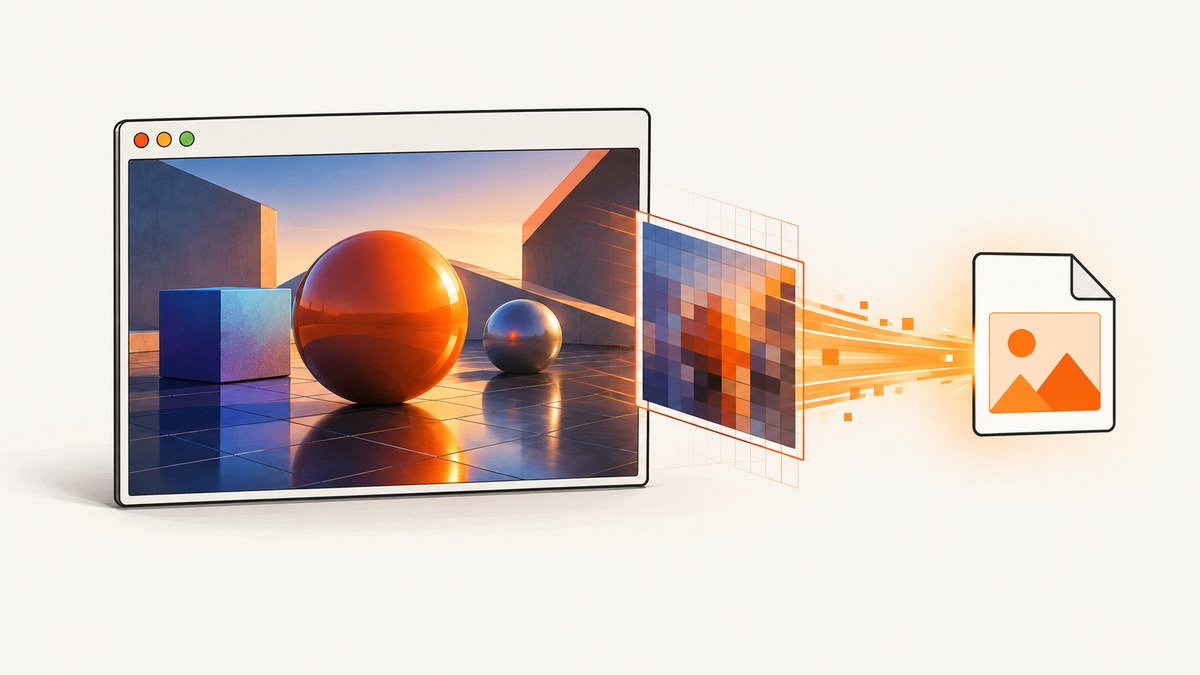
Read the framebuffer from the JOGL rendering callback after drawing the scene. Do not use JFrame.printAll() for a heavyweight GLCanvas: Swing painting can capture the surrounding components while leaving the native OpenGL surface gray or black.
The reliable sequence is:
- Render the frame in
display(GLAutoDrawable drawable). - Keep the drawable’s OpenGL context current and select the framebuffer that contains the finished pixels.
- Call
glReadPixels, or use JOGL’sAWTGLReadBufferUtil. - Flip the rows vertically because OpenGL’s origin is at the lower left.
- Write the resulting
BufferedImagewithImageIO.
Why JFrame.printAll() misses a GLCanvas
GLCanvas is a heavyweight AWT Canvas backed by a native OpenGL surface. JFrame.printAll() invokes normal AWT/Swing painting; it does not necessarily copy the pixels already rendered by the native surface. The result is often a correct Swing frame with a gray, empty, or black rectangle where the canvas should be.
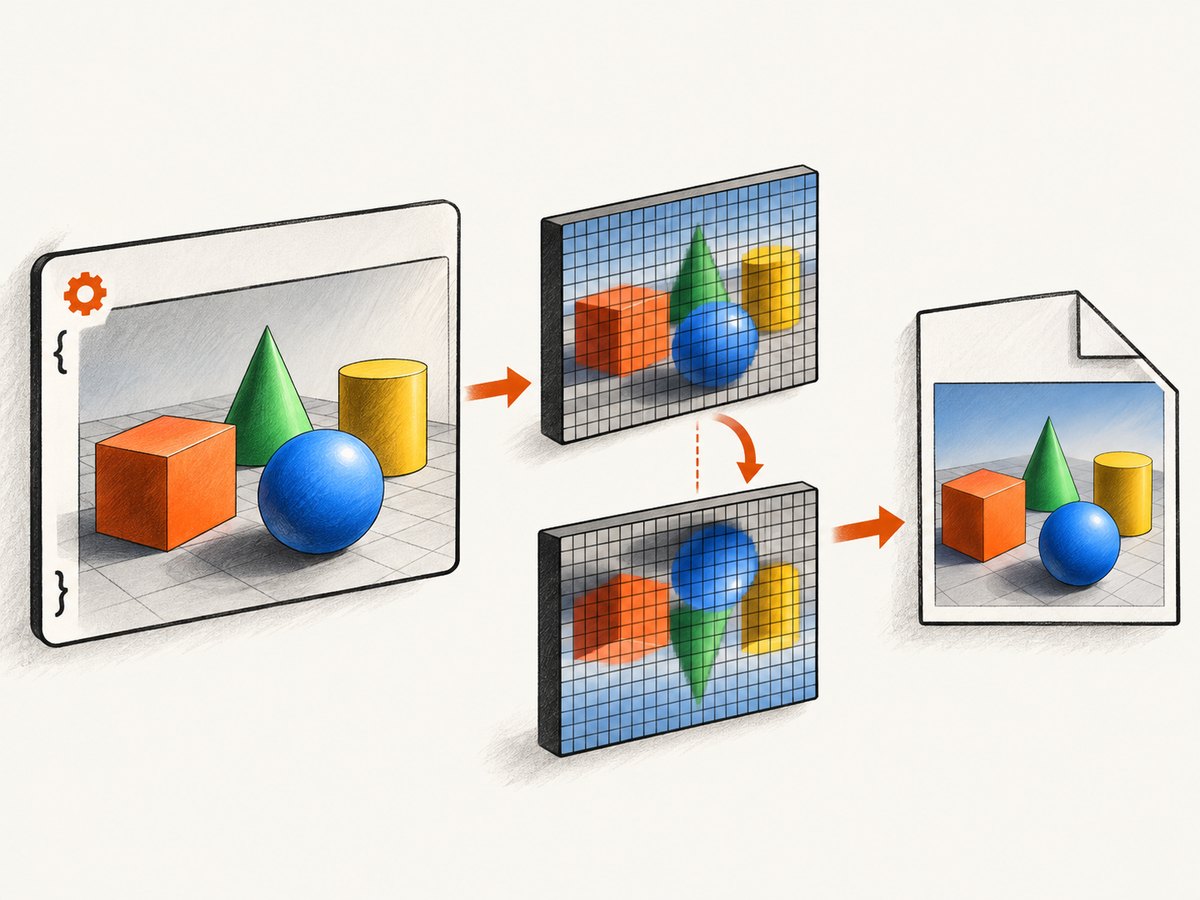
If the application must participate in lightweight Swing painting, consider GLJPanel. It is Swing-compatible, but screenshot capture still belongs in the JOGL callback and still requires the correct OpenGL context and read buffer.
Recommended approach: AWTGLReadBufferUtil
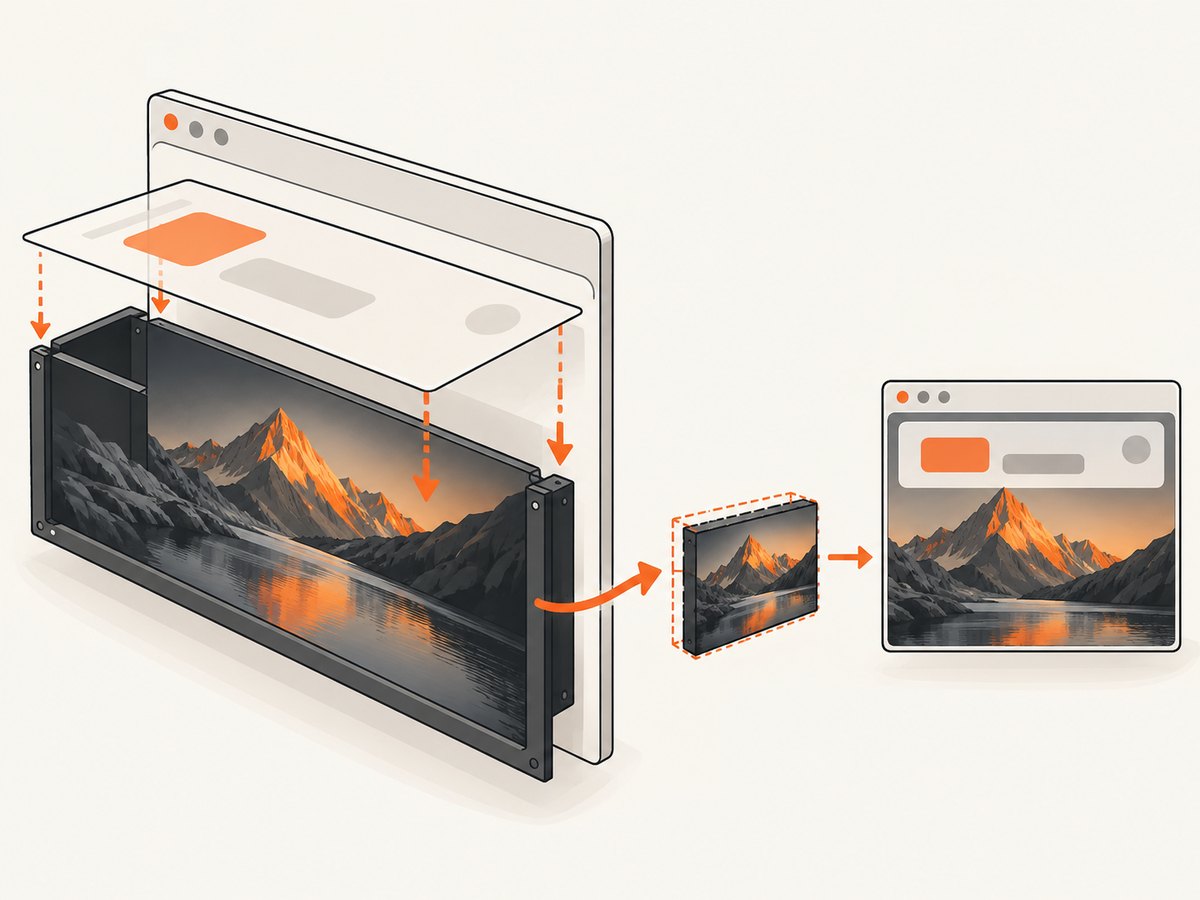
JOGL supplies com.jogamp.opengl.util.awt.AWTGLReadBufferUtil to copy the current OpenGL pixels into a BufferedImage. The second argument to readPixelsToBufferedImage requests AWT orientation, which handles the OpenGL bottom-left origin.
import com.jogamp.opengl.*;
import com.jogamp.opengl.util.awt.AWTGLReadBufferUtil;

import javax.imageio.ImageIO;
import java.awt.image.BufferedImage;
import java.io.File;
import java.io.IOException;

public final class ScreenshotGLEventListener implements GLEventListener {
    private final File outputFile;
    private AWTGLReadBufferUtil reader;

    public ScreenshotGLEventListener(File outputFile) {
        this.outputFile = outputFile;
    }

    @Override
    public void init(GLAutoDrawable drawable) {
        reader = new AWTGLReadBufferUtil(drawable.getGLProfile(), false);
    }

    @Override
    public void display(GLAutoDrawable drawable) {
        GL gl = drawable.getGL();

        renderScene(gl); // Draw the complete scene first.

        // For a normal double-buffered default framebuffer, read the buffer
        // that contains the pixels you intend to save.
        gl.glReadBuffer(GL.GL_BACK);

        BufferedImage image = reader.readPixelsToBufferedImage(gl, true);
        try {
            ImageIO.write(image, "png", outputFile);
        } catch (IOException e) {
            throw new RuntimeException("Could not write screenshot", e);
        }
    }

    private void renderScene(GL gl) {
        // Your OpenGL draw calls go here.
    }

    @Override public void dispose(GLAutoDrawable drawable) { }
    @Override public void reshape(GLAutoDrawable drawable, int x, int y, int width, int height) { }
}
Use the GL interface available in your profile. Reacquire it with drawable.getGL() inside each callback rather than retaining a GL object across callbacks. Attach the listener to the canvas and trigger a display when a capture is needed:
GLProfile profile = GLProfile.get(GLProfile.GL2);
GLCapabilities capabilities = new GLCapabilities(profile);
GLCanvas canvas = new GLCanvas(capabilities);
canvas.addGLEventListener(new ScreenshotGLEventListener(new File("frame.png")));

JFrame frame = new JFrame("JOGL");
frame.setDefaultCloseOperation(WindowConstants.EXIT_ON_CLOSE);
frame.add(canvas);
frame.setSize(1024, 768);
frame.setLocationByPlatform(true);
frame.setVisible(true);

// Schedules rendering on JOGL's rendering path.
canvas.display();
Manual glReadPixels conversion
Manual readback is useful when you need a specific pixel format, custom processing, or explicit control over row alignment. Allocate a direct buffer large enough for four bytes per pixel, read RGBA bytes, and write each source row to the opposite destination row.
import com.jogamp.opengl.GL;
import com.jogamp.opengl.GLAutoDrawable;
import com.jogamp.opengl.GLEventListener;
import com.jogamp.opengl.util.GLBuffers;

import javax.imageio.ImageIO;
import java.awt.image.BufferedImage;
import java.io.File;

public final class ManualCaptureListener implements GLEventListener {
    private final File output;

    public ManualCaptureListener(File output) {
        this.output = output;
    }

    @Override
    public void display(GLAutoDrawable drawable) {
        GL gl = drawable.getGL();
        renderScene(gl);

        int width = drawable.getSurfaceWidth();
        int height = drawable.getSurfaceHeight();
        java.nio.ByteBuffer pixels = GLBuffers.newDirectByteBuffer(width * height * 4);

        gl.glReadBuffer(GL.GL_BACK);
        gl.glPixelStorei(GL.GL_PACK_ALIGNMENT, 1);
        gl.glReadPixels(0, 0, width, height,
                GL.GL_RGBA, GL.GL_UNSIGNED_BYTE, pixels);

        BufferedImage image = new BufferedImage(
                width, height, BufferedImage.TYPE_INT_RGB);
        pixels.rewind();
        for (int y = 0; y < height; y++) {
            for (int x = 0; x < width; x++) {
                int r = pixels.get() & 0xff;
                int g = pixels.get() & 0xff;
                int b = pixels.get() & 0xff;
                pixels.get(); // alpha
                image.setRGB(x, height - 1 - y,
                        (r << 16) | (g << 8) | b);
            }
        }

        try {
            ImageIO.write(image, "png", output);
        } catch (java.io.IOException e) {
            throw new RuntimeException(e);
        }
    }

    private void renderScene(GL gl) { }
    @Override public void init(GLAutoDrawable drawable) { }
    @Override public void dispose(GLAutoDrawable drawable) { }
    @Override public void reshape(GLAutoDrawable drawable, int x, int y, int w, int h) { }
}
Pixel-store alignment
Set GL_PACK_ALIGNMENT before reading. The default alignment is four bytes, which can cause unexpected row padding when the row width and format do not align. Setting it to 1 is the safest choice for tightly packed RGBA data. Restore the previous state if other code depends on a different pixel-store setting.
Capture timing and thread rules
- Capture after rendering: place readback after all scene draw calls for the frame.
- Use the rendering callback:
glReadPixelsrequires the drawable’s current context. An AWT event handler may run without that context current. - Request, then capture: if a button click asks for a screenshot, set a flag or enqueue a request; consume it during the next
displaycallback. - Use the drawable dimensions:
getSurfaceWidth()andgetSurfaceHeight()account for the actual drawable size and high-DPI scaling.
public final class CaptureRequest implements GLEventListener {
    private volatile boolean captureRequested;
    private final File output;

    public CaptureRequest(File output) { this.output = output; }

    public void request() { captureRequested = true; }

    @Override
    public void display(GLAutoDrawable drawable) {
        GL gl = drawable.getGL();
        renderScene(gl);
        if (!captureRequested) return;

        captureRequested = false;
        gl.glReadBuffer(GL.GL_BACK);
        AWTGLReadBufferUtil util =
                new AWTGLReadBufferUtil(drawable.getGLProfile(), false);
        BufferedImage image = util.readPixelsToBufferedImage(gl, true);
        try {
            ImageIO.write(image, "png", output);
        } catch (IOException e) {
            throw new RuntimeException(e);
        }
    }

    private void renderScene(GL gl) { }
    @Override public void init(GLAutoDrawable d) { }
    @Override public void dispose(GLAutoDrawable d) { }
    @Override public void reshape(GLAutoDrawable d, int x, int y, int w, int h) { }
}
Choosing the correct read buffer
For a normal double-buffered default framebuffer, read the buffer containing the completed frame, commonly GL_BACK before the swap. The exact choice depends on when your application swaps buffers and whether the front buffer is the one you want.
If an FBO is bound, read from its color attachment. Do not force the default framebuffer’s read buffer while an FBO is bound; that combination is invalid. Bind the intended FBO, select its color attachment as required by the profile, and perform readback before unbinding it.
Controlling buffer swaps
When capture must happen before an automatic swap, disable automatic swapping for the controlled sequence:
canvas.setAutoSwapBufferMode(false);
try {
    canvas.display(); // render callback reads the back buffer
    // Swap explicitly at the point your render loop requires.
} finally {
    canvas.setAutoSwapBufferMode(true);
}
Only change swap behavior when your render loop needs that control. A mismatched swap sequence can make a correct readback appear one frame behind or empty.
Default framebuffer, FBO, and multisampling cases
| Case | What to read | Typical mistake |
|---|---|---|
Double-buffered GLCanvas |
The completed front or back buffer at the chosen capture point | Reading a buffer before rendering or after it has been replaced |
| Application FBO | The FBO color attachment while that FBO is bound | Selecting the default framebuffer read buffer |
| Multisampled FBO | Resolve/blit into a readable single-sample color buffer first | Calling glReadPixels from a buffer that cannot be read as expected |
| High-DPI display | Surface dimensions, not only logical component dimensions | Allocating an image at the wrong size |
PNG output, alpha, and color format
AWTGLReadBufferUtil can create an appropriate BufferedImage for the selected read format. For manual conversion, choose TYPE_INT_RGB when alpha is not needed or TYPE_INT_ARGB when the alpha byte should be preserved. The default framebuffer may contain an opaque background even when your scene uses blending.
PNG is lossless and convenient for diagnostics. JPEG is smaller for photographic content but discards alpha and introduces compression artifacts. If the image is intended for later processing, keep the native pixel dimensions and avoid resizing during capture.
Performance and reliability
- Readback can stall the GPU:
glReadPixelssynchronizes pending rendering with the CPU. Capture only when needed instead of every display callback. - Reuse resources: keep one
AWTGLReadBufferUtilper listener and reuse direct buffers when implementing frequent manual captures. - Keep disk I/O off the render path: copy pixels during the callback, then hand the
BufferedImageto a worker thread for PNG encoding and file writing. - Capture at a stable size: wait until the drawable has a nonzero surface size after showing or resizing the window.
- Handle context recreation: recreate GL-dependent helpers in
initif the drawable’s context is destroyed and initialized again. - Check the OpenGL error state: inspect errors after framebuffer setup and readback when diagnosing invalid operations.
Troubleshooting
| Symptom | Cause | Fix |
|---|---|---|
Gray or black GLCanvas in printAll() |
Native heavyweight surface is not painted by Swing’s print path | Read the framebuffer in display, or use GLJPanel when Swing composition is required. |
| Entire image is black | Read occurred before drawing, or no valid context was current | Move capture after rendering inside the JOGL callback. |
| Image contains an old frame | Wrong buffer or swap timing | Choose the buffer containing the finished pixels and control automatic swapping if necessary. |
| Image is upside down | OpenGL’s origin is bottom-left | Pass true for AWT orientation or write to height - 1 - y. |
| Rows are corrupted for some widths | Pack alignment adds padding | Set GL_PACK_ALIGNMENT to 1 for tightly packed RGBA data. |
GL_INVALID_OPERATION with an FBO |
Default read buffer selected while an FBO is bound | Bind the intended FBO and read its color attachment. |
IllegalArgumentException or zero-size image |
Capture ran while the surface was not initialized or was minimized | Wait for a nonzero getSurfaceWidth()/getSurfaceHeight() and retry on the next display. |
| Screenshot request freezes the UI | Large readback and PNG encoding occur on the event thread | Request from the UI, read in the GL callback, and encode/write on a worker. |
Or skip the browser setup
If the real requirement is obtaining clean screenshots of web pages rather than capturing this desktop OpenGL surface, ScreenshotNeo provides a single HTTP endpoint. Cookie banners, newsletter popups, and chat widgets are removed before the shot. Bot checks, blank pages, timeouts, failed loads, and cache hits are not billed, and response headers identify the page verdict and billing status. Its MCP server lets Claude, Cursor, and other MCP clients take screenshots. The free plan includes 1,000 screenshots per month with no card; paid plans start at $5 for 3,000 screenshots.
See the ScreenshotNeo API documentation for all capture options.
curl -G "https://api.screenshotneo.com/v1/shot" -d access_key=YOUR_API_KEY --data-urlencode url=https://stripe.com -o shot.webpimport requests
r = requests.get("https://api.screenshotneo.com/v1/shot", params={"access_key": "YOUR_API_KEY", "url": "https://stripe.com"}, timeout=90)
open("shot.webp", "wb").write(r.content)const q = new URLSearchParams({ access_key: 'YOUR_API_KEY', url: 'https://stripe.com' });
const res = await fetch(`https://api.screenshotneo.com/v1/shot?${q}`);Create a free ScreenshotNeo account to get 1,000 screenshots each month with no card.
FAQ
Can I capture without making the GLCanvas visible?
Framebuffer readback does not require a desktop screenshot or AWT Robot. The drawable still needs a valid OpenGL context and a rendered frame.
Should I use GLCanvas or GLJPanel?
Use GLCanvas for the primary heavyweight AWT OpenGL path. Choose GLJPanel when lightweight Swing composition is more important.
Why is the screenshot one frame behind?
The selected read buffer may contain the previous frame because the swap happened before readback. Capture at a defined point in the render sequence and select the buffer that contains that frame.
Can I save formats other than PNG?
Yes. Pass another format name supported by ImageIO, while remembering that JPEG does not preserve transparency.


