BlogScreenshots on your device
Keyboard Shortcuts for Full-Page Screenshots in Popular Browsers
Find the verified full-page screenshot shortcuts for Firefox and Edge, the Chrome DevTools workflow, and what Safari officially supports.
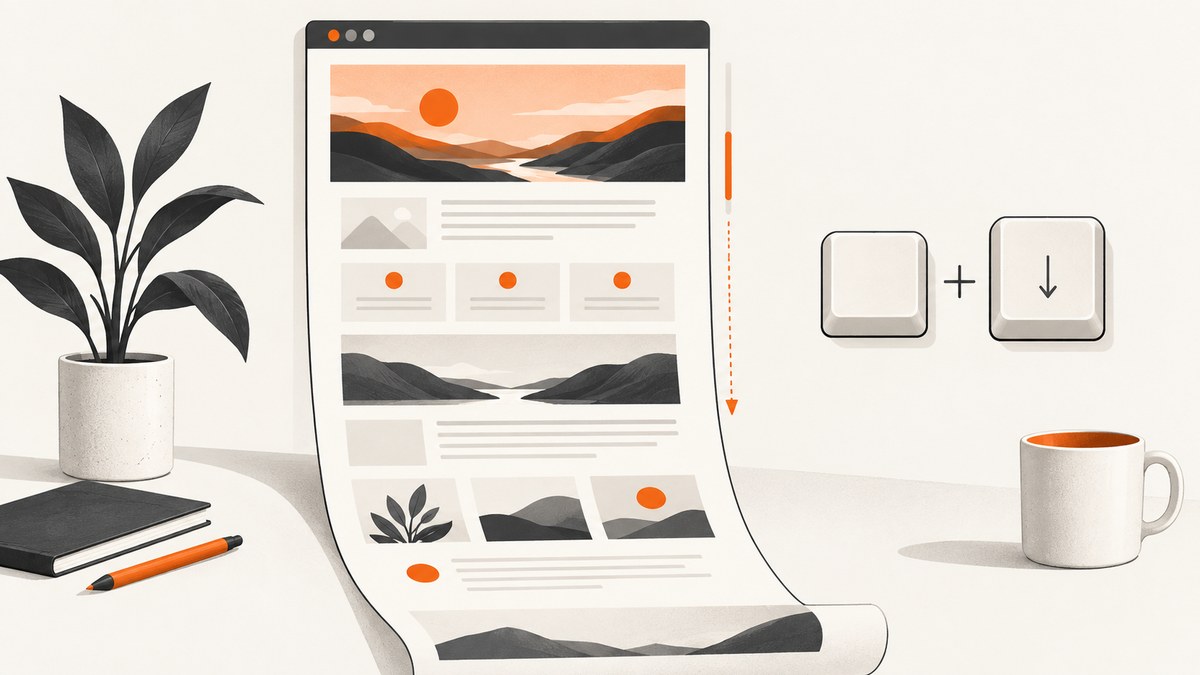
Short answer: Firefox and Microsoft Edge have direct full-page screenshot shortcuts. On Windows and Linux, press Ctrl + Shift + S. On macOS, Firefox uses Command + Shift + S. Chrome uses a DevTools workflow opened with Ctrl/Command + Shift + P; the exact full-page command label can vary by Chrome release. Apple’s current Safari documentation reviewed here does not verify a built-in full-page screenshot shortcut.
Shortcut cheat sheet
| Browser | Windows/Linux | macOS | What happens next |
|---|---|---|---|
| Firefox | Ctrl + Shift + S | Command + Shift + S | Choose Save full page, then download or copy. |
| Microsoft Edge | Ctrl + Shift + S | Use the Screenshot command or menu; verify the shortcut in your build. | Choose Capture full page, then copy or save. |
| Chrome | Ctrl + Shift + P | Command + Shift + P | Use the DevTools Command Menu and select the available full-page or full-node capture command. |
| Safari on macOS | Not applicable | No verified built-in full-page shortcut in the reviewed Apple documentation | Open Web Inspector only when using a separate, verified workflow. |
Firefox’s shortcut is documented by Mozilla Support. Microsoft documents Edge’s Capture full page action and notes that availability can vary by device, market and browser version. Chrome’s modifier keys are documented in the Chrome DevTools shortcut reference.
Firefox: save an entire webpage
- Open the page and wait until the content you need is present.
- Press Ctrl + Shift + S on Windows/Linux, or Command + Shift + S on macOS.
- In the screenshot toolbar, choose Save full page. Do not choose Save visible if you need content below the viewport.
- Download the image, or copy it to the clipboard. Within the screenshot interface, Ctrl/Command + S saves and Ctrl/Command + C copies.
You can also right-click an empty area of the page and select Take Screenshot. The shortcut opens the same tool.
Firefox edge cases
- Lazy-loaded images may not appear if they load only after scrolling. Wait for the page to finish loading, and check the resulting image.
- Sticky headers can repeat down a long capture because the page is rendered as one tall image.
- Very long pages can produce large files. Use an image editor or a compression step after saving if you need a smaller asset.
Microsoft Edge: capture full page
- Open the webpage.
- Press Ctrl + Shift + S, or open Screenshot from the Settings menu or the page context menu.
- Select Capture full page.
- Use the markup tools if needed, then copy or save the capture.
Microsoft states that Screenshot availability and functionality can differ by device type, market and browser version. If the shortcut does nothing, open the browser menu and search for Screenshot instead.
Edge edge cases
- Enterprise policies or an older Edge build can hide Screenshot.
- Pages with animated content may capture at a different animation frame each time.
- Cross-origin embedded frames may be rendered differently from the surrounding page.
Chrome: use the DevTools Command Menu
Chrome does not have a dedicated browser-level full-page screenshot shortcut established by the official sources reviewed. The supported entry point is DevTools:
- Open DevTools with F12, Ctrl + Shift + I on Windows/Linux, or Command + Option + I on macOS.
- Open the Command Menu with Ctrl + Shift + P on Windows/Linux, or Command + Shift + P on macOS.
- Type
screenshotand inspect the commands offered by your installed Chrome version. - Choose the command that captures the full page or the selected node beyond the viewport. Chrome has supported full-node capture, but the exact current command label should be confirmed in your release.
- Save the generated PNG.
For a page element rather than the whole document, inspect the element in the Elements panel and use the available node screenshot command. This is useful for a report, chart or article body that should exclude navigation.
Chrome troubleshooting
- No screenshot command appears: keep DevTools focused, reopen the Command Menu and search again. Command names change across releases.
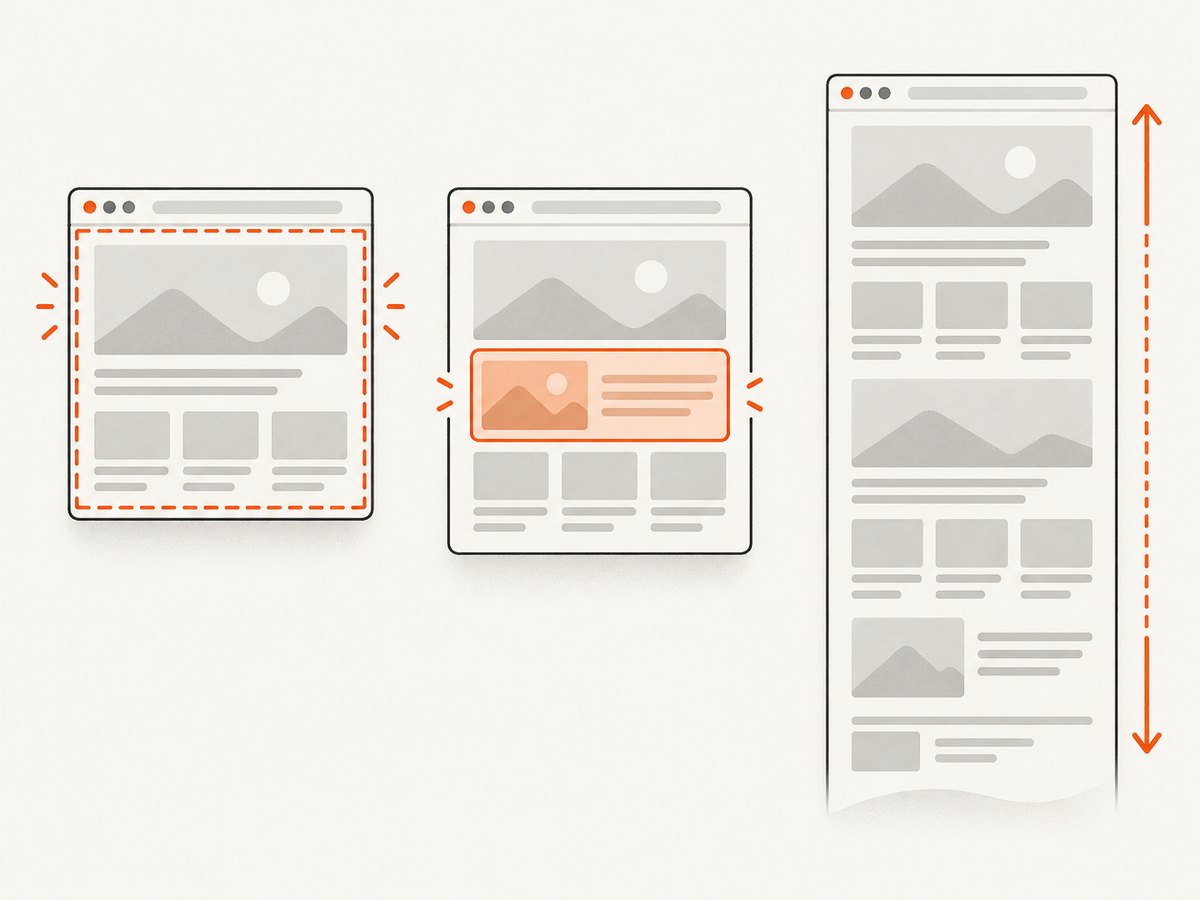
- The result is only the viewport: choose a full-page or full-node command rather than an area capture.
- Images are missing: scroll through the page once or wait for network requests and lazy content to finish before capturing.
Safari on macOS: what is verified
Apple’s documentation reviewed for this guide explains how to enable Safari developer features and open Web Inspector with Option + Command + I. It does not establish a dedicated full-page screenshot keyboard shortcut or a verified full-page command in Web Inspector. Do not rely on a shortcut copied from an older blog post without checking your exact Safari and macOS versions.
To inspect the available developer tools, open Safari Settings, go to Advanced, enable the Develop menu, then open Develop and choose Show Web Inspector. A separate, version-specific capture method may be available, but verify it before documenting it for a team.
Which browser is easiest?
| Need | Best documented path | Reason |
|---|---|---|
| One keyboard shortcut and an explicit full-page choice | Firefox | Shortcut and Save full page are clearly documented for Windows/Linux and macOS. |
| One shortcut on Windows/Linux | Edge | Ctrl + Shift + S opens Screenshot, followed by Capture full page. |
| Capture a specific DOM node | Chrome | DevTools supports node capture beyond the viewport; confirm the command label in your build. |
| Safari-only workflow | Safari with version-specific verification | The reviewed Apple pages do not verify a full-page shortcut. |
Quality, performance and reliability checklist
- Wait for fonts, images and client-rendered content before starting the capture.
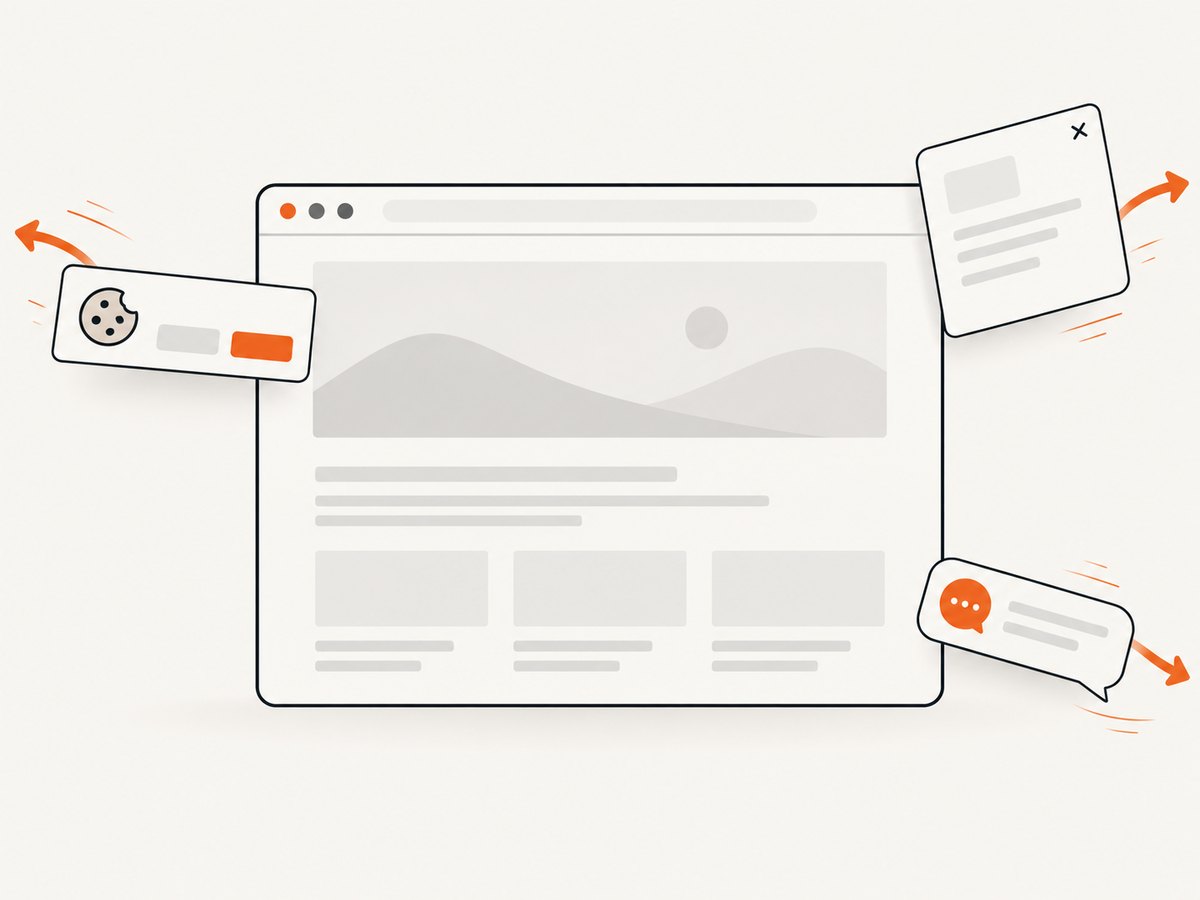
- Disable transient overlays when possible; consent dialogs, chat bubbles and newsletter popups can obscure the page.
- Check the bottom of the image for truncated content, repeated sticky elements or a footer that loaded late.
- For repeatable documentation, use the same browser version, viewport size, zoom level and logged-in state.
- Expect long pages and high-resolution displays to create large PNG files and consume more memory.
- For pages that require authentication, keep credentials in the browser profile and avoid sharing the resulting files publicly.
Common errors and fixes
| Symptom | Likely cause | Fix |
|---|---|---|
| Shortcut has no effect | Focus is in a text field, the browser version differs, or a system shortcut conflicts. | Click the page, use the browser menu, or open DevTools and search its Command Menu. |
| Only visible content is captured | The visible or area mode was selected. | Choose Firefox’s Save full page, Edge’s Capture full page, or Chrome’s full-page/full-node command. |
| Blank or partially loaded sections | Lazy loading, JavaScript rendering or a slow network request. | Wait longer, scroll once to trigger lazy loading, then capture again. |
| Cookie dialog covers the page | The site requires consent before showing content. | Accept or dismiss it before capture, if permitted by your workflow. |
| Capture is too large to share | A long page and lossless PNG produce a large file. | Compress or convert the saved image, or capture only the needed element. |
| Different result each time | Animations, rotating ads or personalized content. | Pause animations where possible and use a consistent session and timing. |
Or skip the browser setup
ScreenshotNeo returns a webpage screenshot or PDF from one GET request. Its capture options cover full-page pages with lazy images, element selectors, dark mode, device presets, custom viewports, retina scale, waits, custom CSS and JavaScript, clicks, hidden selectors, blocked resources, headers, cookies, user agents, authorization, timezone, geolocation, transparent backgrounds, resizing, caching, signed links, asynchronous jobs, webhooks and bulk capture. See the ScreenshotNeo documentation for the complete option list.
curl -G "https://api.screenshotneo.com/v1/shot" -d access_key=YOUR_API_KEY --data-urlencode url=https://stripe.com -o shot.webpimport requests
r = requests.get("https://api.screenshotneo.com/v1/shot", params={"access_key": "YOUR_API_KEY", "url": "https://stripe.com"}, timeout=90)
open("shot.webp", "wb").write(r.content)const q = new URLSearchParams({ access_key: 'YOUR_API_KEY', url: 'https://stripe.com' });
const res = await fetch(`https://api.screenshotneo.com/v1/shot?${q}`);Cookie banners, popups and chat widgets are removed before the shot. Bot checks, blank pages and failed loads are never billed, and response headers identify the page verdict and whether it was billed. An MCP server lets AI agents take screenshots. The Free plan includes 1,000 screenshots a month with no card; paid plans start at $5 for 3,000 shots. Create a free ScreenshotNeo account.
FAQ
Can I capture a whole webpage without scrolling?
Yes. Firefox and Edge provide explicit full-page actions. Chrome can capture a full page or full node through DevTools; Safari requires version-specific verification.
Is Ctrl + Shift + S the full-page shortcut everywhere?
It opens Firefox’s screenshot tool and Edge’s Screenshot feature on Windows/Linux, but you still must choose the full-page option. It is not a universal shortcut.
Why does Chrome use Command Menu instead of a direct shortcut?
Chrome’s documented shortcut opens DevTools’ Command Menu. The available screenshot command and wording depend on the installed release.
What file format do browser captures use?
The built-in workflows described here save images, commonly PNG. If you need a PDF or a controlled output format, use a capture service that supports it.
Can a shortcut capture content behind a login?
Yes, when the browser session is already authenticated and the page can render that content. Keep the resulting file private if it contains account data.


