Latest Version of Puppeteer (v25.12.0): What Changed and How to Update
Puppeteer v25.12.0 is the latest release. Learn what changed, how to update safely, choose puppeteer vs puppeteer-core, and fix Chrome install errors.
The latest Puppeteer release is v25.12.0, published on September 23, 2026. It rolls Puppeteer to Chrome 154.0.8037.57. The matching puppeteer-core release is also v25.12.0, and @puppeteer/browsers is v3.2.3. Confirm the official releases page before publishing or pinning a production build because Puppeteer releases frequently.
What changed in Puppeteer v25.12.0?
The main puppeteer package release highlights a browser roll to Chrome 154.0.8037.57 and updates its puppeteer-core dependency from 25.11.0 to 25.12.0. The paired core release also lists temporary-profile cleanup on process exit, releasing the mouse button when drag-and-drop fails, a shadow-root accessibility-node fix, and browser rolls including Firefox 156. These details are recorded in the release notes rather than being a promise that every operating-system and browser combination behaves identically.
| Package | Current release | Use it when |
|---|---|---|
puppeteer |
25.12.0 | You want Puppeteer to install a compatible browser and provide convenient defaults. |
puppeteer-core |
25.12.0 | You connect to a remote browser or manage the browser binary yourself. |
@puppeteer/browsers |
3.2.3 | You need explicit browser installation and management commands. |
The browsers changelog for v3.2.3 updates documentation to mention Linux ARM64 support. Treat that as a documentation note for the browser-management package, not a blanket compatibility guarantee for every Puppeteer, browser, and runtime combination.
How to check the version in your project
Run one of these commands from the project directory:
npm list puppeteer puppeteer-core @puppeteer/browsers
npm view puppeteer version
npx puppeteer --version
The first command reports what is installed locally. The second asks the npm registry for the version currently published there. The third checks the command-line package available through npx. A globally installed package, a lockfile, and a workspace can each produce a different result, so check the package actually used by your application.
How to update Puppeteer safely
- Read the release notes and check your supported Node.js versions and operating systems.
- Update the package and lockfile together:
npm install puppeteer@25.12.0If your application uses the lower-level package:
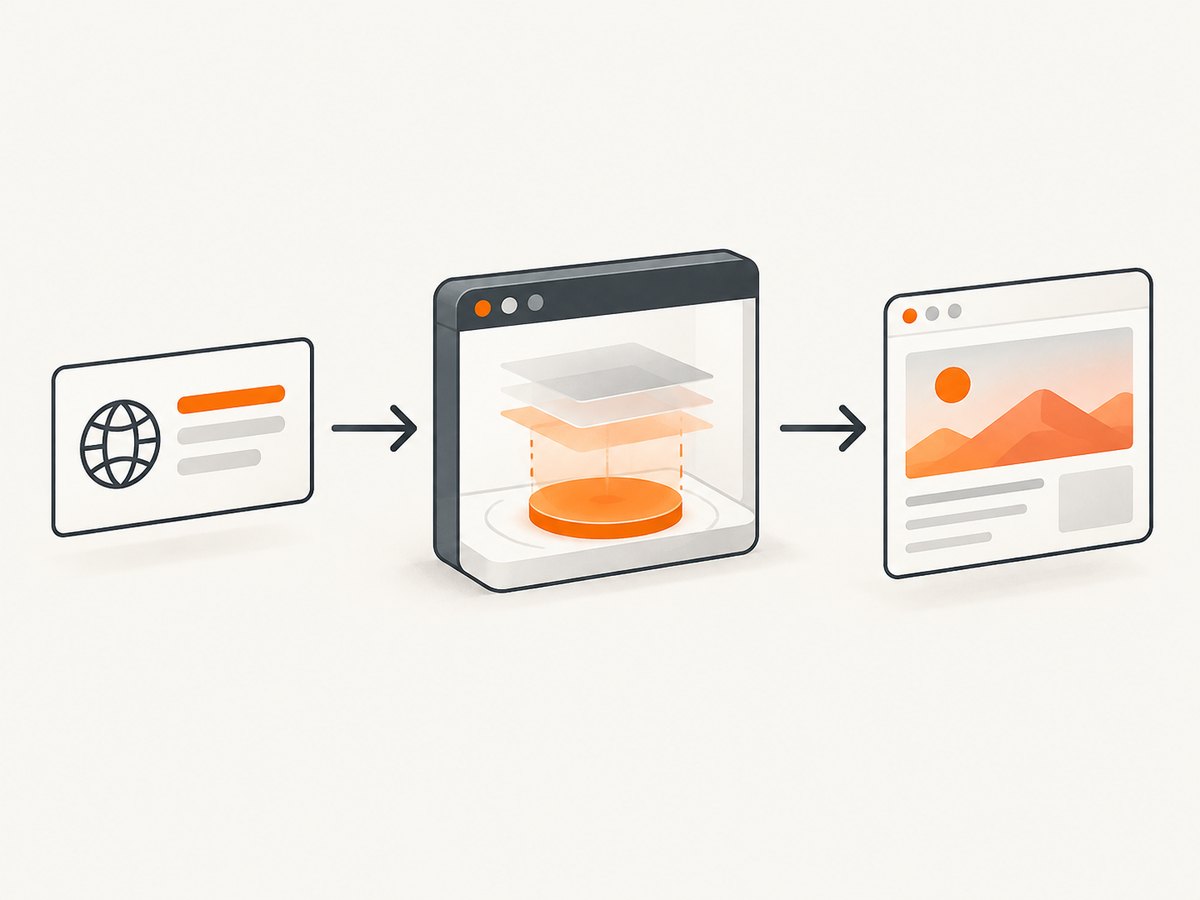
npm install puppeteer-core@25.12.0- Install the browser explicitly if your package manager skipped install scripts:
npx puppeteer browsers install- Run a smoke capture that launches the browser, opens a known page, waits for a stable condition, and closes the browser in a
finallyblock. - Review screenshot or PDF diffs. A browser roll can change fonts, layout, anti-aliasing, and rendering even when your application code is unchanged.
- Commit the lockfile and deploy the same browser-management strategy in every environment.
Updating with npm, pnpm, or Yarn
With npm, use npm install puppeteer@25.12.0. With pnpm, use pnpm add puppeteer@25.12.0. With Yarn, use yarn add puppeteer@25.12.0. If scripts are disabled by policy, these commands may install JavaScript without downloading Chrome. Run npx puppeteer browsers install in a permitted build step, or configure your package manager to allow Puppeteer’s install script according to your security policy.
Complete Node.js example with Puppeteer
Install the high-level package:
npm install puppeteer@25.12.0This runnable script captures a full-page PNG, waits for the page to become usable, and always closes the browser:
const puppeteer = require('puppeteer');

(async () => {
  const browser = await puppeteer.launch({headless: true});
  try {
    const page = await browser.newPage();
    await page.setViewport({width: 1440, height: 900, deviceScaleFactor: 1});
    await page.goto('https://example.com', {waitUntil: 'networkidle2', timeout: 60000});
    await page.screenshot({path: 'example.png', fullPage: true});
  } finally {
    await browser.close();
  }
})();
networkidle2 waits until there are no more than two active network connections. It is useful for many pages, but analytics, advertisements, WebSockets, and long polling can prevent a page from ever becoming quiet. In those cases, use domcontentloaded and then wait for a selector or a bounded delay.
Puppeteer versus puppeteer-core
The official installation guide describes puppeteer as the higher-level package. Installation normally downloads a compatible Chrome for Testing build and chrome-headless-shell, and the package supplies launch defaults that you can customize.
puppeteer-core does not download Chrome. Choose it when your browser is remote, supplied by a container image, installed by your operating system, or managed by another service. You must provide an explicit executablePath or a standard channel when launching a self-managed browser.
| Question | puppeteer |
puppeteer-core |
|---|---|---|
| Downloads a browser during installation? | Normally yes. | No. |
| Best for | Local development and standard CI setup. | Remote or independently managed browsers. |
| Launch configuration | Defaults usually work. | Set executablePath or channel. |
| Install-script sensitivity | A blocked script can cause a missing-browser error. | You are responsible for the browser. |
Using puppeteer-core with a managed executable
const puppeteer = require('puppeteer-core');

(async () => {
  const browser = await puppeteer.launch({
    headless: true,
    executablePath: process.env.CHROME_BIN
  });
  try {
    const page = await browser.newPage();
    await page.goto('https://example.com', {waitUntil: 'domcontentloaded'});
    await page.screenshot({path: 'core.png'});
  } finally {
    await browser.close();
  }
})();
Set CHROME_BIN to the path that exists in your runtime. Do not assume a workstation path such as /Applications/Google Chrome.app exists in Linux CI or a container.
Configuration that affects screenshot correctness
- Viewport: Set width, height, and
deviceScaleFactorexplicitly for repeatable output. - Full page: Use
fullPage: true, but expect very tall pages to consume more memory. - Fonts: Install the fonts your design requires in the runtime. Missing fonts change line wrapping.
- Lazy content: Scroll progressively or wait for the application to render below-the-fold images before capturing.
- Animations: Inject CSS to disable transitions when pixel stability matters.
- Authentication: Set cookies or headers before navigation and keep credentials out of screenshot output and logs.
- Time: Set a fixed timezone when date-sensitive UI is under test.
- Selectors: Wait for a meaningful selector instead of relying only on a fixed sleep.
await page.addStyleTag({content: `*, *::before, *::after {
  animation: none !important;
  transition: none !important;
  caret-color: transparent !important;
}`});
await page.waitForSelector('[data-render-complete]', {timeout: 30000});
Performance and reliability practices
- Reuse a browser process for multiple pages, but create a fresh page per capture so cookies and state do not leak.
- Set navigation and operation timeouts. An unbounded wait can exhaust workers when a third-party request hangs.
- Close pages after each job and browsers on process shutdown.
- Limit concurrency based on available CPU and memory. More parallel pages can reduce throughput when they compete for the same browser process.
- Retry only transient failures, with exponential backoff and a maximum attempt count. Do not blindly retry authentication failures or invalid URLs.
- Record the URL, package version, browser version, viewport, and failure class for reproducibility.
- Use a queue for large batches and apply backpressure instead of starting thousands of browsers at once.
Rendering cost is mostly CPU, memory, page weight, and waiting time. Full-page captures, large device scale factors, video, canvas, and complex client-side applications require more resources. Blocking unnecessary media, trackers, and advertisements can improve consistency, but verify that your page does not depend on a blocked request.
Common errors and fixes
| Error or symptom | Likely cause | Fix |
|---|---|---|
Could not find Chrome |
The install script was blocked, or no browser was installed. | Run npx puppeteer browsers install, permit the install script, or use puppeteer-core with a valid executablePath. |
| Browser exits immediately in Linux | Missing shared libraries, sandbox restrictions, or an incompatible container. | Use a supported base image, install required libraries, and follow your environment’s sandbox policy. Avoid adding flags without understanding their security impact. |
| Navigation timeout | Slow page, never-ending requests, or an unsuitable wait condition. | Raise the timeout within a limit, use domcontentloaded, and wait for a specific selector. |
| Blank or incomplete screenshot | Capture occurred before client rendering or lazy loading finished. | Wait for a render marker, scroll to trigger lazy content, and disable animations. |
| Different output in CI | Different Chrome, fonts, timezone, viewport, or device scale factor. | Pin the package and browser, install fonts, and set all rendering inputs explicitly. |
| Memory growth over many jobs | Pages or browsers are not closed, or concurrency is too high. | Close resources in finally, recycle browsers periodically, and lower concurrency. |
Or skip the browser setup
If your goal is a dependable website image rather than maintaining Chromium workers, ScreenshotNeo provides a GET endpoint that returns PNG, JPEG, WebP, or PDF. See the ScreenshotNeo API documentation for all options.
curl -G 'https://api.screenshotneo.com/v1/shot' -d access_key=YOUR_API_KEY --data-urlencode url=https://stripe.com -o shot.webpimport requests
r = requests.get('https://api.screenshotneo.com/v1/shot', params={'access_key': 'YOUR_API_KEY', 'url': 'https://stripe.com'}, timeout=90)
open('shot.webp', 'wb').write(r.content)const q = new URLSearchParams({ access_key: 'YOUR_API_KEY', url: 'https://stripe.com' });
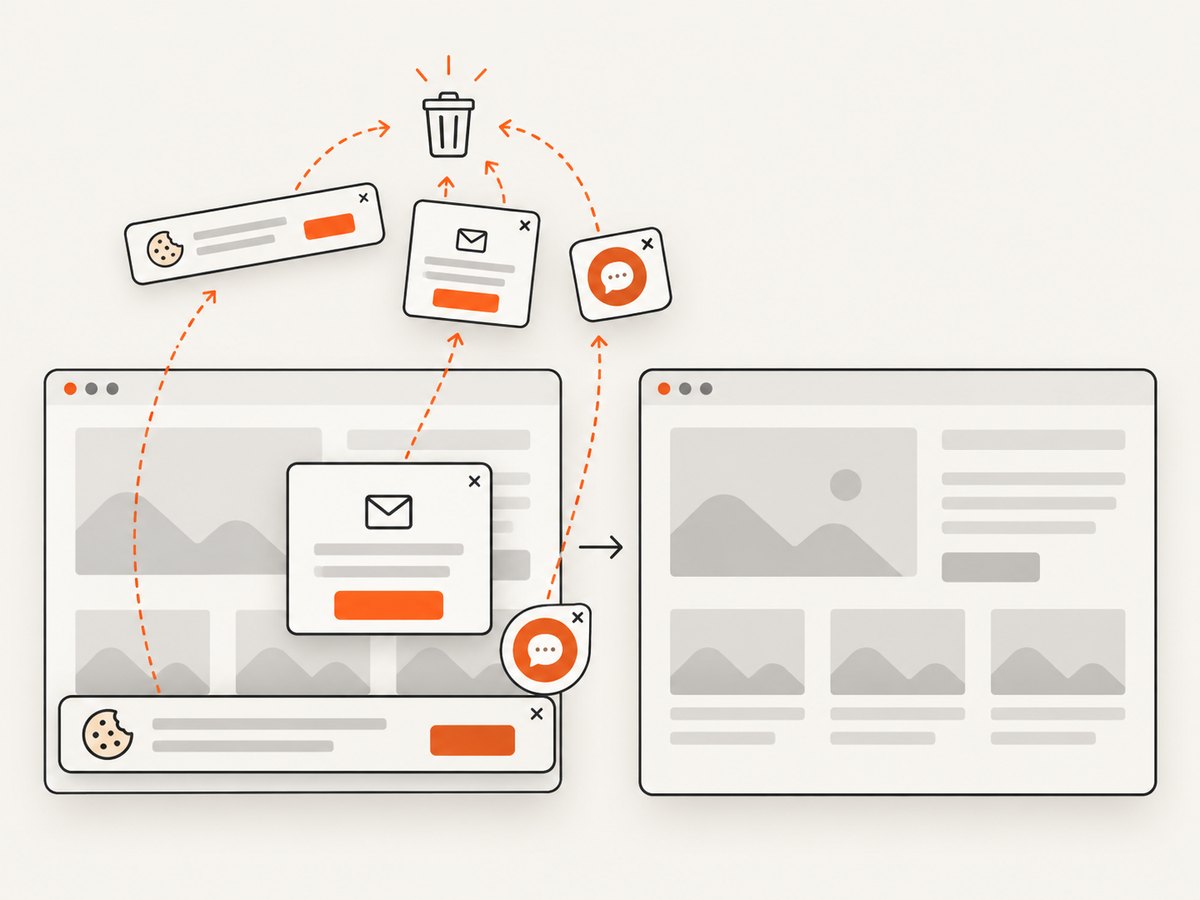
const res = await fetch(`https://api.screenshotneo.com/v1/shot?${q}`);ScreenshotNeo accepts cookie and consent banners like a visitor, then removes more than 60 known consent platforms along with newsletter popups and chat widgets. Each step can be turned off. Bot checks and CAPTCHAs, blank pages, timeouts, failed loads, and cache hits are not billed; response headers identify the page verdict and whether the request was billed. Its MCP server exposes take_screenshot, get_page_info, and capture_pdf for Claude, Cursor, and other MCP clients. The free plan includes 1,000 screenshots each month with no card; paid plans start at $5 for 3,000 shots.
Create a free ScreenshotNeo account and start with 1,000 screenshots per month at no charge.
Cost and versioning guidance
Puppeteer itself is open source, but running it has infrastructure costs: browser binaries, CI minutes, memory, storage, retries, and engineering time for upgrades. Pin a known-good version in production, schedule dependency updates, and keep a small rendering regression set. Upgrade deliberately when you need a browser security roll, a bug fix, or a feature, then review image diffs before broad rollout.
ScreenshotNeo uses a usage plan instead of requiring you to operate browser workers. Current plans are Free (1,000 shots/month), Starter ($5 for 3,000), Growth ($15 for 15,000), Pro ($39 for 60,000), Scale ($99 for 250,000), and Business ($249 for 1,000,000). Yearly billing gives two months free, and every feature is available on every plan.
FAQ
Is v25.12.0 an LTS release?
The release notes identify v25.12.0 and its date, but do not label it as an LTS release. Treat it as the current release and verify future maintenance information from the official project.
Should I upgrade immediately?
Upgrade when you can run your screenshot regression checks and confirm the new browser output is acceptable. Pin the version if reproducibility matters.
Can I use Puppeteer with a remote browser?
Yes. puppeteer-core is intended for remote or independently managed browsers; configure the connection or executable required by that browser service.
Why did npm install finish without downloading Chrome?
Your package manager may have disabled lifecycle scripts. Install the browser with npx puppeteer browsers install or enable the script under your organization’s package policy.
Does the latest Puppeteer release guarantee identical screenshots?
No. Browser rolls, fonts, operating-system libraries, and page timing can change pixels. Control those inputs and compare representative outputs after upgrades.


